Agencies
A workspace per company
Keep each company's members, projects and plan apart, and switch between them from one sign-in.

Features
All 38 featuresSee the work while it happens.
 DashboardYour team's week at a glance, Monday to Sunday
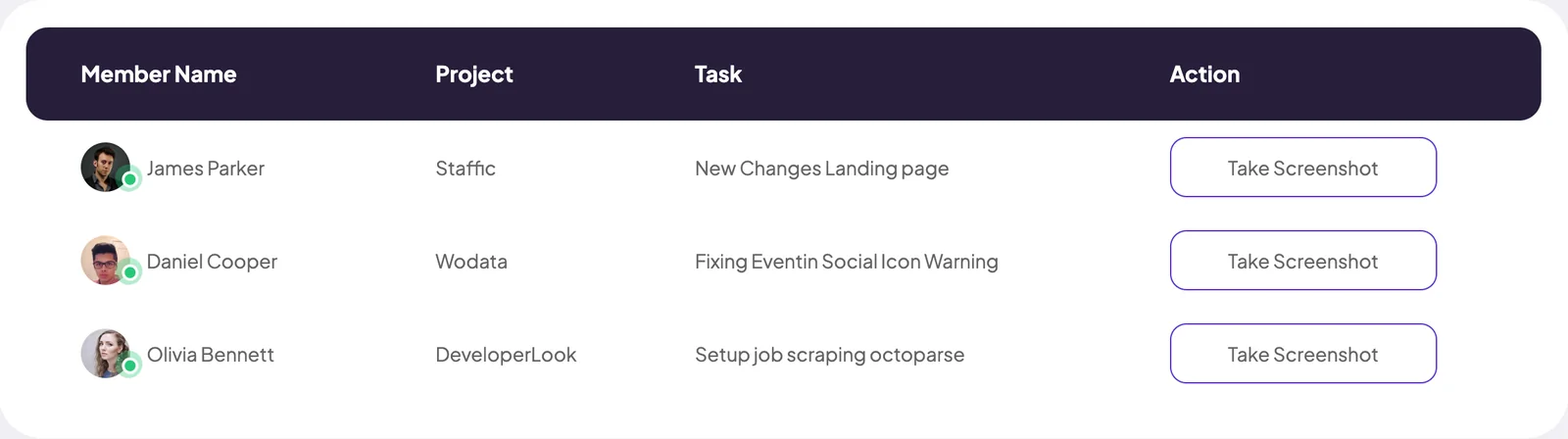
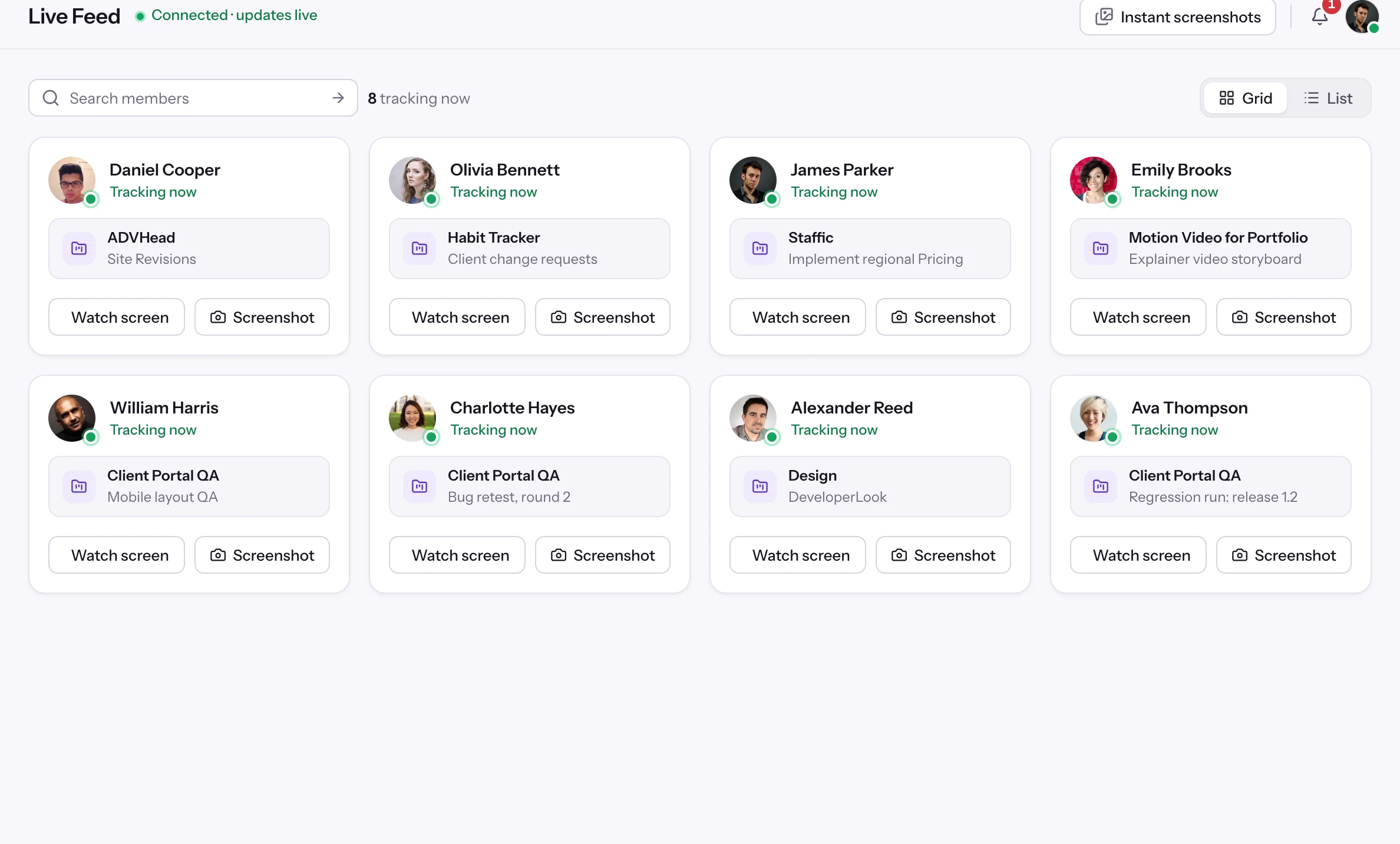
 Live FeedSee who's tracking time right now, and on what
 ScreenshotsVisual proof of work, captured automatically
 AppsWhich apps each tracked session used
 URLsThe websites behind the tracked time
 Screen RecordingsEliteFull session video, beyond a screenshot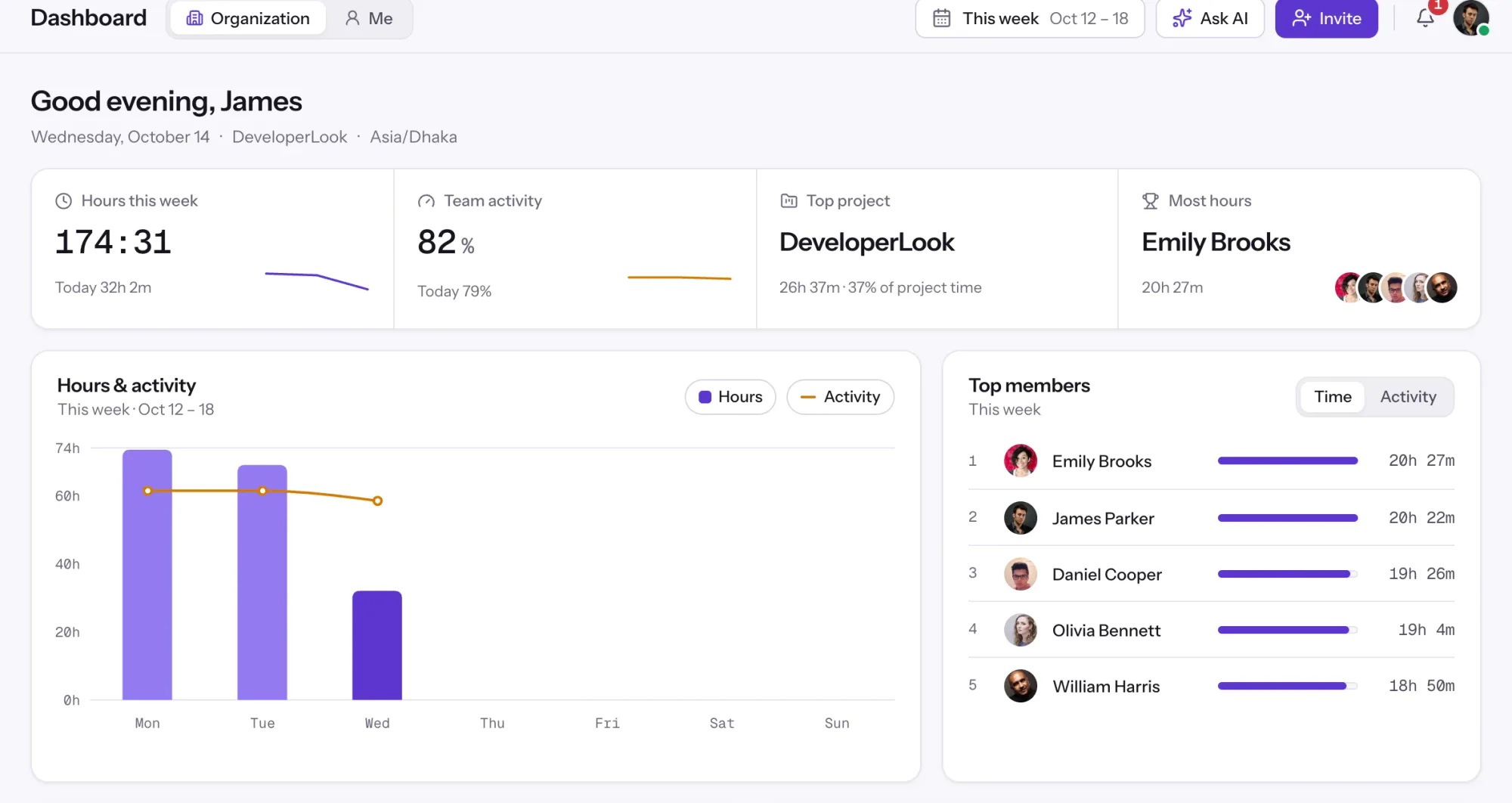
01 / 38
Dashboard
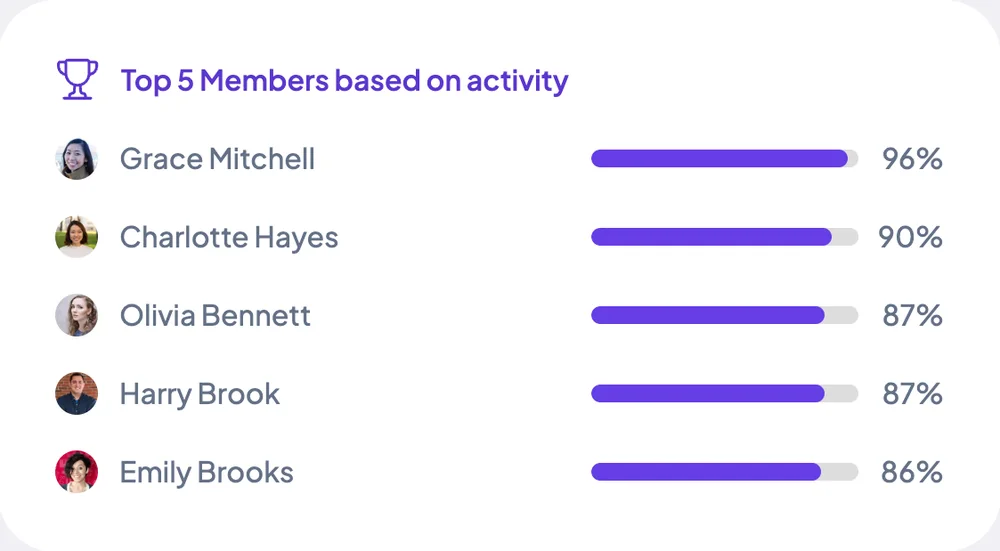
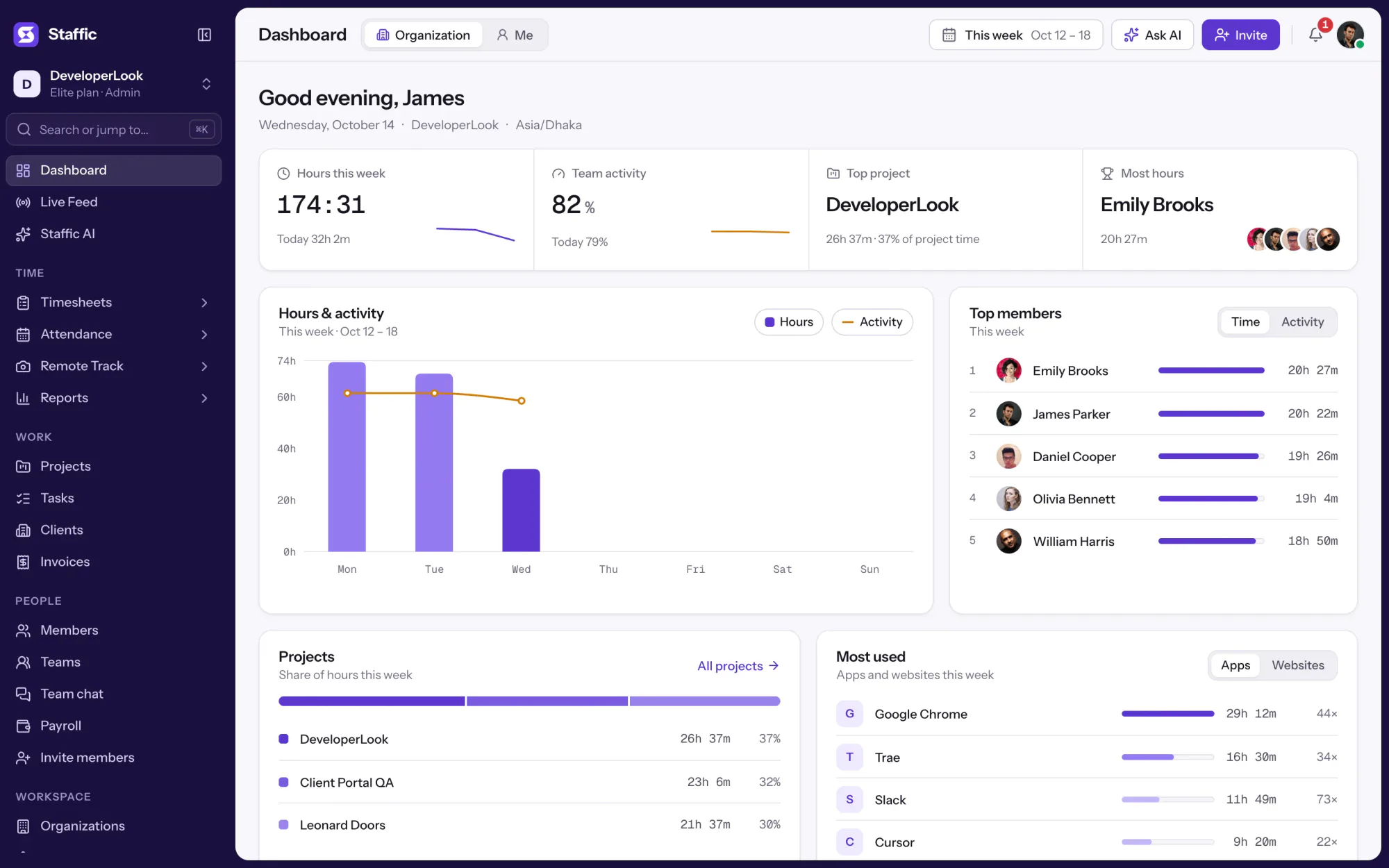
The team dashboard: this week's hours, team activity, top members, ongoing tasks, top projects and the most used apps and websites.
View DashboardSolutions
All 38 featuresHow remote, hybrid and growing teams run Staffic.
Staffic for the way you work, from freelancing to client billing.
 FreelancersFreelance time tracking
 Small businessesTimekeeping software for small business
 Call centersCall center monitoring software
 ConsultantsTime tracking software for consultants
 Companies with contractorsContractor time tracking
 Virtual assistantsTime tracking software for virtual assistants
 AgenciesAgency time tracking software
 Accounting firmsTime tracking software for accountants
 Software teamsTime tracking software for engineers
Staffic set up for your industry's records and reports.
01 / 19
Track remote hours across every time zone.
Staffic records time, activity and optional screenshots on each remote member’s computer, then turns them into timesheets you approve, so you can trust the hours without daily check-ins.
View Remote teamsOrganization
Each organization in Staffic is its own workspace, with its own members, projects, settings and plan. Set its address, timezone, currency and organization code, then switch between organizations from your profile menu. Admins add, edit, archive or delete them.
1/4Click Organizations
In short
Staffic Organizations is where one account runs more than one company or workspace. Each organization keeps its own members, teams, projects, settings and plan, with its own address, timezone, currency and organization code. You add one in two steps, general details and then its plan, and switch between them from the profile menu without signing out.
How it works
One account, separate workspaces.
Organizations
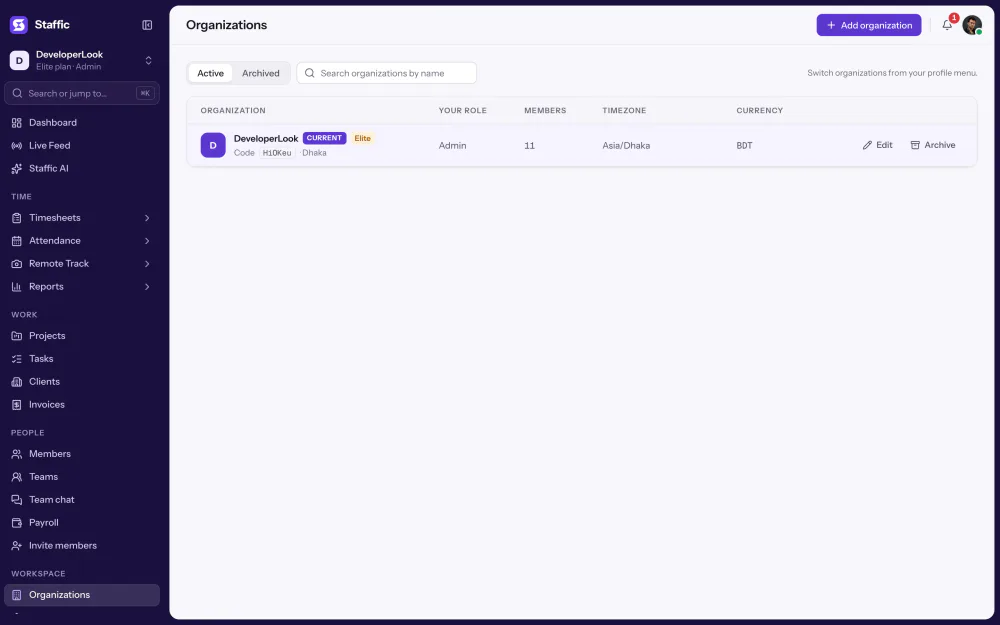
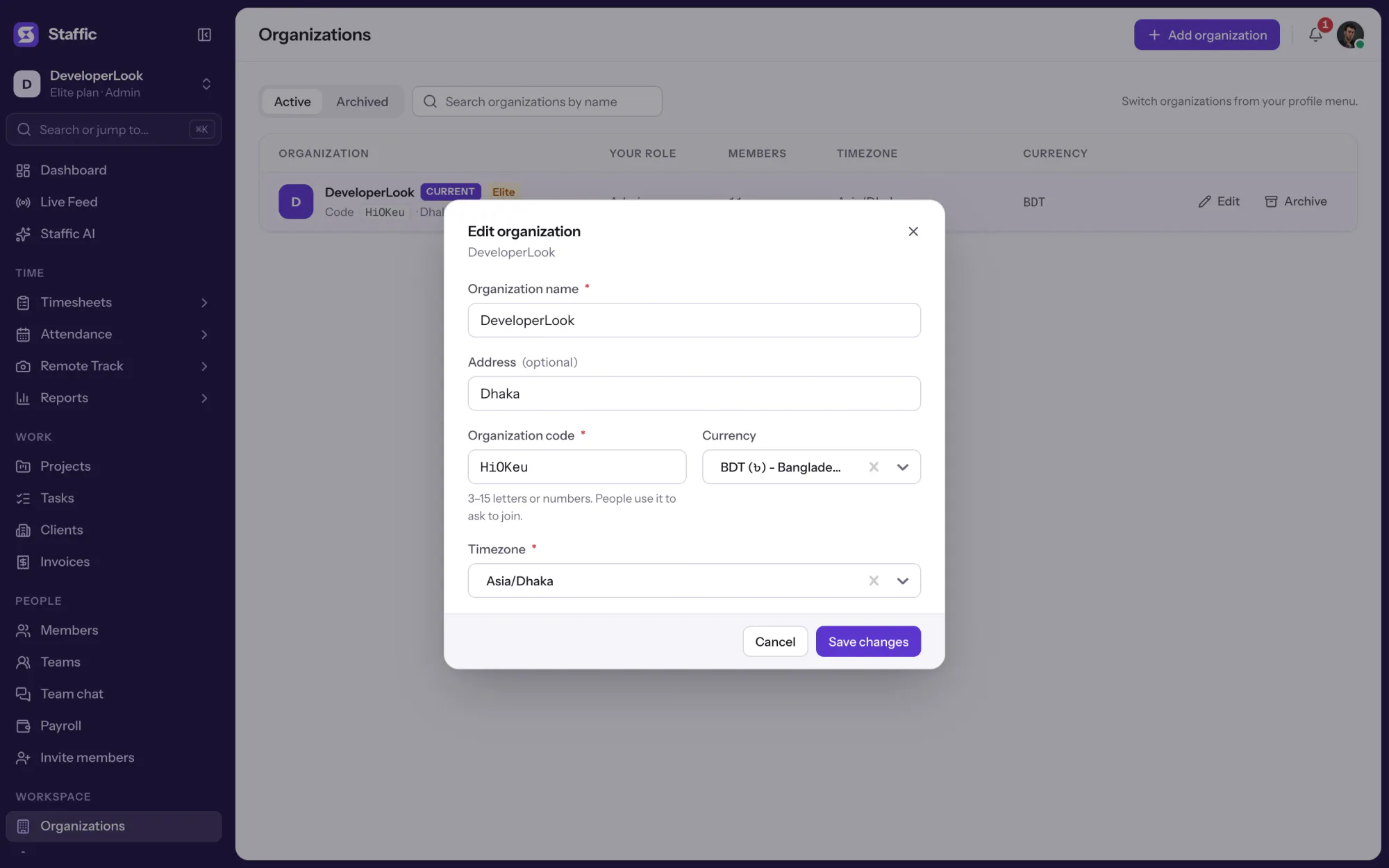
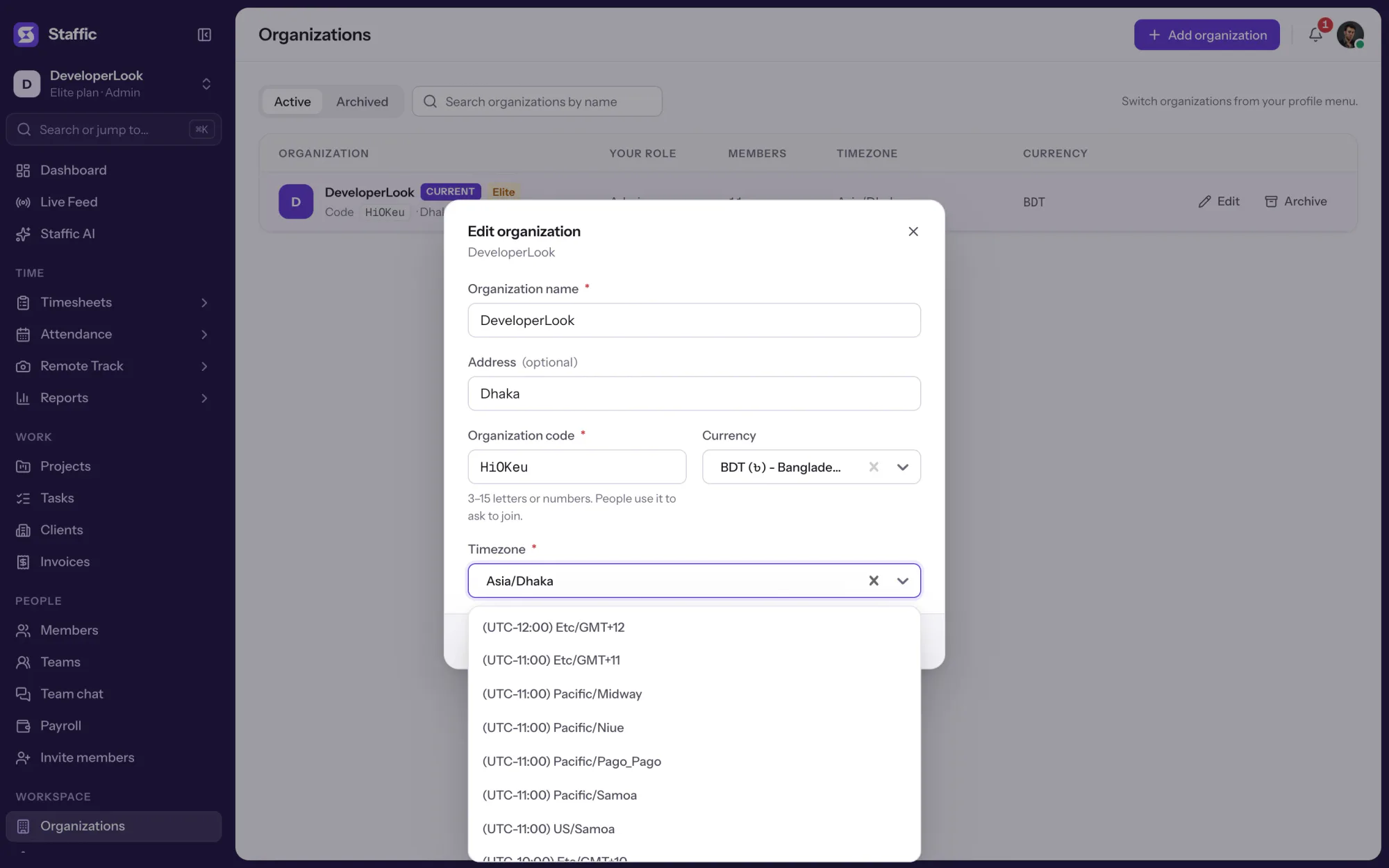
Active and archived organizations each have a tab, with name, address, code, timezone and currency in one table.
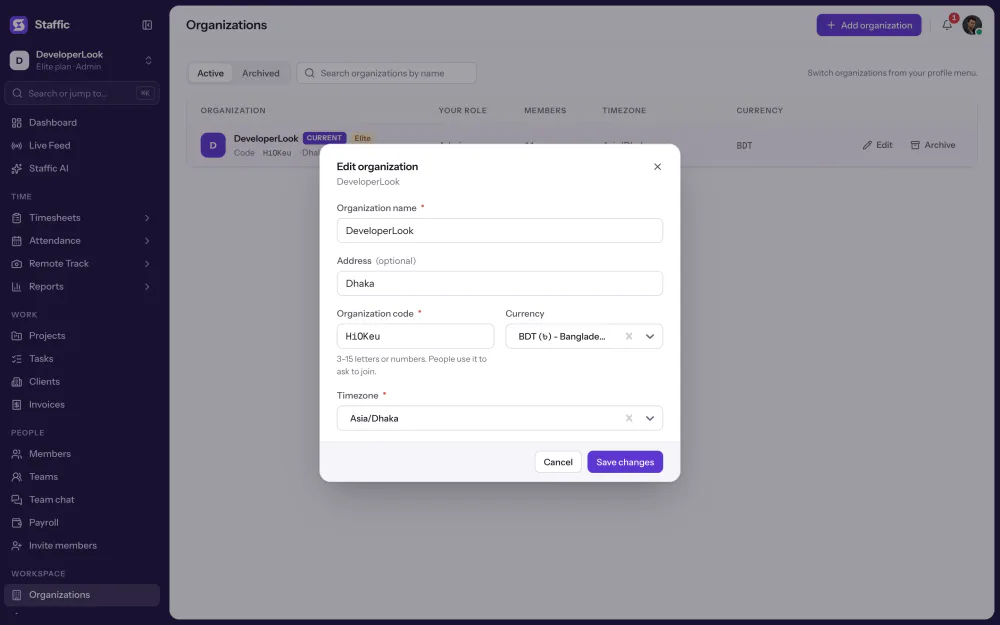
Edit an organization to change its name, address, organization code, timezone or currency. The code is what people type to ask to join, and the currency shows on pay rates, salaries and bill rates.
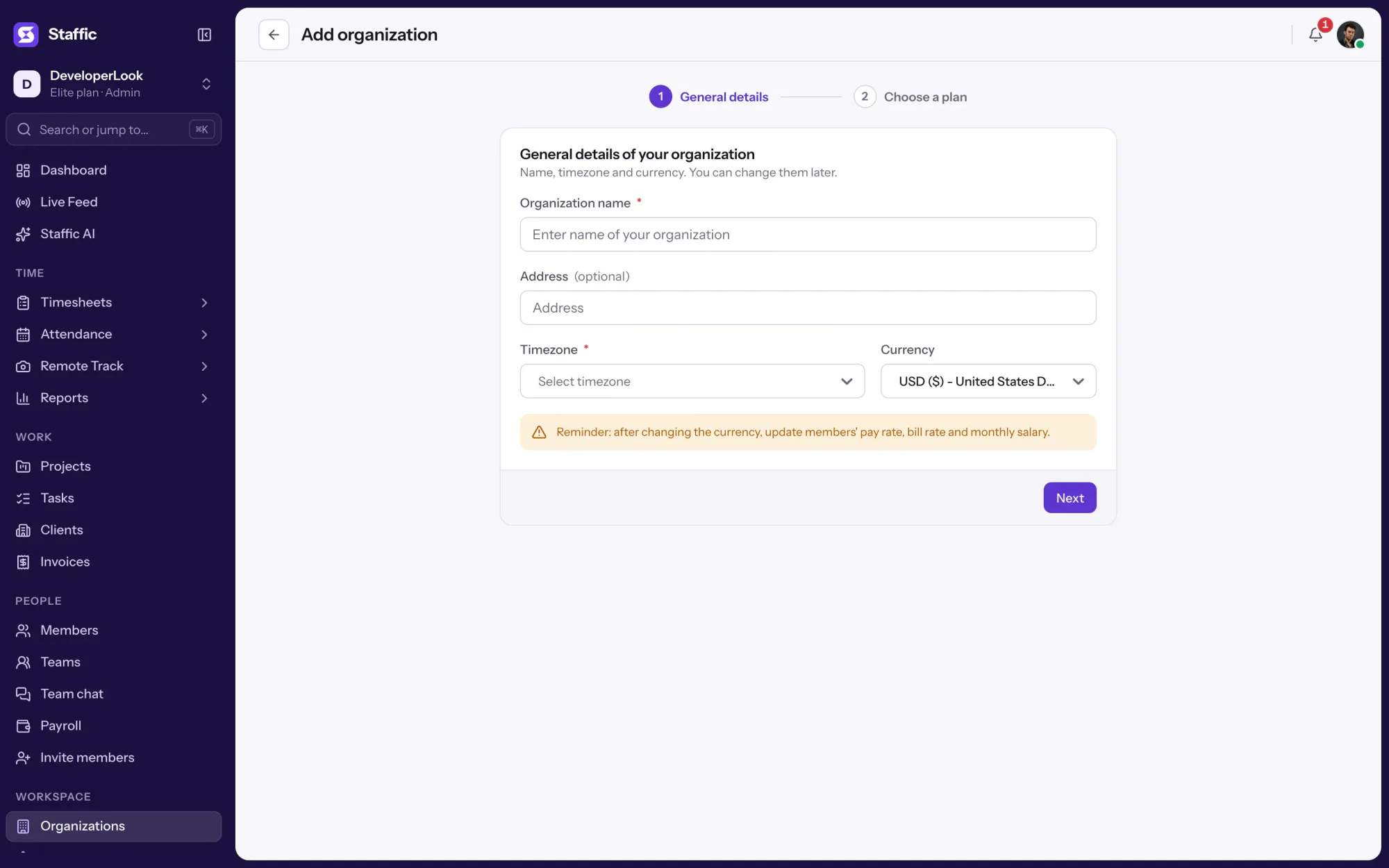
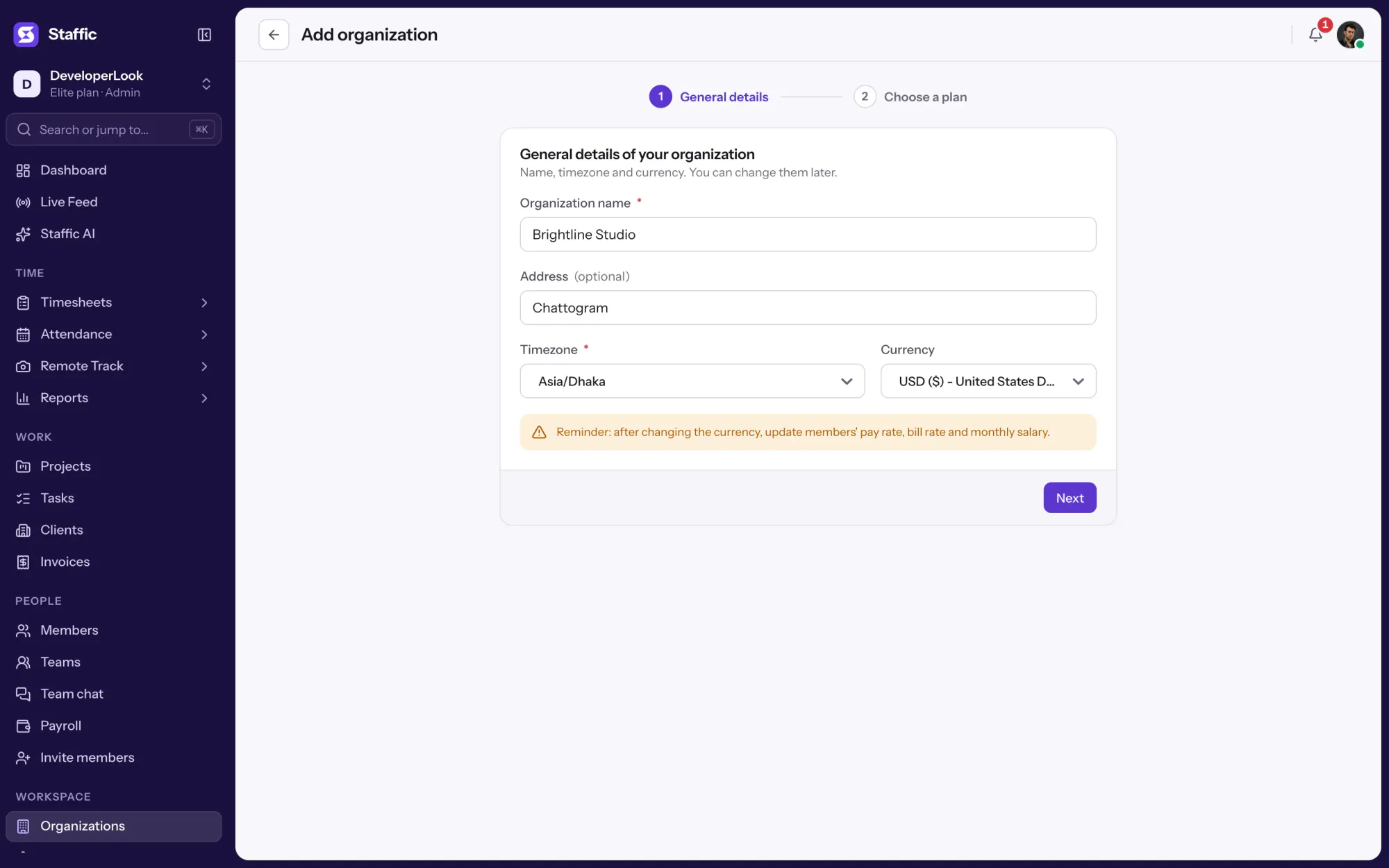
Enter the general details first: name, address, timezone and currency. Then choose the plan for the new organization. The form reminds you to update members' pay rates, bill rates and salaries after a currency change.
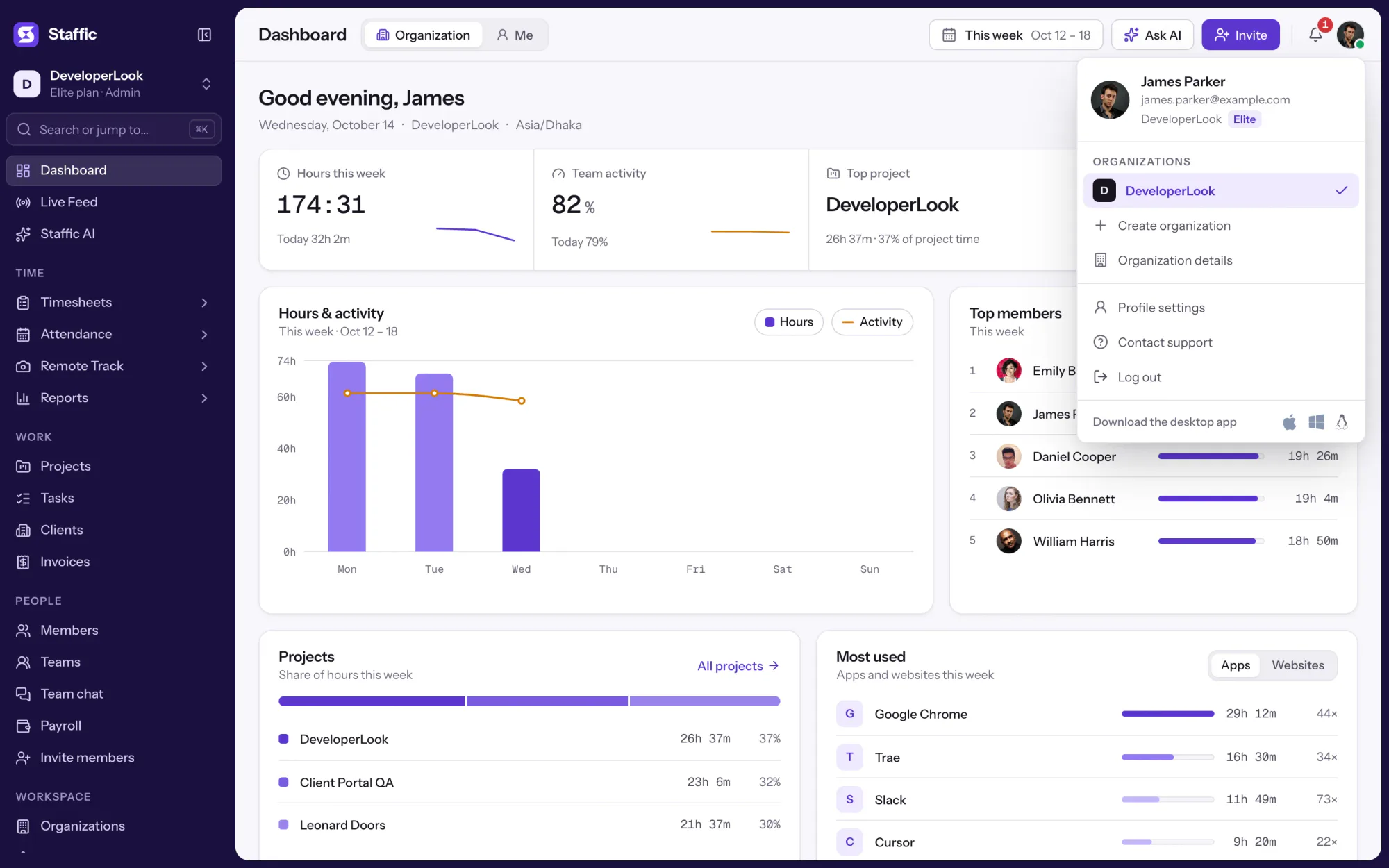
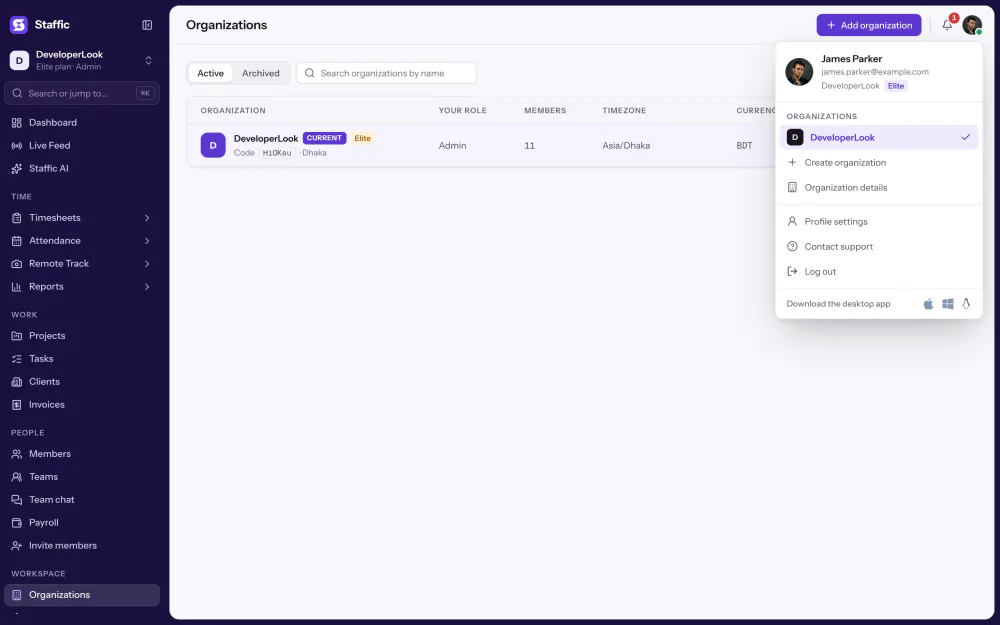
Your profile menu lists every organization you belong to under Organizations. Pick one, and Staffic shows that organization's members, projects and data, on its own plan.
Showing Name, code, timezone and currency.
1/4Click Organizations
Control and privacy
Organizations share nothing, except the people who belong to more than one.
Set it up
Four steps, on any plan.
See your active and archived organizations.
OrganizationsEnter the name, address, timezone and currency.
Organizations › Add organizationPick the plan for the new organization.
Add organization › Choose a plan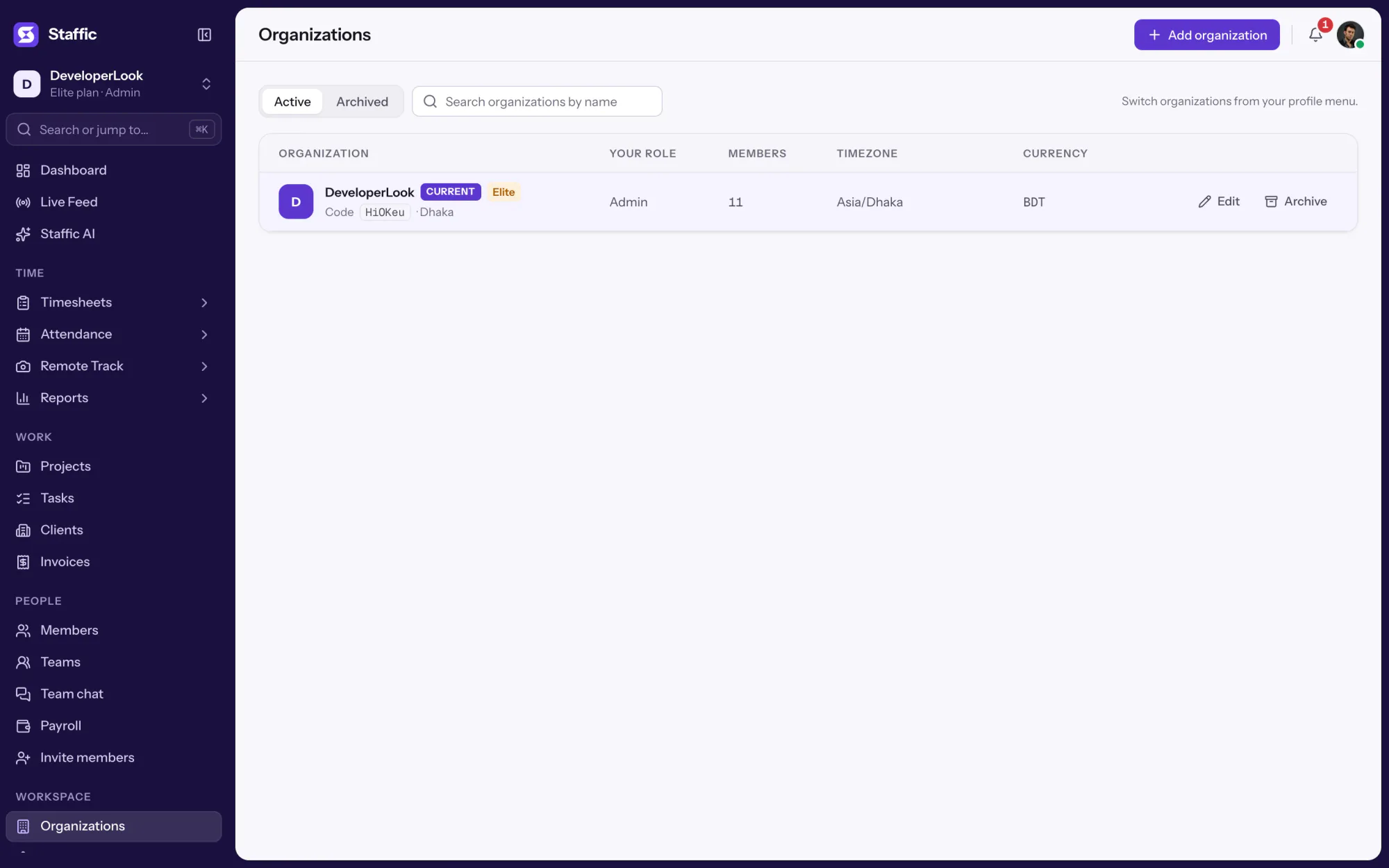
1Organizations
Specs and terms
The facts behind the feature, and what each number on the Organization page means.
Who it’s for
One sign-in, separate workspaces.
Keep each company's members, projects and plan apart, and switch between them from one sign-in.
Give an office in another country its own organization, so its attendance days follow local time and its pay rates use its currency.
Accept each client's invitation and switch between their organizations from your profile menu.
Customer stories
Stop juggling tools. Staffic gives your team time tracking, projects, payroll and performance analytics in one platform.
Try Staffic for free“Staffic.io brings transparency without micromanagement. Our team feels trusted, and productivity has never been higher.”
Pricing
Organization is included on every plan, Free included. You pay per active user only when your team grows past 2 members.
Compare every planFor freelancers and small teams, up to 2 members
No card needed.
Includes OrganizationEvery core feature, for teams of up to 2 members.
Everything in Free, without the 2 member limit
Offer price until October 30, 2026, then $7.50
Card at checkout. Cancel within 7 days and pay nothing.
Includes OrganizationEverything in Free without the 2 member limit.
For organizations running payroll, billing and approvals
Offer price until October 30, 2026, then $10
Card at checkout. Cancel within 7 days and pay nothing.
Includes OrganizationEverything in Standard, plus Screen Recordings, Invoices, Clients and 1 more.
Prices in USD per active user. Billed monthly, Standard is $9.50 and Elite is $13 per user.
An organization is a separate workspace with its own members, teams, projects, settings and plan. Most companies need one. Agencies, groups and people who work for several companies use more.
Yes. Use Add organization on the Organizations page, or Create organization in your profile menu. Each one takes two steps: general details, then choosing its plan.
Yes. A person can accept invitations from several organizations and switch between them in the profile menu with the same sign-in. Each organization counts them as one of its members.
No. Activity tracking, timesheet rules, Access control roles and the plan are set per organization. Changing them in one organization doesn't touch the others.
People who sign up on their own enter the organization code to ask to join, and their request waits under Members, Join requests. Admins can change the code when they edit the organization.
It sets which day tracked time counts toward in attendance records such as Clock In/Out. Set it when you create the organization and check it before your team starts tracking.
Only its admins. The Organizations page shows edit and archive actions to admins of each organization, and unarchive and delete on the Archived tab. Members see the organization without those actions.
Yes. When you add an organization you choose its plan, and on the Free plan it holds up to 2 members. Plans and member limits are counted per organization.
Every plan includes Organization. Free covers up to 2 members. Standard is $7.50 per user per month billed yearly ($3.80 during the current offer, until October 30, 2026) or $9.50 billed monthly, and Elite is $10.00 per user per month billed yearly ($4.80 during the current offer, until October 30, 2026) or $13.00 billed monthly.
Explore more
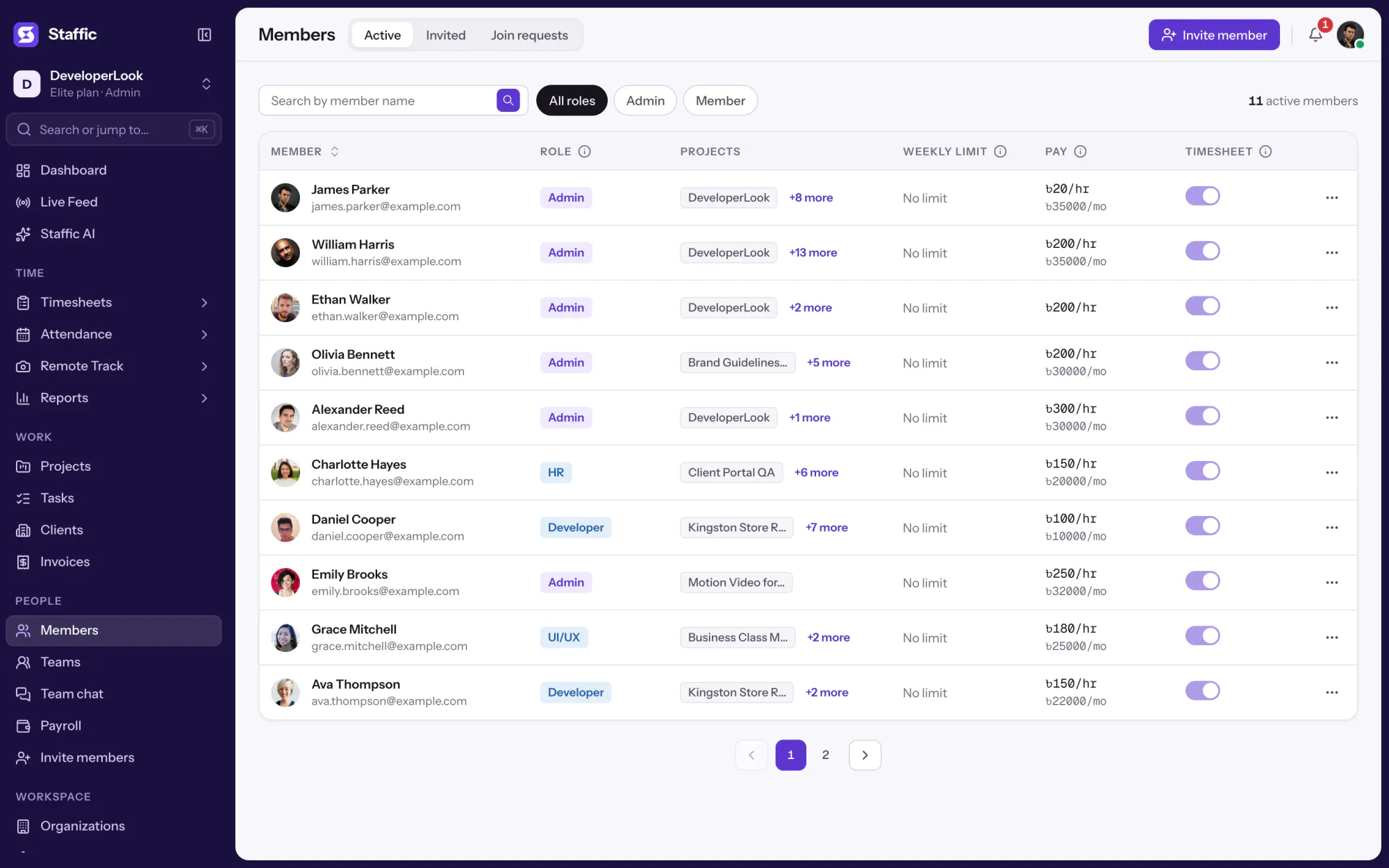

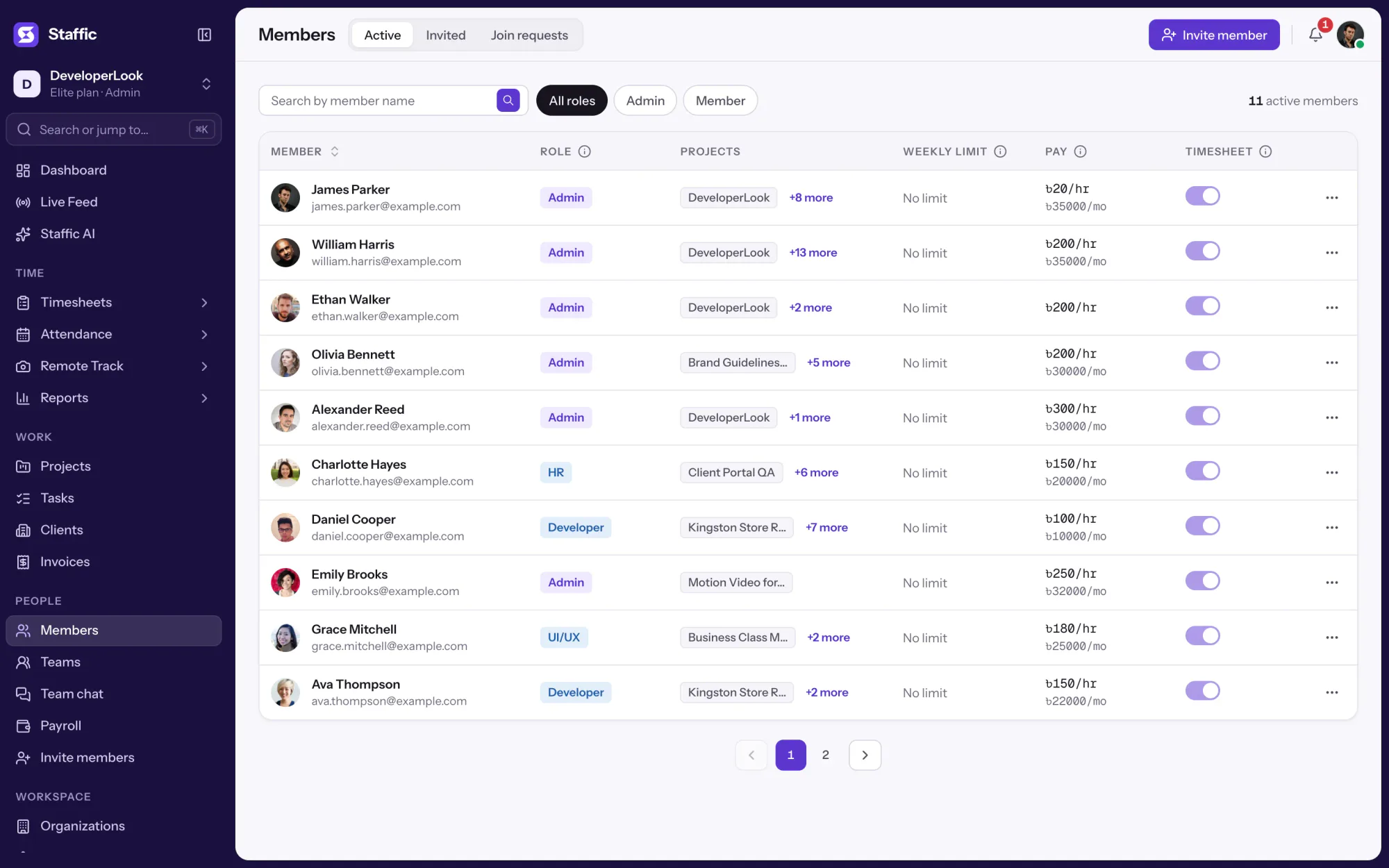
Members lists every person with their projects, pay and approval switch, and holds invitations, join requests and each member's page.
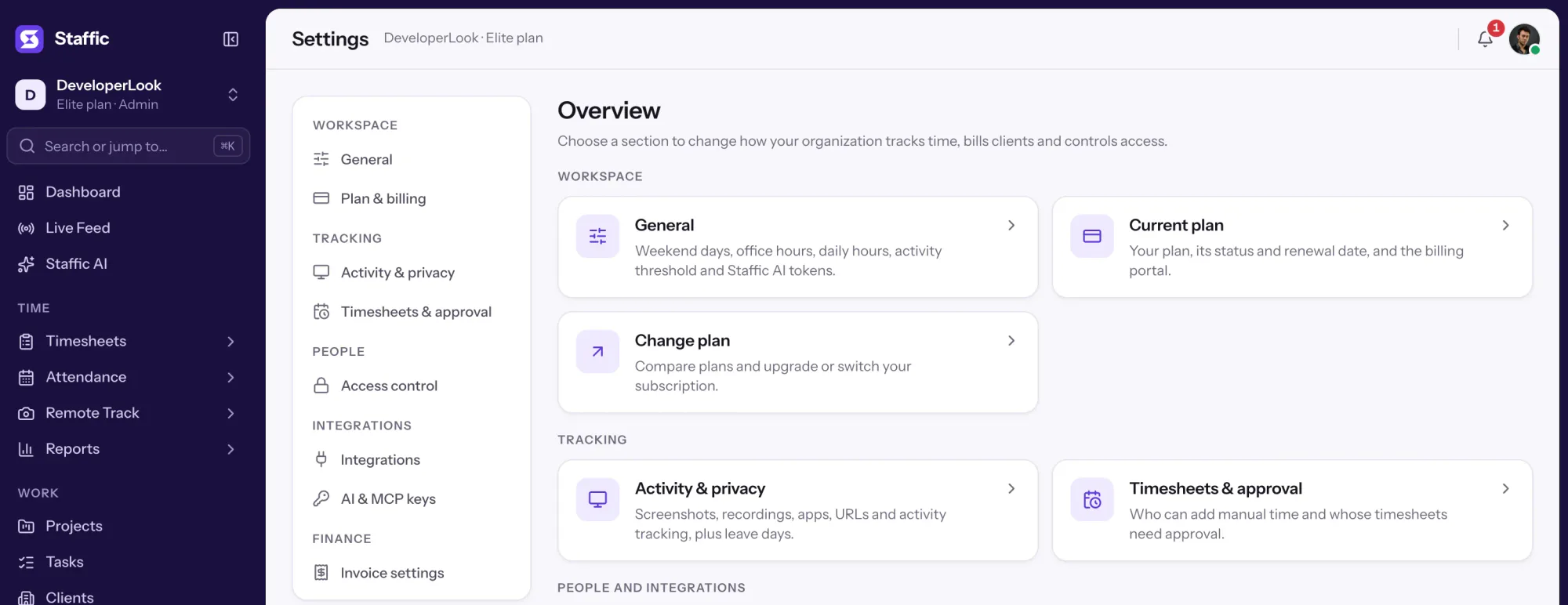

Settings is where admins choose what Staffic tracks, set timesheet rules and build Access control roles, with each switch marked by its plan.
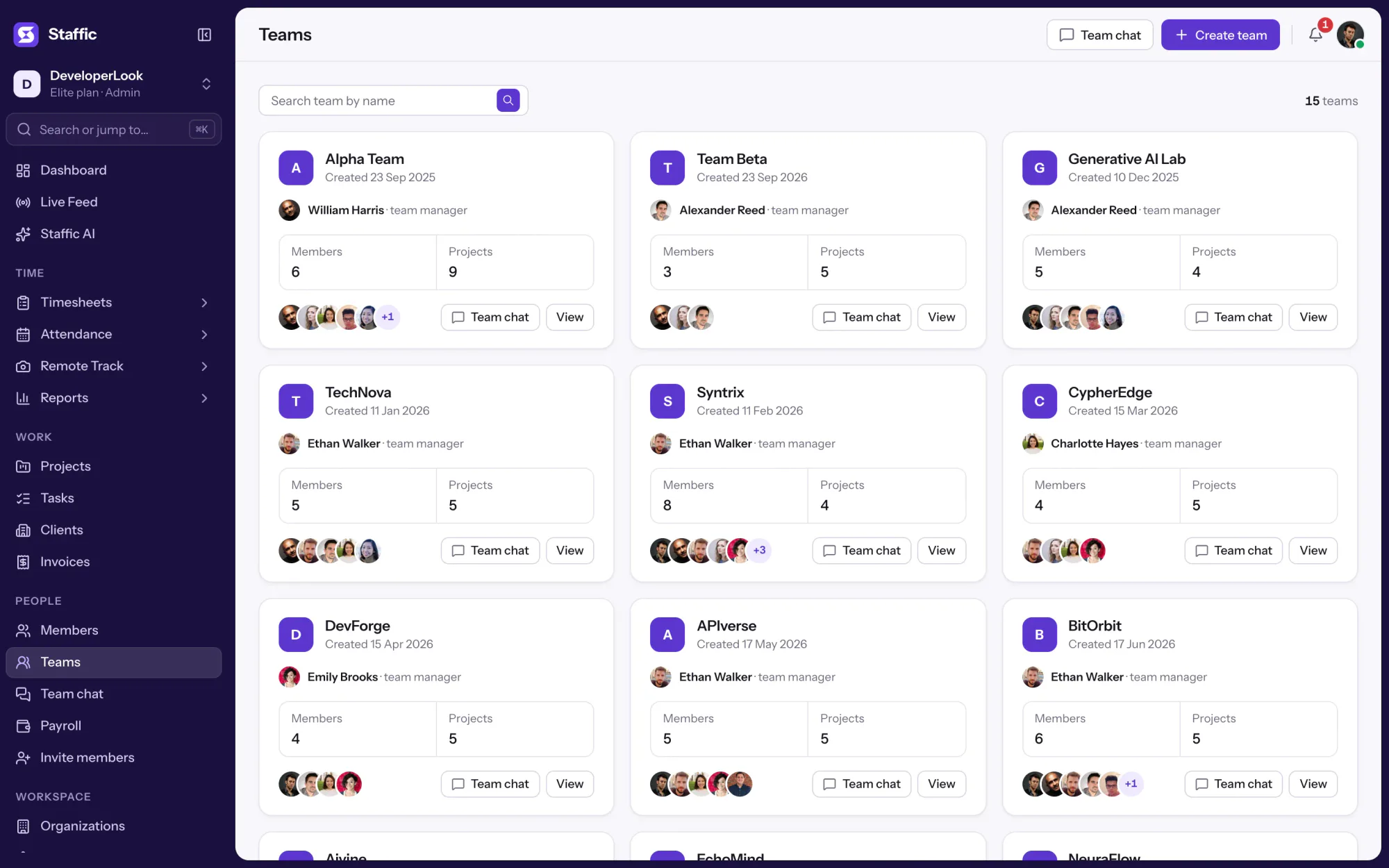

Teams groups members on every plan, gives each team its projects and a chat channel, and shows its hours for the last 30 days.
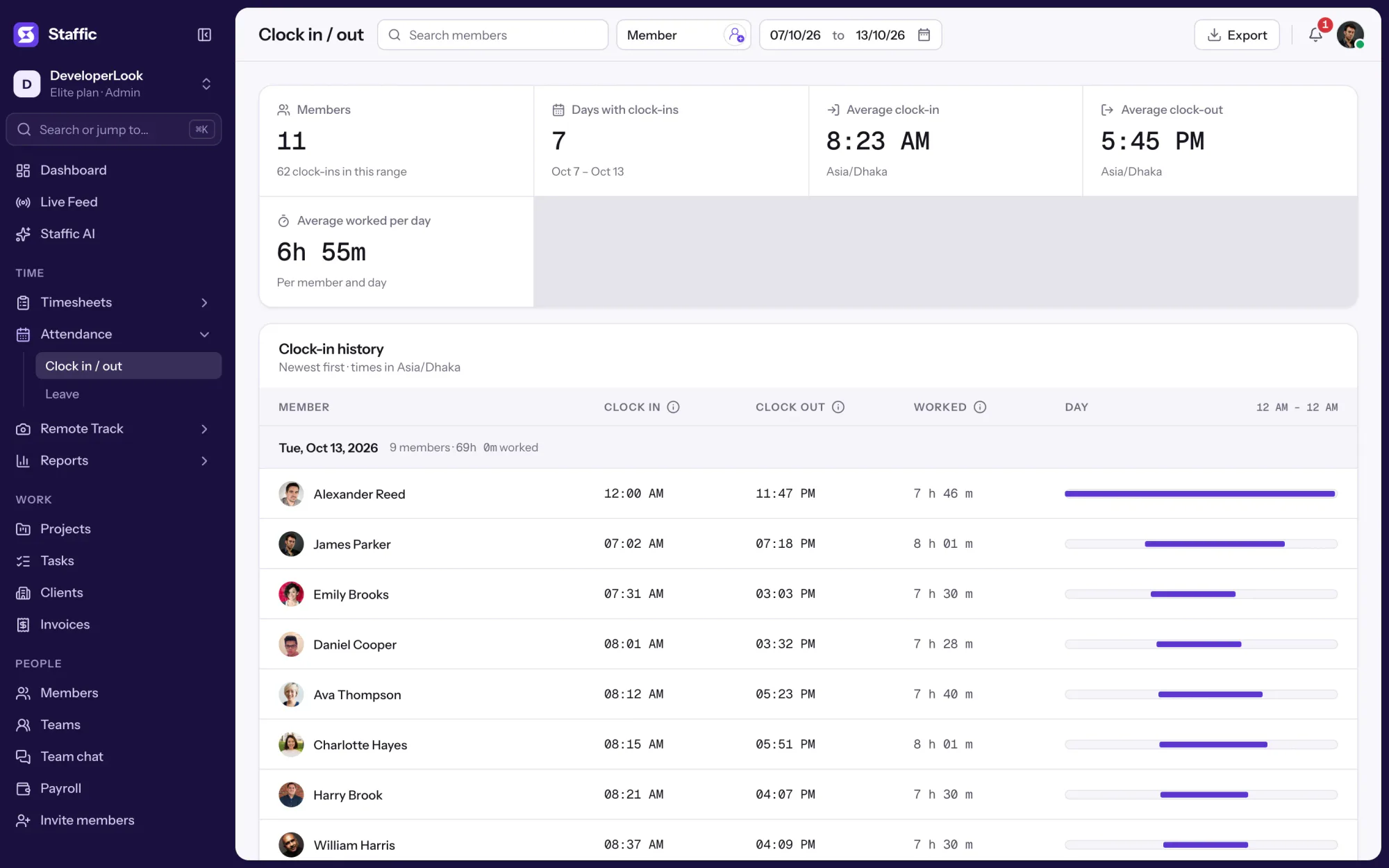

Clock In/Out records when each member starts and stops work from the desktop timer, with time worked per day and PDF or Excel export.
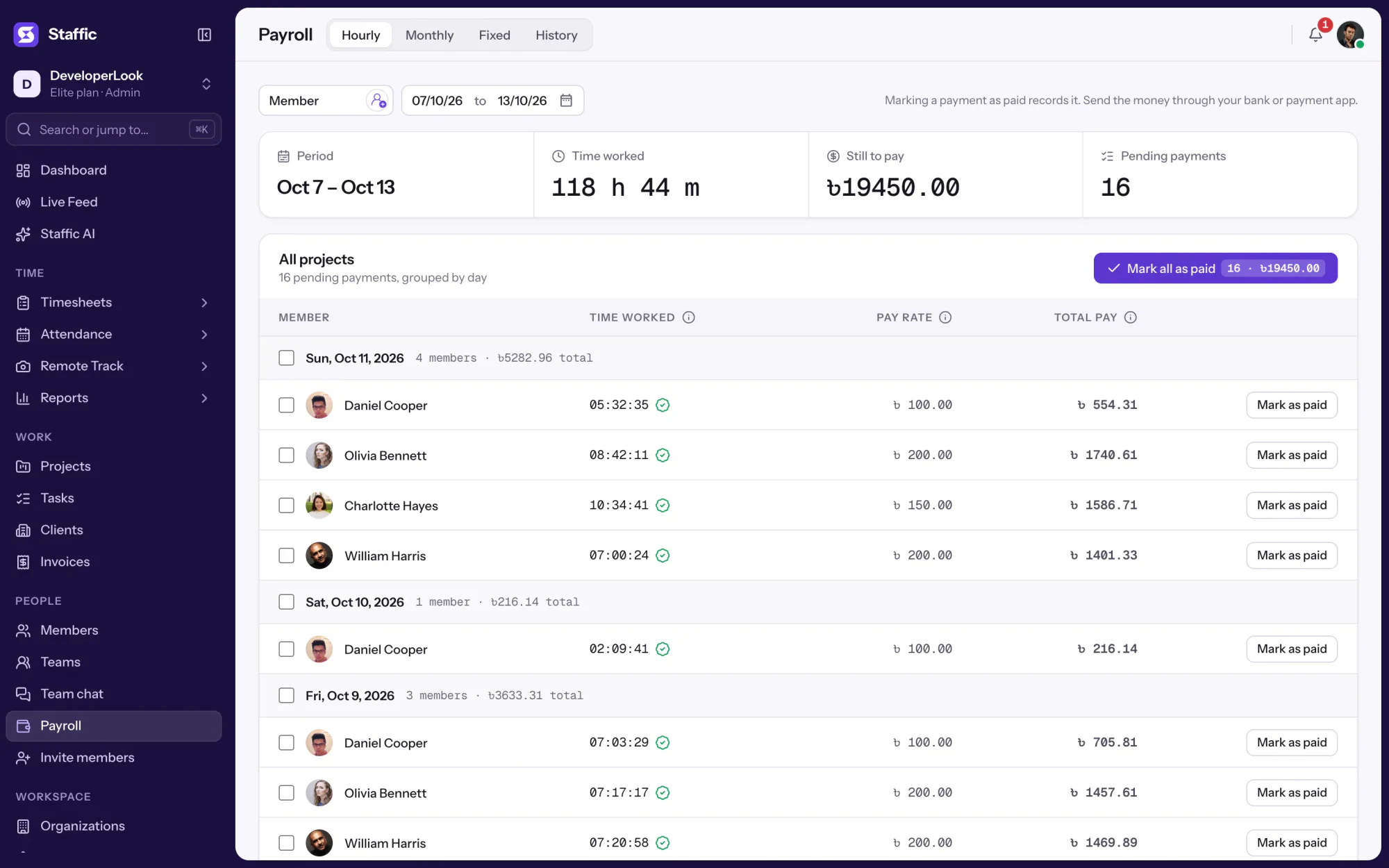

Payroll works out hourly pay from tracked time, lists monthly salaries, records one-time payments and keeps a payment history.

Staffic is workforce management software for remote and hybrid teams: members, teams, attendance, leave, performance and payroll in one app.
Free for up to 2 members
Create your workspace, invite your team, and the first timesheet builds itself.