Remote teams
One calendar for every time zone
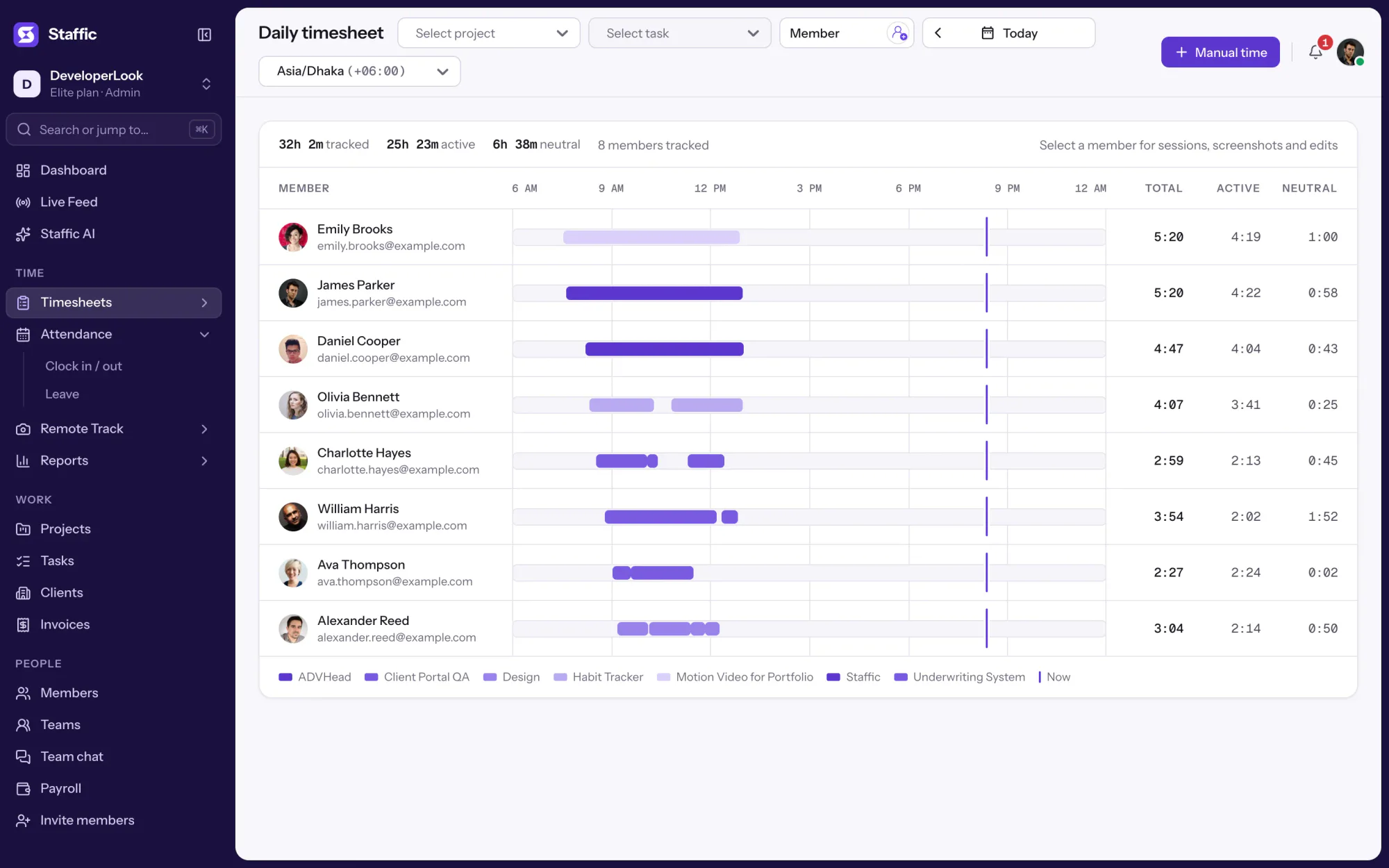
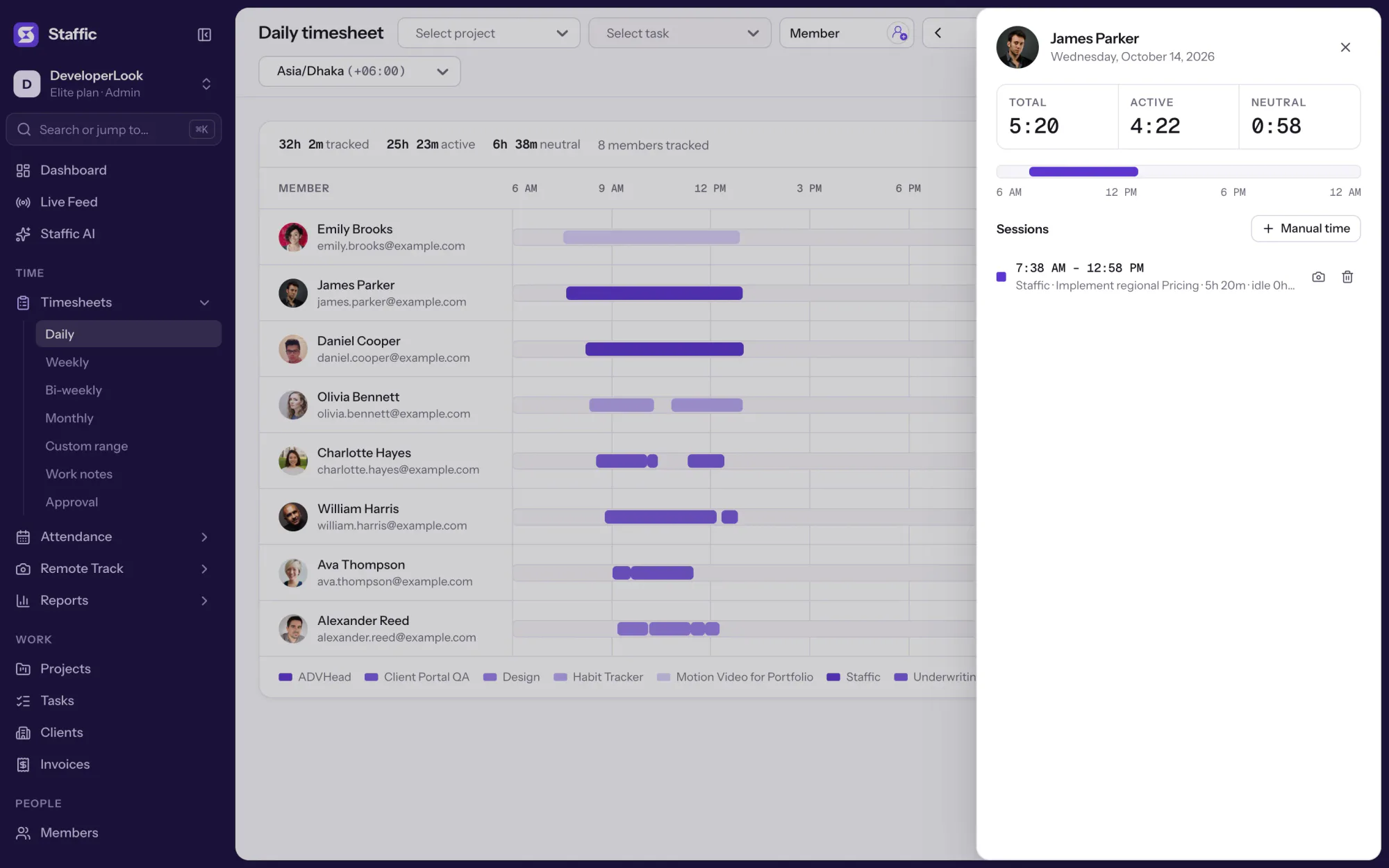
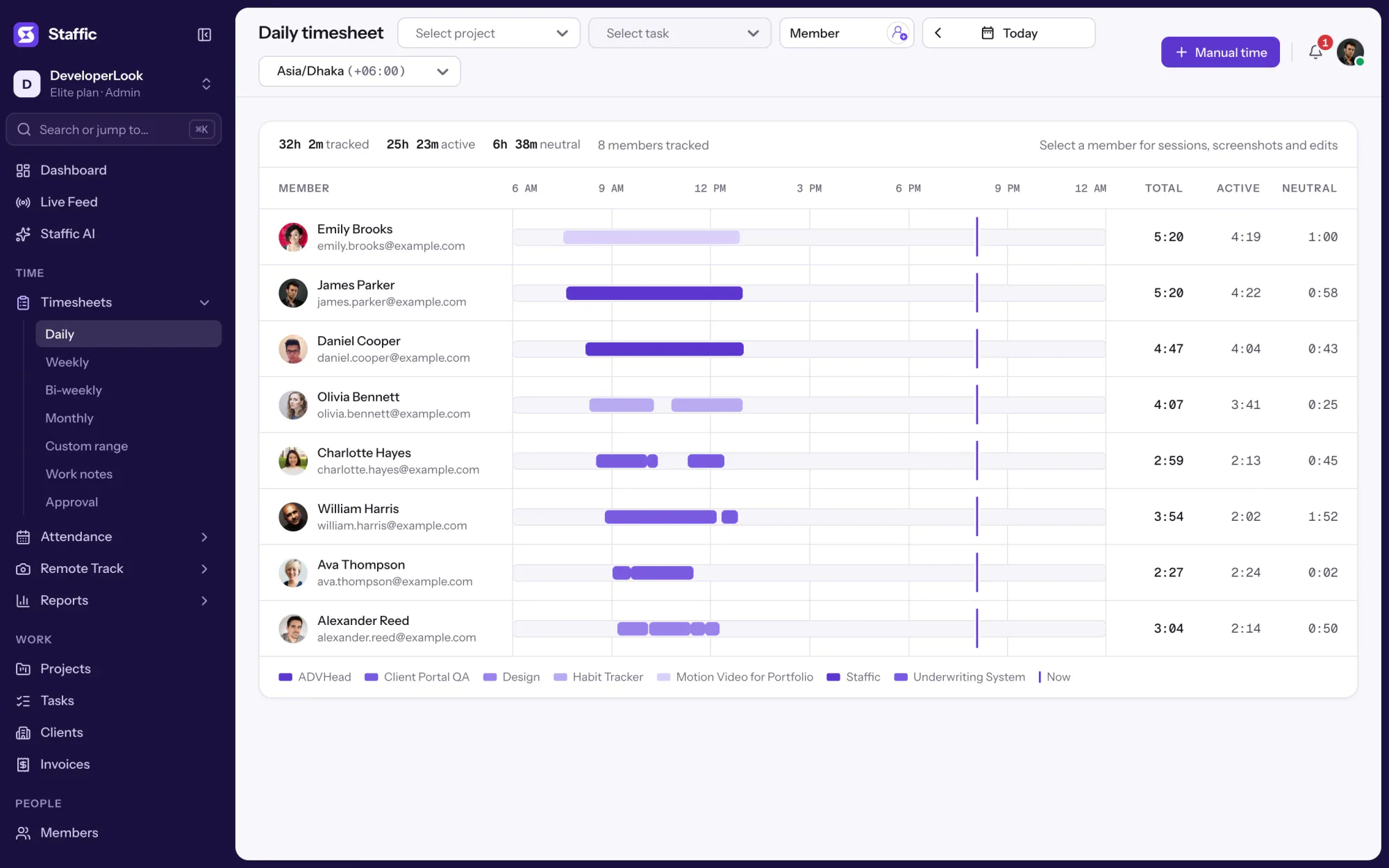
Everyone's day lands in your company's time zone, so you can see who started when without sending a check-in message.

Features
All 38 featuresSee the work while it happens.
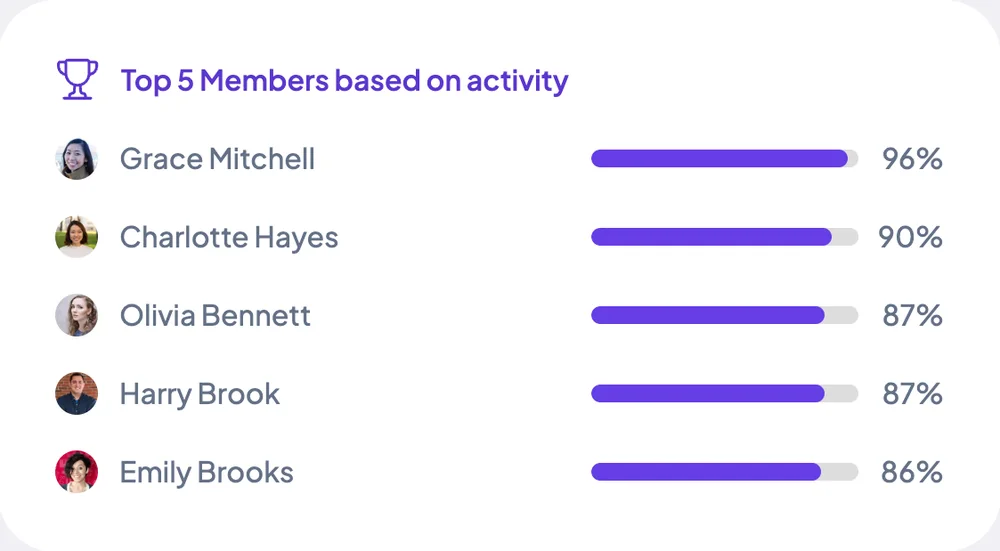
 DashboardYour team's week at a glance, Monday to Sunday
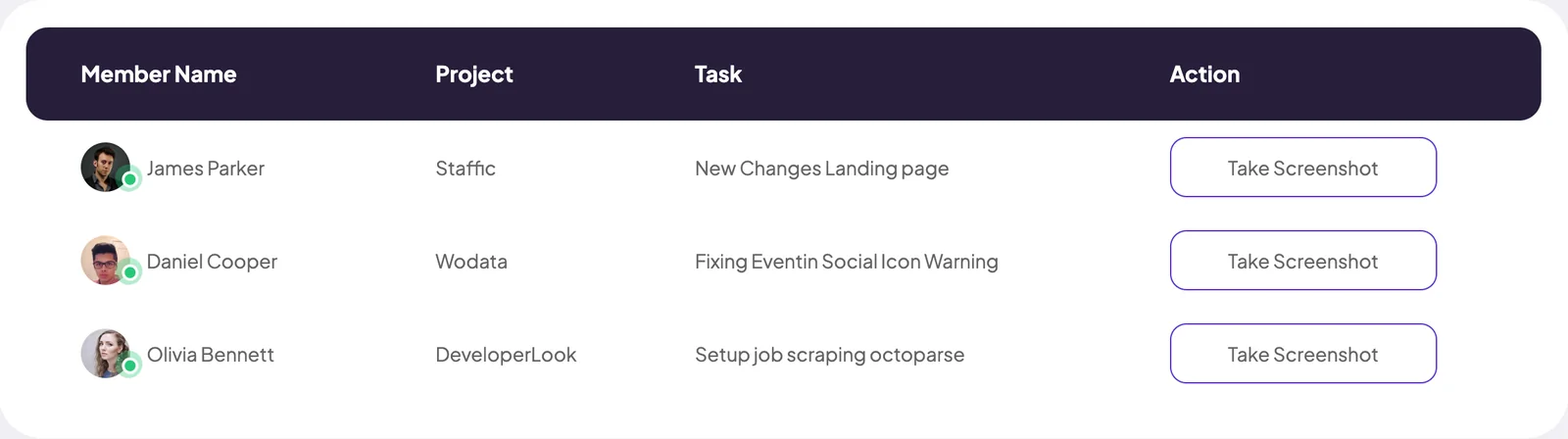
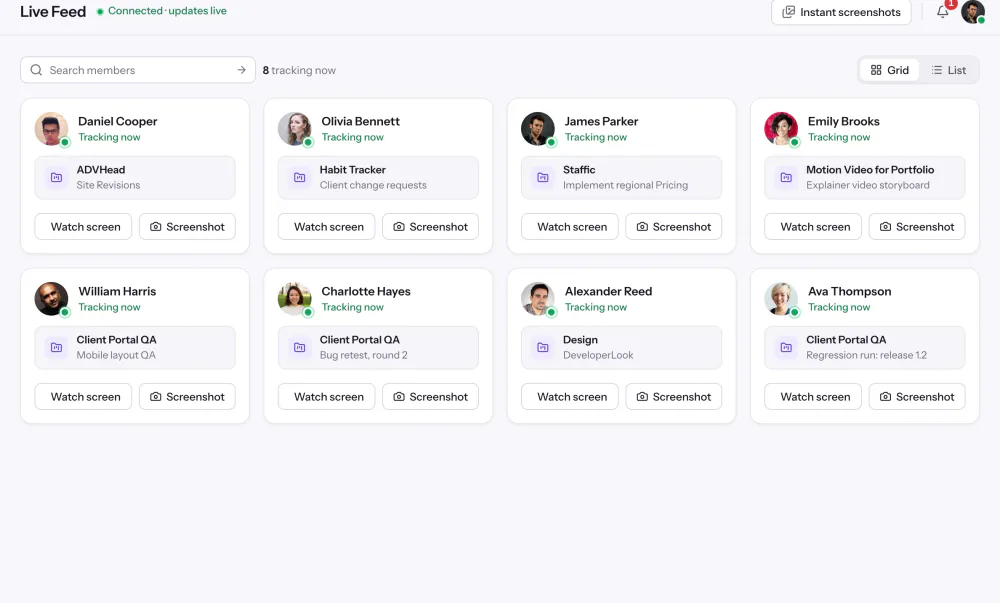
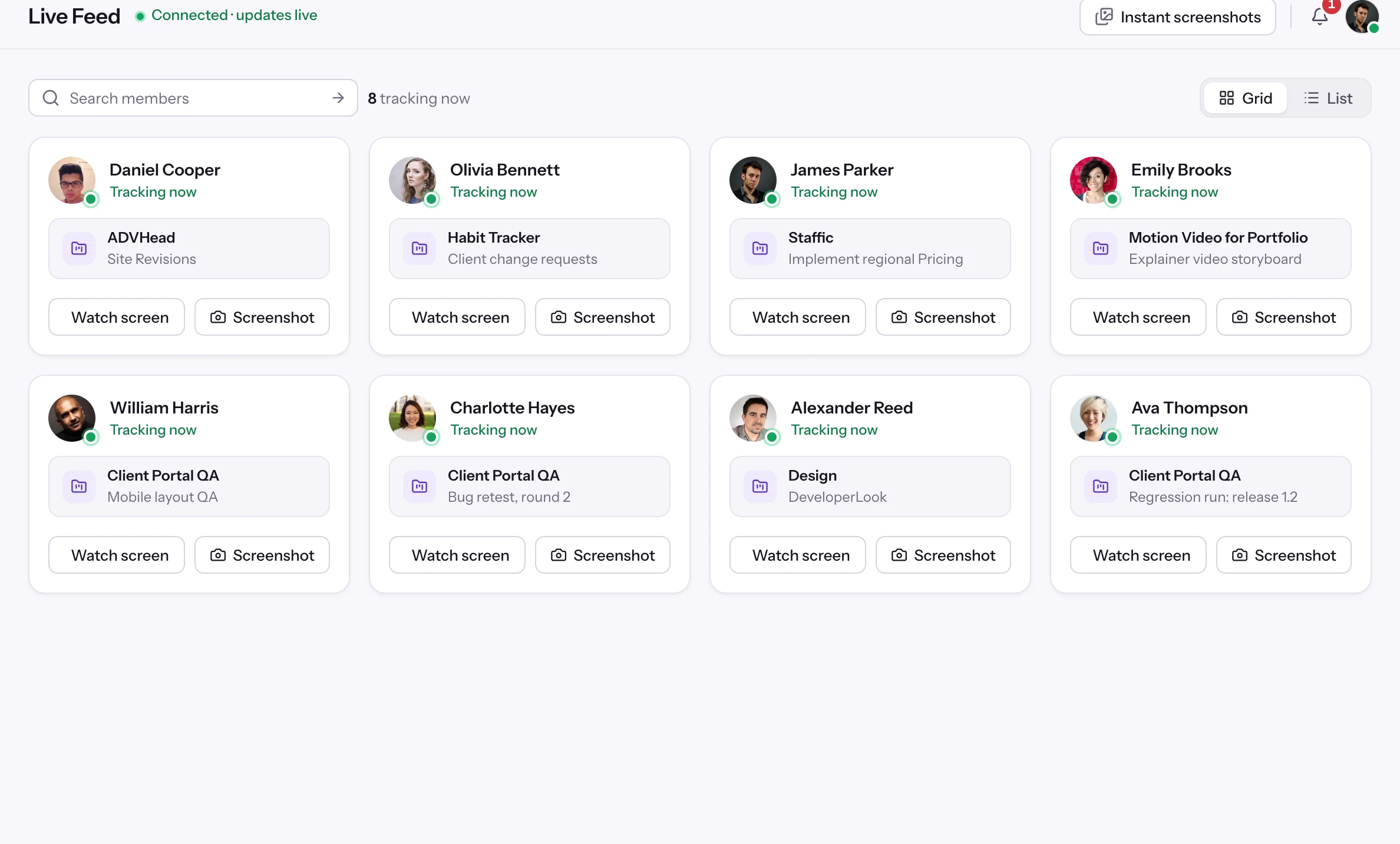
 Live FeedSee who's tracking time right now, and on what
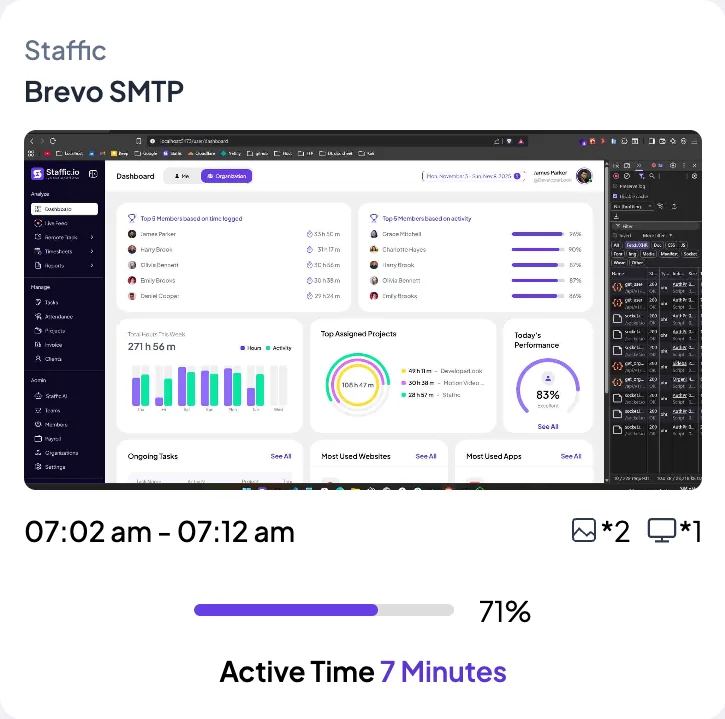
 ScreenshotsVisual proof of work, captured automatically
 AppsWhich apps each tracked session used
 URLsThe websites behind the tracked time
 Screen RecordingsEliteFull session video, beyond a screenshot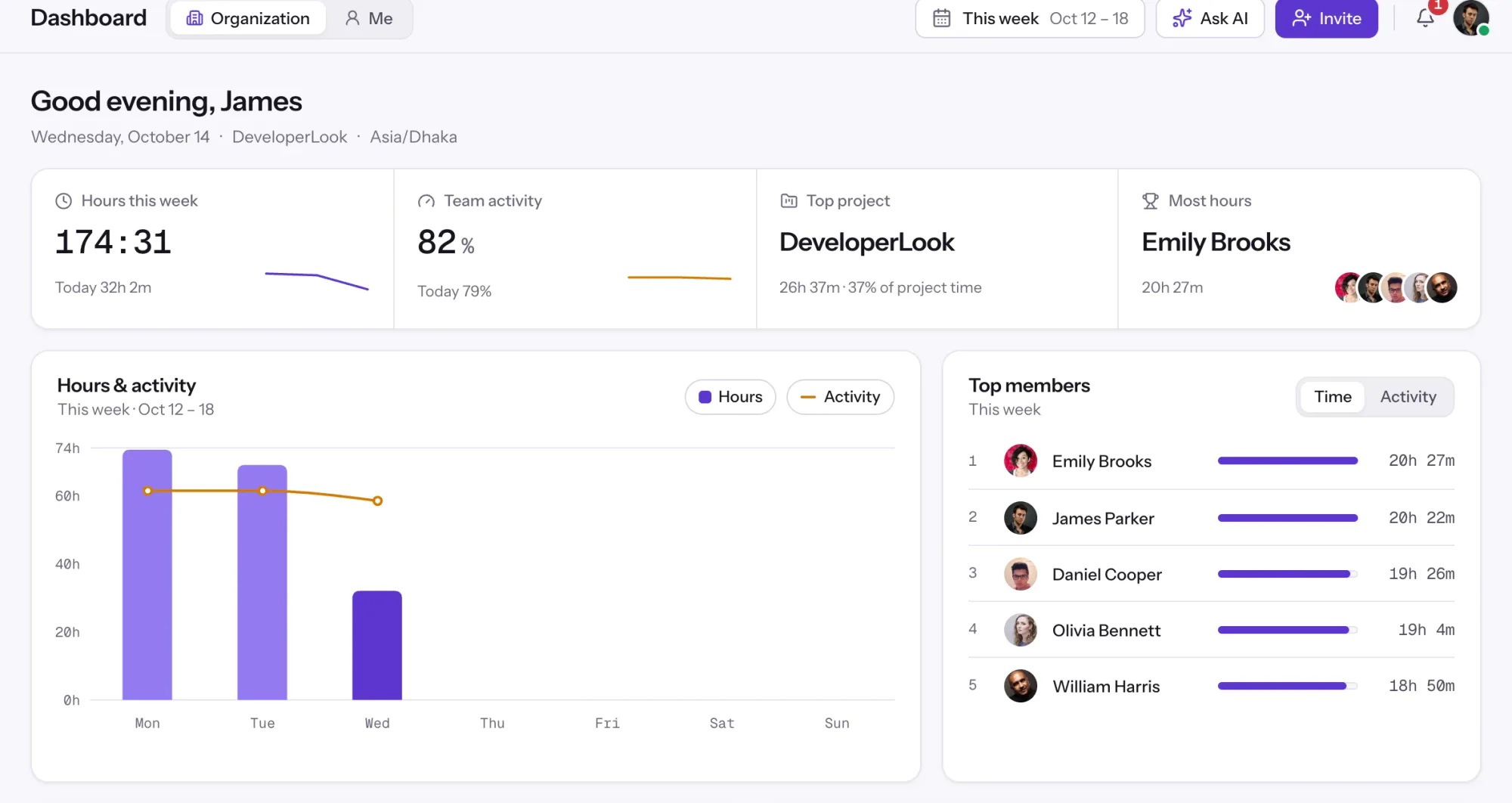
01 / 38
Dashboard
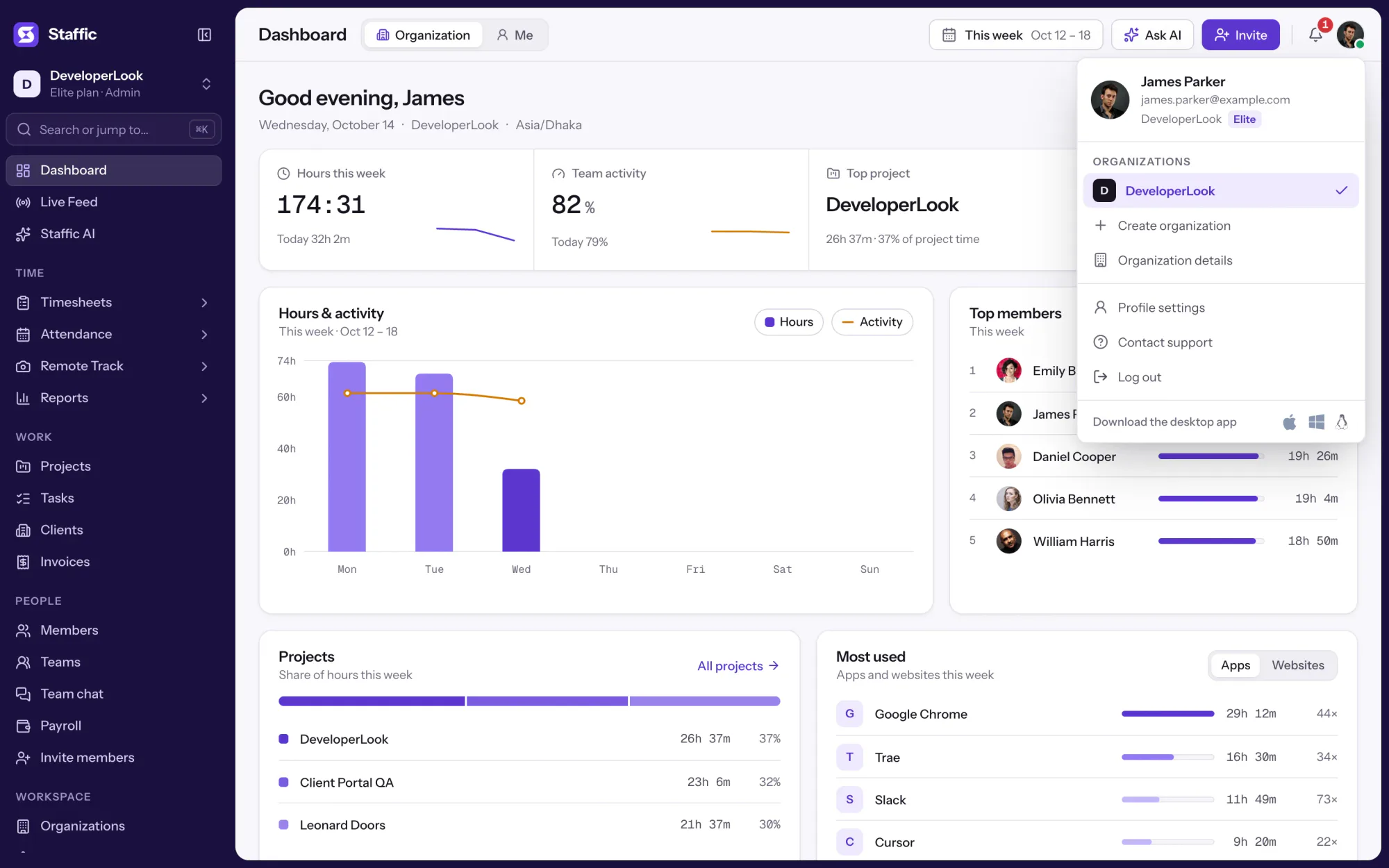
The team dashboard: this week's hours, team activity, top members, ongoing tasks, top projects and the most used apps and websites.
View DashboardSolutions
All 38 featuresHow remote, hybrid and growing teams run Staffic.
Staffic for the way you work, from freelancing to client billing.
 FreelancersFreelance time tracking
 Small businessesTimekeeping software for small business
 Call centersCall center monitoring software
 ConsultantsTime tracking software for consultants
 Companies with contractorsContractor time tracking
 Virtual assistantsTime tracking software for virtual assistants
 AgenciesAgency time tracking software
 Accounting firmsTime tracking software for accountants
 Software teamsTime tracking software for engineers
Staffic set up for your industry's records and reports.
01 / 19
Track remote hours across every time zone.
Staffic records time, activity and optional screenshots on each remote member’s computer, then turns them into timesheets you approve, so you can trust the hours without daily check-ins.
View Remote teamsClock In/Out
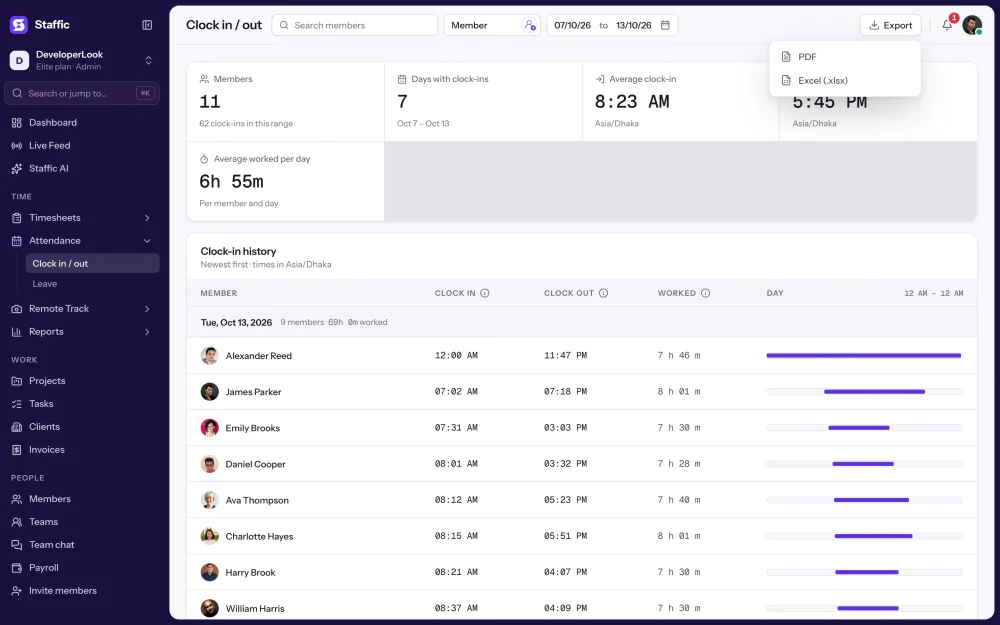
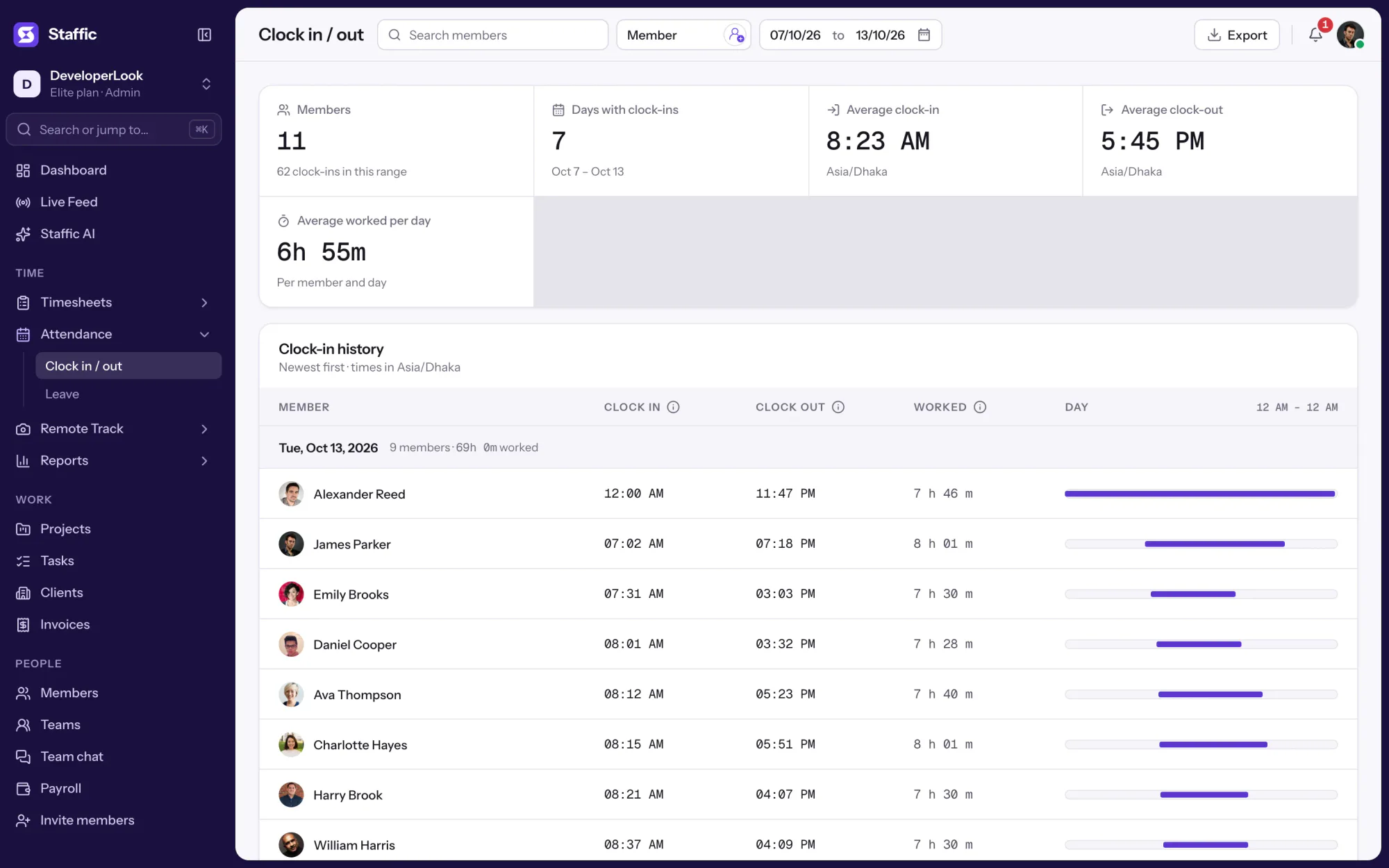
Staffic clocks a member in when they start the timer in the desktop app and out when they stop it at the end of the day. Managers see clock-in, clock-out and time worked for every member by date, in the company's time zone. There's no separate punch for anyone to forget.
1/8Open Attendance
In short
Staffic Clock In/Out is the employee time clock app inside the Staffic time tracker. When a member starts the desktop timer, Staffic records their clock in, and when they stop it at the end of the day, their clock out. Admins see clock-in, clock-out and time worked for every member by date, filter by member and export the record to PDF or Excel. It's on every plan.
How it works
An employee clock in system with nothing extra to punch: the timer your team already uses for time tracking writes the attendance record.
Clock In/Out
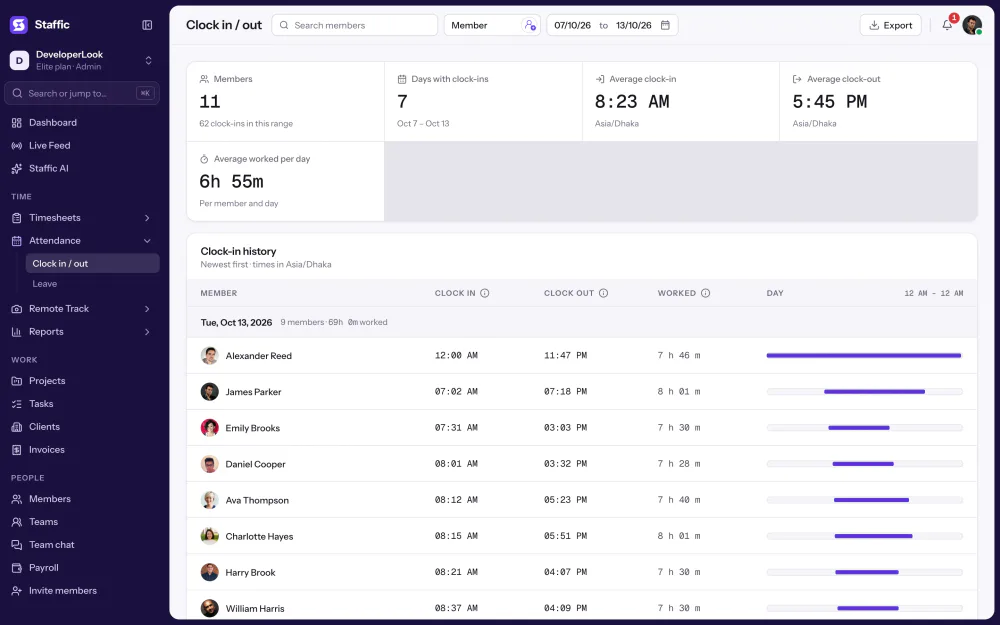
Every row comes from the desktop timer: when each member started, when they stopped and how long they worked, day by day.
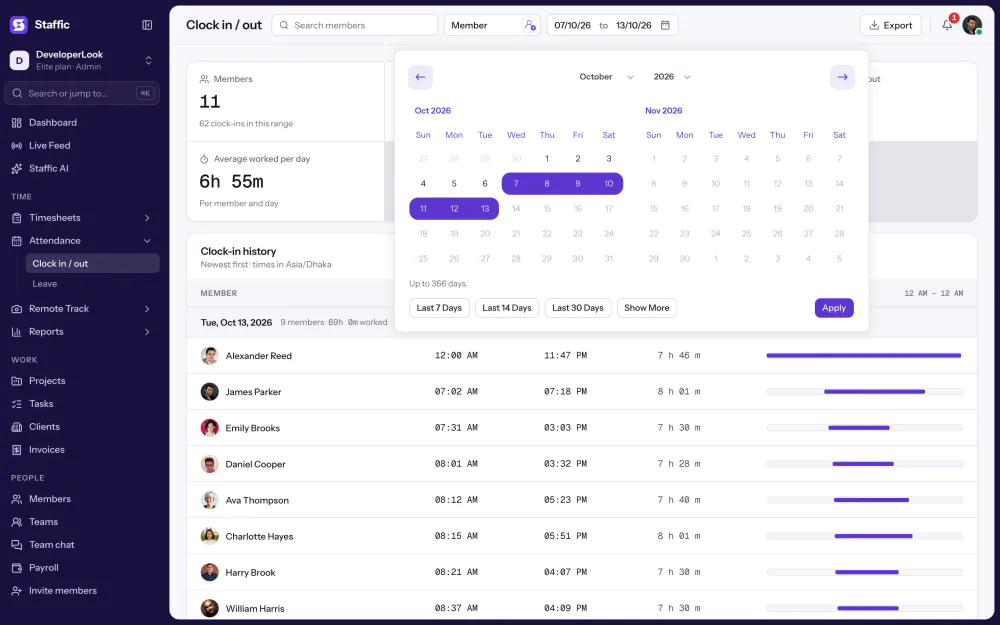
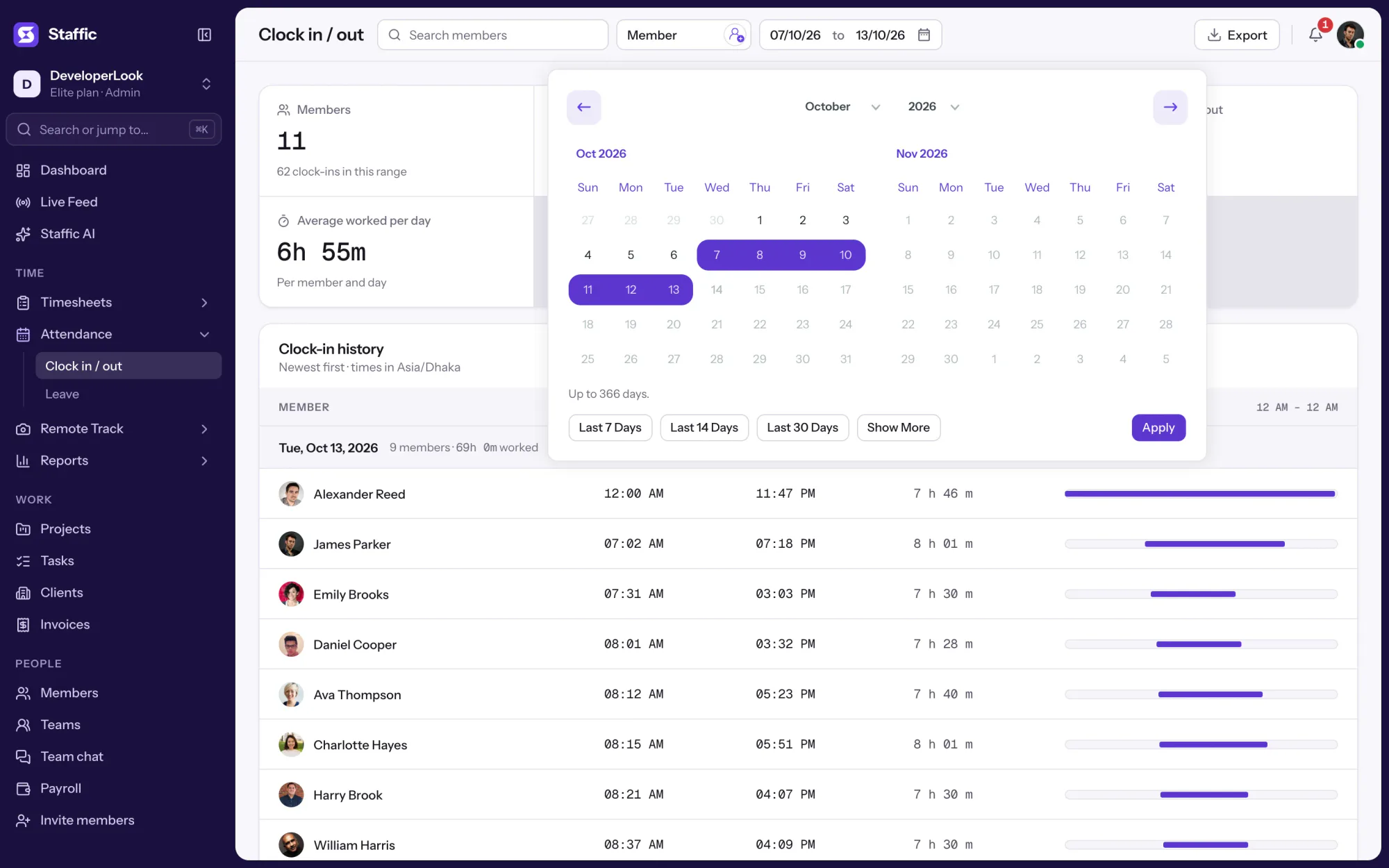
Pick any range of past days, up to 366 at a time. Each day lists the members who tracked time, earliest clock-in first, with clock-out and time worked beside it.
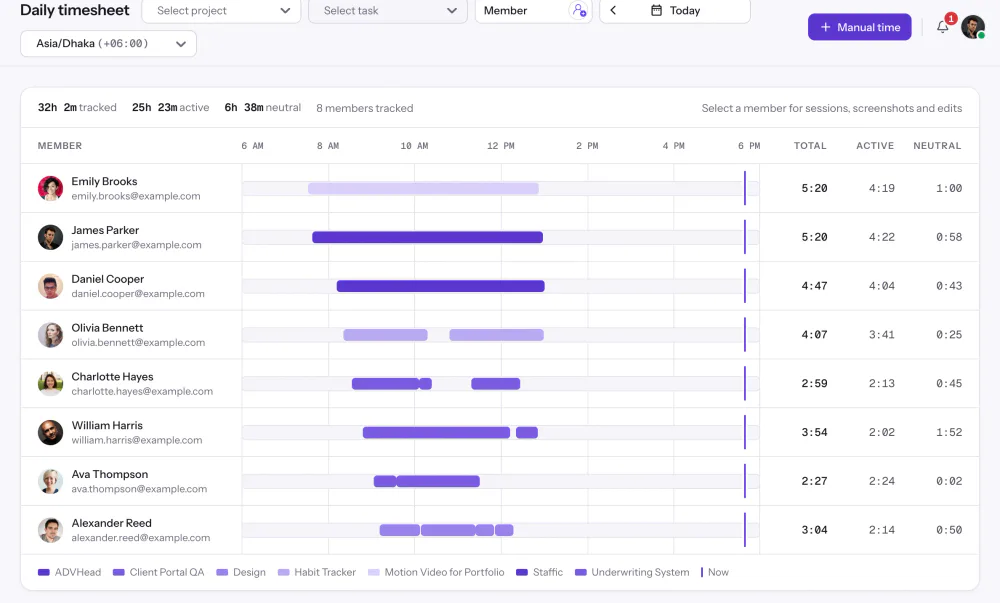
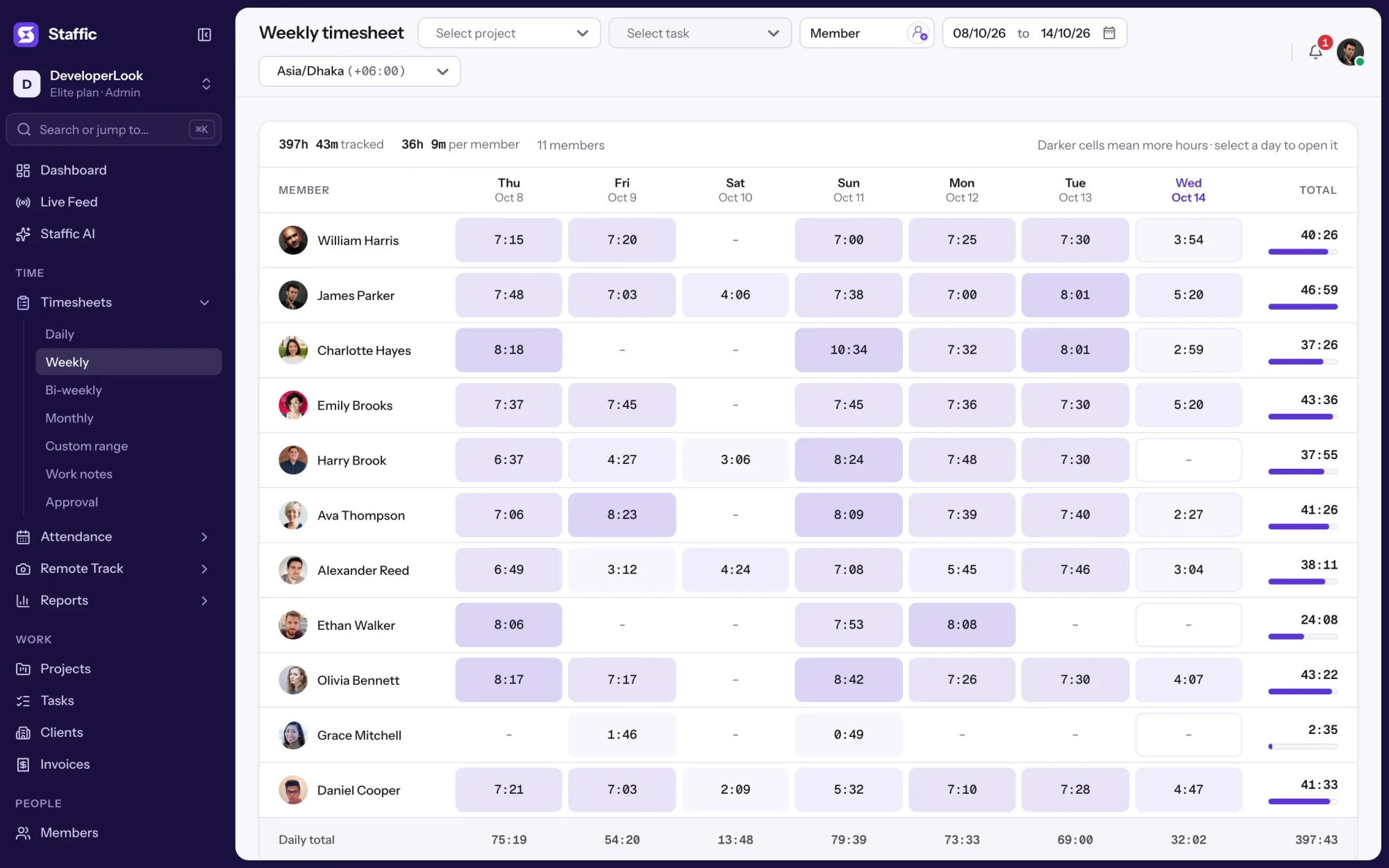
Time worked adds up the tracked time between a member's clock in and clock out, so a lunch break with the timer off isn't counted. The daily timesheet shows the same day on a timeline.
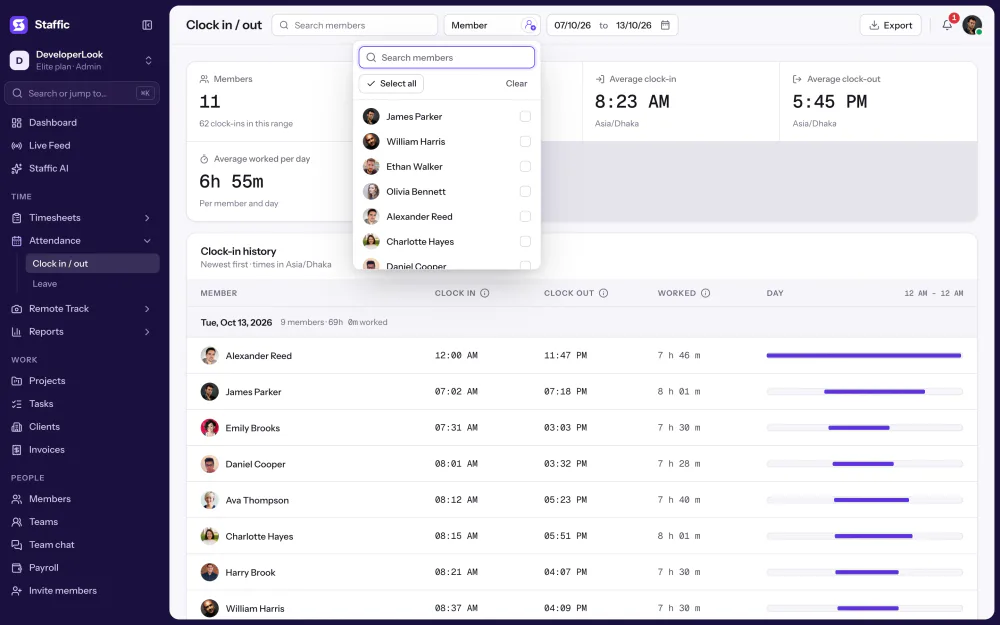
Pick one or more members to see only their clock-ins, or search by name on a large team. Admins see everyone, and members see only their own days.
Download the members and dates on screen as a PDF or an Excel file, for HR records or to check hours before payroll. The file keeps the times in your company's time zone.
Clock In/Out covers finished days, up to yesterday. For today, Live Feed lists every member whose timer is running, with their project and task.
Showing Attendance history by date.
1/4Open Attendance
Control and privacy
Clock In/Out shows tracked time only. When a member's timer is off, nothing is recorded.
Set it up
Clock In/Out has no settings of its own. Five steps take you from sign-up to your first attendance record, on any plan.
Sign up and invite your team by email. Clock In/Out is on every plan, Free included.
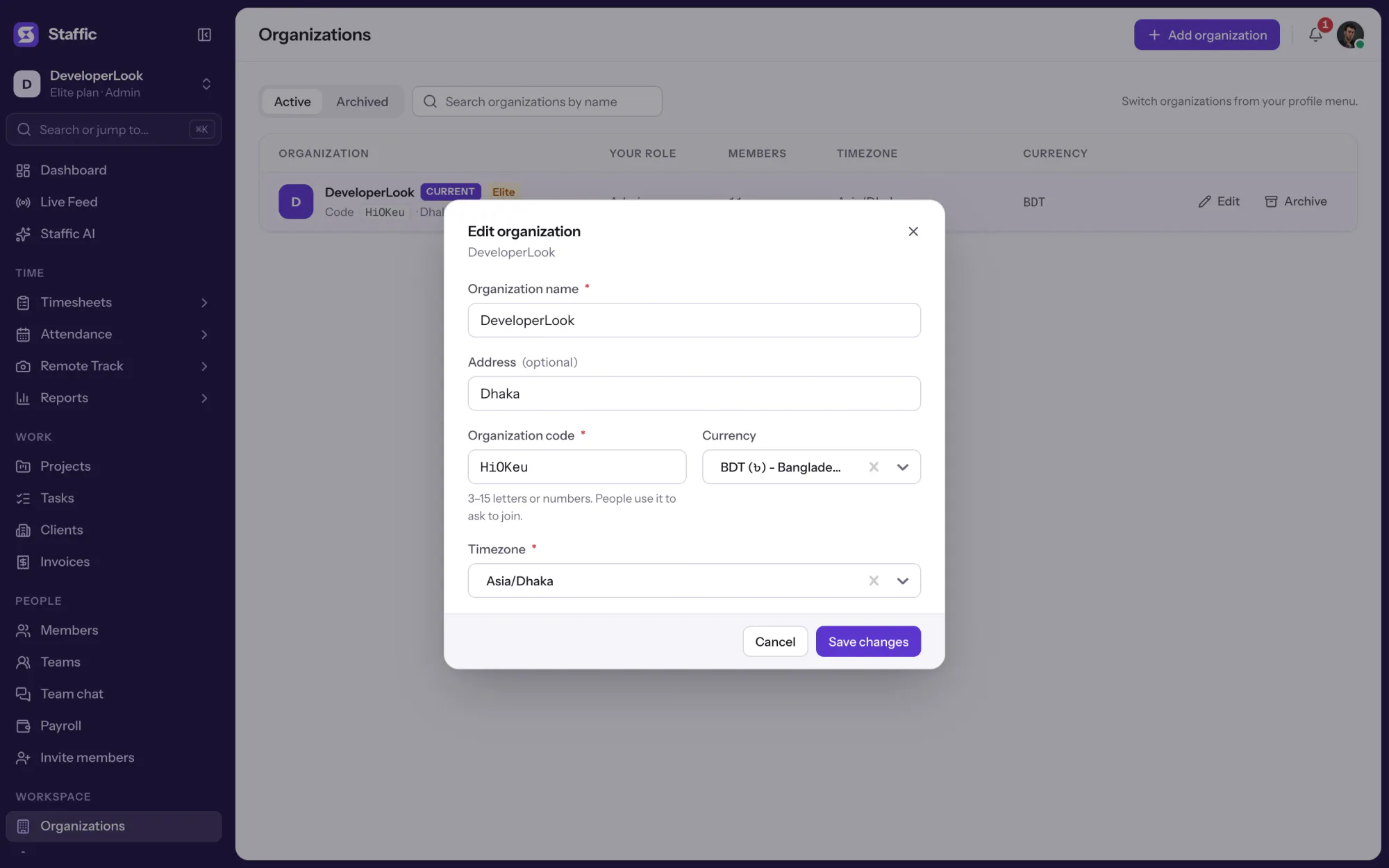
Start freeOpen your organization and check its time zone. Staffic uses it to decide which day each clock-in belongs to.
OrganizationsEach member installs Staffic on Windows, macOS or Linux and signs in.
Download StafficMembers start the timer when they begin work and stop it when they finish. That is their clock in and clock out.
Pick the dates and members, check clock-in, clock-out and time worked, and export the record if you need it.
Attendance › Clock in / out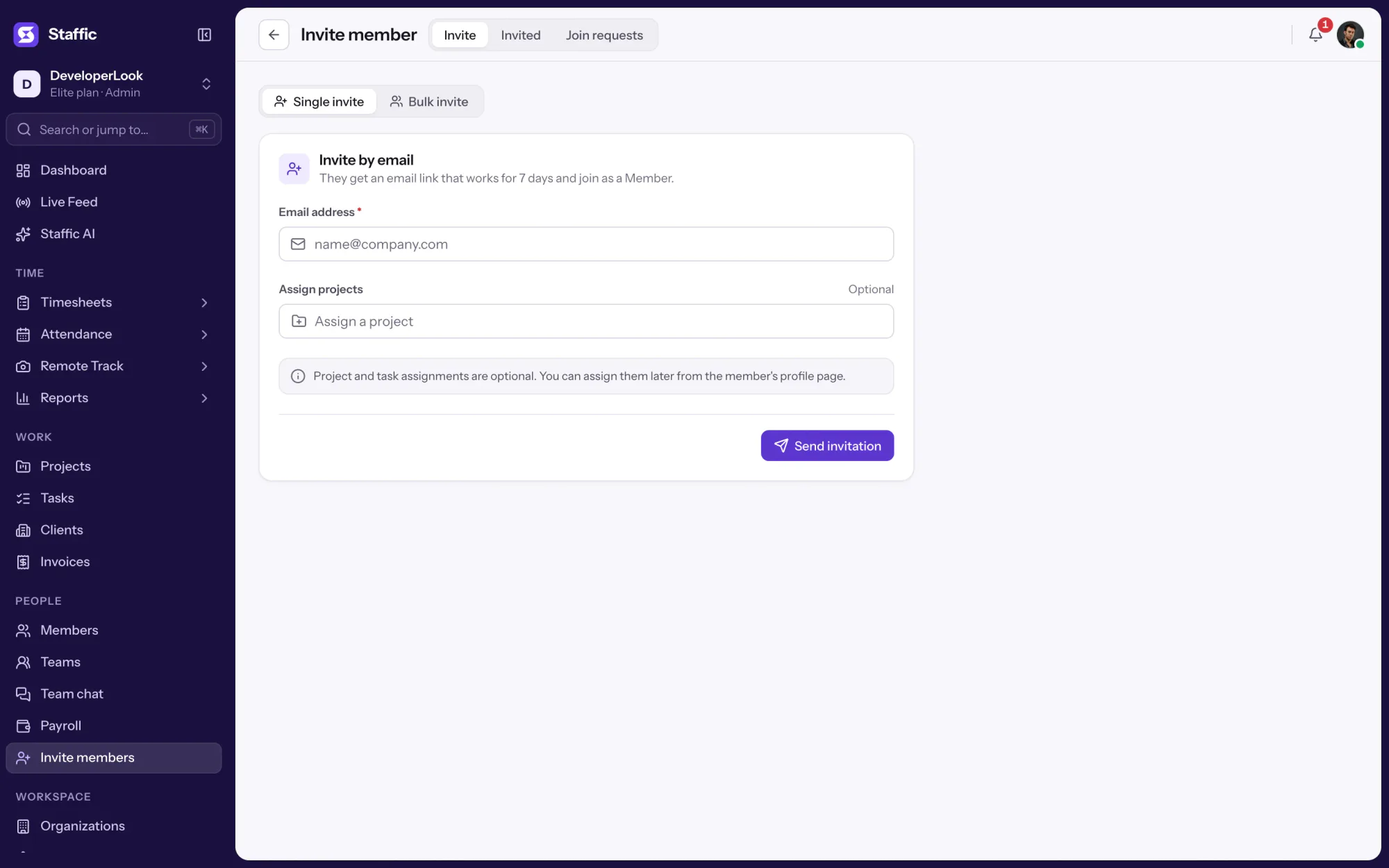
Compare
Three ways to see when your team works. Here is what each one answers.
Swipe the table to compare
| Compare | Clock In/OutThis page | Live FeedWho is working now | Daily TimesheetOne day of tracked time |
|---|---|---|---|
| Answers | When each member started and stopped, and how long they worked | Who is tracking right now, on which project and task | A member's tracked time for one day, on a timeline |
| Days | Past days, up to yesterday | Right now | Any day, including today |
| Plans | All plans, including Free | All plans, including Free | All plans, including Free |
| Link | You are here | Live Feed | Daily Timesheet |
Specs and terms
The facts behind the feature, and what each number on the Clock In/Out page means.
Who it’s for
For managers who need to know when work started and stopped, without asking anyone to punch a clock.
Everyone's day lands in your company's time zone, so you can see who started when without sending a check-in message.
Time worked counts tracked time only, so the hours you see are the hours worked, not the hours between two punches.
Filter by member and date, then export a PDF or Excel file for HR files or a payroll check.
Customer stories
Stop juggling tools. Staffic gives your team time tracking, projects, payroll and performance analytics in one platform.
Try Staffic for free“Staffic.io brings transparency without micromanagement. Our team feels trusted, and productivity has never been higher.”
Pricing
Clock In/Out is included on every plan, Free included. You pay per active user only when your team grows past 2 members.
Compare every planFor freelancers and small teams, up to 2 members
No card needed.
Includes Clock In/OutEvery core feature, for teams of up to 2 members.
Everything in Free, without the 2 member limit
Offer price until October 30, 2026, then $7.50
Card at checkout. Cancel within 7 days and pay nothing.
Includes Clock In/OutEverything in Free without the 2 member limit.
For organizations running payroll, billing and approvals
Offer price until October 30, 2026, then $10
Card at checkout. Cancel within 7 days and pay nothing.
Includes Clock In/OutEverything in Standard, plus Screen Recordings, Invoices, Clients and 1 more.
Prices in USD per active user. Billed monthly, Standard is $9.50 and Elite is $13 per user.
FAQ
Answers about clocking in and out with Staffic.
Read the Clock In/Out guideTime clock software records when employees start and finish work, the job an employee punch clock on the wall used to do. Staffic builds that time clock for employees into time tracking. Starting the desktop timer clocks a member in, and stopping it at the end of the day clocks them out.
Staffic stamps a clock in when a member first starts the timer in the desktop app and a clock out when they last stop it that day. Most time clock systems need a separate punch, but here the timer your team already uses writes the record. Admins review it from the next day under Attendance, Clock in / out.
Staffic adds up the tracked time between clock in and clock out, so Time worked isn't simply the gap between the two. A member who clocks in at 9:00 AM, stops the timer for an hour at lunch and clocks out at 6:00 PM shows 8 hours worked. Manual time added to that day counts too.
No. Clock-ins come from the timer in the Staffic desktop app, because Staffic isn't a clock in clock out app with a punch button in the browser. Manual time added in the web app, when your admin allows it, also counts toward the day.
Yes. Clock-ins come from the desktop app wherever a member works. Every day is counted in your organization's time zone, so a team spread across countries shares one calendar, and members see their own record in the web app.
You change the tracked time behind them, and Clock In/Out updates from it. Admins can delete wrong time and add manual time, and the Manual Time report logs each change with its reason. Timesheet Approval, on every plan, lets managers approve or reject each member's timesheet.
Yes, because it's the same timer. While it runs, Staffic records activity levels, apps, URLs and screenshots on every plan, so each clock-in has the work behind it. Admins choose what is tracked in Settings, Activity & privacy.
As long as it takes your team to install the desktop app and start tracking, because Clock In/Out has no settings of its own. Check your organization's time zone first. Each finished day then appears under Attendance, Clock in / out from the next day.
Every plan includes Clock In/Out. Free covers up to 2 members. Standard is $7.50 per user per month billed yearly ($3.80 during the current offer, until October 30, 2026) or $9.50 billed monthly, and Elite is $10.00 per user per month billed yearly ($4.80 during the current offer, until October 30, 2026) or $13.00 billed monthly.
Explore more
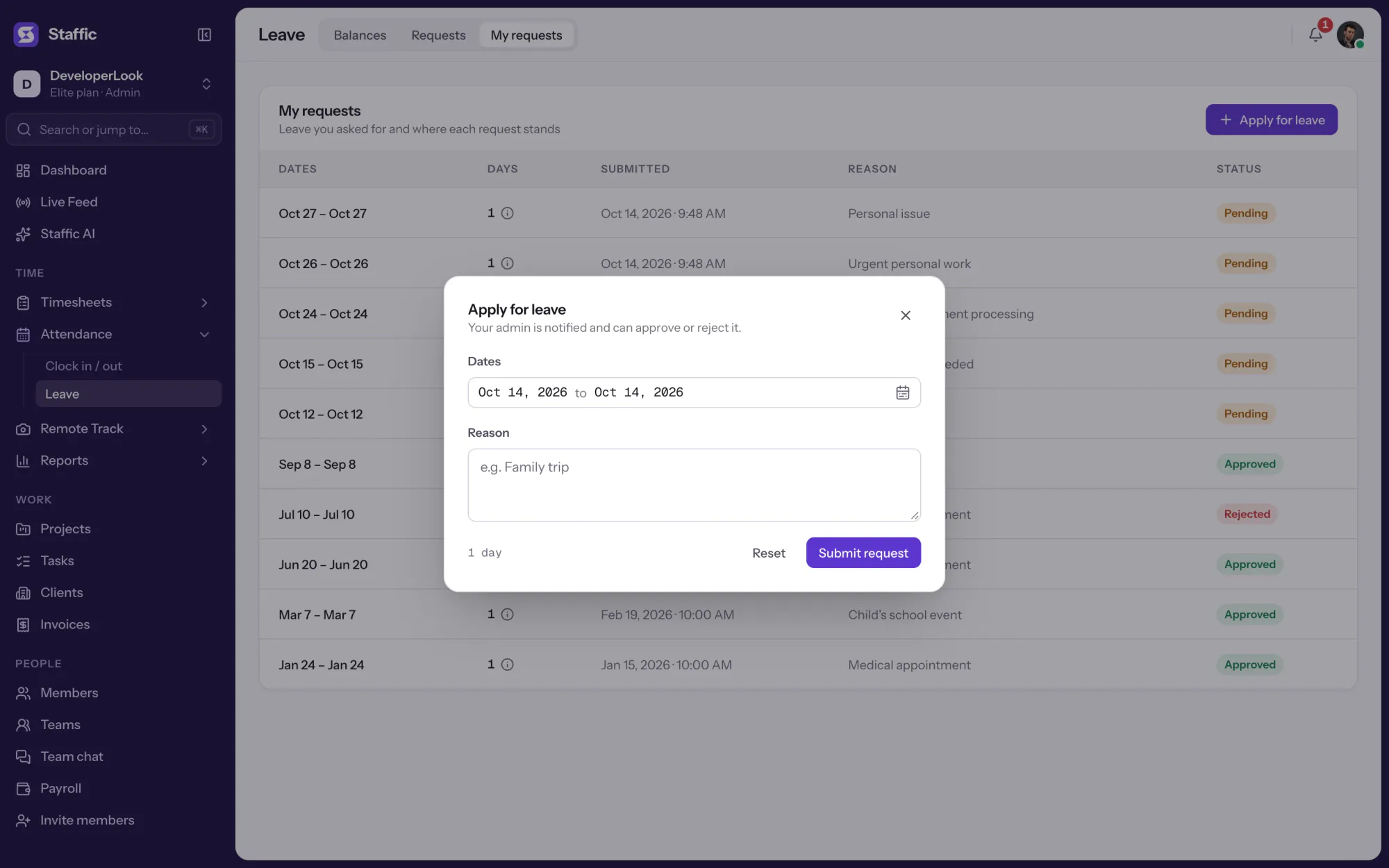

Members request time off with dates and a reason, admins approve or reject it, and each member's leave balance updates on its own.
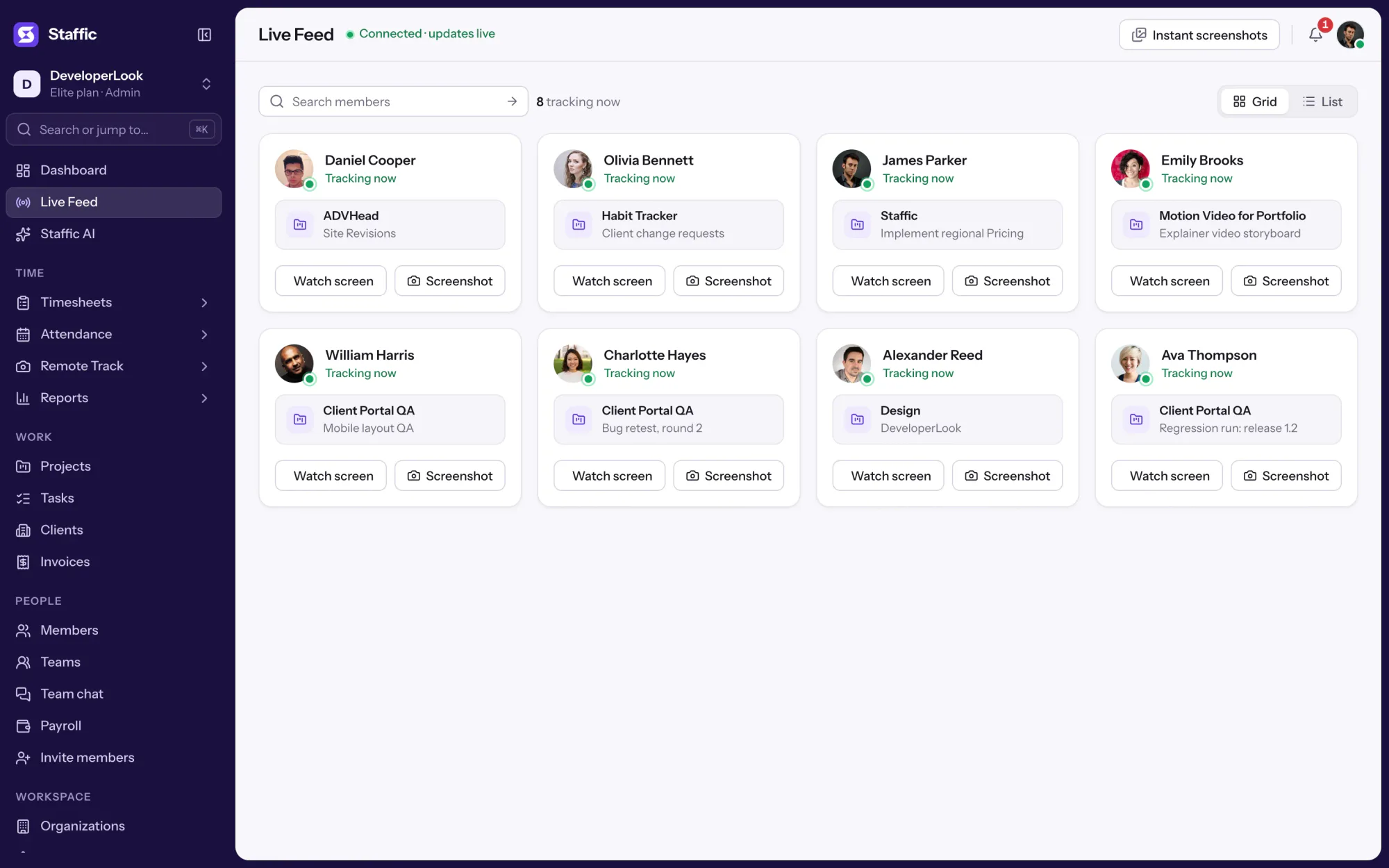
Live Feed lists the members tracking time right now, with each one's project and task, and takes an instant screenshot on request.
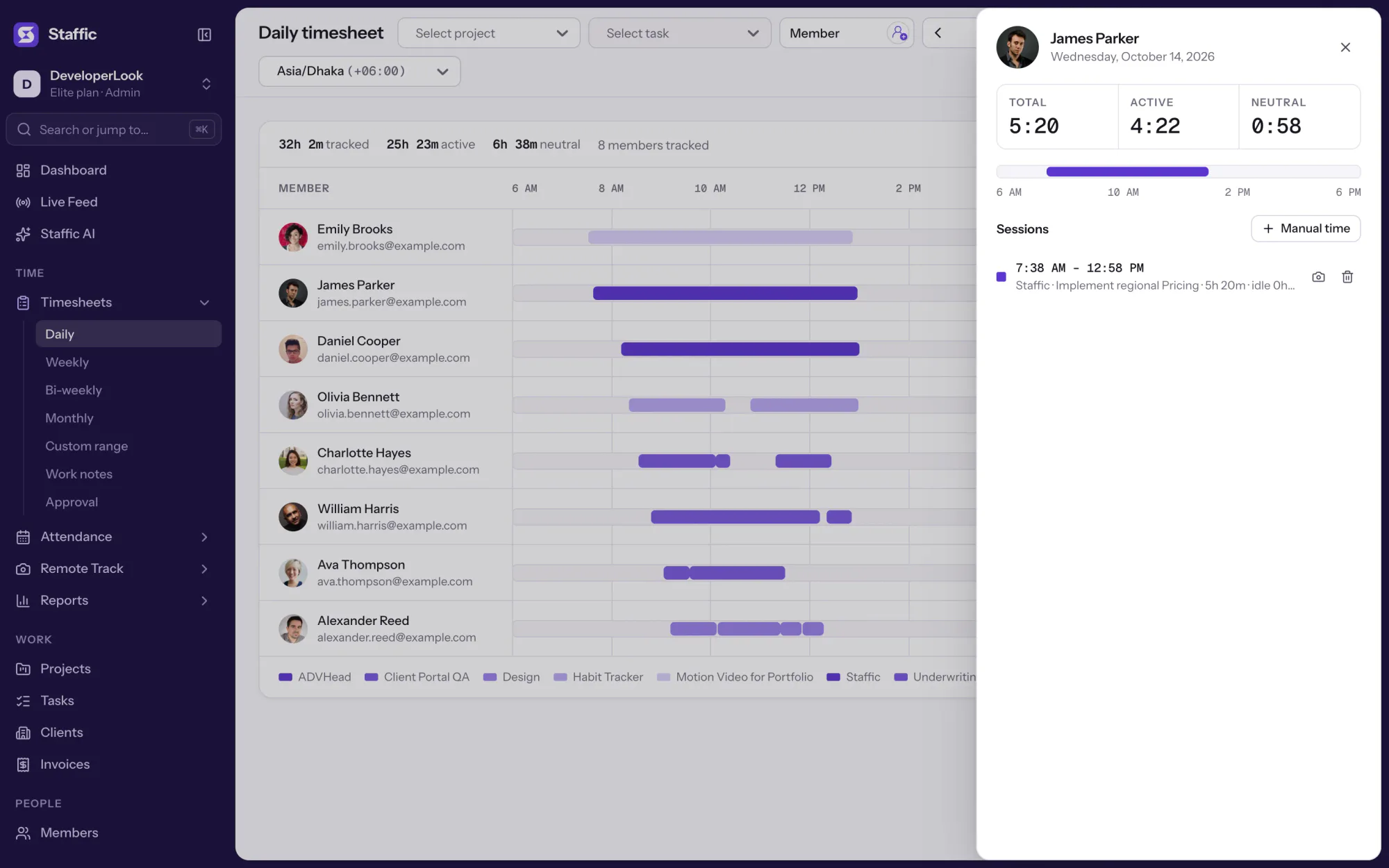

Staffic's daily timesheet shows one member's tracked sessions for a day on a timeline, with project, task, start and end times and the day's total.
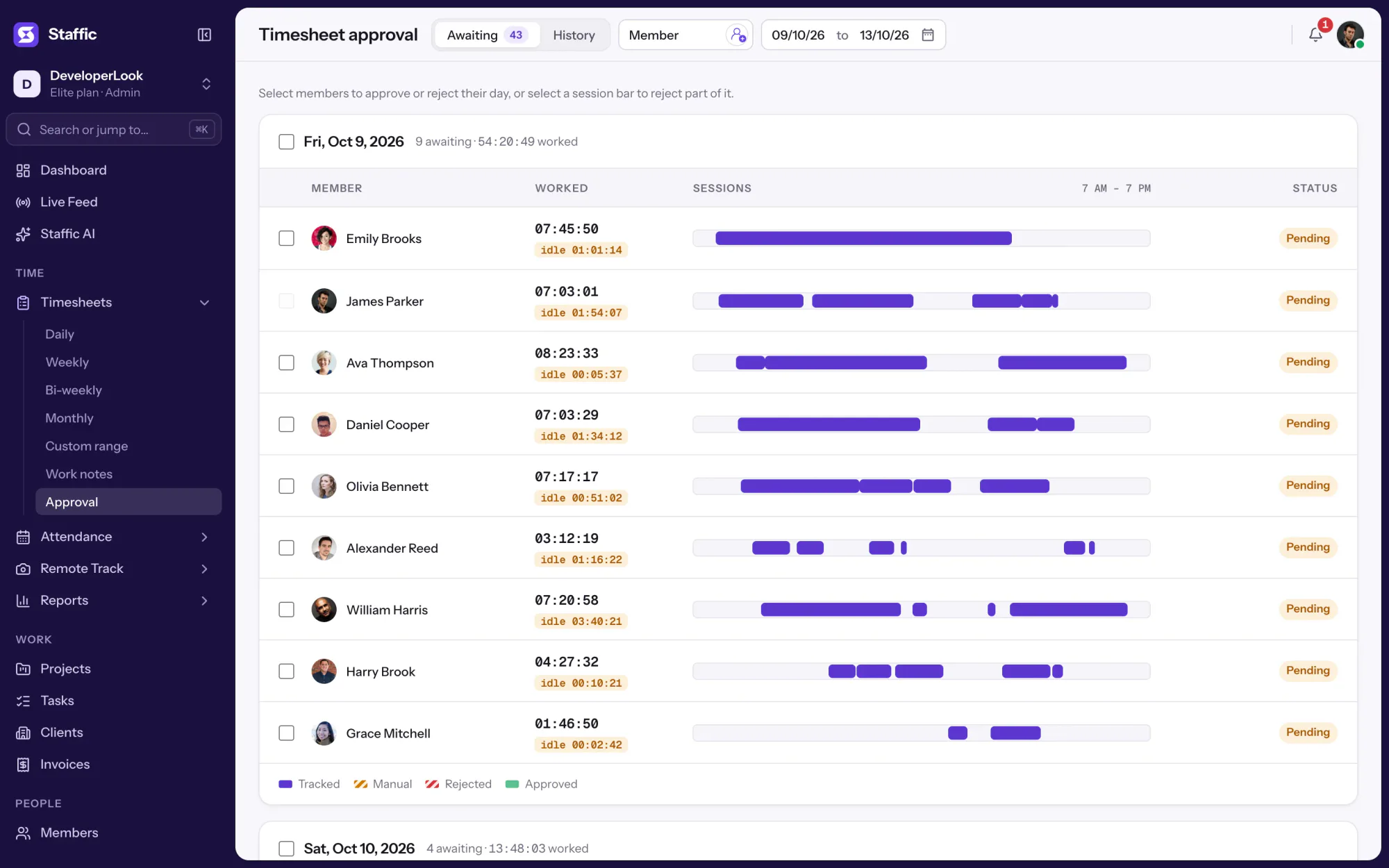

Approve or reject each member's tracked and manual time day by day, so hourly payroll pays only the hours you signed off.
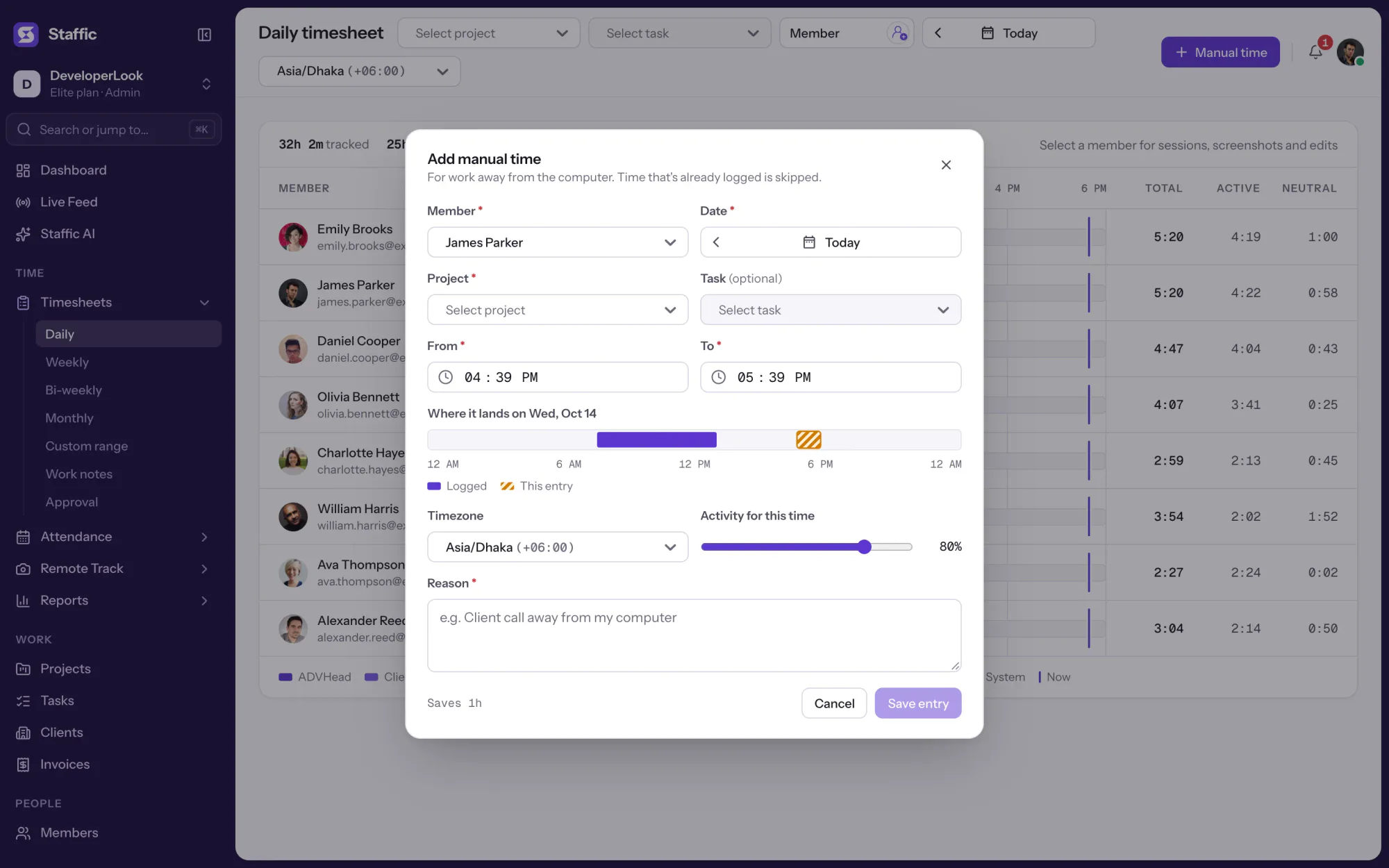

Add the hours the timer missed with a project and a required reason, and see every manual add and deleted hour in the Manual Time report.
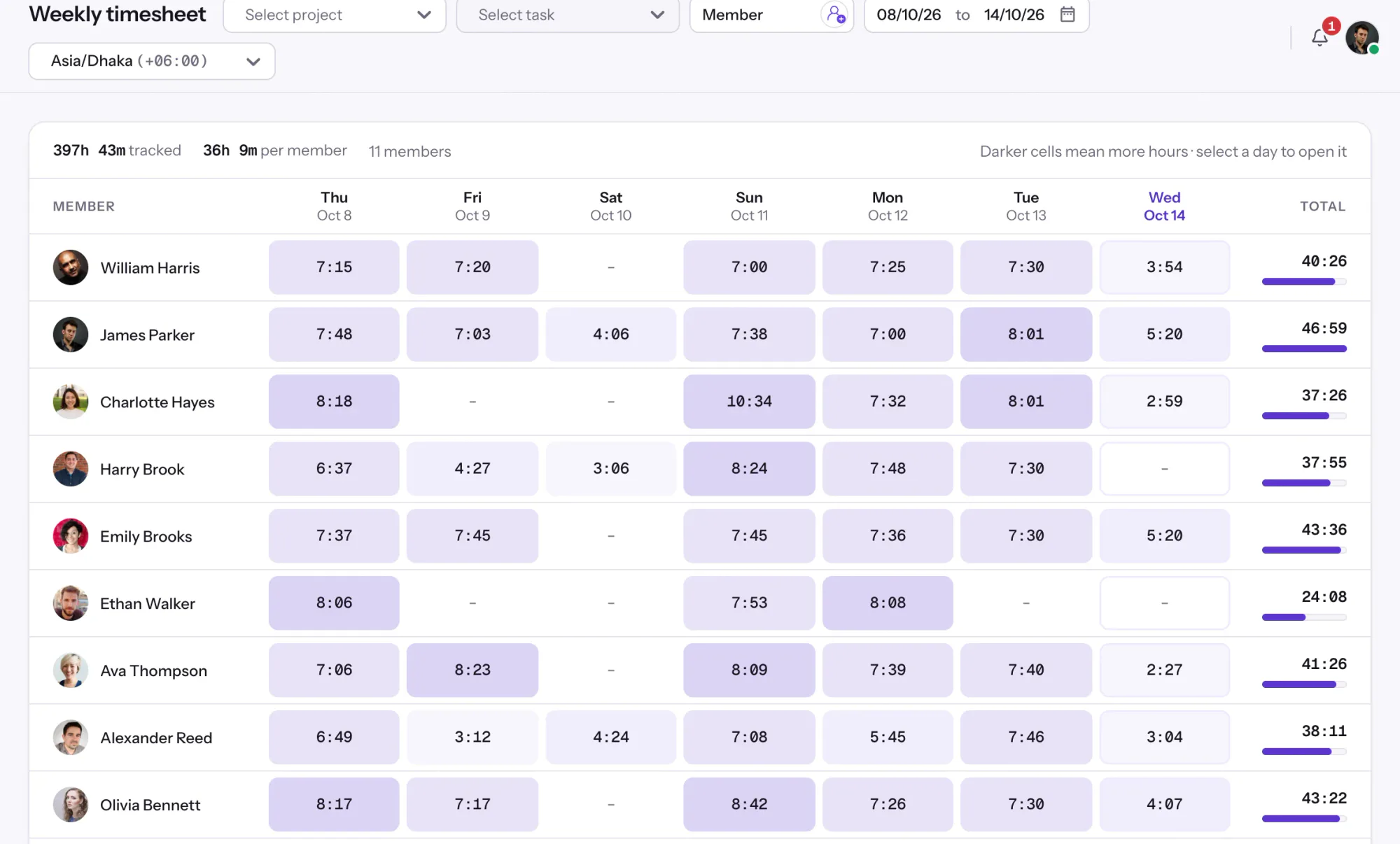

Staffic is time and attendance software for remote and hybrid teams: tracked hours, clock-ins, leave, timesheet approval and payroll in one record.
Free for up to 2 members
Create your workspace, invite your team, and the first timesheet builds itself.