Windows
Windows 10 or later- Run
staffic-2.3.2-setup.exe. It installs in one click and adds a desktop shortcut. - Sign in with your Staffic account.
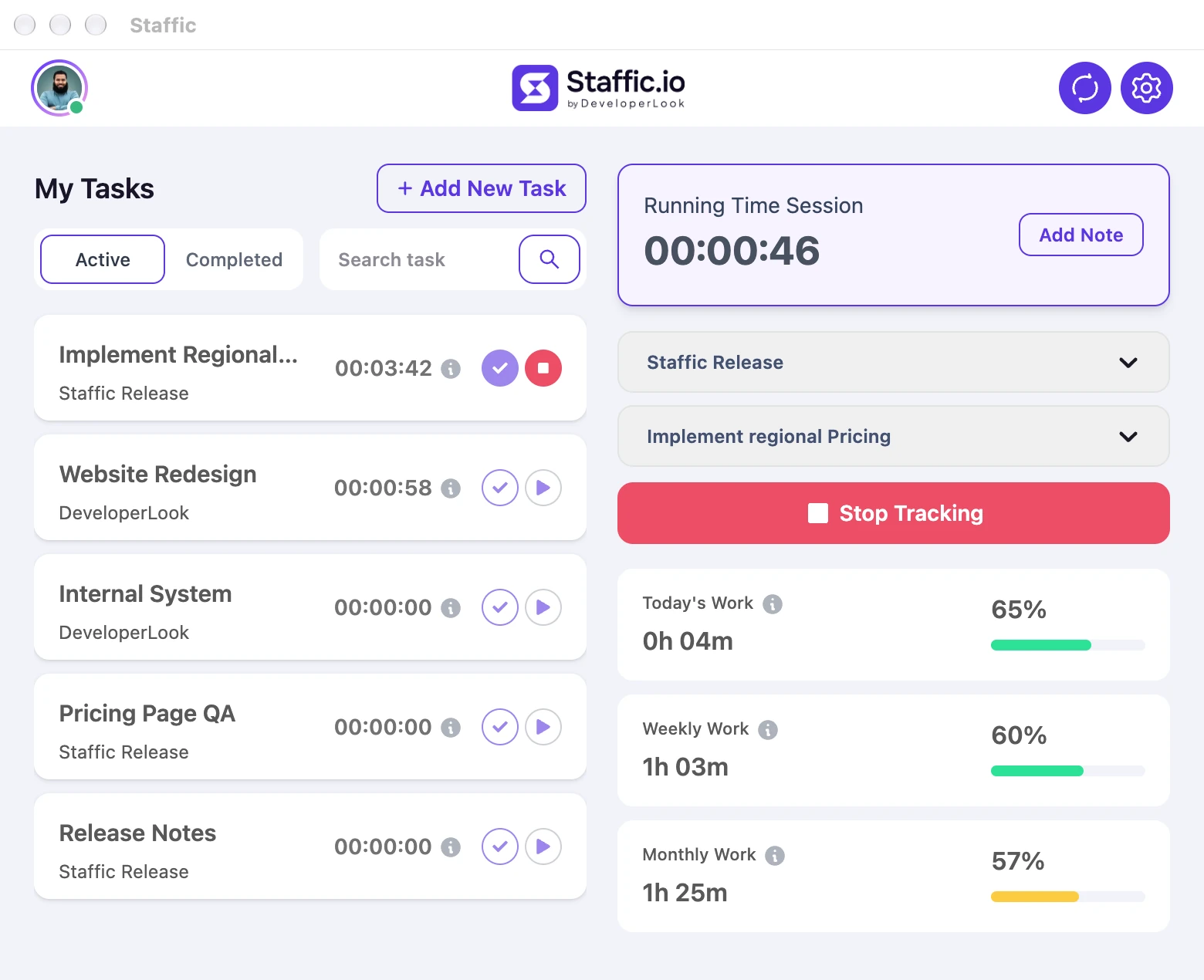
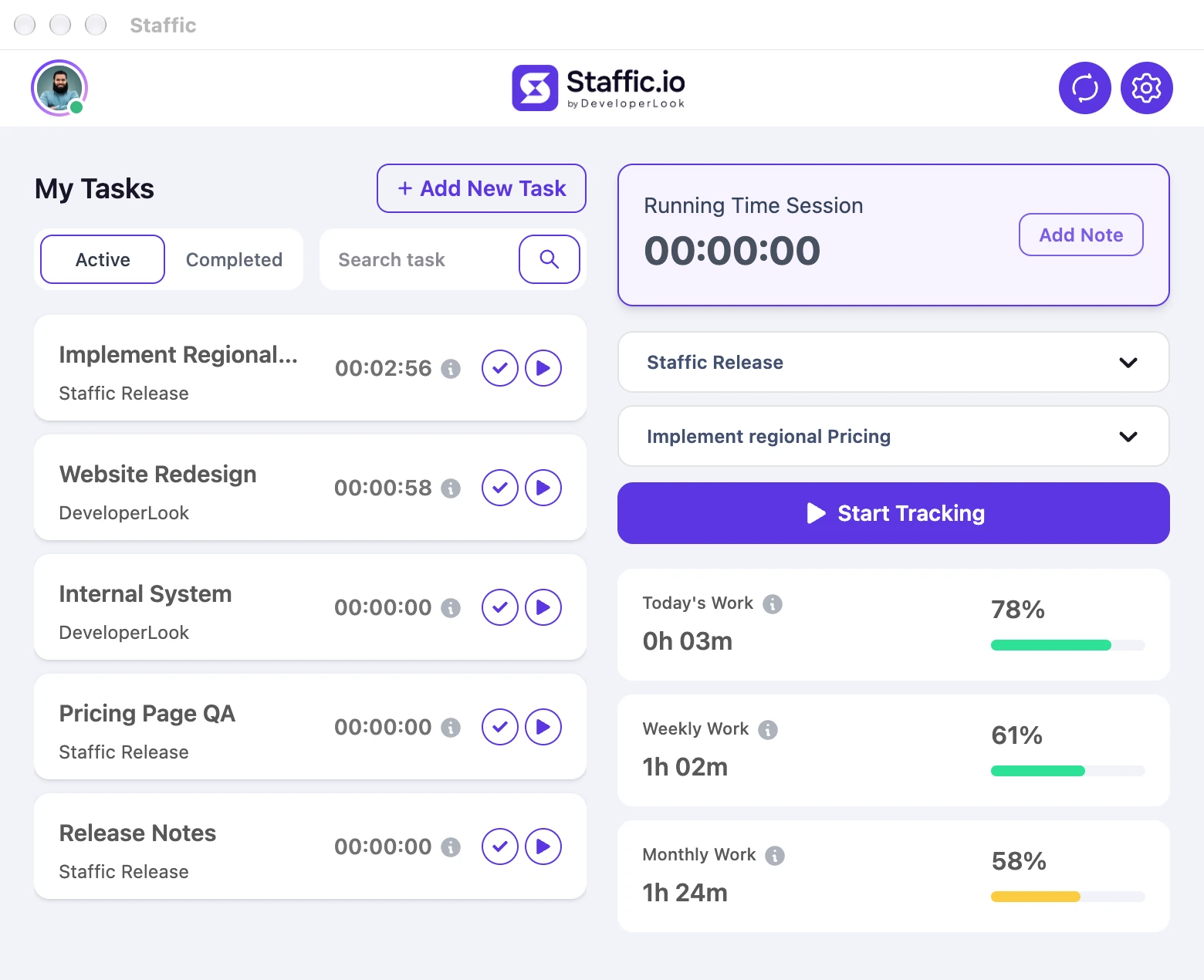
- Pick a project and task, then press Start Tracking.

Features
All 38 featuresSee the work while it happens.
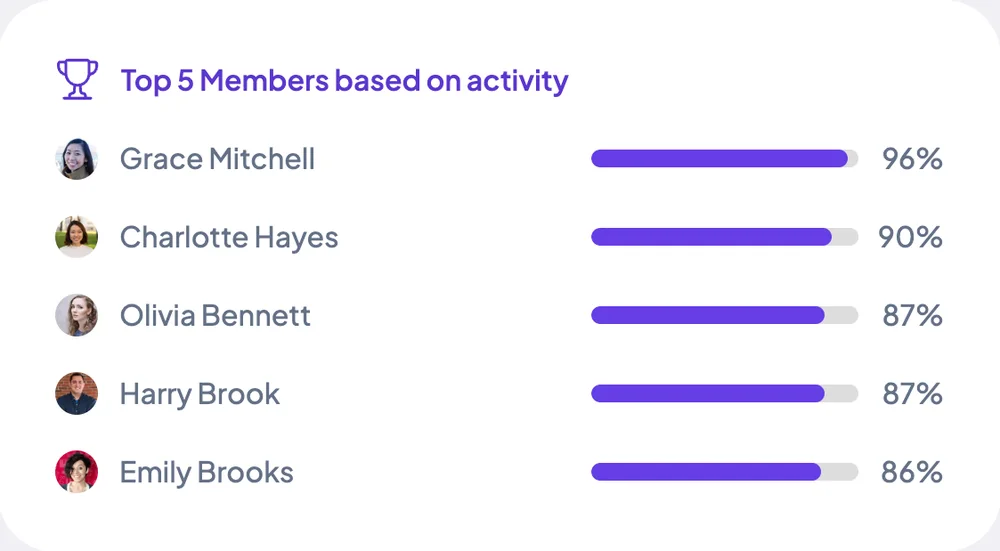
 DashboardYour team's week at a glance, Monday to Sunday
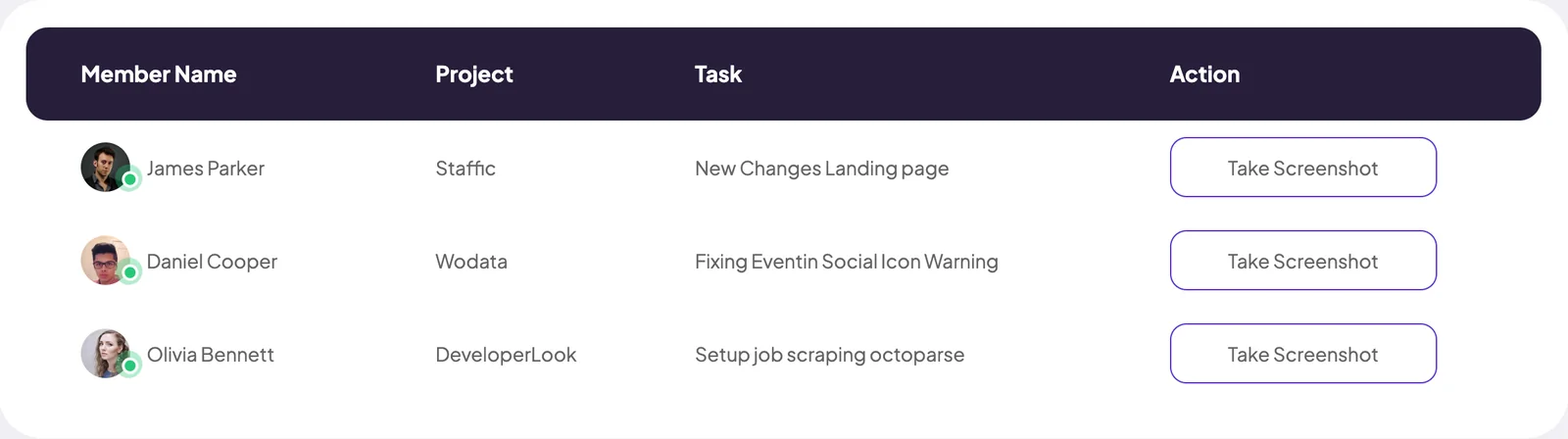
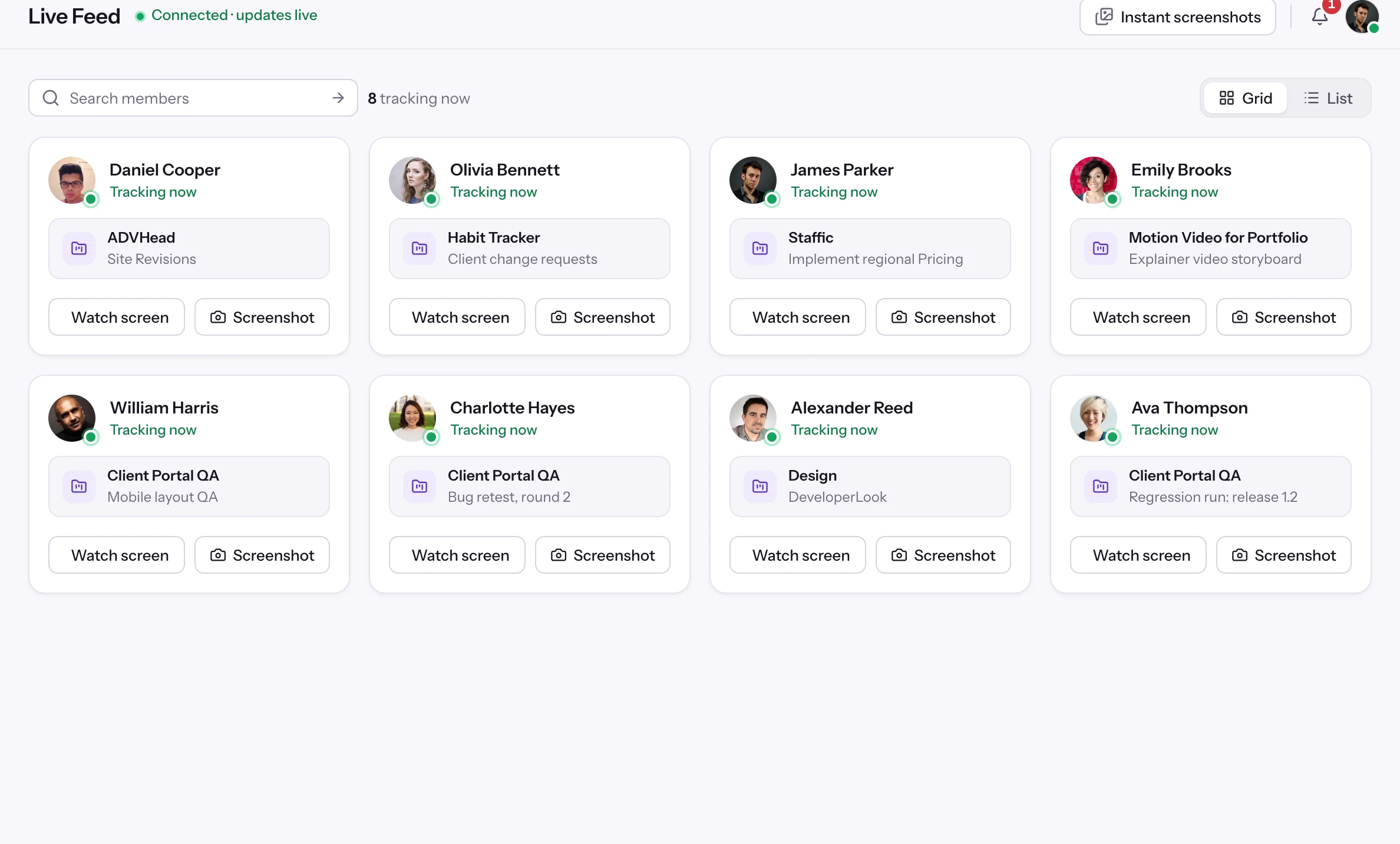
 Live FeedSee who's tracking time right now, and on what
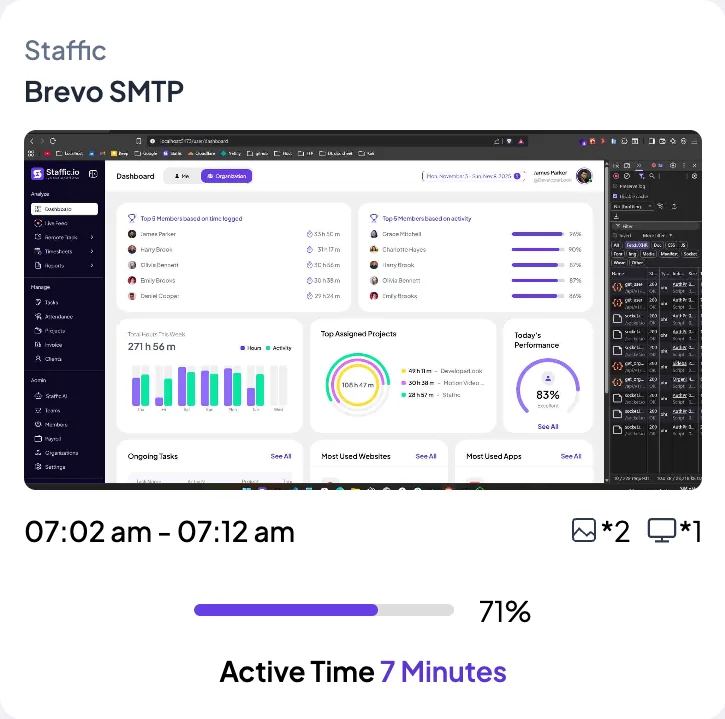
 ScreenshotsVisual proof of work, captured automatically
 AppsWhich apps each tracked session used
 URLsThe websites behind the tracked time
 Screen RecordingsEliteFull session video, beyond a screenshot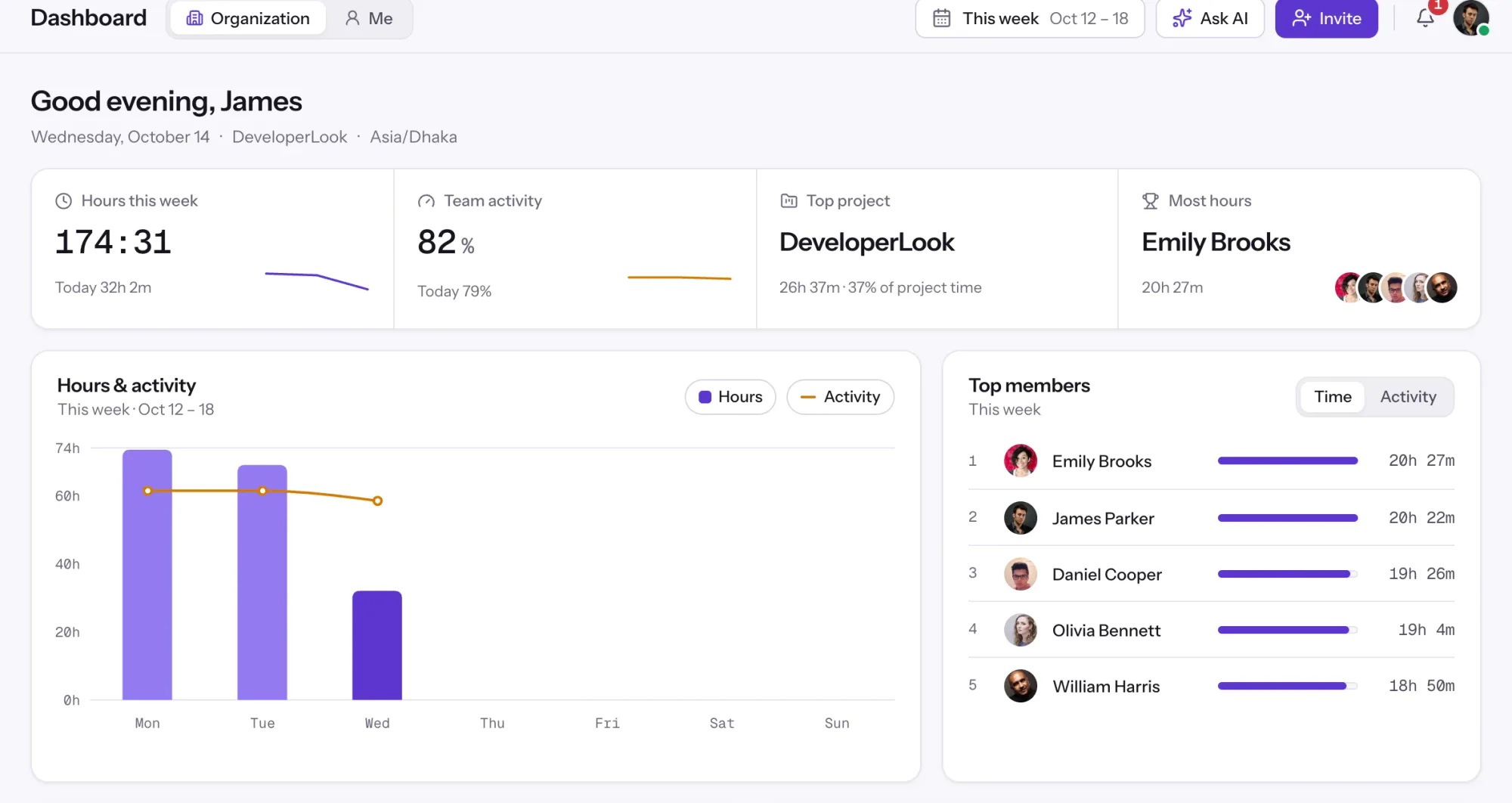
01 / 38
Dashboard
The team dashboard: this week's hours, team activity, top members, ongoing tasks, top projects and the most used apps and websites.
View DashboardSolutions
All 38 featuresHow remote, hybrid and growing teams run Staffic.
Staffic for the way you work, from freelancing to client billing.
 FreelancersFreelance time tracking
 Small businessesTimekeeping software for small business
 Call centersCall center monitoring software
 ConsultantsTime tracking software for consultants
 Companies with contractorsContractor time tracking
 Virtual assistantsTime tracking software for virtual assistants
 AgenciesAgency time tracking software
 Accounting firmsTime tracking software for accountants
 Software teamsTime tracking software for engineers
Staffic set up for your industry's records and reports.
01 / 19
Track remote hours across every time zone.
Staffic records time, activity and optional screenshots on each remote member’s computer, then turns them into timesheets you approve, so you can trust the hours without daily check-ins.
View Remote teamsThe desktop time tracker for Windows, macOS and Linux. It records time, activity and optional screenshots while your timer runs, and syncs everything to your Staffic account.
The app signs in to your Staffic account. No account yet? Create one free, it takes about a minute.
Install
staffic-2.3.2-setup.exe. It installs in one click and adds a desktop shortcut.sudo apt install ./staffic_2.3.2_amd64.debVersion 2.3.2, released October 13, 2026. Updates download in the background and install when you quit the app.
What the app does
Staffic only works while your timer runs, and it tells you when it starts and stops. Nothing runs in secret.
How tracking works, in the docsFAQ
Yes. The app is free to download, and Staffic is free for teams of up to 2 members. Bigger teams use a paid plan, priced per active user.
Windows 10 or later, macOS 12 Monterey or later on Apple Silicon and Intel, and Linux on x64 and ARM64 through .deb packages for Ubuntu, Debian and other Debian-based systems.
No. Staffic records time, activity, apps, URLs and screenshots only while your timer runs, and shows a notification when tracking starts and stops.
Staffic checks for new versions, downloads them in the background and installs them the next time you quit the app.
Yes. The timer and screenshots keep running without a connection, and everything uploads when the app reconnects.
Yes. Turn on Launch at startup in the app. It also has a dark mode.
Free for up to 2 members
Create your workspace, invite your team, and the first timesheet builds itself.