Mixed Mac and Windows teams
One account for every computer
Mac and Windows members sign in to the same organization, and their time lands in the same timesheets and reports.

Features
All 33 featuresSee the work while it happens.
 DashboardYour team's week at a glance, Monday to Sunday
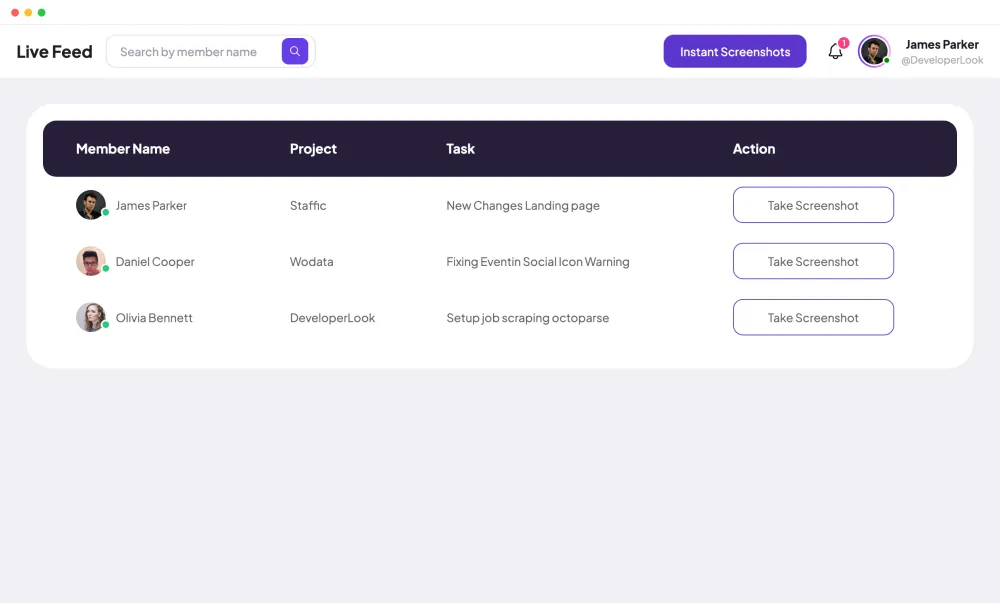
 Live FeedEliteSee who's tracking time right now, and on what
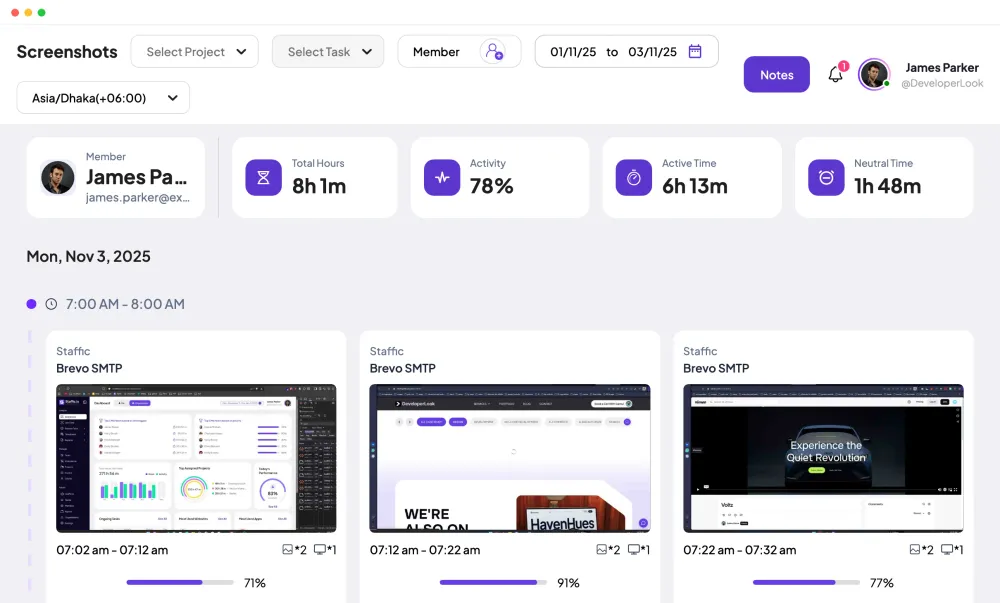
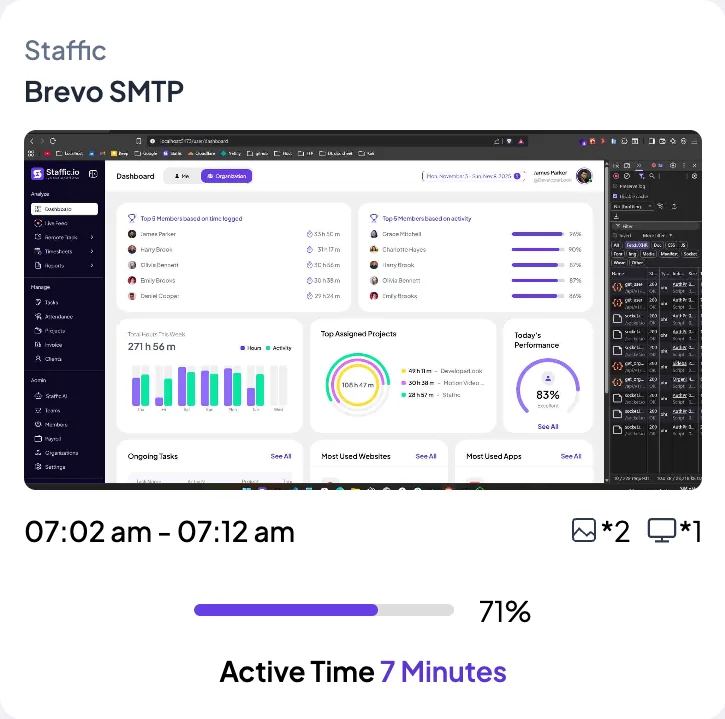
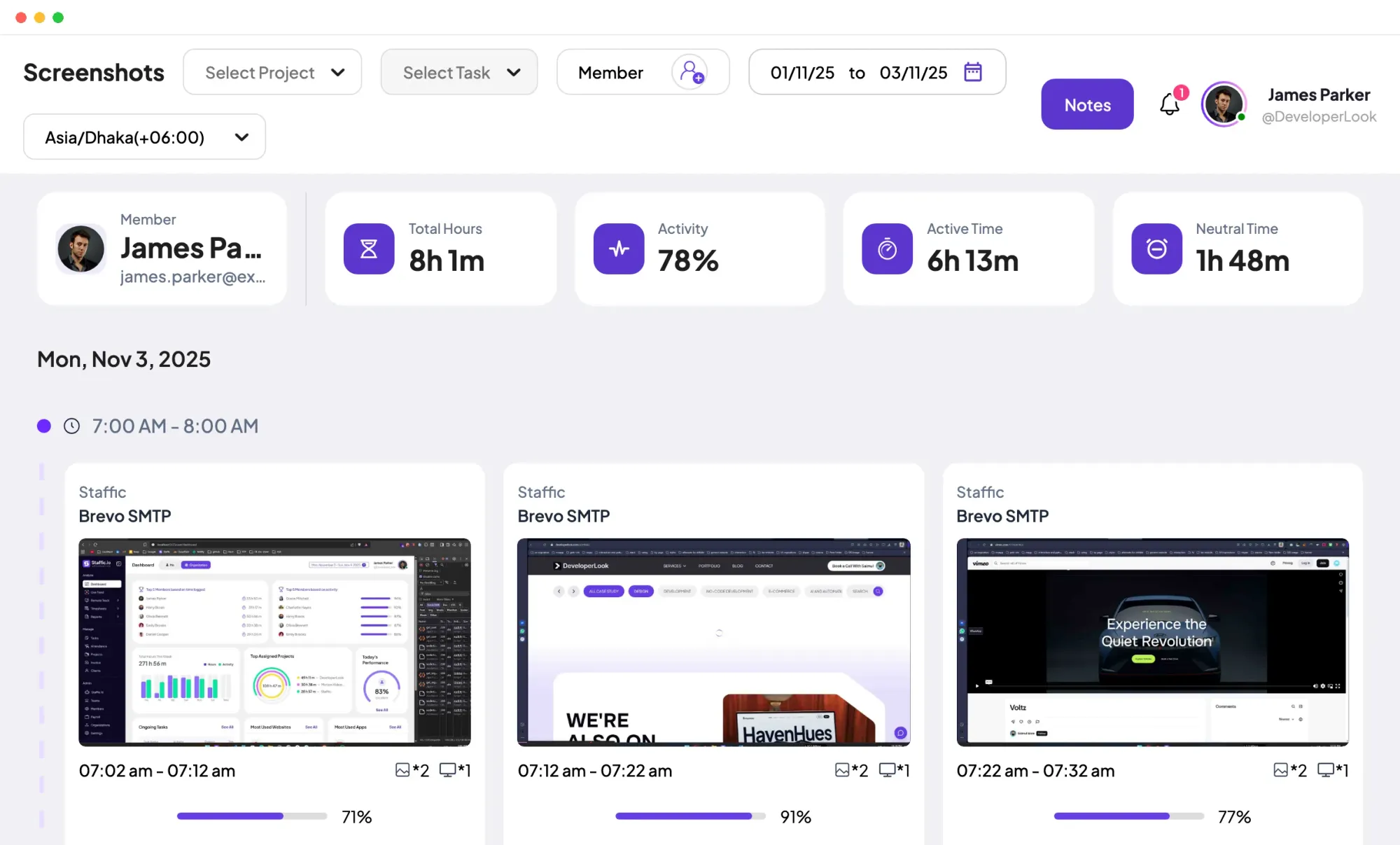
 ScreenshotsStandardVisual proof of work, captured automatically
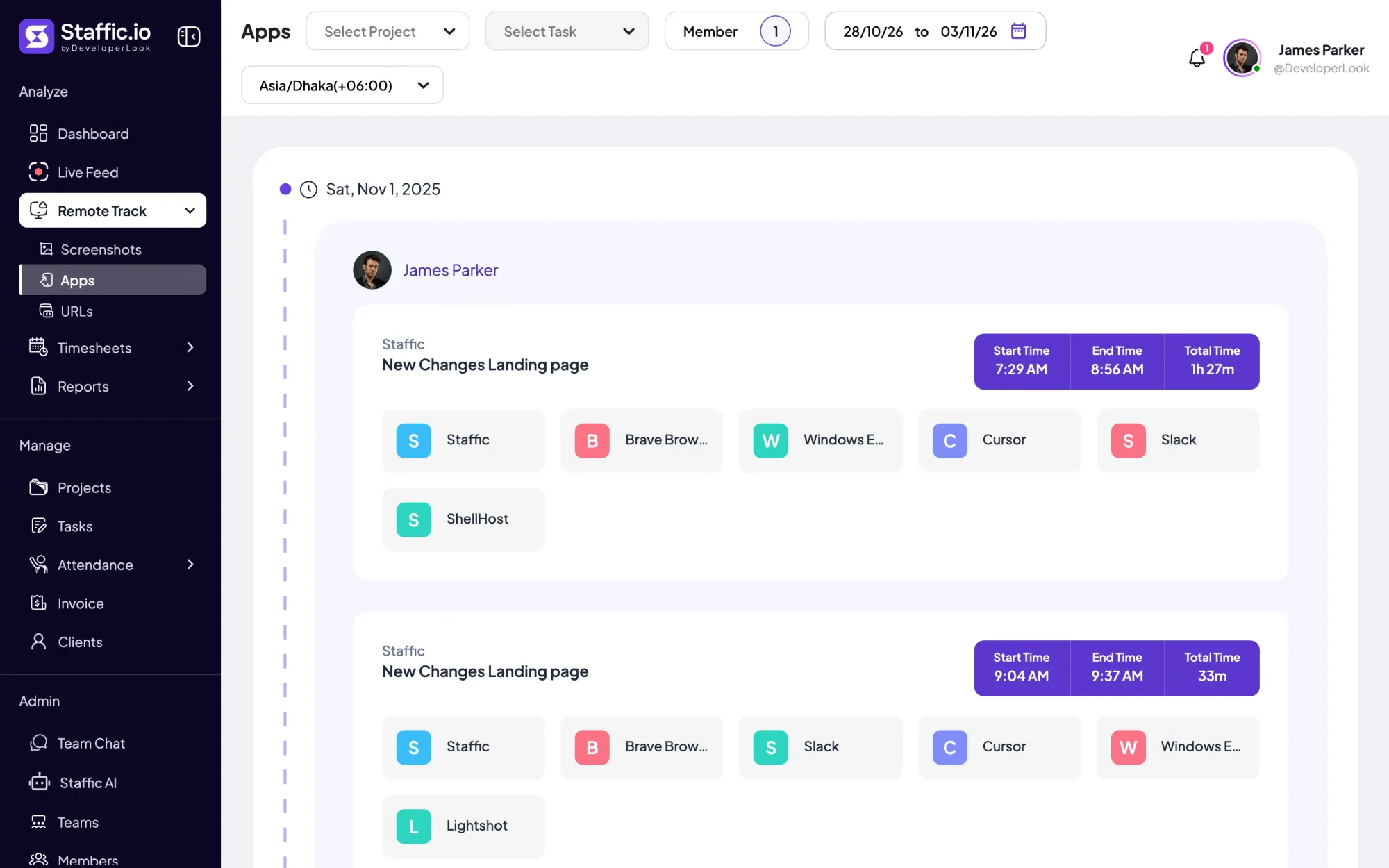
 AppsWhich apps each tracked session used
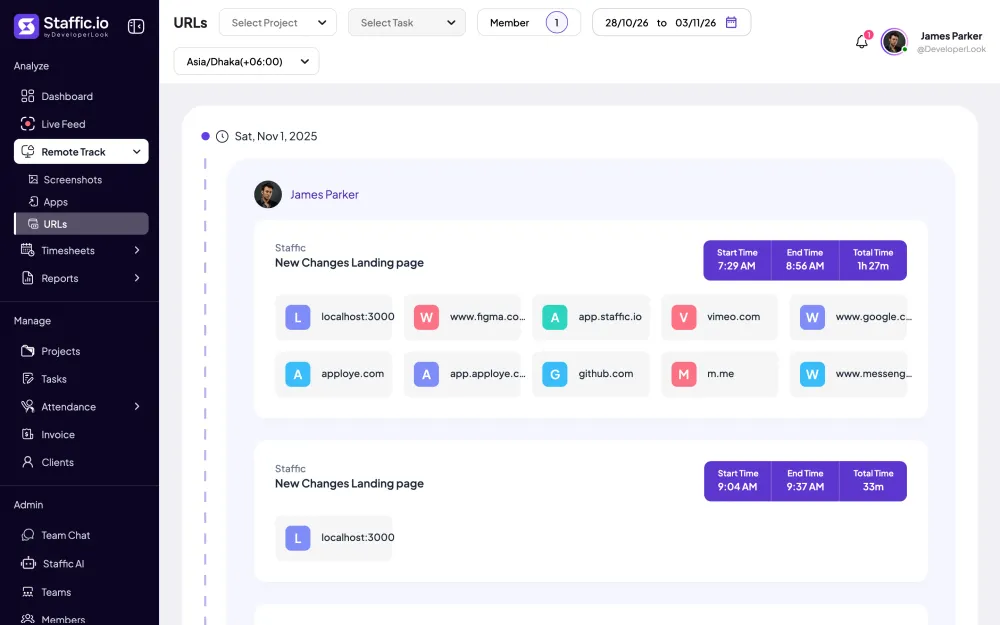
 URLsThe websites behind the tracked time
 Screen RecordingsEliteFull session video, beyond a screenshot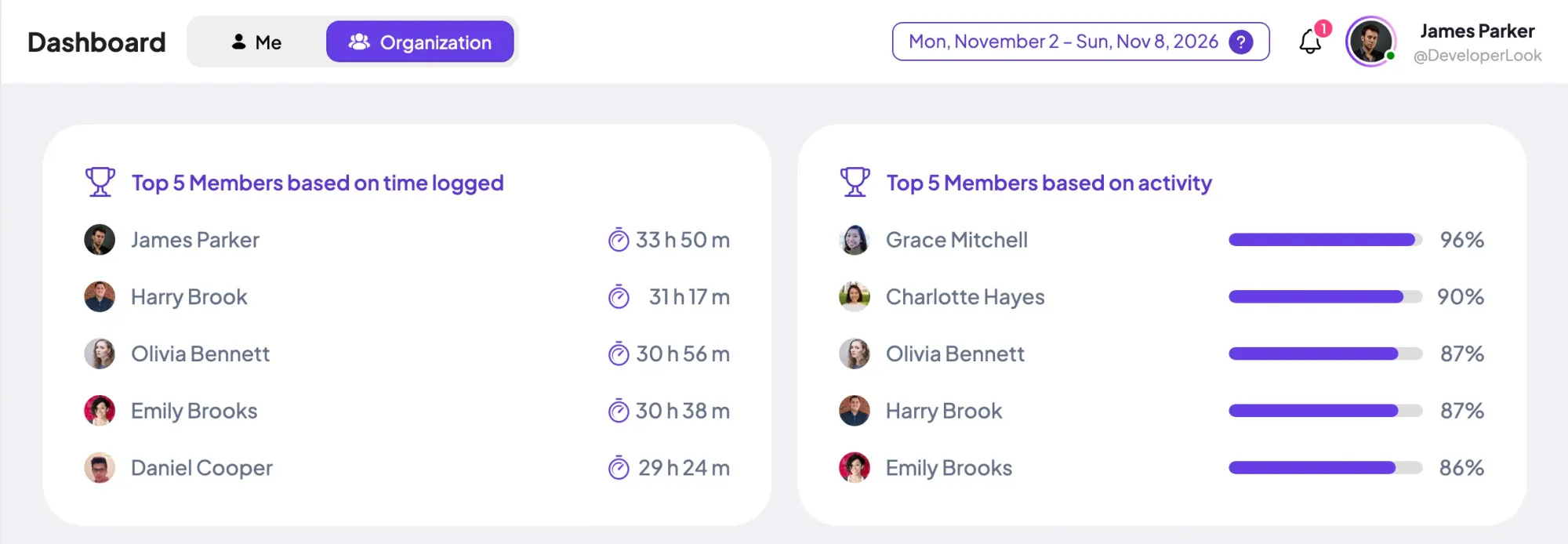
01 / 33
Dashboard
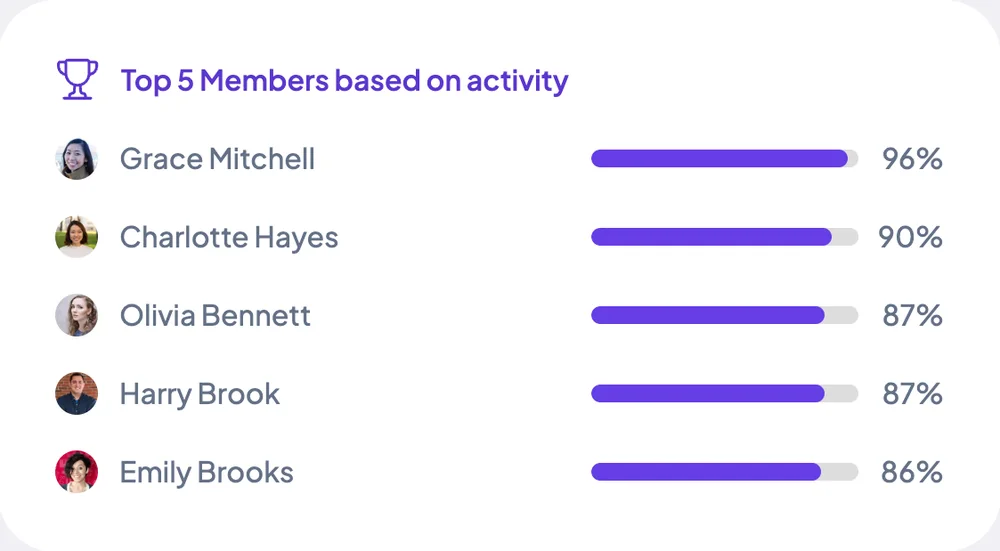
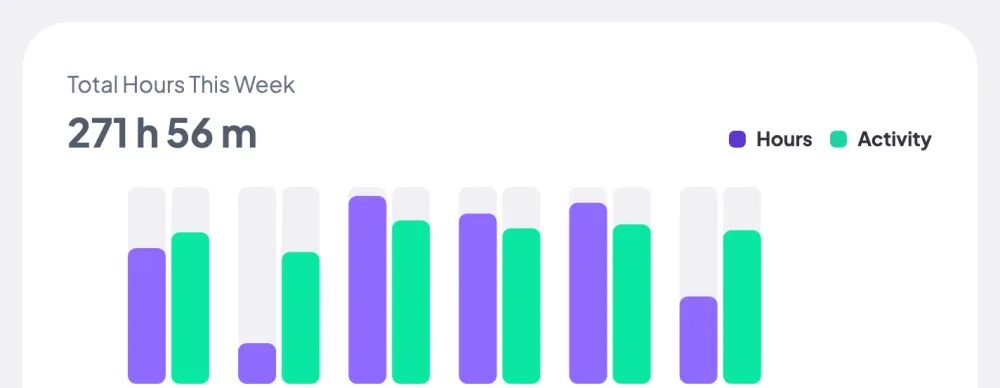
The team dashboard: this week's hours, today's performance, top members, ongoing tasks, top projects and the most used apps and websites.
View DashboardMac
Staffic is Mac employee monitoring software for teams on macOS 12 Monterey or later, on Apple Silicon and Intel Macs. While a member's timer runs, the app records time, activity, apps and websites, plus screenshots on Standard and Elite. A notification marks every start and stop, so monitoring stays in the open.
In short
Staffic for Mac is the macOS time tracking app behind Staffic's monitoring. Members install it on macOS 12 or later, sign in and start the timer on a project and task. While it runs, it records time, an activity level, apps and websites, and screenshots on Standard and Elite once macOS allows Screen Recording. Admins review it all in the web app.
How it works
Four steps turn Staffic into time logging software for every Mac on your team.
Mac employee monitoring software
What Staffic records on a Mac, when it records it and who sees it.
The app records only while a member's timer runs. Admins choose what it records for the whole organization, and members see their own data in the web app.
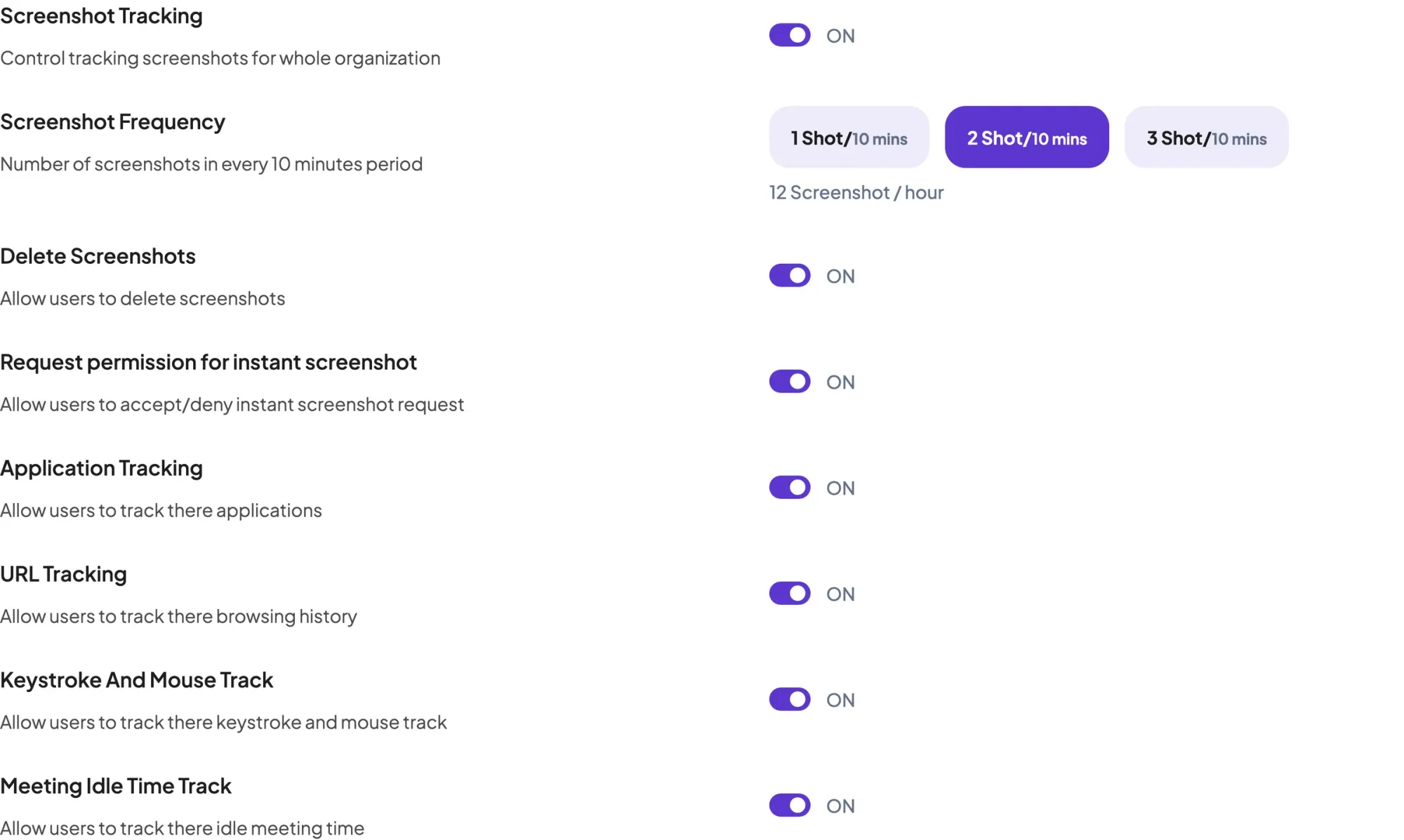
Screenshots need the Screen Recording permission, which macOS asks for when you set Staffic up. With it allowed, the app takes screenshots at random minutes on Standard and Elite: 2 per 10 minutes by default, or 1, 2 or 3 on Elite.
The URLs page lists the sites a member visited during each tracked session, and the Apps page lists the applications that ran, on every plan. Website URLs need the Automation permission that macOS asks for, so Staffic can read them from the browser.
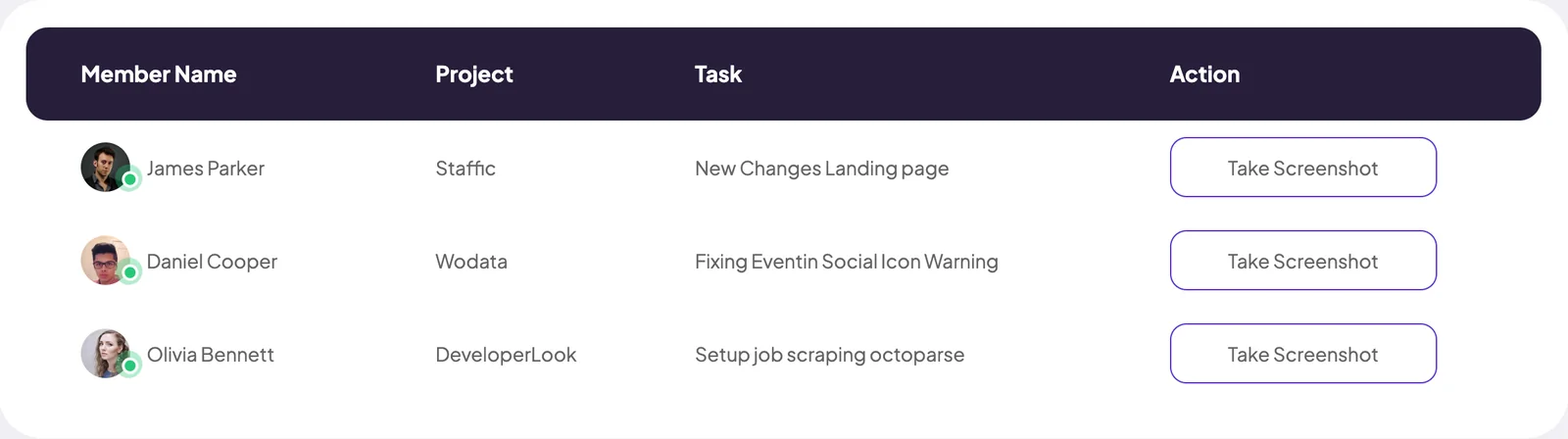
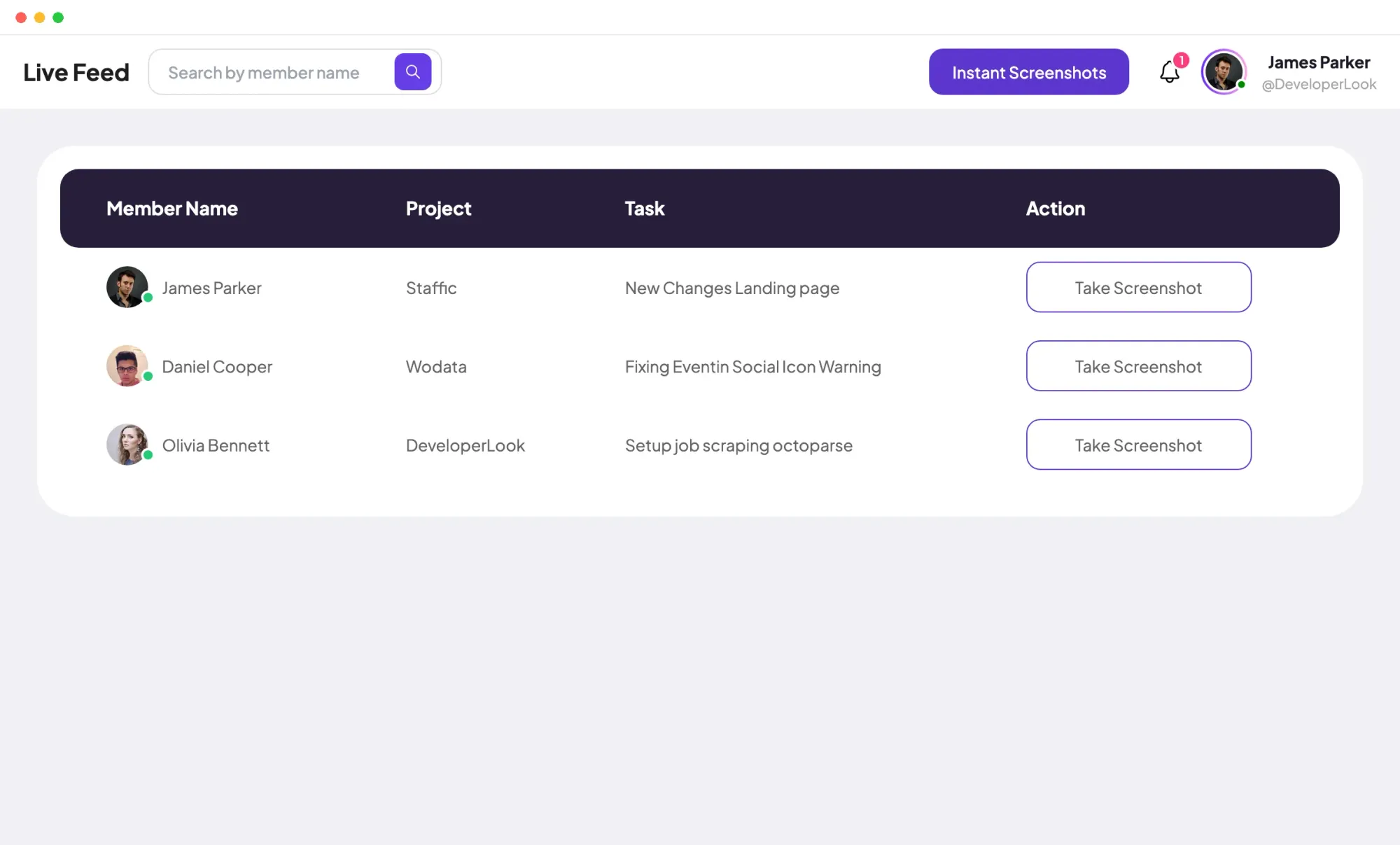
Live Feed lists the members whose timer is running and the project and task each one is on, so you don't have to message a Mac user to ask. It's for admins on the Elite plan.
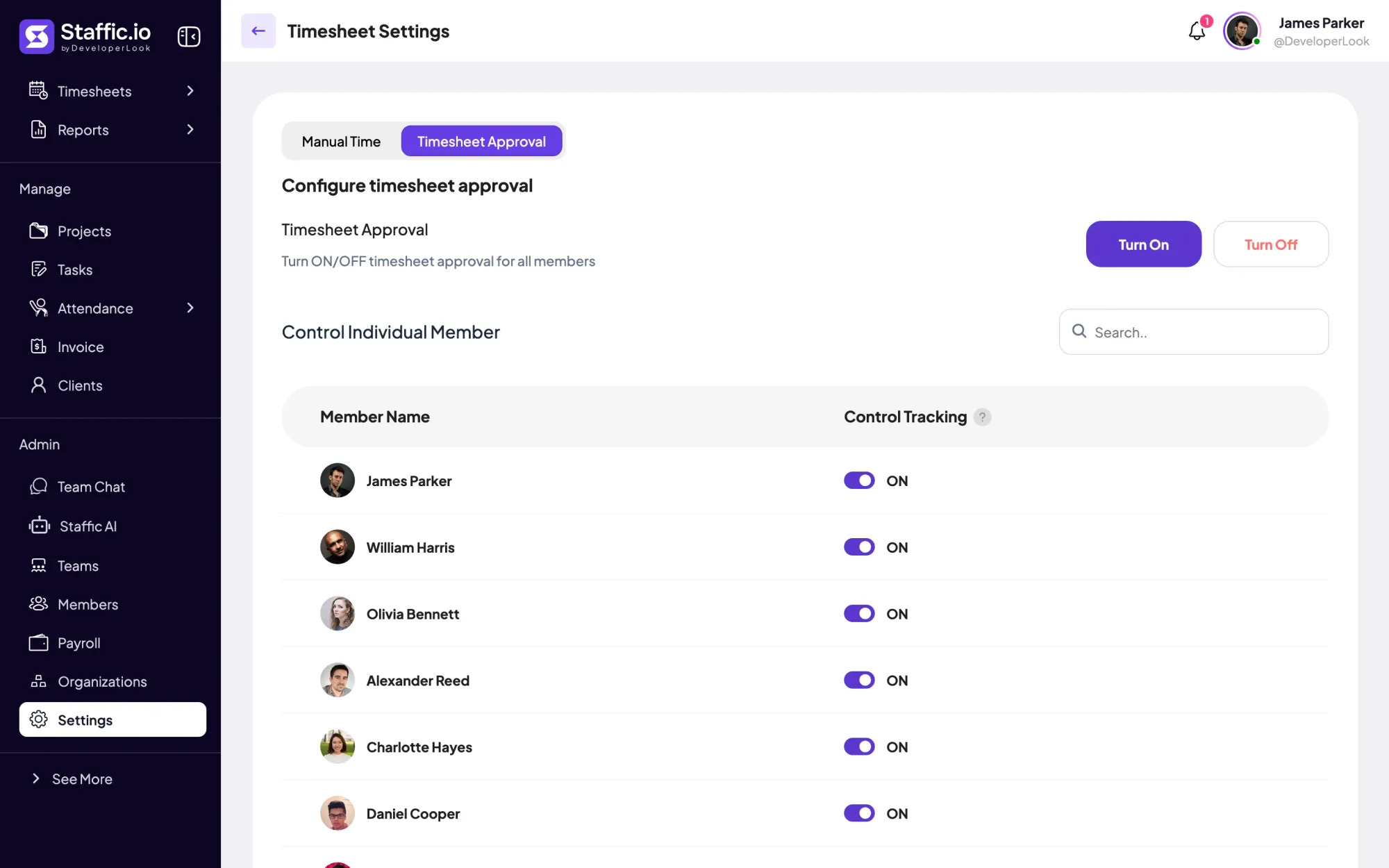
Admins can switch tracking off for a single member in Timesheet Settings, while the rest of the team keeps tracking. The per-member switch is on Standard and Elite.
Showing What the Mac app records.
Control and privacy
Staffic on Mac records only while the timer runs, and it tells the member when that is.
Set it up
Five steps for the admin and each Mac user.
Turn screenshot, application, URL and keystroke and mouse tracking on or off for the organization.
Settings › ActivityInvite members by email and assign their projects.
Admin › MembersPick Apple Silicon or Intel chip, on staffic.io/download or under Desktop App in the web app.
Download StafficDesktop App › MacDrag Staffic into Applications, open it and allow Screen Recording, Accessibility or Input Monitoring, and Automation when macOS asks.
Sign in with the same account as the web app, pick a project and task, and press Start Tracking.
Compare
One organization can mix all three. Here's what changes from system to system, and what stays the same.
Swipe the table to compare
| Compare | MacmacOS 12 or later | WindowsWindows 10 or later | LinuxDebian-based systems |
|---|---|---|---|
| Download | .dmg for Apple Silicon or Intel | .exe installer | .deb for x64 or ARM64 |
| Install | Drag into Applications | One click, adds a desktop shortcut | apt or your software center |
| System permissions | Screen Recording, Accessibility or Input Monitoring, Automation | None listed | None listed |
| Records | Time, activity, apps and URLs | Time, activity, apps and URLs | Time, activity, apps and URLs |
| Data | Same timesheets and reports | Same timesheets and reports | Same timesheets and reports |
| Link | You are here | Windows | Linux |
Systems, downloads and install steps from staffic.io/download, checked 2026-10-12.
Specs and terms
The facts behind the feature, and what each number on the Mac page means.
Who it’s for
Teams choose Staffic as employee monitoring software on Mac because the timer stays in the member's hands.
Mac and Windows members sign in to the same organization, and their time lands in the same timesheets and reports.
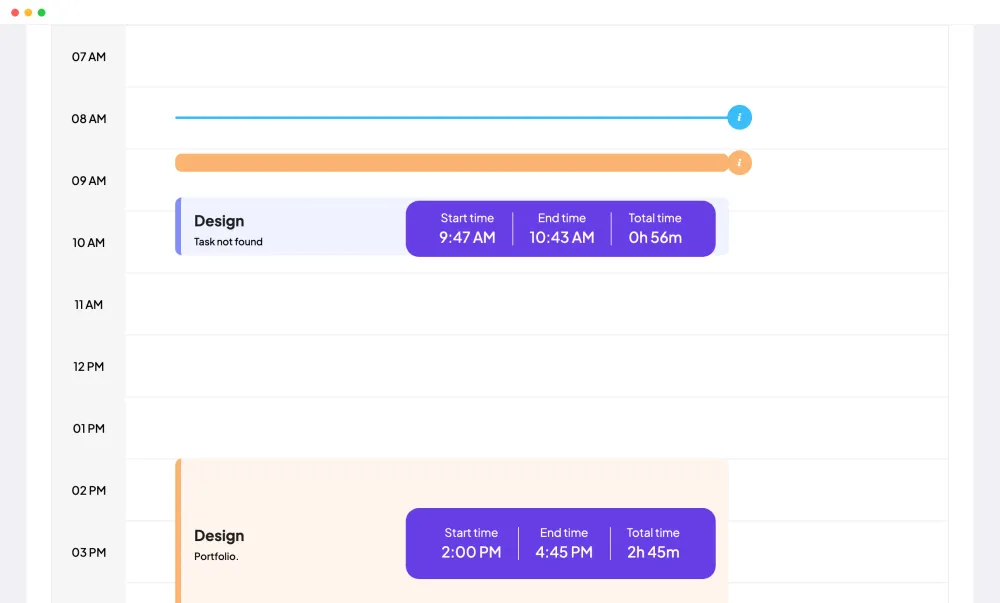
On Standard and Elite, screenshots show the design or code on screen during tracked time, filed under the project and task it was for.
Live Feed on Elite shows which Mac users are tracking now and on what, so you can skip the status message.
Customer stories
Stop juggling tools. Staffic gives your team time tracking, projects, payroll and performance analytics in one platform.
Try Staffic for free“Staffic.io brings transparency without micromanagement. Our team feels trusted, and productivity has never been higher.”
Pricing
Mac is included on every plan, Free included. You pay per active user only when your team grows past 3 members.
Compare every planPrices in USD per active user. Billed monthly, Standard is $7.50 and Elite is $9.80 per user.
Yes. Staffic has a desktop app for macOS 12 Monterey or later, with separate downloads for Apple Silicon and Intel Macs. If you're looking for a time tracker for Mac OS X, that's the older name for macOS, and versions before Monterey aren't supported.
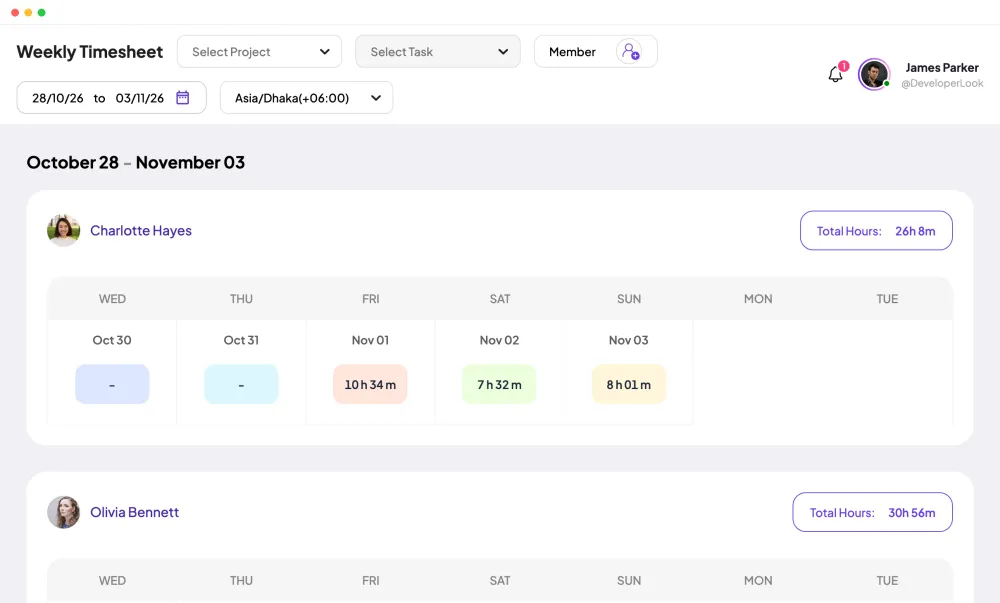
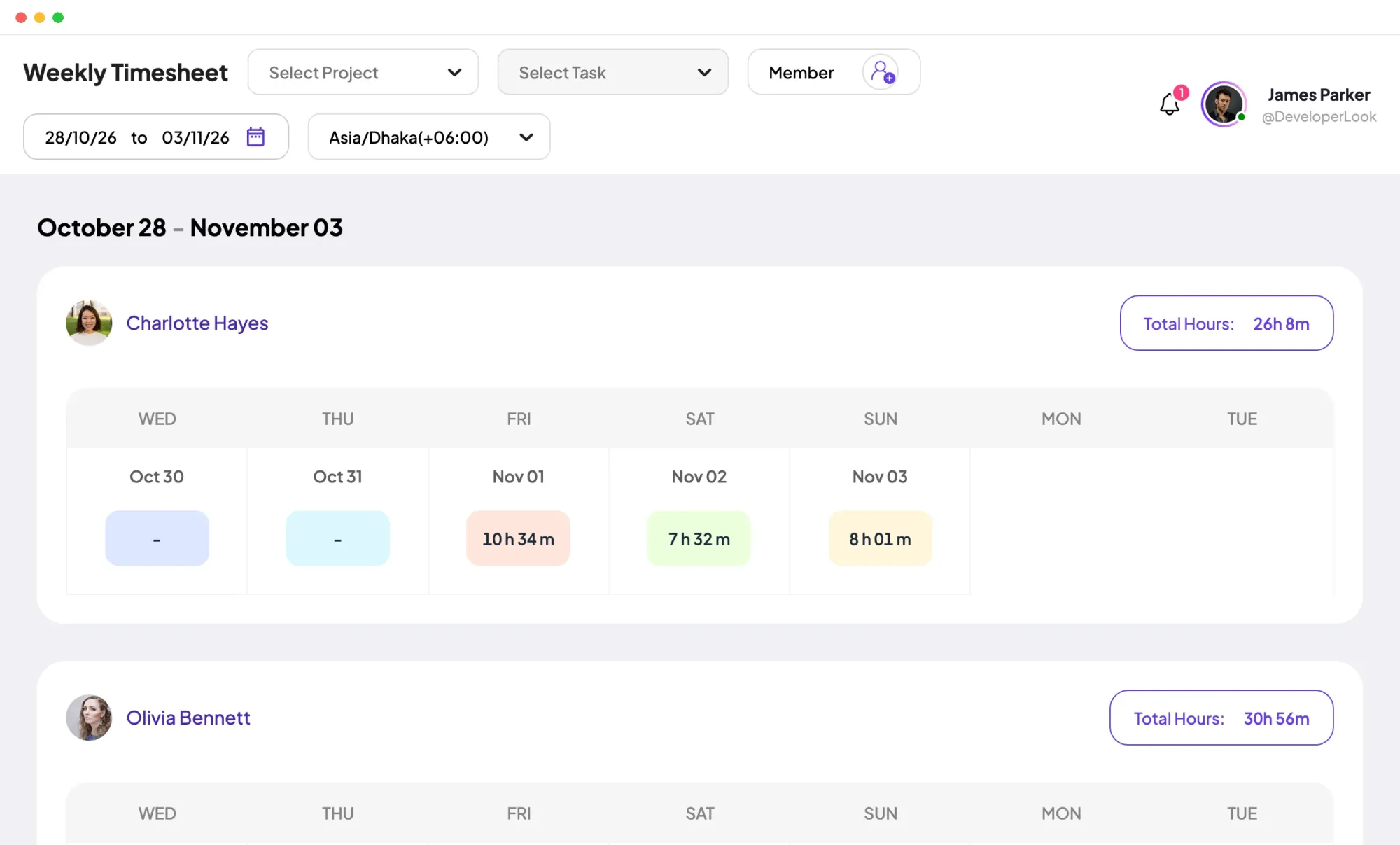
A member picks a project and task in the Staffic app and presses Start Tracking. While the timer runs, the app records time, an activity level, apps and websites, and syncs each session to the web app. That makes Staffic Mac timesheet software too: the hours fill daily, weekly and bi-weekly timesheets on every plan.
Yes. Activity levels from keyboard and mouse are on every plan once macOS allows Accessibility or Input Monitoring for Staffic. Screenshots are on Standard and Elite and need Screen Recording; they're taken at random minutes, 2 per 10 minutes by default or 1, 2 or 3 on Elite.
Yes, three. macOS asks you to allow Screen Recording for screenshots, Accessibility or Input Monitoring for the keyboard and mouse activity level, and Automation so Staffic can read website URLs from your browser. Without one of them, that part of tracking doesn't work, and you can change each later in macOS privacy settings.
Yes, while the timer runs it keeps tracking as you work in other apps, and a notification shows each time tracking starts or stops. With Launch at startup turned on, Staffic also opens when the Mac starts.
Yes. Windows, Mac and Linux members join the same organization, and their sessions land in the same timesheets, reports and dashboard. Admins set what's recorded once, in Settings, Activity, for every computer.
Hours come from the timer itself, so they match when the member started and stopped. Fifty seconds or more without keyboard or mouse input counts as idle, and tracking stops after 5 minutes without input or when the Mac sleeps or locks. Missed time can be added as manual time with a reason on Standard and Elite.
Download the .dmg for Apple Silicon or Intel from staffic.io/download, open it and drag Staffic into Applications. Then open Staffic, allow the permissions macOS asks for, sign in and press Start Tracking.
Every plan includes Mac. Free covers up to 3 members. Standard is $5.50 per user per month billed yearly ($1.00 during the current offer, until September 12, 2027) or $7.50 billed monthly, and Elite is $5.80 per user per month billed yearly or $9.80 billed monthly.
Explore more
Staffic's Windows time tracking software: a desktop app for Windows 10 or later that records time, activity, apps and URLs while the timer runs.
Staffic's Linux time tracker: a .deb desktop app for Ubuntu, Debian and other Debian-based systems on x64 and ARM64, free for up to 3 members.
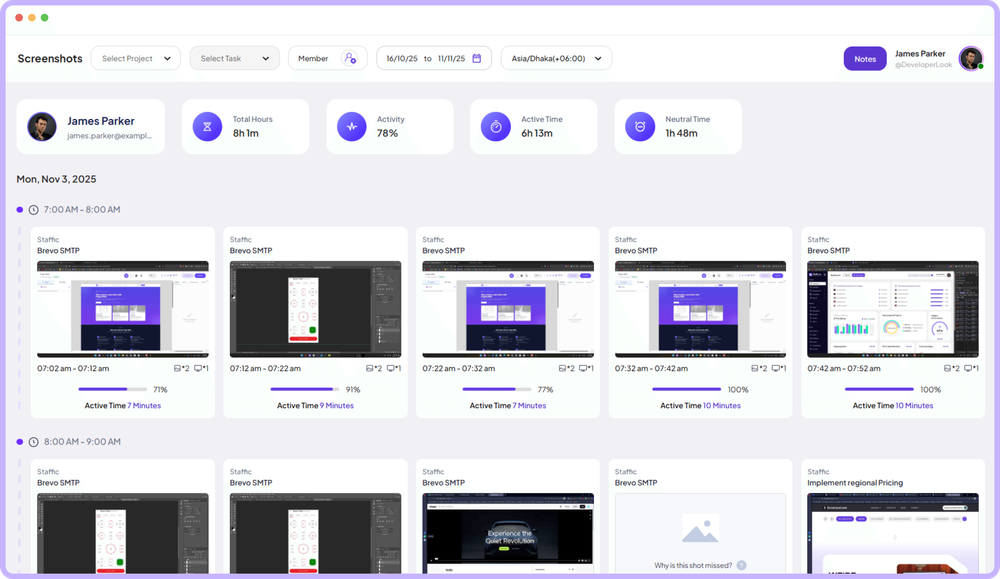
Screen monitoring that captures screenshots only while the timer runs, each filed with its time range, project, task and activity level.
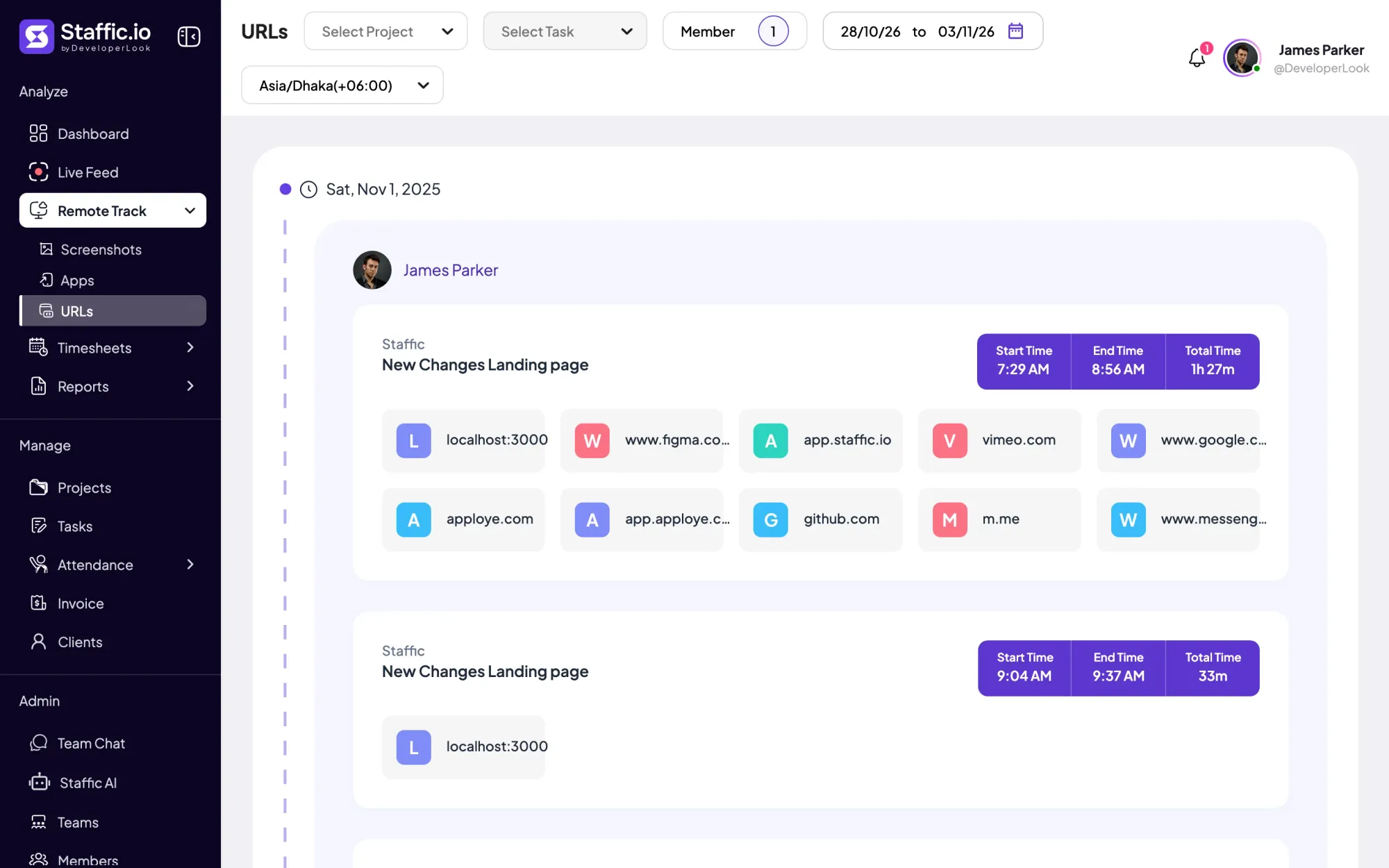
See the websites each member visited during tracked time, session by session, with the project, task and time. On every plan, and on by default.
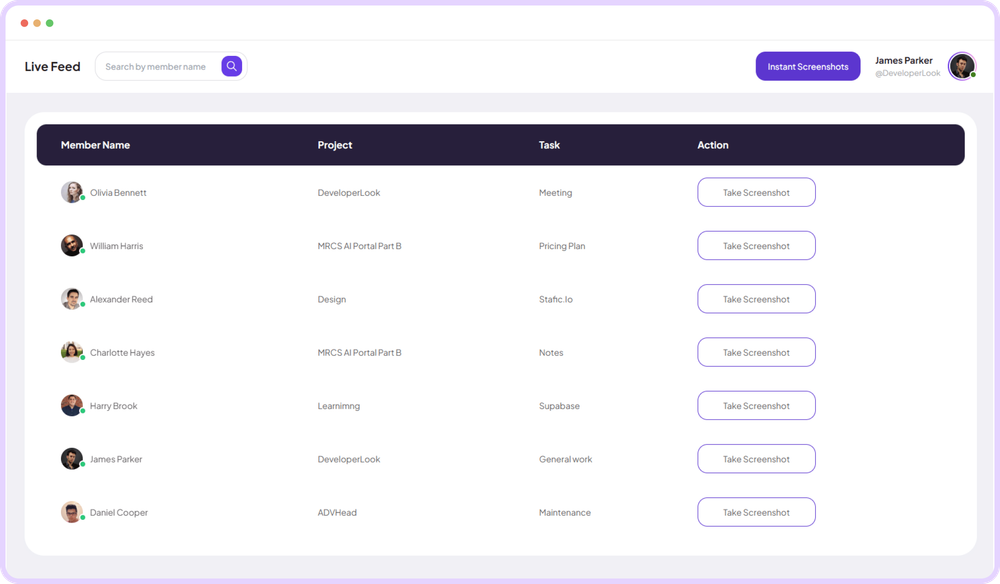
Live Feed lists the members tracking time right now, with each one's project and task, and takes an instant screenshot on request.
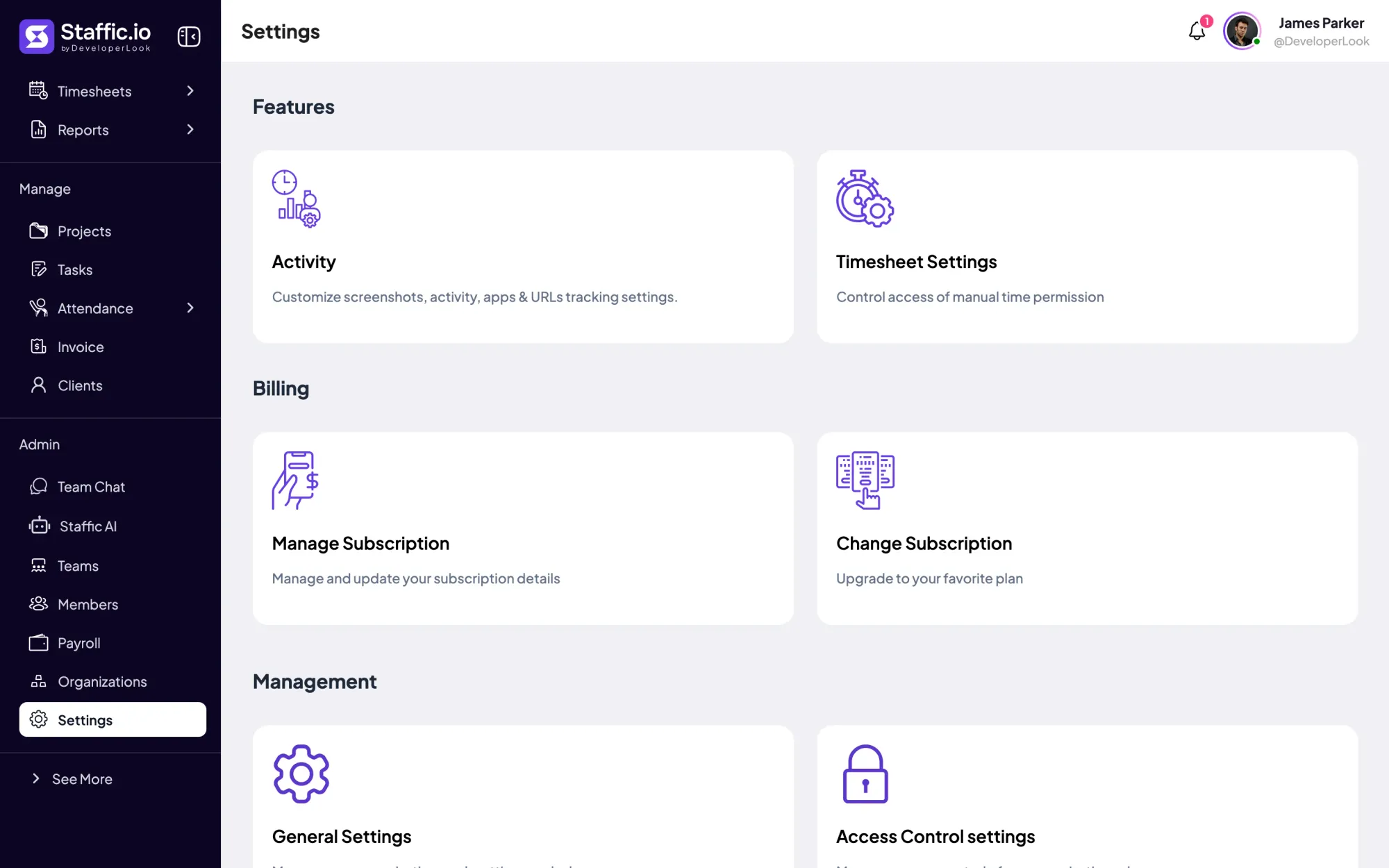

Settings is where admins choose what Staffic tracks, set timesheet rules and build Access Control roles, with each switch marked by its plan.
Free for up to 3 members
Create your workspace, invite your team, and the first timesheet builds itself.