Hourly teams
Pay the hours you checked
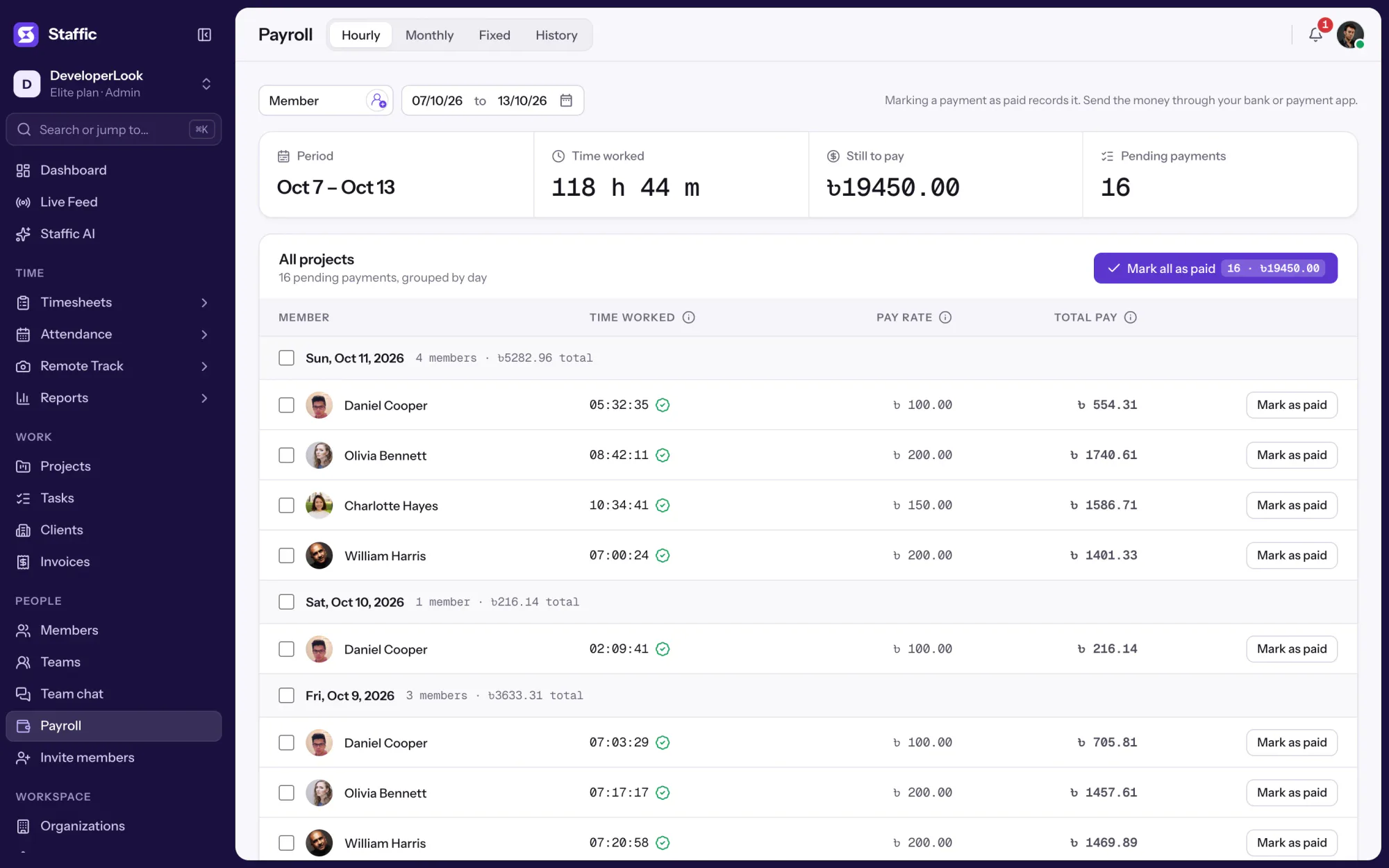
With approval on, the Hourly tab in Payroll counts only approved time, so a day nobody reviewed isn't paid by accident.

Features
All 38 featuresSee the work while it happens.
 DashboardYour team's week at a glance, Monday to Sunday
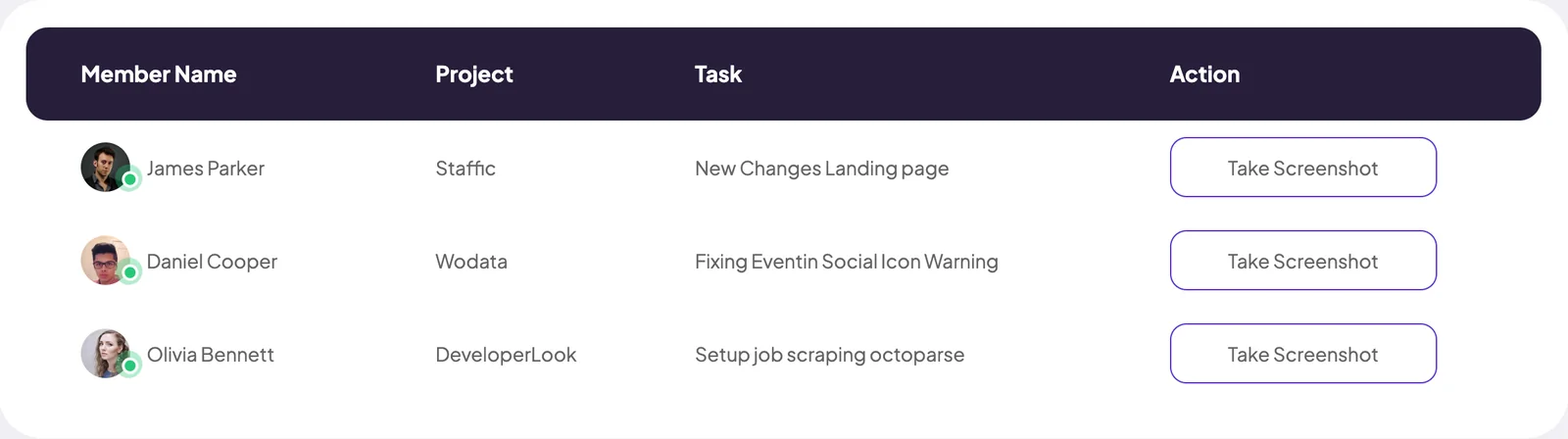
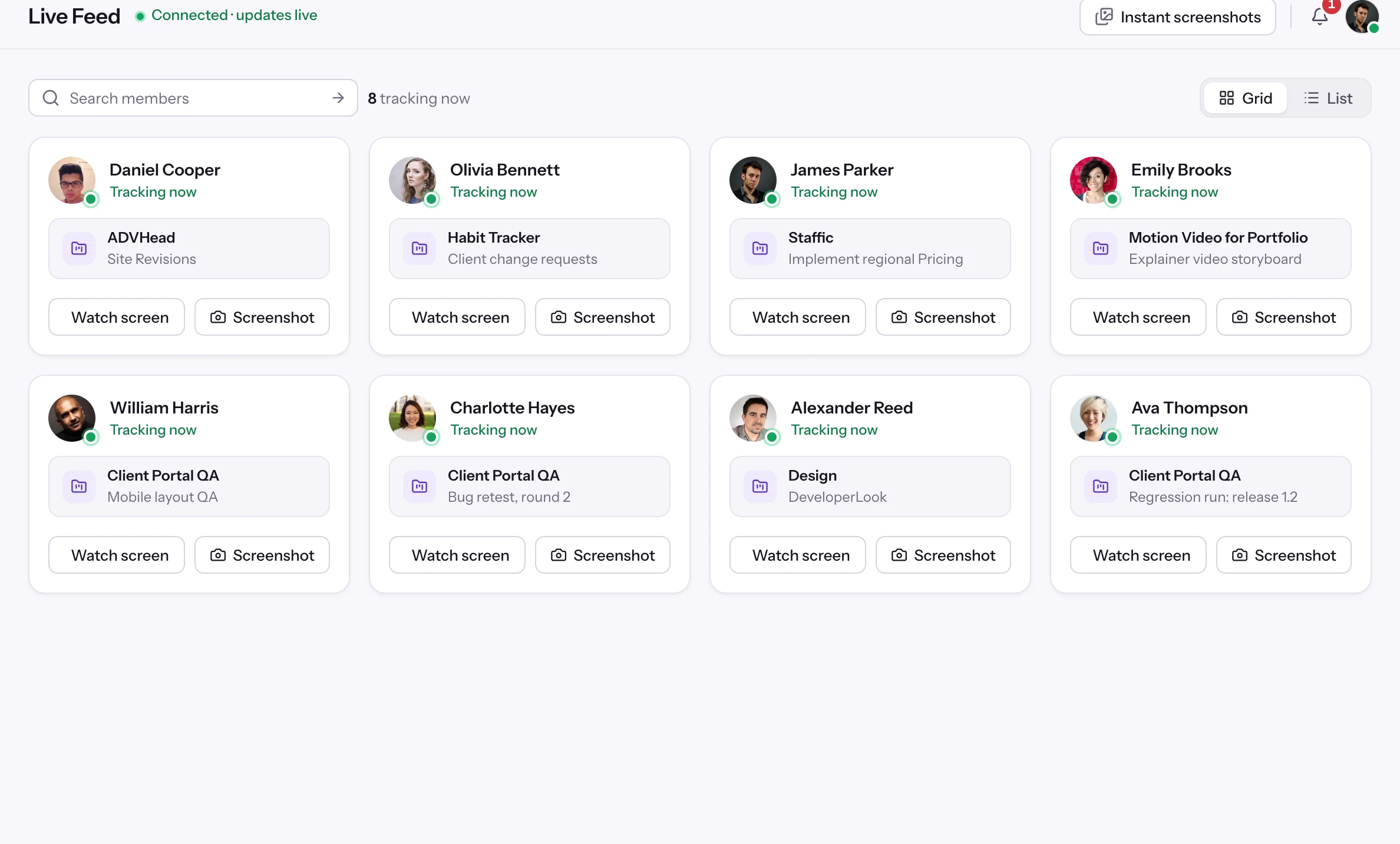
 Live FeedSee who's tracking time right now, and on what
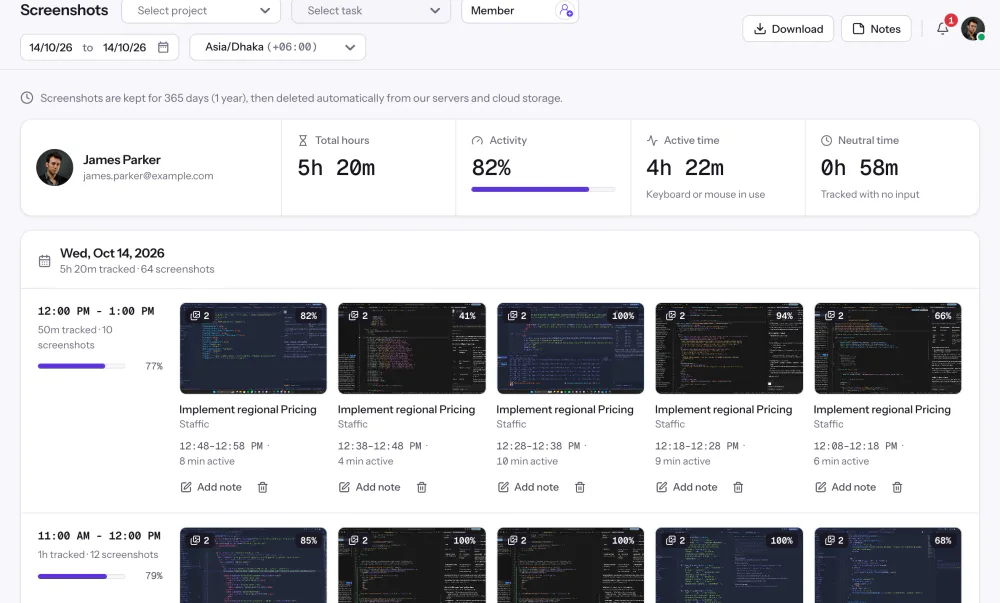
 ScreenshotsVisual proof of work, captured automatically
 AppsWhich apps each tracked session used
 URLsThe websites behind the tracked time
 Screen RecordingsEliteFull session video, beyond a screenshot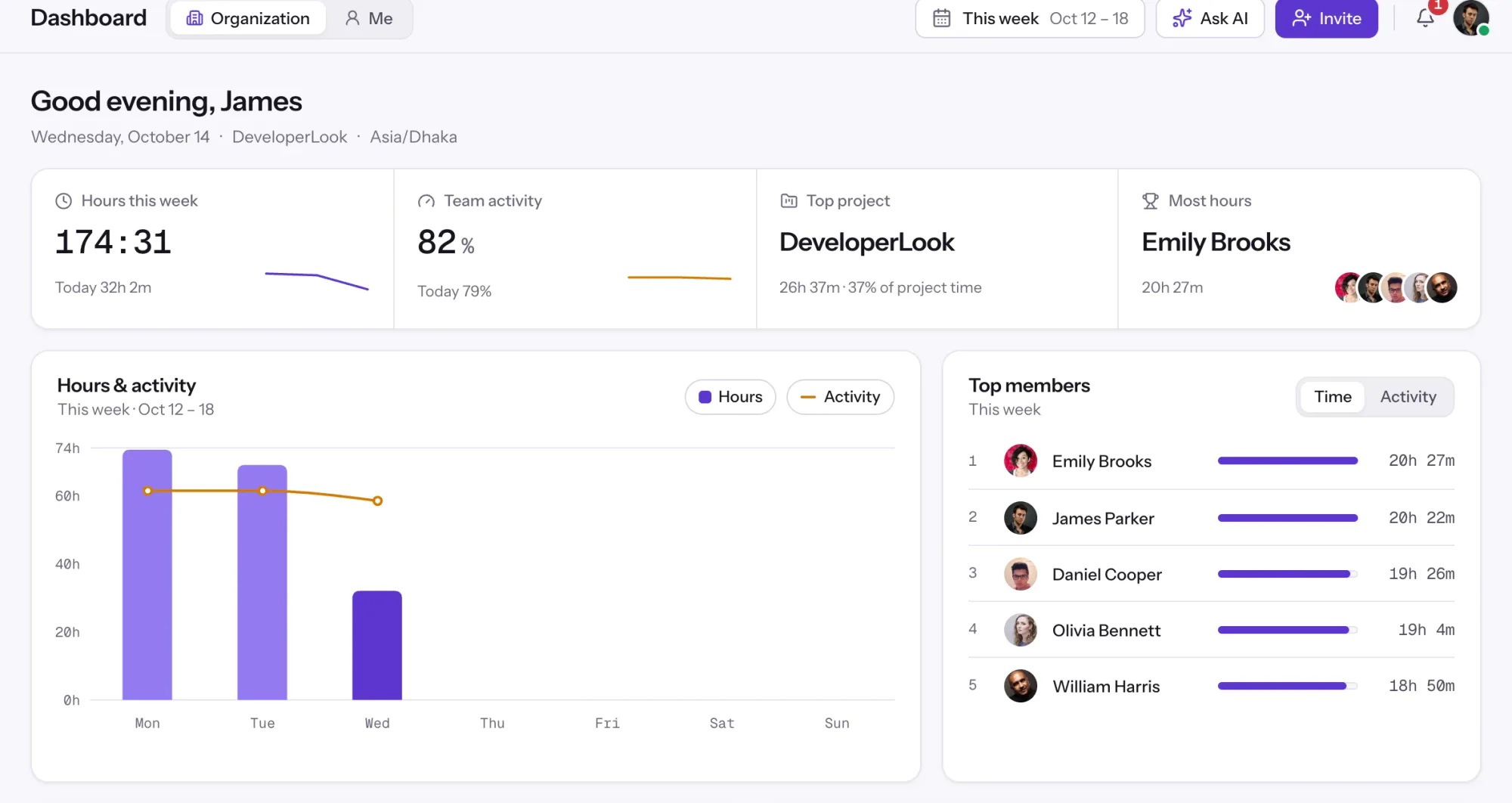
01 / 38
Dashboard
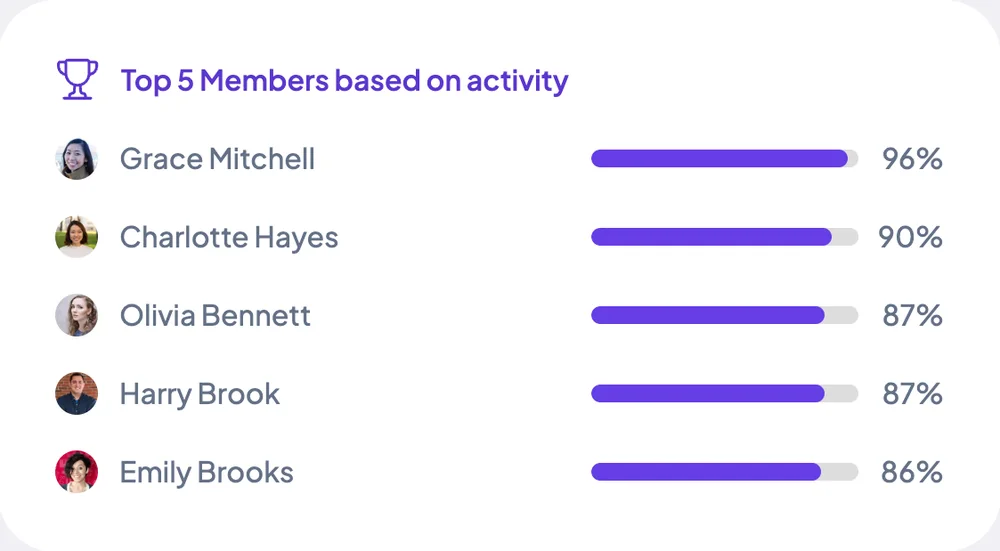
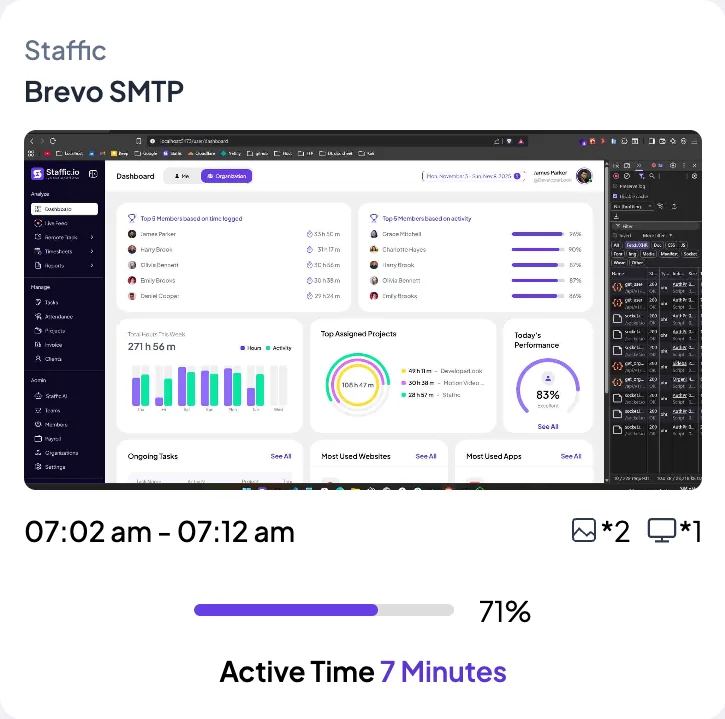
The team dashboard: this week's hours, team activity, top members, ongoing tasks, top projects and the most used apps and websites.
View DashboardSolutions
All 38 featuresHow remote, hybrid and growing teams run Staffic.
Staffic for the way you work, from freelancing to client billing.
 FreelancersFreelance time tracking
 Small businessesTimekeeping software for small business
 Call centersCall center monitoring software
 ConsultantsTime tracking software for consultants
 Companies with contractorsContractor time tracking
 Virtual assistantsTime tracking software for virtual assistants
 AgenciesAgency time tracking software
 Accounting firmsTime tracking software for accountants
 Software teamsTime tracking software for engineers
Staffic set up for your industry's records and reports.
01 / 19
Track remote hours across every time zone.
Staffic records time, activity and optional screenshots on each remote member’s computer, then turns them into timesheets you approve, so you can trust the hours without daily check-ins.
View Remote teamsTimesheet Approval
Staffic puts each member's finished day in front of a manager before it counts toward pay. Approve the day, reject it, or reject part of one session, and hourly payroll pays the approved hours. It's built for managers of remote and hybrid teams, on every plan.
1/6Click History
In short
Staffic Timesheet Approval is the step between tracked time and pay. Once a day is over, each member's tracked and manual time waits under Timesheets, Approval. An admin or approver then approves the day, rejects it, or rejects just part of one session. While approval is on, hourly payroll pays approved hours only. It's on every plan; Payroll itself is on Elite.
How it works
The timesheet approval process runs on the time Staffic already tracked, so nobody fills in or submits a form.
Timesheet approval
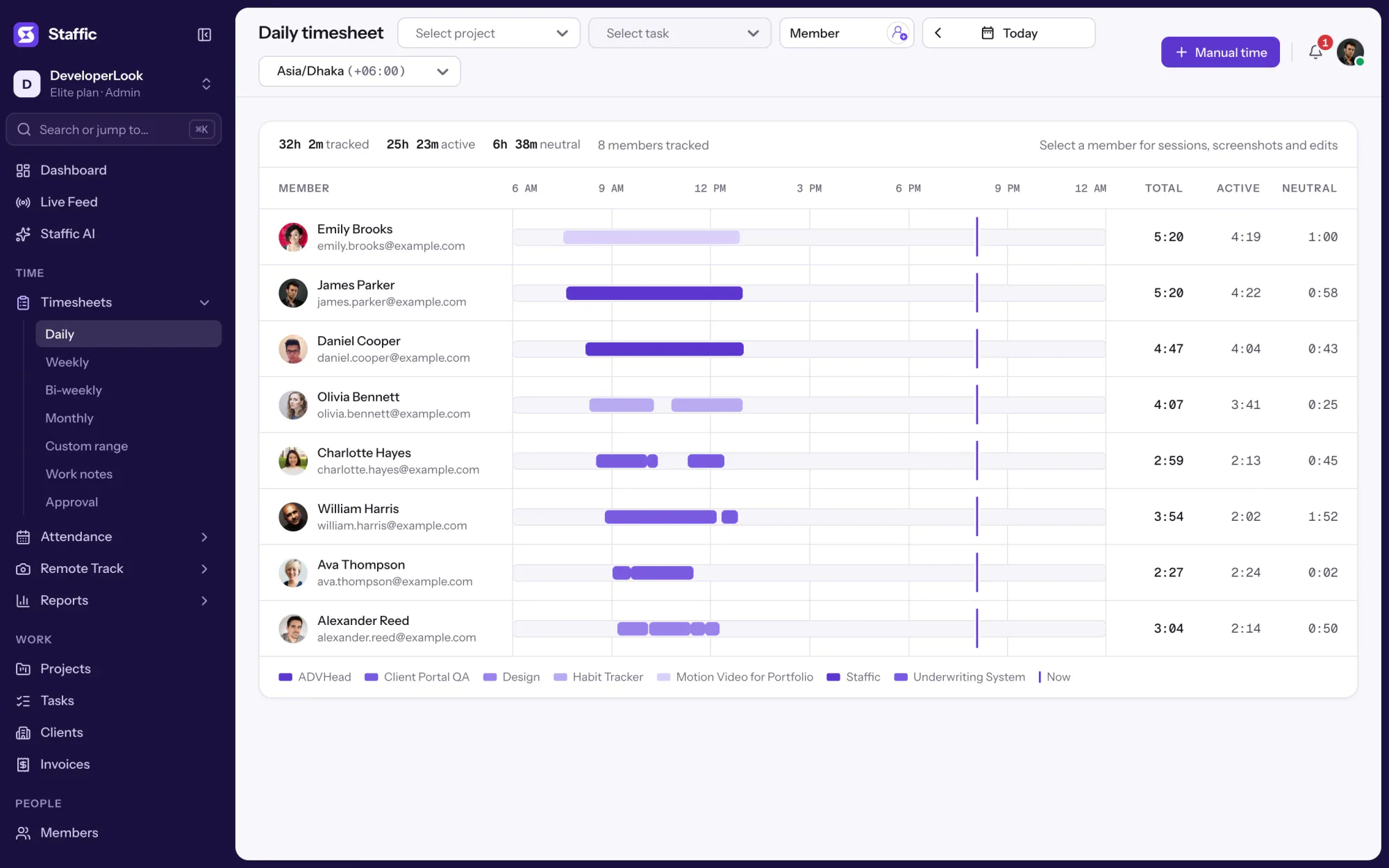
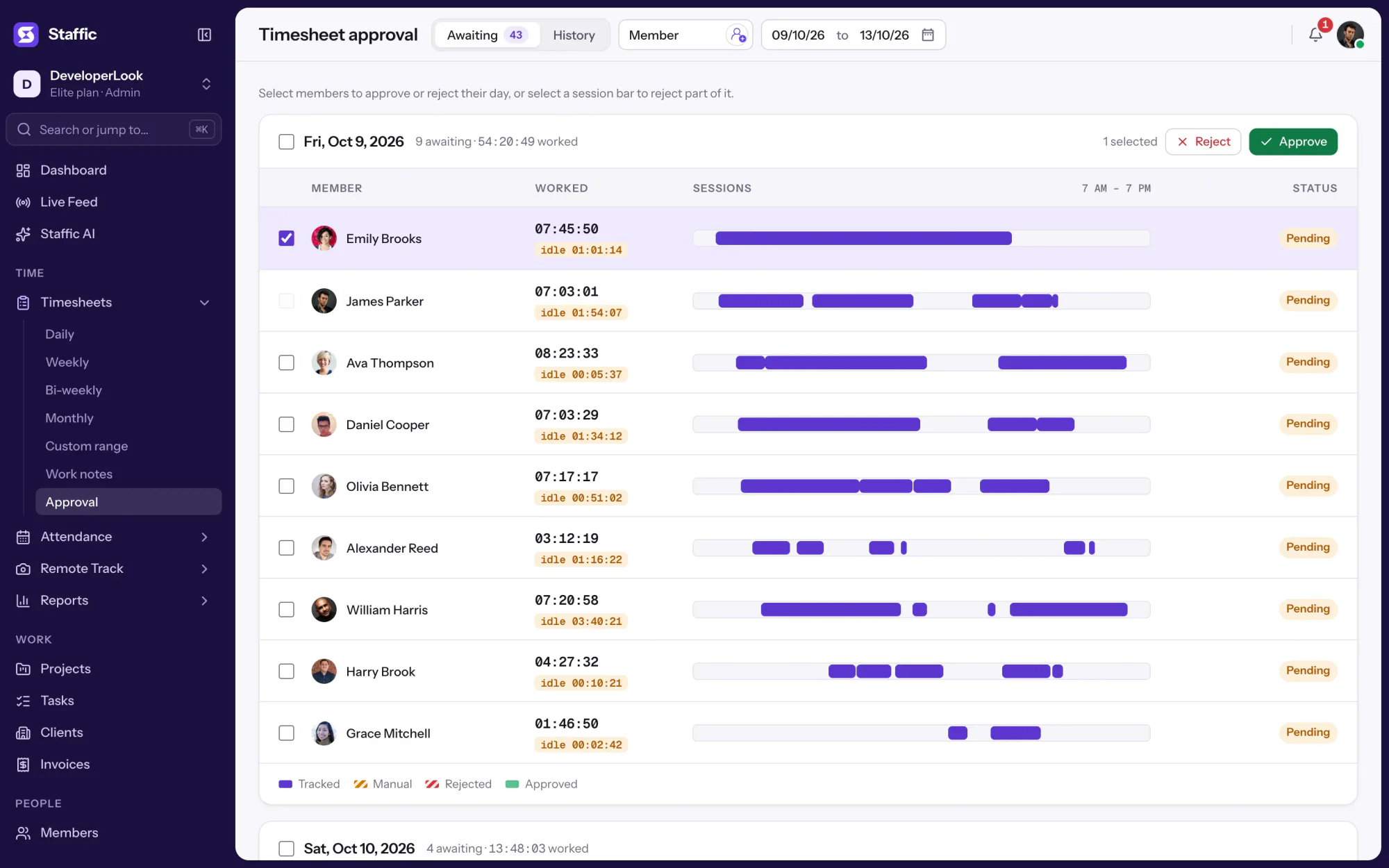
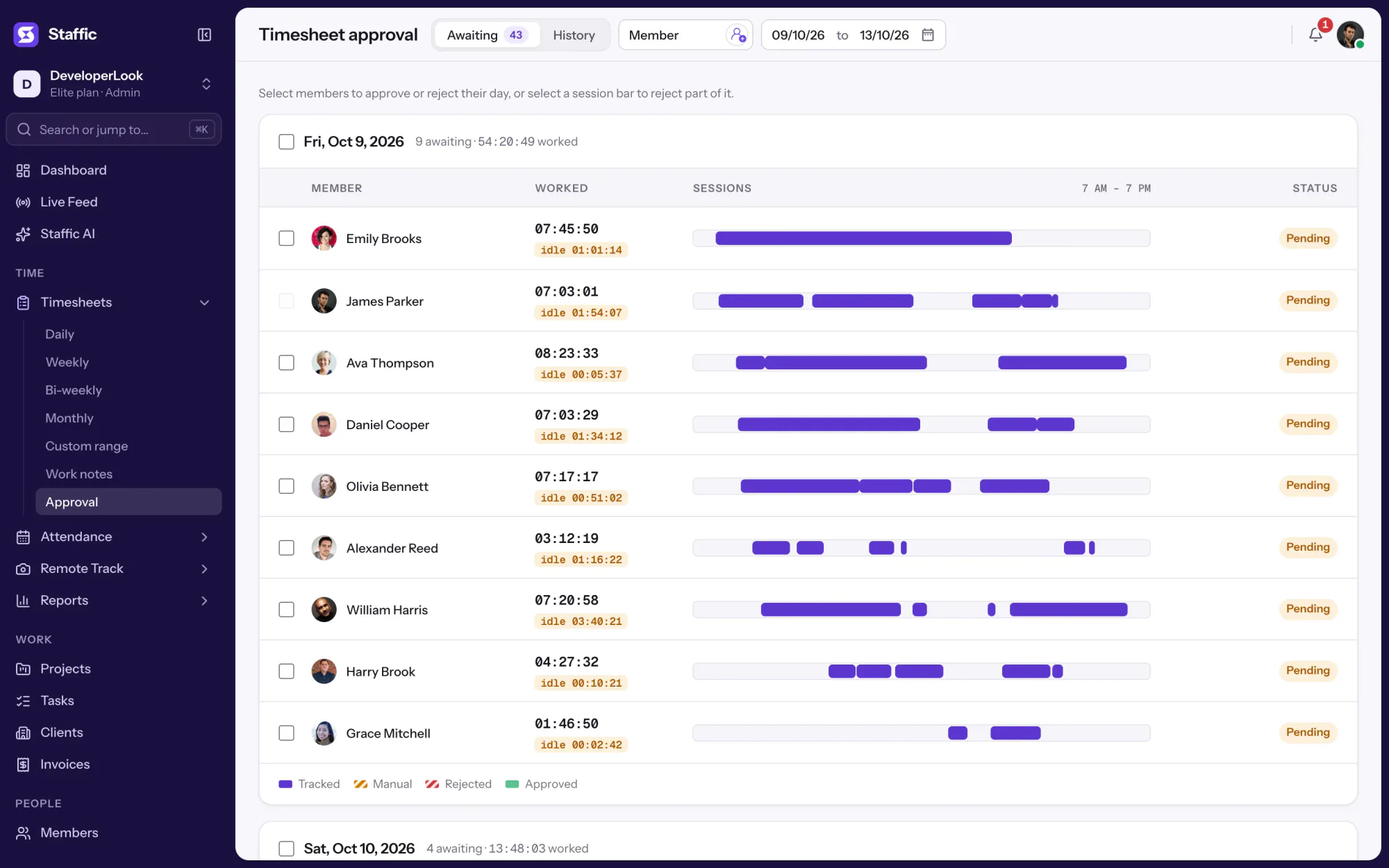
Each day lists the members whose time is waiting, with time worked, idle time and every session on a bar. Pick the dates and the members you look after.
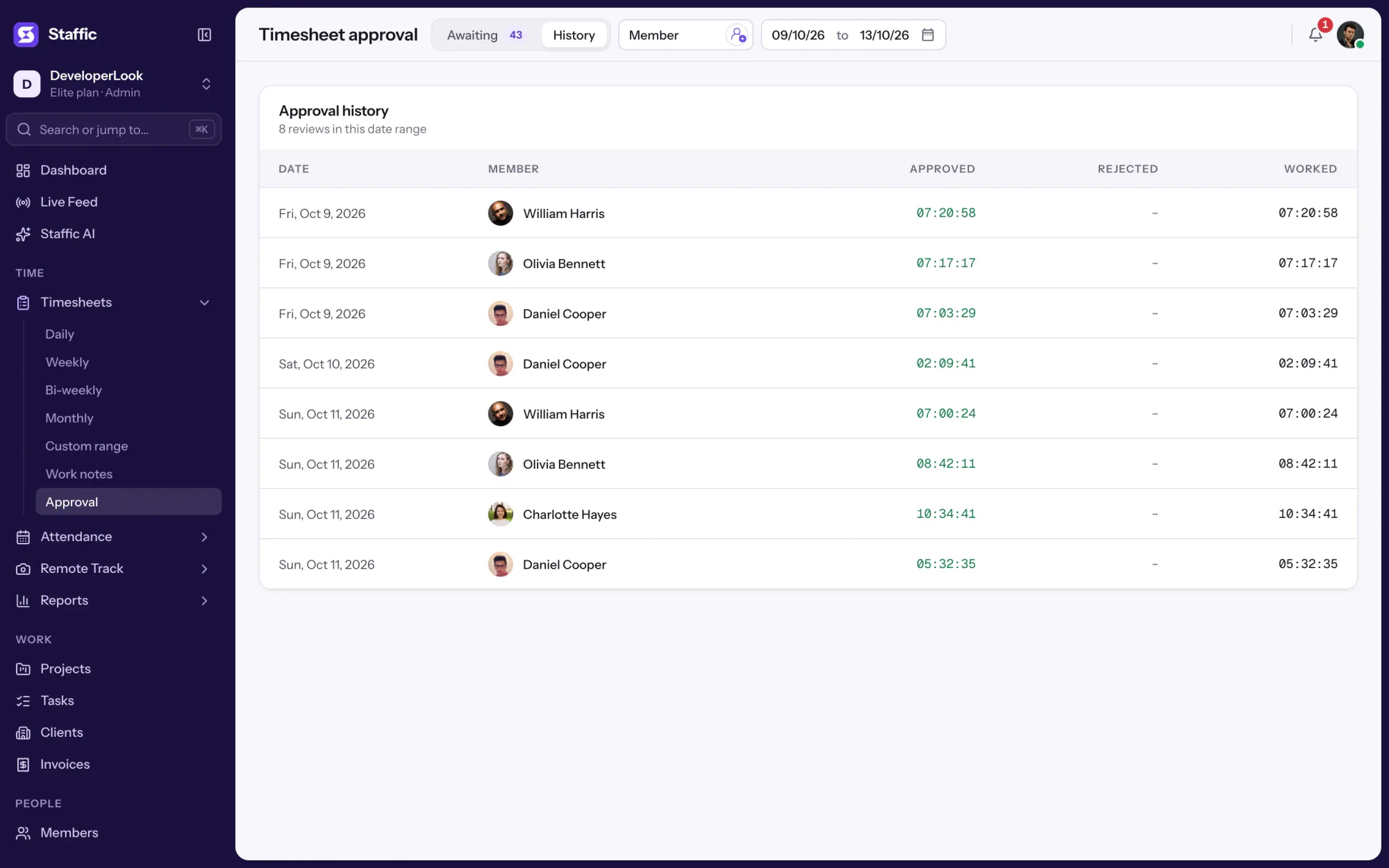
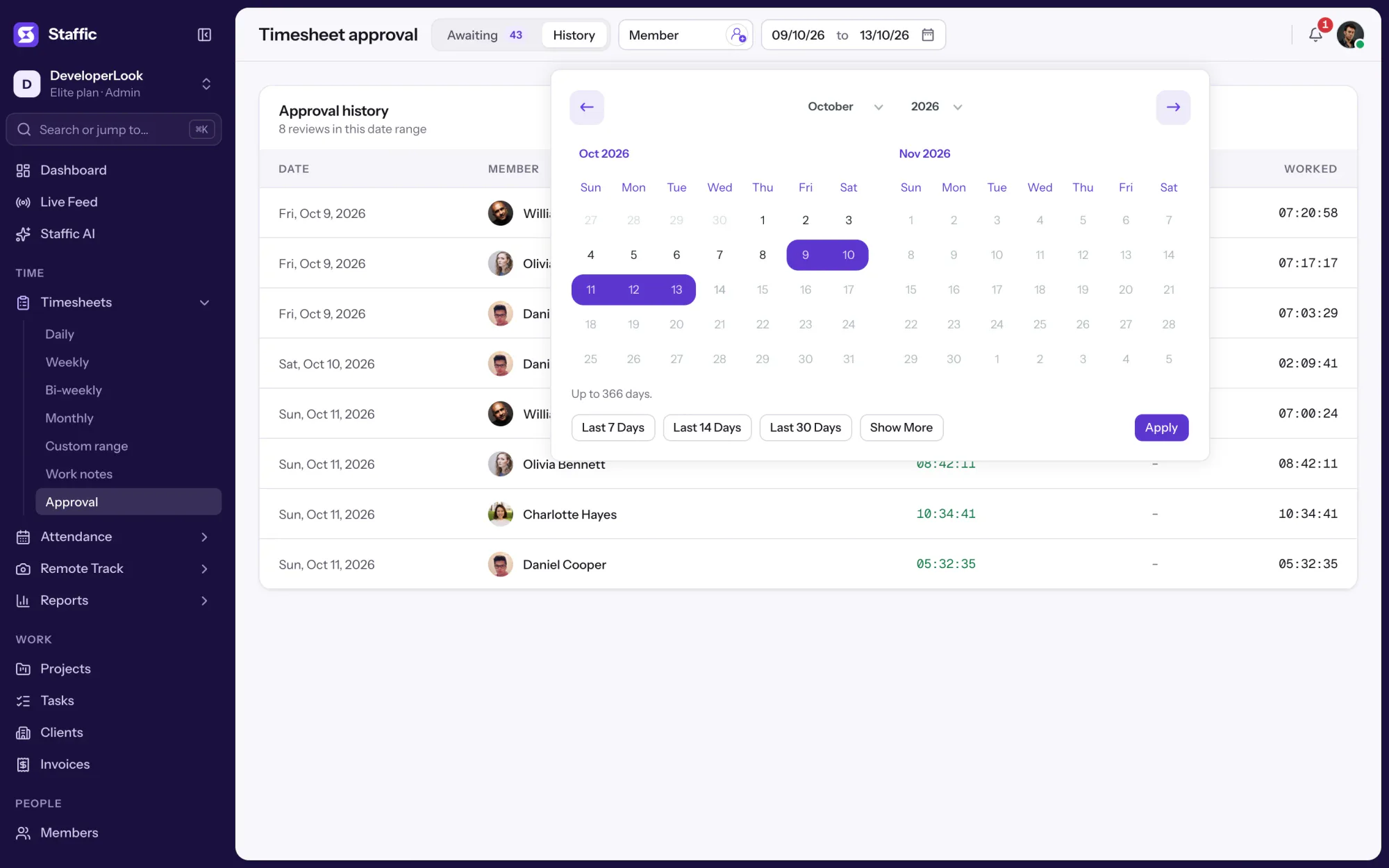
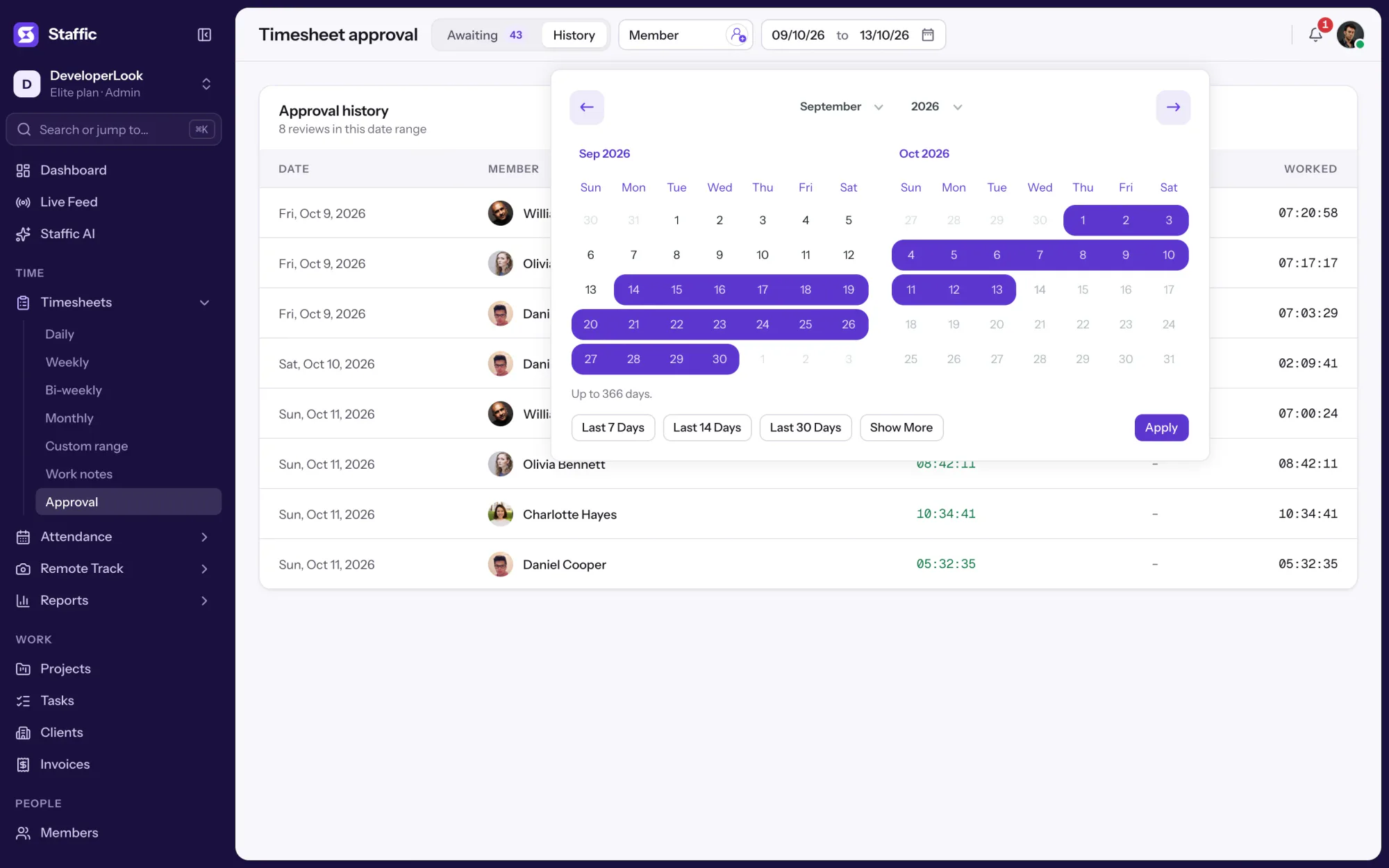
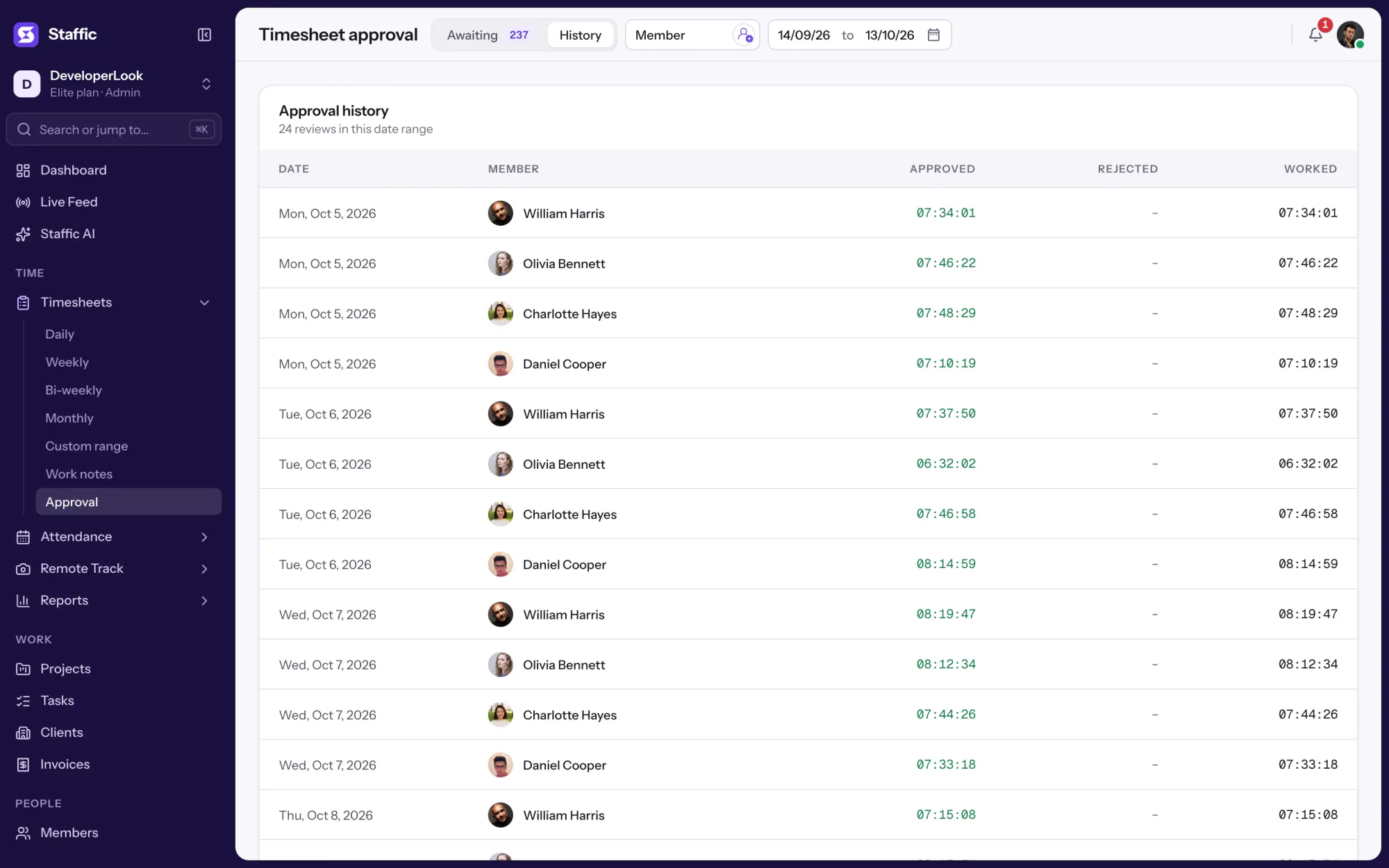
The Awaiting tab holds the days that still need a decision. The History tab keeps what was approved or rejected, member by member and day by day.
Tick one member, or the box in the header to select everyone listed for that date. Approve and Reject buttons appear for the day, and one click decides every selected member. Rejecting this way rejects all of their time that day that isn't approved yet.
Click a session bar to see its project, task, total time, idle time, start and end. Enter hours, minutes and seconds to reject just that much and keep the rest waiting for approval. The daily timesheet shows the same sessions on a timeline.
Time added by hand goes through the same review as tracked time, in its own color on the session bars. The Manual Time report shows whose time it is, the project and the reason given.
While approval is on, the Hourly tab in Payroll counts only approved time for each member and day, times their pay rate. Turn approval off and it counts all tracked time minus anything you rejected. Each row says whether approval was required.
Showing Awaiting and History.
1/5Click History
Control and privacy
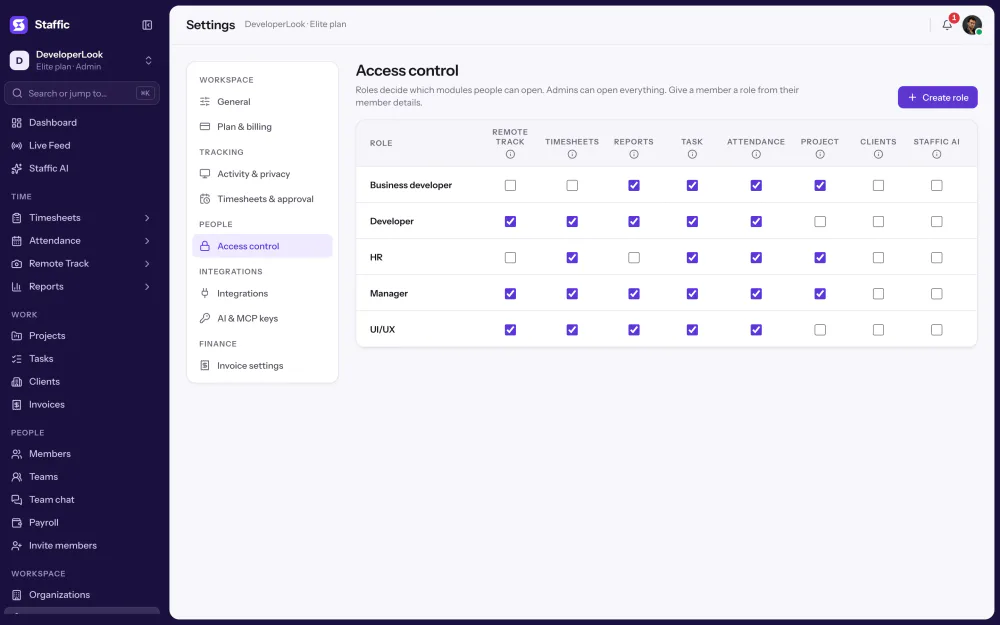
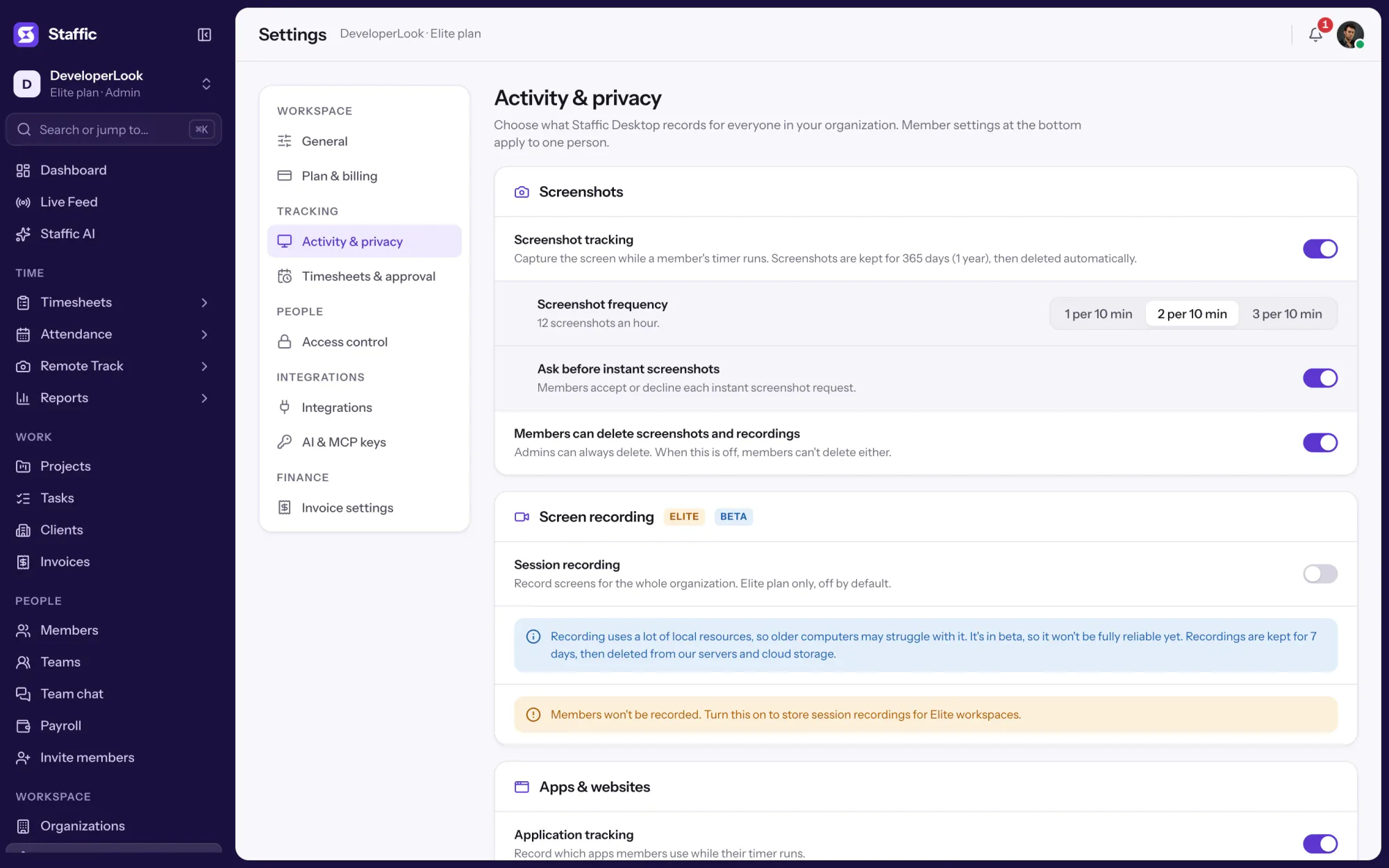
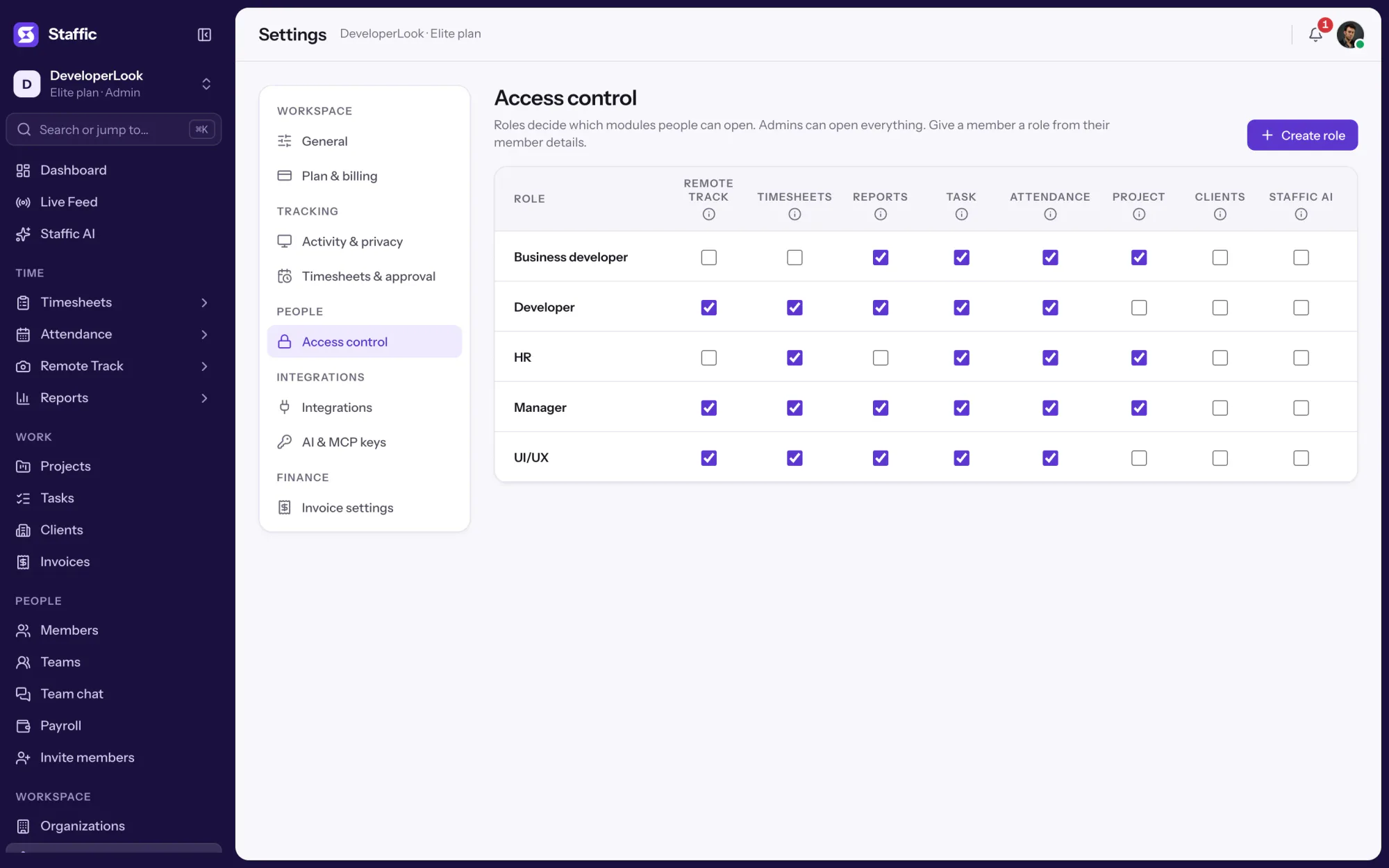
Approval sits with admins and the approvers you name in Access control.
Set it up
Five steps from turning approval on to paying the approved hours; only the last one needs Elite.
Timesheet Approval and pay rates are on every plan; Payroll, which pays the approved hours, is on Elite.
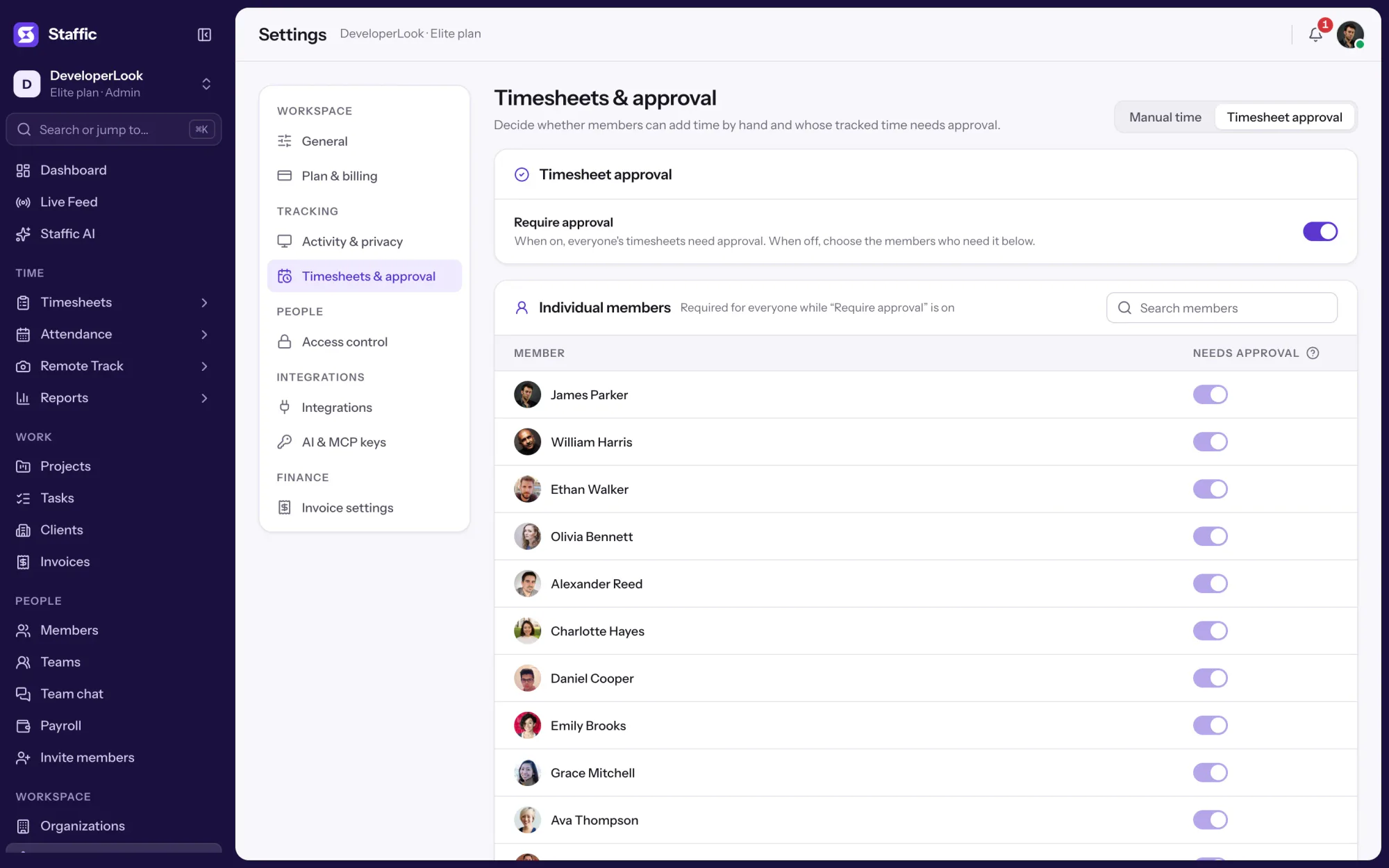
See pricingSwitch on Require approval so every member's time needs approval. New organizations start with it on.
Settings › Timesheets & approval › Timesheet approvalAdmins can approve already. Give a team lead's role the Timesheets module so they can approve too.
Settings › Access controlPick the dates and members, check each day, then approve or reject.
Timesheets › Approval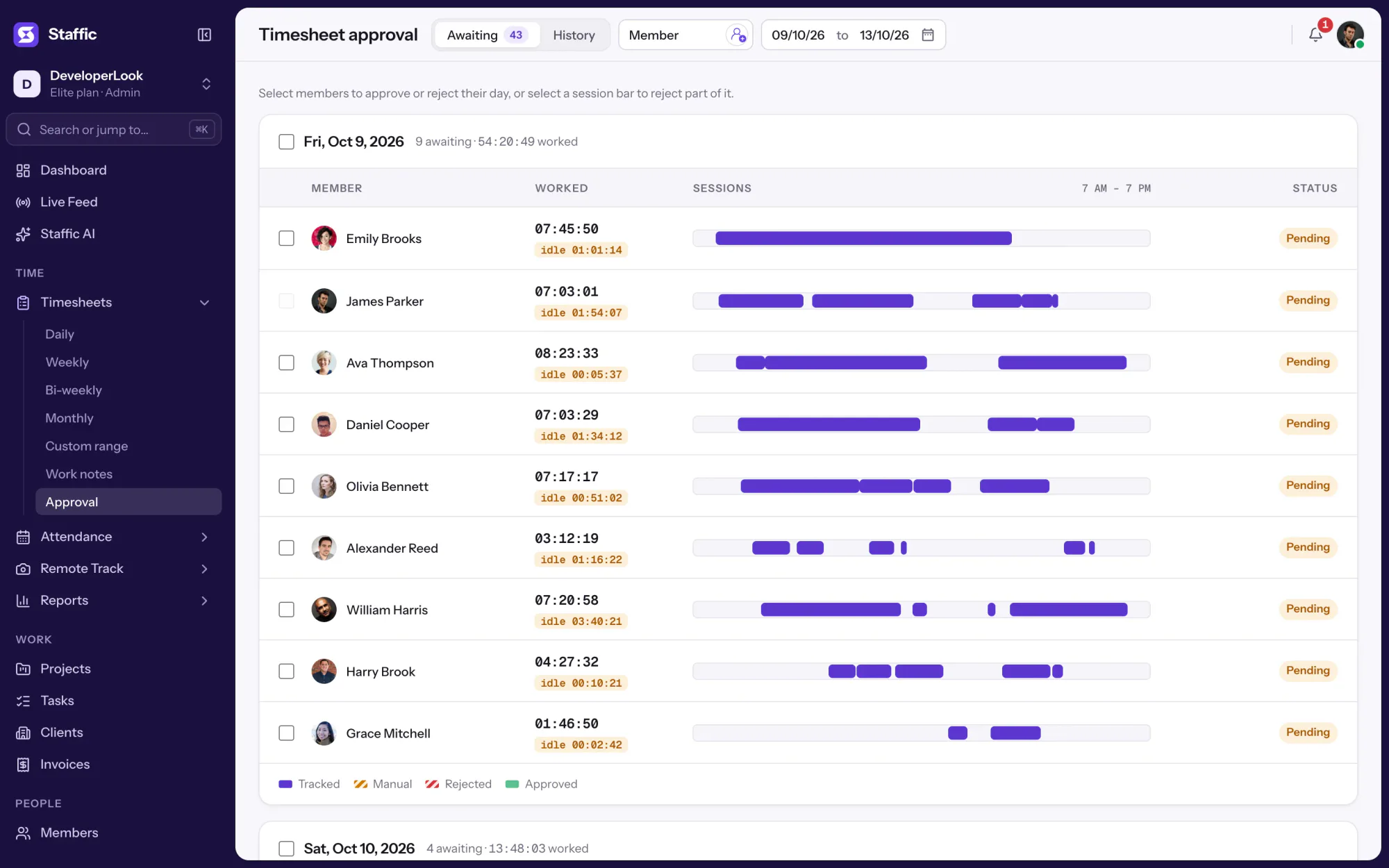
Compare
Three places to check hours before pay. Here is what each one answers.
Swipe the table to compare
| Compare | Timesheet ApprovalThis page | Manual Time reportAdded and deleted time | Weekly TimesheetA week of hours |
|---|---|---|---|
| Answers | Which hours are signed off for pay | Who added or deleted time, and why | Hours per member and day for a week |
| Changes pay | Yes: hourly payroll counts approved time | No | No |
| Days | Past days, up to yesterday | Any range you pick | The last 7 days, or earlier weeks |
| Plans | All plans, including Free | All plans, including Free | All plans, including Free |
| Link | You are here | Manual Time report | Weekly Timesheet |
Specs and terms
The facts behind the feature, and what each number on the Timesheet Approval page means.
Who it’s for
For managers who sign off time before it becomes pay.
With approval on, the Hourly tab in Payroll counts only approved time, so a day nobody reviewed isn't paid by accident.
Idle time sits beside time worked, and Screenshots, Apps and URLs show the work behind a session before you decide.
Give a lead's Access control role the Timesheets module and they can approve their team's days without being an admin.
Customer stories
Stop juggling tools. Staffic gives your team time tracking, projects, payroll and performance analytics in one platform.
Try Staffic for free“Staffic.io brings transparency without micromanagement. Our team feels trusted, and productivity has never been higher.”
Pricing
Timesheet Approval is included on every plan, Free included. You pay per active user only when your team grows past 2 members.
Compare every planFor freelancers and small teams, up to 2 members
No card needed.
Includes Timesheet ApprovalEvery core feature, for teams of up to 2 members.
Everything in Free, without the 2 member limit
Offer price until October 30, 2026, then $7.50
Card at checkout. Cancel within 7 days and pay nothing.
Includes Timesheet ApprovalEverything in Free without the 2 member limit.
For organizations running payroll, billing and approvals
Offer price until October 30, 2026, then $10
Card at checkout. Cancel within 7 days and pay nothing.
Includes Timesheet ApprovalEverything in Standard, plus Screen Recordings, Invoices, Clients and 1 more.
Prices in USD per active user. Billed monthly, Standard is $9.50 and Elite is $13 per user.
FAQ
Answers about approving timesheets in Staffic.
Read the Timesheet Approval guideThe person who knows the work should approve timesheets, usually a team lead or project manager with an admin as backup. In Staffic, admins can approve every member. To make a team lead a timesheet approver, give their Access control role the Timesheets module. Members without that access don't see the Approval page at all.
In Staffic nothing needs importing, because Payroll reads the approved timesheet directly. While Timesheet Approval is on, the Hourly tab counts only approved time for each member and day and multiplies it by their pay rate. Turn approval off and it counts all tracked time minus anything rejected. Approval is on every plan, and Payroll is on Elite.
Employee sign-off catches mistakes before a manager or payroll sees them. Staffic gets the same check without a form: the record comes from the tracker, and members review their own day on the daily timesheet. They can delete wrong time with a reason, and add missed time as manual time when you allow it.
Timesheet approvals in Staffic work on tracked time: when a day ends, each member's sessions wait on the Awaiting tab until someone decides. The approver approves the day, rejects it, or rejects part of one session. Every decision shows on the History tab, and hourly payroll pays only what was approved.
Managers approve timesheets in the Staffic web app under Timesheets, Approval. They pick the dates and members, open any session that looks wrong, tick the members they've checked and click Approve. Admins with an admin key for Staffic's MCP server can also list, approve or reject a member's day from Claude or another MCP client.
Approve a whole day at once. One checkbox selects every member listed for a date, and one click approves them all. Time worked and idle time sit side by side on each row, so the days that need a closer look stand out. Open a session only when something seems off.
No. Staffic has no submit step, so employees don't approve or send their timesheets anywhere. While Timesheet Approval is on, each finished day waits for a manager automatically, and members act only when they spot a mistake in their own time.
Every plan includes Timesheet Approval. Free covers up to 2 members. Standard is $7.50 per user per month billed yearly ($3.80 during the current offer, until October 30, 2026) or $9.50 billed monthly, and Elite is $10.00 per user per month billed yearly ($4.80 during the current offer, until October 30, 2026) or $13.00 billed monthly.
Explore more
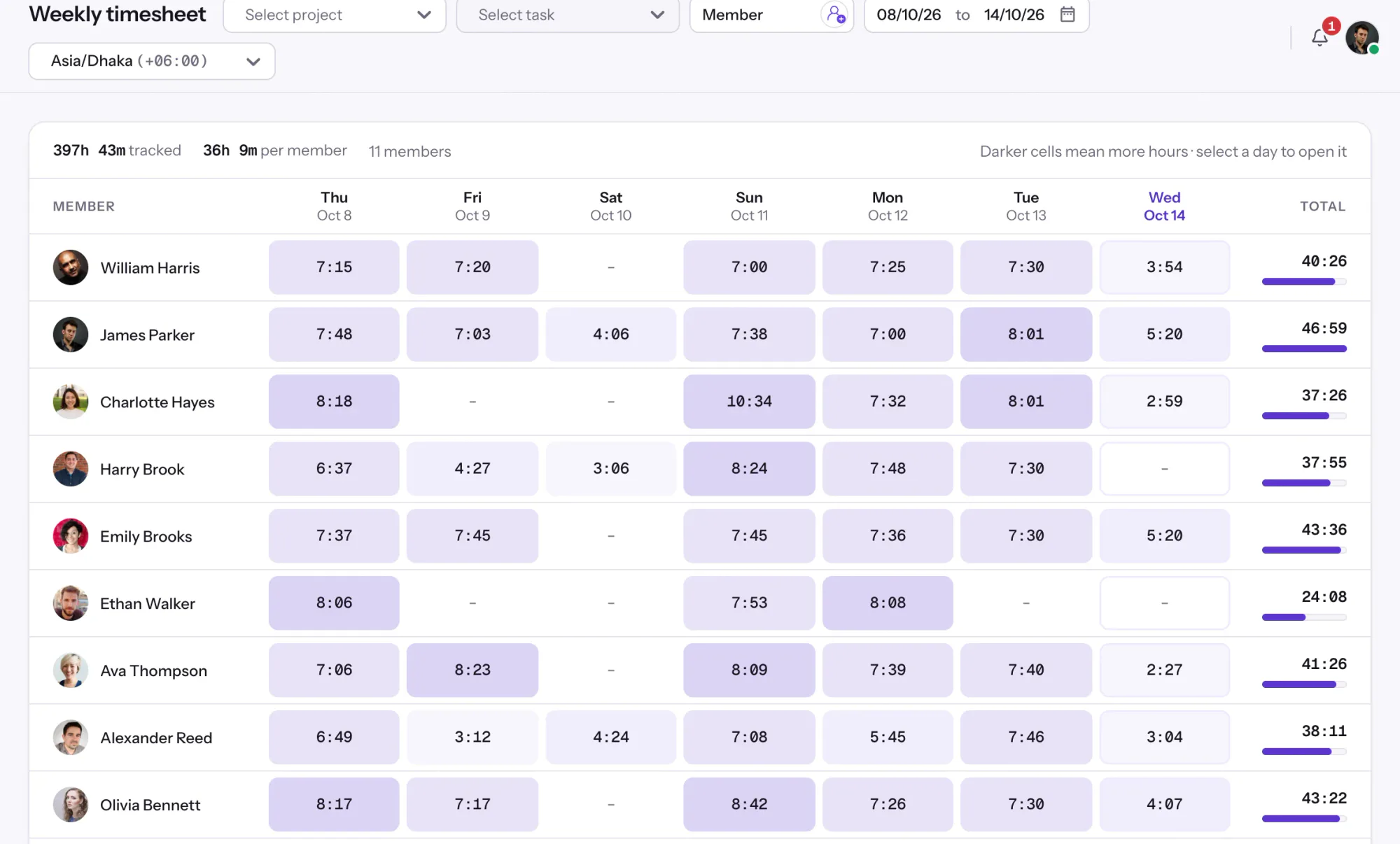

Staffic's weekly timesheet shows 7 days of tracked hours per member, one day per column, with Total hours beside each name.
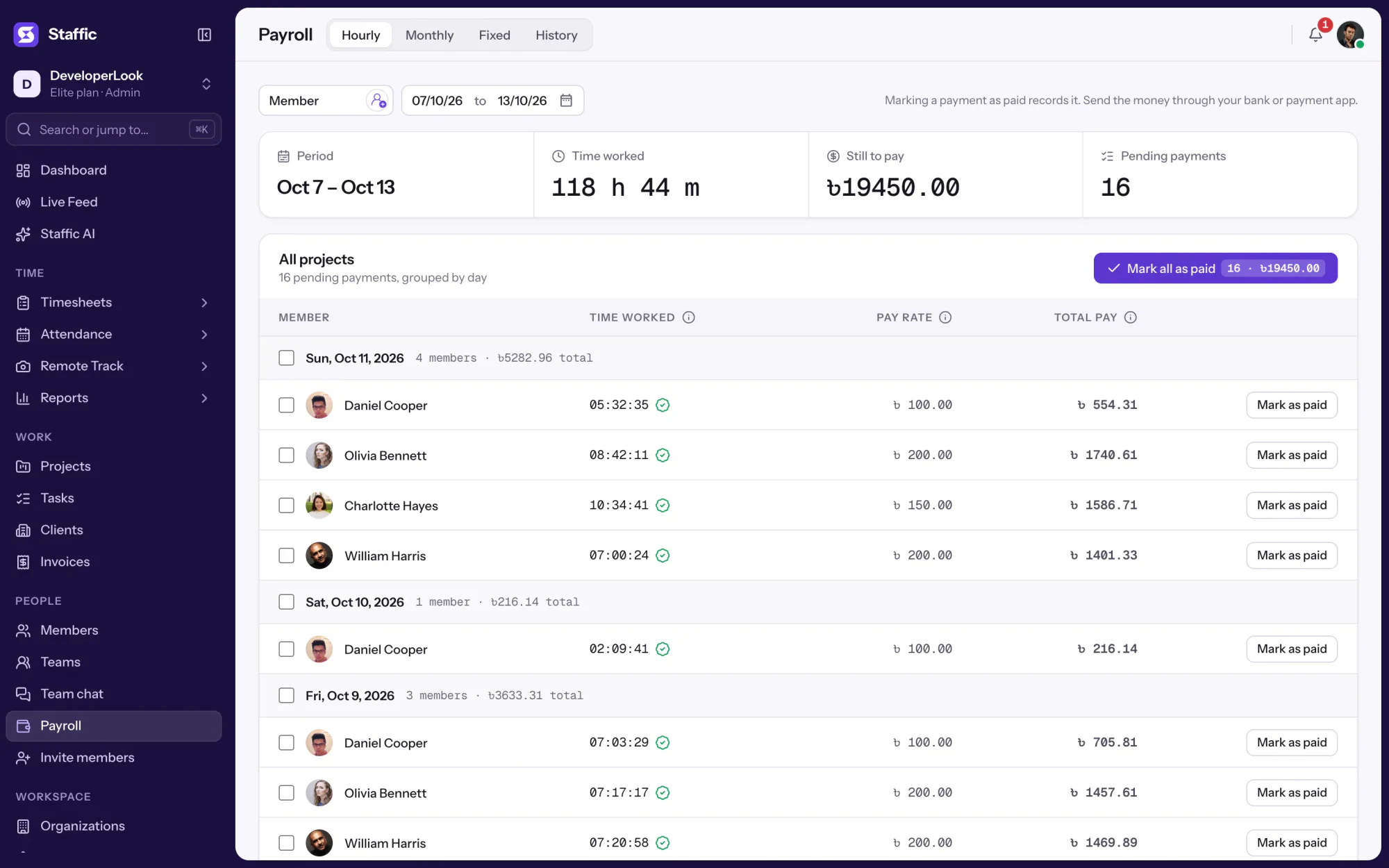

Payroll works out hourly pay from tracked time, lists monthly salaries, records one-time payments and keeps a payment history.
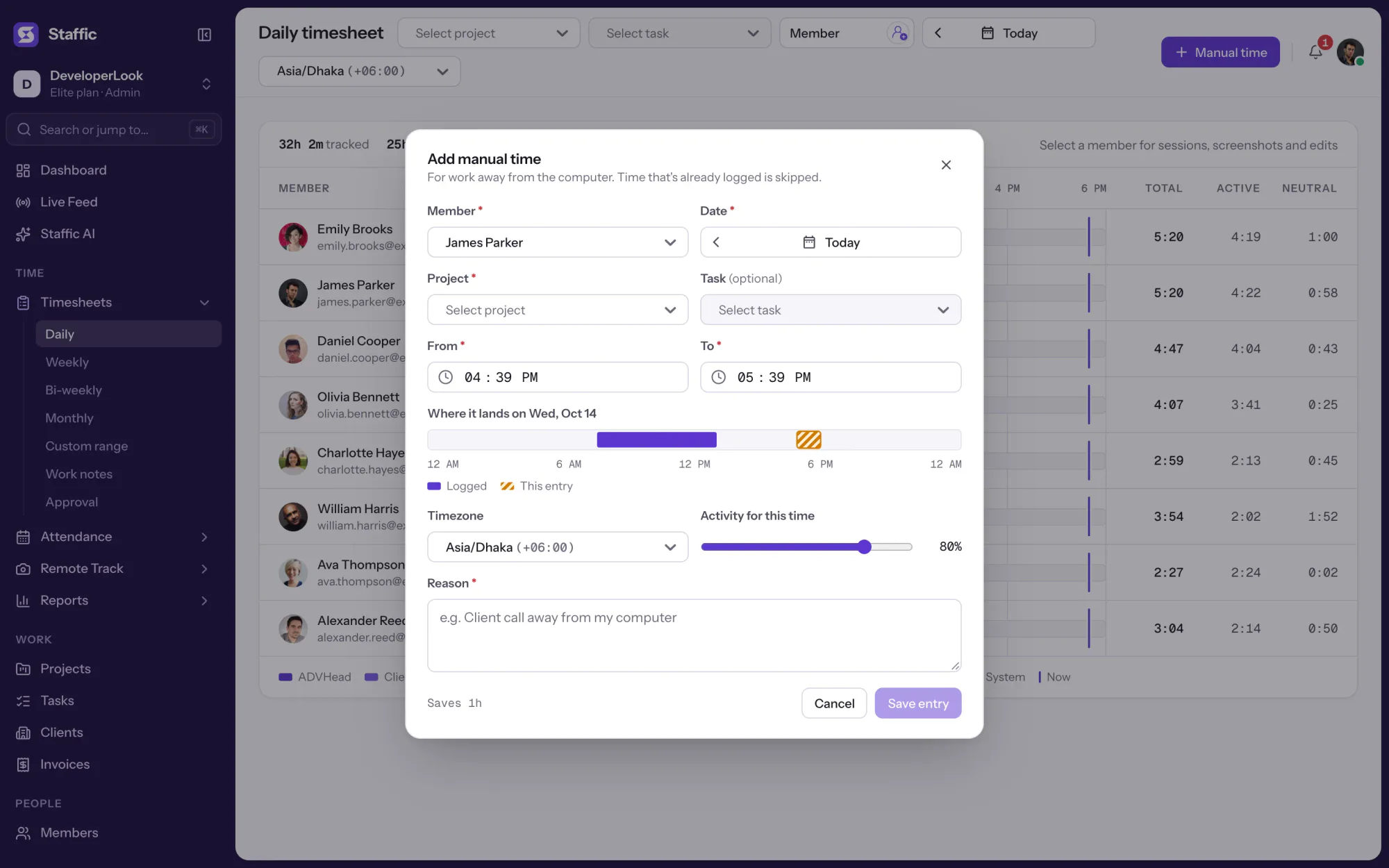

Add the hours the timer missed with a project and a required reason, and see every manual add and deleted hour in the Manual Time report.

Staffic fills daily, weekly, bi-weekly, monthly and custom timesheets from tracked time, with approval, on every plan.
Free for up to 2 members
Create your workspace, invite your team, and the first timesheet builds itself.