Team leads
A fair weekly check on how work went
Open Time & Activity each Monday for the week before, look for changes rather than low scores, and ask before you assume. Average activity next to active time gives you a question, not a verdict.

Features
All 33 featuresSee the work while it happens.
 DashboardYour team's week at a glance, Monday to Sunday
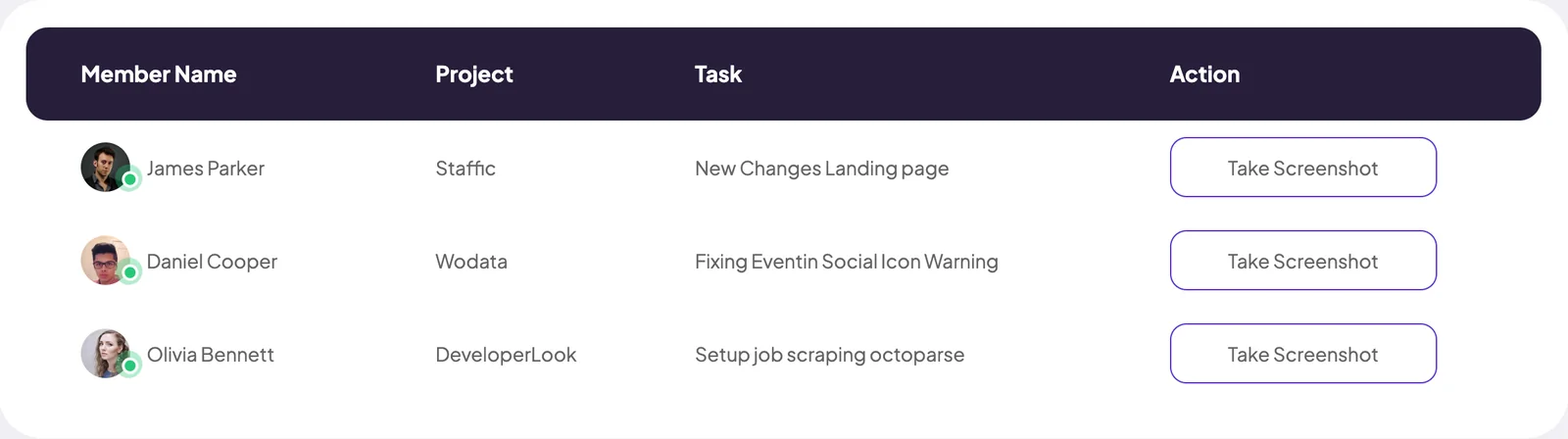
 Live FeedEliteSee who's tracking time right now, and on what
 ScreenshotsStandardVisual proof of work, captured automatically
 AppsWhich apps each tracked session used
 URLsThe websites behind the tracked time
 Screen RecordingsEliteFull session video, beyond a screenshot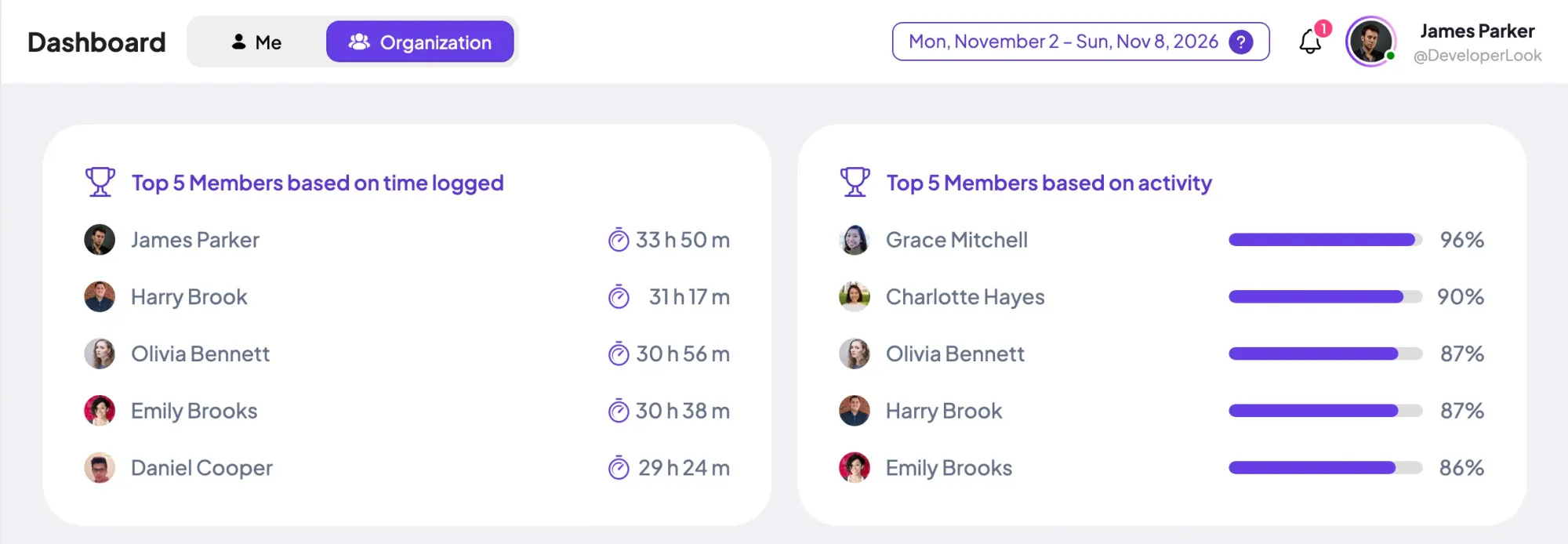
01 / 33
Dashboard
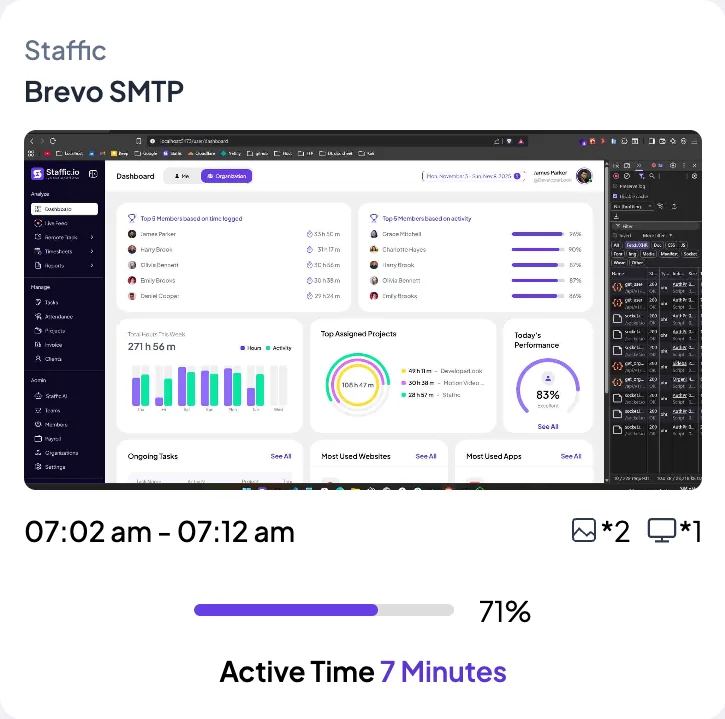
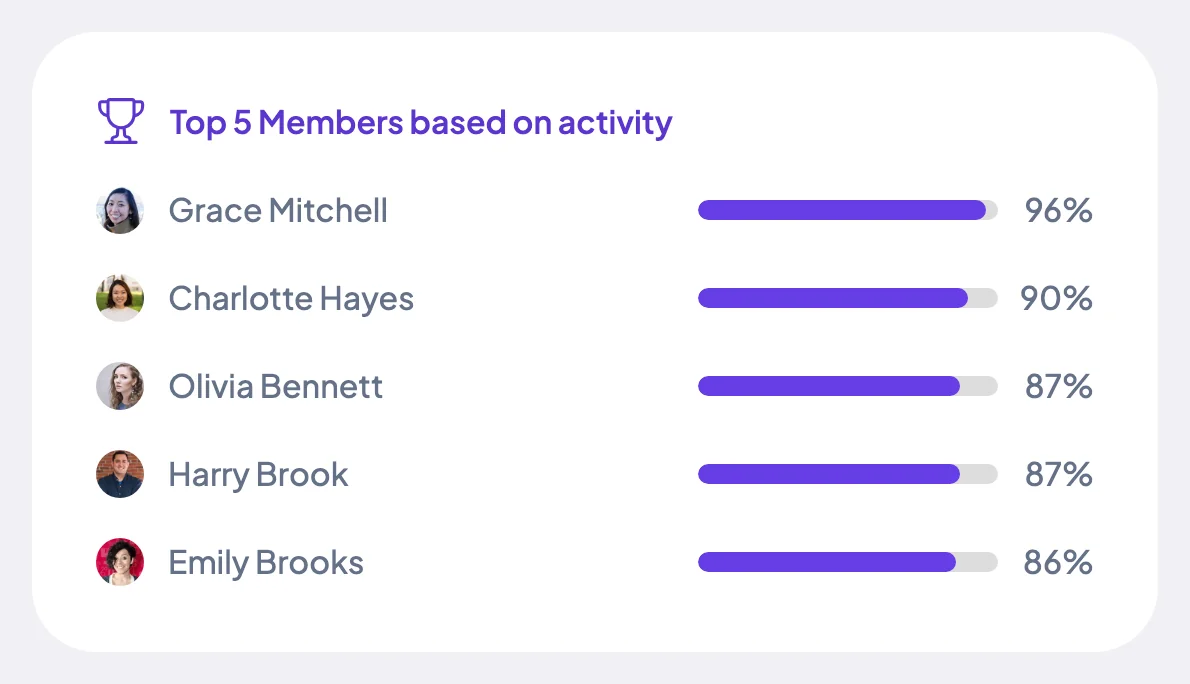
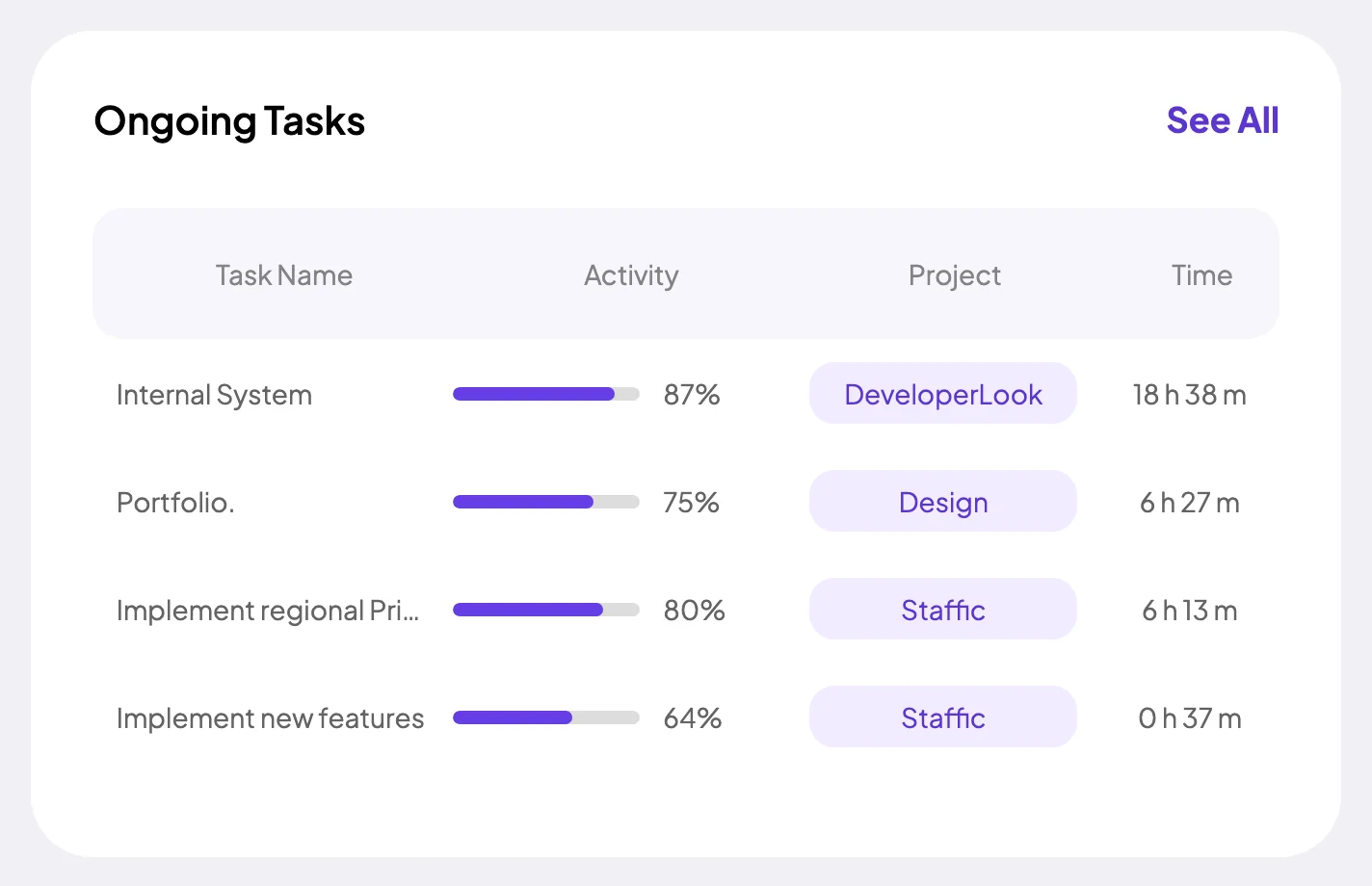
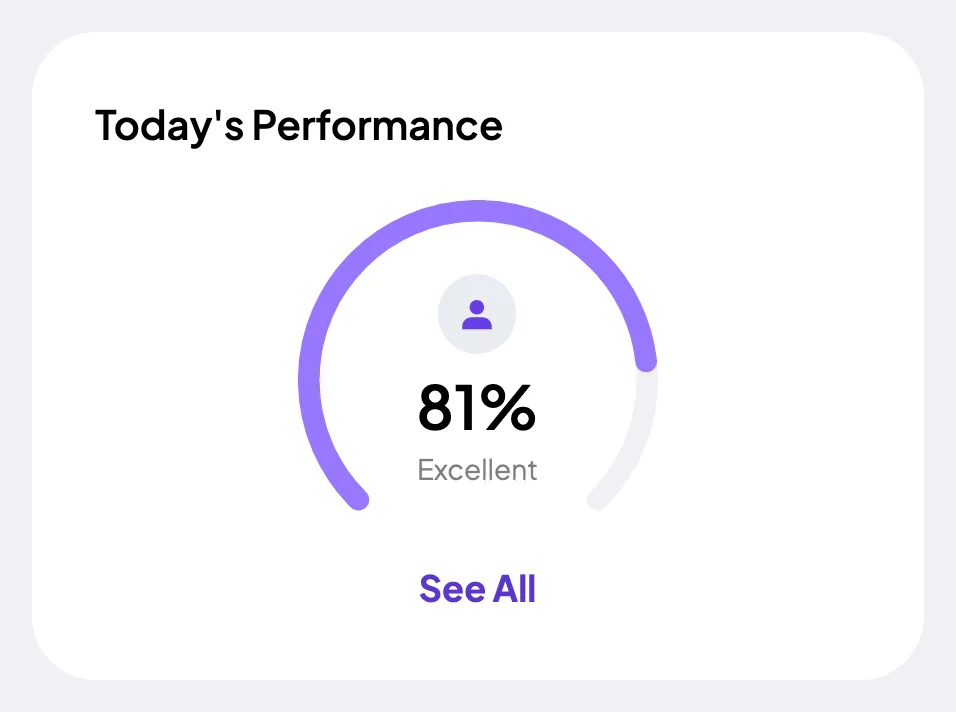
The team dashboard: this week's hours, today's performance, top members, ongoing tasks, top projects and the most used apps and websites.
View DashboardProductivity Tracking
Staffic is productivity tracking software for managers of remote and hybrid teams who want facts instead of check-in calls. While a member's timer runs, the desktop app measures activity from keyboard and mouse input and notes the apps and websites in use. On Standard and Elite, reports turn that into active time, neutral time and hours against estimates for each member.
In short
Staffic Productivity Tracking is employee productivity software that measures work from the sessions members track in the desktop app. Each session gets an activity level from keyboard and mouse input, its project and task, and the apps and websites used. On Standard and Elite, reports show every member's active and neutral time, average activity and hours against task estimates, and Elite ranks the week's most active members.
How it works
Staffic works as an employee productivity tracker from the first tracked session; there's nothing else to install for managers.
Productivity tracking software
Staffic's workforce productivity software reads every number here from the same tracked sessions, so the reports agree with your timesheets.
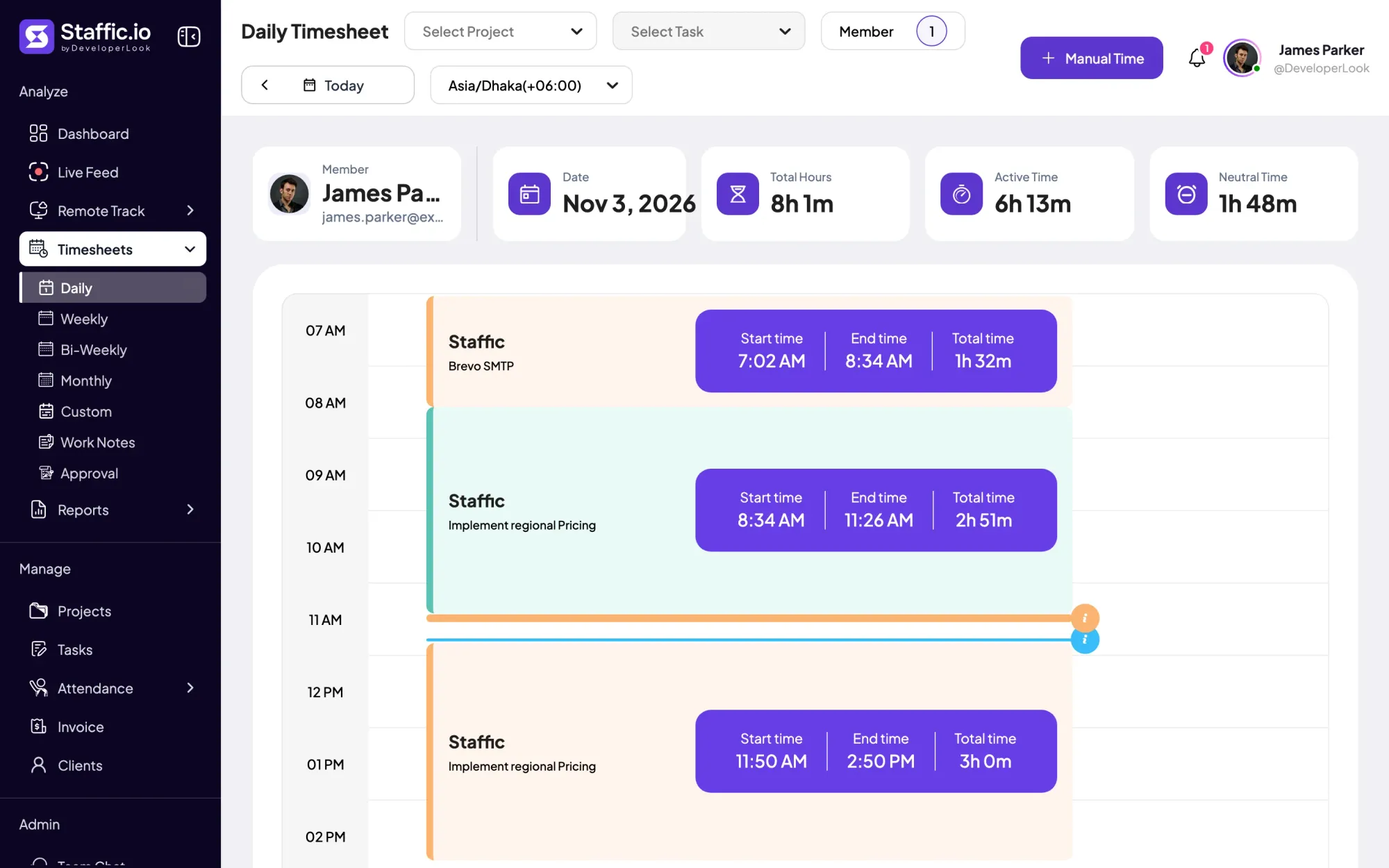
The desktop app marks any stretch of 50 seconds or more without keyboard or mouse input as idle. That time stays in the hours as neutral time, so the daily timesheet shows how much of a day was active and how much was quiet, next to the total.
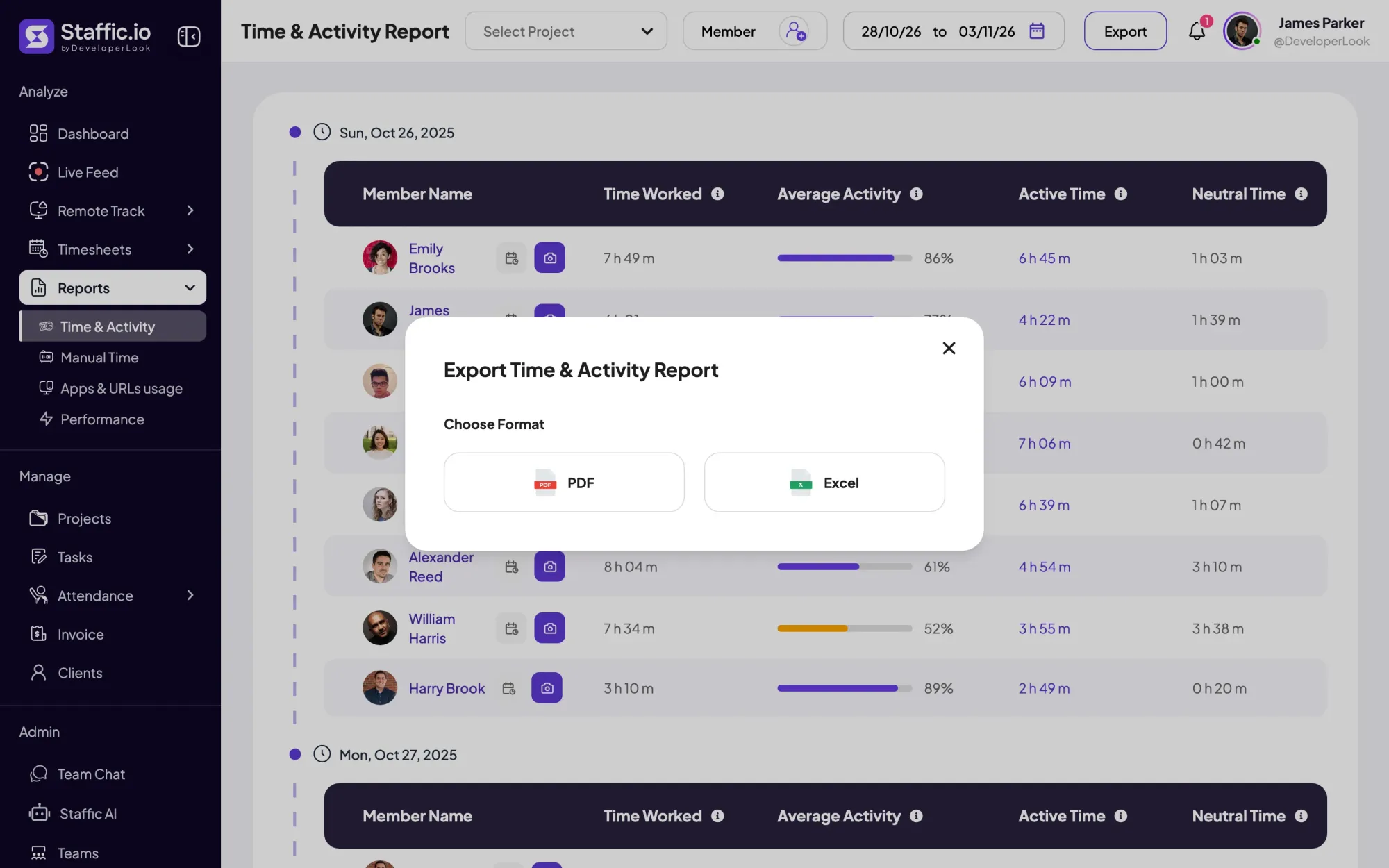
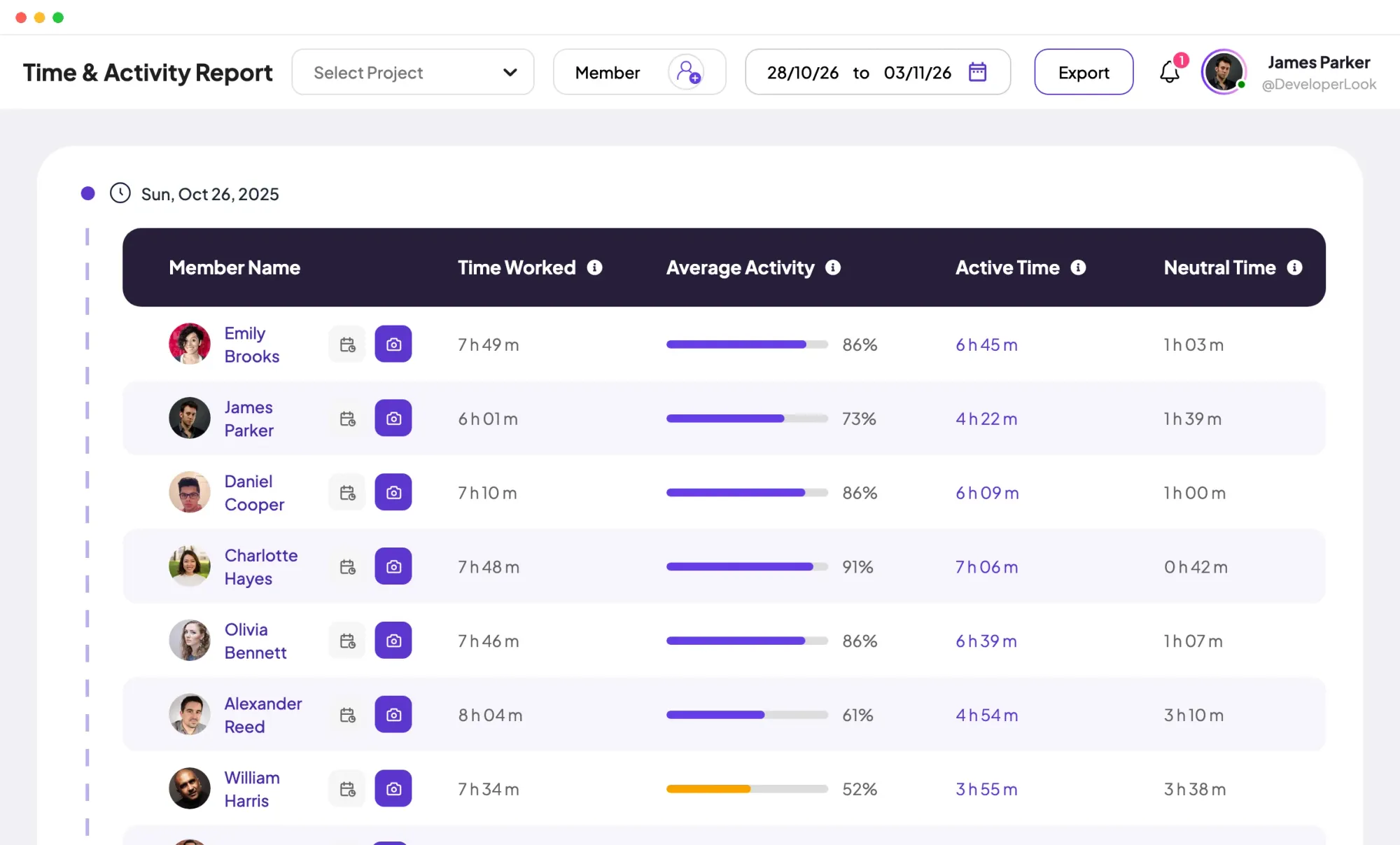
The Time & Activity report lists each member's time worked, average activity, active time and neutral time, day by day, for the dates you pick. Filter by project or members, then export it to PDF or Excel for a review.
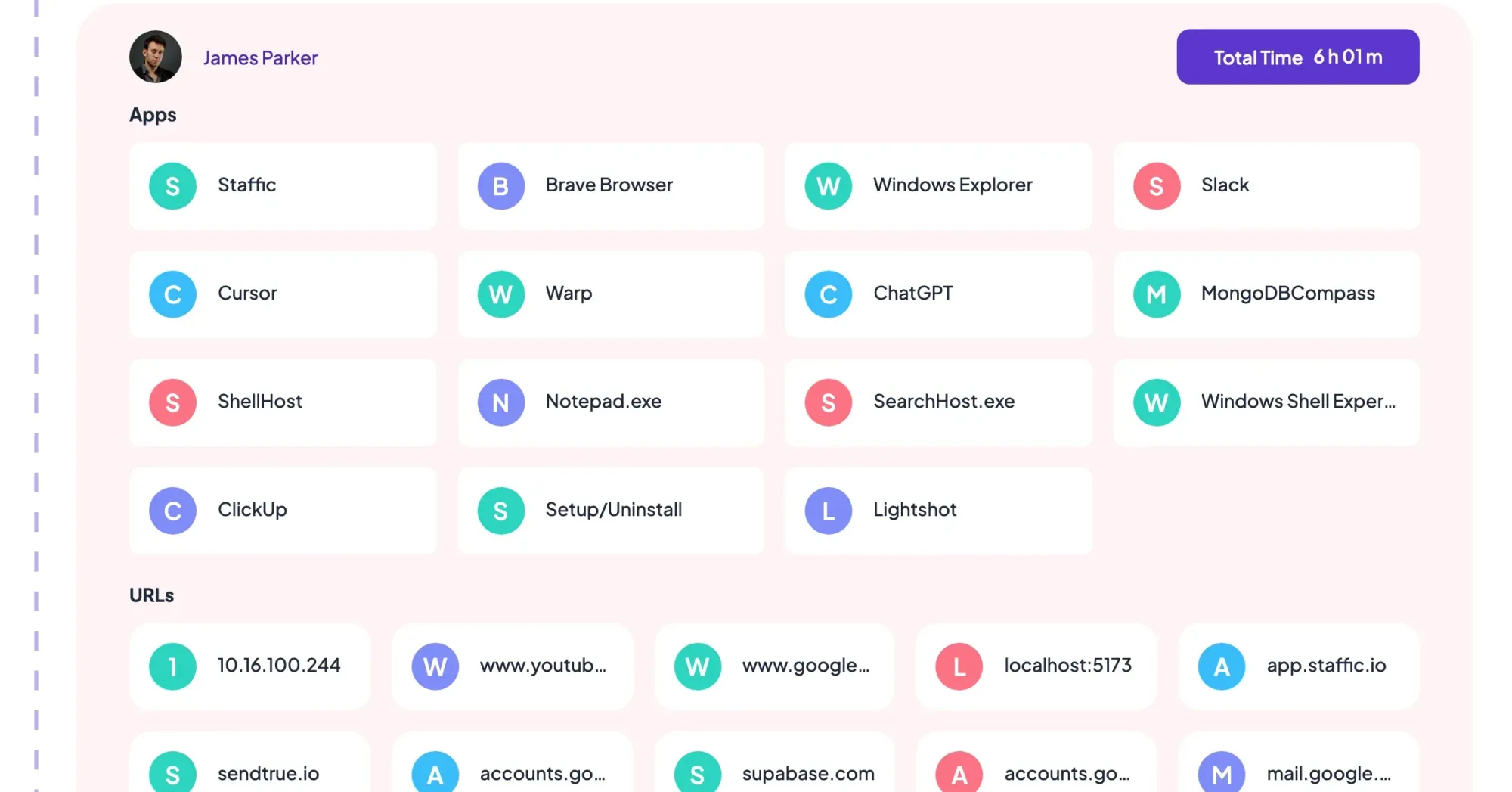
The Apps & URLs report shows which apps and websites each member used on each day, with the day's total tracked time. It tells you whether a quiet afternoon went to research in a browser or to a design tool, which an activity level alone can't.
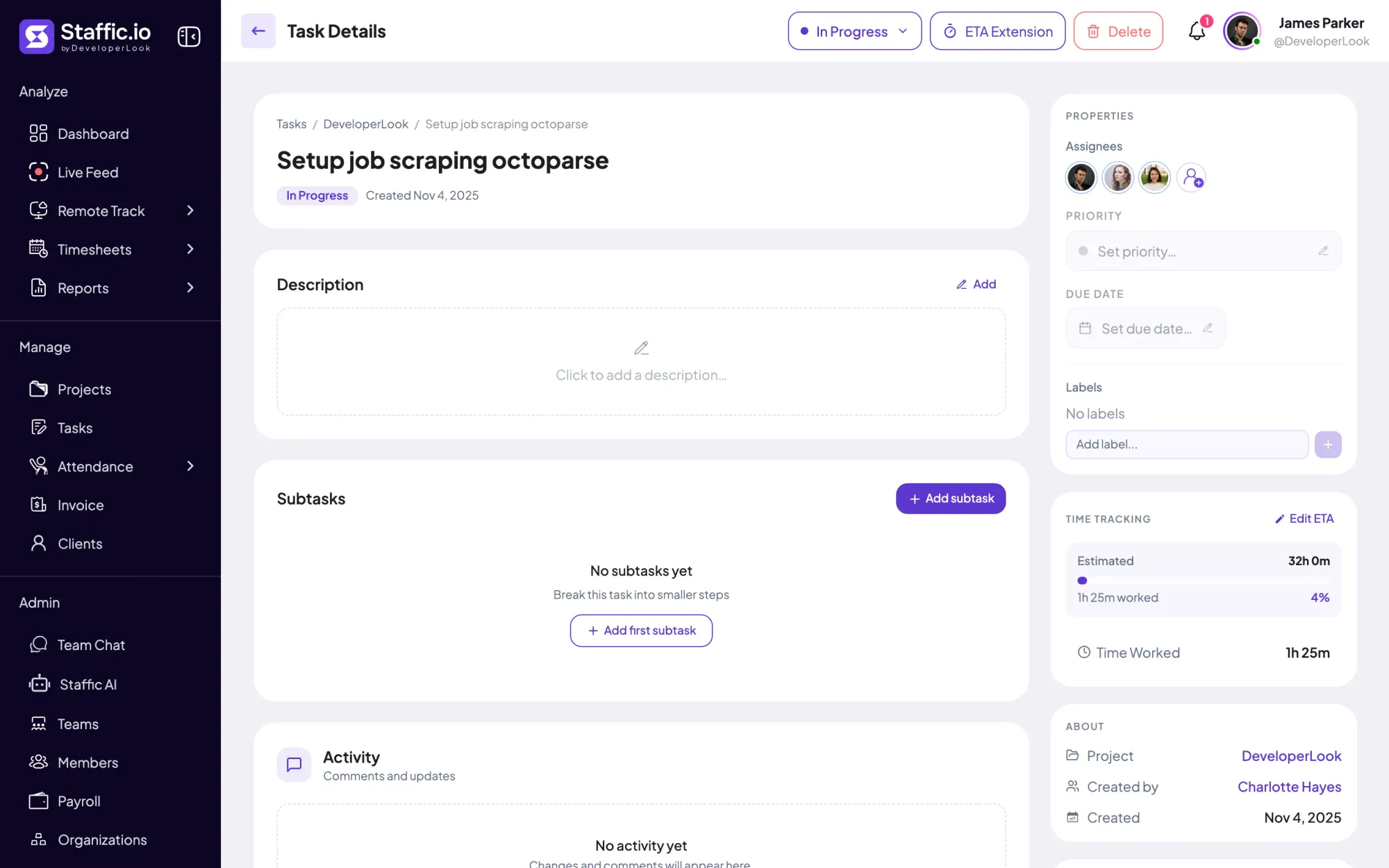
Give each task an ETA and Staffic compares it with the time worked. The Performance report adds up the estimates on each member's completed tasks as Total ETA, sets it against their time worked, and shows the difference in hours as Total Credits.
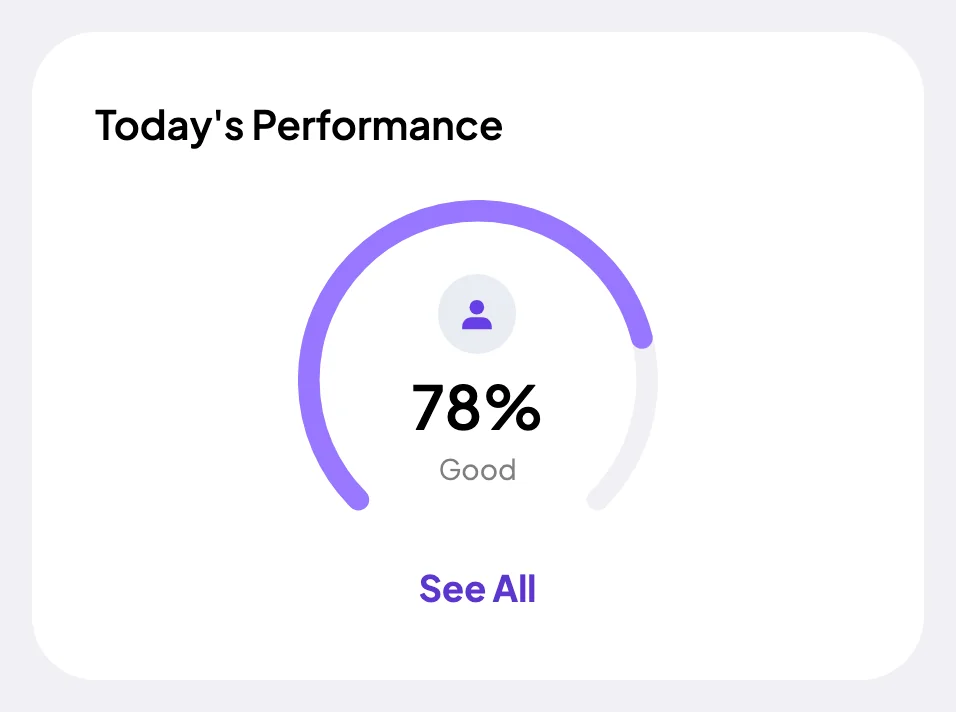
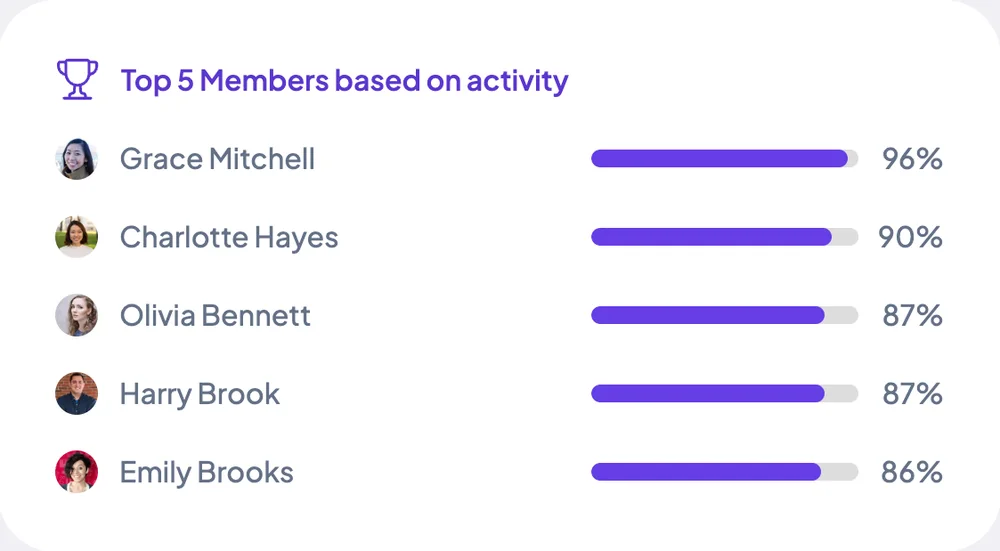
The dashboard ranks the top 5 members of the current week, Monday to Sunday, by time logged on Standard and Elite, and by activity on Elite. Elite also shows Today's Performance, rated from Poor to Excellent, for the team or for yourself.
Ongoing Tasks on the dashboard lists the tasks your team is working on, with each task's activity level, project and time this week. A task with long hours and low activity is a good one to ask about, not a verdict.
Showing Active and neutral time in every tracked day.
Control and privacy
Staffic measures work time only, and you decide who reads the results.
Set it up
An admin does this once in the web app; members install the desktop app and track time as usual.
Turn on Application Tracking, URL Tracking and Keystroke And Mouse Track, plus Meeting Idle Time Track if your team spends time on calls. New organizations start with Application Tracking off.
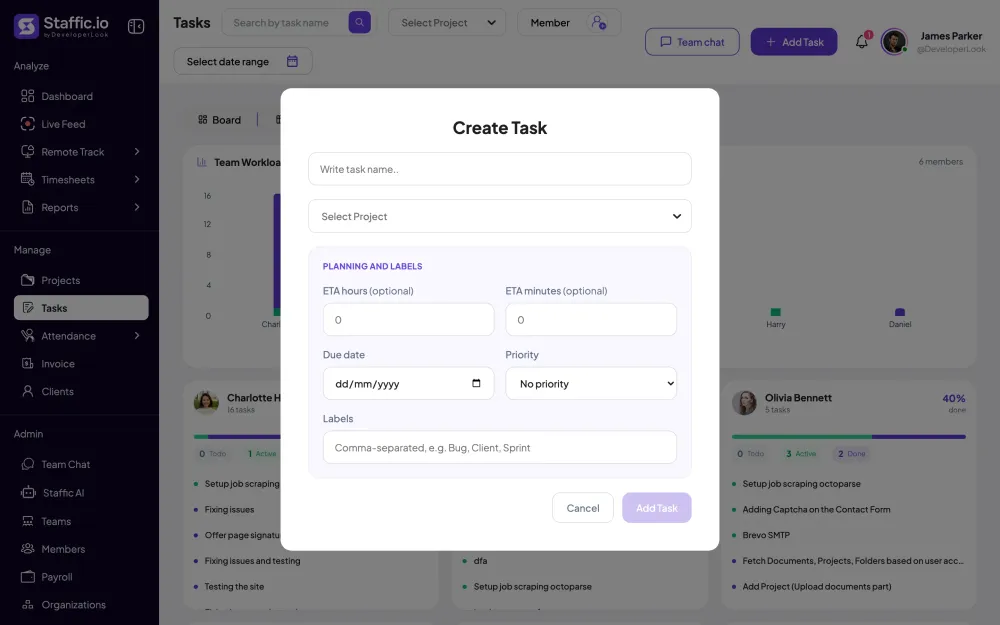
Settings › ActivityGive each task an ETA in hours and minutes, so the Performance report has something to compare time worked with.
Tasks › Add TaskAdmins see every report. Give team leads a role with the Reports module so they can open them too.
Settings › Access ControlAfter a week of tracking, open Time & Activity for the team, then Apps & URLs and Performance for the questions it raises.
Read the reports guideReports › Time & Activity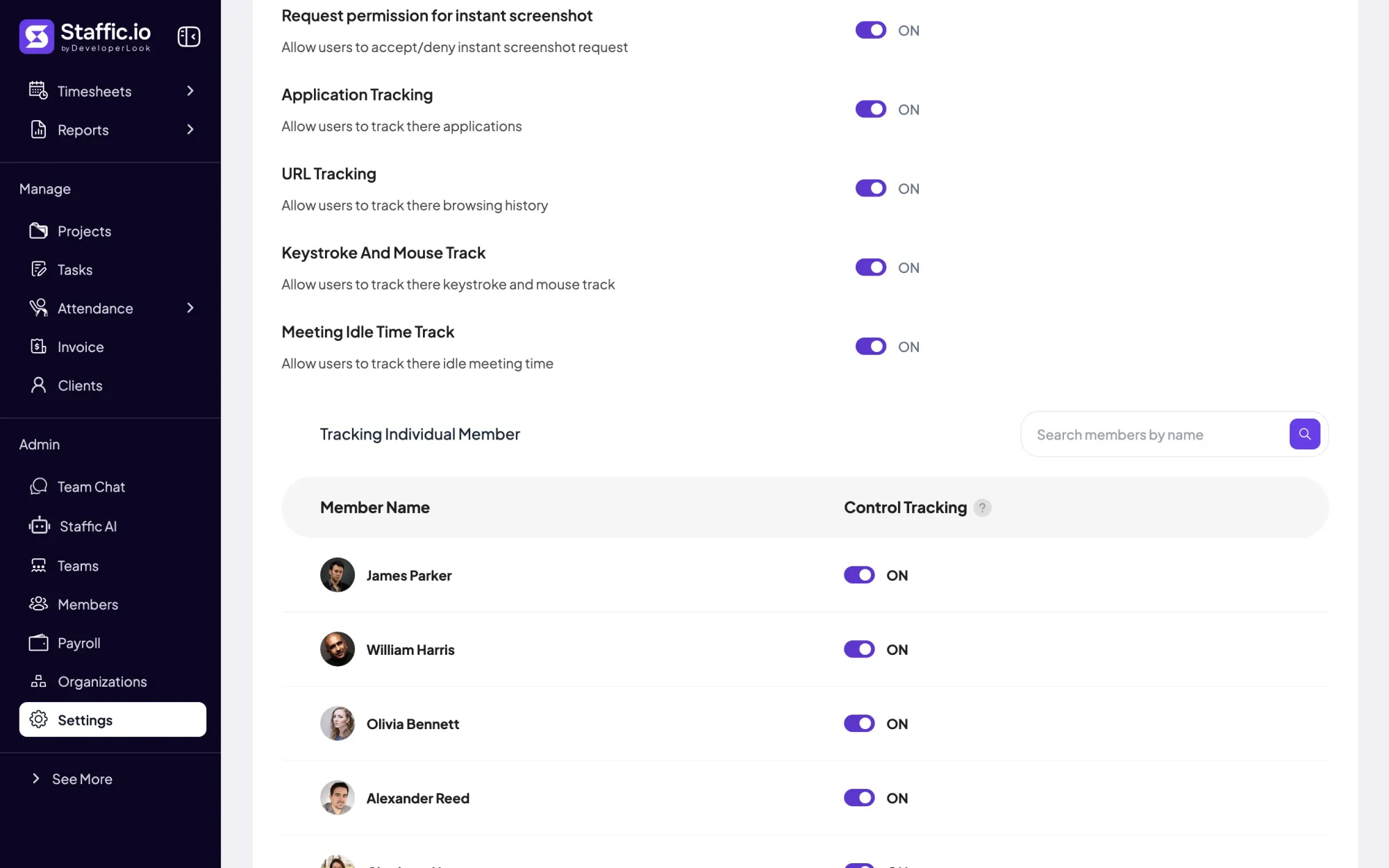
Compare
Each metric reads the same tracked time from a different angle. Use them together rather than judging anyone on one number.
Swipe the table to compare
| Compare | Activity level | Active and neutral time | Apps and URLs | Time against estimate |
|---|---|---|---|---|
| Answers | How busy the tracked hours were | How much of the day was idle | What the hours went into | Whether tasks took as long as planned |
| Measured from | Keyboard and mouse input | Stretches of 50 seconds without input | Apps and browser URLs in use | Task ETAs and time worked |
| Where to read it | Time & Activity report | Daily timesheet and Time & Activity | Apps & URLs report | Performance report |
| Plan | Reports on Standard and Elite | Standard and Elite | Report on Standard and Elite | Standard and Elite |
| Watch out for | Reading and calls score low | Calls, unless meeting idle is on | No time per app | Only completed tasks count |
| Link | Activity level | Active and neutral time | Apps and URLs | Time against estimate |
Specs and terms
The facts behind the feature, and what each number on the Productivity Tracking page means.
Who it's for
Staffic works as employee productivity monitoring software for team leads, remote managers and agencies, and members see their own numbers too.
Open Time & Activity each Monday for the week before, look for changes rather than low scores, and ask before you assume. Average activity next to active time gives you a question, not a verdict.
When people work from home across time zones, the reports show who tracked what and how active it was, so the morning call can be about blockers. On Elite, each member sees their own Today's Performance in the Me view.
Set an ETA on every client task, then use Total Credits to see which kinds of work run over before you quote the next project.
Customer stories
Stop juggling tools. Staffic gives your team time tracking, projects, payroll and performance analytics in one platform.
Try Staffic for free“Staffic.io brings transparency without micromanagement. Our team feels trusted, and productivity has never been higher.”
Pricing
Productivity Tracking is part of the Standard and Elite plans, with a 7-day free trial. You pay per active user.
Compare every planPrices in USD per active user. Billed monthly, Standard is $7.50 and Elite is $9.80 per user.
Track the time people work against projects and tasks, then look at how active that time was and what it went into. In Staffic, members track time on tasks, and the Time & Activity report shows each person's time worked, average activity, active time and neutral time. To track staff productivity fairly, read several weeks and compare each person with their own earlier numbers.
Tell people what is measured, look at weekly patterns instead of single sessions, and use the numbers to start a conversation. Staffic records only while the timer runs, keeps an activity level instead of keystrokes, and shows members their own week on the dashboard. If hours and activity answer your questions, you can leave screenshots off.
Pick that member in a report's member filter and choose a date range. Time & Activity shows their time and activity day by day, Apps & URLs shows the apps and websites behind it, and Performance sets the estimates on their completed tasks against the time they worked. The daily timesheet then shows each session's project, task, start and end.
Look at the team's total hours, how they spread across projects, and how active they were. On Standard and Elite, pick several members in Time & Activity or Apps & URLs and check the dashboard's top 5 for the week. Each team's page also shows the hours its members tracked on the team's projects in the last 30 days.
Track it the same way as in an office, with tracked time instead of walking past desks. Remote members run the Staffic desktop app on Windows, macOS or Linux, and timesheets show their hours in your organization's time zone or their own. Agree on how often you'll read the reports, and share what you see with the person first.
Staffic reports time worked, average activity, active time, neutral time, the apps and websites used, and time against task estimates. They come from the Time & Activity, Apps & URLs and Performance reports on Standard and Elite, and the dashboard adds weekly rankings and, on Elite, Today's Performance. Staffic doesn't store what anyone types.
It can, but monitoring on its own doesn't make anyone work better. What helps is clarity: people know what is tracked, managers see where time goes, and problems such as a stuck task or a week full of calls show up early. Used to catch people out, it mostly costs trust, so Staffic shows members their own numbers too.
They show where the hours actually go, which is often not where people think. With Staffic's employee productivity tracking software, you see time per project and task, spot work that keeps running over its estimate, and notice days lost to idle stretches or meetings. Members can use their own numbers to plan their week.
Standard and Elite include Productivity Tracking; the Free plan does not. Standard is $5.50 per user per month billed yearly ($1.00 during the current offer, until September 12, 2027) or $7.50 billed monthly, and Elite is $5.80 per user per month billed yearly or $9.80 billed monthly. Both start with a 7-day free trial.
Explore more
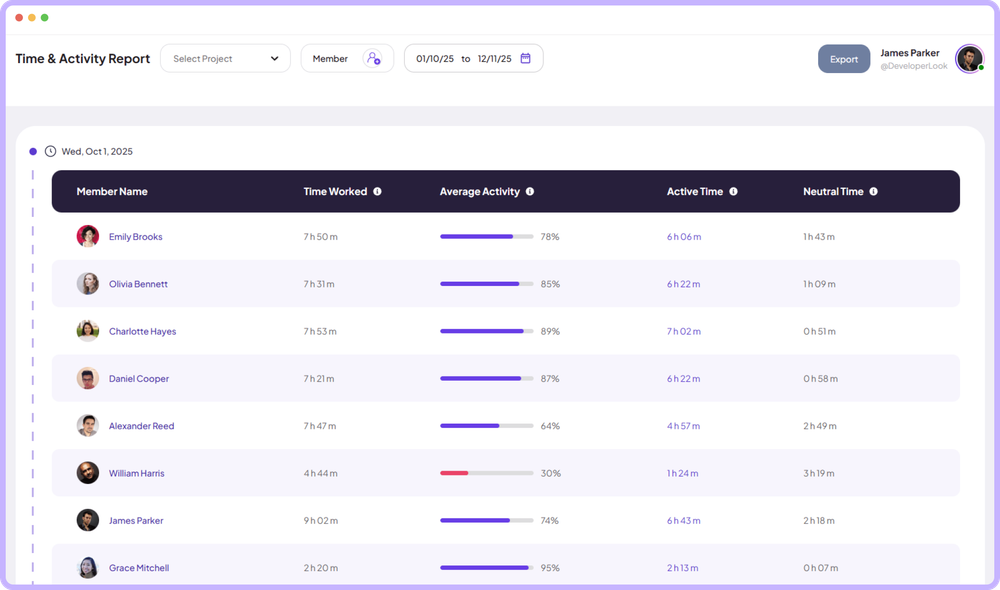

The Time & Activity Report shows each member's time worked, average activity, active time and neutral time for every day you pick.
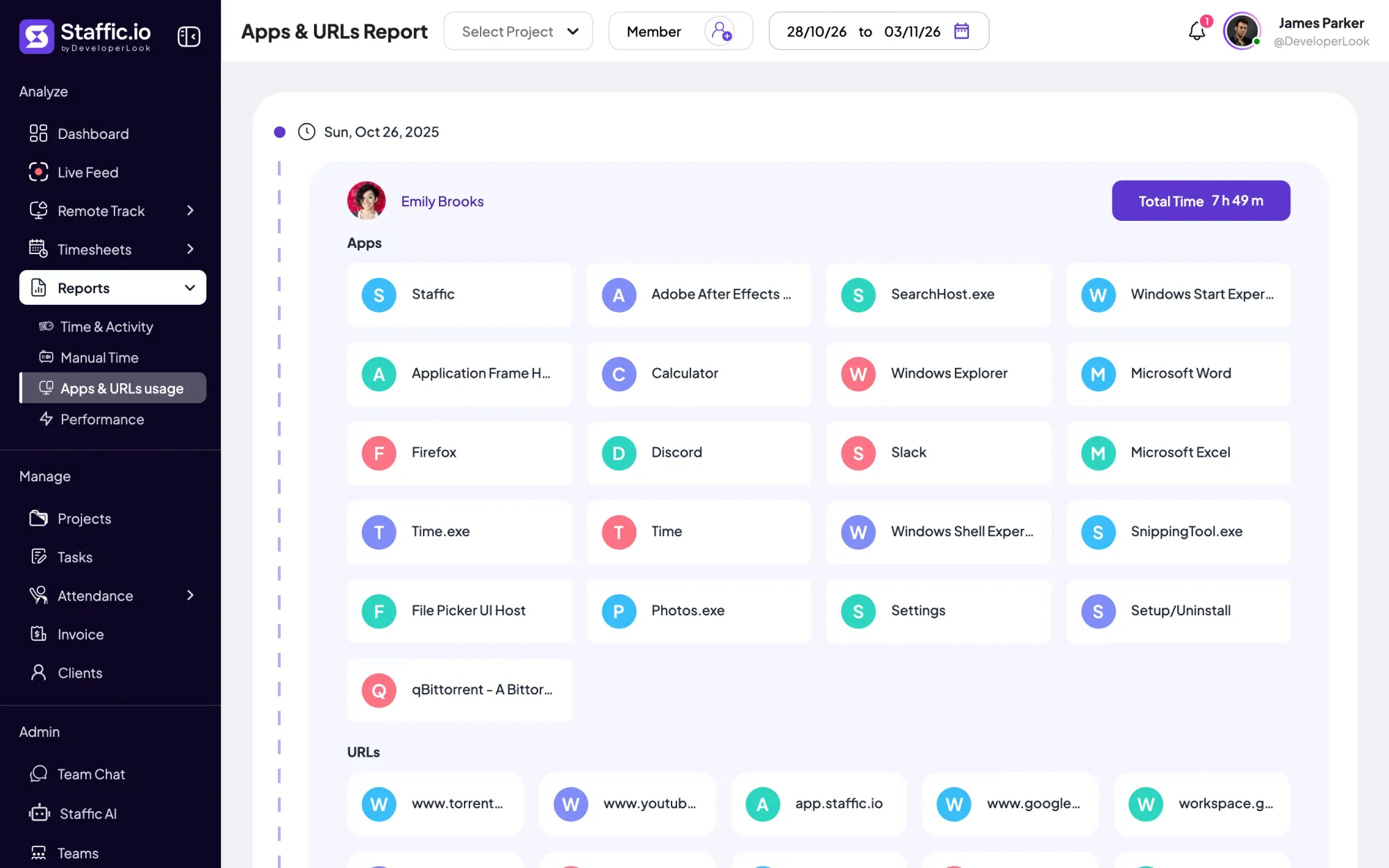

Employee internet monitoring in one report: the apps and websites each member used per day of tracked time, with total time. Standard and Elite.
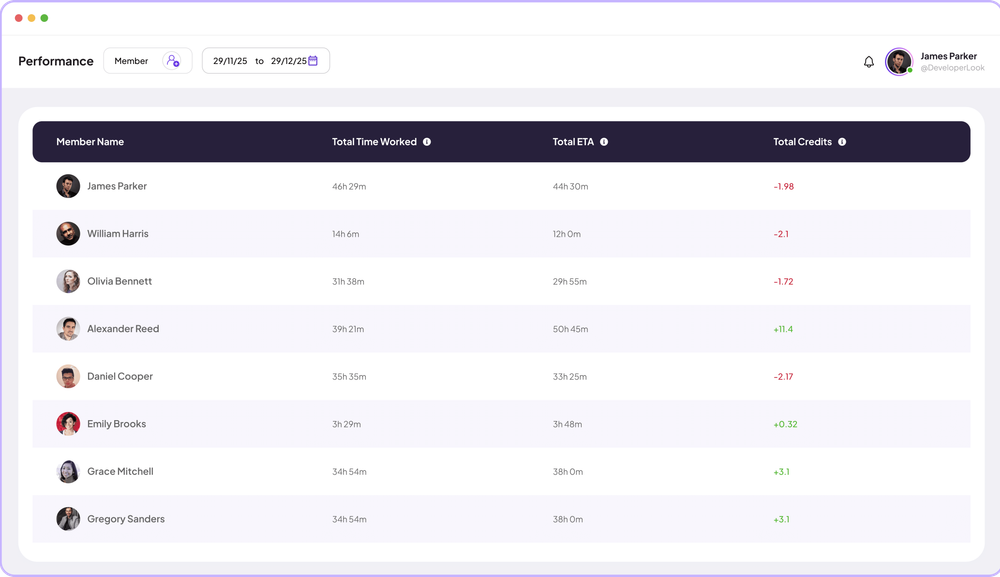

Performance compares each member's time worked with the estimates on their completed tasks, so you see who runs over and who has room.
The team dashboard: this week's hours, today's performance, top members, ongoing tasks, top projects and the most used apps and websites.

Staffic's daily timesheet shows one member's tracked sessions for a day on a timeline, with project, task, start and end times and the day's total.
Staffic turns tracked work into workforce analytics: a dashboard, time and activity reports, work against estimates, Staffic AI and an MCP server.
Free for up to 3 members
Create your workspace, invite your team, and the first timesheet builds itself.