Remote teams
See how the day went without a status call
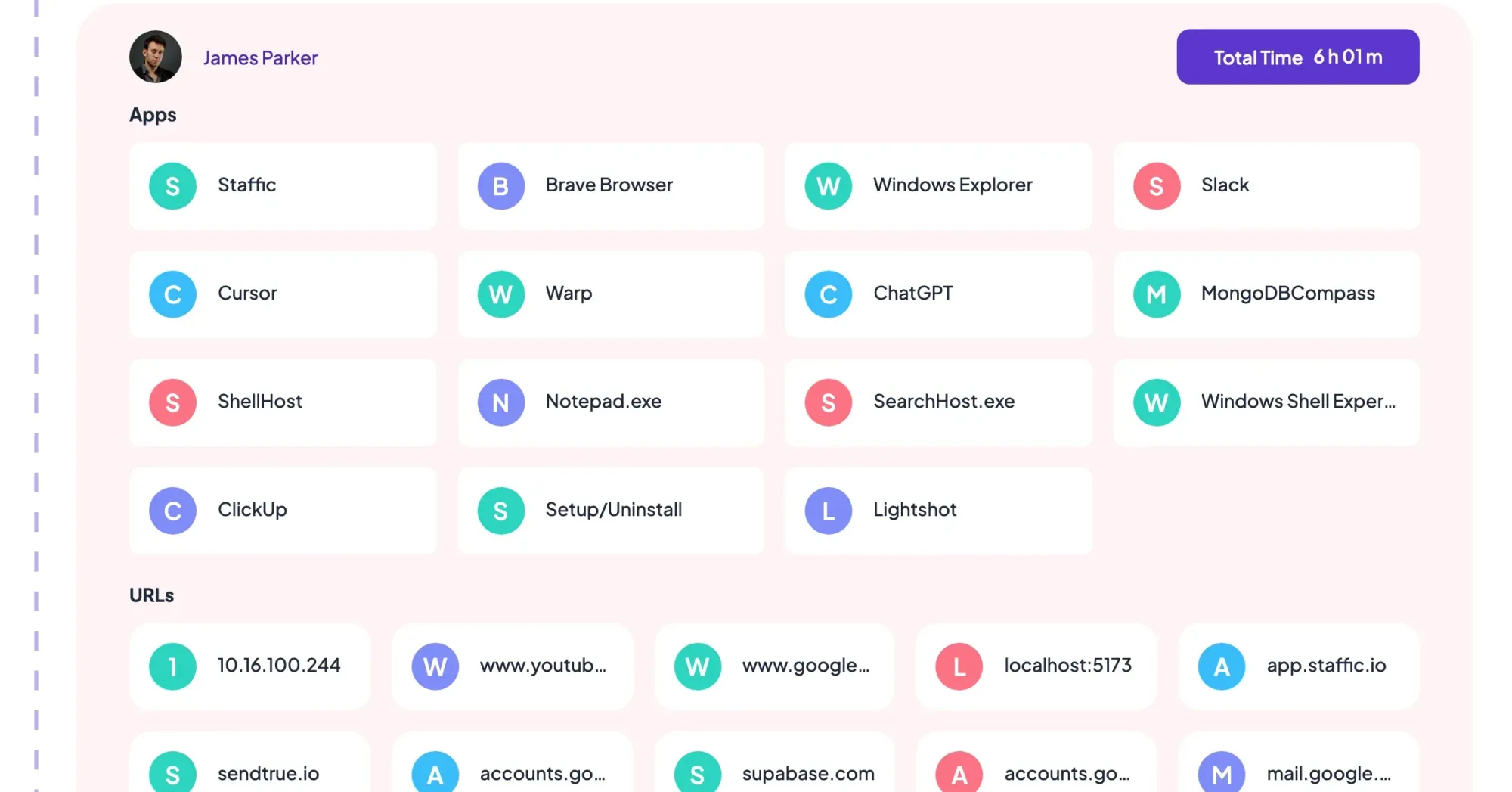
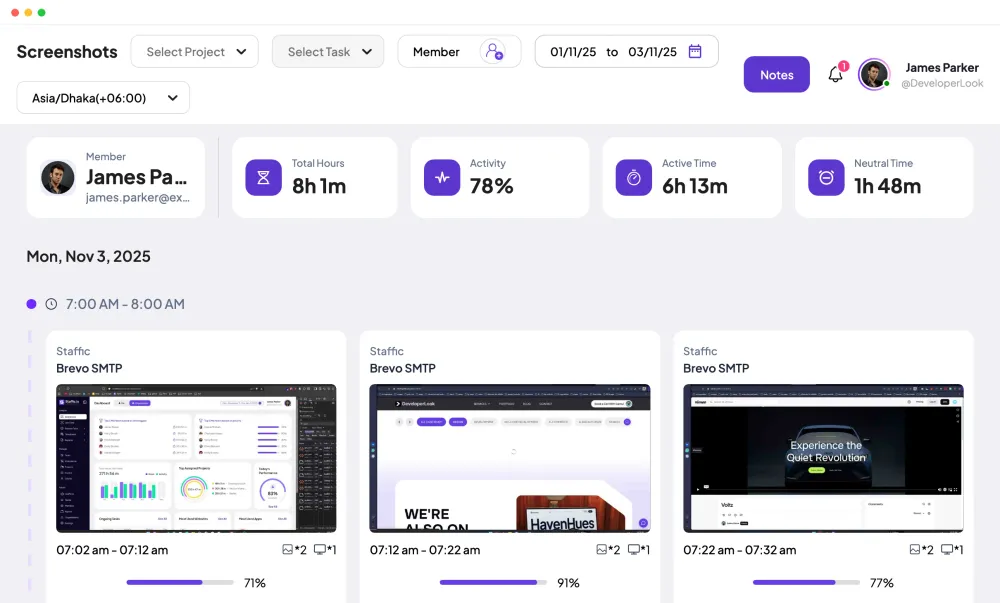
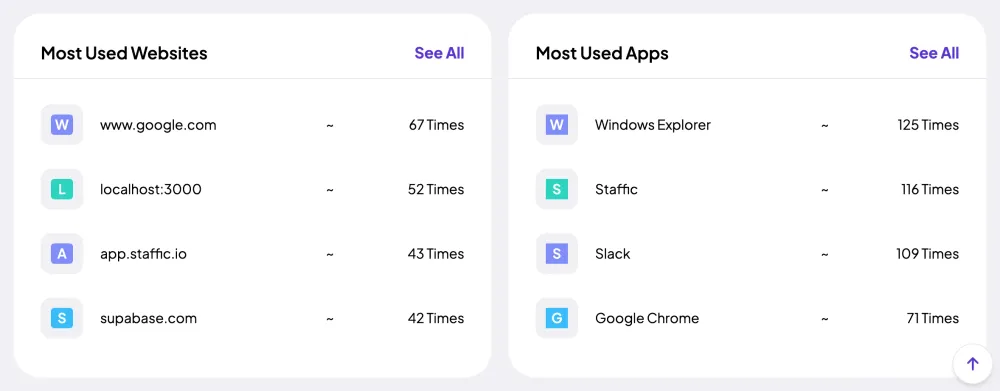
Open a member's screenshots and most used apps for the day next to their hours, instead of asking for an update in chat.

Features
All 33 featuresSee the work while it happens.
 DashboardYour team's week at a glance, Monday to Sunday
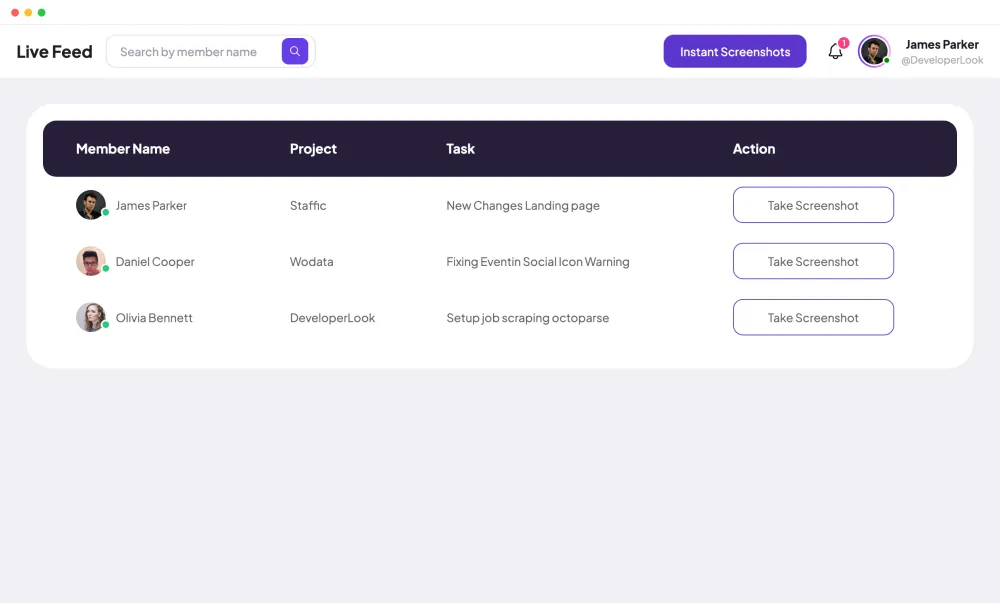
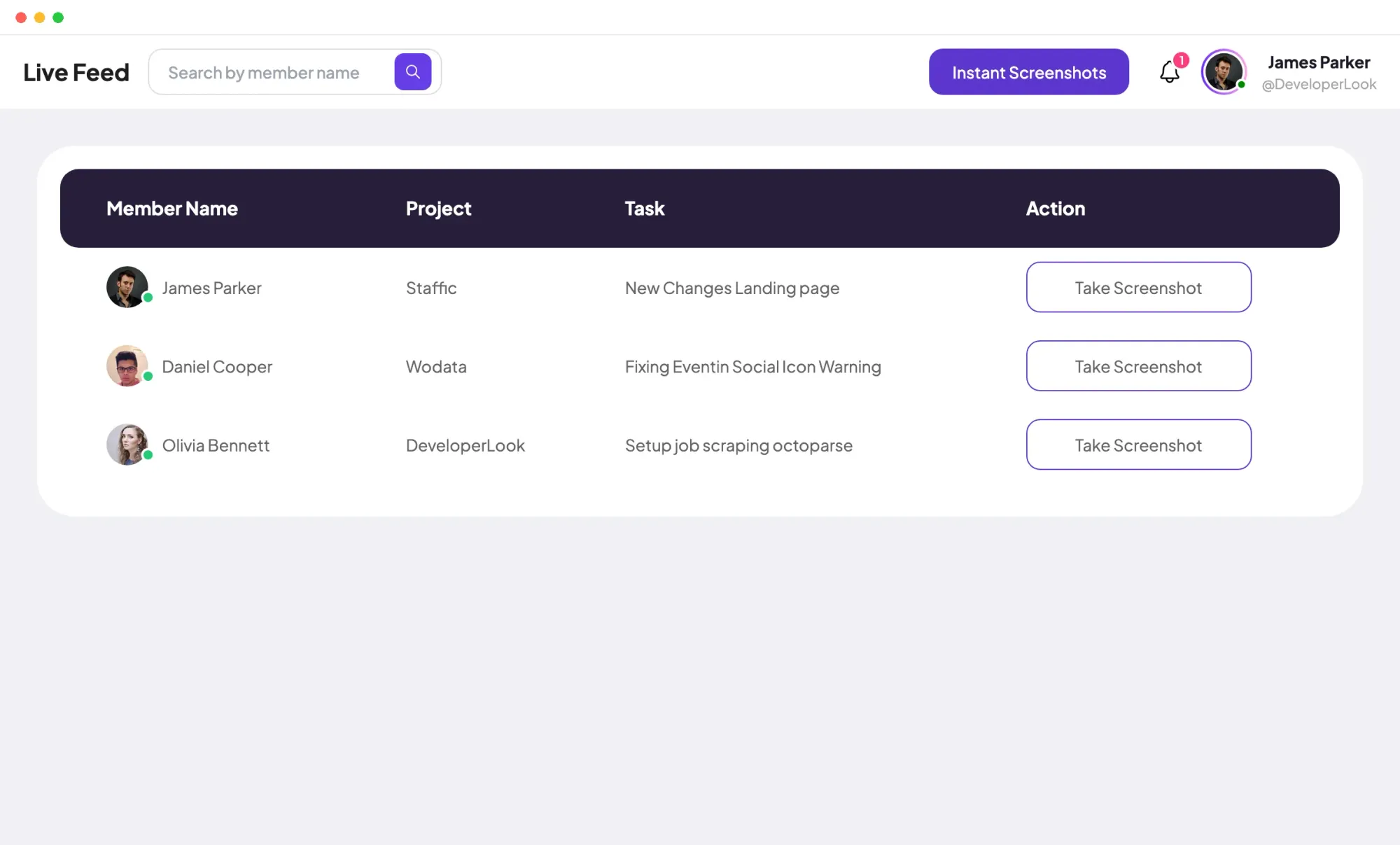
 Live FeedEliteSee who's tracking time right now, and on what
 ScreenshotsStandardVisual proof of work, captured automatically
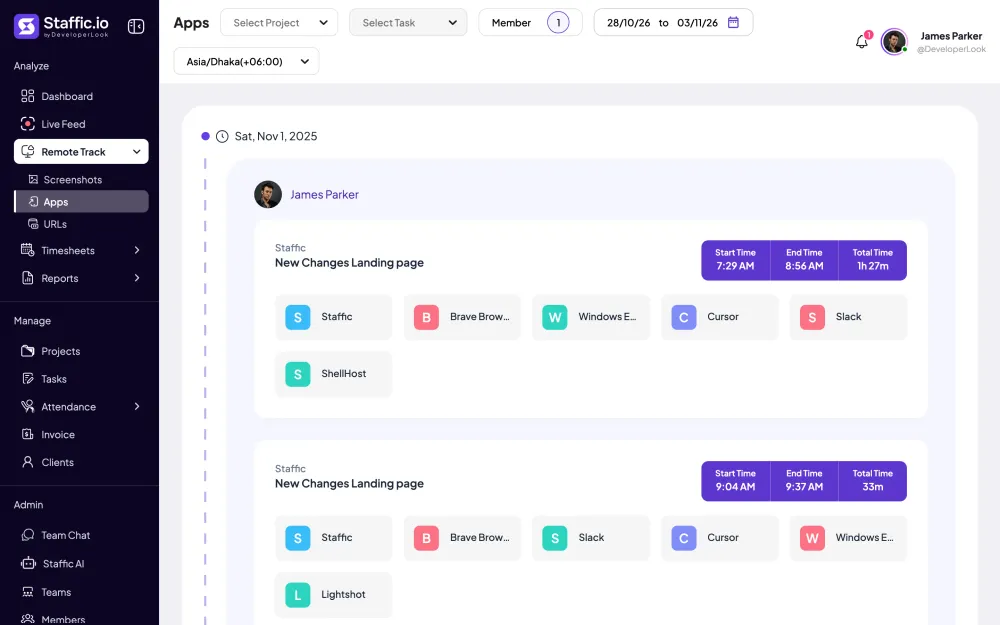
 AppsWhich apps each tracked session used
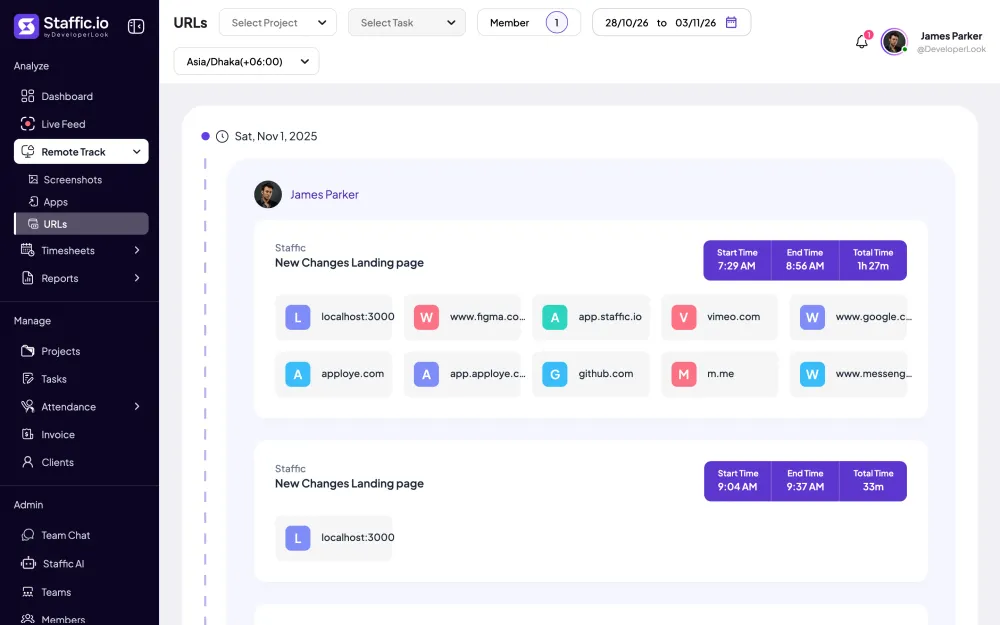
 URLsThe websites behind the tracked time
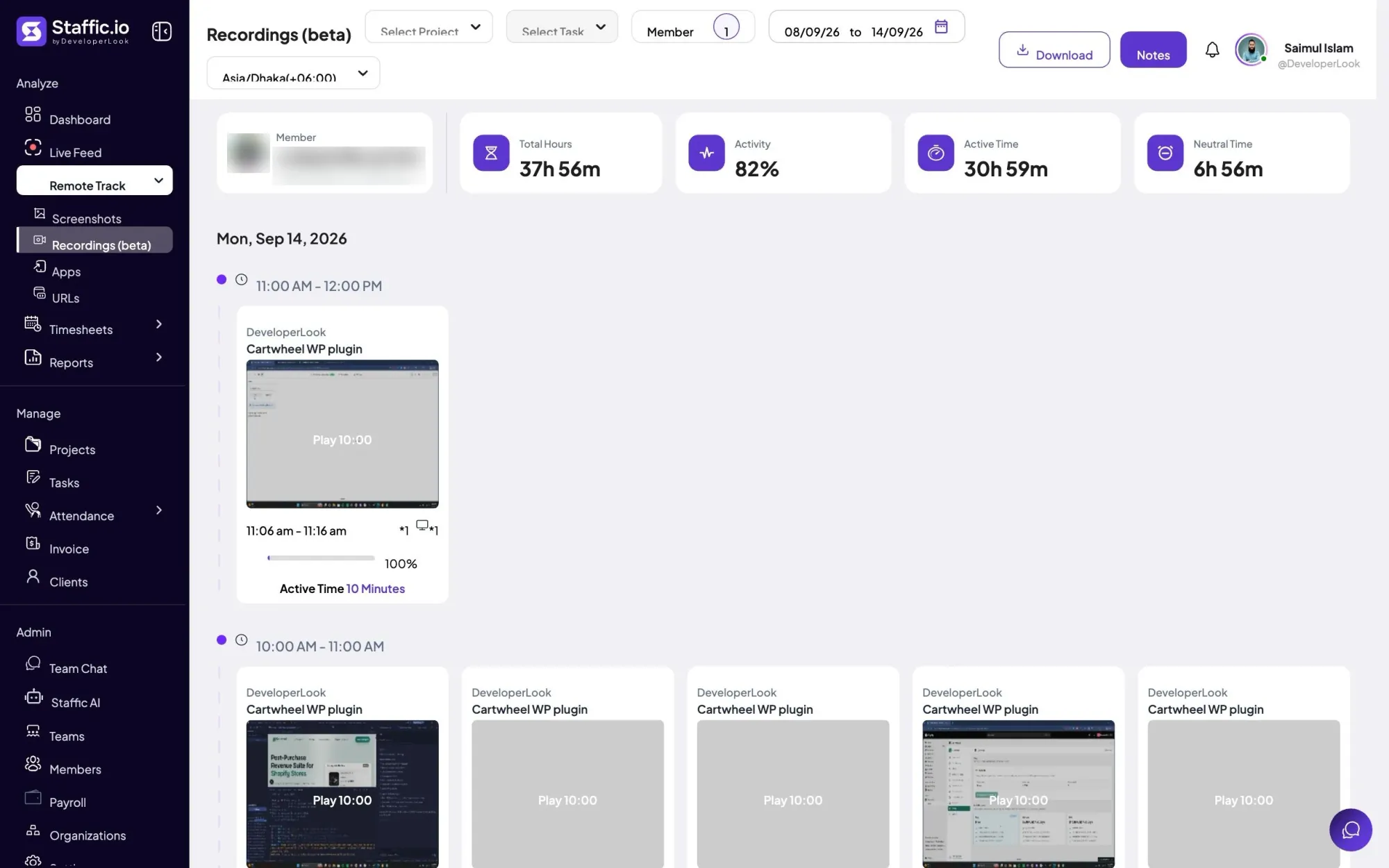
 Screen RecordingsEliteFull session video, beyond a screenshot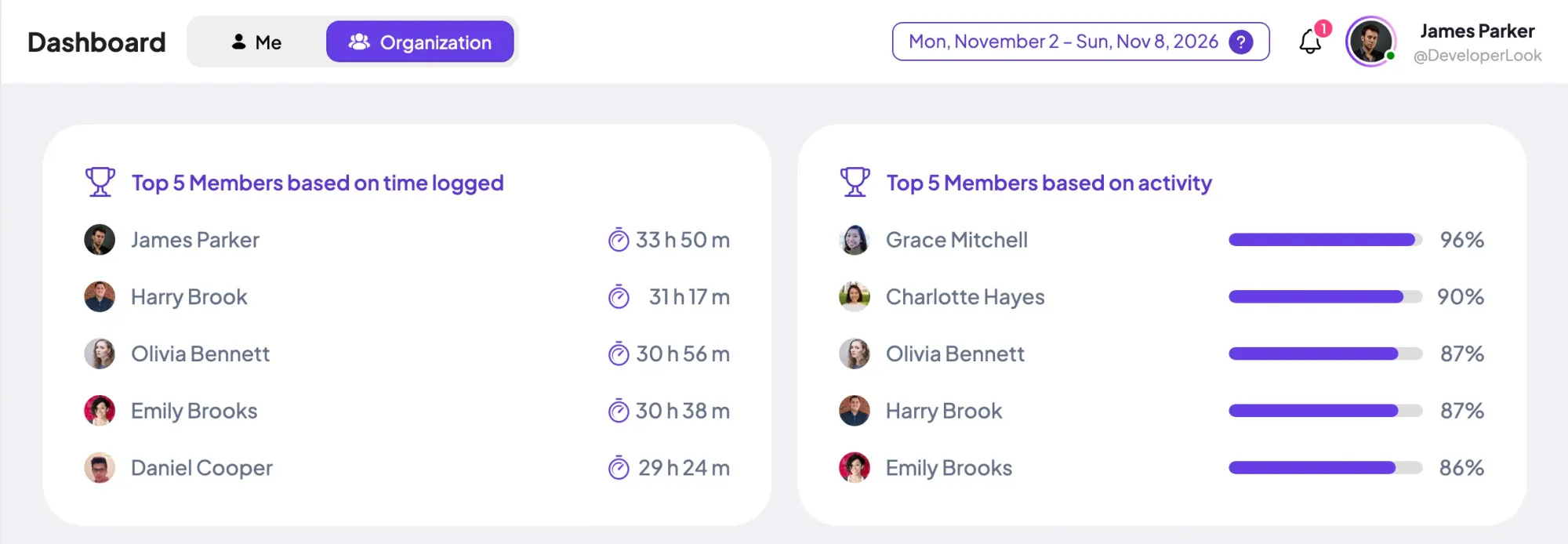
01 / 33
Dashboard
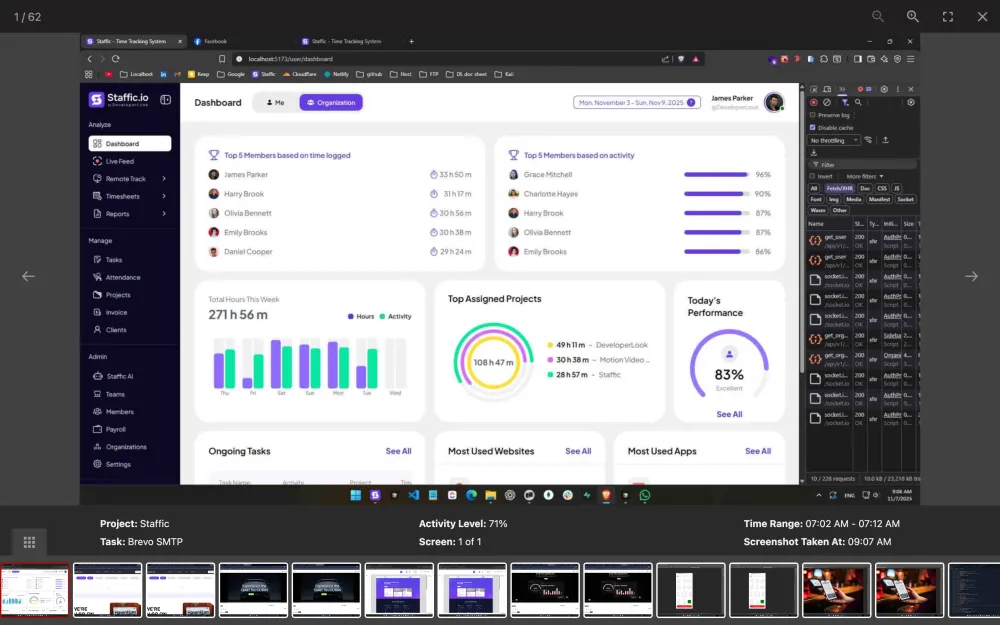
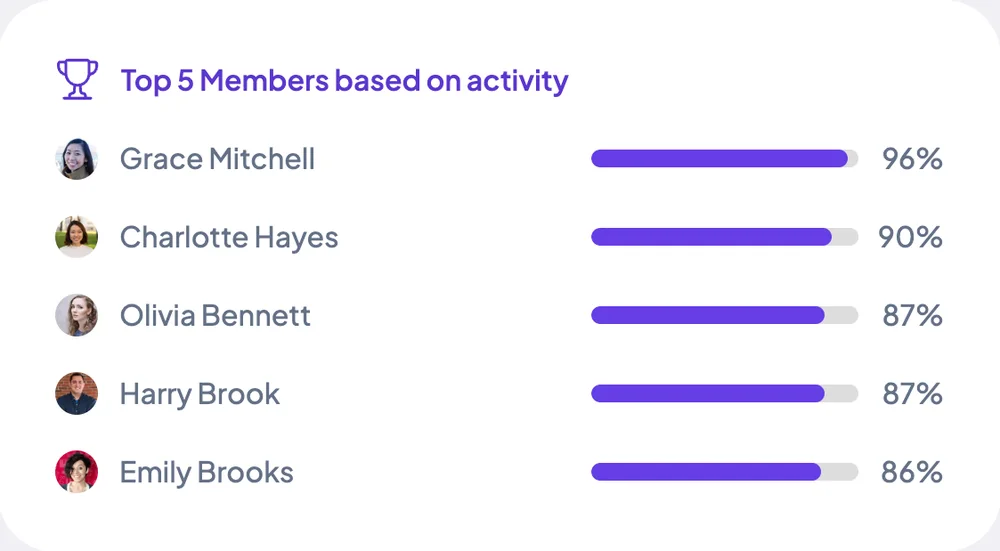
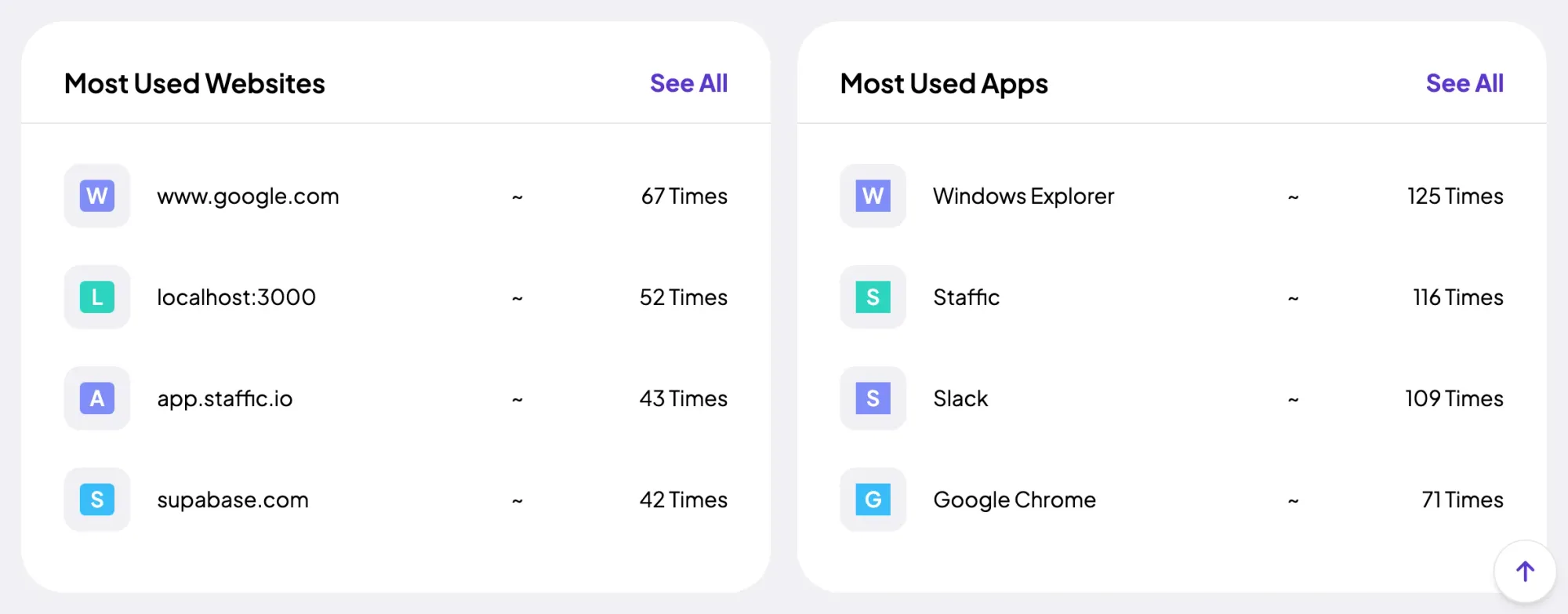
The team dashboard: this week's hours, today's performance, top members, ongoing tasks, top projects and the most used apps and websites.
View DashboardEmployee Monitoring
Staffic is employee monitoring software that records screenshots, apps, websites and activity levels only while a member's timer runs in the desktop app. You choose what is recorded and who reviews it, and members see their own records. Apps, websites and activity work on every plan; screenshots start on Standard.
In short
Staffic Employee Monitoring is an employee monitoring system built into the Staffic time tracker, and it records only while a member's timer runs. On Windows, macOS and Linux it captures the apps and websites used and an activity level from keyboard and mouse input, plus screenshots on Standard and Elite. Elite adds Live Feed, instant screenshots and screen recordings. Admins choose what is recorded; members see their own records.
How it works
Staffic adds monitoring to the time your team already tracks, so there is no second app to run.
Employee monitoring software
Every record below belongs to a tracked session, with its project, task and time range.
Monitoring in Staffic follows the timer. When a member starts tracking a project and task in the desktop app, Staffic records what you've switched on: screenshots, apps, websites and activity. When they stop the timer, the recording stops too.
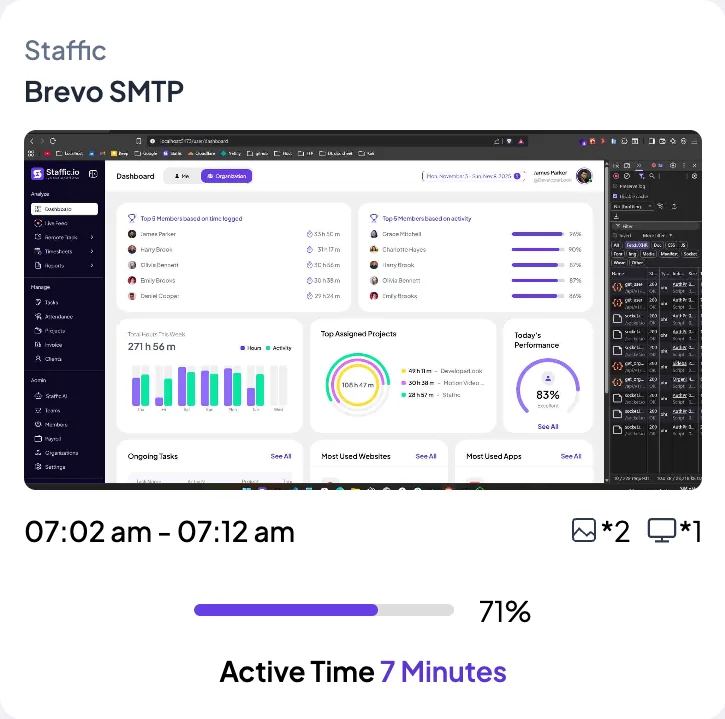
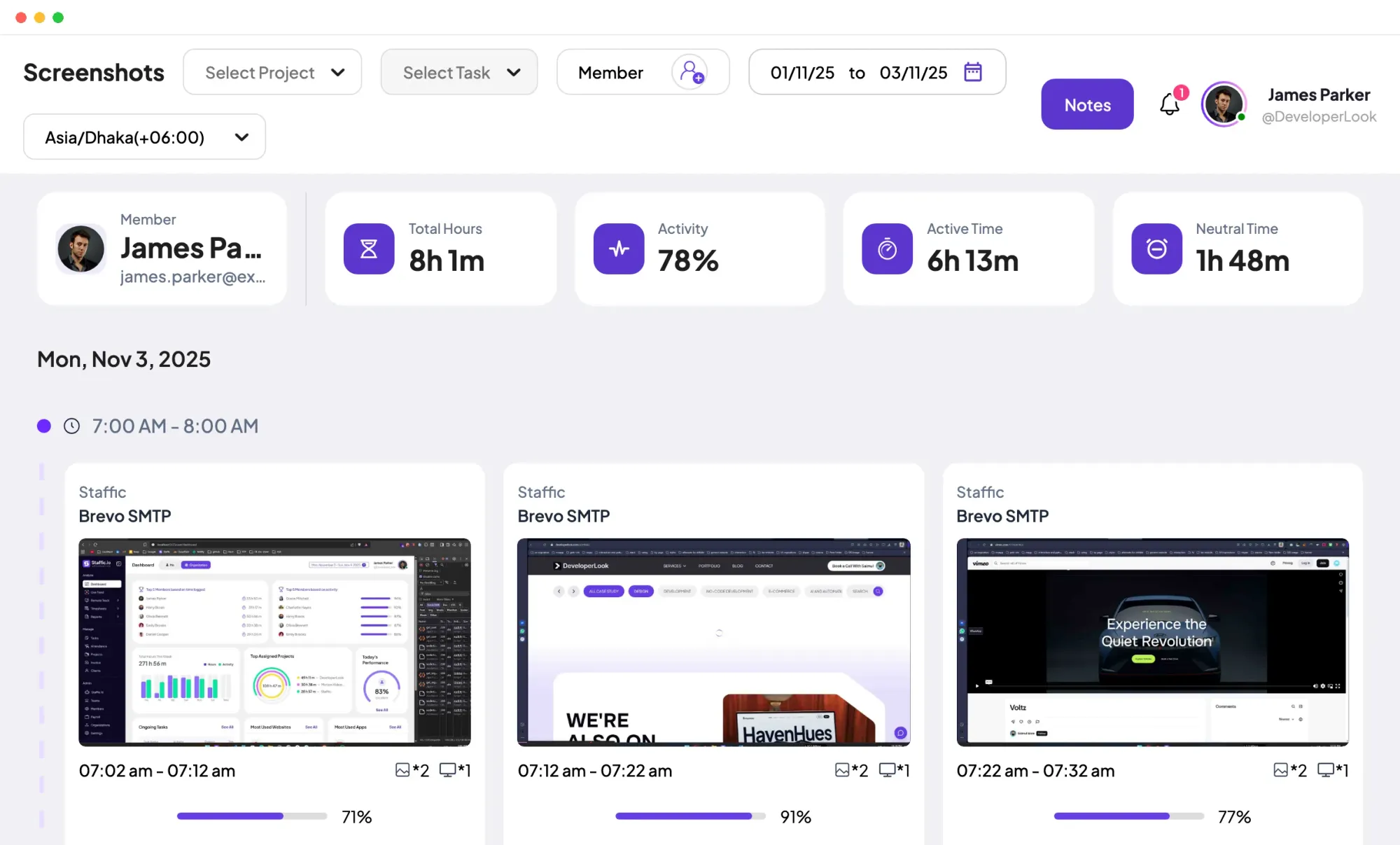
Staffic captures every connected screen 2 times in every 10 minutes by default, or 1, 2 or 3 times on Elite, at random minutes. Each capture shows its project, task, time range and activity level, and it's kept for 365 days.
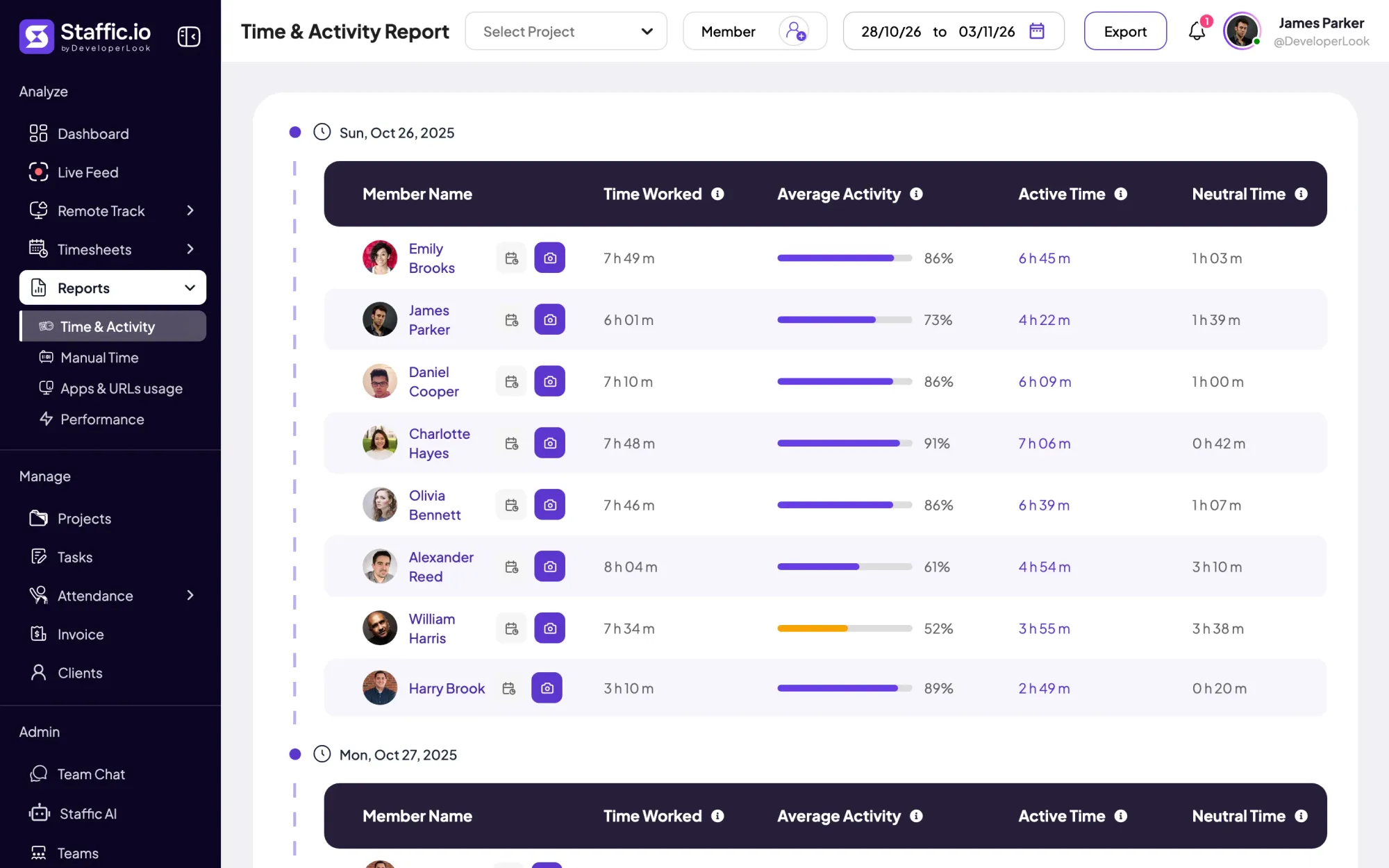
Each tracked session gets an activity level: the share of its time with keyboard or mouse input. A stretch of 50 seconds or more without input counts as idle, and Staffic stores the percentage, not what anyone typed.
Staffic lists the apps and websites used in each tracked session, with its project, task, start time and end time. On Standard and Elite, the Apps and URLs usage report puts them together per member and day.
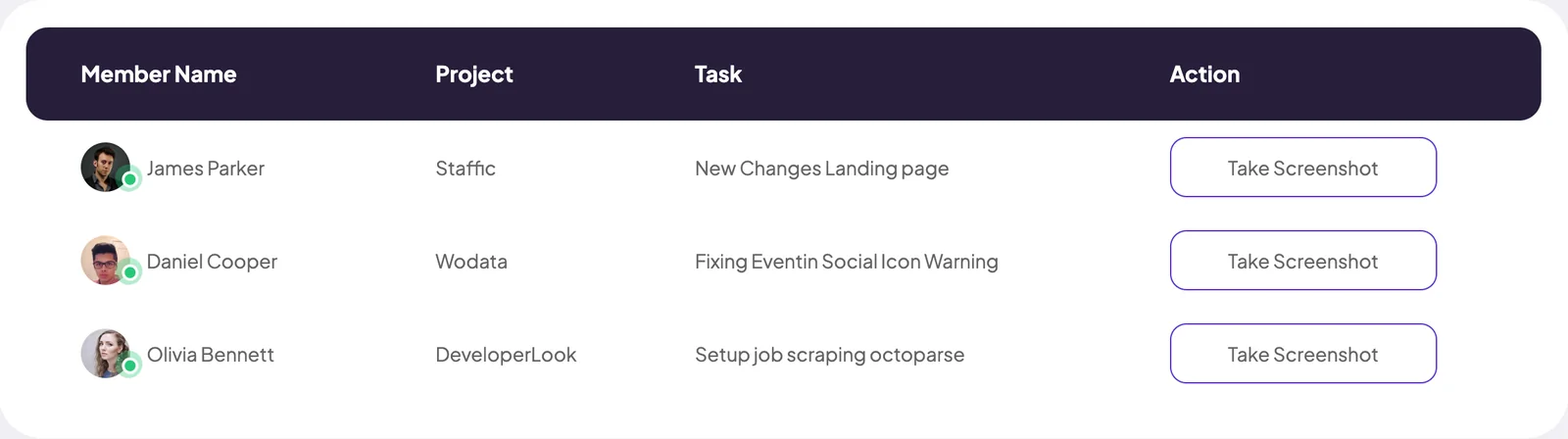
Live Feed lists the members whose timer is running, with the project and task each one is on. From the same list an admin can take an instant screenshot, and you can let members accept or deny each request.
On Elite, Session Recording (beta) records video of a member's screen while their timer runs. It stays off until an admin turns it on, each member has their own switch, and recordings are deleted after 7 days.
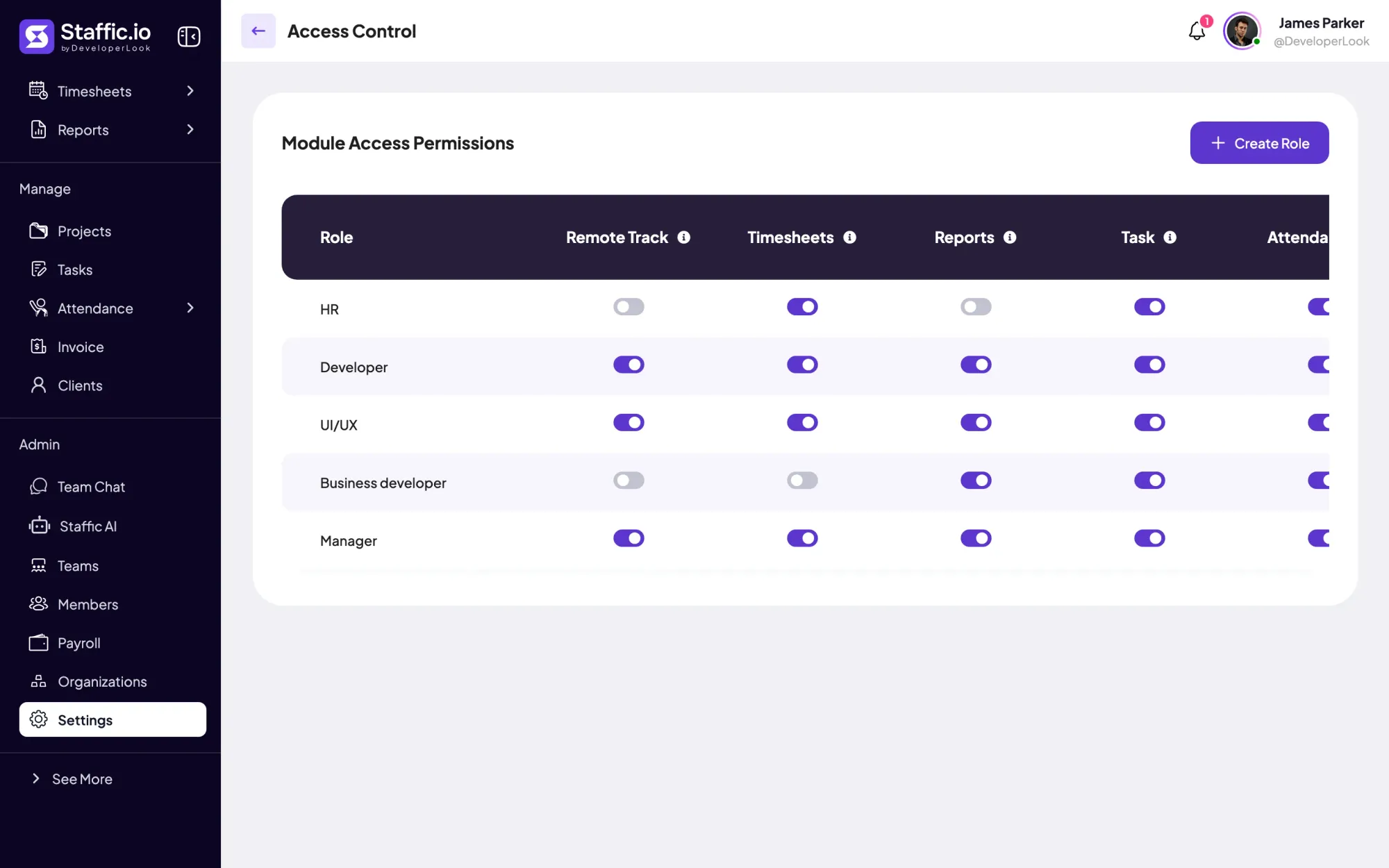
Admins switch screenshots, apps, URLs and keyboard and mouse tracking on or off under Settings, Activity. Control Tracking turns monitoring off for one member while their time tracking continues, and Access Control decides which roles see the team's records.
Showing What Staffic records, and when.
Control and privacy
Staffic records only during tracked time, and you decide what it records and who reads it.
Set it up
Six steps, from the rules to the first tracked day. Apps, URLs and activity work on Free; screenshots need Standard.
Monitoring laws differ by country and state, so read what applies to you before you record anything.
Employee monitoring lawsTurn screenshots, apps, URLs and keyboard and mouse tracking on or off for the whole organization.
Settings › ActivitySay what Staffic records, when it records, who can see it and how long it's kept.
Monitoring policy templateShare the policy and answer questions before anyone installs the app.
How to explain monitoringGive Remote Track access only to the roles that review monitoring. Members see their own records either way.
Settings › Access ControlEach member installs Staffic on Windows, macOS or Linux, signs in and starts the timer.
Download Staffic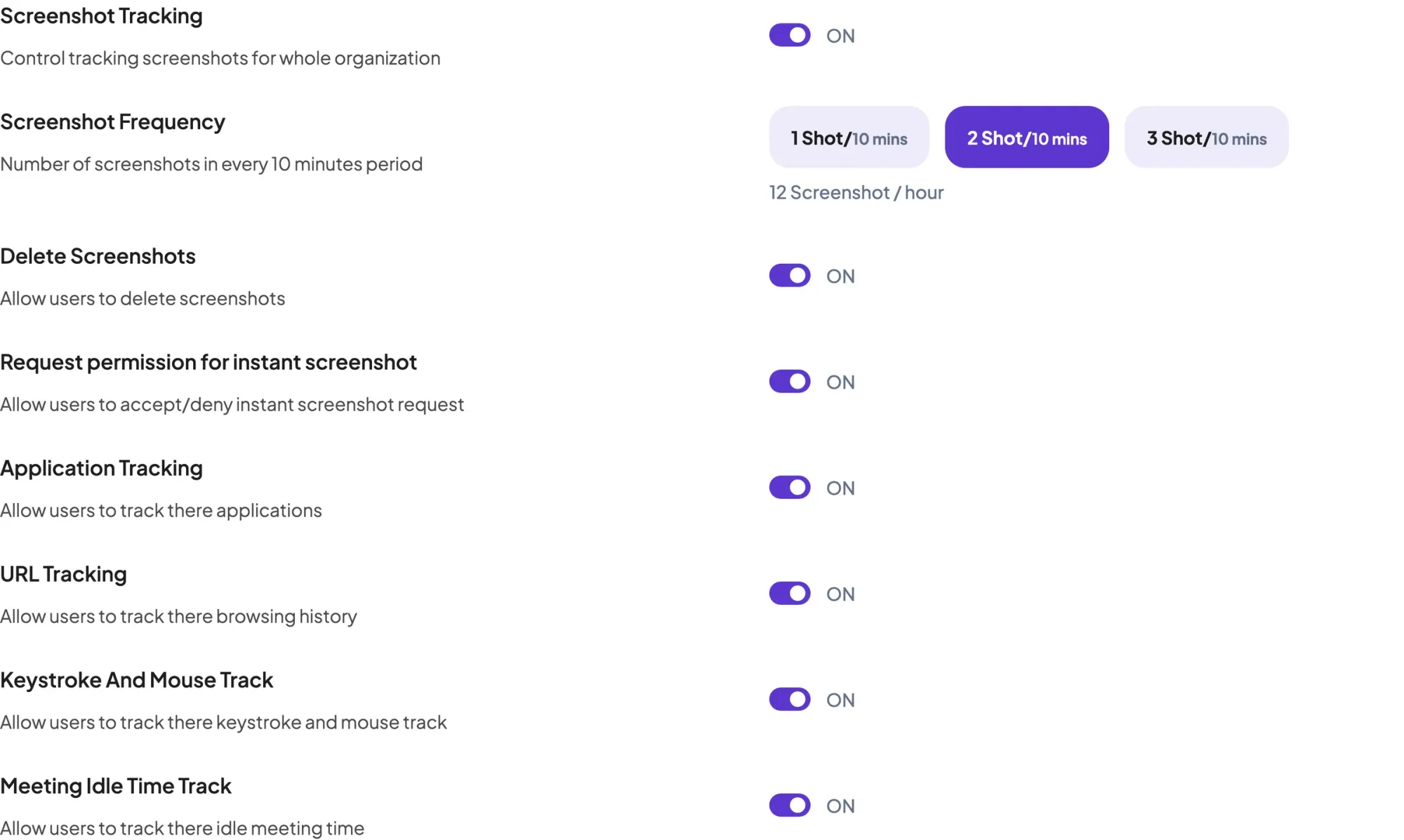
Compare
How Staffic's monitoring compares with Hubstaff, Time Doctor and ActivTrak, using each company's own pages.
Swipe the table to compare
| Compare | Staffic | Hubstaff | Time Doctor | ActivTrak |
|---|---|---|---|---|
| Lowest paid plan | $1.00 a user, Standard | $4.99 a seat, Starter (2 seat minimum) | $6.67 a user, Basic | $10 a worker, Work Activity Tracking |
| Free plan | Up to 3 members | No, a 14-day trial | No, a 14-day trial | Up to 3 workers |
| Screenshots | Standard and Elite; 2 per 10 minutes, or 1, 2 or 3 on Elite | Every plan; limited below Team | Every plan, from Basic | With the Screen Details add-on, on two plans |
| Apps and websites | Every plan, including Free | Every plan; limited below Team | Web and App Usage from Standard | Free, Work Activity Tracking and Workforce Management |
| Activity levels | Every plan, from keyboard and mouse input | Every plan | Activity Summary from Standard | Activity summary on every plan |
| Screen recording | Elite, in beta | Not listed | Premium, or an add-on on Basic and Standard | Not listed |
| Desktop apps | Windows, macOS and Linux | Windows, Mac and Linux | Windows, Mac, Linux and Chrome | Windows, macOS and ChromeOS |
Prices are per user, seat or worker per month, billed yearly, in US dollars. Sources: hubstaff.com/pricing, timedoctor.com/pricing, activtrak.com/pricing and the ActivTrak help center article Understanding the ActivTrak Agent, all checked October 12, 2026. Staffic's price comes from the plans API.
Specs and terms
The facts behind the feature, and what each number on the Employee Monitoring page means.
Who it’s for
Three ways teams read the same records, from a quick daily check to proof for a client.
Open a member's screenshots and most used apps for the day next to their hours, instead of asking for an update in chat.
Filter screenshots and apps by project and task to show a client the work behind each invoiced hour.
See the apps and websites agents used during tracked time, and on Elite, who is working right now in Live Feed. Staffic doesn't record calls.
Customer stories
Stop juggling tools. Staffic gives your team time tracking, projects, payroll and performance analytics in one platform.
Try Staffic for free“Staffic.io brings transparency without micromanagement. Our team feels trusted, and productivity has never been higher.”
Pricing
Employee Monitoring is included on every plan, Free included. You pay per active user only when your team grows past 3 members.
Compare every planPrices in USD per active user. Billed monthly, Standard is $7.50 and Elite is $9.80 per user.
Employee monitoring software records how work time is spent on company computers, with tools such as screenshots, app and website logs and activity levels. Staffic builds it into its time tracker, so every record belongs to a tracked session with its project and task. Nothing is recorded while the timer is off.
Employee monitoring is an employer checking how staff use work time and work equipment, in the office or at home. Done fairly, it covers work hours only, is explained to the team in advance and stays open to the people it records. In Staffic, members see their own screenshots, apps, websites and timesheets.
A desktop app on the work computer records activity, and a web app shows it to the people allowed to see it. In Staffic, the app records only while a member's timer runs: screenshots at random minutes in each 10-minute block (Standard and Elite), the apps and websites used, and the share of time with keyboard or mouse input. Each record is filed under its project and task.
It shows how tracked hours were spent, so you can check the work without asking for constant updates. Staffic gives you screenshots filed by hour, the apps and websites behind each session and activity levels, and on Elite, Live Feed and screen recordings. It's software for employee monitoring that sits next to your timesheets, so the hours and the evidence match.
In many places, yes, when it covers work devices during work time and employees are told what is recorded and why. The rules differ by country and state: some US states, such as New York, Connecticut and Delaware, require written notice first, and EU and UK data protection law expects a clear purpose. Staffic's blog has a plain guide to monitoring laws; this is general information, not legal advice.
Pick the few things you need to see, such as screenshots or app use, and monitor work computers during work hours only. With Staffic, an employee monitoring app on Windows, macOS or Linux records while the timer runs, and admins review each day by member, project and task. Apps, websites and activity are on the Free plan for up to 3 members, so you can try it with a small team first.
Most companies combine time tracking with screenshots, app and website logs and activity levels, and some add video recording or a list of who is working right now. Staffic covers each of these on tracked time: screenshots from Standard, apps, URLs and activity on every plan, and Live Feed and recordings on Elite. Companies that monitor fairly also share a written policy before they start.
Every plan includes Employee Monitoring. Free covers up to 3 members. Standard is $5.50 per user per month billed yearly ($1.00 during the current offer, until September 12, 2027) or $7.50 billed monthly, and Elite is $5.80 per user per month billed yearly or $9.80 billed monthly.
Explore more
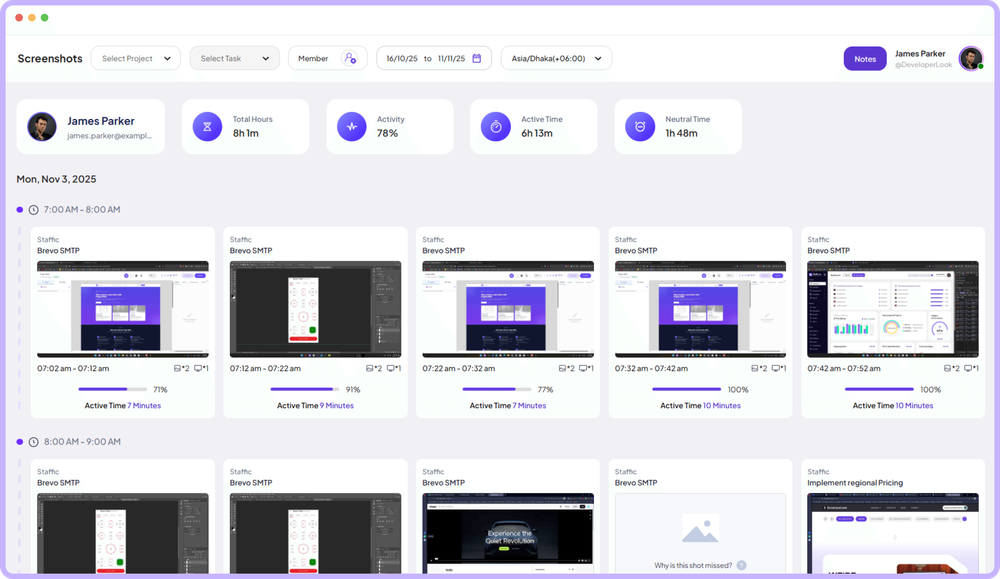
Screen monitoring that captures screenshots only while the timer runs, each filed with its time range, project, task and activity level.
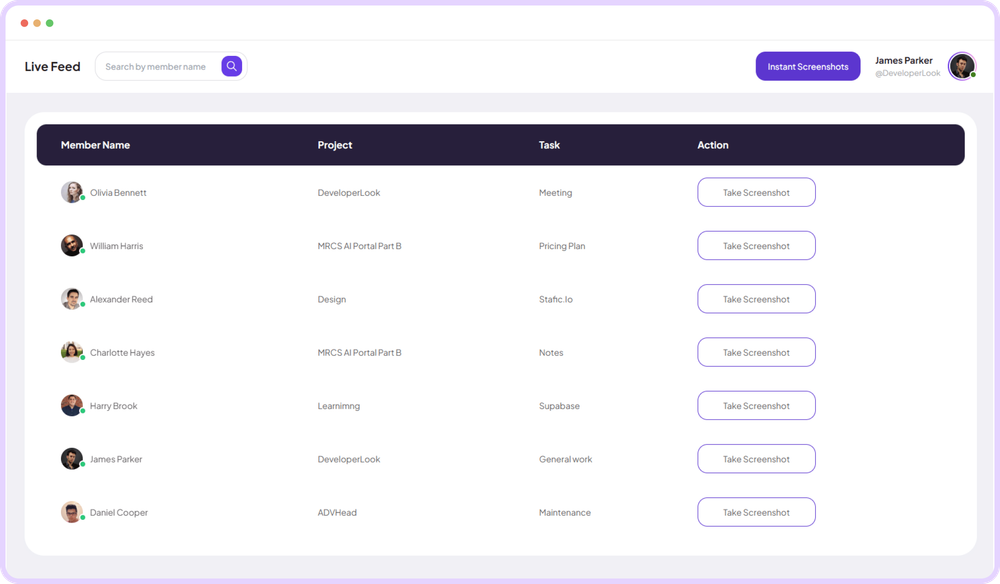
Live Feed lists the members tracking time right now, with each one's project and task, and takes an instant screenshot on request.
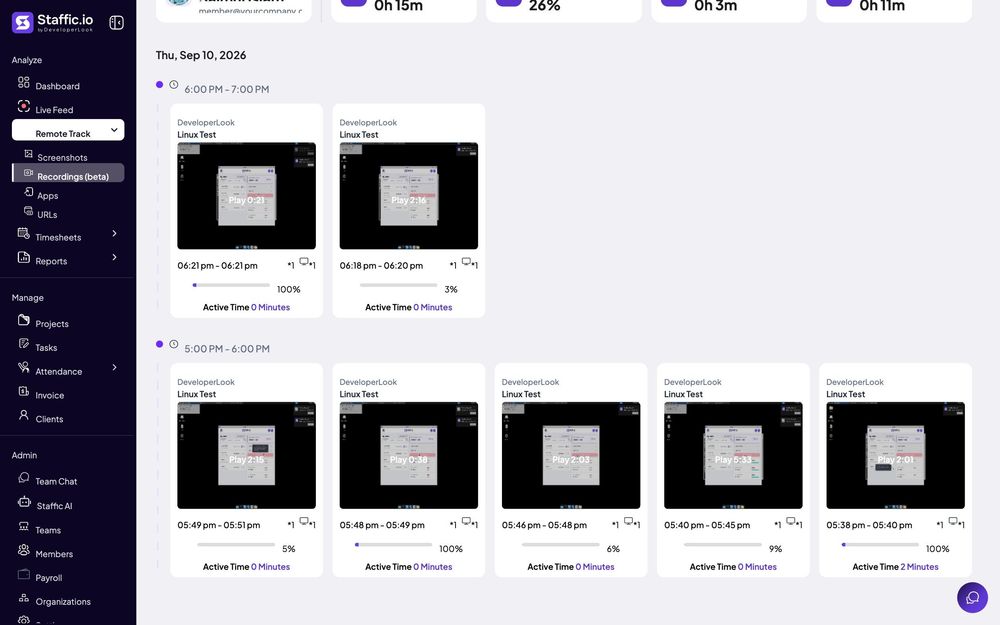
Screen Recordings capture video of tracked work sessions on Elite, filed with project, task and activity, for work a screenshot can't explain.
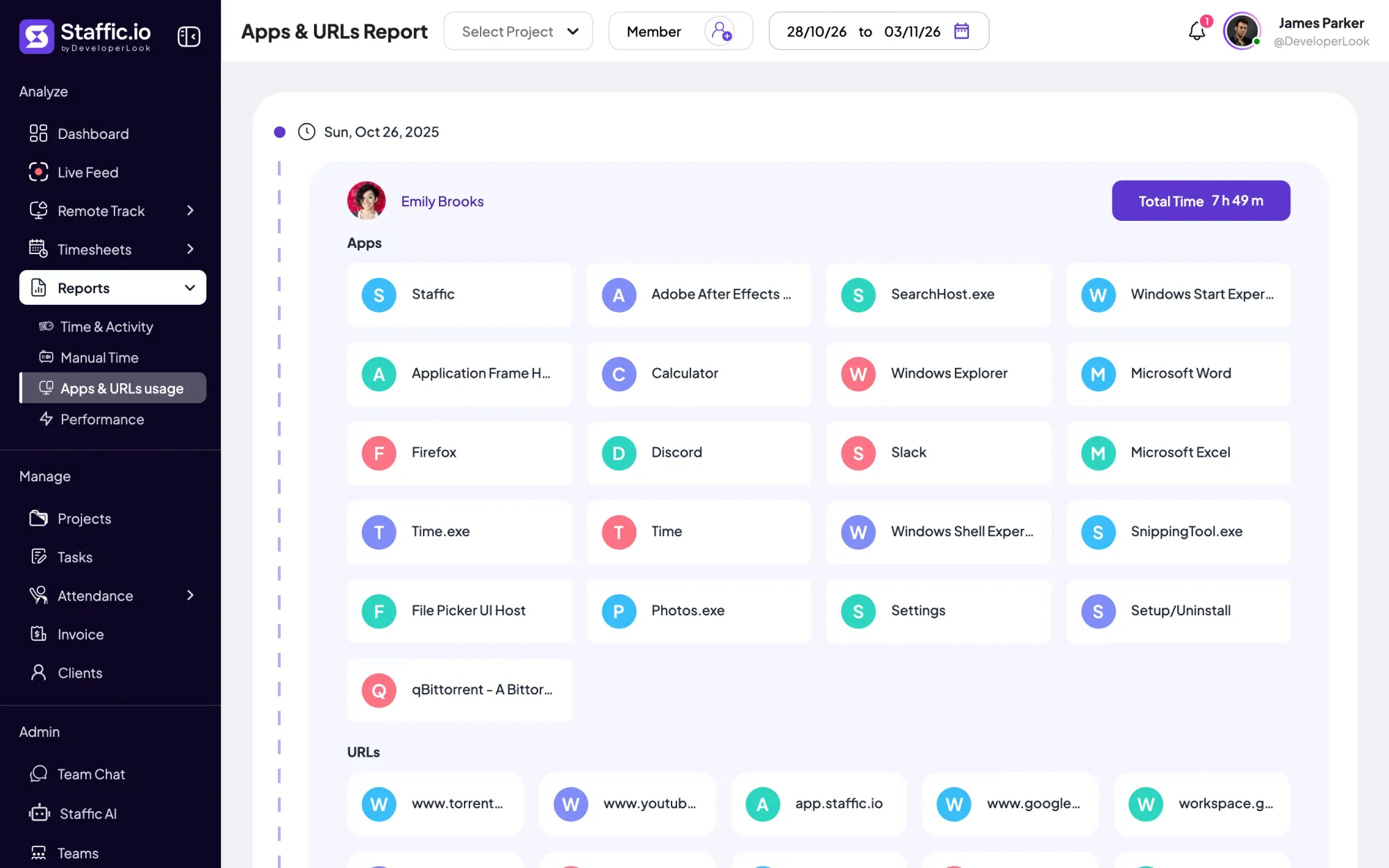

Employee internet monitoring in one report: the apps and websites each member used per day of tracked time, with total time. Standard and Elite.
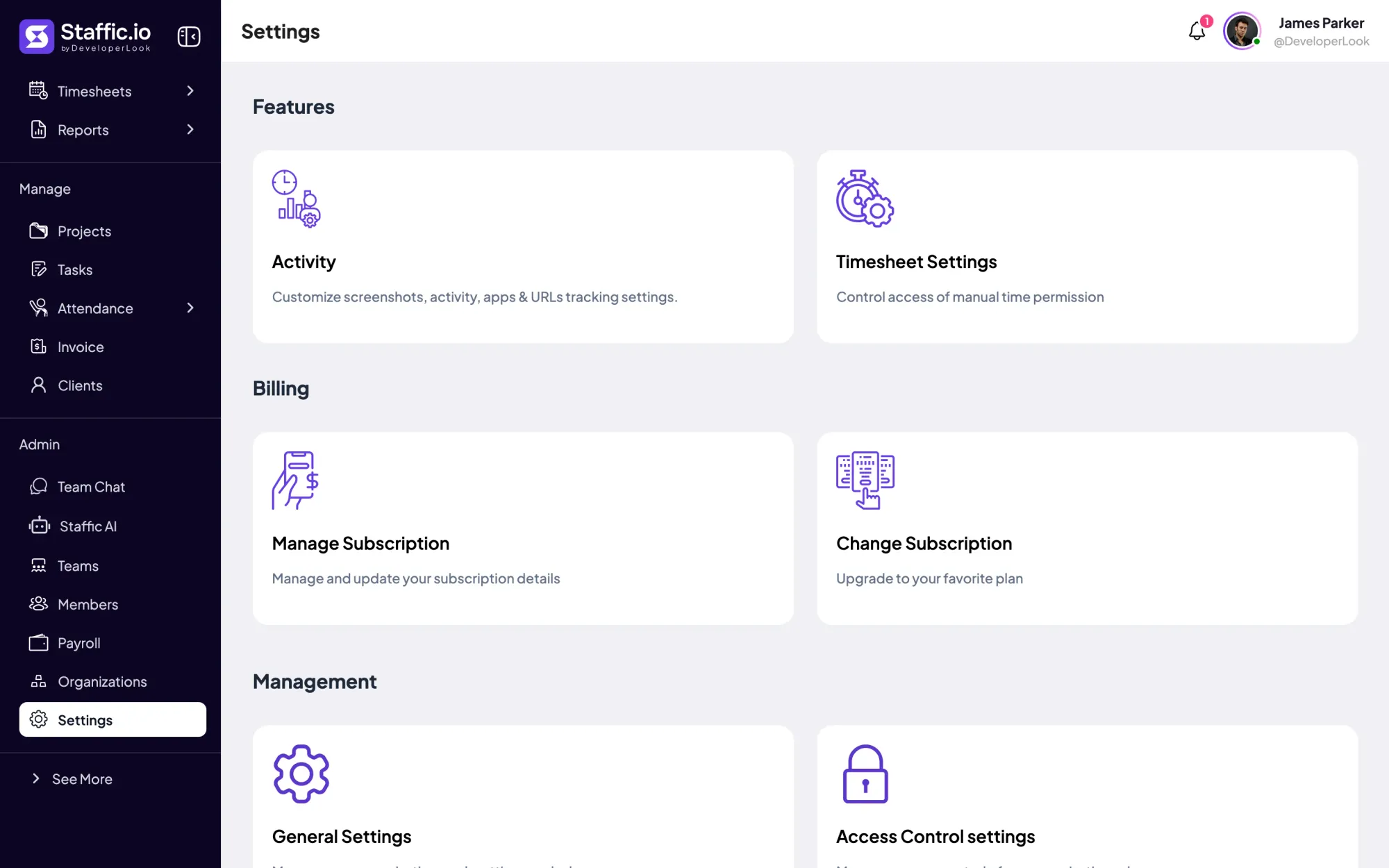

Settings is where admins choose what Staffic tracks, set timesheet rules and build Access Control roles, with each switch marked by its plan.
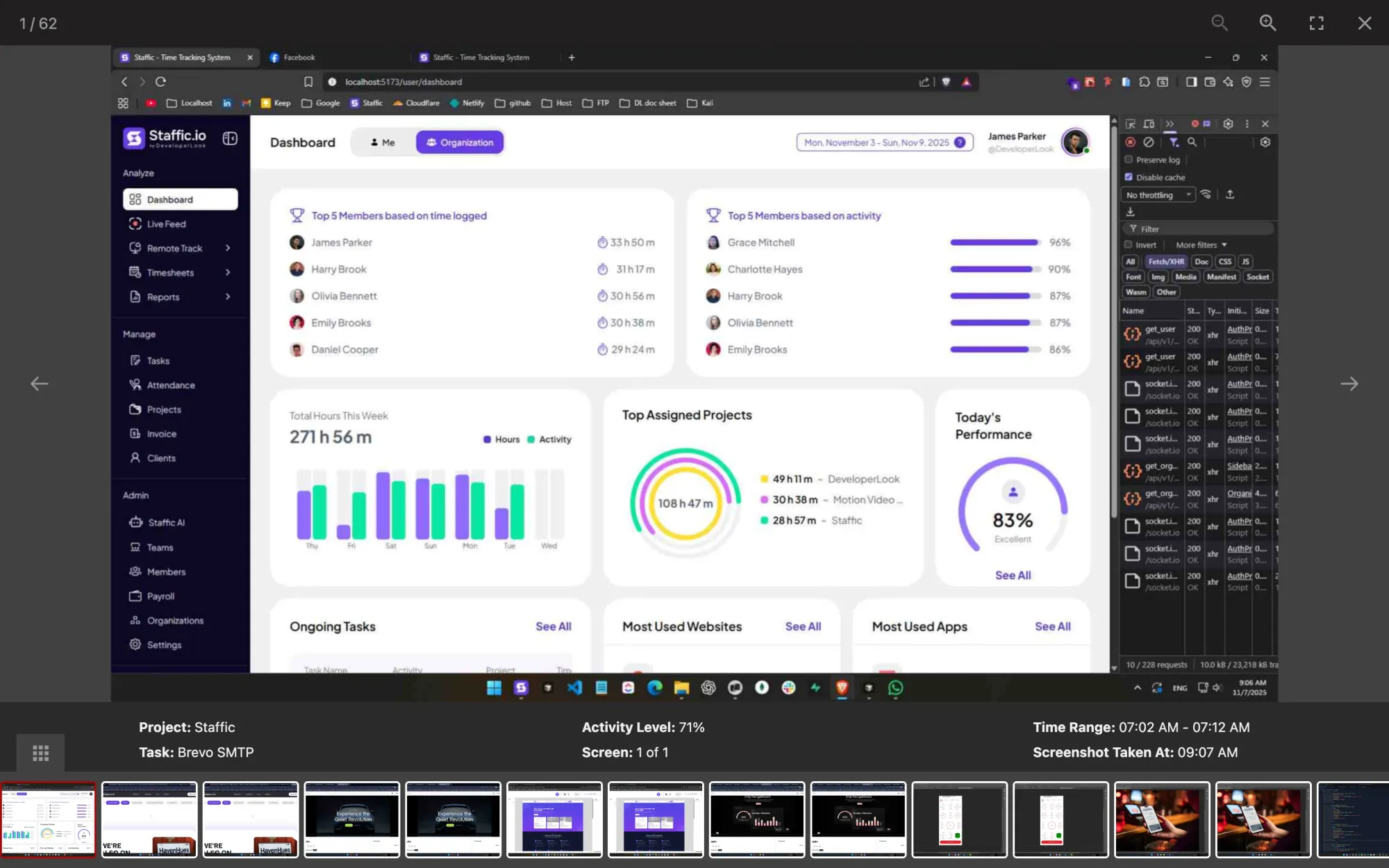
Staffic is computer monitoring software for work computers: screenshots, apps, URLs and keyboard and mouse activity, recorded only during tracked time.
Free for up to 3 members
Create your workspace, invite your team, and the first timesheet builds itself.