
On this page (5)
Key takeaways
- Explain monitoring before you turn it on: what is tracked, when, why, and who can see it.
- Track only during work time. Staffic records activity and screenshots only while a member’s timer is running.
- Agree on the settings with your team, such as screenshot frequency and whether people can delete their own screenshots.
- Let people see their own data, so monitoring becomes a shared record instead of surveillance.
Explain employee monitoring before you switch it on, in plain words: what is tracked, when, why, and who can see it. Then show people their own data and agree on the settings together. Monitoring that is announced, limited to work time and visible to the person being tracked builds trust. Monitoring that people discover by accident does the opposite.
Why explain monitoring at all?
Because the same data can feel fair or invasive depending on how it arrives. When people know what is recorded and why, a timesheet with screenshots is a record of their effort. When they find out later, it looks like distrust. There is a legal side too: in most countries, monitoring work devices during work time is allowed when employees are told what is tracked and why, and rules such as the EU’s GDPR expect a clear purpose and proportionate monitoring. Check the law where your team works.
This is general information, not legal advice.
What should you tell your team?
Cover these six points, in writing, before the first timer runs:
- What is tracked. Time, activity level, the apps and websites in use, and screenshots if you turn them on.
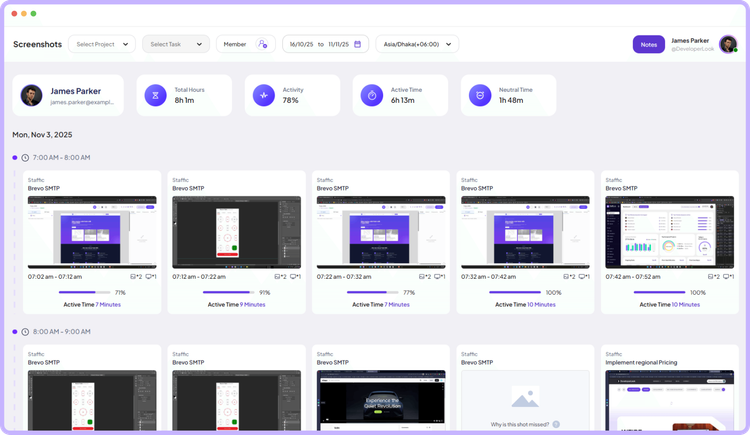
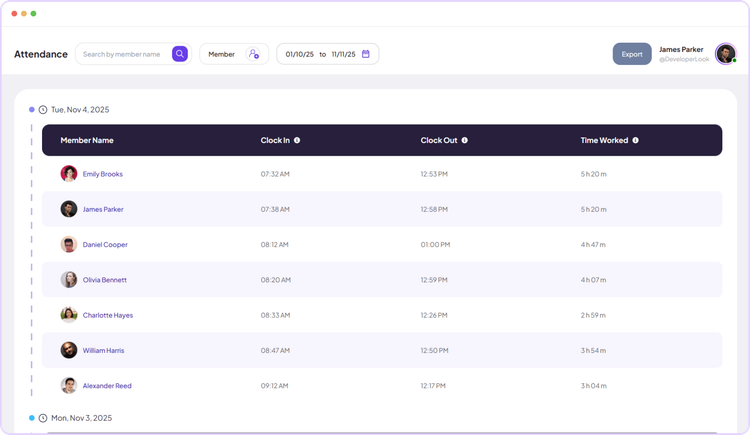
- When. Only while a member’s timer is running. In Staffic, nothing is recorded when the timer is stopped.
- Why. Accurate timesheets, fair payroll and client billing, and spotting workload problems early.
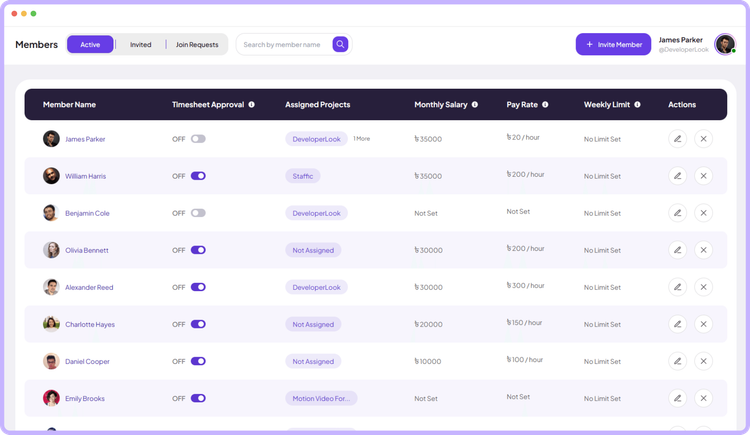
- Who can see it. The admins and managers you choose see team data, and each member sees their own.
- How long it is kept. In Staffic, screenshots are kept for 365 days and then deleted automatically.
- What they control. Starting and stopping the timer, adding work notes, and deleting their own screenshots if you allow it.
Which settings should you agree on together?
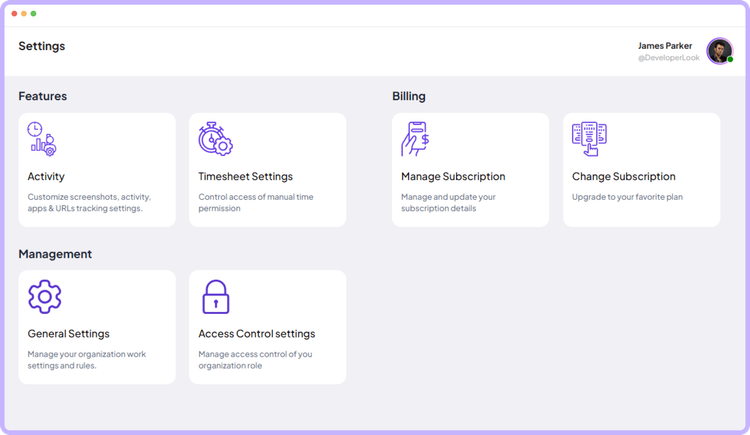
Decide these with the team, not for them. In Staffic they all live under Settings, Activity:
| Setting | Options in Staffic | The question to agree on |
|---|---|---|
| Screenshot Tracking | On or off for the whole organization | Do we need screenshots at all? |
| Screenshot Frequency | 1, 2 or 3 per 10 minutes, at random minutes | How much proof is enough? |
| Delete Screenshots | Members can or cannot delete their own; deleting also removes that block’s time | Can people remove a private capture? |
| Control Tracking | Monitoring off for one member while time tracking continues | Who does not need monitoring? |
How to roll it out
Put it in writing
A short monitoring policy answers the six questions above. Share it before anyone installs the app.
Show the app, not just the policy
The Staffic desktop app shows a notification when tracking starts and stops, and its menu lists what is being tracked. Members can turn on an alert for every screenshot.
Start with a trial period
Run it for two weeks, then ask what felt intrusive and what helped. Adjust the settings before you rely on the data.
Review data with people, not about them
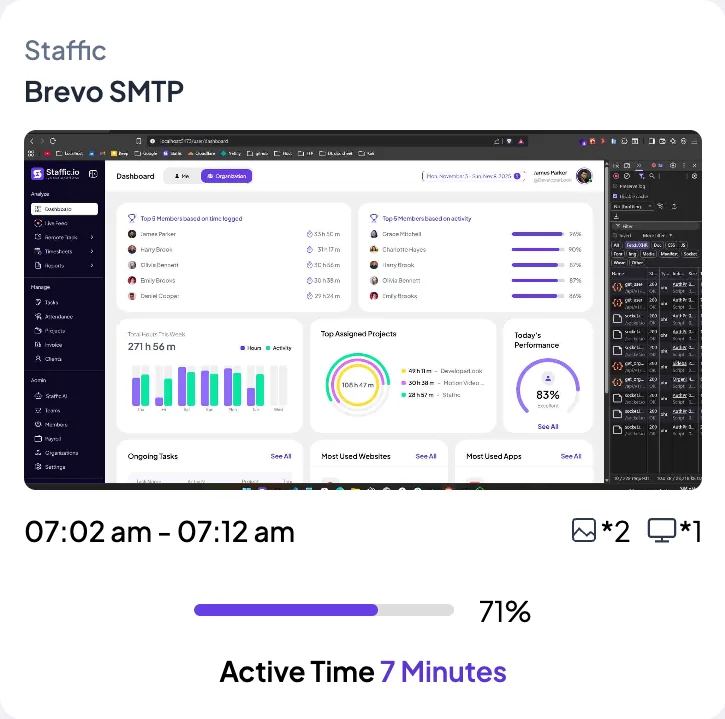
Use timesheets in one-to-ones to talk about workload and blockers. Members can see their own screenshots in the web app, so you are looking at the same record.
Revisit the settings
Roles change. Someone who needed screenshots for client billing may not need them later, and Control Tracking can turn monitoring off for them.
What should you avoid?
- Secret monitoring. If people would be surprised to learn what you record, you have not explained it yet.
- Tracking outside work time. Keep it to the hours people are paid for.
- Judging by activity alone. Activity is a signal, not a verdict. Reading, thinking and calls show little keyboard input. Staffic’s Meeting Idle Time Track setting keeps quiet time in Google Meet, Slack huddles and Discord calls from counting as neutral time.
- Using screenshots as a weapon. Bring patterns to a conversation; do not quote one capture in a review.
Explained well, monitoring gives everyone the same facts: managers see where time goes, and employees get a record of the work they did. For the next step, read how to spot time theft fairly.
FAQ
How do you tell employees they are being monitored?
In writing, before monitoring starts: what is tracked, when, why, who can see it, how long it is kept and what they control. Then show them the app and their own data.
Do employees know when Staffic is tracking?
Yes. The desktop app shows a notification when tracking starts and stops, and its menu lists what is being tracked. Members can also turn on an alert for every screenshot.
Can employees see their own screenshots?
Yes. Members see their own screenshots and activity in the Staffic web app, and admins decide whether members can delete them.
Is it ethical to monitor employees?
It can be, when there is a clear business reason, it is limited to work time, it is explained openly and people can see their own data. Secret or round-the-clock monitoring is hard to justify.
Sources
- How to Use SettingsStaffic documentation
- How to Use ScreenshotsStaffic documentation
- How to Use Remote TrackStaffic documentation