Time tracking and payroll software that turns approved hours into pay
Staffic records your team's hours in desktop apps for Windows, macOS and Linux, lets you approve them, and works out pay at each member's hourly rate. You send the money through your bank or payment service, mark it as paid, and the record stays in Staffic. Payroll and timesheet approval are on the Elite plan; time tracking works on every plan.
Pay approved time only, for everyone or per member
Hourly pay
Hours times each member's pay rate, per day
Payment record
Marked as paid, kept in History with CSV export
Money and tax
Recorded only: you pay and file outside Staffic
Plans
Payroll and approval on Elite; tracking on every plan
In short
What is Staffic Time and Payroll?
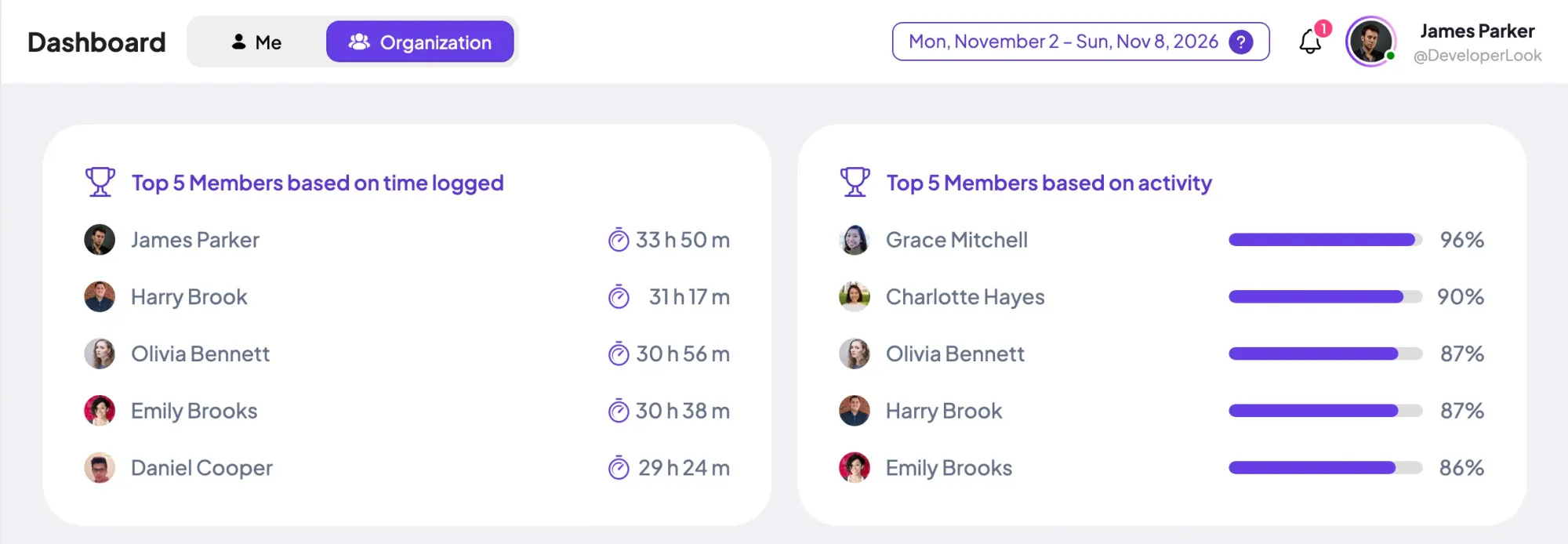
Staffic Time and Payroll is the time tracking and payroll software built into Staffic. Members track time in the desktop app, and Payroll multiplies each day's tracked hours by the member's pay rate. Turn on timesheet approval and only approved hours are paid. Salaries and one-time payments sit beside hourly pay, and every payment you mark as paid stays in History.
Updated October 12, 2026By the Staffic team
How it works
Payroll software with time tracking, step by step
Set rates and the approval rule once. Each pay run after that starts from the hours already tracked.
01Set rates and the approval ruleAdd each member's pay rate or salary, then decide whether payroll waits for approved timesheets.
02Track and approveMembers track time in the desktop app. Approvers accept each session or reject the time that shouldn't be paid.
03Review the pay runPayroll lists hourly pay per day and salaries per month, with totals for the range.
04Pay and record itPay outside Staffic, mark the payments as paid, and each member gets a statement by email.
Time tracking and payroll software
One record from tracked hours to payment
Payroll and timekeeping software often lives in two tools joined by a spreadsheet. In Staffic, the sessions your team tracks are the hours Payroll pays, so nothing is retyped.
Payroll reads three things for each day: the member's tracked sessions, what your approval rule lets through, and the pay rate on their profile. Members without a pay rate, or without tracked time that day, aren't listed.
Tracked sessions and manual time
Approved time only, or all time minus rejected time
Total pay rounded to the cent
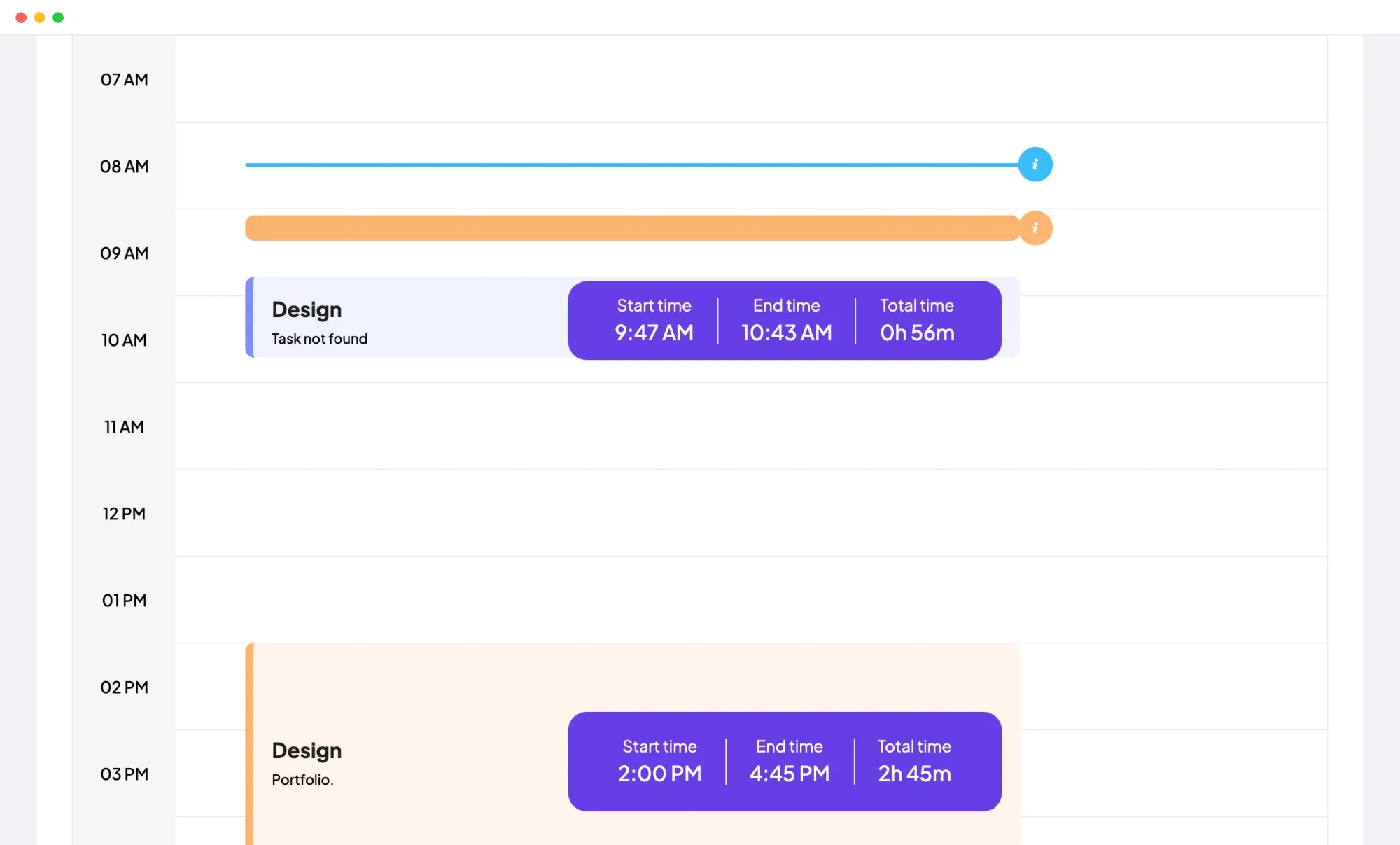
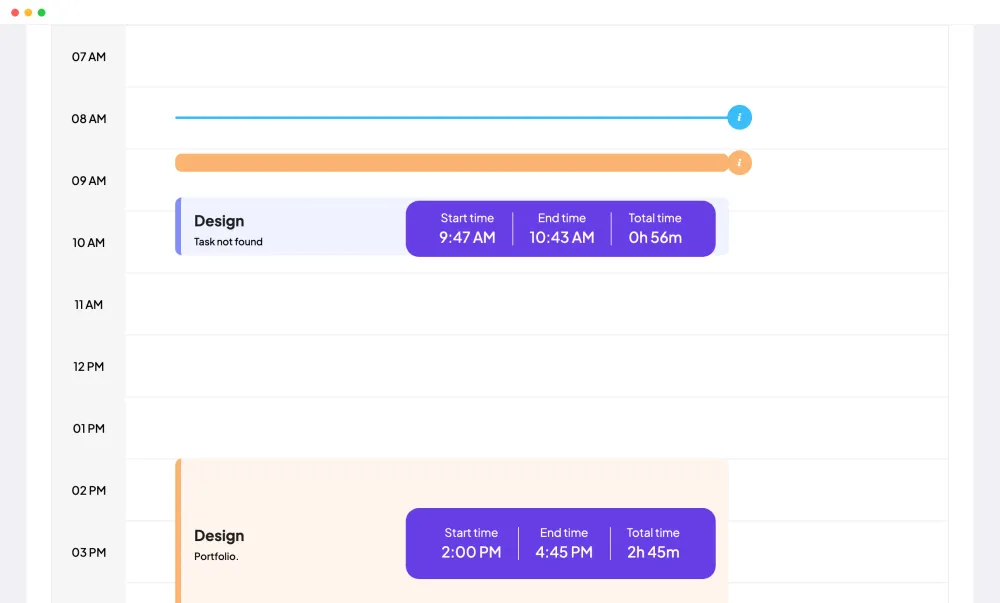
Members start the timer on a project and task in the Staffic desktop app for Windows, macOS or Linux, and each session lands on the Daily Timesheet. If you're comparing payroll software with time clock features, this timer is the clock: Clock In/Out shows each day's first and last tracked session.
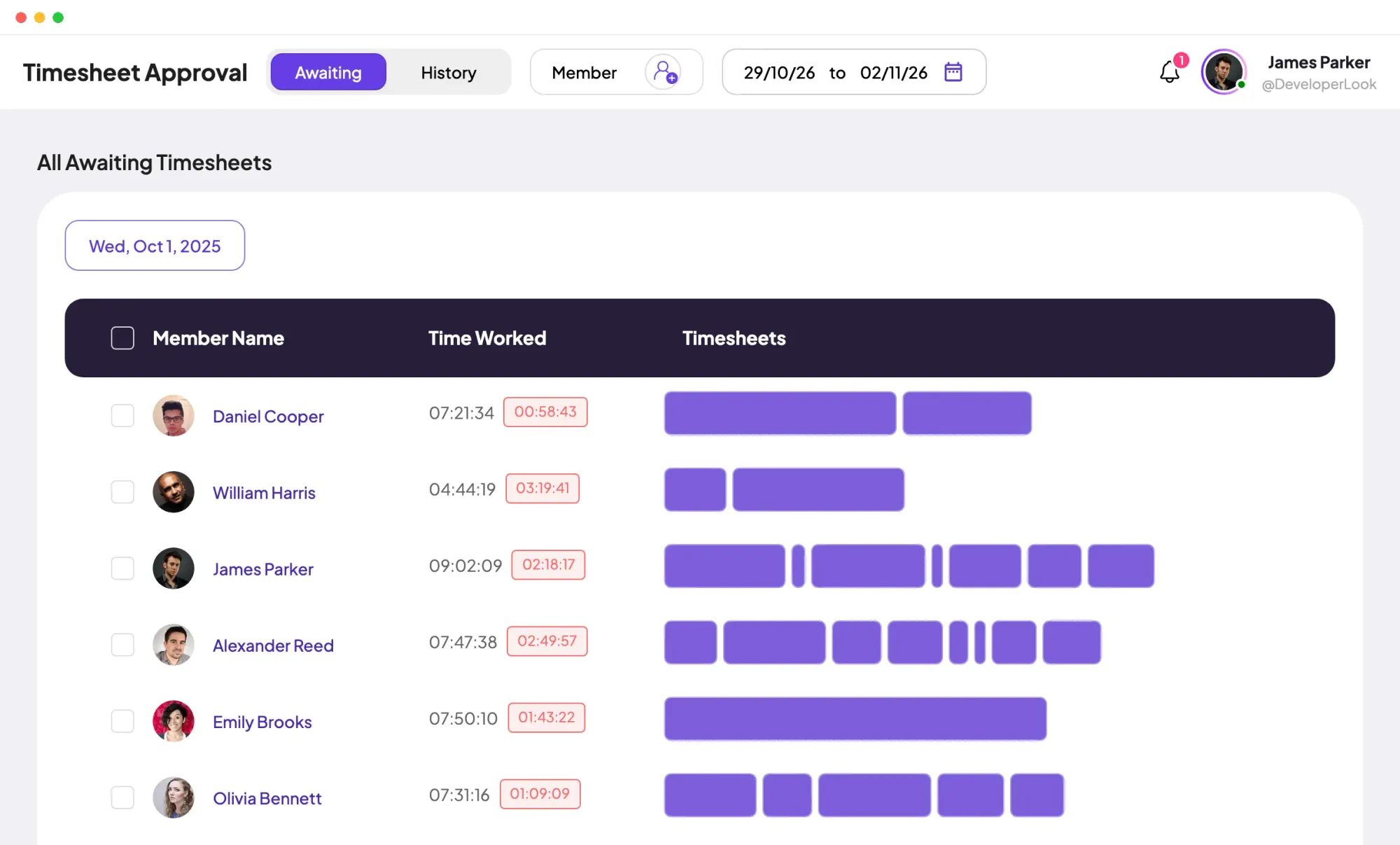
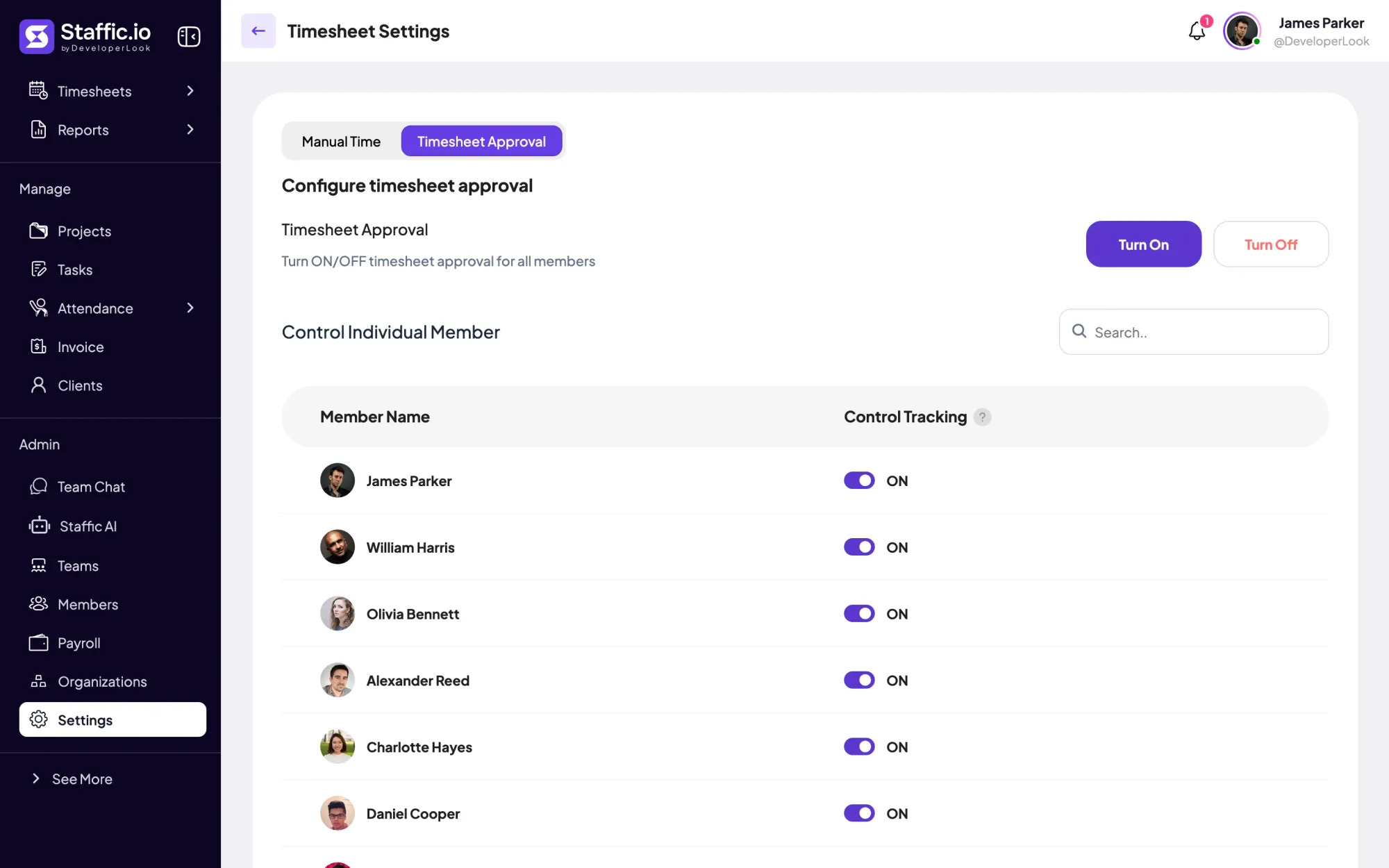
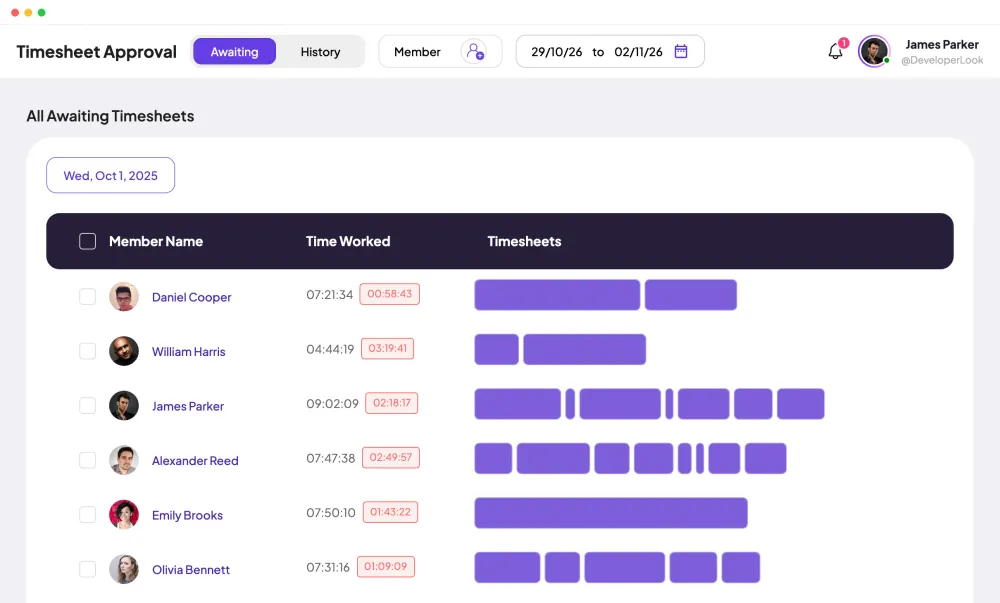
Switch Timesheet Approval on for all members or one at a time in Timesheet Settings. Approvers accept each awaiting session or reject all or part of its time, and Hourly then pays only what was approved.
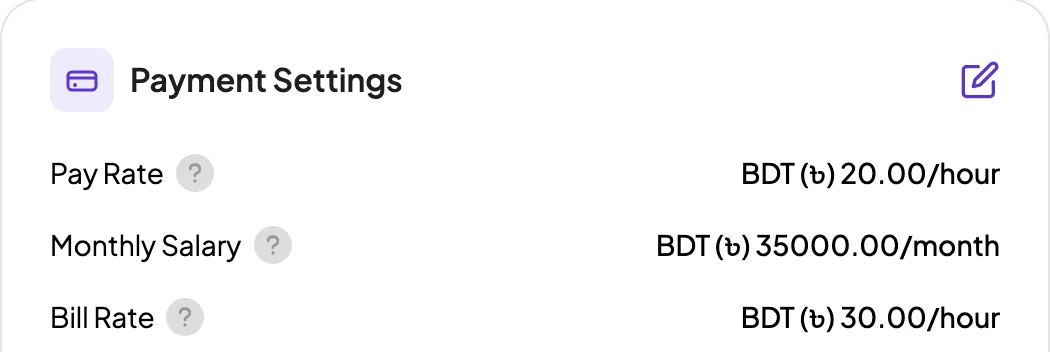
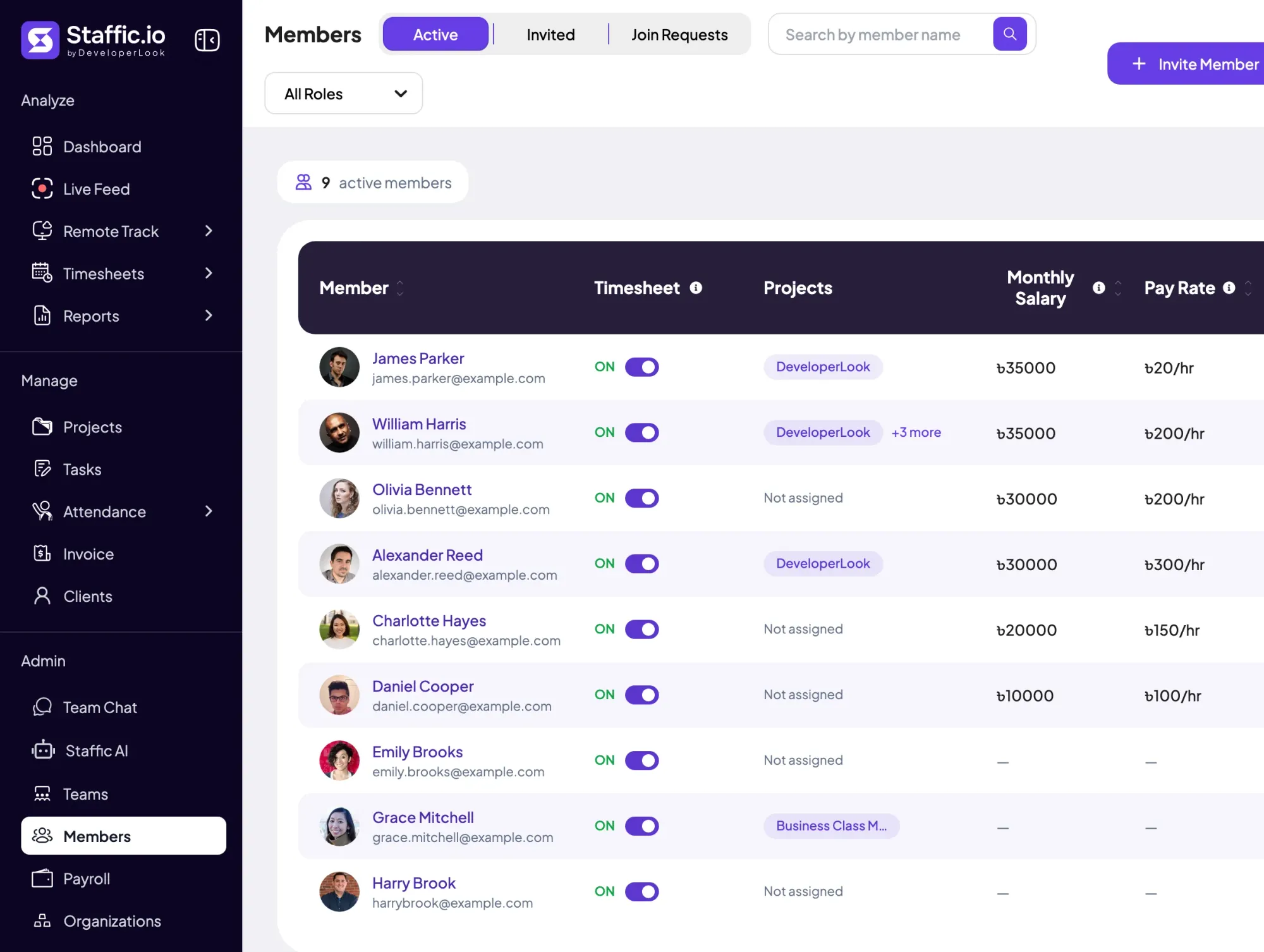
Each member's Payment Settings hold a pay rate per hour and a monthly salary, in your organization's currency. Hourly pay uses the pay rate, so a member without one isn't listed on the Hourly tab.
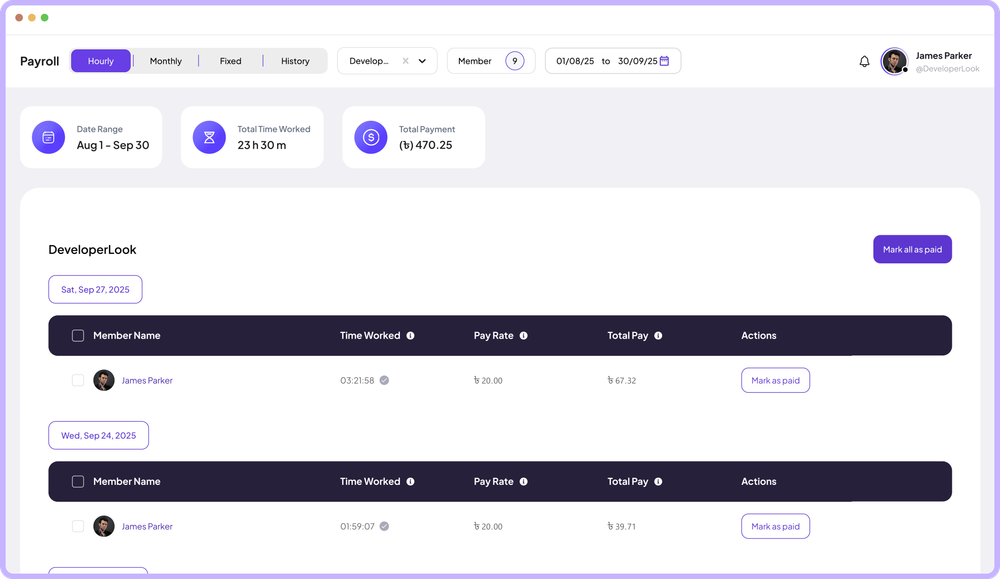
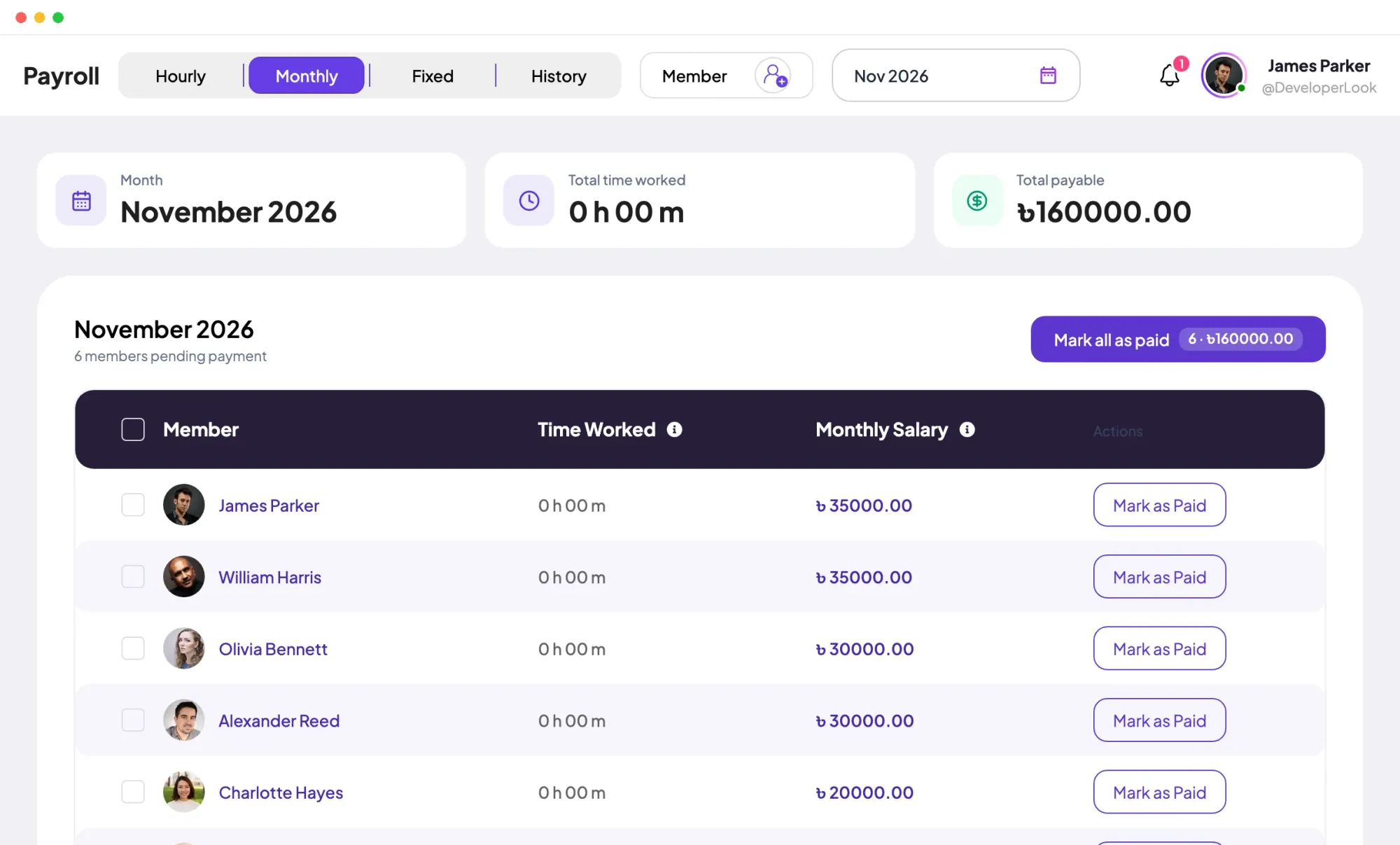
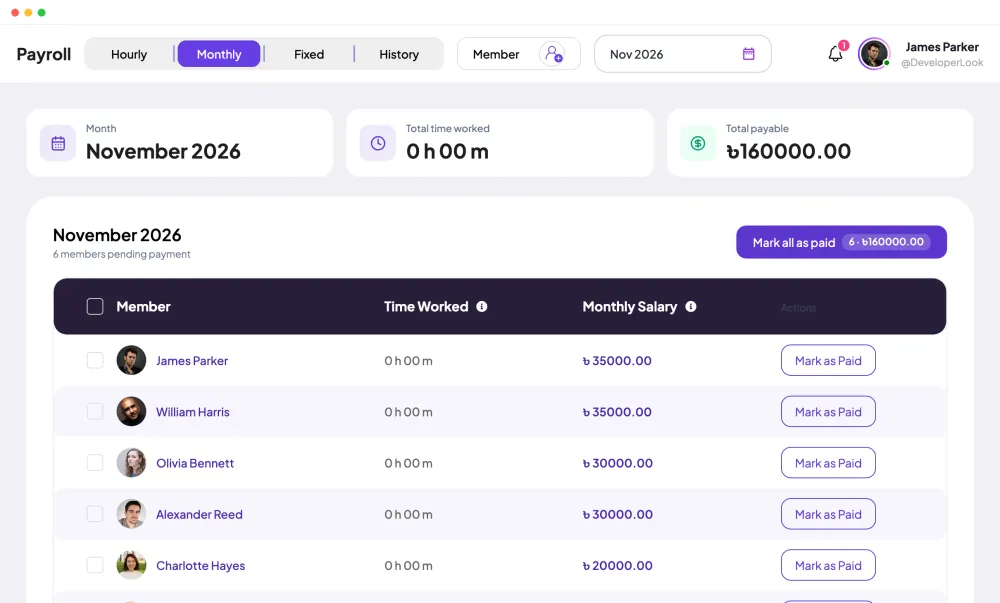
Payroll keeps three kinds of pay on three tabs: Hourly for tracked time, Monthly for salaries and Fixed for bonuses. Hourly and Monthly list what's still unpaid with a total at the top, and Mark all as paid closes the list in one step.
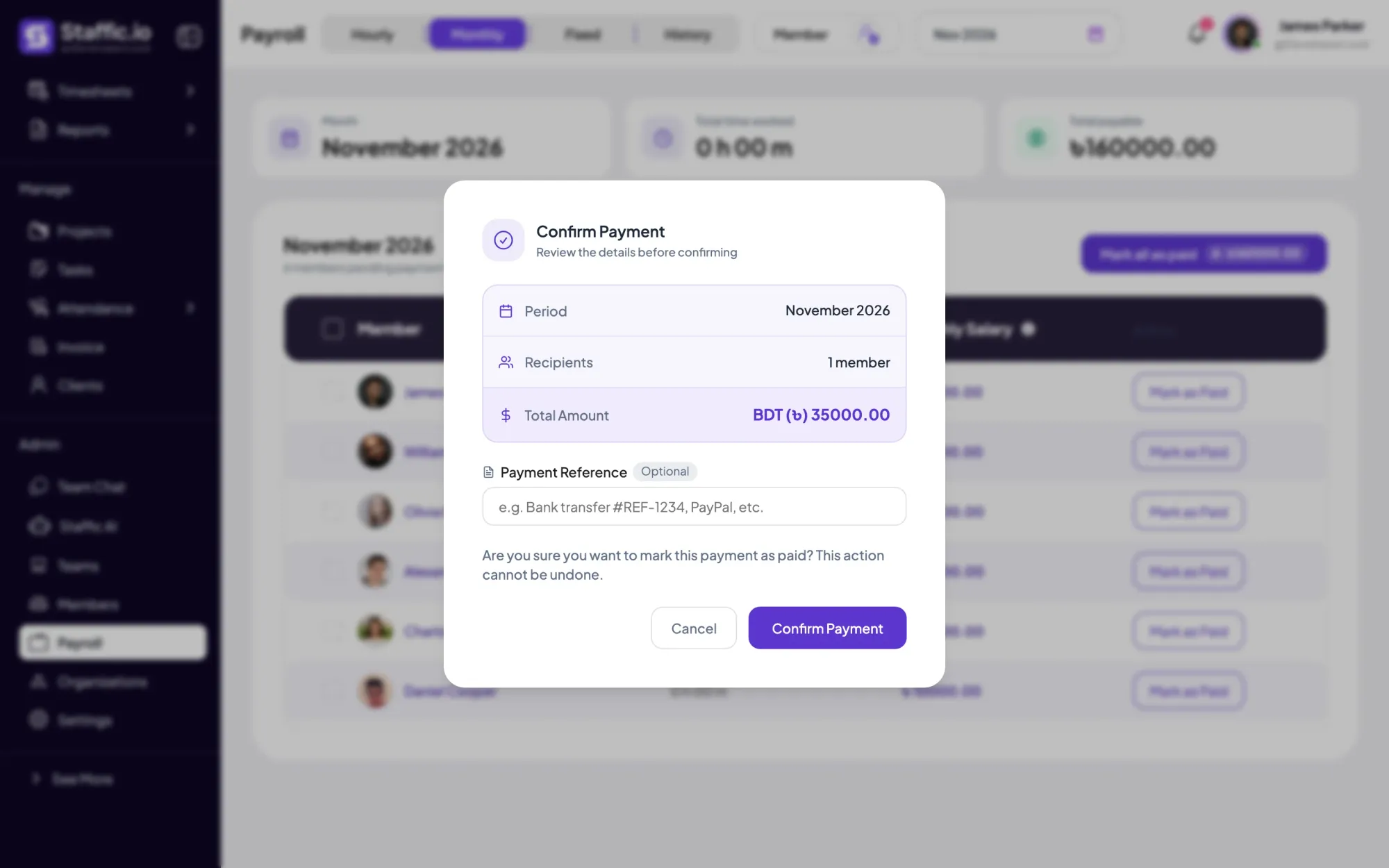
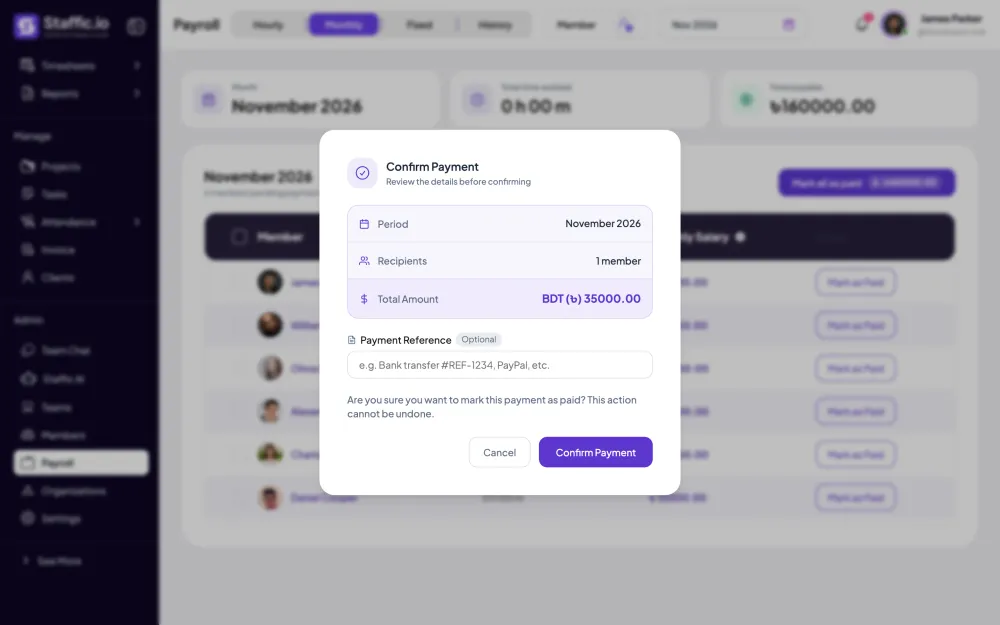
Once the money has left your bank or payment service, mark the payment as paid and add a reference if you like. For hourly pay, the member's email statement lists the date, time worked, pay rate and total, and History keeps who marked it and when.
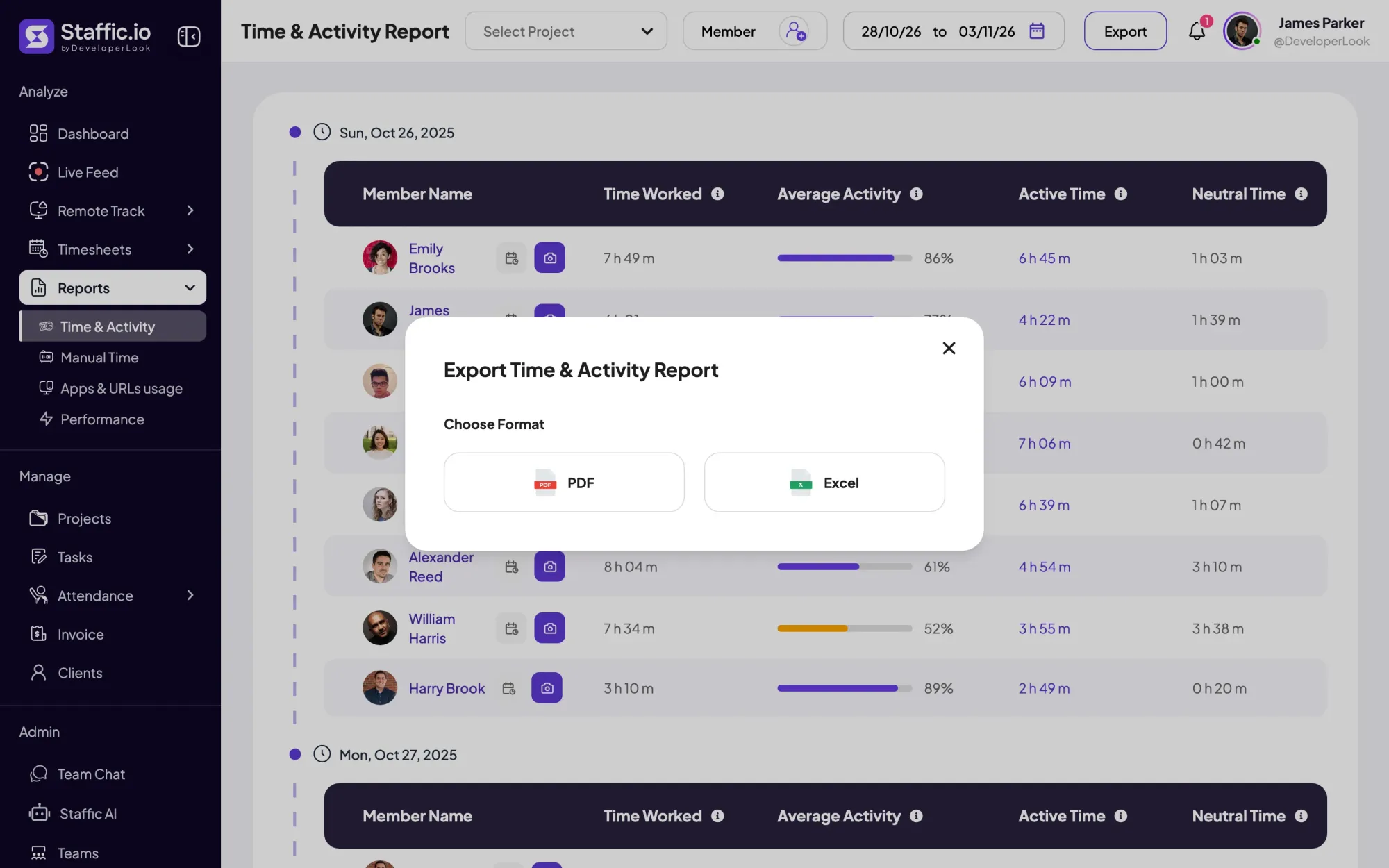
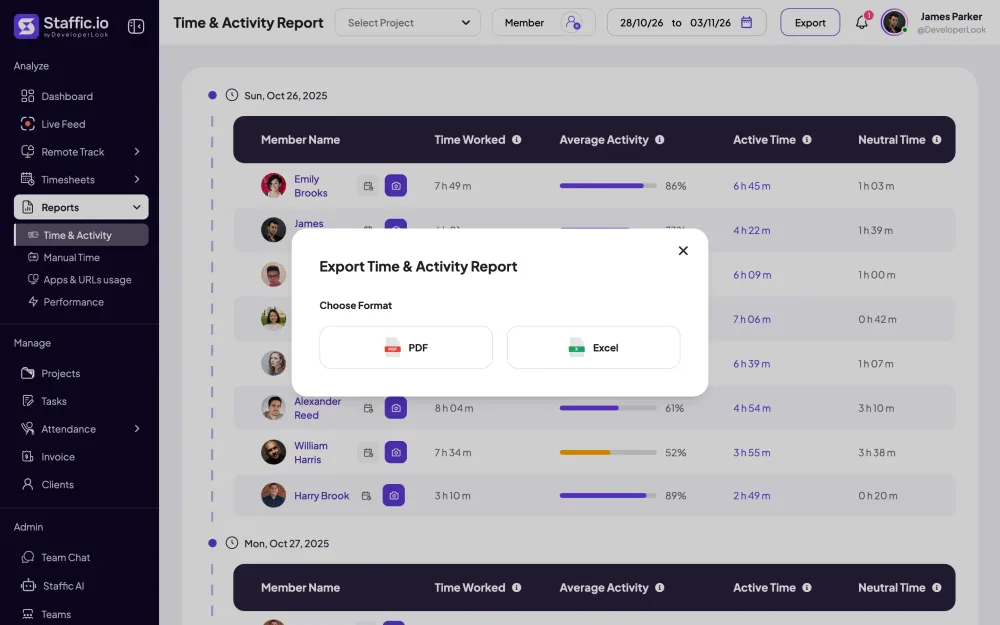
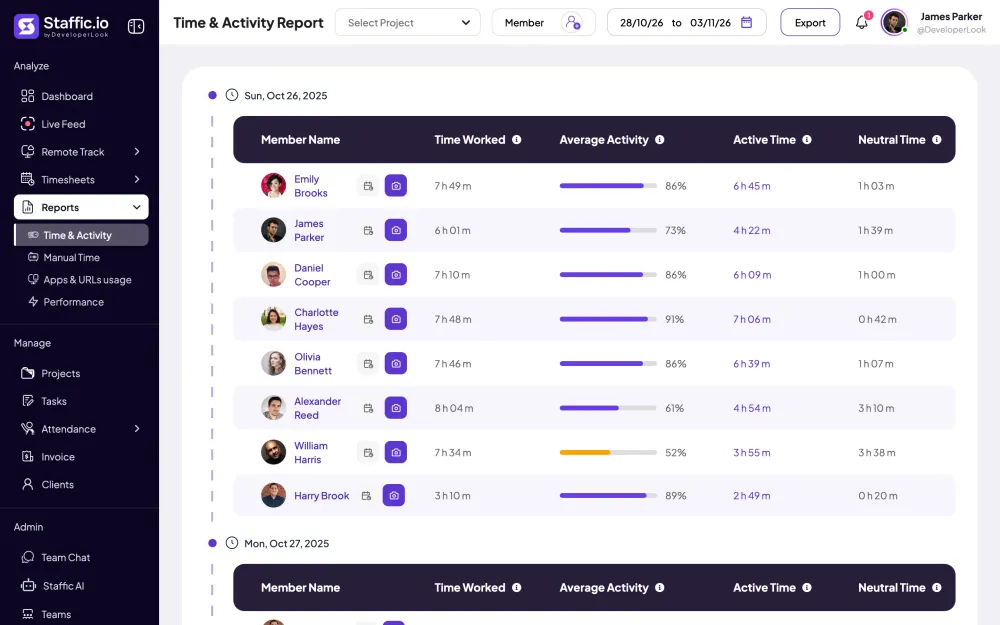
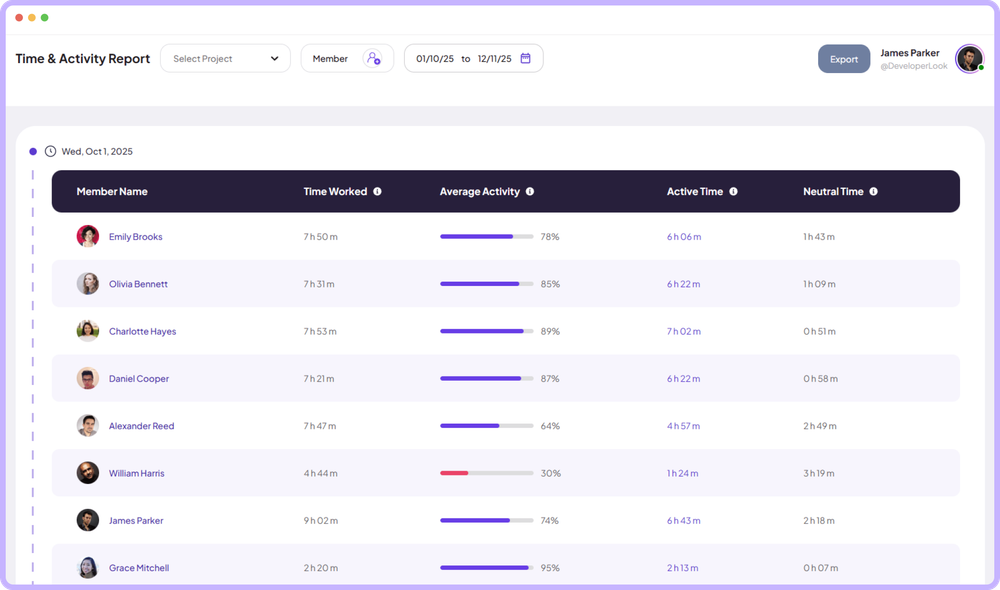
Time tracking for payroll still helps when a provider runs your tax. Export the Time & Activity report to Excel or PDF for the members, projects and dates in the pay period, and send them the file.
The facts behind the feature, and what each number on the Time and Payroll page means.
Specifications
Hourly pay
Time worked times pay rate, per member per day
Time counted
Tracked and manual sessions, after the approval rule
Rounding
Total pay rounded to the cent
Approval scope
Whole organization or single members
Rejection
All or part of a session's time
Currency
Organization currency for hourly pay and salaries
Payment record
Optional reference; email statement to the member
Exports
Time & Activity report in Excel or PDF; payment History in CSV
Time source
Desktop apps for Windows, macOS and Linux
Money and tax
Not handled: Staffic records payments only
Plans
Payroll and approval on Elite; tracking on every plan
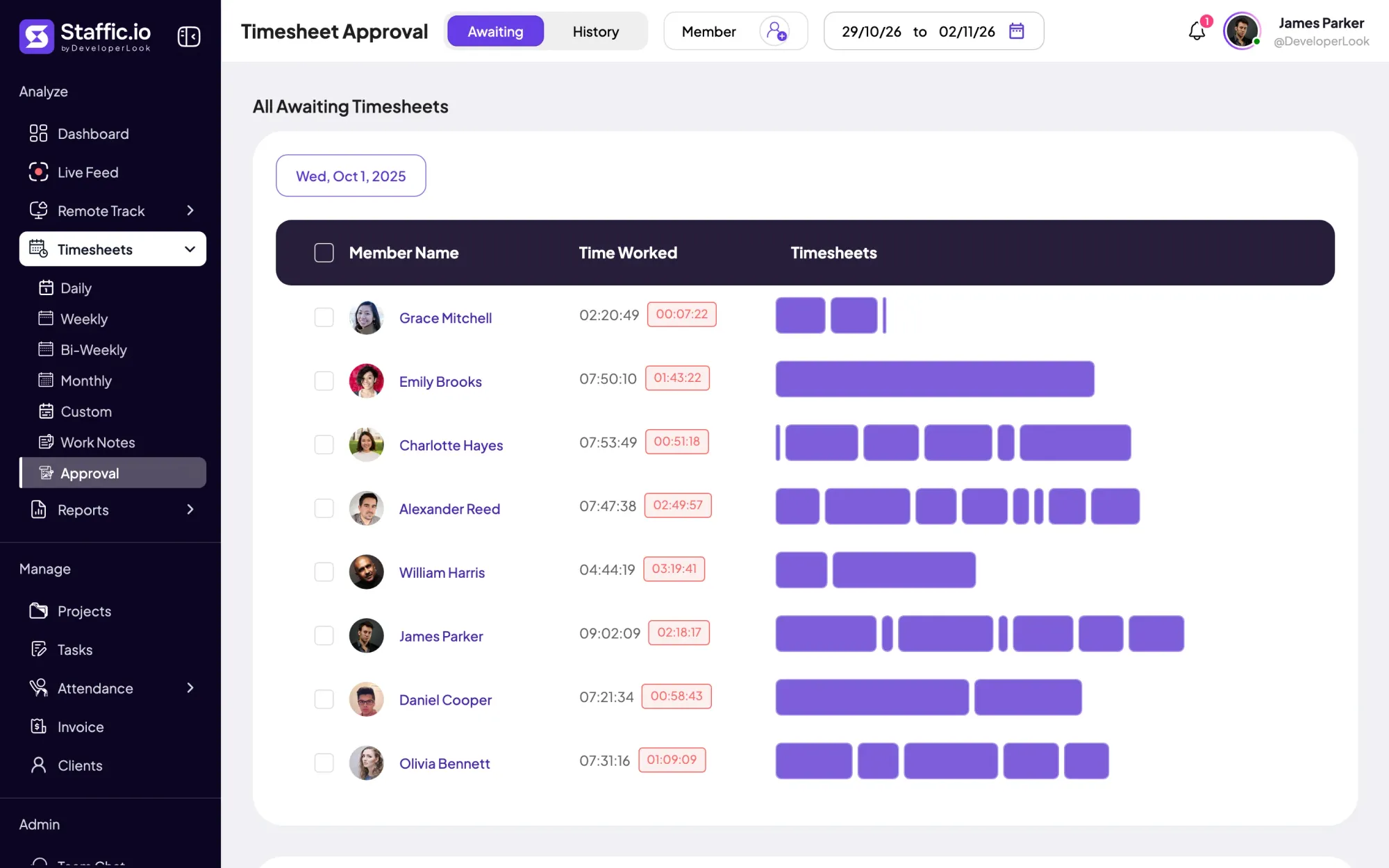
AwaitingAll Awaiting Timesheets
The Timesheet Approval tab that lists tracked sessions nobody has approved or rejected yet, by day and member.
Time Worked03:21:58
On the Hourly tab, the time that counts for pay that day: approved time when approval is on, otherwise tracked time minus rejected time.
Total Pay৳ 67.32
Time worked multiplied by the member's pay rate, rounded to the cent.
Who it’s for
Timesheet and payroll software for how you pay
Contractors, outside payroll providers and small teams use the same hours in different ways.
Companies with contractors
Contractors paid for approved sessions
A contractor's pay rate sits on their member profile. Approve the period's sessions, pay the Hourly total through your usual payment service and add the transfer number as the payment reference.
Teams with a payroll provider
Hours ready for your payroll provider
If a provider runs payroll and tax for you, export the Time & Activity report for the period to Excel and send it. Staffic keeps the tracking and approval; the provider keeps the filing.
Small businesses
No separate time clock app
Hours, approvals and payments sit in one Staffic workspace, so a small team doesn't run separate payroll and time clock software with a spreadsheet in between.
Customer stories
What our users say
Stop juggling tools. Staffic gives your team time tracking, projects, payroll and performance analytics in one platform.
Free$0forever, for up to 3 membersThe core features, without Time and Payroll
Standard$5.50$1per user / month, billed yearlyOffer price until Sep 12, 2027Everything in Free without the 3 member limit, plus Screenshots, Monthly Timesheets and 7 more
Elite$5.80per user / month, billed yearlyAdds Time and Payroll, with Live Feed, Screen Recordings, Timesheet Approval and 5 more
Prices in USD per active user. Billed monthly, Standard is $7.50 and Elite is $9.80 per user.
FAQ
Frequently asked questions
Answers about time tracking and payroll in Staffic.
How does time tracking connect to payroll in Staffic?
Through the tracked sessions themselves. Payroll reads each member's tracked time for the day, applies your approval rule and multiplies it by their pay rate. Salaried members show the month's hours beside their salary. Clock In/Out reads the same sessions, so attendance, hours and pay agree.
How do I calculate payroll time from time cards?
With Staffic you skip time cards: it adds up each member's tracked sessions per day for you. Time worked shows in hours, minutes and seconds, and total pay is that time multiplied by the hourly pay rate, rounded to the cent. Converting minutes to decimal hours by hand isn't needed.
Can tracked hours be exported for payroll?
Yes. The Time & Activity report exports tracked hours to Excel or PDF for the members, projects and dates you pick, on Standard and Elite. That's the file to send when an outside payroll provider runs your pay. If Staffic Payroll runs it instead, its History keeps the payment record.
Can I pay remote hourly staff from approved timesheets?
Yes, on Elite. Turn on Timesheet Approval for everyone or for single members, and the Hourly tab then pays only the time an approver accepted. Remote staff track time in the desktop app wherever they work. Hourly pay uses your organization's currency, and the money goes out through your own bank or payment service.
How do I set pay rates by employee?
Open the member in Members and enter a pay rate per hour in Payment Settings, plus a monthly salary if they have one. Each employee can have a different rate, and the Members list shows every rate side by side. Editing Payment Settings is on Elite, and rates use your organization's currency.
Does Staffic support different pay rates by project?
No, a member has one hourly pay rate for all their tracked time. Projects can bill clients at a different hourly rate per person, but that's billing, not pay. For a project bonus or a project-based amount, record a Fixed payment and link it to the project.
How do I reduce payroll errors from manual timesheets?
Pay from tracked sessions instead of typed hours. The desktop app records each session's start and end, and manual time, when you allow it, needs a reason and shows up in the Manual Time report. With approval on, only approved time is paid, and a paid day drops off the list so it isn't paid twice.
How do I pay contractors from tracked time?
Add each contractor as a member with an hourly pay rate, and they track time in the desktop app. When the period ends, approve their sessions if you use approval, check the Hourly totals, pay them through your usual service and mark the rows as paid. Each contractor gets an email statement with the hours, rate and total.
How much does it cost to use Time and Payroll?
The Elite plan includes Time and Payroll: $5.80 per user per month billed yearly or $9.80 billed monthly, with a 7-day free trial.