Remote teams
Hours that log themselves
Members start the timer wherever they work, and their timesheets fill in without a Friday reminder.

Features
All 33 featuresSee the work while it happens.
 DashboardYour team's week at a glance, Monday to Sunday
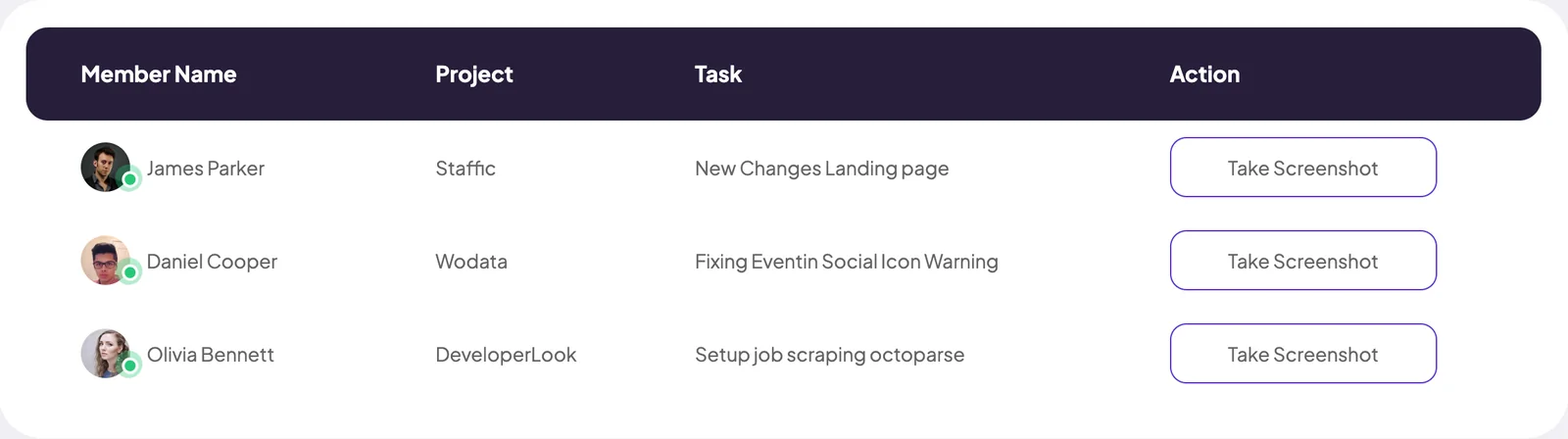
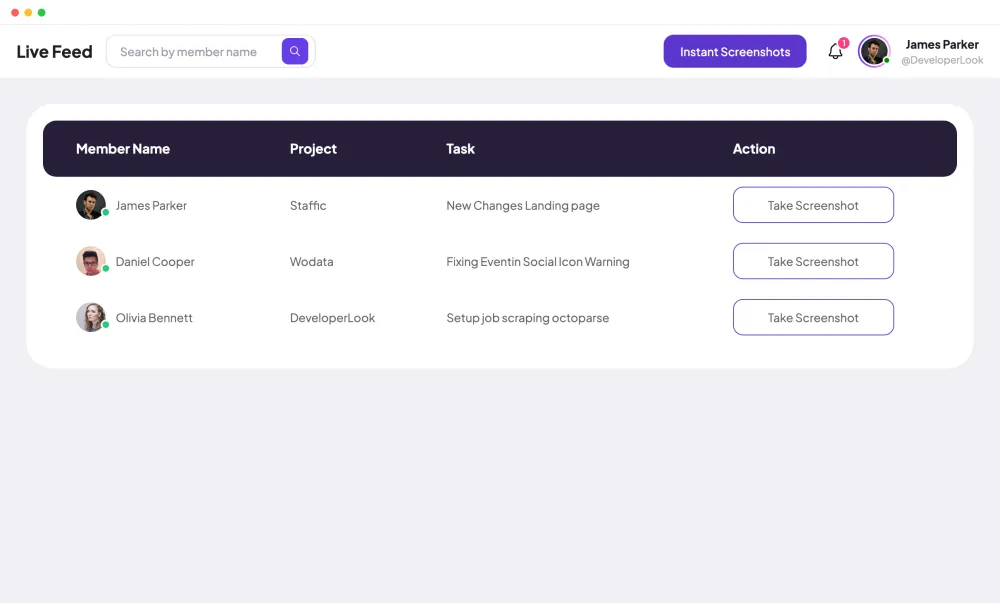
 Live FeedEliteSee who's tracking time right now, and on what
 ScreenshotsStandardVisual proof of work, captured automatically
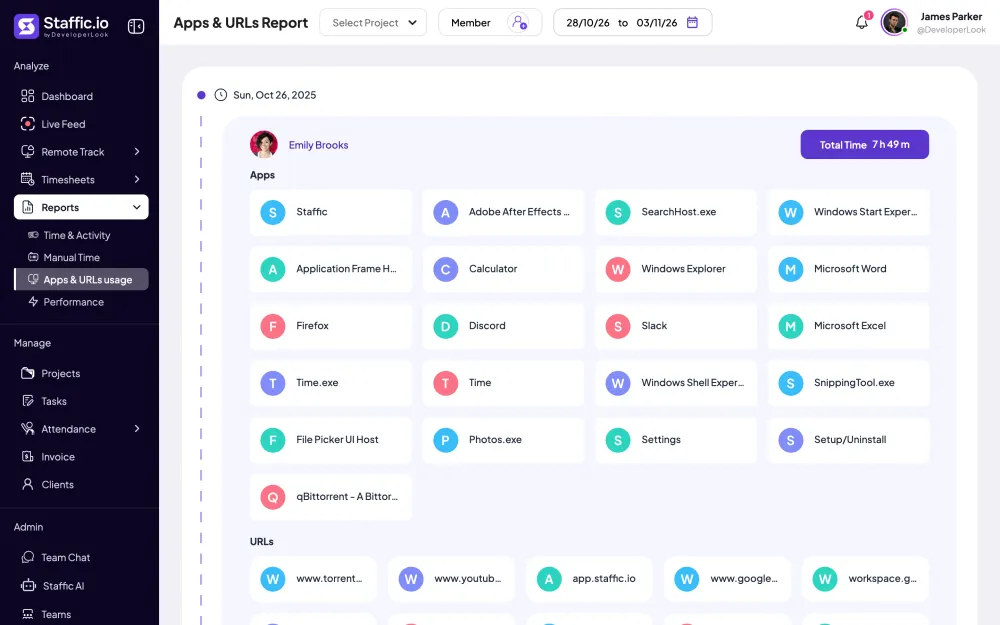
 AppsWhich apps each tracked session used
 URLsThe websites behind the tracked time
 Screen RecordingsEliteFull session video, beyond a screenshot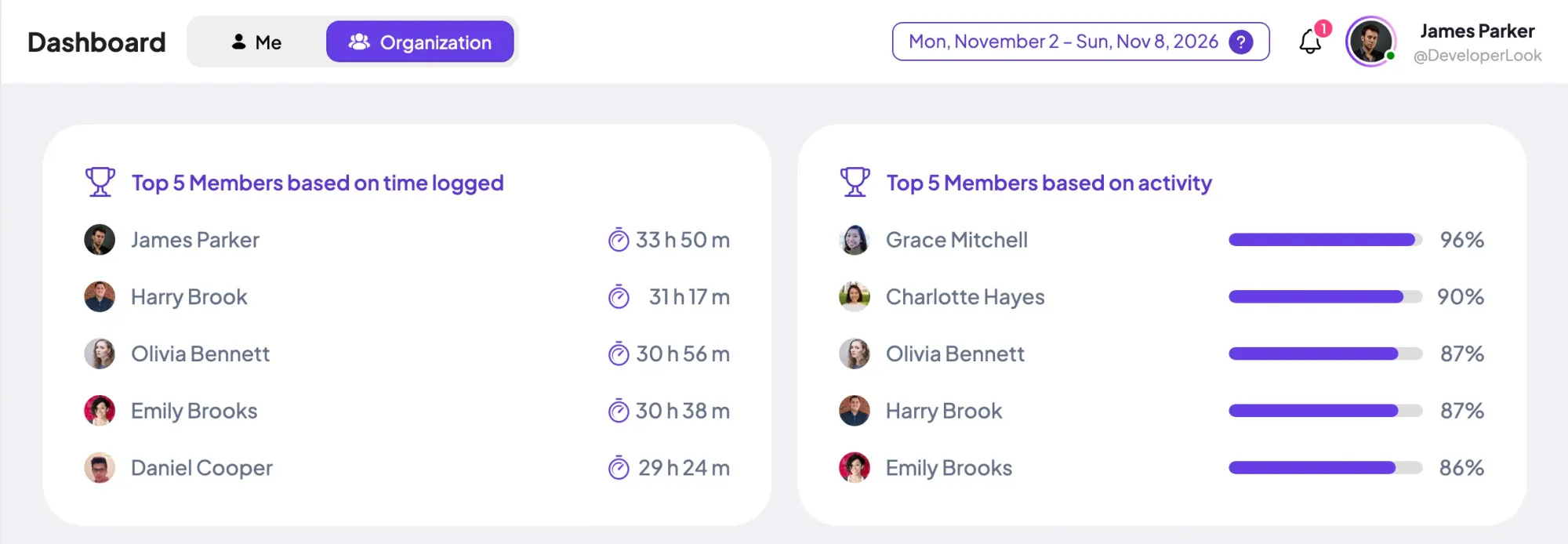
01 / 33
Dashboard
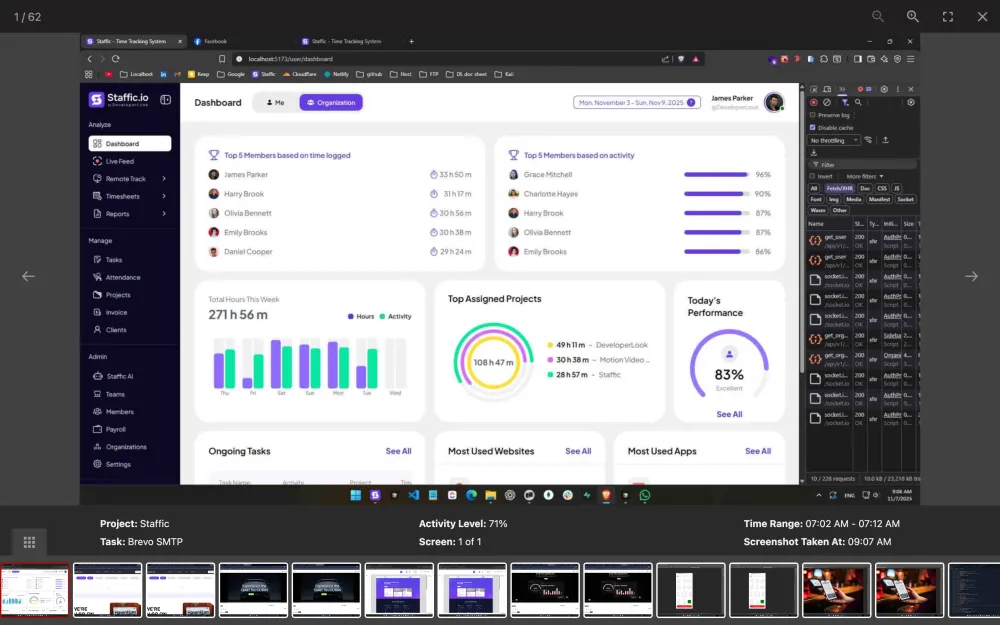
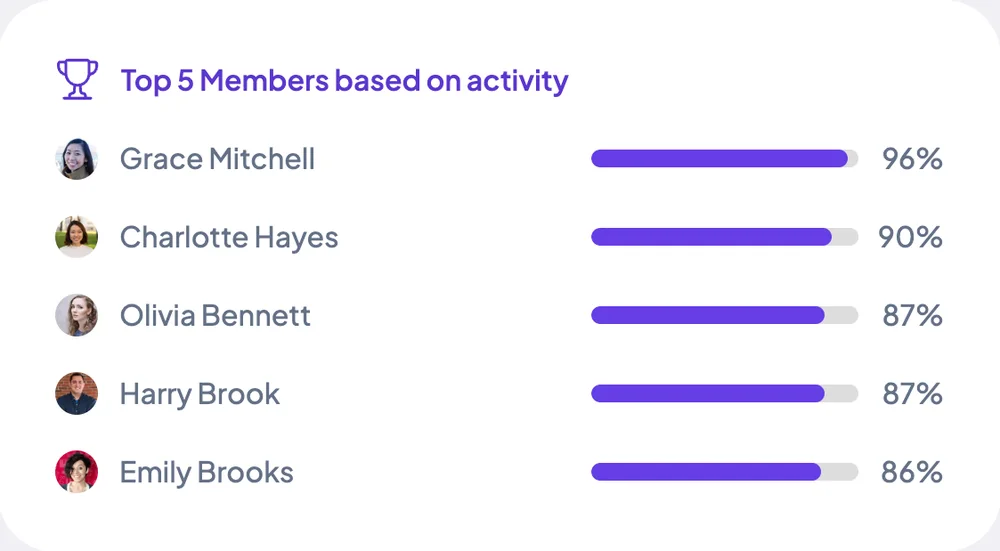
The team dashboard: this week's hours, today's performance, top members, ongoing tasks, top projects and the most used apps and websites.
View DashboardAutomatic Time Tracking
Staffic is an automated time tracker for teams that work on computers. A member starts one timer in the desktop app, and Staffic records the time, keyboard and mouse activity, apps and URLs until they stop it. Every session lands in their timesheets on its own, with idle time shown separately on the Standard and Elite plans.
In short
Staffic Automatic Time Tracking is how the Staffic desktop app records work once a member starts the timer. It logs each session's start and end, project, task and activity level from keyboard and mouse input. It also lists the apps and URLs in use and syncs everything to the member's timesheets. On Standard and Elite, time without input shows as neutral time, and members can add manual time for work away from the computer.
How it works
Time tracking is automatic once the member starts the timer, and it runs until they stop it.
Automated time tracker
Everything below runs on its own while the desktop timer is on. Nothing is recorded while it's off.
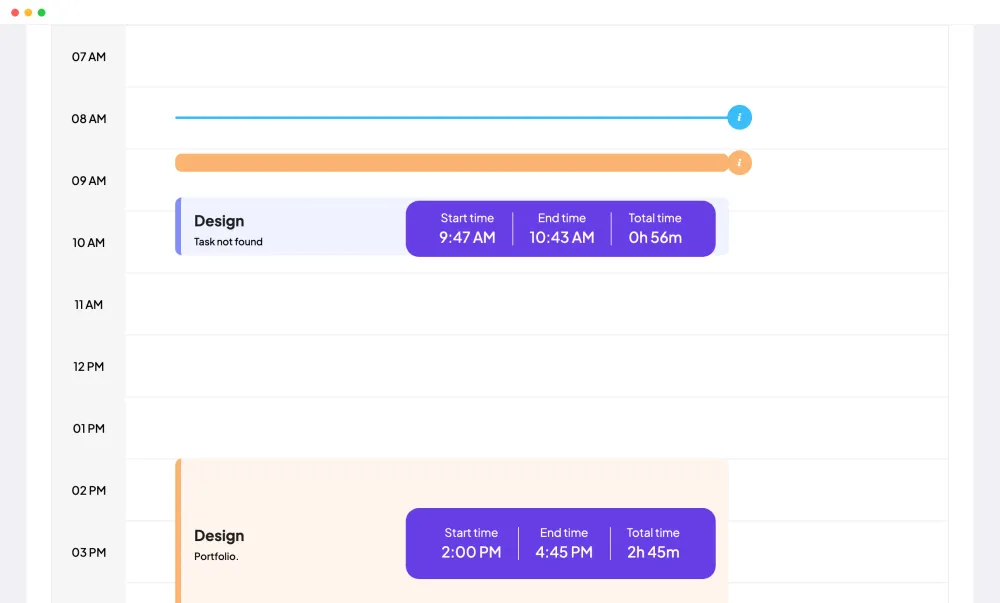
Each session carries its start and end time, project, task and activity level, plus the apps and URLs the member used. The desktop app syncs it to Staffic, and time tracked offline syncs when the app reconnects.
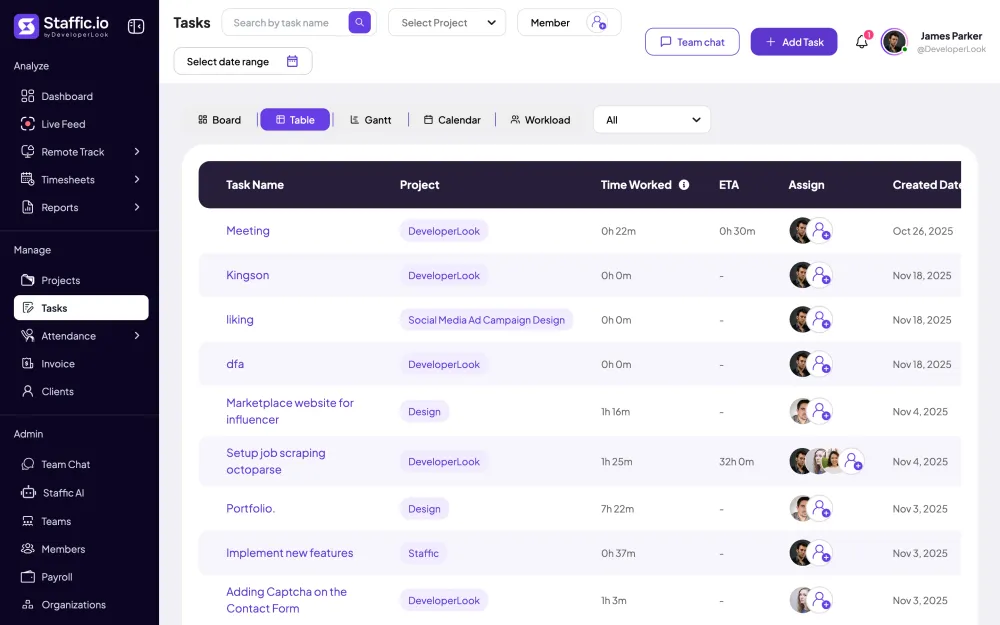
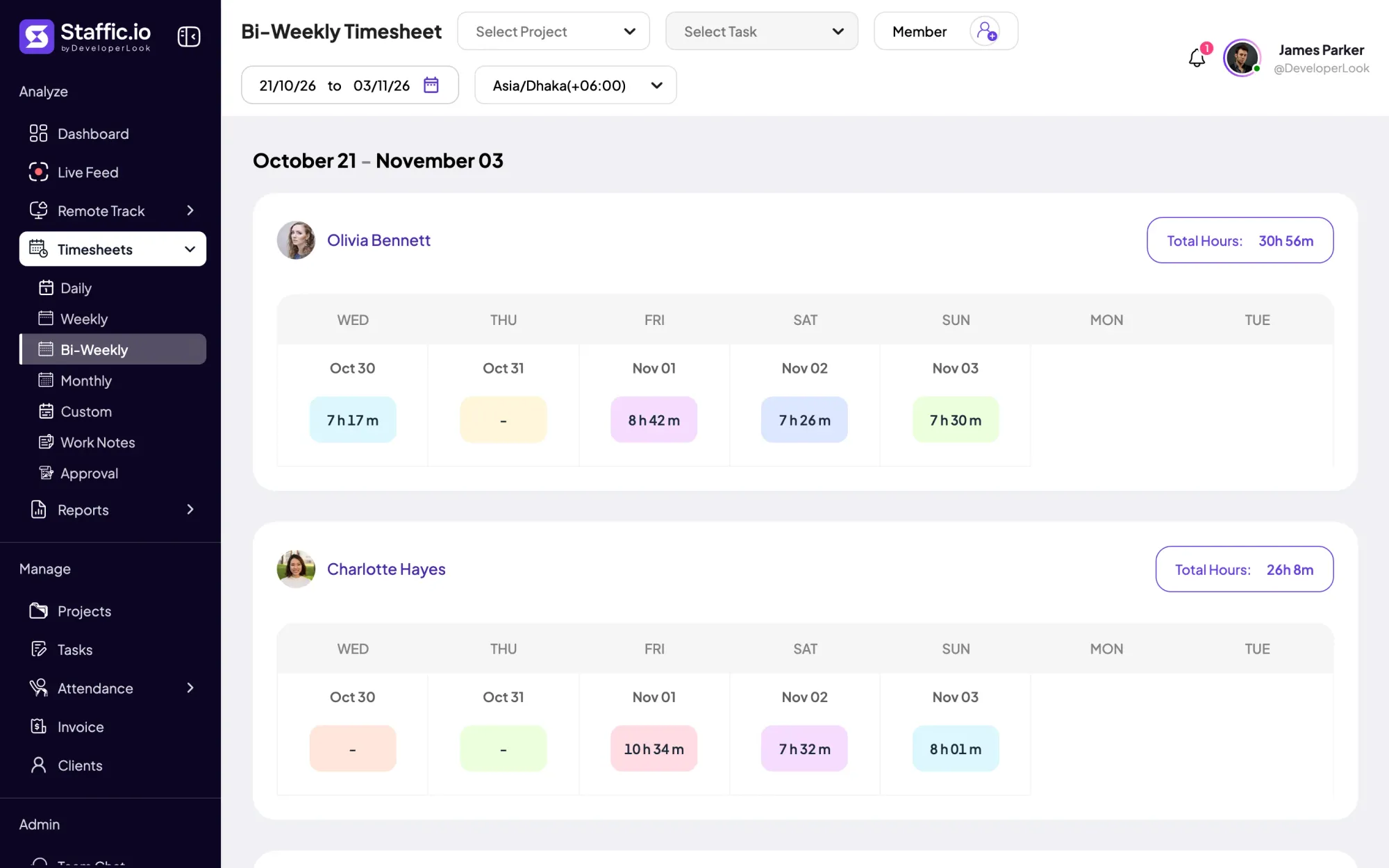
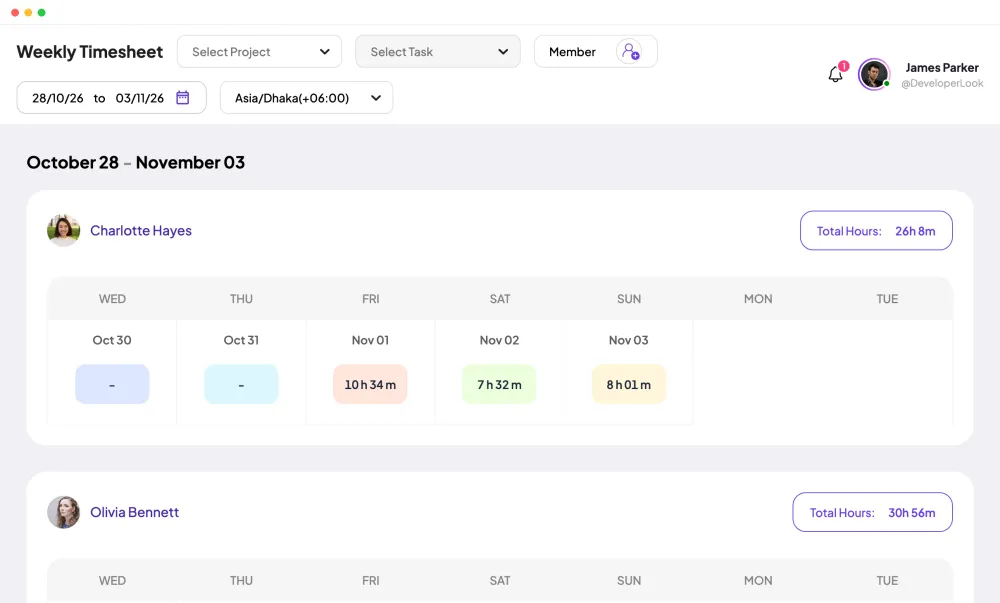
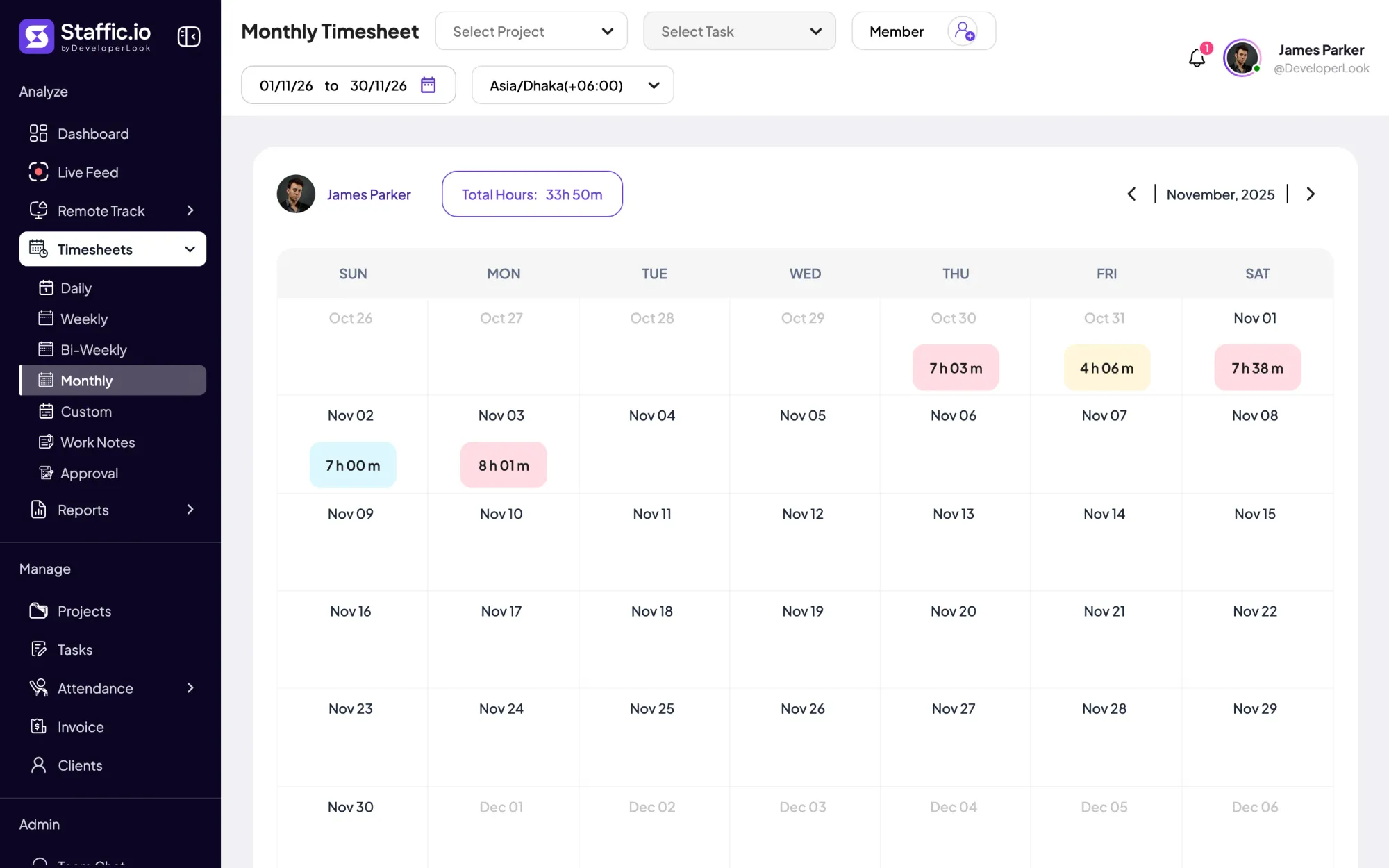
Members don't type in hours. Each tracked session appears in their daily, weekly and bi-weekly timesheets with its project and task, and the totals add up per day and per period.
While the timer runs, the desktop app notes keyboard and mouse input. Staffic turns it into an activity level for each session and an average per member, so stretches with no input stand out.
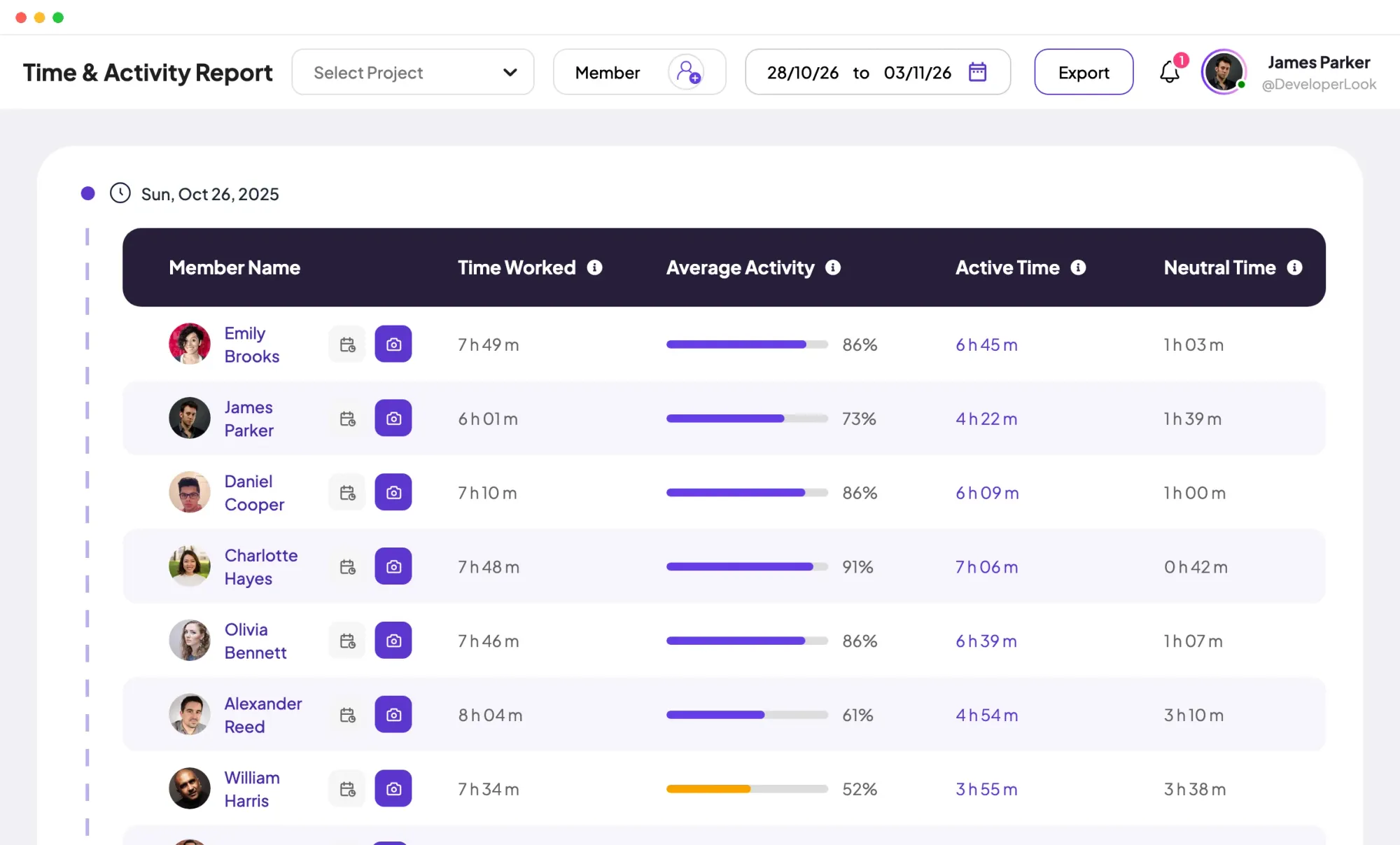
Tracked time without keyboard or mouse input counts as idle. As idle time tracking software, Staffic keeps it in the member's hours and shows it as neutral time beside active time on Standard and Elite.
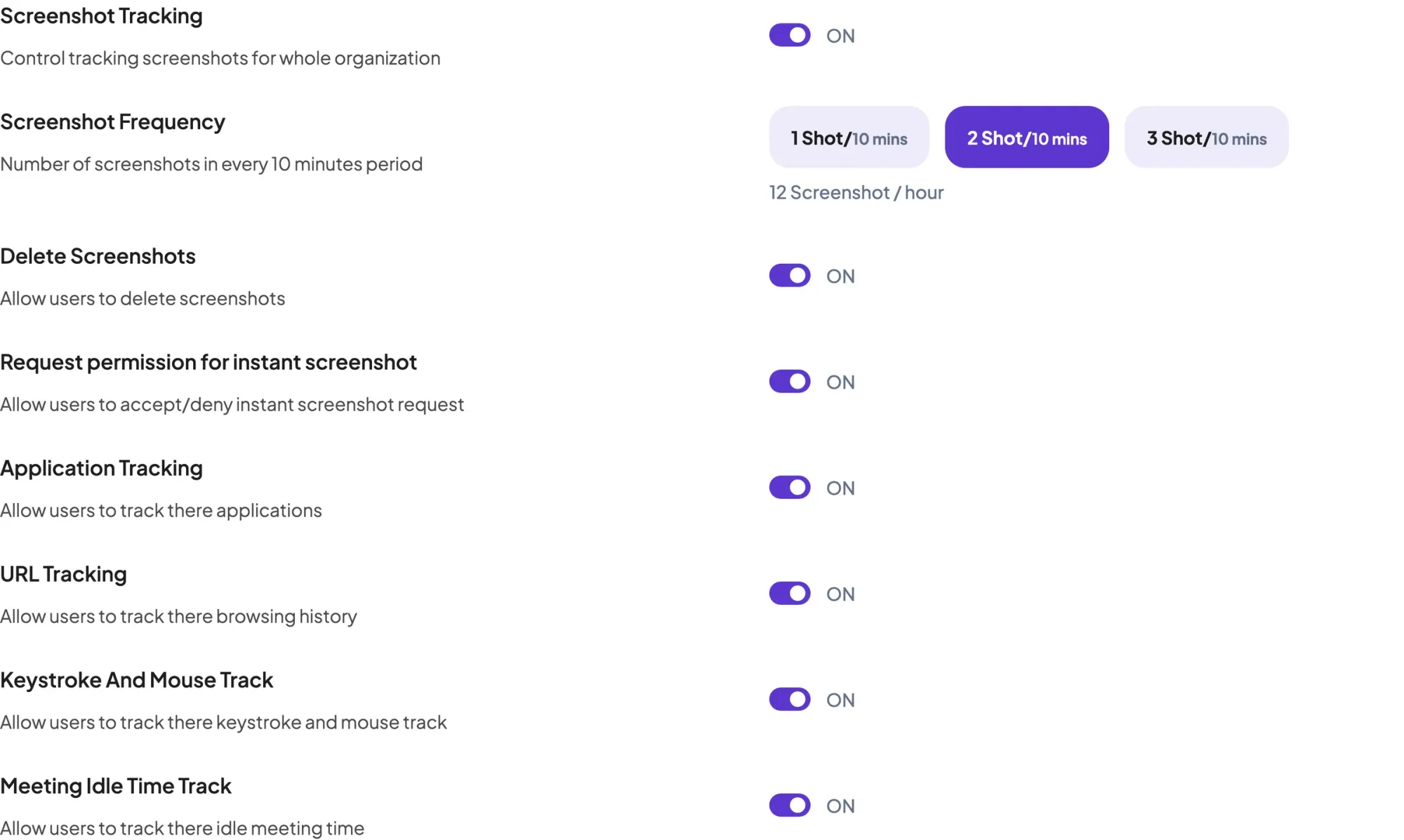
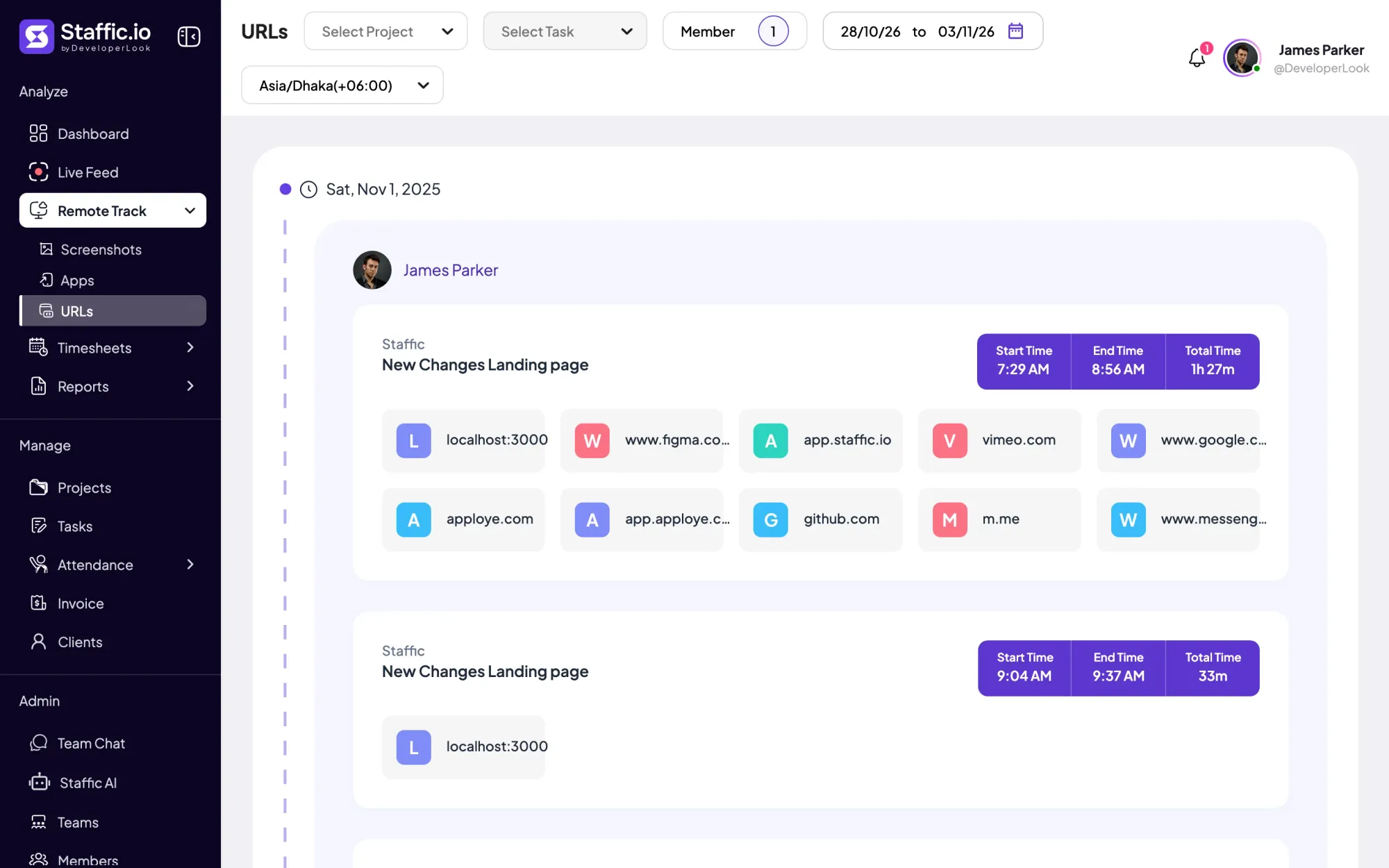
The timer also lists the apps and websites a member used in each session, such as Cursor, Slack or figma.com in the demo. It runs on every plan, and admins can switch Application Tracking and URL Tracking off.
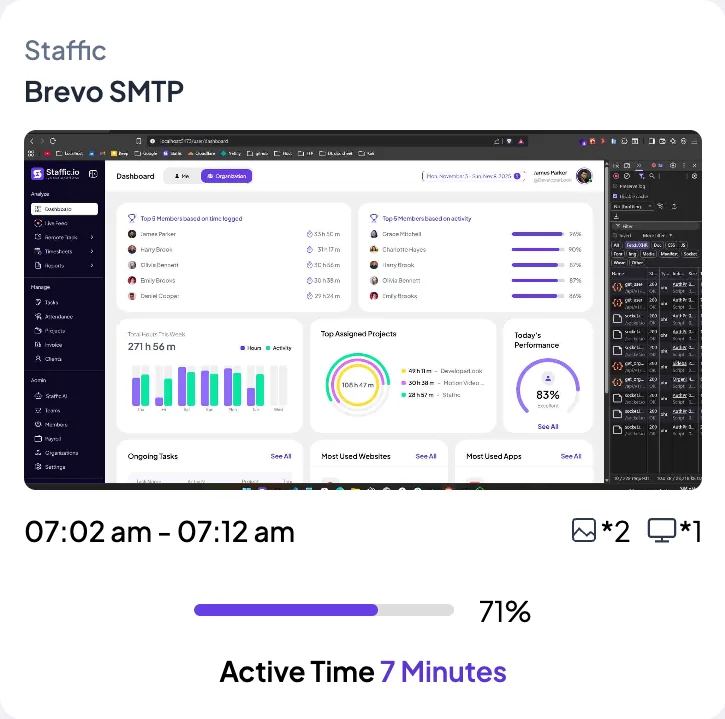
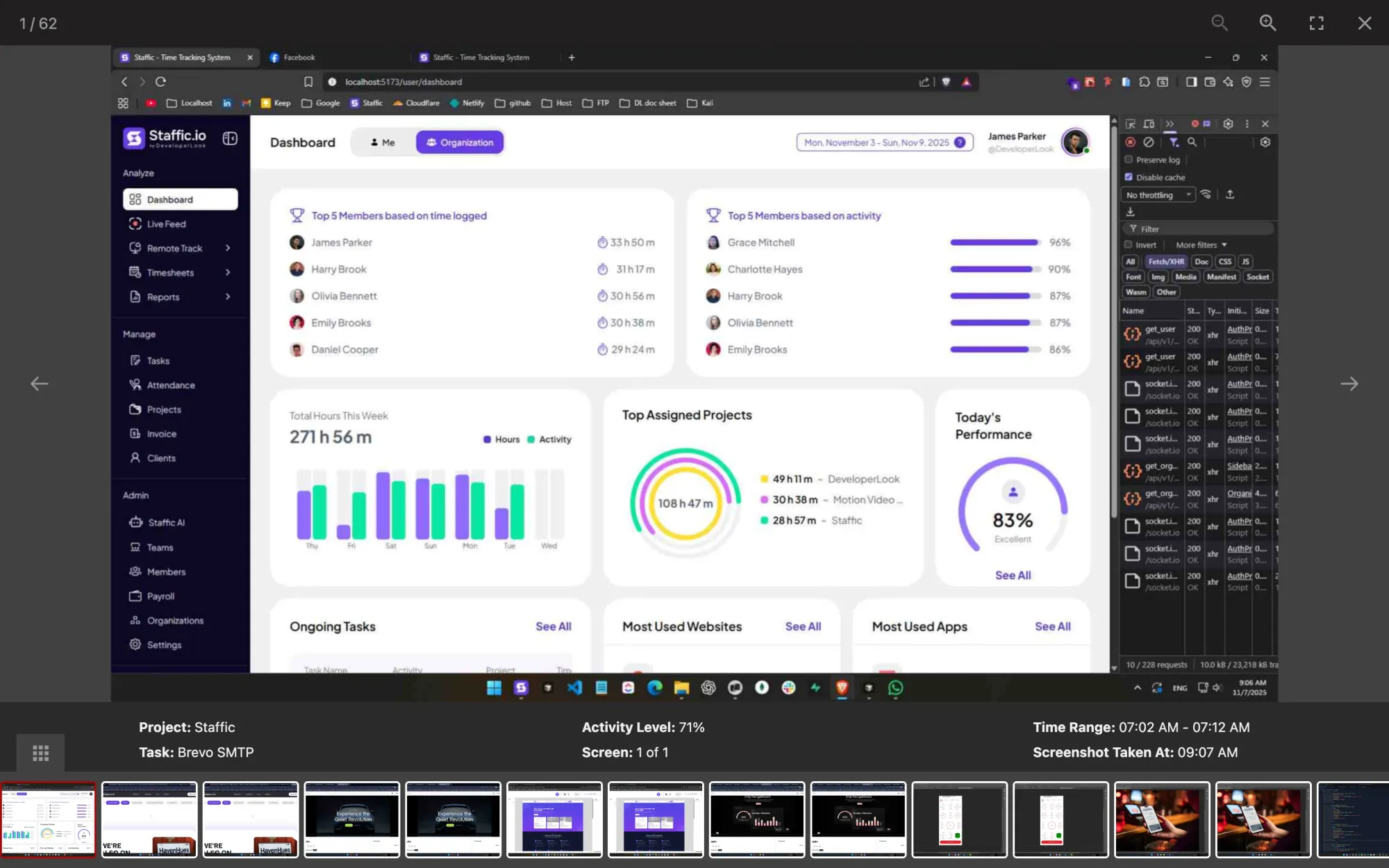
On Standard and Elite, the desktop app can also capture screenshots while the timer runs: 2 per 10 minutes by default, and Elite admins can pick 1, 2 or 3. Each capture shows the project, task and activity level of its 10-minute block.
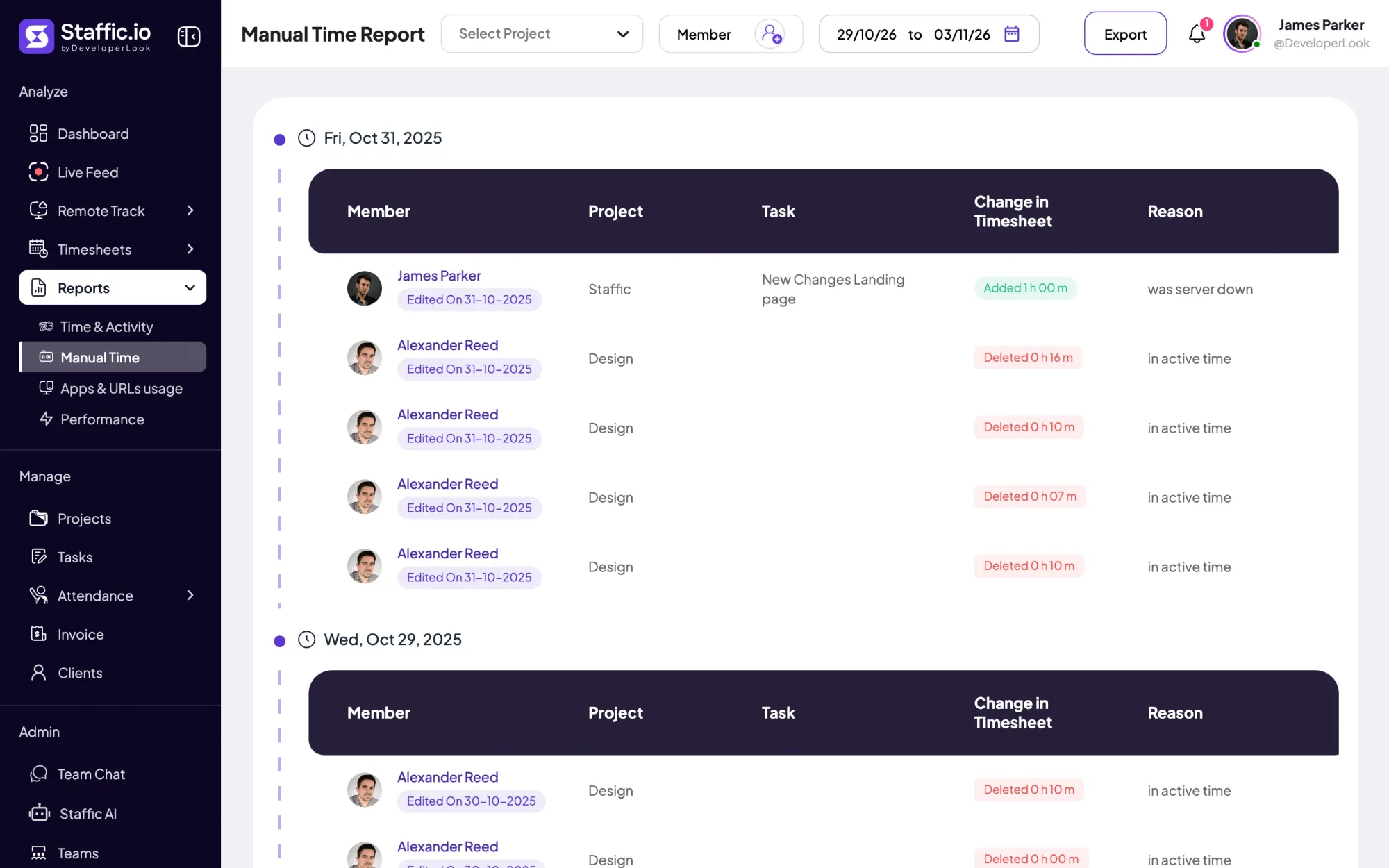
When a member forgot the timer or worked without the app, they can add manual time with a project and a reason, if your admin allows it. Each entry is up to 24 hours, can't overlap tracked time and shows in the Manual Time report.
Showing What the timer records.
Control and privacy
Nothing is recorded until a member starts the timer, and admins decide what the timer collects.
Set it up
Five steps from install to the first automatic timesheet. Steps 3 and 4 need the Standard or Elite plan.
Each member installs Staffic on Windows, macOS or Linux and signs in with their Staffic account.
Download StafficSwitch Application Tracking, URL Tracking and Keystroke And Mouse Track on or off for the organization.
Settings › ActivityTurn on Meeting Idle Time Track so quiet time in Google Meet, Slack huddles and Discord calls isn't counted as idle.
Settings › ActivityLet members add their own manual time, or leave it to admins.
Settings › TimesheetMembers pick a project and task and start tracking. Their first sessions appear in the daily timesheet.
See Daily Timesheet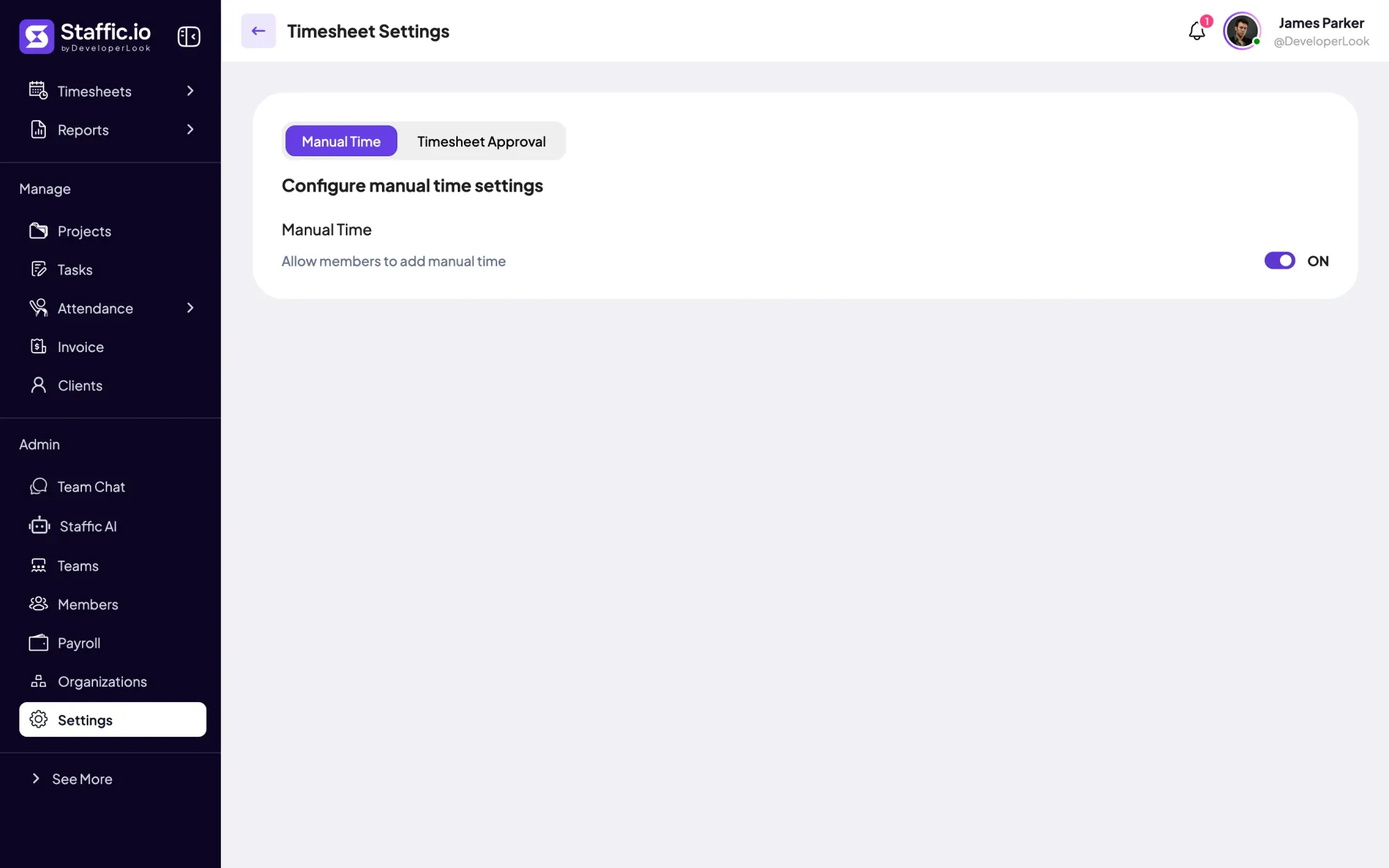
Compare
Three ways hours get into Staffic. Here is what each one records.
Swipe the table to compare
| Compare | Automatic trackingThis page | Manual timeAdded by hand | Clock In/OutStart and end of the day |
|---|---|---|---|
| How time gets in | Recorded while the desktop timer runs | Typed in with a start, end and reason | First and last tracked time of each day |
| Activity, apps and URLs | Recorded | Not recorded | Not shown |
| Plans | Every plan, including Free | Standard and Elite | Standard and Elite |
| Best for | Work on the computer | Calls and work away from the desk | When each day started and ended |
| Link | You are here | Manual time | Clock In/Out |
Specs and terms
The facts behind the feature, and what each number on the Automatic Time Tracking page means.
Who it’s for
For teams whose work happens on a computer and who'd rather not fill in timesheets by hand.
Members start the timer wherever they work, and their timesheets fill in without a Friday reminder.
Each session lands on the task the member picked, with its apps and URLs, so client work is easy to check.
Your timesheet builds itself while you work. On Standard you can add manual time for calls away from the computer.
Customer stories
Stop juggling tools. Staffic gives your team time tracking, projects, payroll and performance analytics in one platform.
Try Staffic for free“Staffic.io brings transparency without micromanagement. Our team feels trusted, and productivity has never been higher.”
Pricing
Automatic Time Tracking is included on every plan, Free included. You pay per active user only when your team grows past 3 members.
Compare every planPrices in USD per active user. Billed monthly, Standard is $7.50 and Elite is $9.80 per user.
FAQ
Answers about automatic time tracking and idle time in Staffic.
Read the docsAutomatic time tracking records work time without anyone typing in hours. In Staffic, a member starts one timer in the desktop app, and it records the time, project, task, activity, apps and URLs until they stop it. Each session then appears in their timesheets on its own.
It starts when the member starts the timer and checks for keyboard and mouse input while it runs. Time with input counts as active, and tracked time without input shows as neutral time on the Standard and Elite plans. Nothing is recorded while the timer is off.
Yes, for time spent at the computer: each session records its real start and end time instead of hours remembered at the end of the week. Activity levels and neutral time show how much of that time had input. Manual time is listed separately with a reason, so you can tell recorded and added hours apart.
The desktop app checks for keyboard and mouse input while the timer runs, and any stretch with no input for 50 seconds or more counts as idle. Companies track idle time with system idle time tracker software like this, because it only needs the app on the work computer. In Staffic, idle time stays in the member's hours and shows as neutral time on Standard and Elite.
Yes, on the Standard and Elite plans, when an admin allows it in Settings, Timesheet. Members add the start and end time, a project, an optional task and a reason, up to 24 hours per entry. Admins can add time for anyone, and each addition shows in the Manual Time report.
Yes. Once the timer is running, members work in their other apps as usual, and the desktop app records time, activity, apps and URLs in the background. It stops on its own after 5 minutes without input, or when the computer sleeps or locks.
Yes. Admins see every session in the timesheets, can delete time that shouldn't count, and can add manual time on Standard and Elite. Each change appears in the Manual Time report with the member, the date and the reason, and on Elite managers can approve or reject each timesheet.
A plain timer records only when you start and stop. Staffic's automated time tracker starts the same way, but while it runs it also records keyboard and mouse activity, apps and URLs. As a computer idle time tracker, it also separates time without input, and it files each session under its project and task.
Every plan includes Automatic Time Tracking. Free covers up to 3 members. Standard is $5.50 per user per month billed yearly ($1.00 during the current offer, until September 12, 2027) or $7.50 billed monthly, and Elite is $5.80 per user per month billed yearly or $9.80 billed monthly.
Explore more
Staffic tracks employee time on projects and tasks with desktop apps, then turns it into timesheets, reports and approvals. Free for up to 3 members.
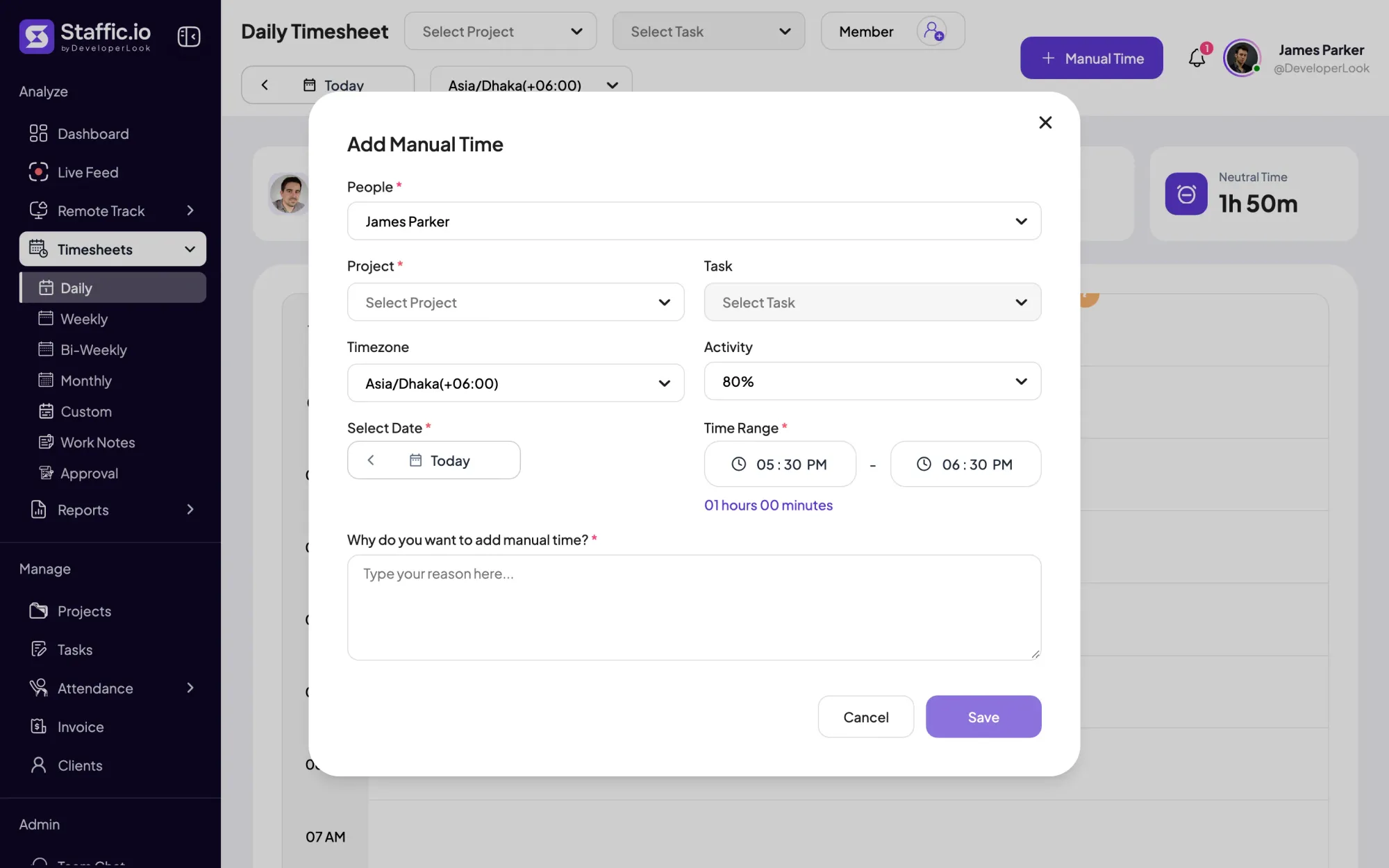

Add the hours the timer missed with a project and a required reason, and see every manual add and deleted hour in the Manual Time report.
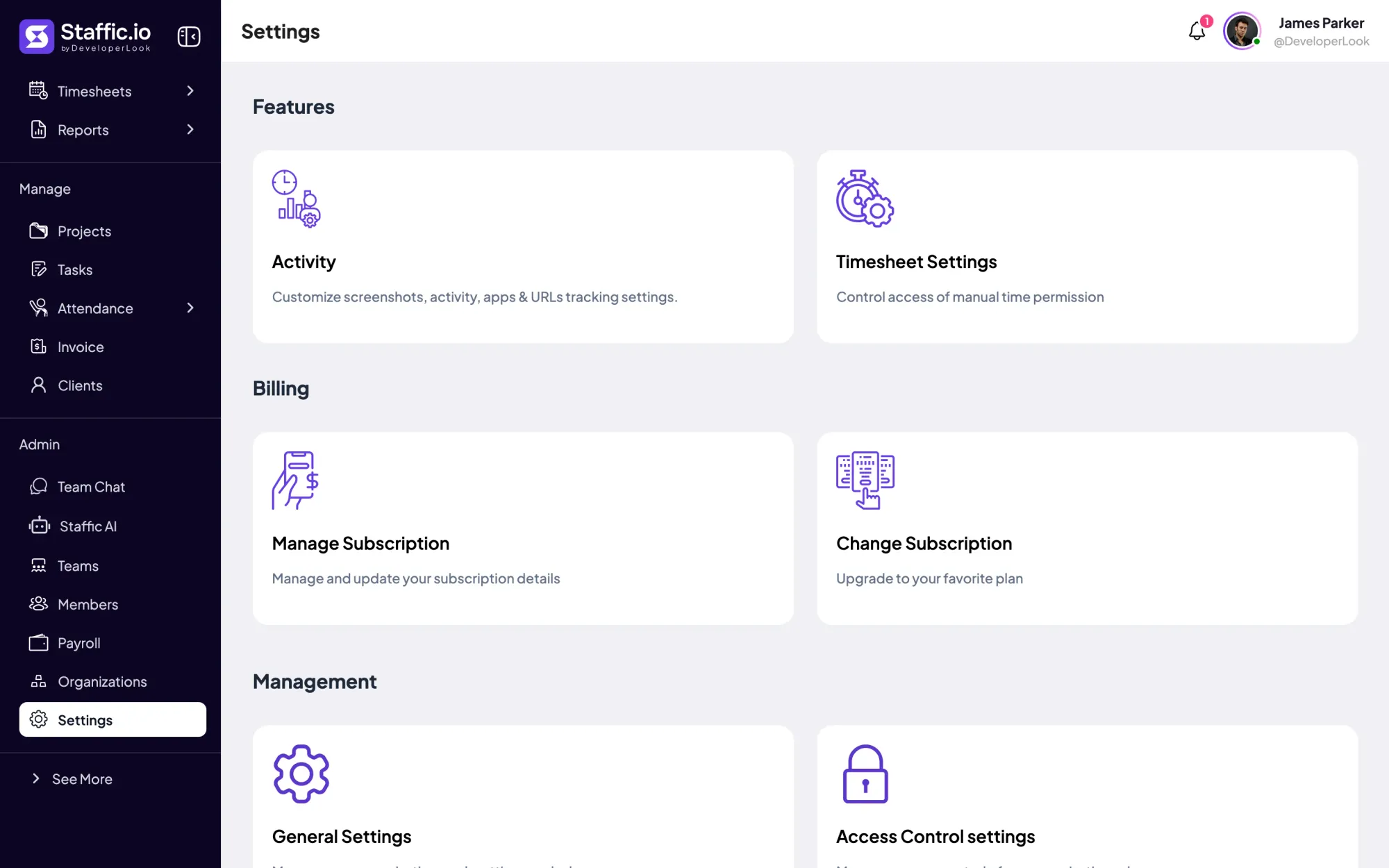

Settings is where admins choose what Staffic tracks, set timesheet rules and build Access Control roles, with each switch marked by its plan.
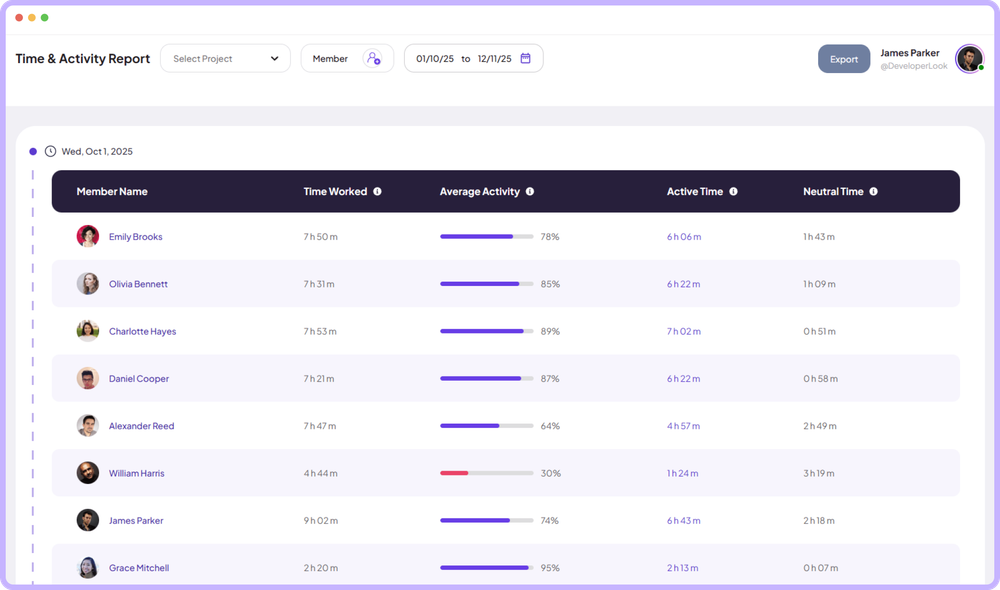

The Time & Activity Report shows each member's time worked, average activity, active time and neutral time for every day you pick.
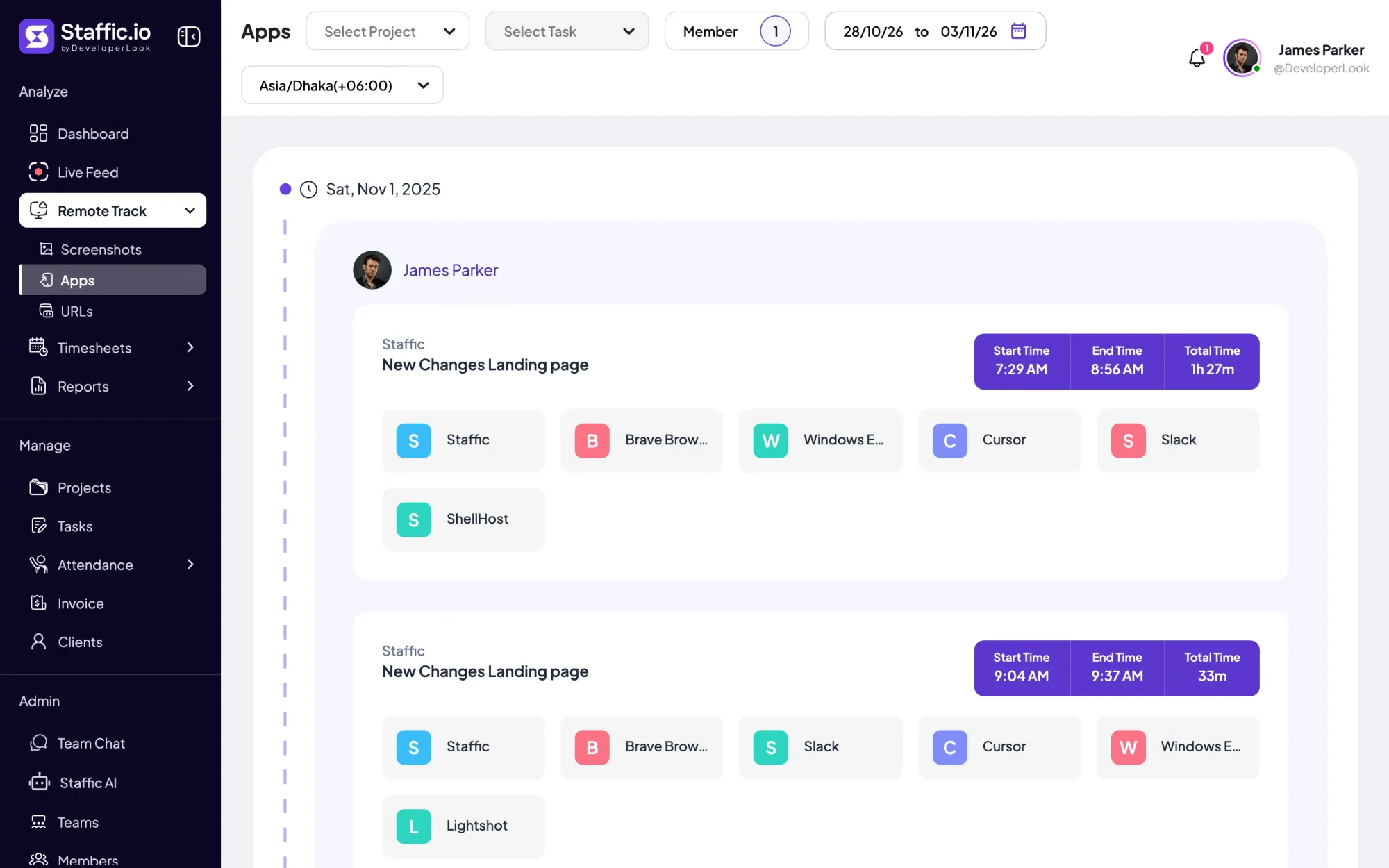
See which desktop apps each member used in every tracked session, with its project, task and time. Included on every plan, including Free.
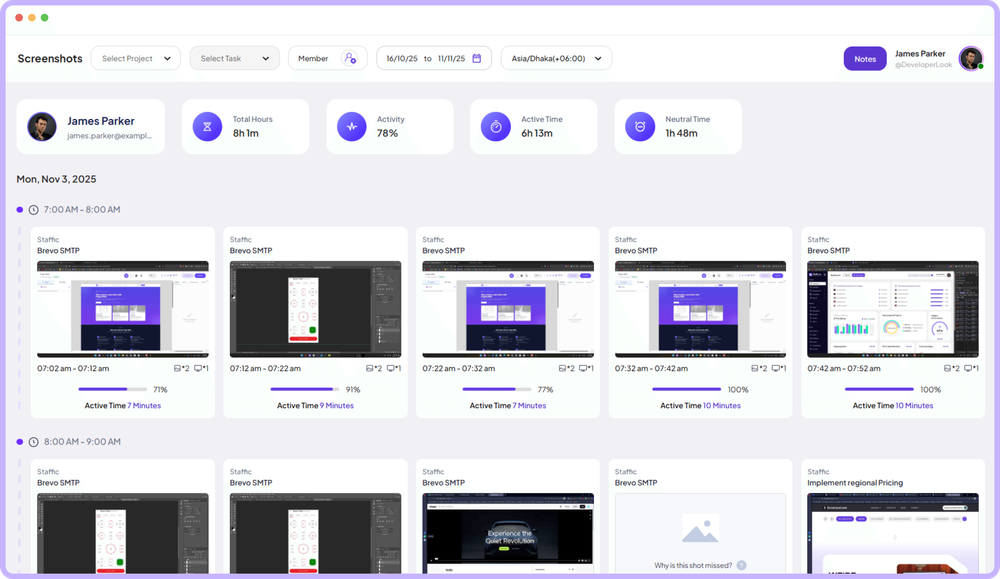
Screen monitoring that captures screenshots only while the timer runs, each filed with its time range, project, task and activity level.
Free for up to 3 members
Create your workspace, invite your team, and the first timesheet builds itself.