Small businesses
Pay periods without spreadsheets
Staffic is timesheet software for small business teams that pay by the hour. It's free for up to 3 members, and on Elite payroll uses the time a manager approved.

Features
All 33 featuresSee the work while it happens.
 DashboardYour team's week at a glance, Monday to Sunday
 Live FeedEliteSee who's tracking time right now, and on what
 ScreenshotsStandardVisual proof of work, captured automatically
 AppsWhich apps each tracked session used
 URLsThe websites behind the tracked time
 Screen RecordingsEliteFull session video, beyond a screenshot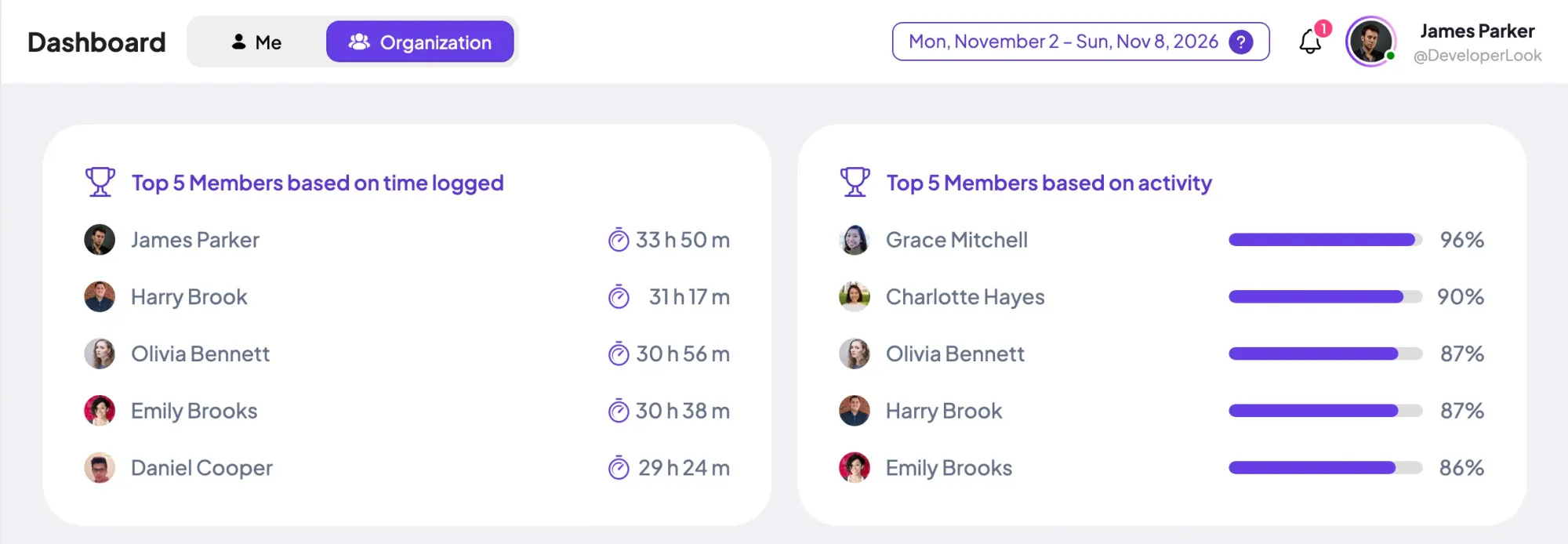
01 / 33
Dashboard
The team dashboard: this week's hours, today's performance, top members, ongoing tasks, top projects and the most used apps and websites.
View DashboardTimesheet Software
Staffic is timesheet software for teams that work on computers. Every session from the desktop app lands on the daily, weekly and bi-weekly timesheets, so nobody types hours at the end of the week. Standard adds monthly and custom ranges, and Elite adds approval before payroll.
In short
Staffic Timesheet Software is the set of timesheets Staffic builds from the time your team tracks in the desktop app. Daily, weekly and bi-weekly timesheets work on every plan, including Free. Standard adds monthly and custom timesheets, past dates, active and neutral time, and manual time with a reason. Elite adds timesheet approval, so a manager checks the hours before payroll.
How it works
Members never fill in a timesheet. They track time in the desktop app and check their timesheets online in the web app.
Timesheet software
Five timesheet views read the same tracked sessions, so you pick the period that matches how you review, bill or pay.
Every view reads the sessions members track in the desktop app. Changing the period changes how the hours are grouped, never the hours themselves.
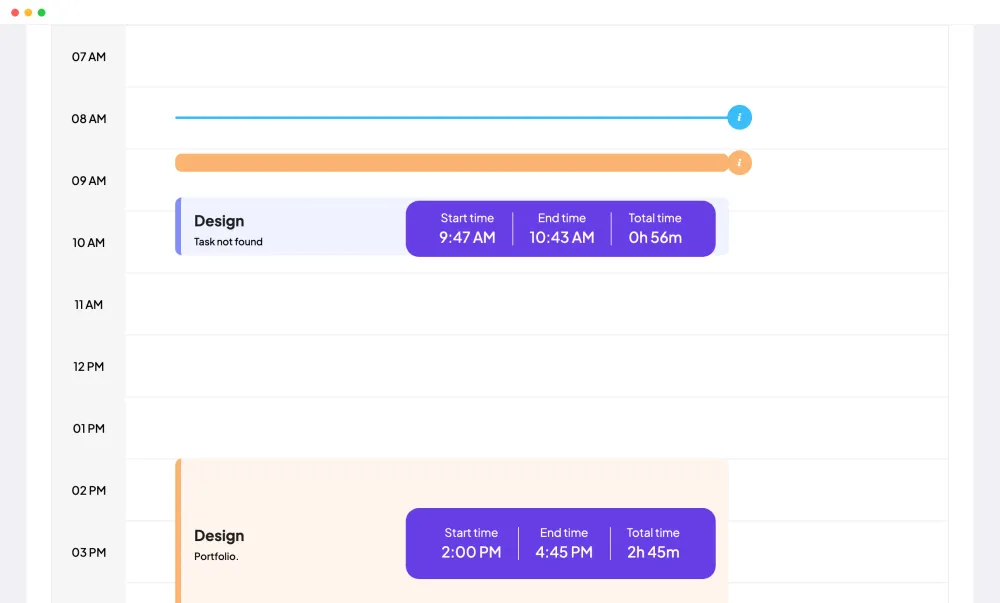
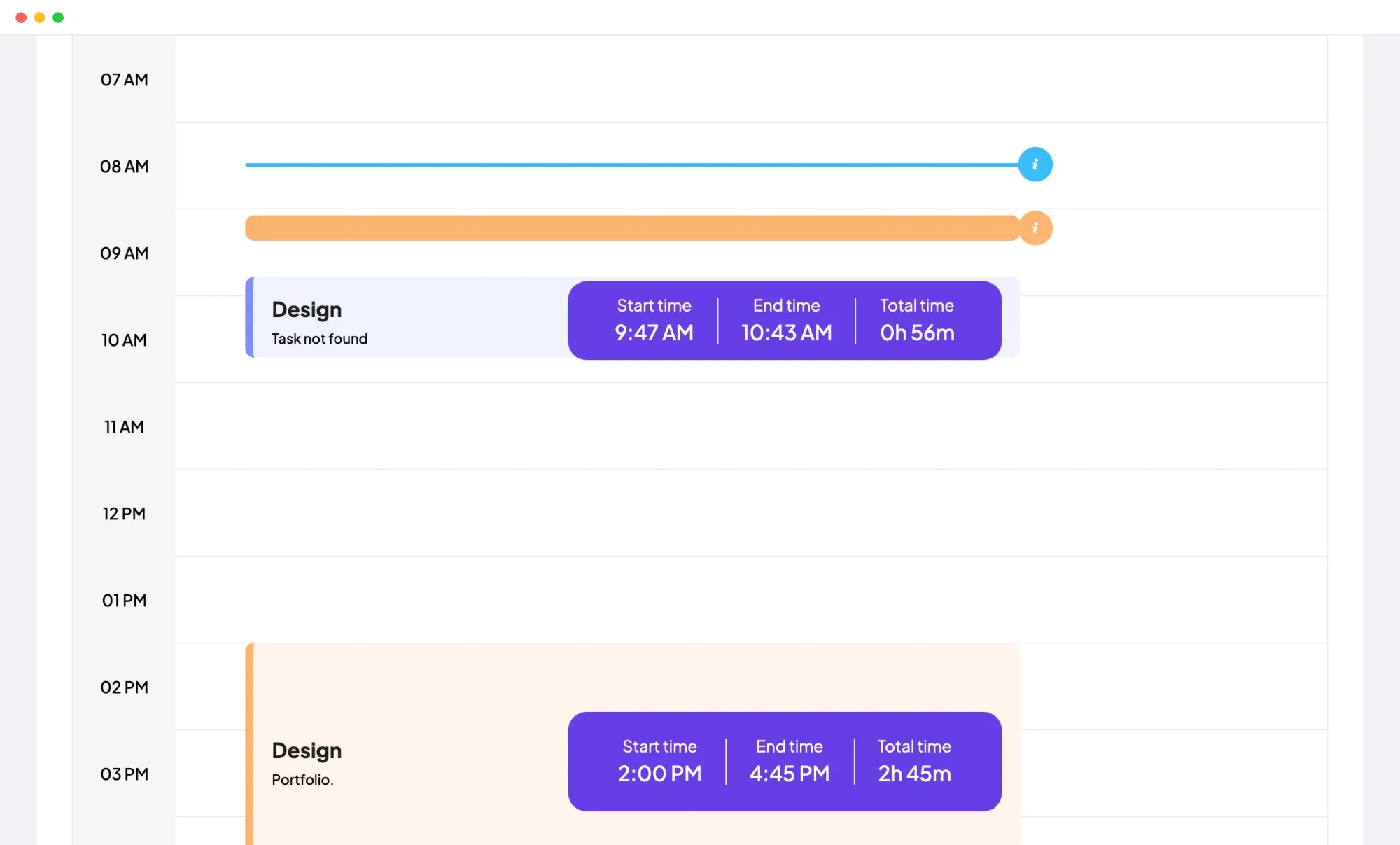
The daily timesheet shows one member's tracked sessions for a day, each with its project, task, start time, end time and total. Cards at the top add up Total Hours, plus Active Time and Neutral Time on Standard and Elite.
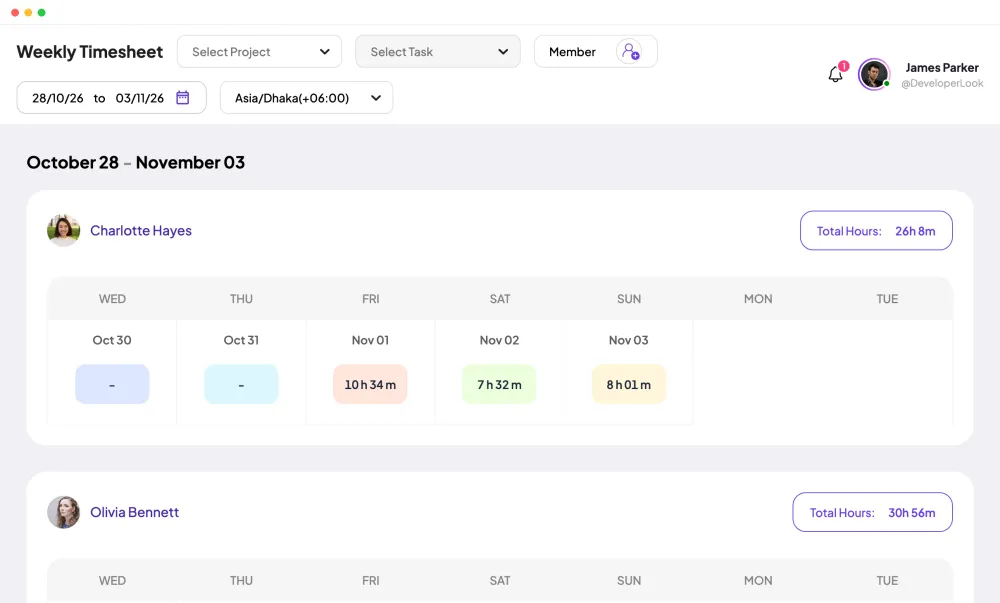
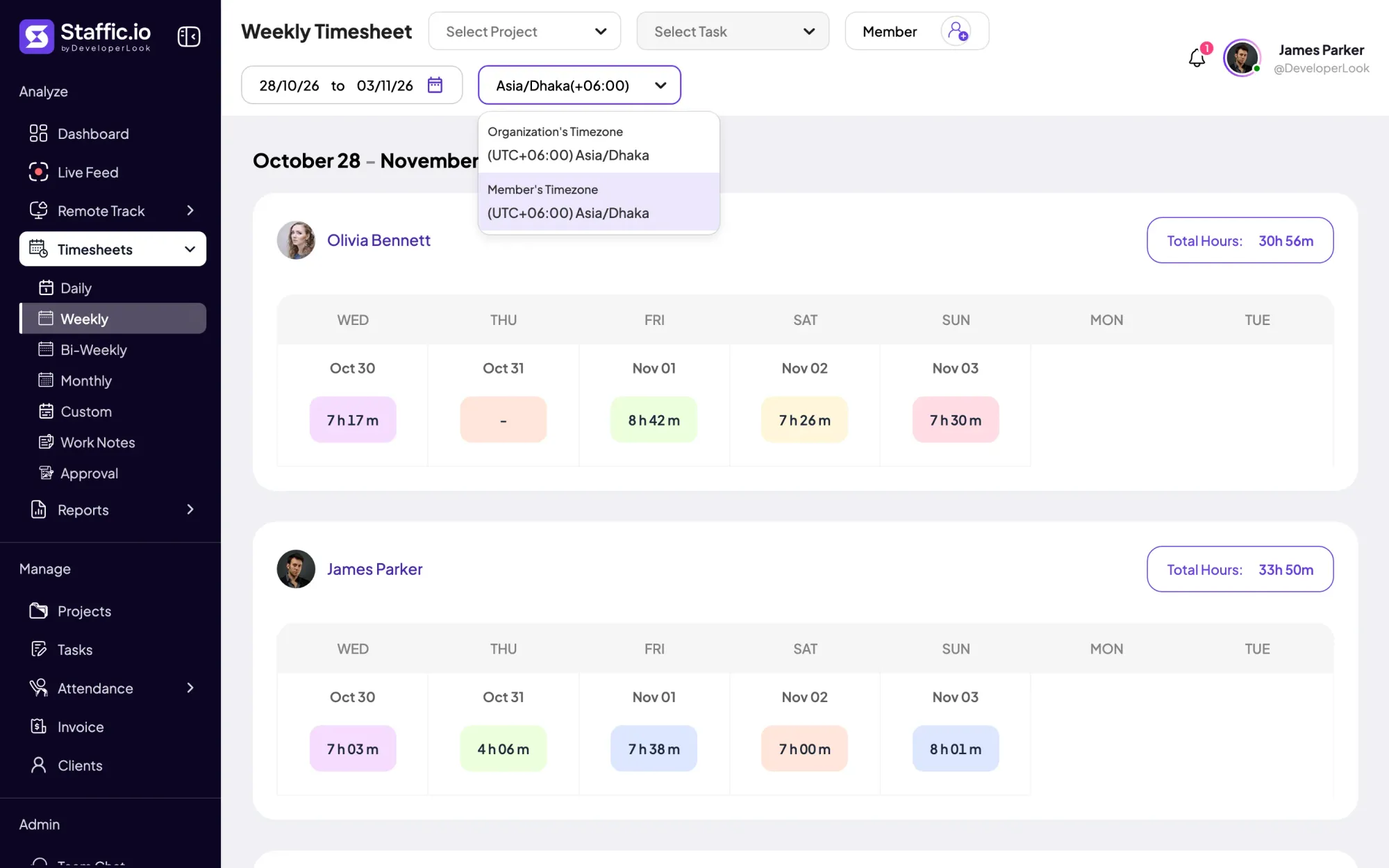
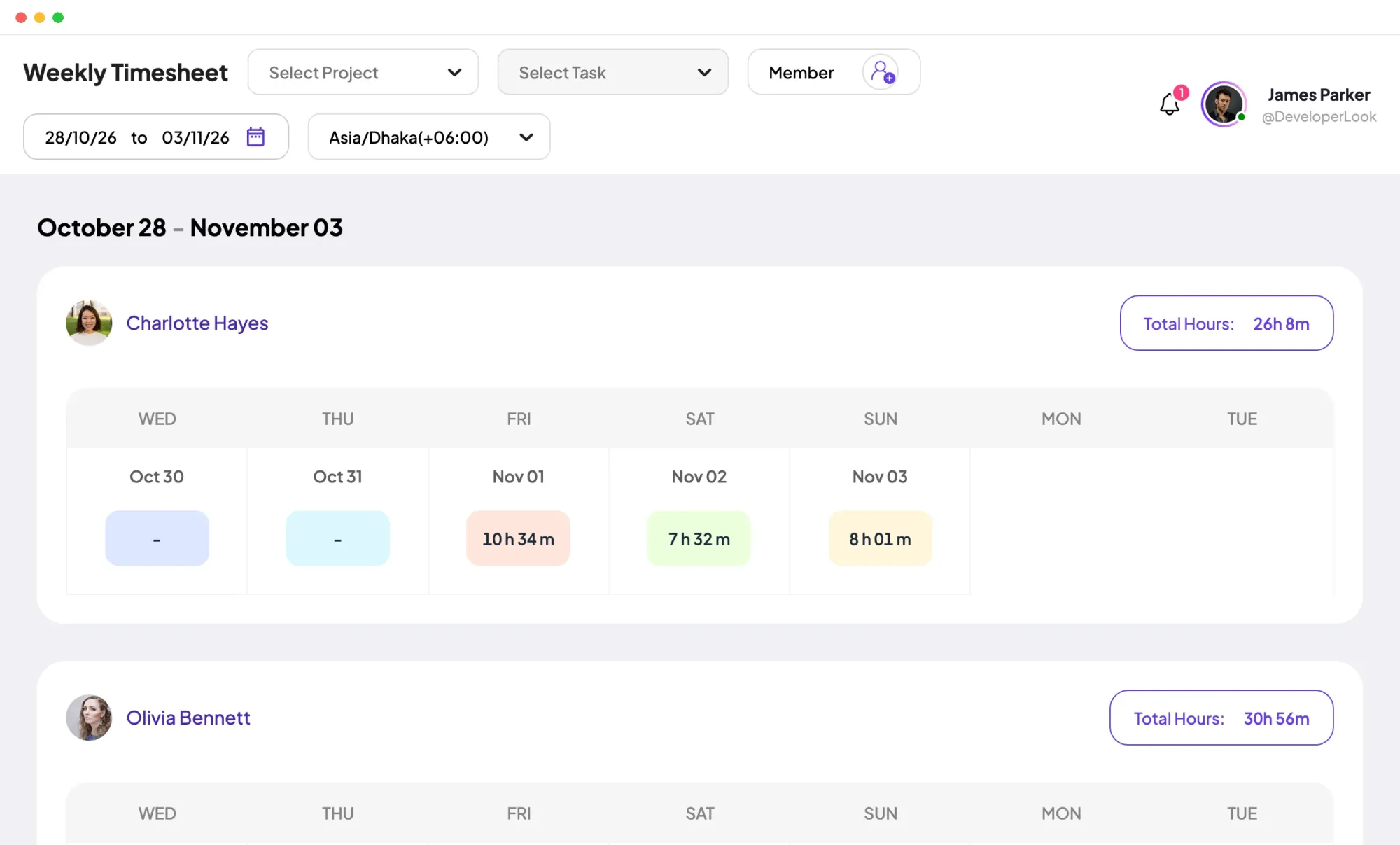
The weekly timesheet lists each member's hours for every day of the last 7 days, with Total Hours beside each name. Narrow it to a project and then a task, and count the days in your organization's time zone or the member's own.
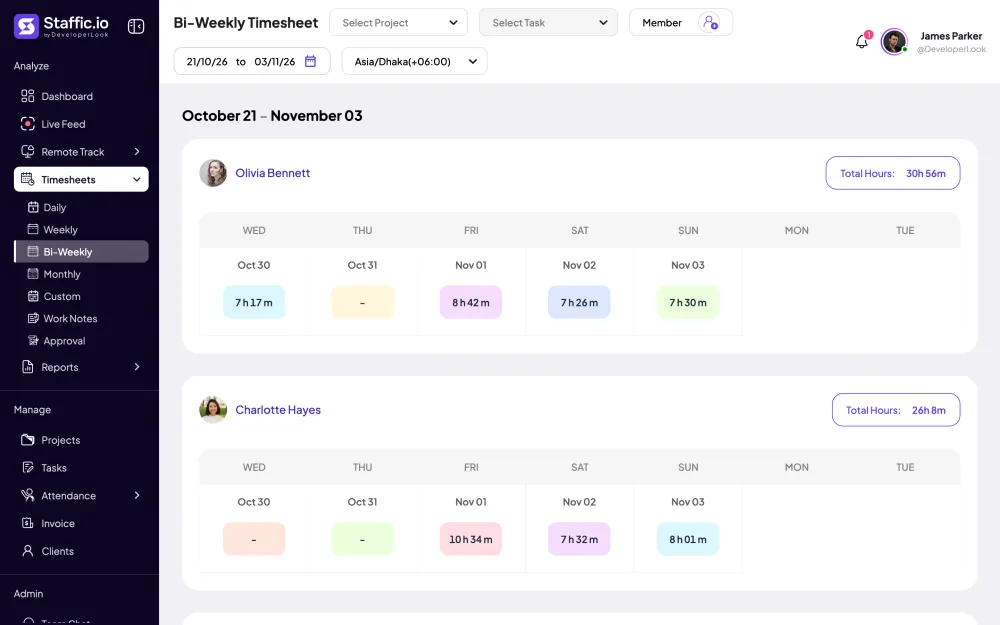
The bi-weekly timesheet covers the last 14 days, the span many teams pay on. It's included on every plan, and Standard lets you pick earlier dates.
The monthly timesheet gives every member a calendar with the hours tracked on each day of the month. It suits month-end checks, on the Standard and Elite plans.
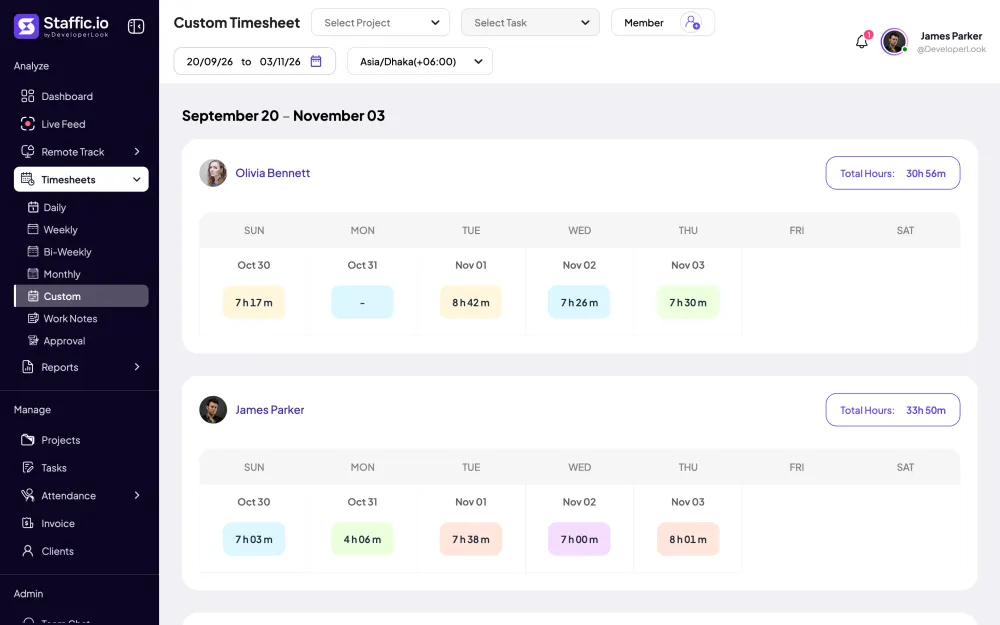
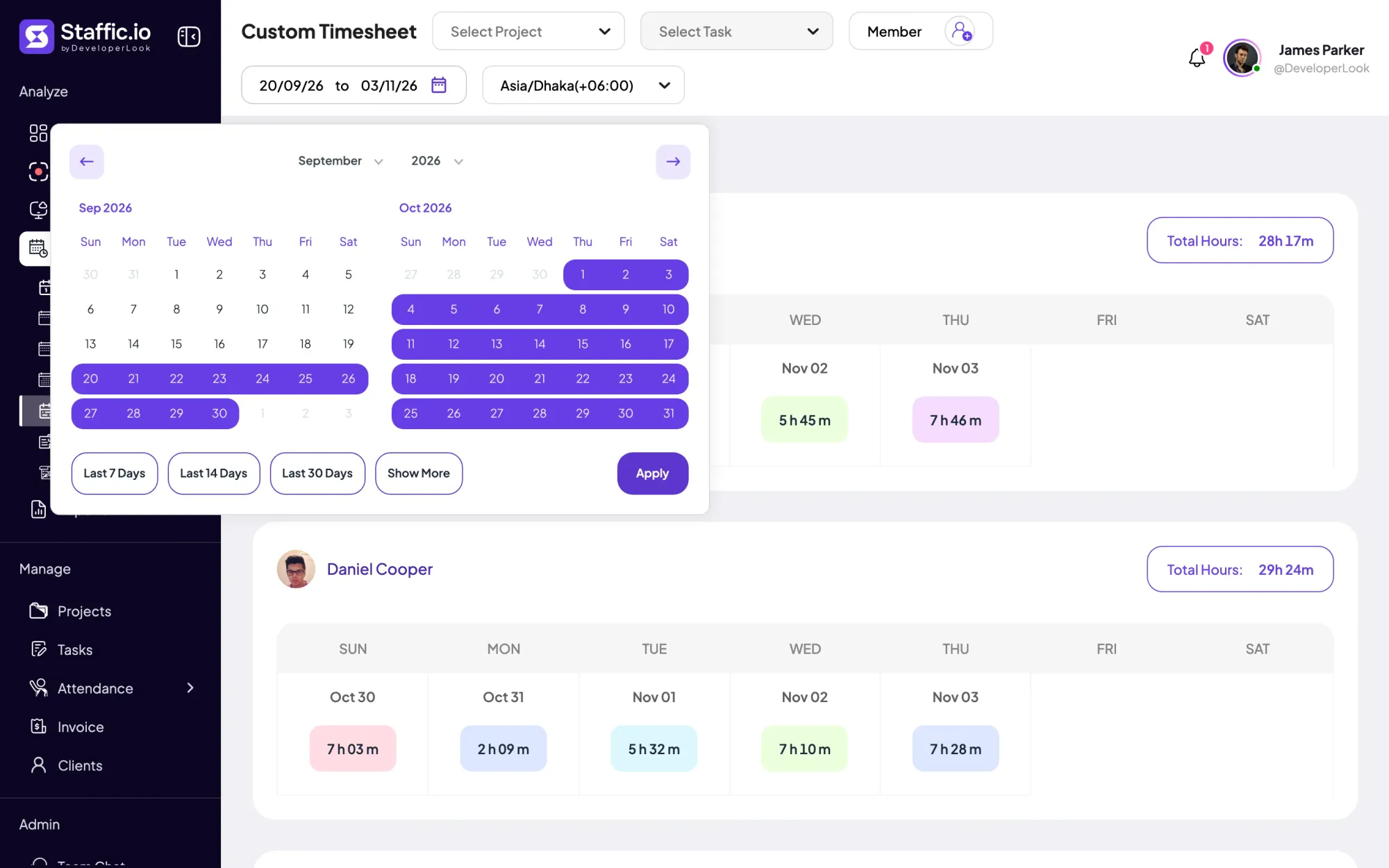
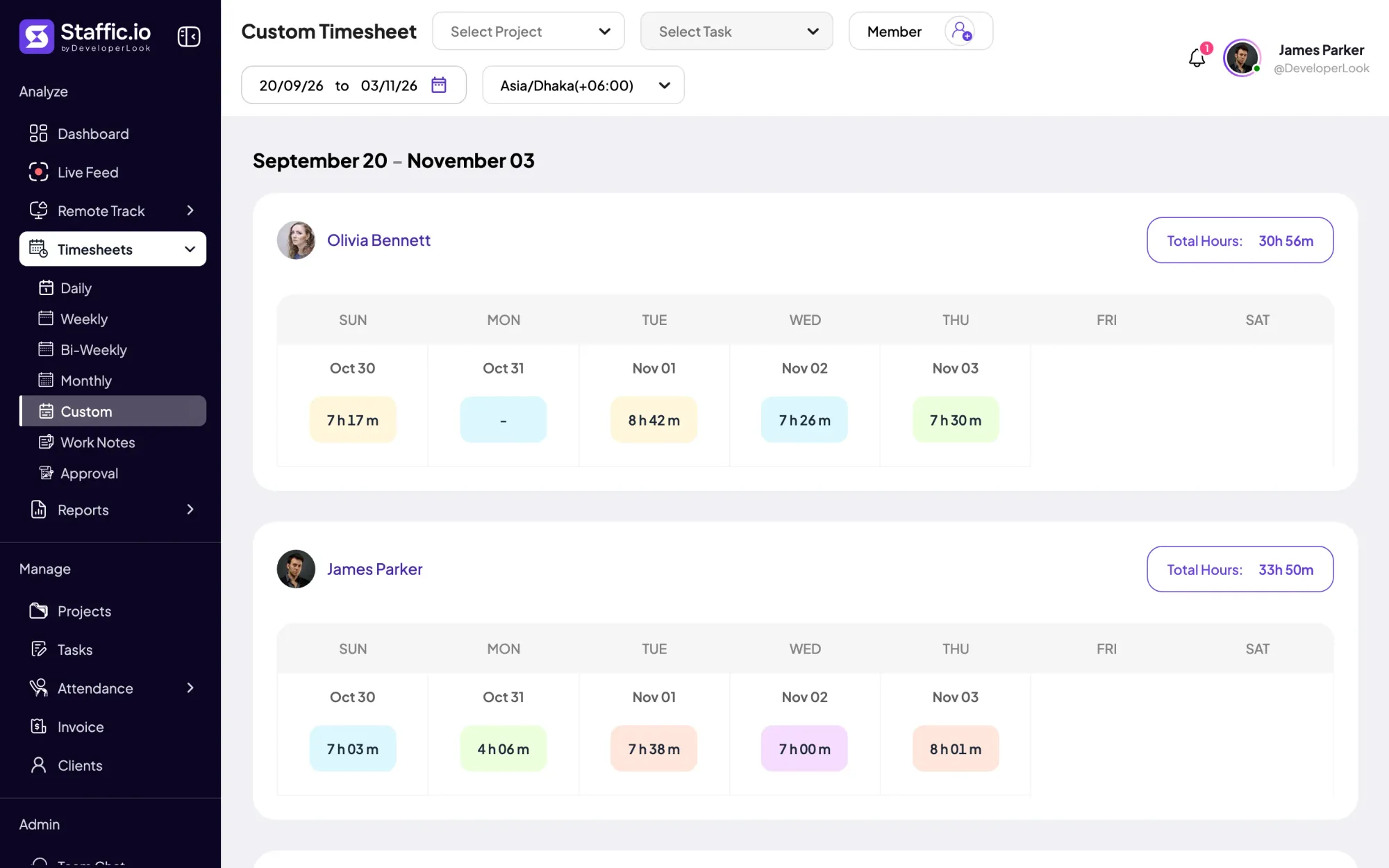
The custom timesheet opens on the last 45 days and takes any start and end date you pick, with shortcuts for the last 7, 14 or 30 days. Use it for a client's billing period or a project that runs across months.
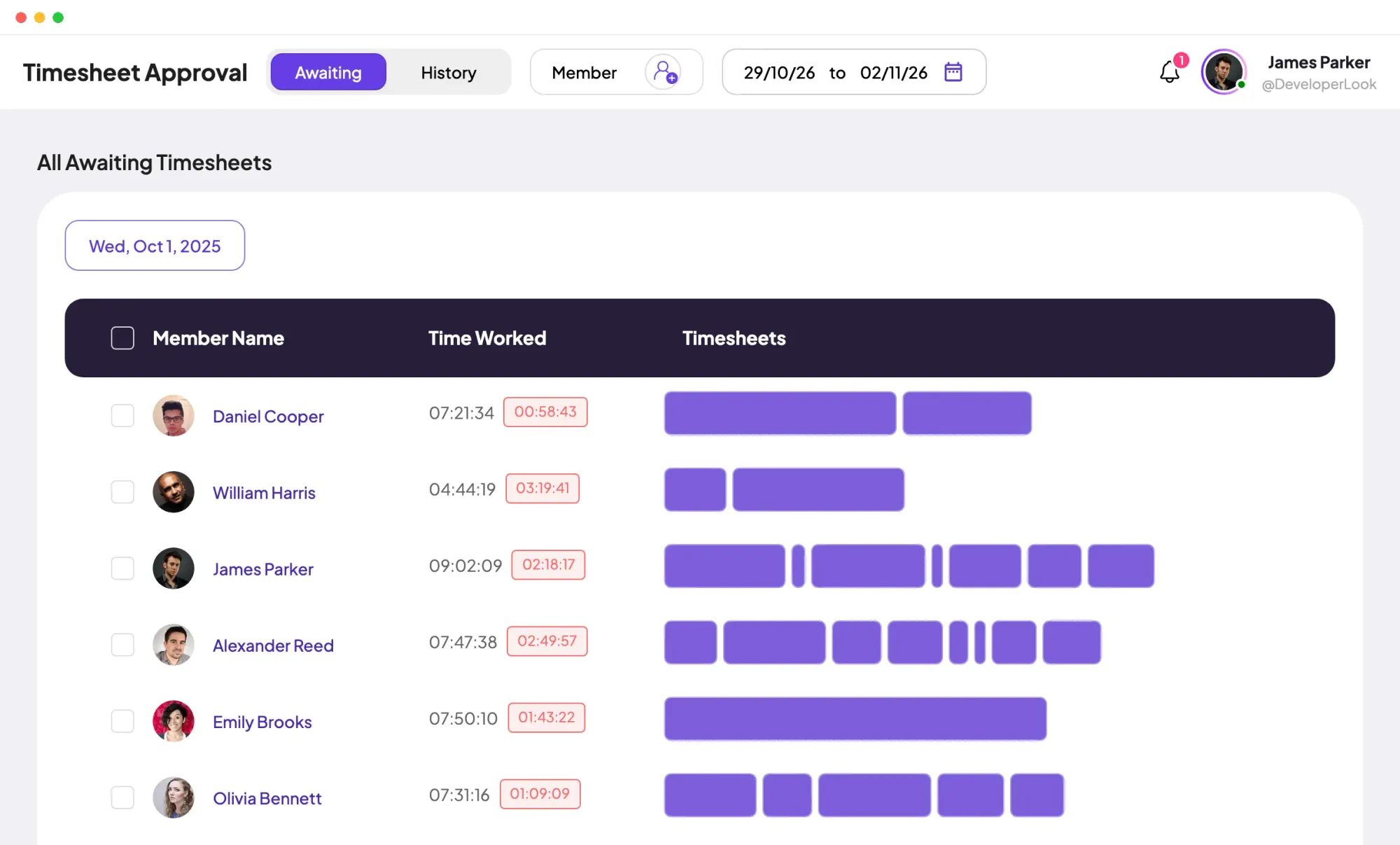
On Elite, Timesheet Approval collects tracked time by date under Awaiting. A manager approves or rejects each member's time, can reject part of a single session, and finds every decision under History.
A forgotten hour goes in as manual time, and a wrong session can be deleted. Both need a reason, and the Manual Time report lists each change with the member, project, task and time added or removed.
Showing Five views, one set of hours.
Control and privacy
Timesheets show only time tracked in the desktop app or added with a reason. Admins decide who sees the team's hours.
Set it up
Timesheets need no setup of their own: they fill as soon as members track time. These steps set the rules around them.
Create projects and tasks, then add members so their time lands in the right place on every timesheet.
Manage › ProjectsEach member installs the desktop app, signs in and starts the timer on a project and task.
Download StafficPick Daily, Weekly, Bi-Weekly, Monthly or Custom, then filter by project, task or member.
Timesheets › WeeklyOn the Timesheet Approval tab, select Turn On, then check the switch beside each member (Elite).
Read the timesheets guideSettings › Timesheet Settings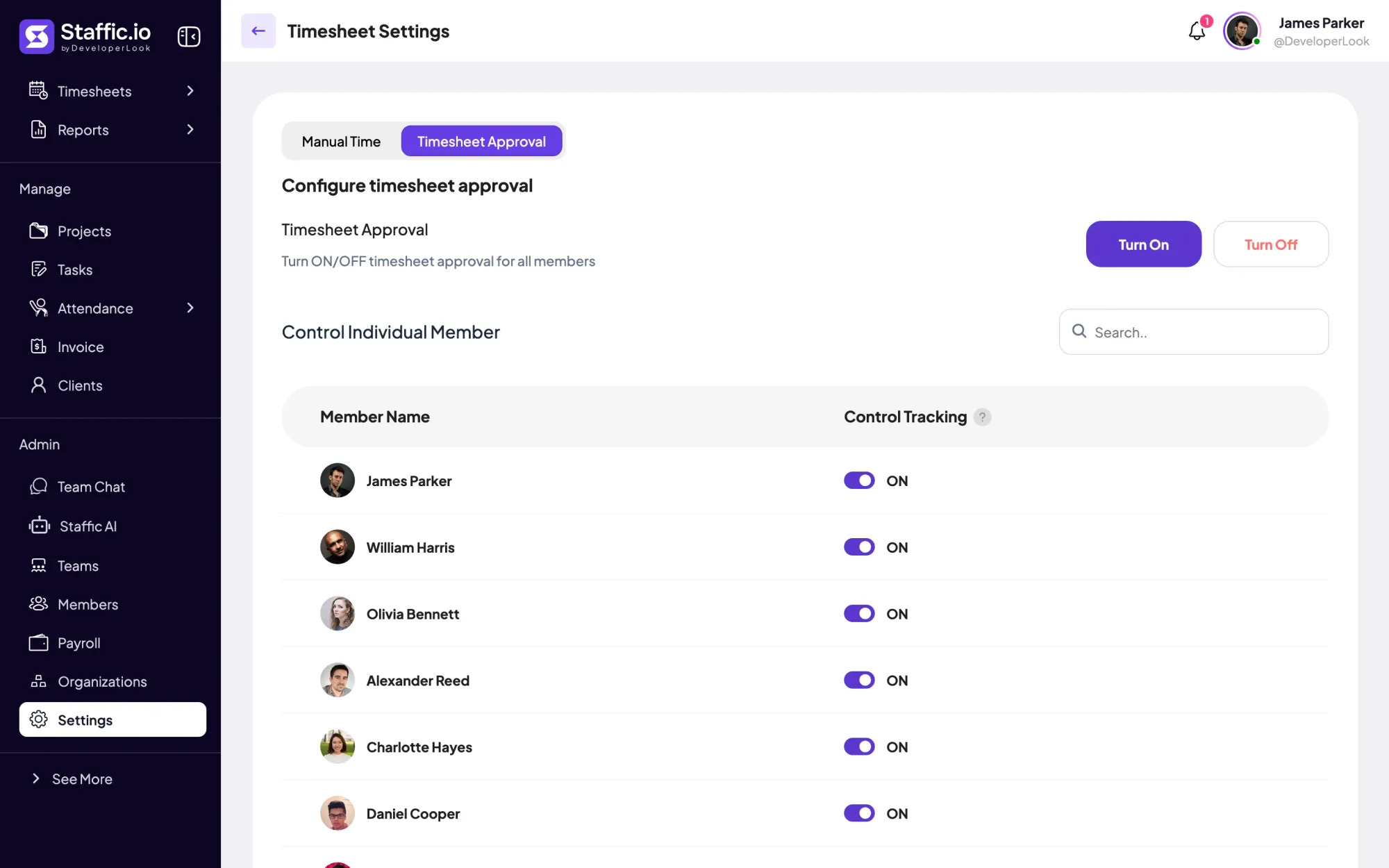
Compare
All five views read the same tracked sessions. They differ in the period they cover and the plan they need.
Swipe the table to compare
| Compare | Daily | Weekly and bi-weekly | Monthly | Custom |
|---|---|---|---|---|
| Period | One day | Last 7 or 14 days | A calendar month | Last 45 days, or any dates |
| Layout | Sessions with start and end times | Hours per member and day | A calendar per member | Hours per member and day |
| Plans | Every plan | Every plan | Standard and Elite | Standard and Elite |
| Earlier dates | Standard and Elite | Standard and Elite | Included | Included |
| Best for | Checking or fixing one day | Weekly review and pay periods | Month-end close | Client billing periods |
Every view reads the same tracked sessions, counted in the organization's or the member's time zone.
Specs and terms
The facts behind the feature, and what each number on the Timesheet Software page means.
Who it’s for
The same hours serve payroll, client billing and a manager's weekly check.
Staffic is timesheet software for small business teams that pay by the hour. It's free for up to 3 members, and on Elite payroll uses the time a manager approved.
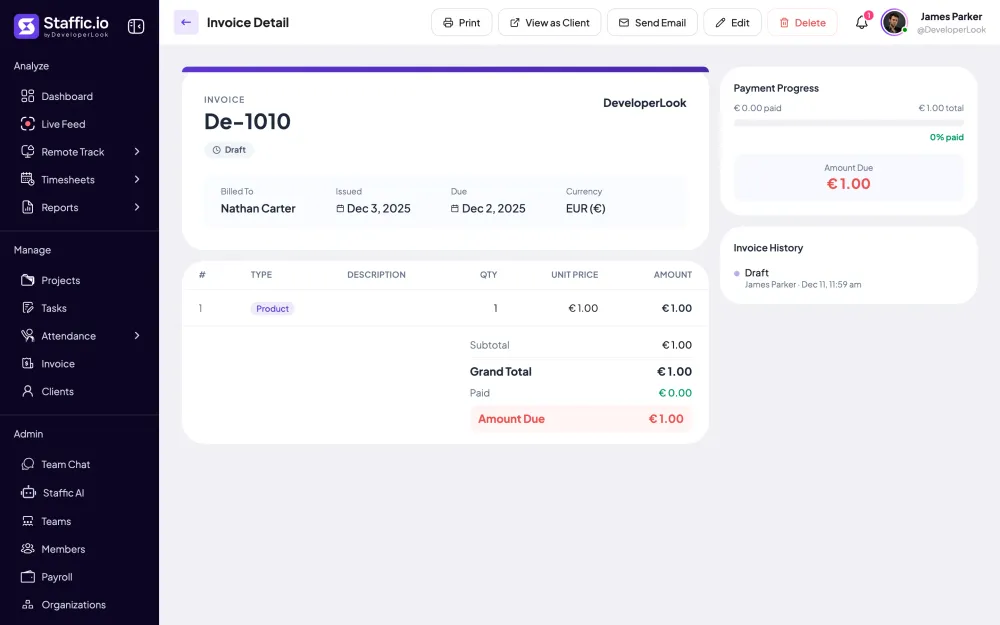
Filter the custom timesheet by project for the billing period. On Elite, the same tracked hours fill the project's line on the client's invoice.
Read the last 7 days per member on the weekly timesheet, then open one day to see the sessions behind a number.
Customer stories
Stop juggling tools. Staffic gives your team time tracking, projects, payroll and performance analytics in one platform.
Try Staffic for free“Staffic.io brings transparency without micromanagement. Our team feels trusted, and productivity has never been higher.”
Pricing
Timesheet Software is included on every plan, Free included. You pay per active user only when your team grows past 3 members.
Compare every planPrices in USD per active user. Billed monthly, Standard is $7.50 and Elite is $9.80 per user.
FAQ
Answers about timesheets and timesheet software in Staffic.
Read the docsA timesheet is a record of the hours a person worked, usually broken down by day, project and task. Teams use timesheets to pay hourly staff, bill clients and see where time goes. Staffic keeps automated timesheets: the desktop app records each session, so the timesheet fills in without anyone typing hours.
Subtract the start time from the end time of each work period, then add the periods together for the day or week. Staffic does this for you: each tracked session has a start time, end time and total, and the timesheets add them up per member, day and period. Idle time stays in the total and appears separately as Neutral Time on Standard and Elite.
Write each start and end time in 24-hour format, subtract start from end, take off unpaid breaks, then turn the minutes into decimals by dividing by 60. For example, 08:30 to 17:15 with a 45-minute break is exactly 8 hours. With a timesheet app that tracks time, you only check the math instead of doing it.
Read it row by row: each row is a day, with the time the person started, the time they stopped, any break and the hours worked. The total at the bottom is the sum of those days. Staffic's Clock In/Out page reads the same way, using each day's first and last tracked session as the clock-in and clock-out, on Standard and Elite.
Add the hours for each day, add the minutes separately, then turn every 60 minutes into an hour. If payroll needs decimal hours, convert the leftover minutes too (15 minutes is 0.25 hours). Staffic's weekly and bi-weekly timesheets show this total beside each member's name, so timesheet management doesn't need a calculator.
They can be approved on the Elite plan, but Staffic has no separate lock step. A manager approves or rejects each member's time on Timesheet Approval, and when approval is on, Payroll pays only the approved time. Rejected time stays out of pay, and every decision is listed under History.
Partly. Members can't change the start or end of a tracked session. They can delete their own sessions with a reason, and on Standard and Elite they can add manual time with a reason when an admin allows it. Each change appears in the Manual Time report, so admins see what changed and why.
Every plan includes Timesheet Software. Free covers up to 3 members. Standard is $5.50 per user per month billed yearly ($1.00 during the current offer, until September 12, 2027) or $7.50 billed monthly, and Elite is $5.80 per user per month billed yearly or $9.80 billed monthly.
Explore more
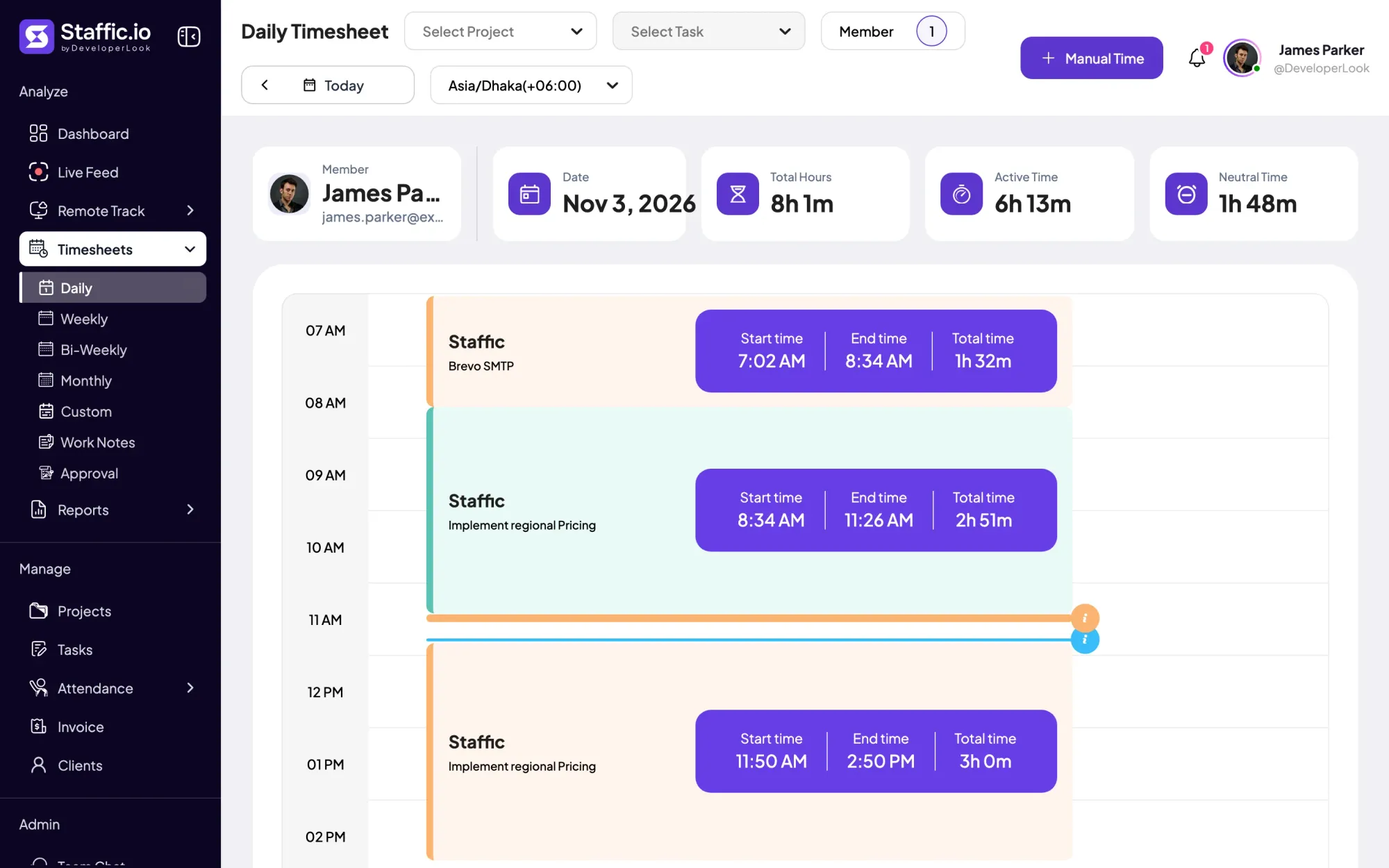

Staffic's daily timesheet shows one member's tracked sessions for a day on a timeline, with project, task, start and end times and the day's total.

Staffic's weekly timesheet shows 7 days of tracked hours per member, one day per column, with Total Hours beside each name.
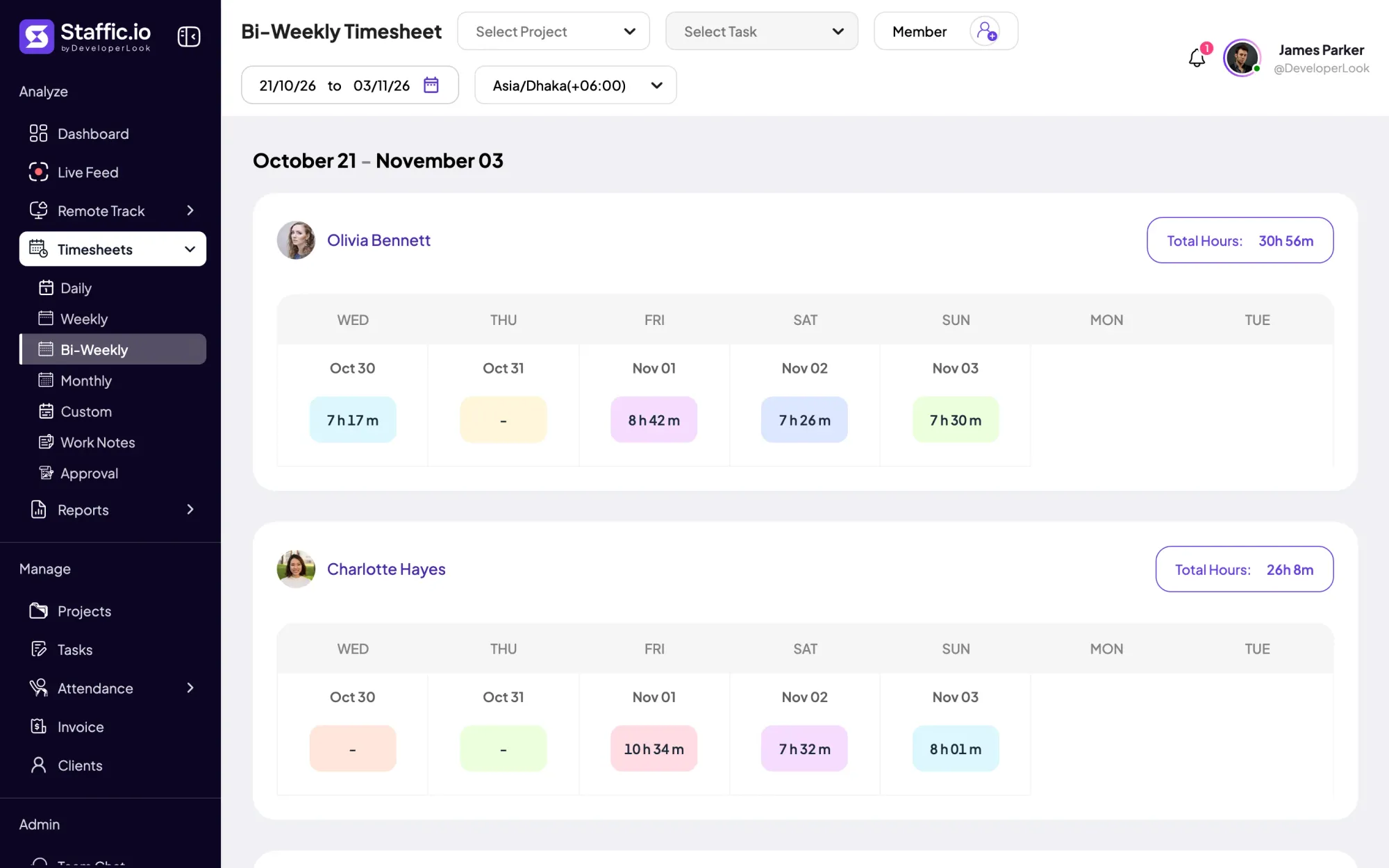
Staffic's bi-weekly timesheet shows 14 days of tracked hours per member, week above week, with Total Hours for the pay period.
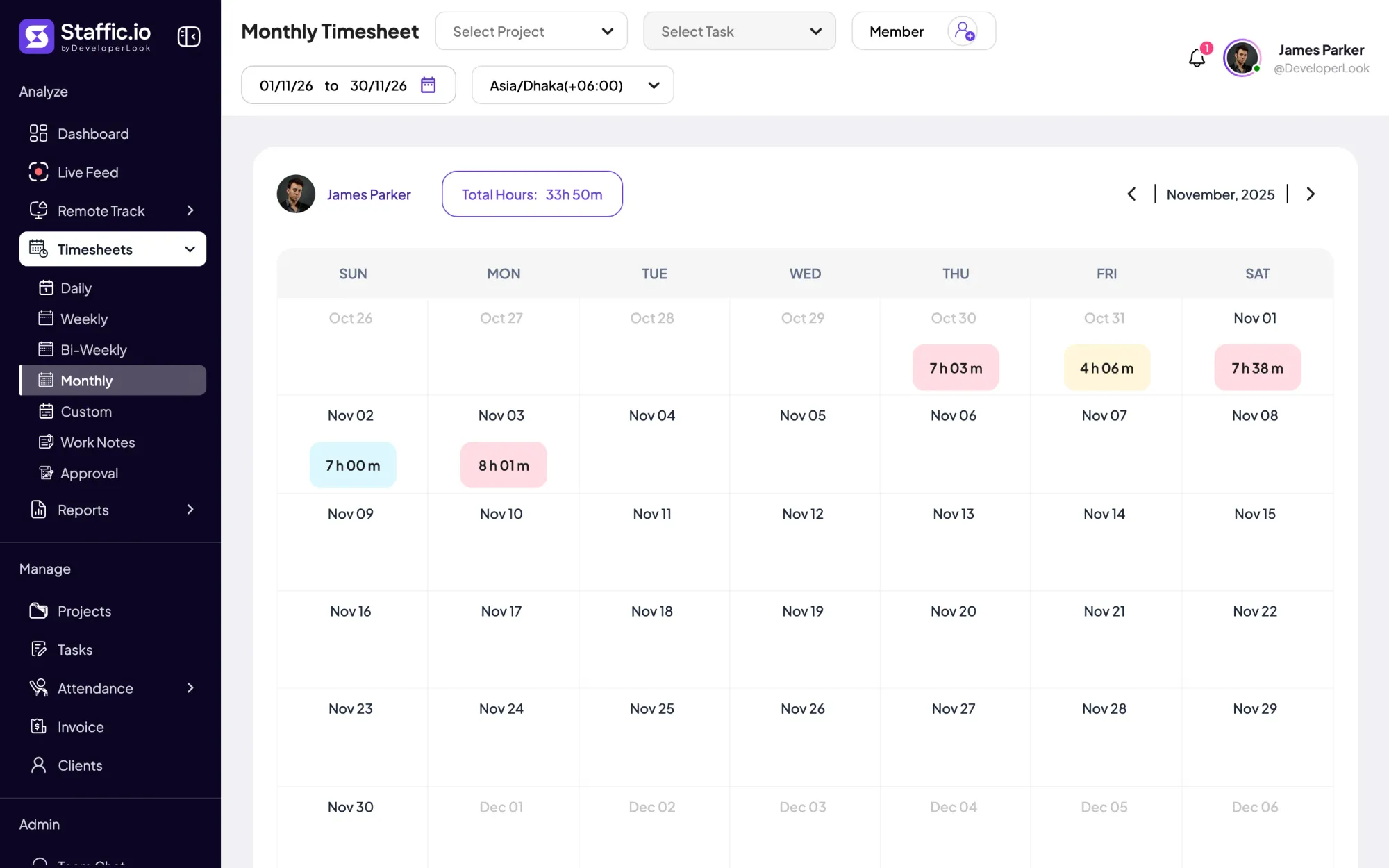

One calendar per member with the hours tracked on each day of the month and Total Hours for the month. On Standard and Elite.
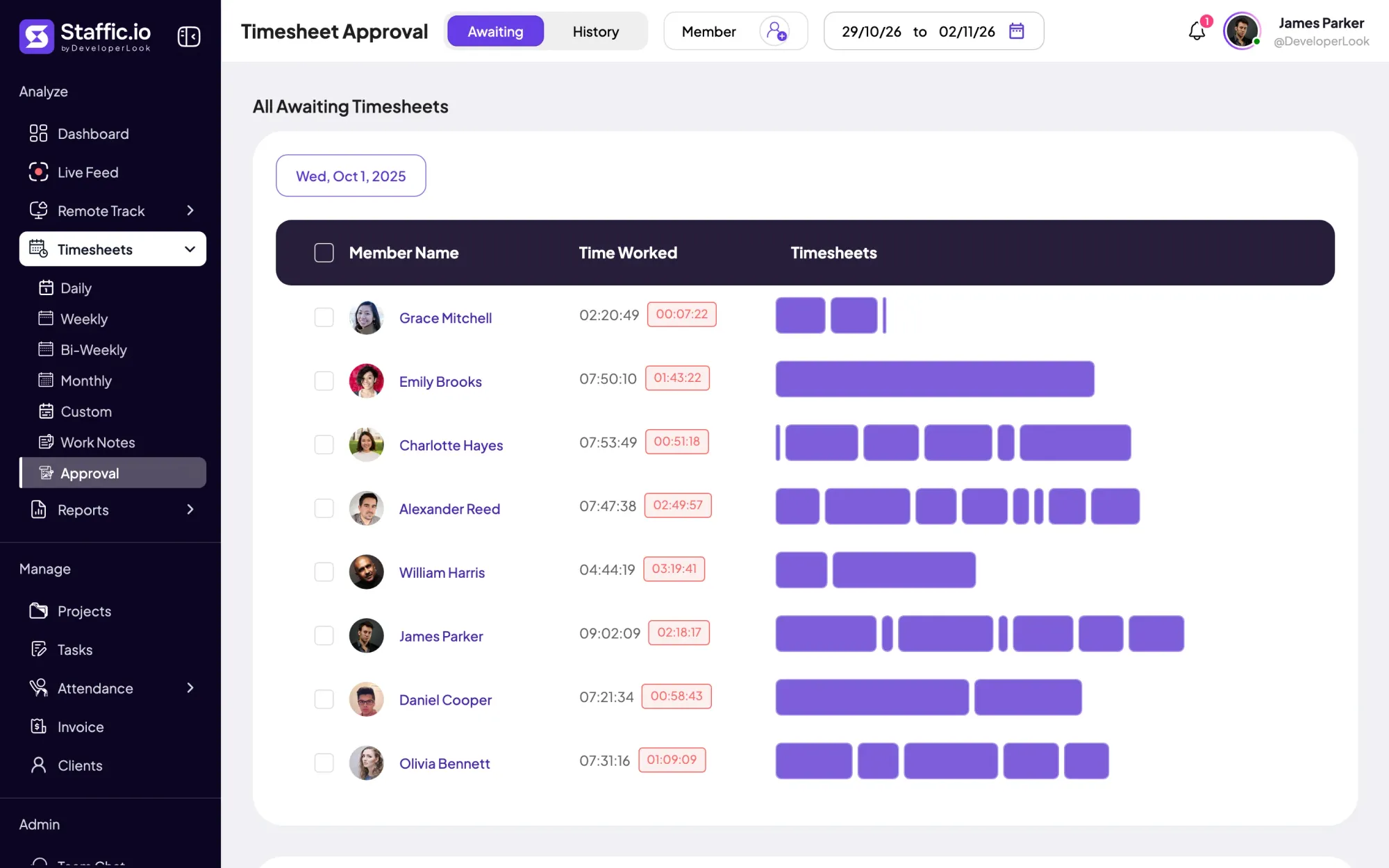

Approve or reject each member's tracked and manual time day by day, so hourly payroll pays only the hours you signed off.
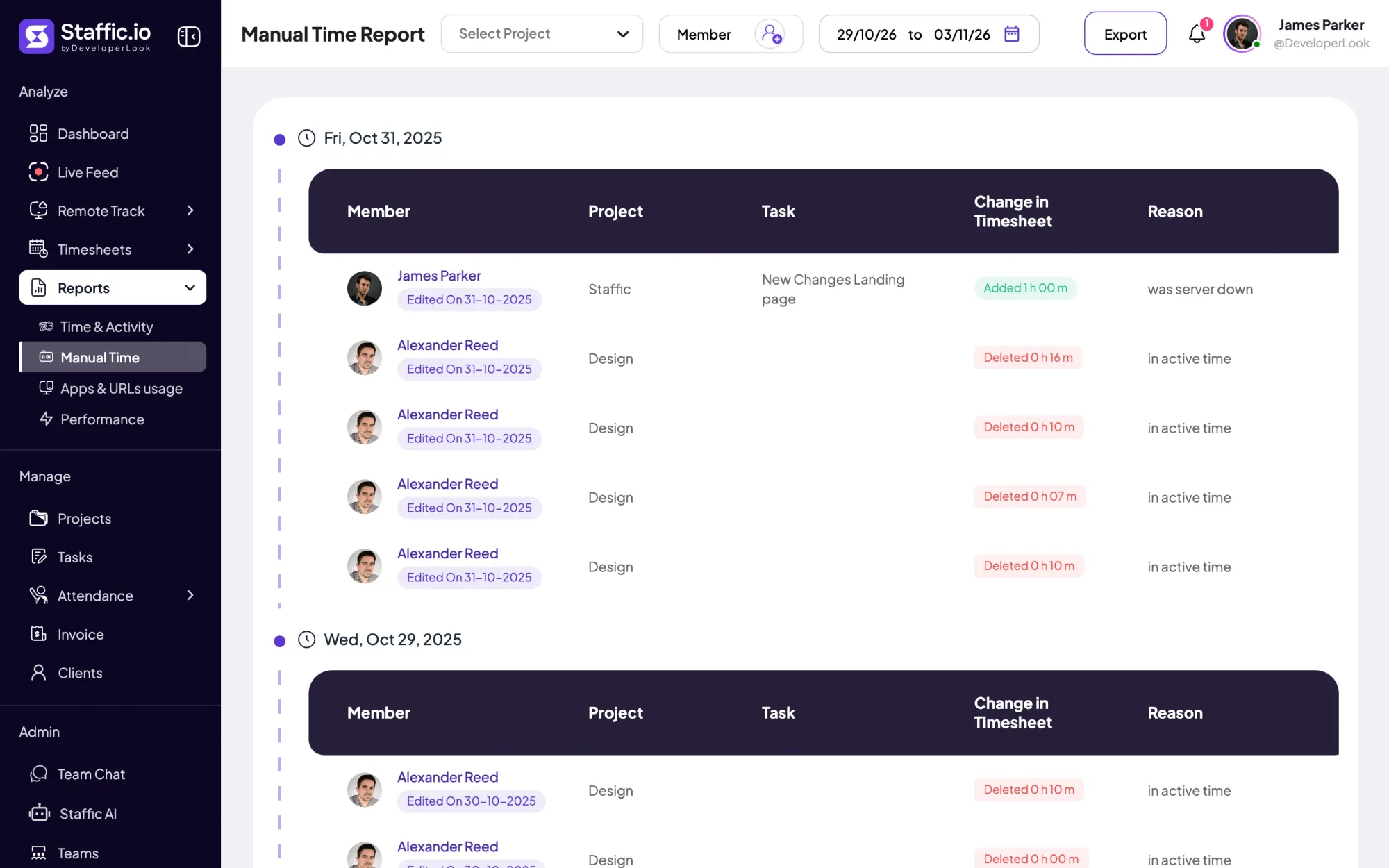
Staffic keeps a record of hours you can pay from: tracked sessions, every manual change with its reason, approvals and payroll on Elite.
Free for up to 3 members
Create your workspace, invite your team, and the first timesheet builds itself.