Remote teams
Hours across time zones
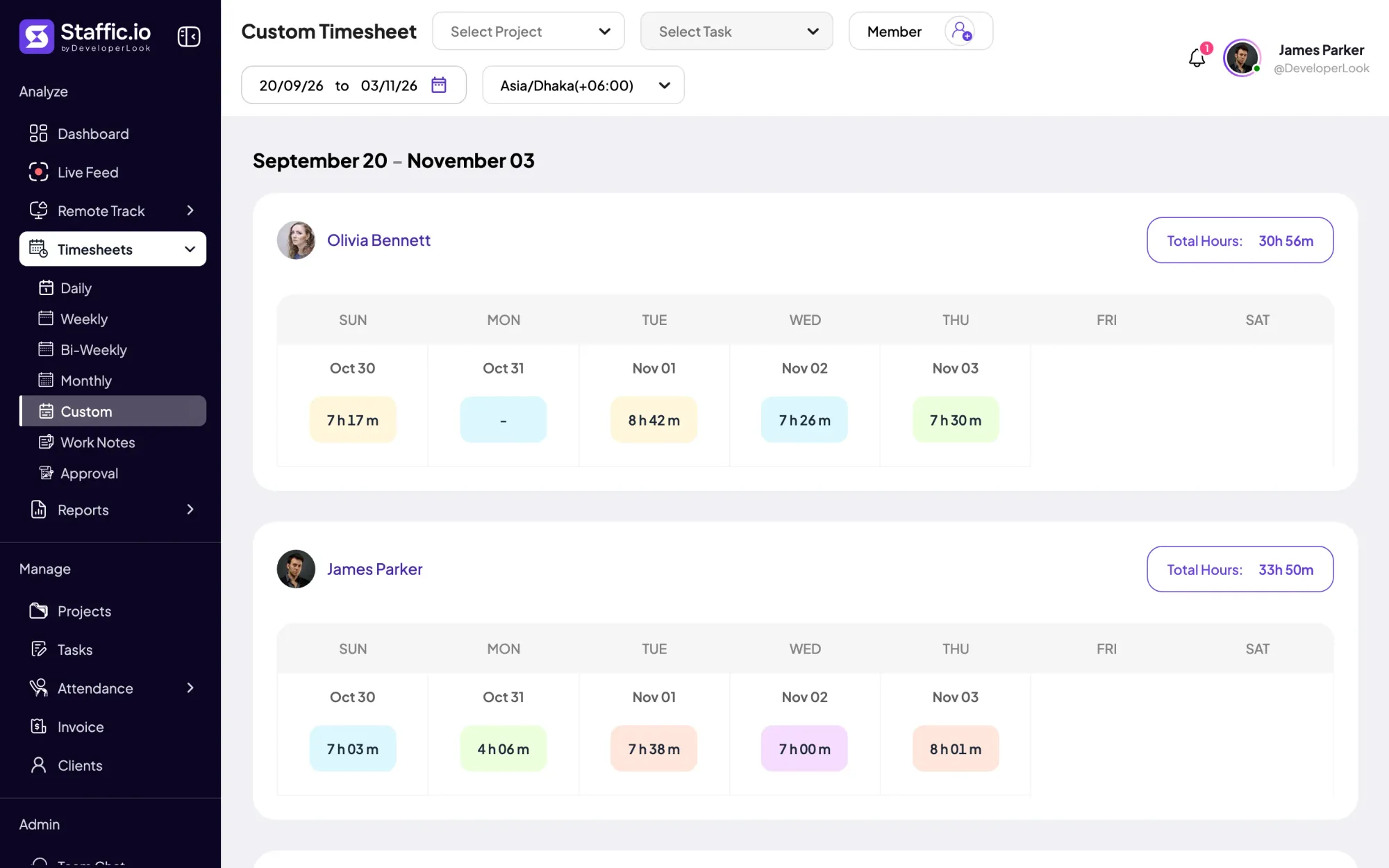
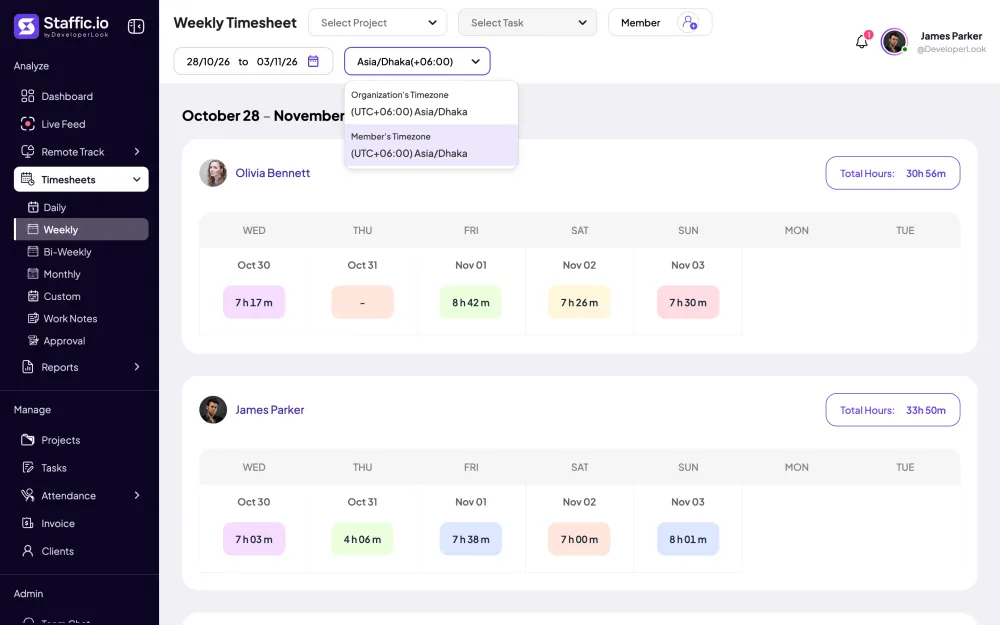
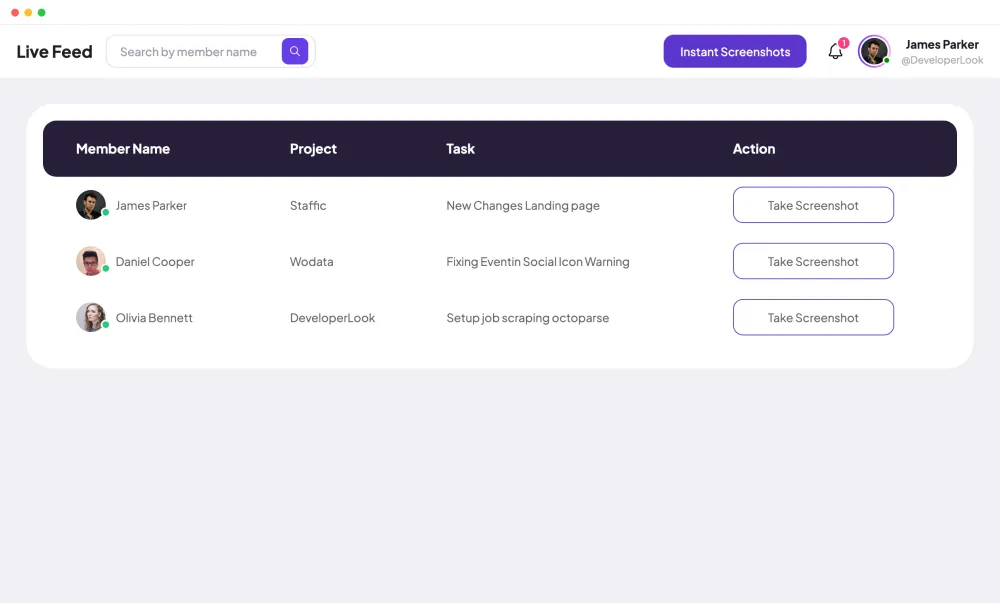
Members track wherever they work, and timesheets switch between your organization's time zone and each member's. On Elite, Live Feed shows who is tracking right now.

Features
All 33 featuresSee the work while it happens.
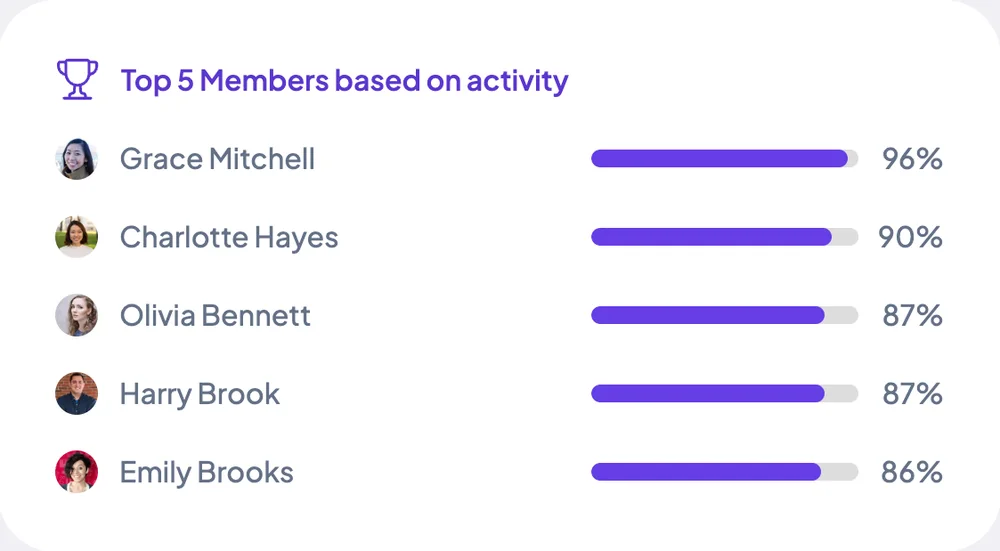
 DashboardYour team's week at a glance, Monday to Sunday
 Live FeedEliteSee who's tracking time right now, and on what
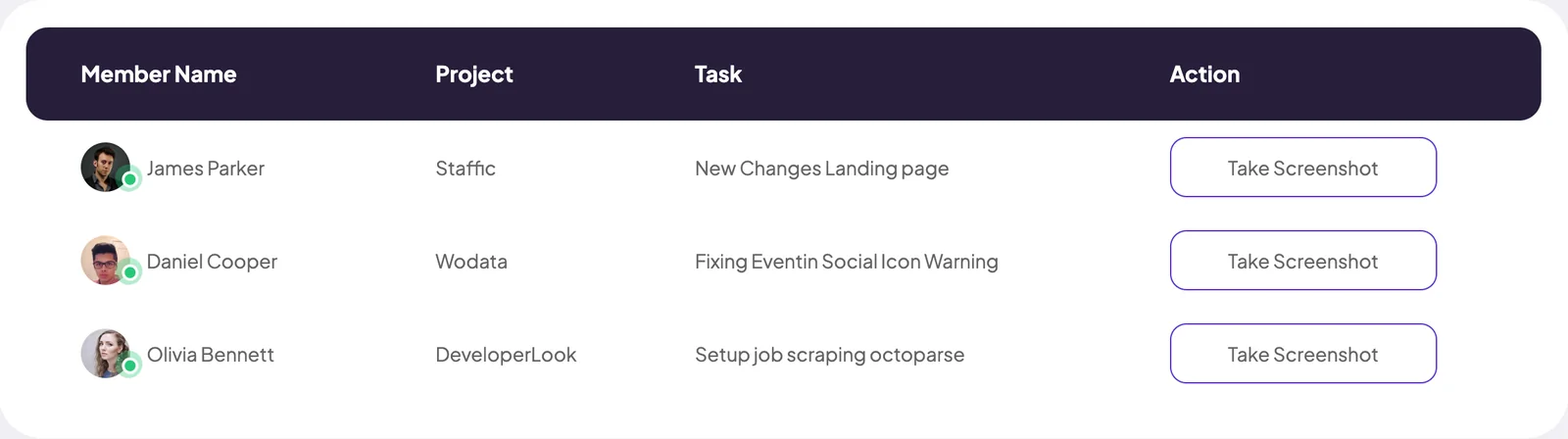
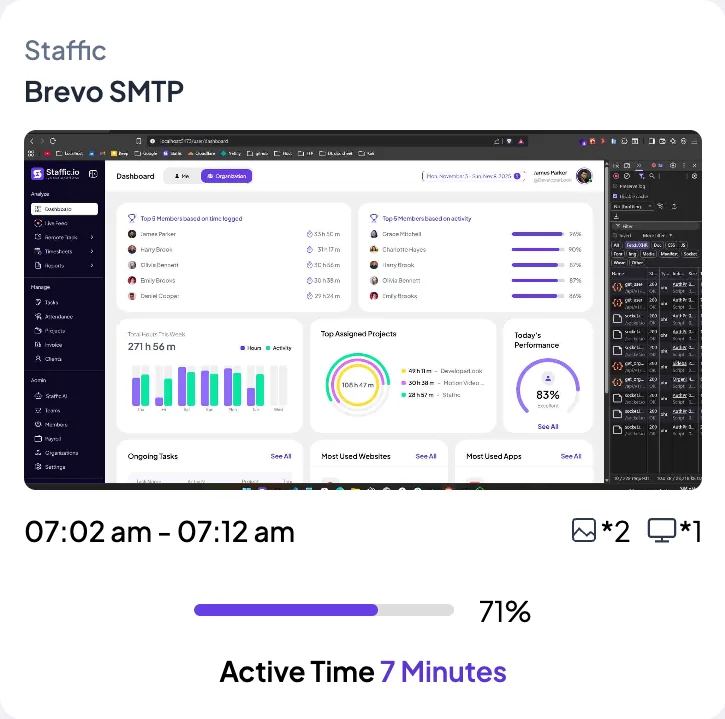
 ScreenshotsStandardVisual proof of work, captured automatically
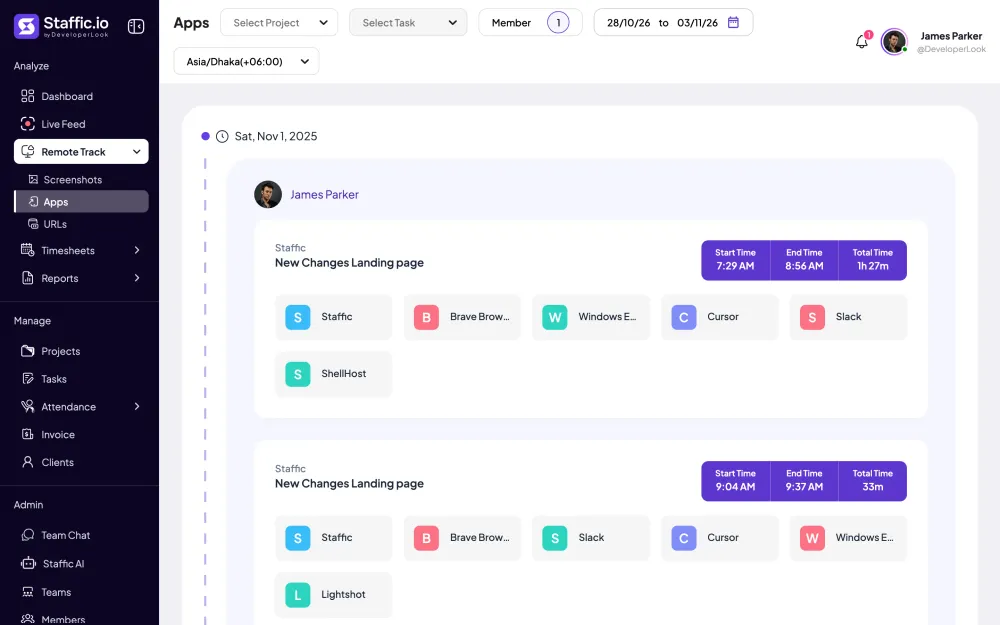
 AppsWhich apps each tracked session used
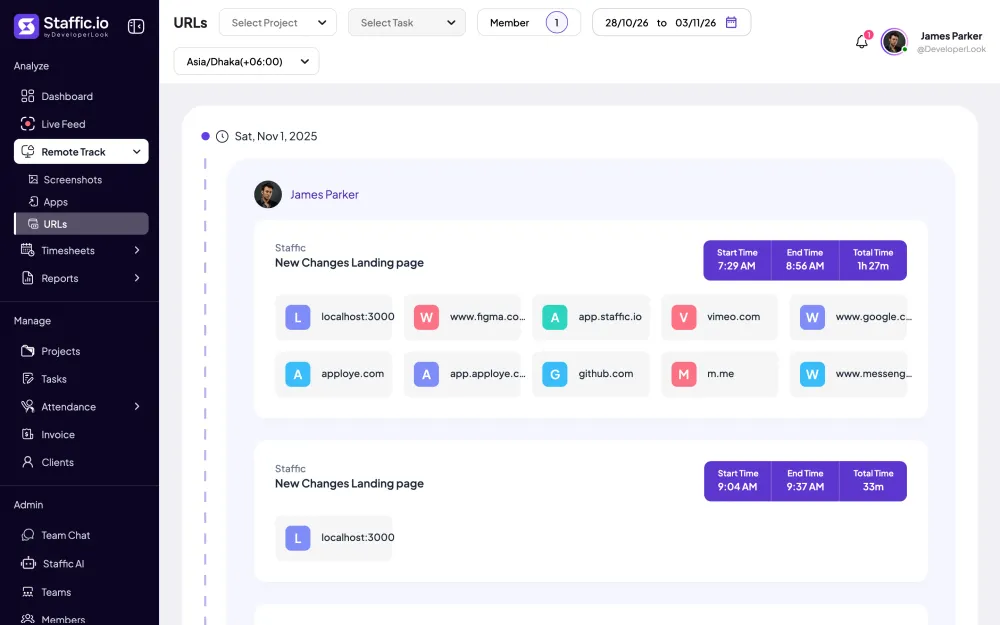
 URLsThe websites behind the tracked time
 Screen RecordingsEliteFull session video, beyond a screenshot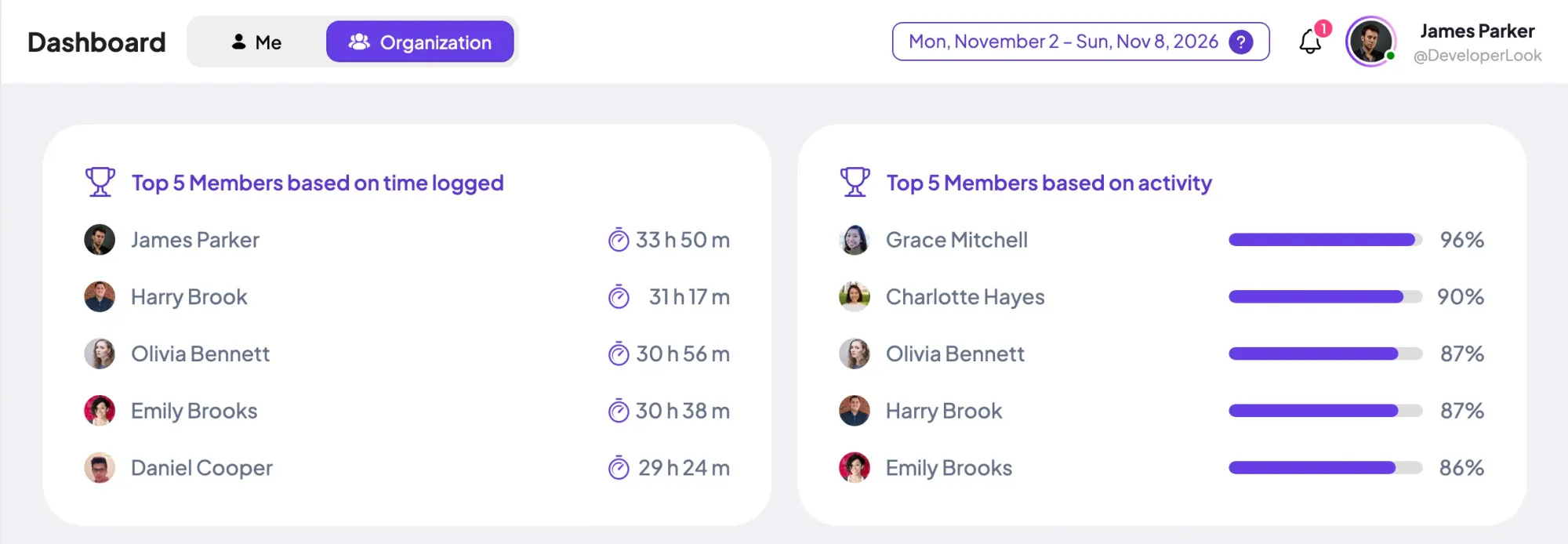
01 / 33
Dashboard
The team dashboard: this week's hours, today's performance, top members, ongoing tasks, top projects and the most used apps and websites.
View DashboardCloud Time Tracking
Staffic tracks time in desktop apps for Windows, macOS and Linux and keeps every session in the cloud. You open timesheets, reports and screenshots from any browser, wherever you and your team are. It's free for up to 3 members.
In short
Staffic Cloud Time Tracking is cloud based time tracking software: members track time in desktop apps for Windows, macOS and Linux, and every session syncs to the web app at app.staffic.io. Admins and members open the same timesheets, reports and screenshots from any browser. If a computer loses its connection, the app keeps tracking and uploads when it reconnects.
How it works
The desktop app records the work, and the web app is where everyone reads it.
Cloud based time tracking software
Your team tracks in the desktop app on Windows, macOS or Linux. Each session uploads to Staffic's cloud, and you open the same timesheets, reports and screenshots in a browser wherever you are.
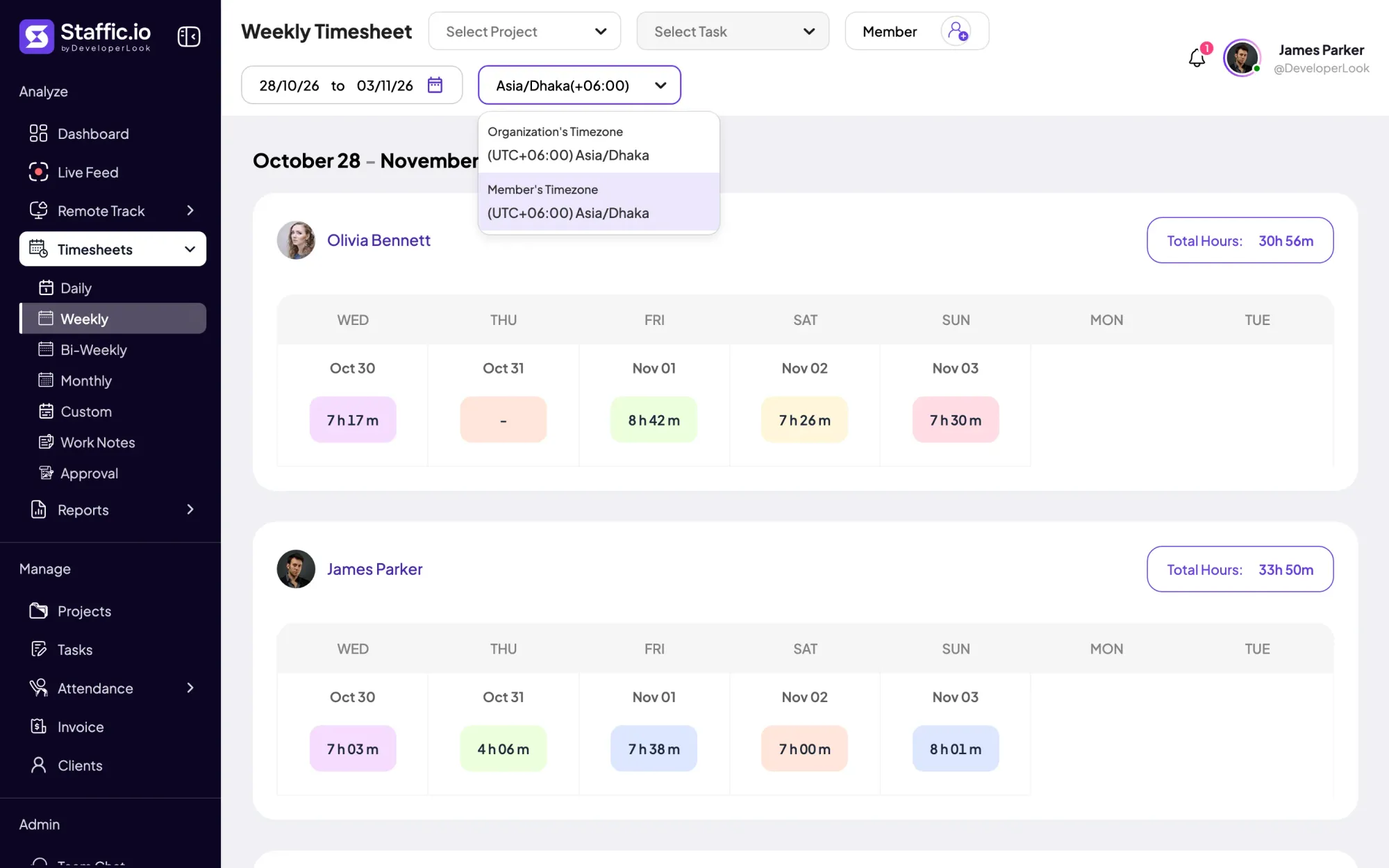
There's no server for you to run and no file to pass around. A session tracked on a Mac shows on the weekly timesheet in your time zone or the member's, next to sessions from Windows and Linux.
Members install Staffic on Windows 10 or later, macOS 12 or later, or Debian-based Linux. Each session uploads with its project, task, activity level, apps and URLs. Without a connection the app keeps tracking and uploads once it's back online.
Sign in at app.staffic.io to read daily, weekly and bi-weekly timesheets on every plan, and monthly or custom ranges on Standard and Elite. It's cloud based timesheet software, so people who only review hours install nothing.
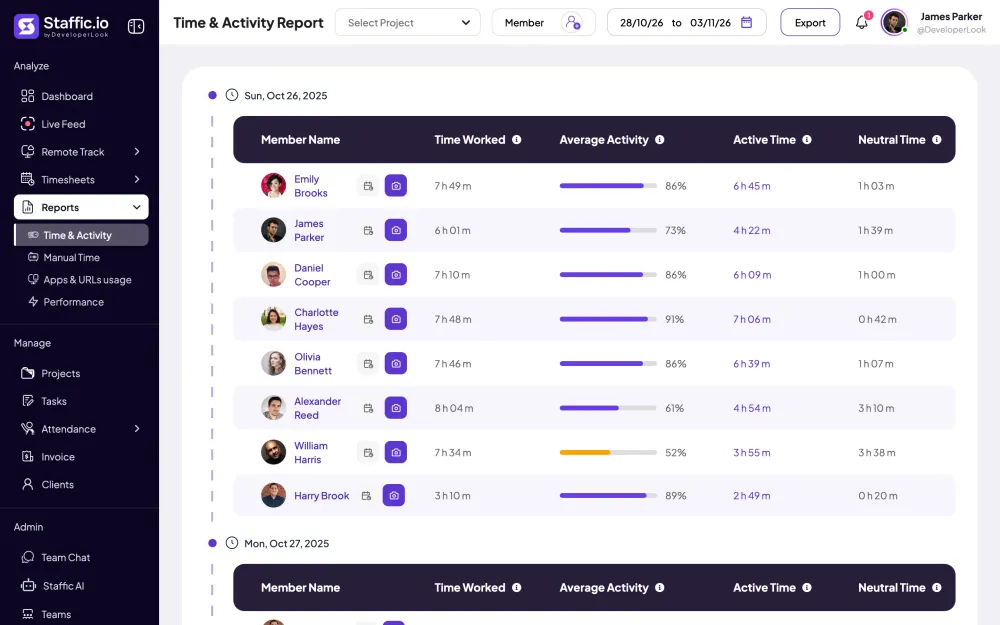
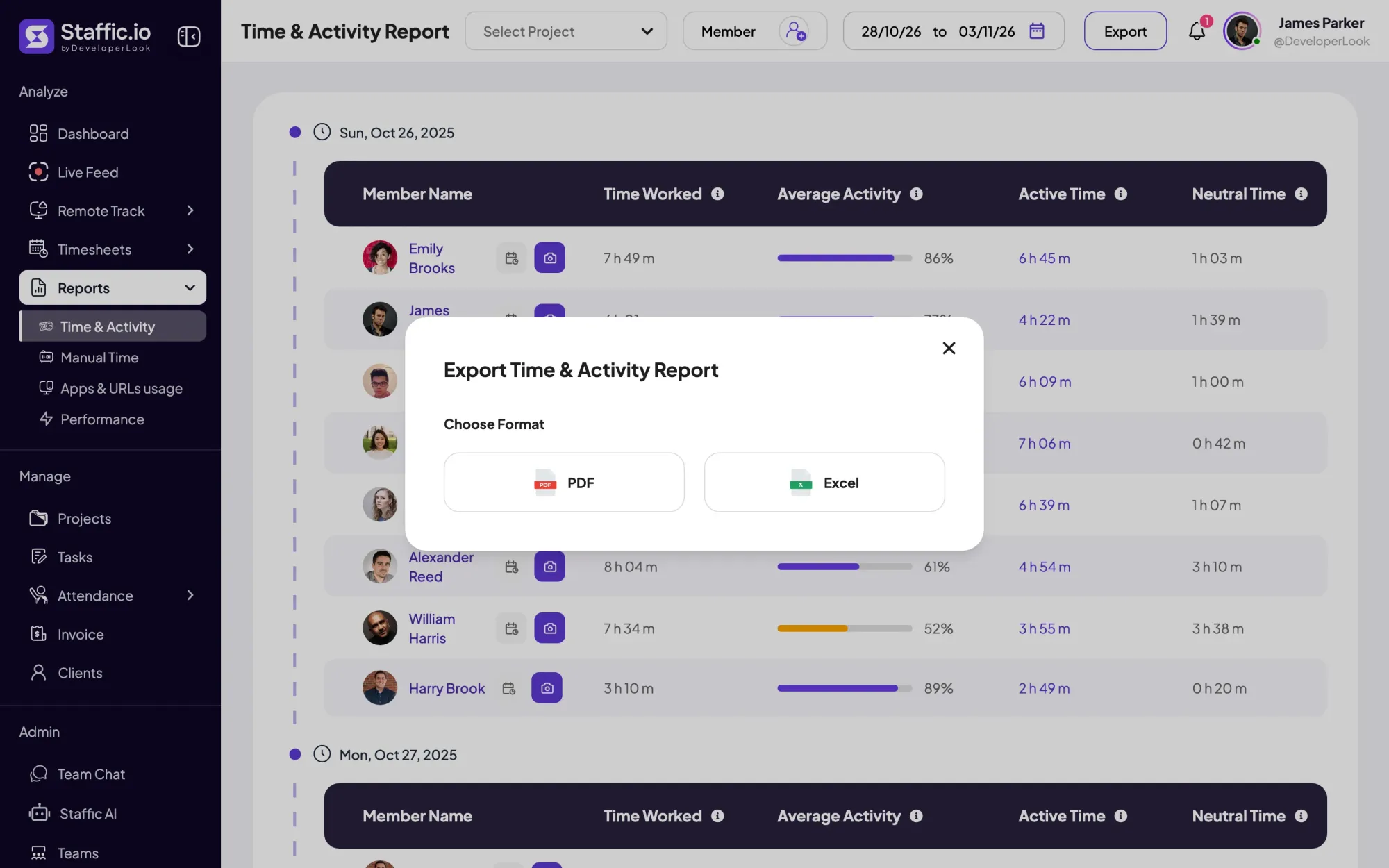
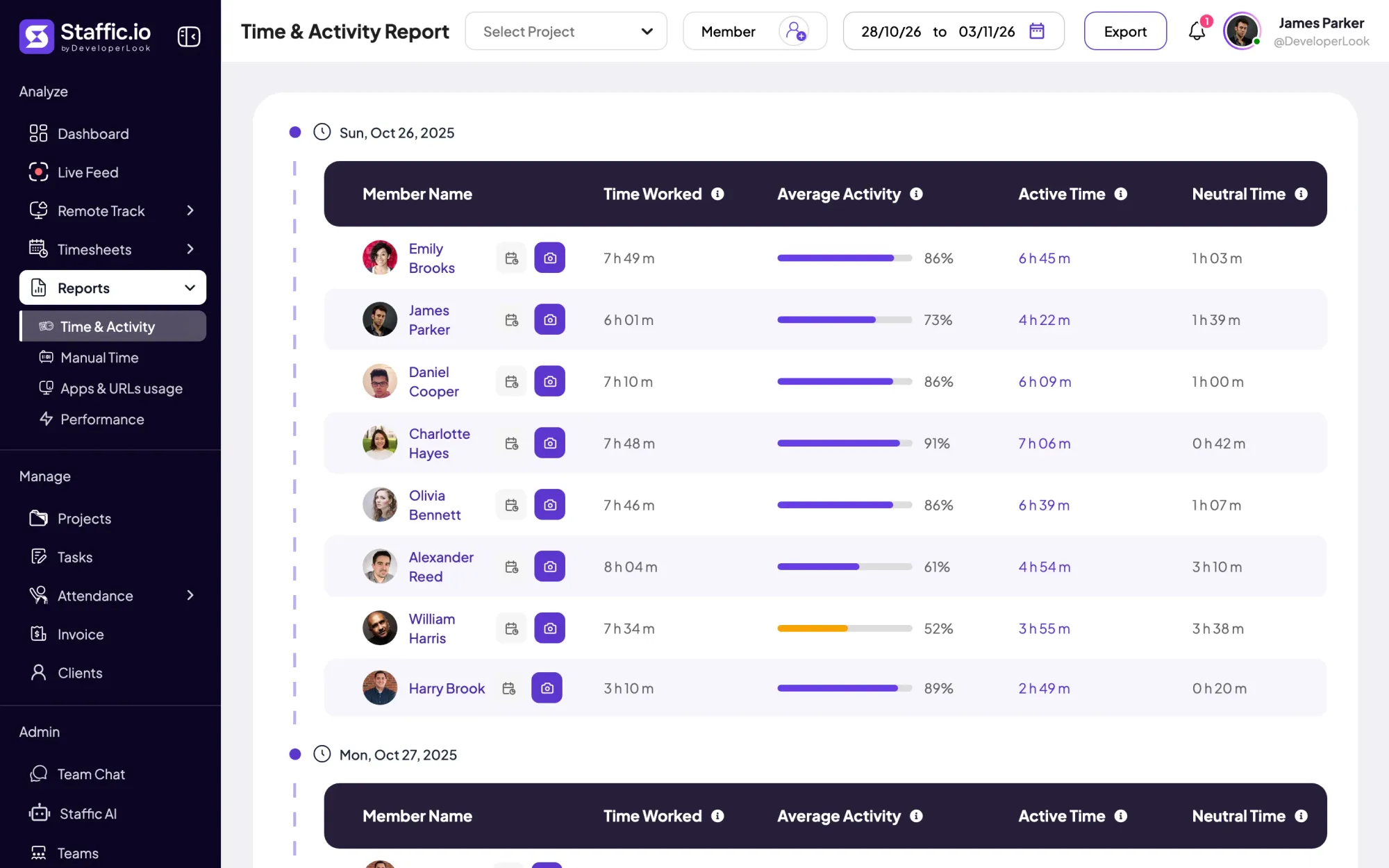
The Time & Activity report lists each member's time worked, average activity, active time and neutral time for every day in your range. Export it to PDF or Excel from the browser on Standard and Elite.
On Standard and Elite, screenshots taken during tracked time upload with their session, so you see the same capture at the office or at home. This cloud based employee monitoring keeps each capture for 365 days, then deletes it.
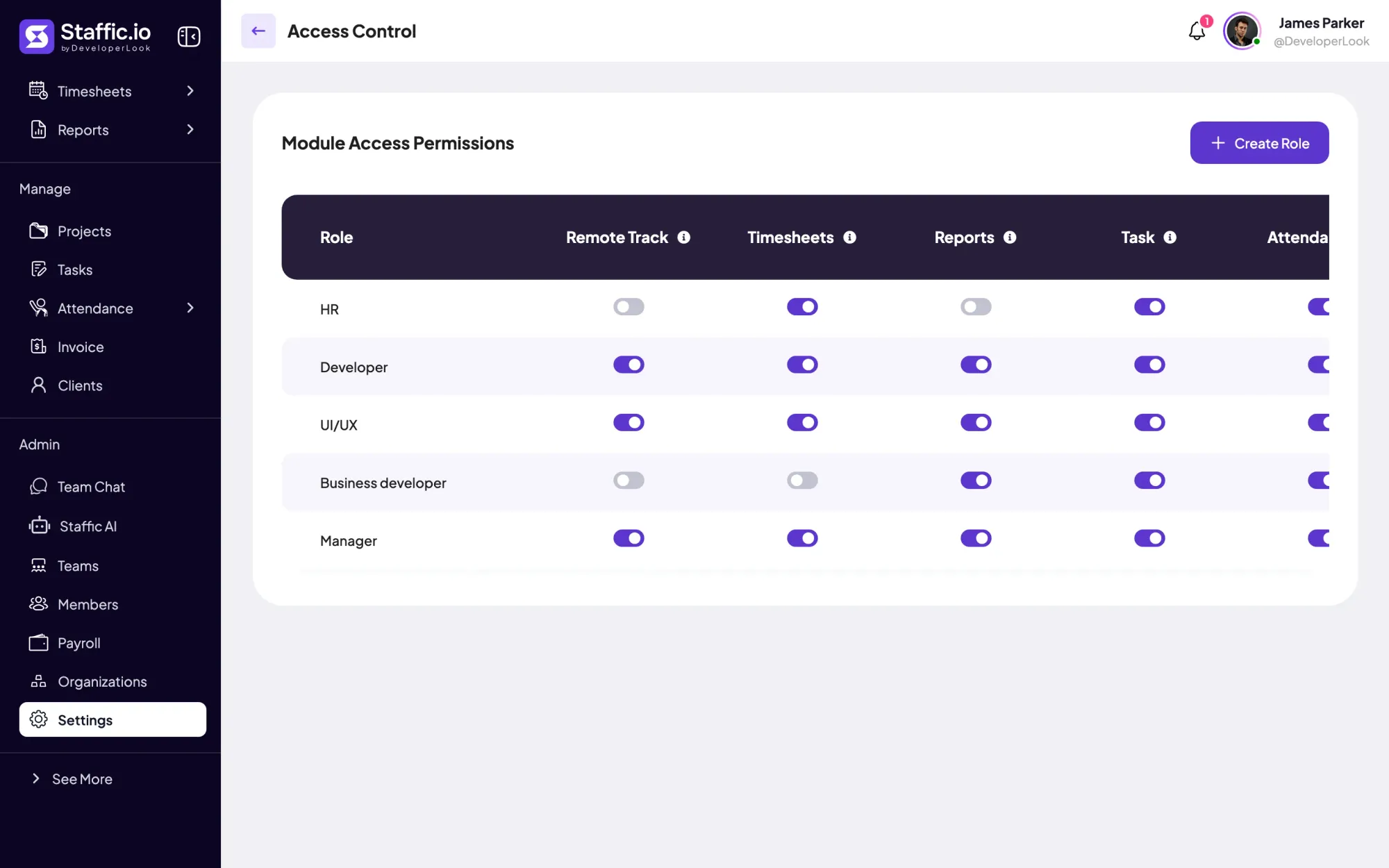
In Access Control you create roles and switch modules on or off for each one, such as Remote Track, Timesheets, Reports, Tasks and Attendance. Each member then opens only the parts of the web app their role allows.
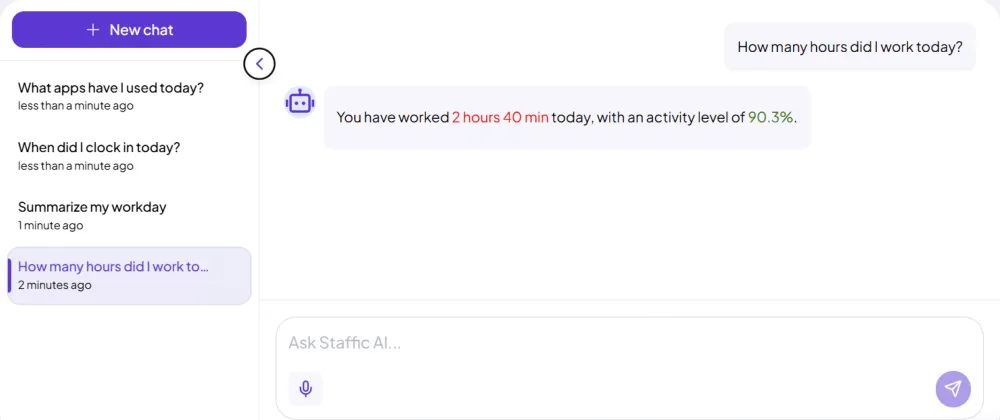
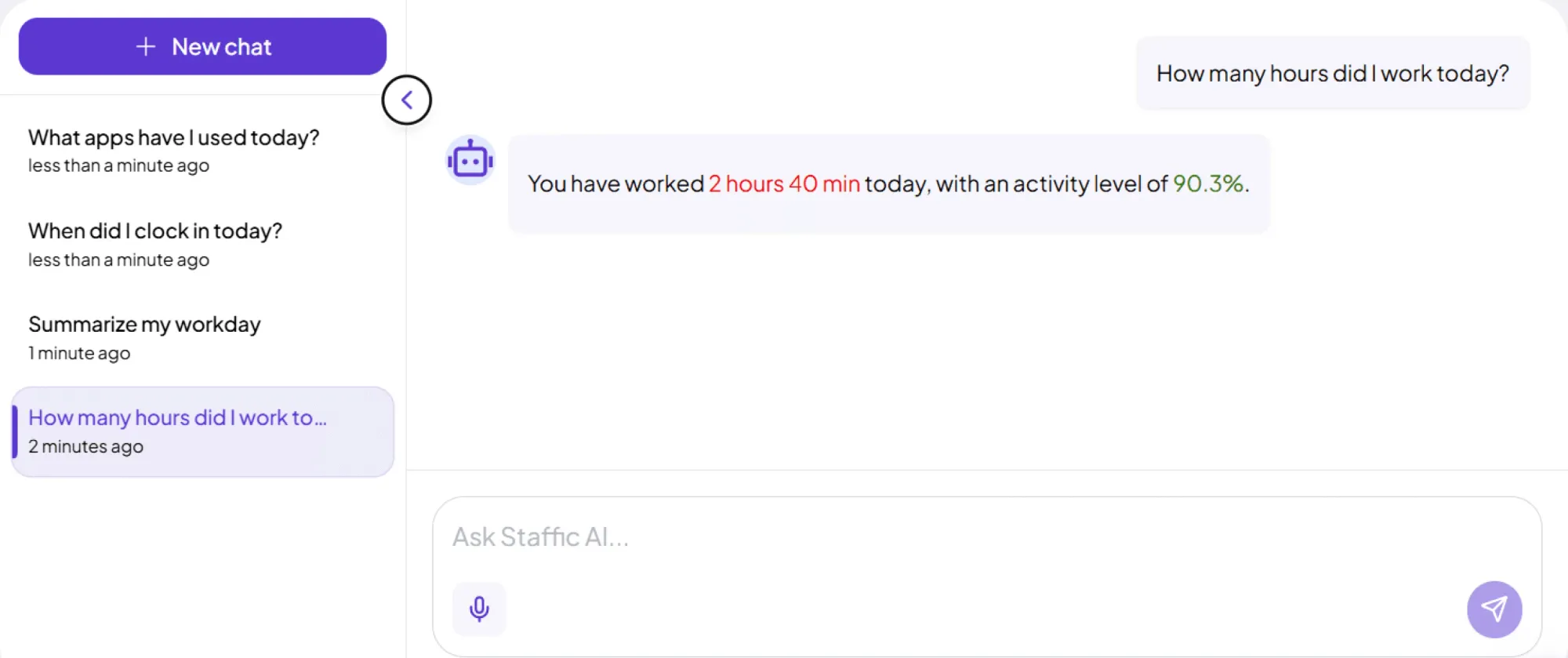
The MCP server lets Claude, Cursor and other MCP clients read your Staffic data with a key an admin creates, on every plan. On Elite, Staffic AI answers questions such as how many hours you worked today, inside the web app.
Showing One record, wherever you open it.
Control and privacy
Your data sits in one place, and you decide what is recorded and who can open it.
Set it up
Five steps, all from a browser except the desktop install.
Create your organization and set its time zone. The Free plan covers up to 3 members.
Start freeSend email invites and add each person to their projects.
Admin › Members › Invite MemberWindows 10 or later, macOS 12 or later, or Debian-based Linux.
Download StafficSwitch screenshots, app and URL tracking, and keyboard and mouse activity on or off.
Settings › ActivityCreate roles, switch modules on or off for each, and assign a role on each member's details.
Settings › Access Control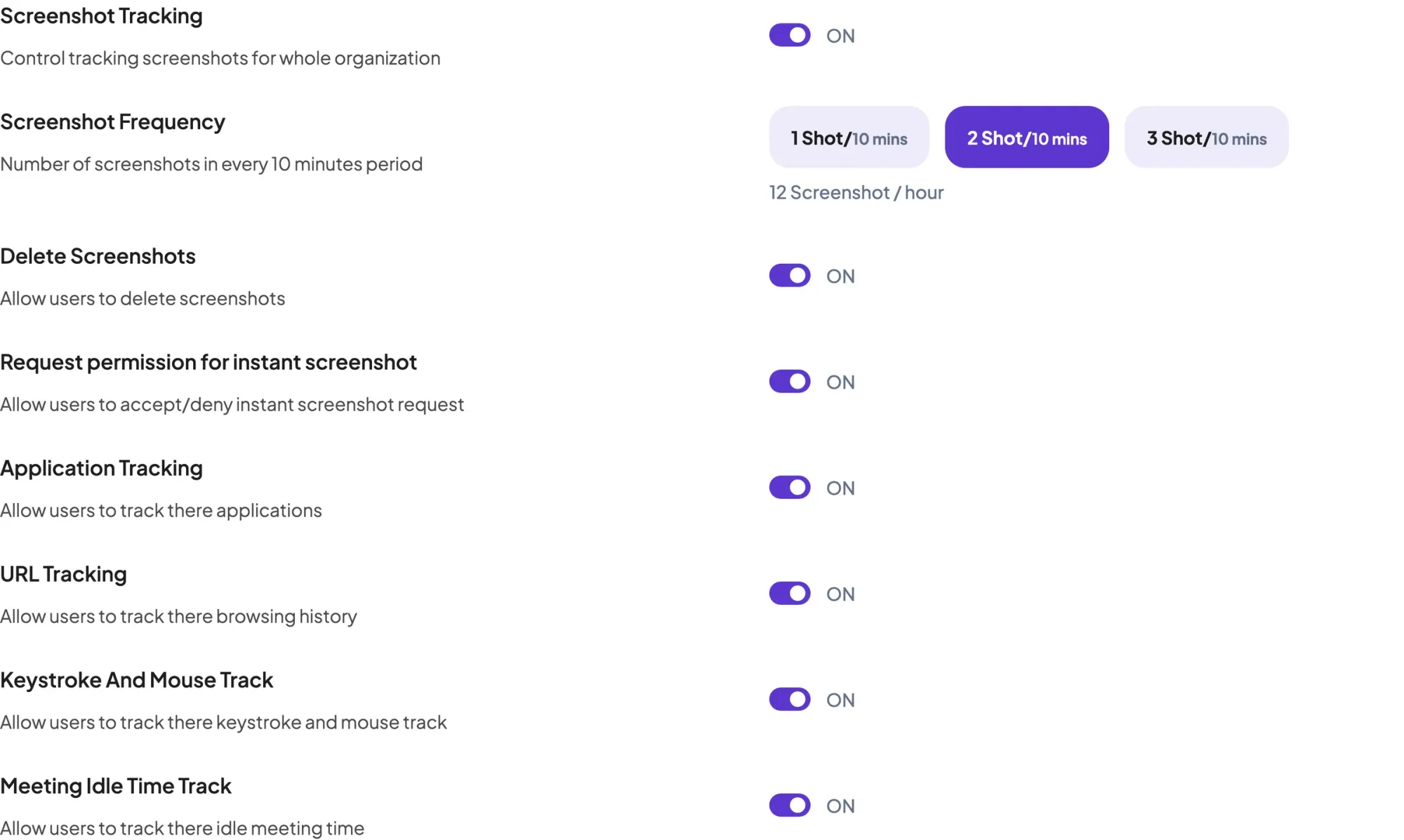
Compare
Staffic splits the work in two: the desktop app records time, and the web app in the cloud is where you read and manage it.
Swipe the table to compare
| Compare | Desktop app | Web app |
|---|---|---|
| Start and stop the timer | Yes | No |
| Project and task | Pick one, or add a task | Set up projects and tasks |
| Work notes | Add a note while tracking | Read every note in Work Notes |
| Activity, apps and URLs | Recorded while the timer runs | Shown per session |
| Screenshots | Taken on Standard and Elite | Shown for 365 days |
| Without a connection | Keeps tracking, uploads on reconnect | Needs a connection |
| Timesheets and reports | Fed by every session | Daily to custom, by plan |
| Runs on | Windows, macOS and Debian-based Linux | A web browser |
From Staffic's docs, download page and app, checked October 12, 2026.
Specs and terms
The facts behind the feature, and what each number on the Cloud Time Tracking page means.
Who it’s for
When people work from different places and computers, one online record saves the back and forth.
Members track wherever they work, and timesheets switch between your organization's time zone and each member's. On Elite, Live Feed shows who is tracking right now.
Sessions from Windows, macOS and Linux arrive in the same form, with apps and URLs on every plan, so reports don't depend on which computer a member uses.
Connect Claude, Cursor or another MCP client to Staffic with a key you create, then ask it about timesheets and attendance. The MCP server works on every plan, including Free.
Customer stories
Stop juggling tools. Staffic gives your team time tracking, projects, payroll and performance analytics in one platform.
Try Staffic for free“Staffic.io brings transparency without micromanagement. Our team feels trusted, and productivity has never been higher.”
Pricing
Cloud Time Tracking is included on every plan, Free included. You pay per active user only when your team grows past 3 members.
Compare every planPrices in USD per active user. Billed monthly, Standard is $7.50 and Elite is $9.80 per user.
Time tracking software records how long people work and on what, then turns those records into timesheets and reports. Cloud based time tracking software keeps the records online, so hours tracked on one computer show up in a browser anywhere. In Staffic, the desktop apps track the time and the web app at app.staffic.io shows it.
A time tracker is the timer part: the app that records start and stop times while someone works. Staffic's time tracker is the desktop app for Windows, macOS and Linux, which also records activity levels, apps and URLs while it runs. The web app has no timer; it's where you read and manage the time.
The best one is the tool your team will run every day that records what you need at a price that fits. Compare where it tracks, whether it keeps working offline, what it records besides time, and which plan includes the reports you'll use. Our Best Time Tracking Software for Teams post compares 9 tools using each vendor's own pricing pages.
It's worth it when someone uses the hours: to bill clients, pay people, price projects or spot an overloaded teammate. If nobody reads the timesheets, it's only overhead. Staffic keeps that overhead low by filling timesheets from the desktop timer, so nobody types hours in at the end of the week.
Because a shared record of hours replaces guesses about what a project cost, what to bill and who has too much on. When the record lives in time tracking software in the cloud, the manager, the member and the person running payroll all read the same numbers. That matters most when they don't sit in the same office.
It can be, if it's used to watch people instead of understanding where time goes. Staffic records only while a member's timer runs, members see their own hours, activity and screenshots, and admins choose in Settings what is recorded. If you use Staffic as cloud based employee monitoring software, tell your team what you track and why before you start.
Staffic keeps tracked time in its cloud service at app.staffic.io, which you reach over HTTPS after signing in with email and password, Google or Microsoft. Screenshots and recordings open only for signed-in members of the organization they belong to, and Access Control roles limit who sees what. Screenshots are deleted after 365 days and recordings after 7, and MCP keys are stored only as a hash.
Every plan includes Cloud Time Tracking. Free covers up to 3 members. Standard is $5.50 per user per month billed yearly ($1.00 during the current offer, until September 12, 2027) or $7.50 billed monthly, and Elite is $5.80 per user per month billed yearly or $9.80 billed monthly.
Explore more
Staffic tracks employee time on projects and tasks with desktop apps, then turns it into timesheets, reports and approvals. Free for up to 3 members.
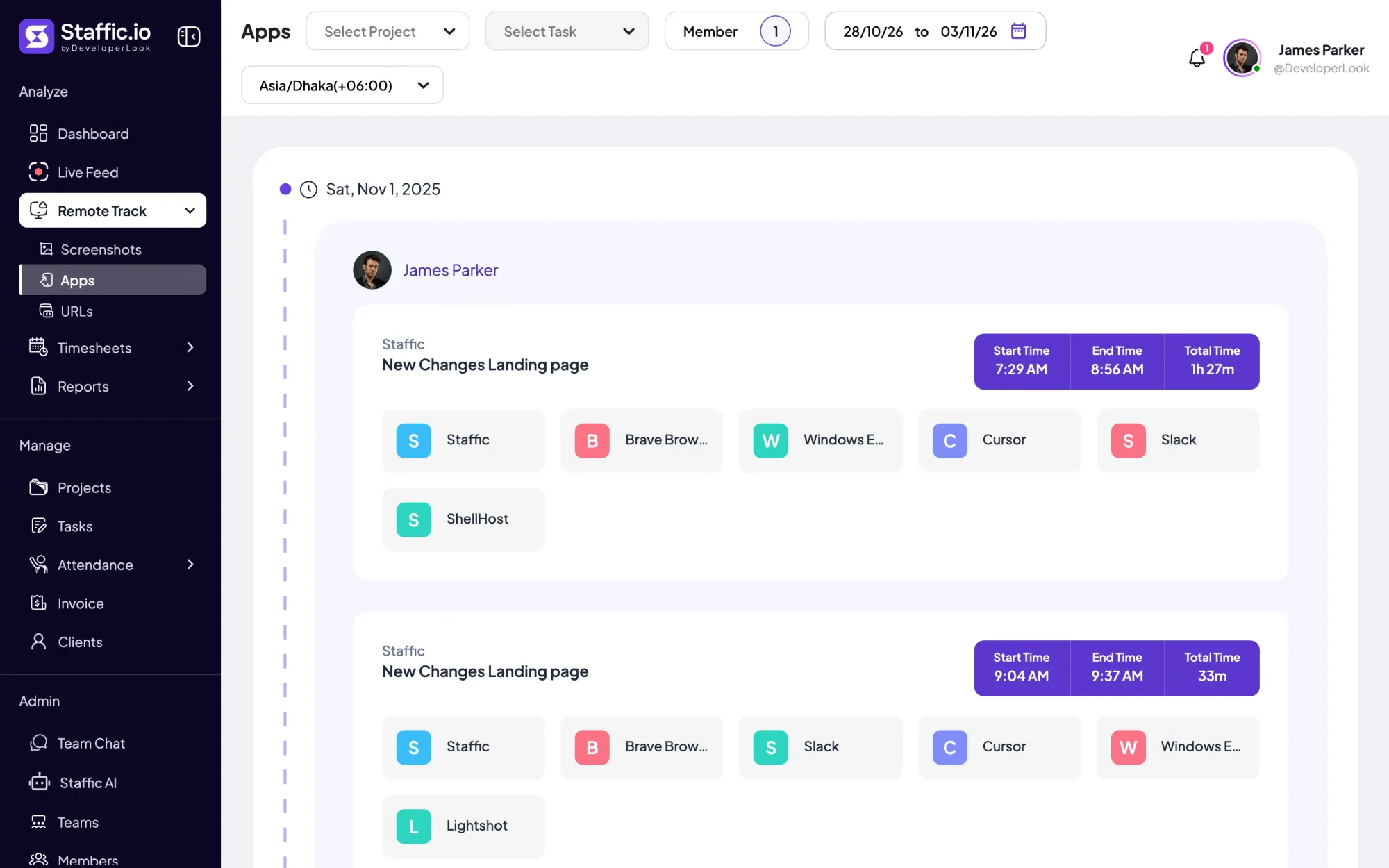
Staffic's Windows time tracking software: a desktop app for Windows 10 or later that records time, activity, apps and URLs while the timer runs.
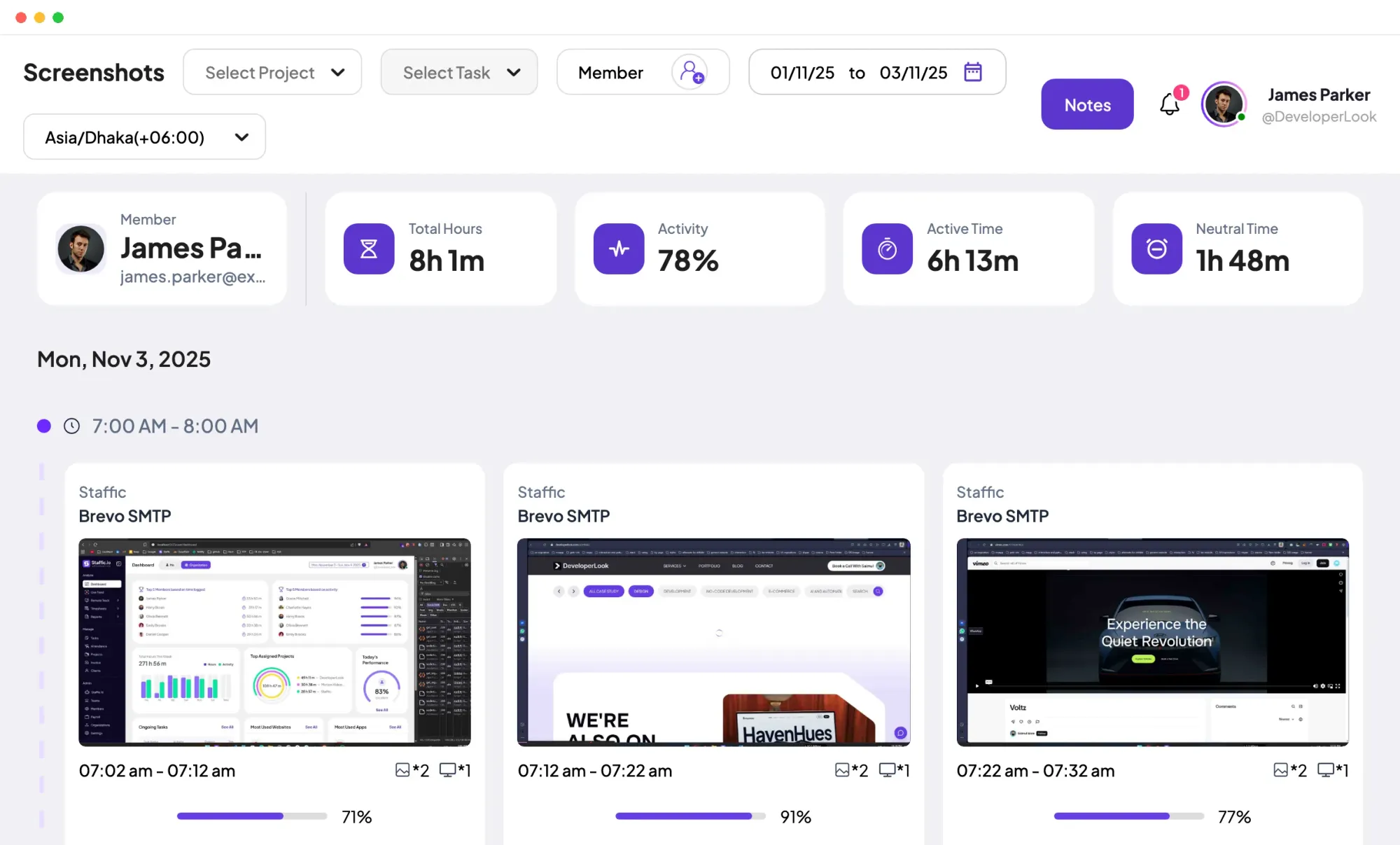
Staffic is Mac employee monitoring software and a time tracker for macOS 12 or later, on Apple Silicon and Intel, with screenshots on Standard.
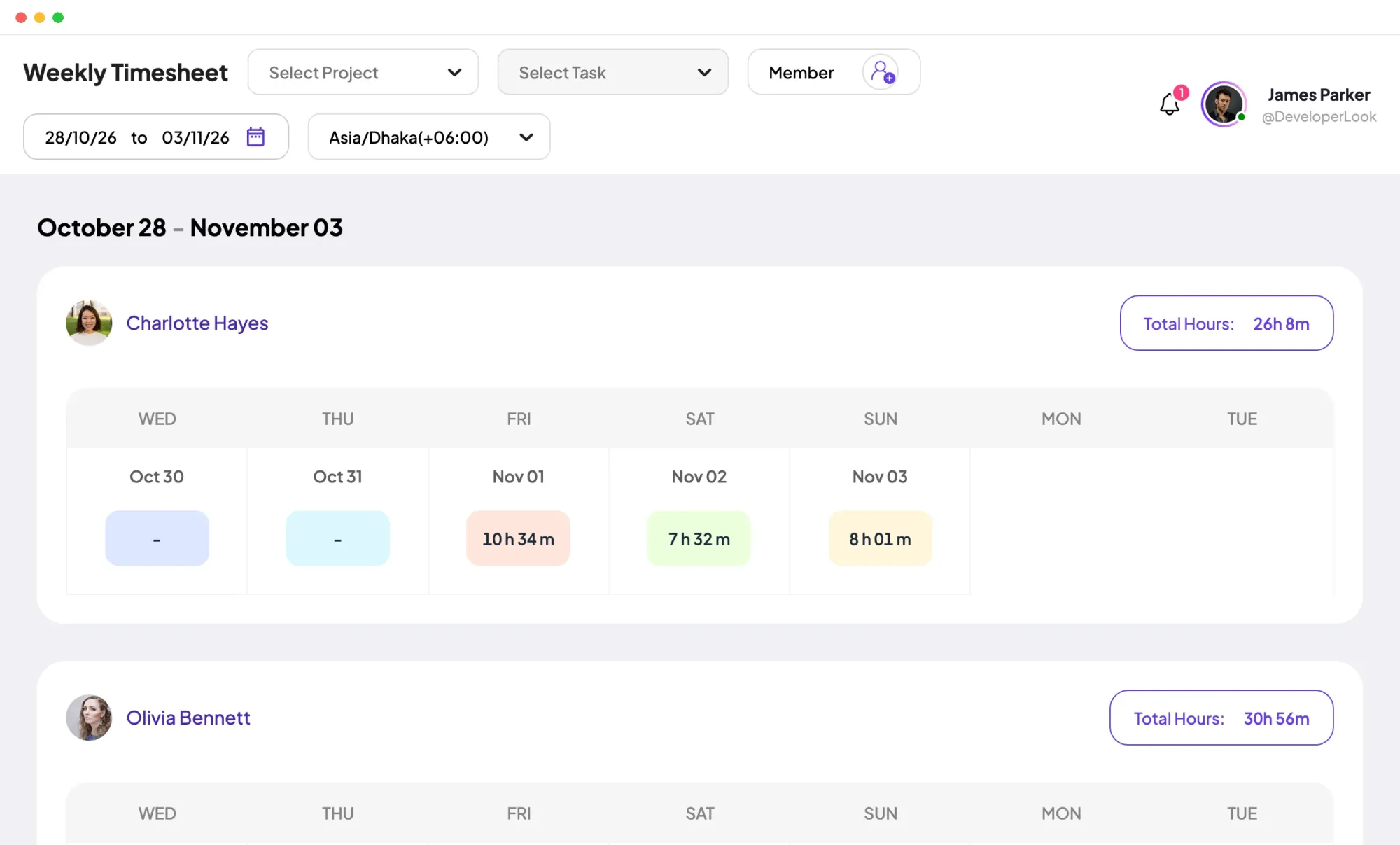
Staffic's Linux time tracker: a .deb desktop app for Ubuntu, Debian and other Debian-based systems on x64 and ARM64, free for up to 3 members.
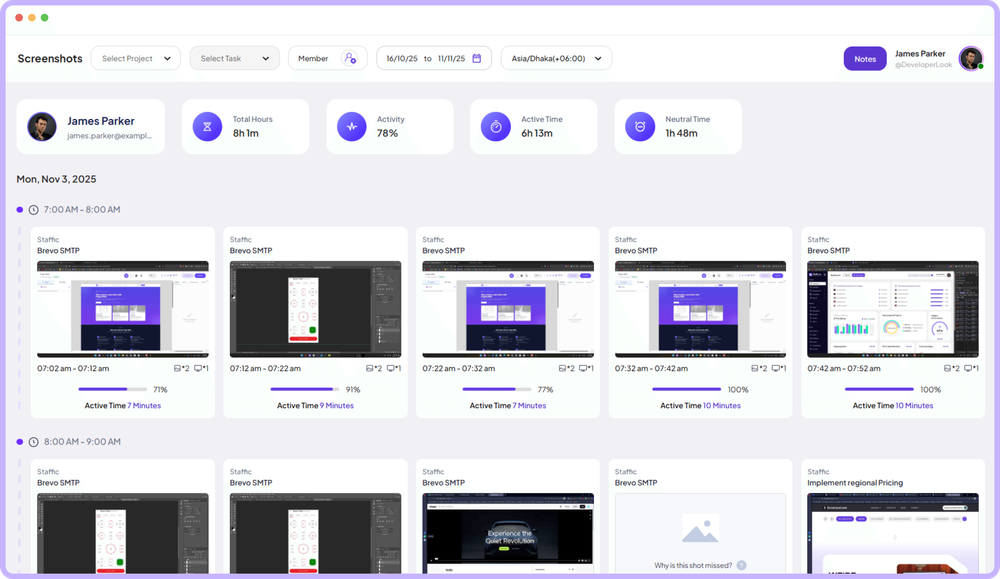
Screen monitoring that captures screenshots only while the timer runs, each filed with its time range, project, task and activity level.
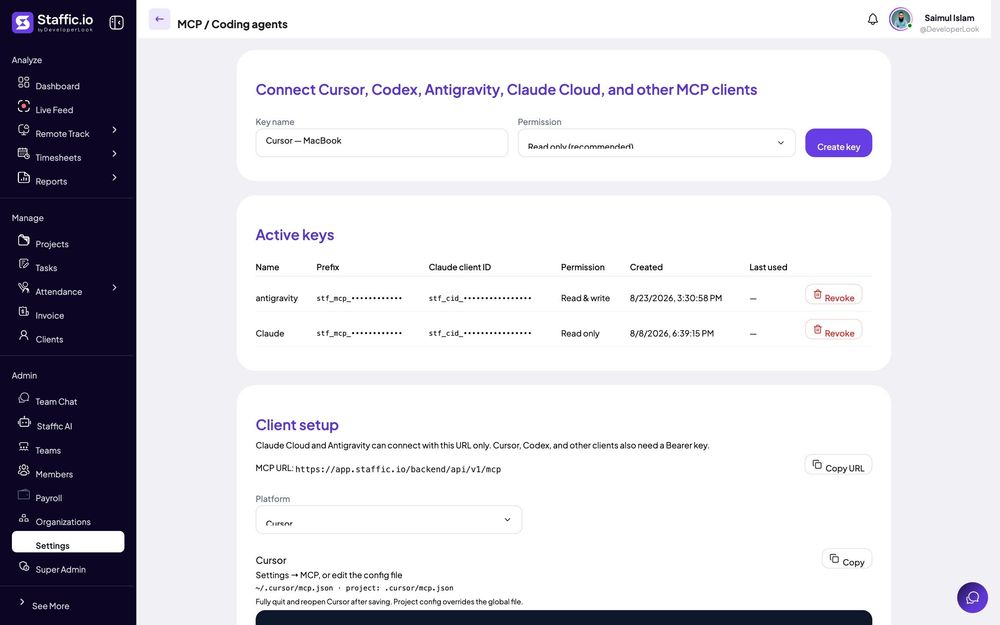

The built-in MCP server lets Claude, Cursor, Codex and other MCP clients read and update your Staffic data with a key you control.
Free for up to 3 members
Create your workspace, invite your team, and the first timesheet builds itself.