

- Home
- Integrations
Staffic integrations
Connect Staffic to the tools your team already uses.
Bring Jira, Trello, ClickUp and Asana tasks into Staffic and send the time your team tracks back to them. Post the daily summary and leave requests to Slack, and let AI assistants read your workspace through the Staffic MCP server.
- Included in every plan
- Set up by admins in Settings
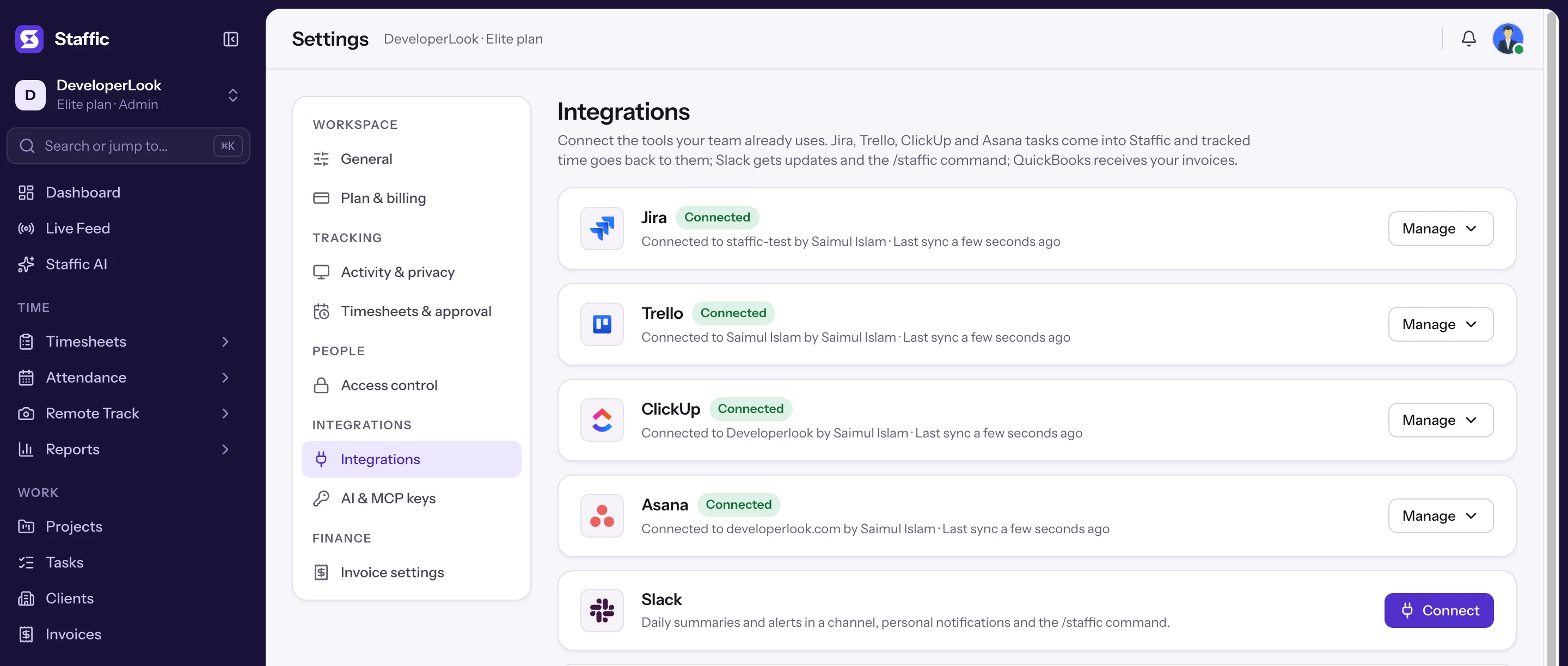
Project management
Tasks come in, tracked time goes back.
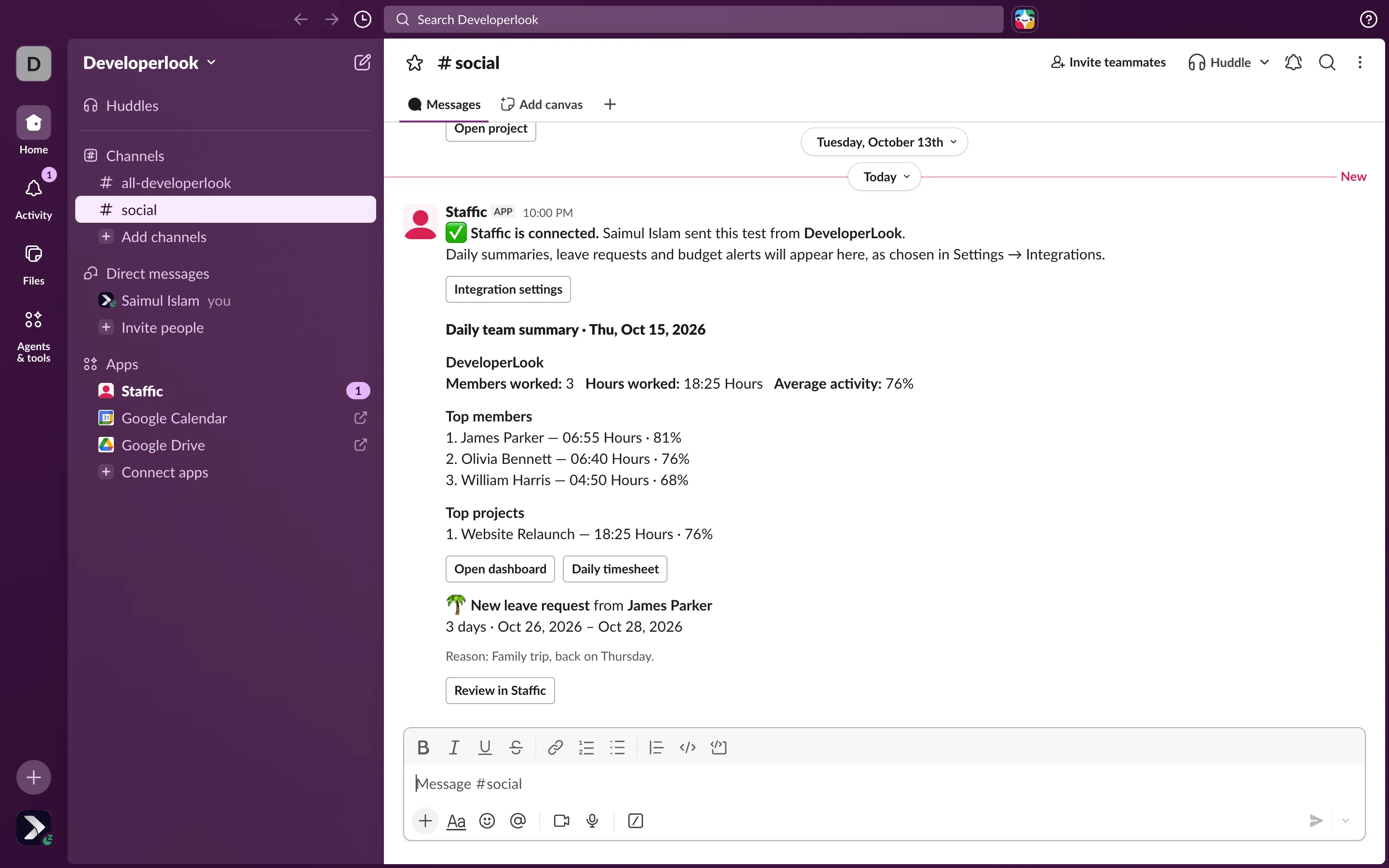
Pick the projects, boards or lists to sync. Their tasks show up in Staffic and in the desktop app for the people assigned, and Staffic keeps one time entry per person, task and day in the tool.

- InJira issues come in as tasks
- OutTracked time goes back as worklogs

- InTrello cards come in as tasks
- OutTracked time goes back as card comments

- InClickUp tasks and subtasks come in
- OutTracked time goes back as time entries

- InAsana tasks come in
- OutTracked time goes back as time entries
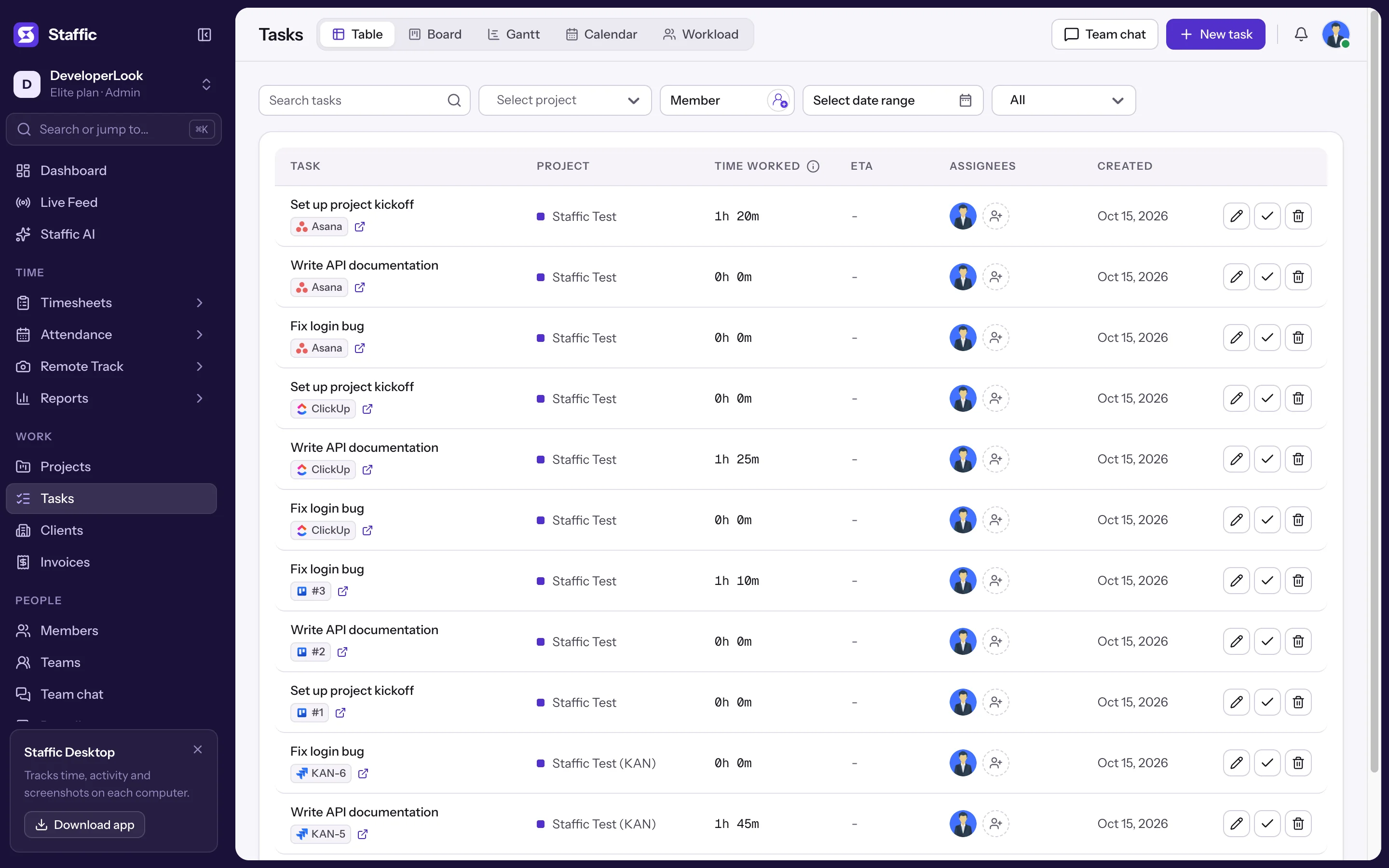
Team updates
Your team's day, where they already talk.
The numbers from Staffic reach your team without anyone opening a report.

AI assistants, sign-in and apps
Ask your AI assistant, sign in your way.
The Staffic MCP server connects AI tools to your workspace on every plan. Members sign in with Google or Microsoft, and track time with the desktop apps.
- MCP connectorClaudeAdd Staffic as a custom connector in Claude, sign in once, then ask about hours, attendance and activity.
- MCP serverCursorAdd the Staffic MCP server to Cursor and query your workspace without leaving the editor.
- MCP serverOpenAI CodexOne entry in your Codex config connects it to the same Staffic MCP server.
- MCP serverGoogle AntigravityConnect from the agent panel with only the MCP URL, then sign in to Staffic in the browser.
- Sign-inGoogle and Microsoft sign-inMembers sign in with their Google or Microsoft account, on the web and in the desktop app.
- Desktop appsWindows, macOS and LinuxDesktop apps track time, apps, URLs and screenshots. Everyone uses the web app.


 Claude Code
 VS Code
 Windsurf
 JetBrains
 Gemini CLI
- Any Streamable HTTP MCP client
How it works
Connected in a few clicks, synced every 15 minutes.
Every task tool connects the same way. Slack needs only the connection and a channel.
- 01
Connect the tool
An admin opens Settings > Integrations, clicks Connect and approves Staffic on the tool's own sign-in page.
- 02
Choose what to sync
Pick the projects, boards or lists to bring in. Each one syncs into a new Staffic project or one you already have.
- 03
Check who is who
People with the same email in both tools are matched for you. Link anyone else by hand in the People section.
- 04
Track, and the rest follows
Staffic syncs every 15 minutes, or right away with Sync now, and keeps the time in each tool equal to Staffic's.
FAQ
Integrations, answered.
What teams ask before they connect their tools.
Read the integrations guideWhich tools does Staffic integrate with?
Staffic connects to Jira, Trello, ClickUp and Asana for tasks and time, and to Slack for team updates. AI assistants such as Claude, Cursor, OpenAI Codex and Google Antigravity connect through the Staffic MCP server, and members can sign in with Google or Microsoft.
Do Staffic integrations cost extra?
No. Jira, Trello, ClickUp, Asana and Slack are included in every Staffic plan, including Free for teams of up to 2 members, and so is the MCP server.
Who can connect an integration?
Only admins of the organization connect, set up and disconnect integrations, in Settings > Integrations. The account that connects a task tool is the one that writes tracked time into it, with each person's name in the note.
Does Staffic change tasks in Jira, Trello, ClickUp or Asana?
No. Tasks flow one way, from the tool into Staffic, and edits you make to them in Staffic stay in Staffic. The only thing Staffic writes back is tracked time: one entry per person, task and day for the last 31 days.
How often do integrations sync?
Every 15 minutes, and right away when an admin clicks Sync now in Settings > Integrations. Members who need timesheet approval send only their approved days.
What happens when I disconnect a tool?
Syncing stops and Staffic no longer reaches your account in that tool. Tasks already imported stay in Staffic, and time entries already written stay in the tool.
Free for up to 2 members
See the work, not just the hours.
Create your workspace, invite your team, and the first timesheet builds itself.
- No card for Free
- 7-day trial on paid plans
- Windows, macOS, Linux