


Getting Started
How to Install and Use the Desktop App
The Staffic desktop app is where you track time. Install it on Windows, macOS or Linux, sign in, pick a task and start the timer. Your time then shows in the web app.
- Where
- staffic.io/download, or See More > Desktop App in the web app
- Who
- Everyone who tracks time
- Plan
- All plans
The desktop app has the only timer in Staffic. The web app at app.staffic.io shows your time, but you can't start a timer there. The app records only while your timer runs, and it tells you when tracking starts and stops.
Download the app
| System | What you need | File |
|---|---|---|
| Windows | Windows 10 or later, 64-bit (x64) | Installer (.exe) |
| macOS | macOS 12 Monterey or later, on Apple Silicon or Intel | Disk image (.dmg), one for each chip |
| Linux | Ubuntu, Debian or another Debian-based system, on x64 or ARM64 | Package (.deb), one for each processor |
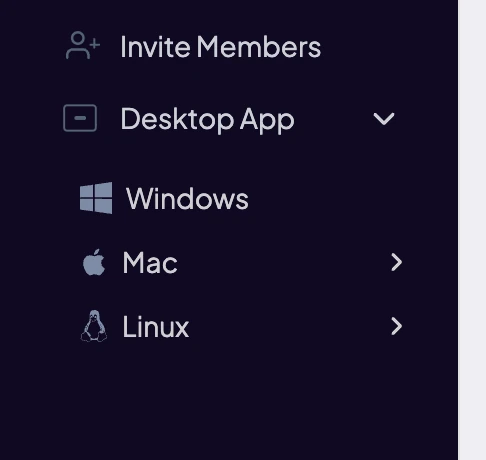
The easiest place is the download page. It picks your system for you, and buttons let you switch the chip or processor.
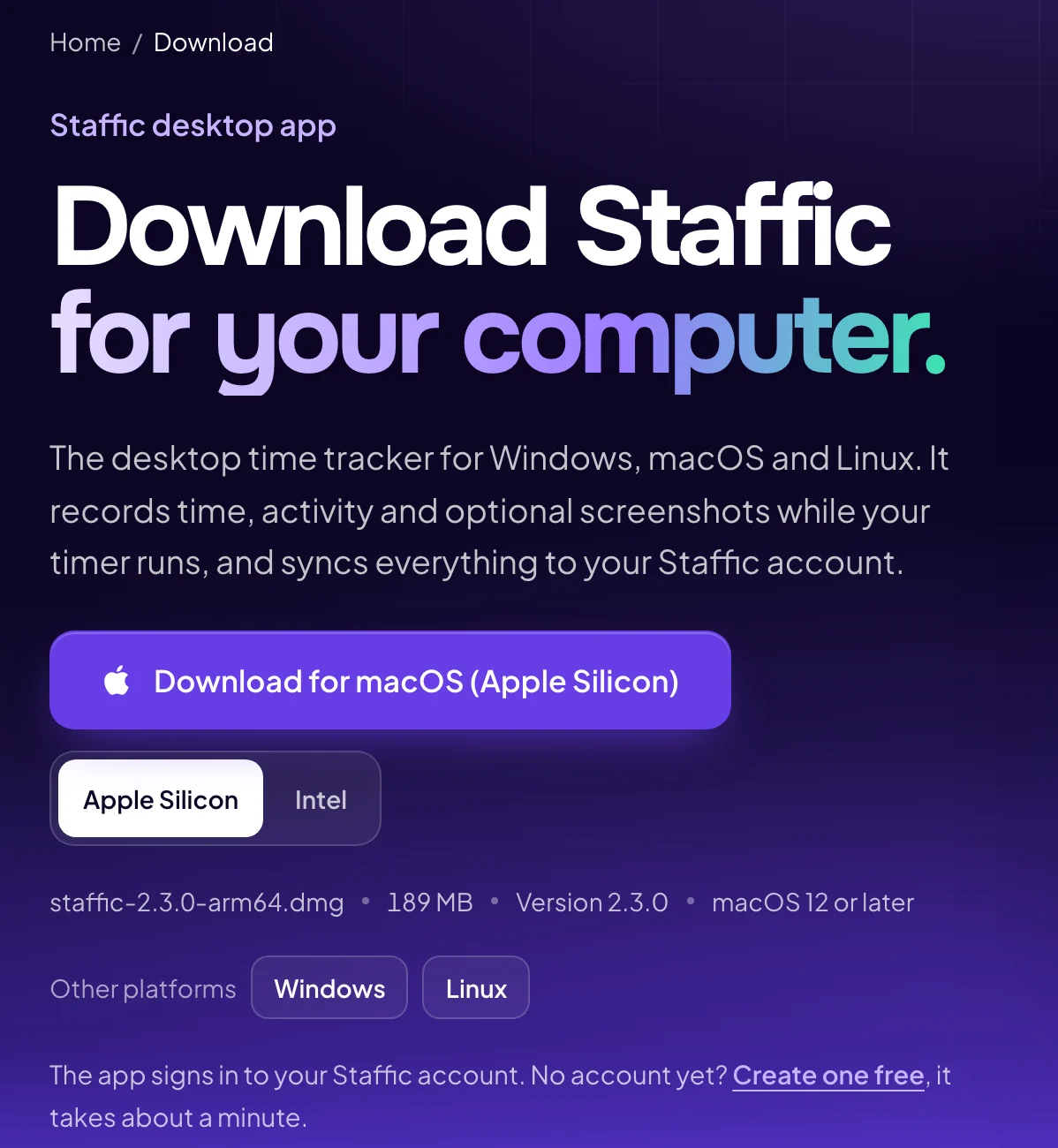
You can also download inside the web app:
- See More > Desktop App
- In the sidebar. Choose Windows, Mac (then Apple Silicon or Intel chip) or Linux (then AMD for x64, or ARM).
- Download Apps
- At the bottom of the profile menu, with Mac, Windows and Linux icons.
- Start tracking time
- On the dashboard's setup checklist, while the checklist is showing.
Not sure which Mac you have? Open the Apple menu > About This Mac. A Chip line means Apple Silicon. A Processor line that names Intel means Intel.
Install the app
Windows
Run the .exe file you downloaded. It installs in one click and adds a desktop shortcut.
macOS
Open the .dmg file and drag Staffic into Applications. Open Staffic and allow what macOS asks for. Each permission covers one part of tracking, and the app can't record that part without it.
- Screen Recording
- Needed for screenshots.
- Accessibility or Input Monitoring
- Needed for the activity level from your keyboard and mouse.
- Automation
- Needed to read website addresses from your browser.
Clicked Don't Allow by mistake? Turn the permission on for Staffic in System Settings > Privacy & Security, then quit and reopen Staffic.
Linux
Open the .deb file in your software center. Or, in a terminal in the download folder, run sudo apt install ./ followed by the file name. The download page shows the exact command with a Copy button. Then open Staffic from your applications. The app records the same data in Wayland sessions too.
Sign in
Use the same account as the web app. The desktop app can't create an account, so sign up or join your organization on the web first, and verify your email.
To sign in with a password, enter your Staffic email and password in the app. If sign-in fails, the message tells you why:
- Email is not registered yet
- No Staffic account uses this email. Create one on the web first.
- Email is not verified
- Finish email verification in the browser, then try again.
- Invalid password
- Check the password, or reset it with Forgot Password? on the web sign-in page.
- This account uses Google sign-in
- Your account has no password. Sign in with Google instead, or set a password in Profile Settings.
Sign in with Google or Microsoft
Step 1: Start in the app
Choose Google or Microsoft in the app. Your browser opens. Sign in to that account.
Step 2: Confirm the account
The page asks Connect the desktop app? and shows the email that will be signed in. If it is yours, click Connect desktop app as followed by your email. If not, click Not me, cancel.
Step 3: Return to the app
The page says You're connected and opens Staffic. If nothing happens, click Open Staffic app. Your browser may ask you to allow it. Then close the browser tab.
Create a Staffic account first means no account uses that email. Verify your email first means your account isn't verified yet. Fix it on the web, then sign in from the app again.
Track time on a task
Step 1: Pick a project and a task
If you belong to several organizations, choose the organization first. Then pick a project and a task. The app lists the projects you are assigned to and, in them, the tasks assigned to you. You can also add a task to a project from the app.
Step 2: Start the timer
Click Start Tracking. A Tracking Started notice appears with the text Staffic Started Monitoring You.
Step 3: Add a work note (optional)
While the timer runs, click Add Note to describe what you are doing. The note is saved with the session and shows in Timesheets > Work Notes. You can't edit or delete a note after you send it.
Step 4: Stop the timer
Click Stop Tracking when you finish or take a break. A notice confirms that tracking stopped. To switch work, start the timer again on the other task.
The app also shows your time and activity for today, this week and this month. For the full picture, open Timesheets in the web app.
Can't find a task? Ask your admin to assign you to the project and to the task. A new organization's first task has nobody assigned, so admins assign themselves first on Manage > Tasks.
Idle time, sleep and offline work
- Idle time
- 50 seconds or more without keyboard or mouse input counts as idle. On Standard and Elite, the daily timesheet shows active time and idle (neutral) time separately.
- Automatic stop
- Tracking stops after 5 minutes without input, or when your computer sleeps or locks. Start the timer again when you are back.
- Meetings
- With Meeting Idle Time Track on, quiet time in Google Meet, Slack huddles and Discord calls isn't counted as idle. Standard and Elite; new organizations start with it on.
- Offline
- With no internet connection, the timer and screenshots keep running. The app saves them on your computer and uploads them when you reconnect.
What the app records
Your admin chooses what the app records in Admin > Settings > Activity. See Activity settings. Everything below happens only while your timer runs.
- Time
- Each session's start, end and length, on the project and task you picked. All plans.
- Activity level
- A number from 0 to 100 for each session, based on keyboard and mouse use. All plans, on by default (Keystroke And Mouse Track).
- Apps
- The applications you use. All plans, off by default (Application Tracking).
- URLs
- The website addresses open in your browser. All plans, on by default (URL Tracking).
- Screenshots
- Standard and Elite, off by default (Screenshot Tracking). Taken at random times, 2 every 10 minutes unless an Elite admin picks 1 or 3. You see your own in Analyze > Remote Track > Screenshots. Kept for 365 days.
- Screen recordings
- Elite only, off by default (Session Recording (beta)). Kept for 7 days.
- Instant screenshots
- Elite. An admin can take a screenshot while your timer runs. If Request permission for instant screenshot is on, you accept or deny each one.
- Live Feed
- Elite. Admins see who is tracking right now, with the project and task.
Staffic never stores what you type. Keyboard and mouse use becomes one activity number per session. Nothing is recorded while the timer is off.
Common questions
Can I track time in the web app?
No. Only the desktop app has a timer. The web app shows your tracked time, timesheets and reports.
Does Staffic record what I type?
No. The app turns keyboard and mouse use into one activity number from 0 to 100 per session. It never stores the keys you press.
Why don't I see my project or task in the app?
The app shows only projects you are assigned to and tasks assigned to you. Ask your admin to assign you to both, then check the app again.
Does the app update itself?
On Windows and macOS, updates download in the background and install the next time you quit the app. On Linux, get new versions from the download page.
Can Staffic start when my computer starts?
Yes. Turn on Launch at startup in the app.
What happens if I lose my internet connection?
Keep working. The timer and screenshots keep running, and the app uploads everything when you reconnect.
Tips
- Stop the timer before a break. Tracking also stops by itself after 5 minutes without input.
- Add a work note when you start a new piece of work. Your timesheet then explains itself.
- Changing your password in the web app ends the desktop app's session. Sign in there again with the new password.