Software teams
Sprint work tracked where it is planned
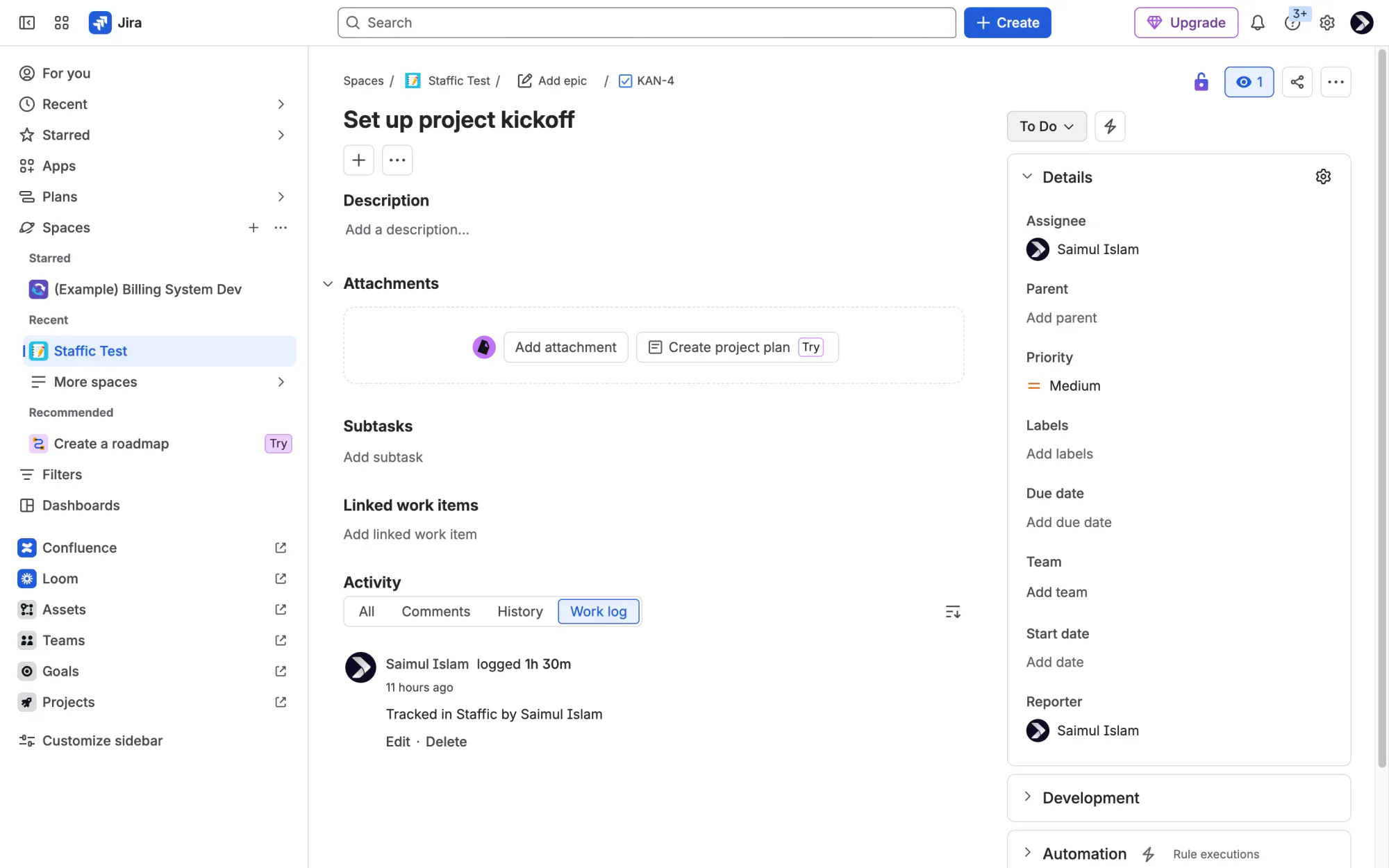
Developers start the timer on their Jira issue in the desktop app, and the time shows up on the issue without anyone logging work.

Features
All 38 featuresSee the work while it happens.
 DashboardYour team's week at a glance, Monday to Sunday
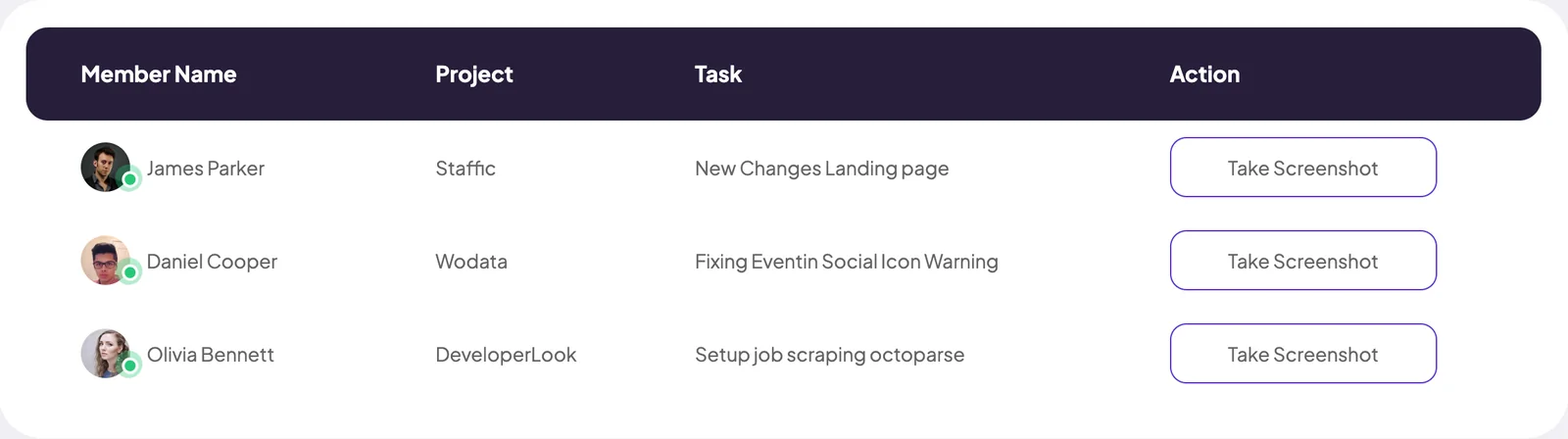
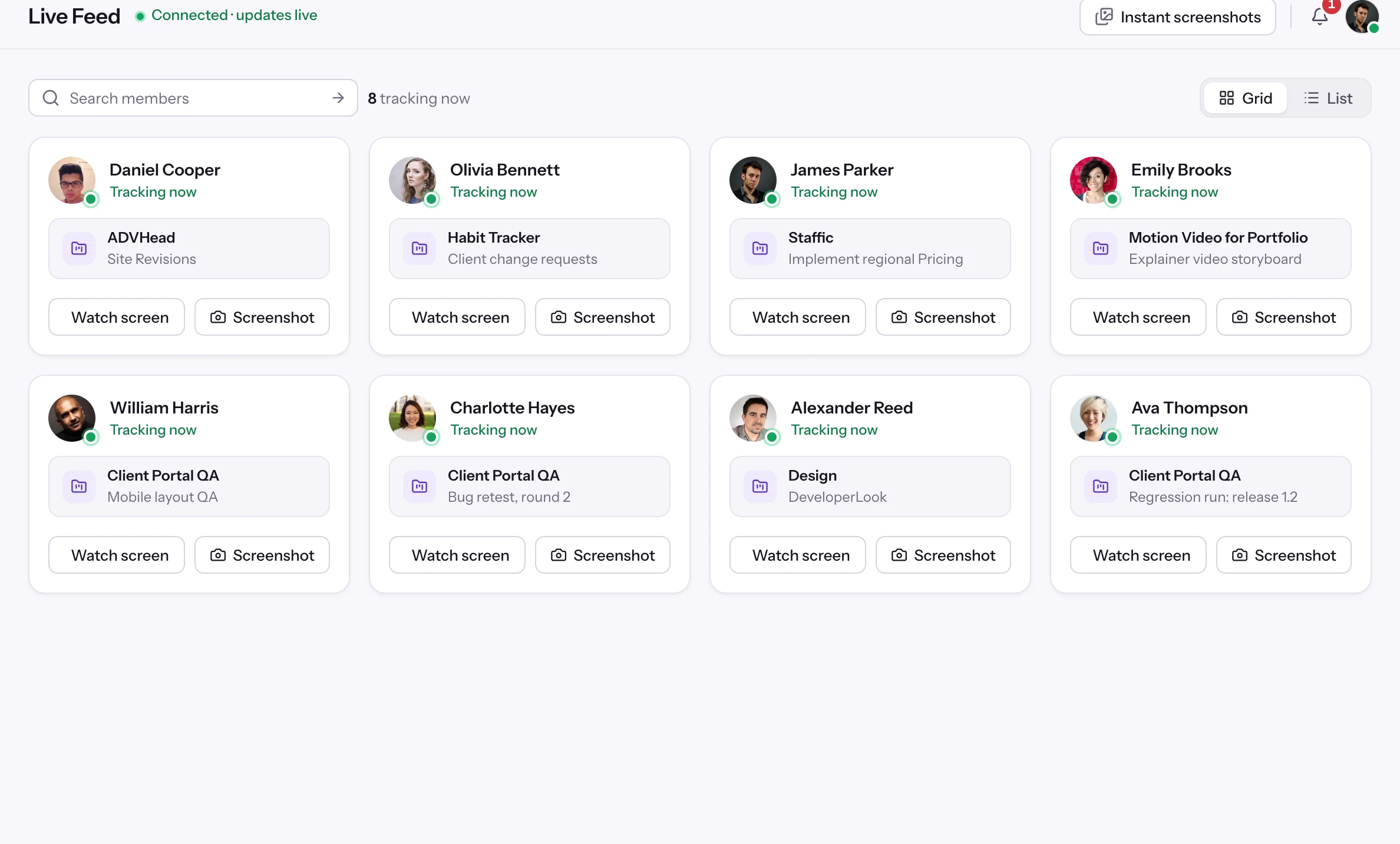
 Live FeedSee who's tracking time right now, and on what
 ScreenshotsVisual proof of work, captured automatically
 AppsWhich apps each tracked session used
 URLsThe websites behind the tracked time
 Screen RecordingsEliteFull session video, beyond a screenshot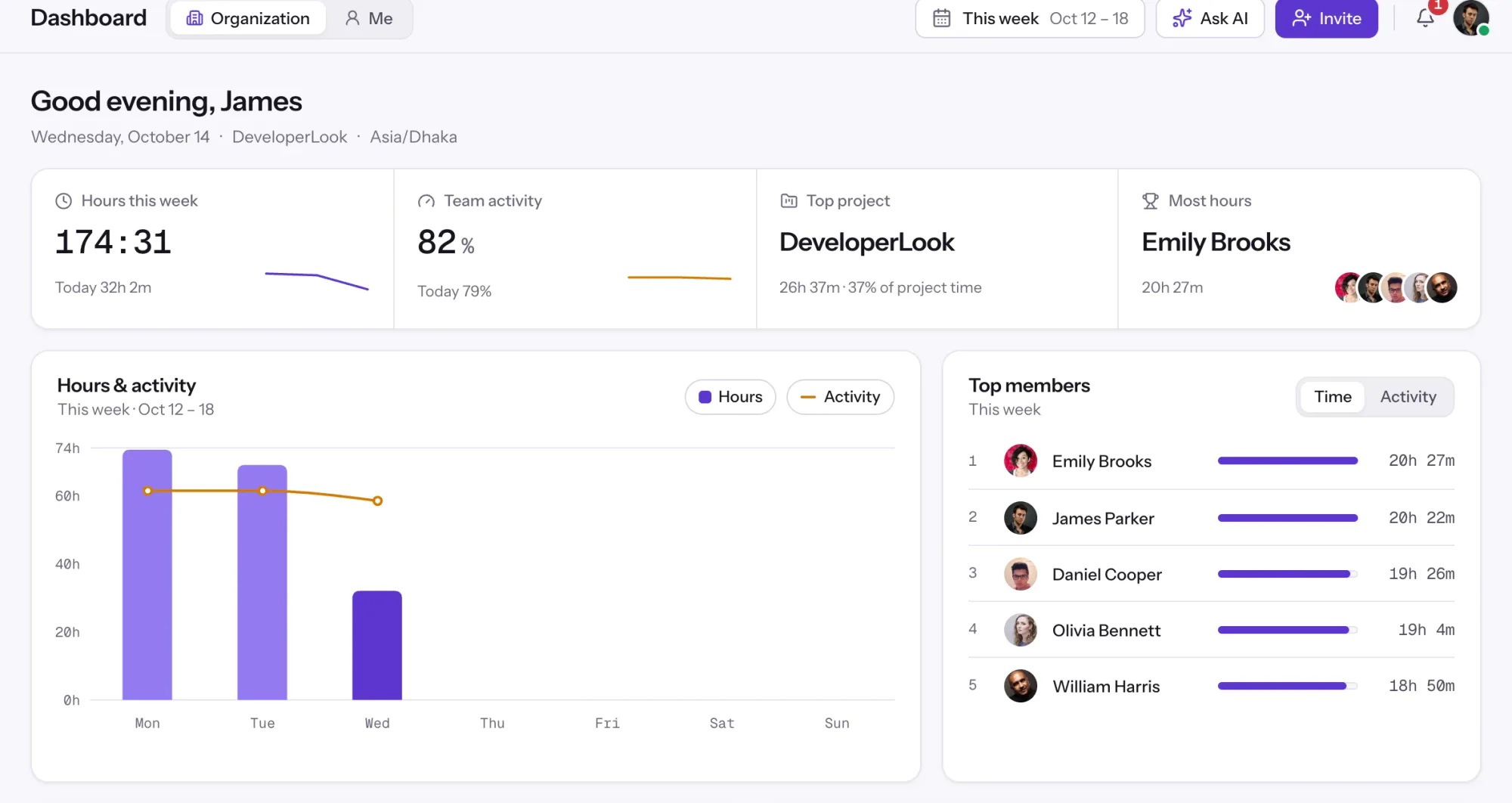
01 / 38
Dashboard
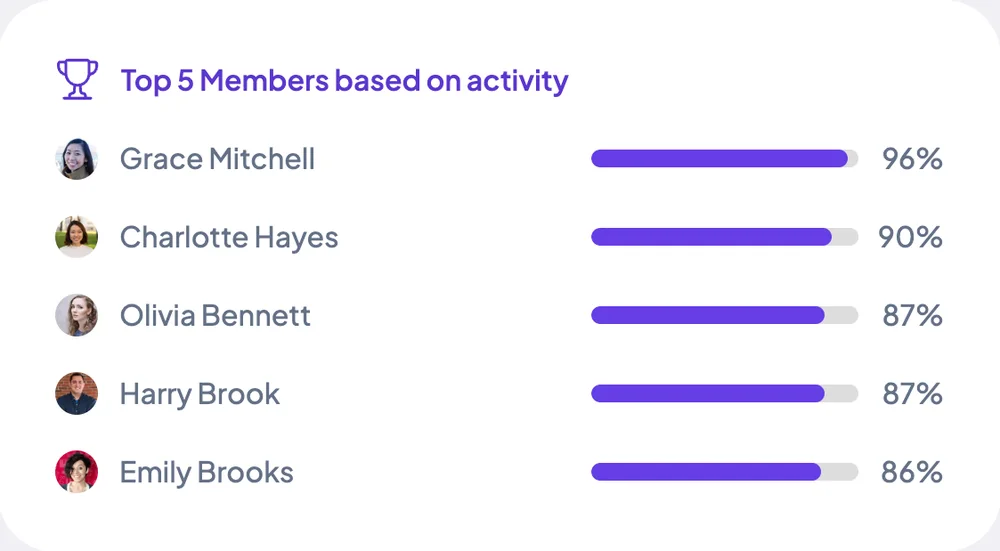
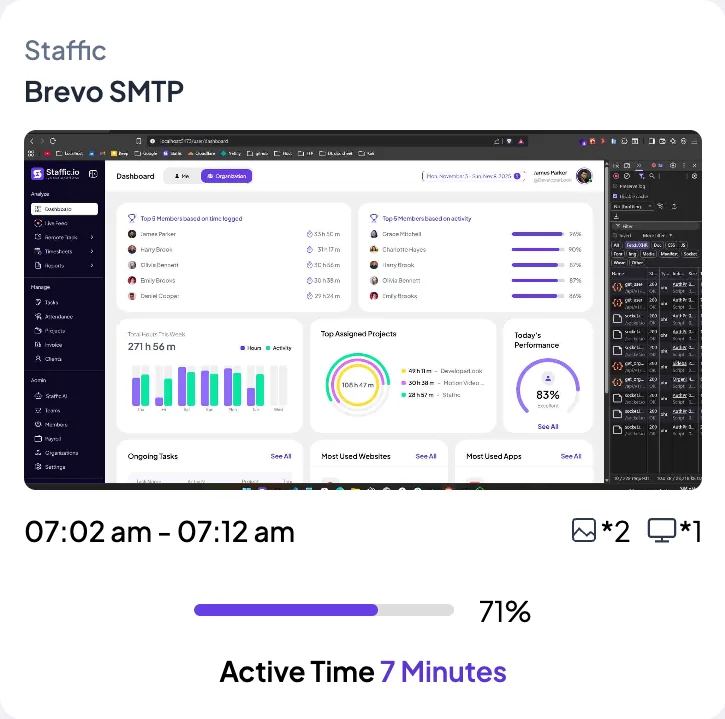
The team dashboard: this week's hours, team activity, top members, ongoing tasks, top projects and the most used apps and websites.
View DashboardSolutions
All 38 featuresHow remote, hybrid and growing teams run Staffic.
Staffic for the way you work, from freelancing to client billing.
 FreelancersFreelance time tracking
 Small businessesTimekeeping software for small business
 Call centersCall center monitoring software
 ConsultantsTime tracking software for consultants
 Companies with contractorsContractor time tracking
 Virtual assistantsTime tracking software for virtual assistants
 AgenciesAgency time tracking software
 Accounting firmsTime tracking software for accountants
 Software teamsTime tracking software for engineers
Staffic set up for your industry's records and reports.
01 / 19
Track remote hours across every time zone.
Staffic records time, activity and optional screenshots on each remote member’s computer, then turns them into timesheets you approve, so you can trust the hours without daily check-ins.
View Remote teamsJira
Staffic brings your Jira issues in as tasks, your team tracks time on them with the Staffic desktop app, and the time goes back to each issue as a Jira worklog. Admins connect Jira Cloud once in Settings > Integrations, on every Staffic plan, including Free.
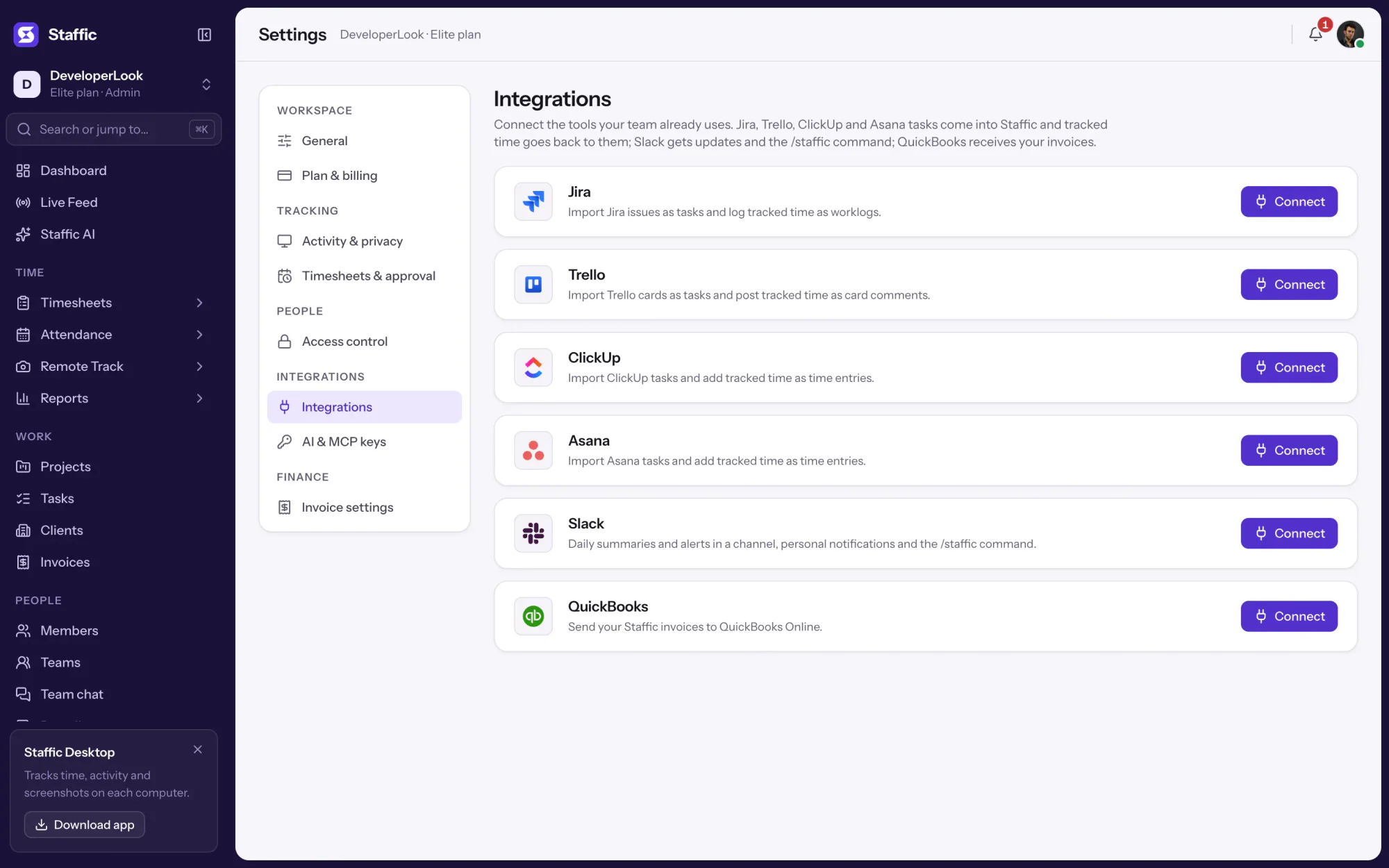
1/8Click Connect on Jira
In short
Staffic Jira time tracking is the Jira Cloud integration in Staffic. It imports the issues of the Jira projects you pick as Staffic tasks, so people track time on them with activity levels and optional screenshots, then writes that time back to each issue as one worklog per person and day. It syncs every 15 minutes and is included in every plan.
How it works
Four steps from a Jira issue to a worklog, with nobody logging work by hand.
Jira time tracking
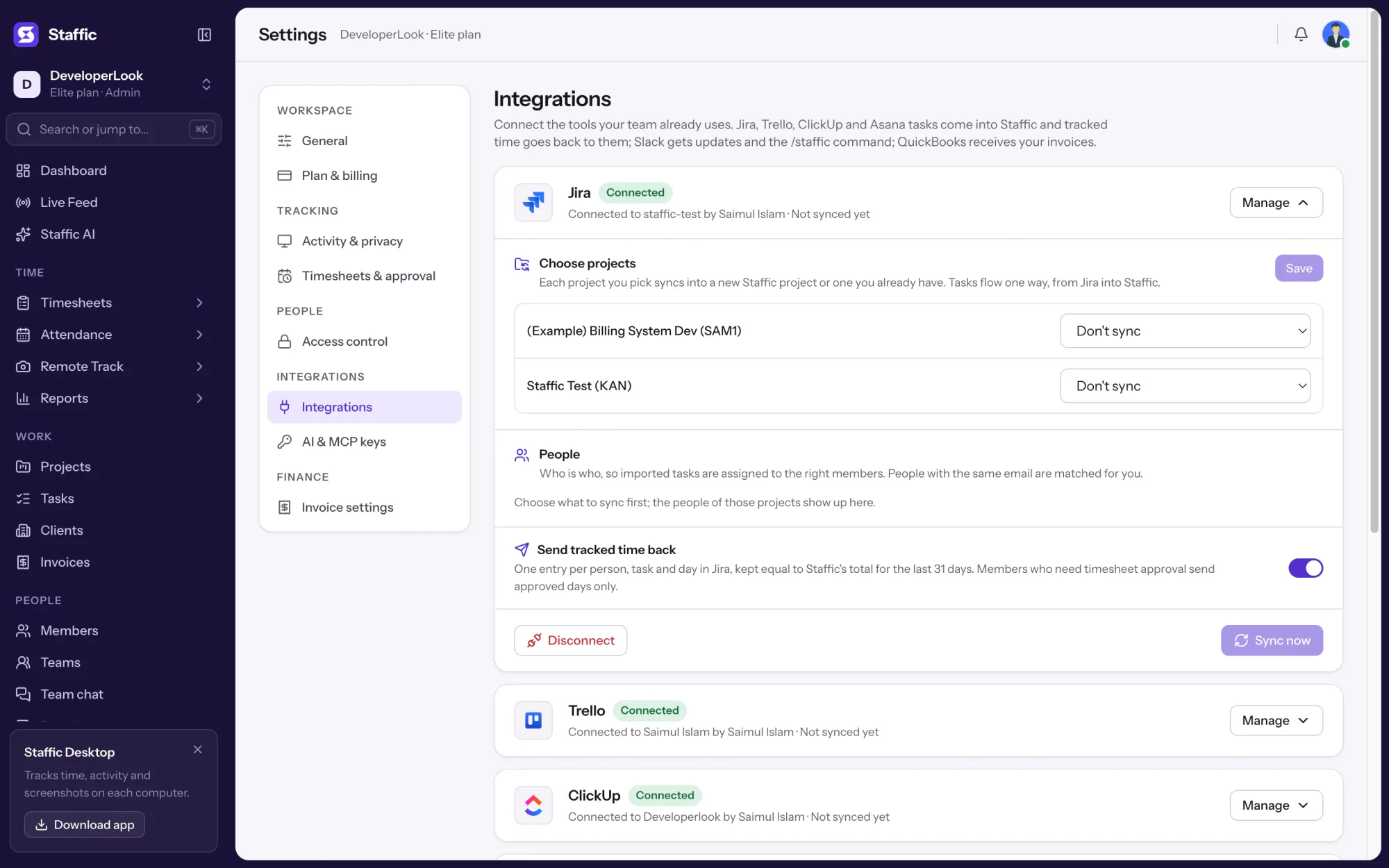
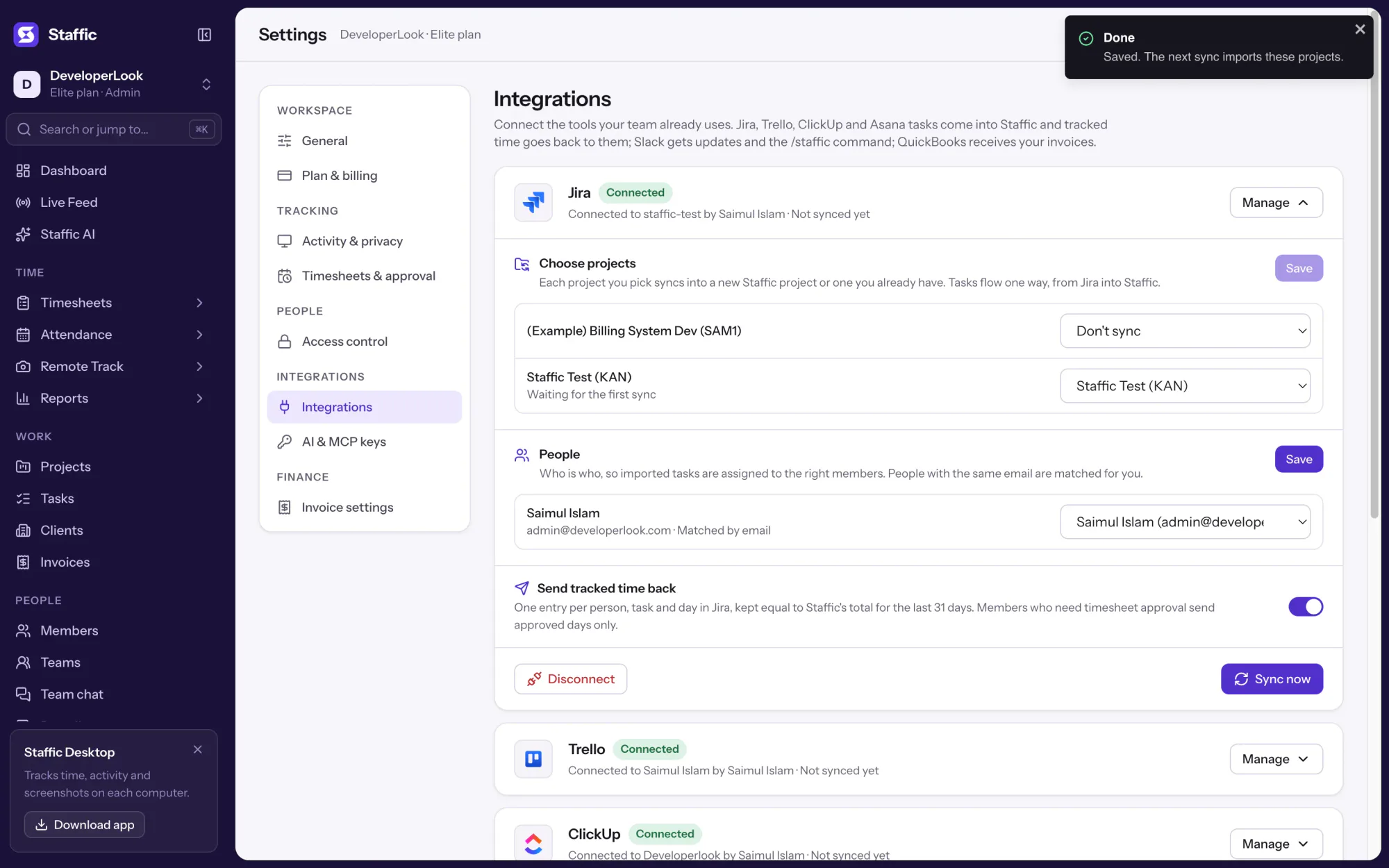
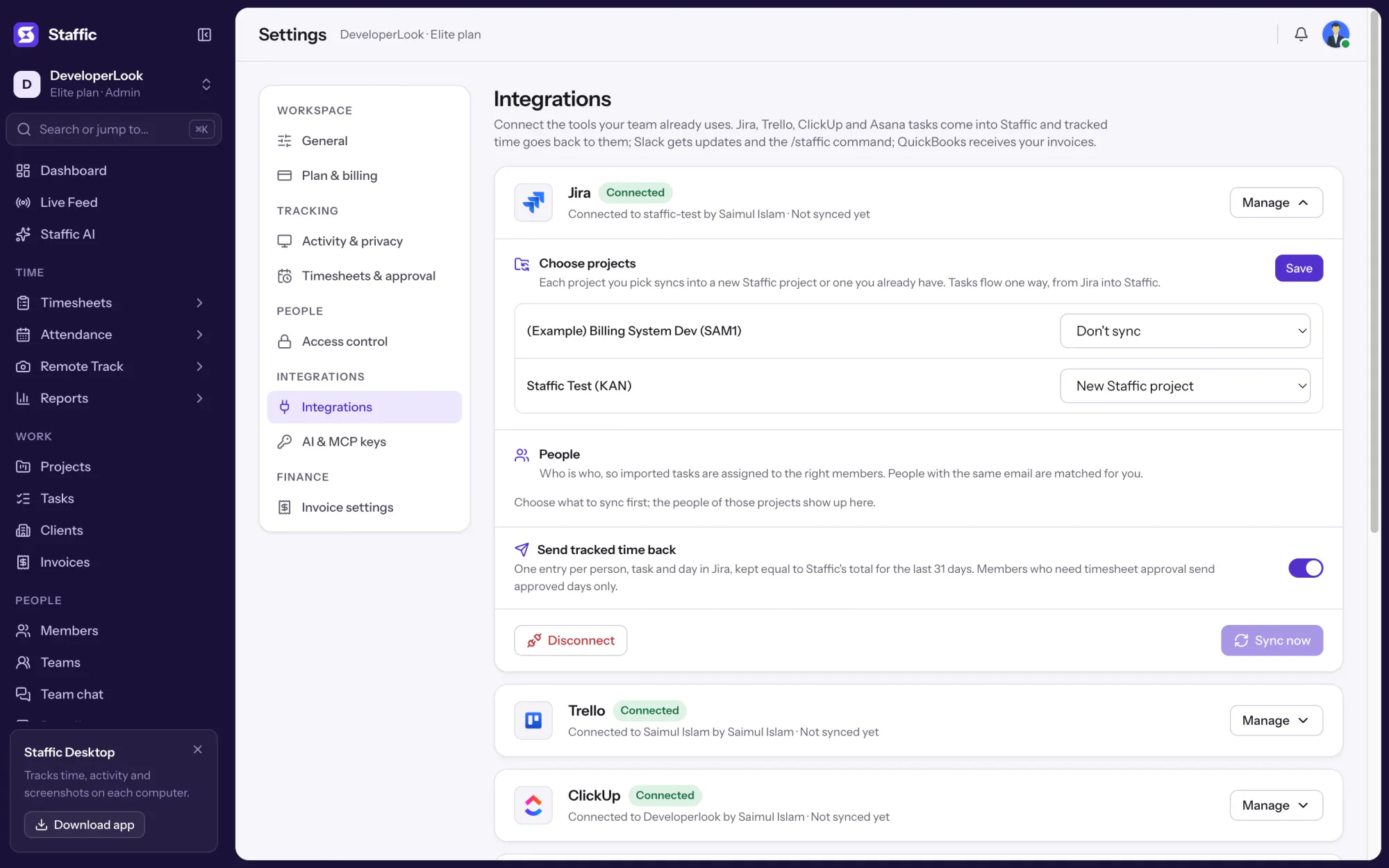
Approve Staffic on Atlassian's own page, choose which Jira projects to bring in, and Staffic keeps them in sync every 15 minutes.
Each Jira project you choose syncs into a new Staffic project or one you already have. The first sync brings open issues plus those updated or done in the last 30 days; after that, only what changed.
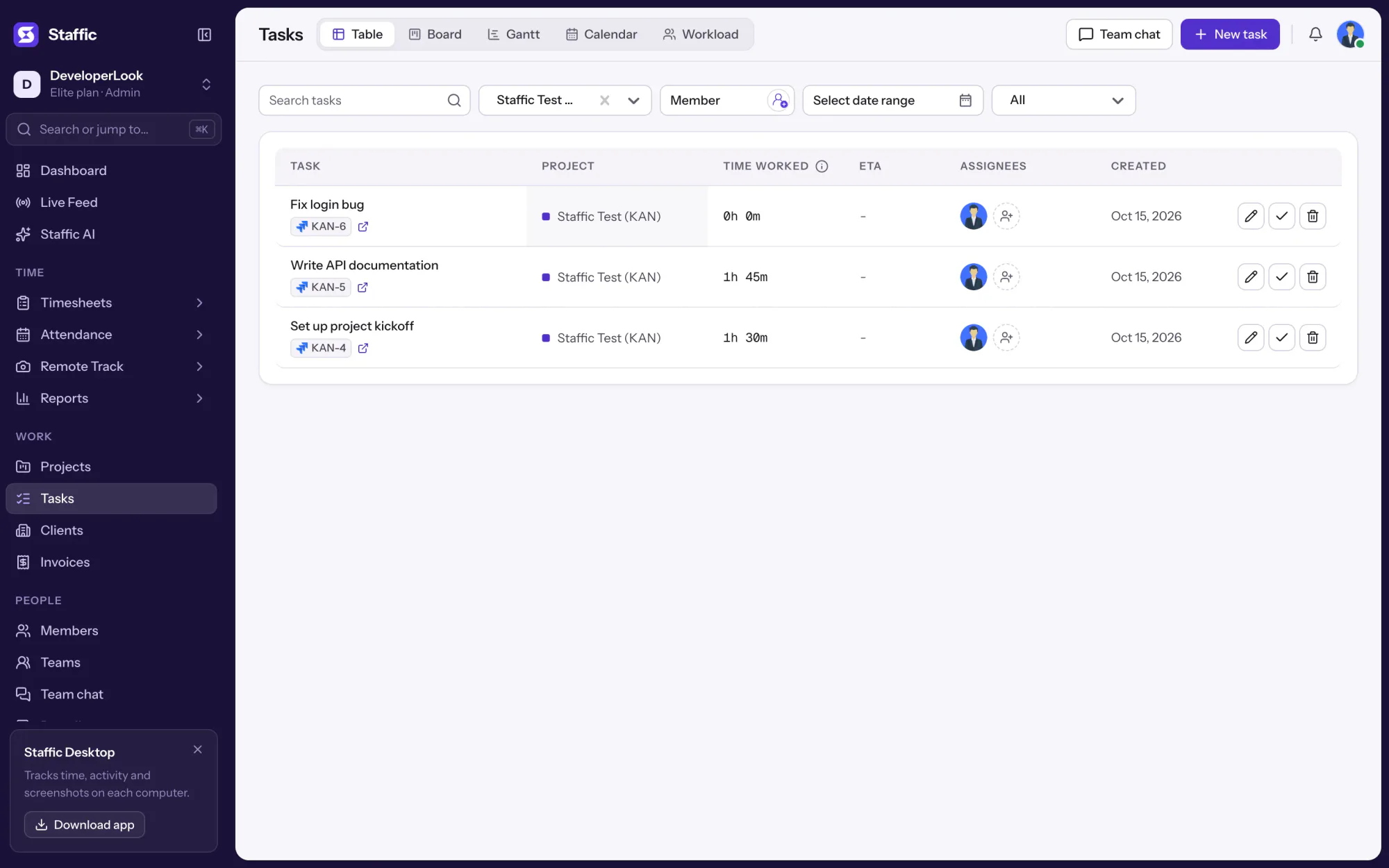
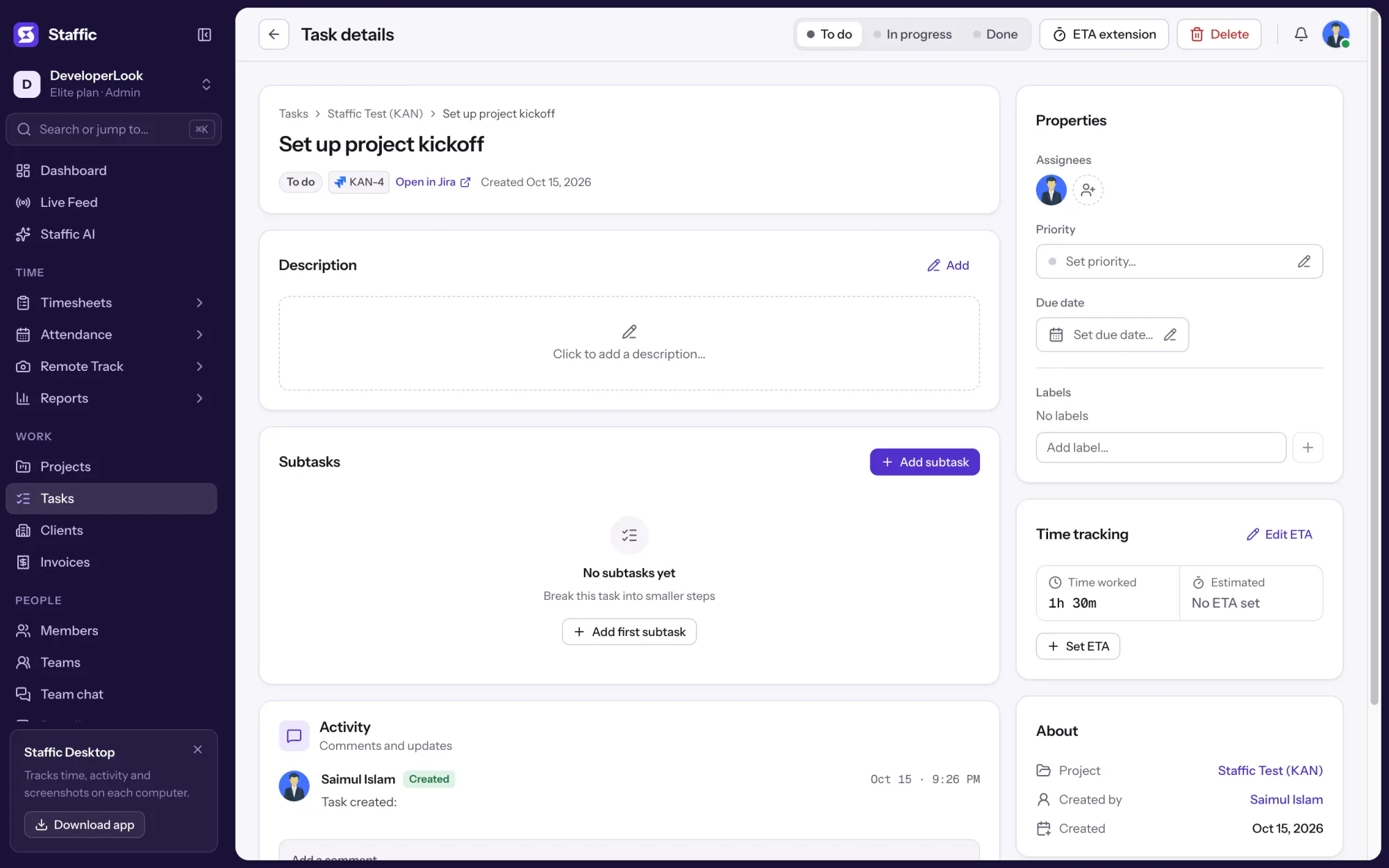
Each issue arrives with its name, description, status, due date and assignee, and keeps its key, like KAN-4, with a link back to Jira. Tasks flow one way: edits you make in Staffic stay unless the issue changes in Jira.
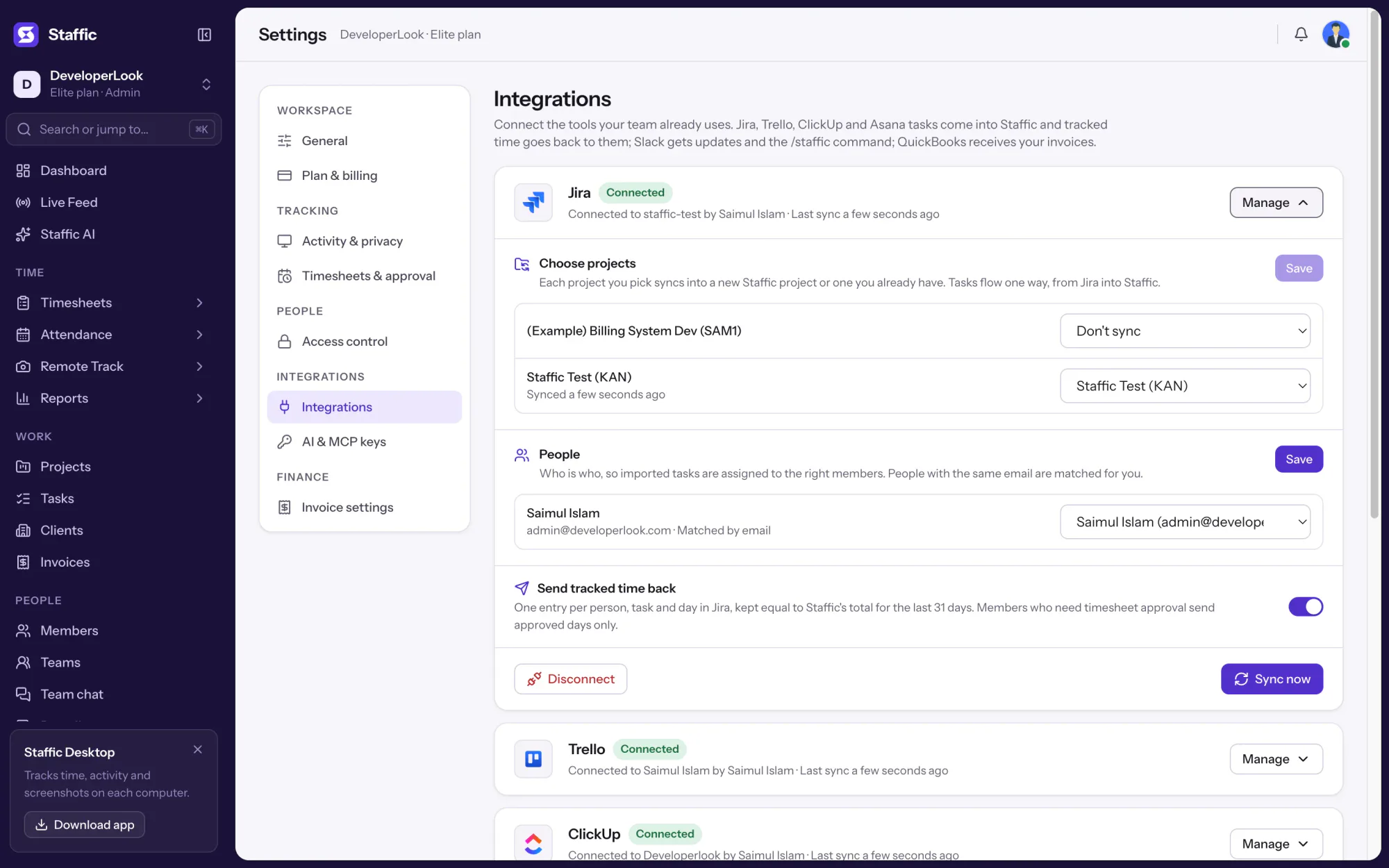
Staffic keeps one worklog per person, issue and day equal to Staffic's total for the last 31 days. The account that connected Jira writes it, with the person's name in the comment.
Jira users with the same email as a Staffic member are linked for you and marked Matched by email. Link anyone else by hand; issues assigned to people who aren't linked still come in, without an assignee.
Showing Pick the Jira projects to sync.
1/5Click Connect on Jira
Control and privacy
Jira stays the place where issues are planned; Staffic only adds worklogs.
Set it up
Five steps in Settings. You need to be an admin of the Staffic organization and have access to the Jira Cloud site.
In Staffic, go to Settings > Integrations and click Connect on the Jira card.
Settings › IntegrationsAtlassian asks you to let Staffic read issues and add worklogs on your site. Approve it and you're back in Staffic with the Jira panel open.
Atlassian sign-in pageSet each Jira project to New Staffic project, an existing project or Don't sync, then click Save.
Settings › Integrations › Jira › ManagePeople with the same email are matched for you. Link anyone else in the People section and save.
Settings › Integrations › Jira › PeopleClick Sync now to bring the issues in right away. After that, Staffic syncs every 15 minutes on its own.
Settings › Integrations › Jira1Settings › Integrations
Compare
Jira Cloud has built-in time tracking where people log work on an issue by hand. Staffic records the time while people work and writes it to the same place.
Swipe the table to compare
| Compare | Jira Cloud time trackingBuilt in | Staffic with JiraIntegration |
|---|---|---|
| How time is recorded | Logged by hand with Log work or the Time tracking field | Desktop timer on the imported issue, or manual time with a reason |
| Where the time ends up | Time Spent on the issue | A Jira worklog per person, issue and day, plus Staffic timesheets |
| Activity levels | Not listed | Keyboard and mouse activity for every 10 minutes |
| Screenshots | Not listed | Optional, only while the timer runs |
| Timesheet approval | Not listed | Only approved days reach Jira, if you turn approval on |
| Reports | Time Tracking Report for one version | Time & Activity and timesheets by member, project or task |
Jira facts from Atlassian's documentation, read 2026-10-15: support.atlassian.com/jira-software-cloud/docs/log-time-on-an-issue/, support.atlassian.com/jira-cloud-administration/docs/configure-time-tracking/ and support.atlassian.com/jira-software-cloud/docs/generate-a-report/. Not listed means those pages don't mention it.
Specs and terms
The facts behind the feature, and what each number on the Jira integration page means.
Who it’s for
Teams that plan in Jira and want the hours to land there without a second step.
Developers start the timer on their Jira issue in the desktop app, and the time shows up on the issue without anyone logging work.
Each client's Jira project syncs into a Staffic project with its own budget, so hours and budget sit side by side.
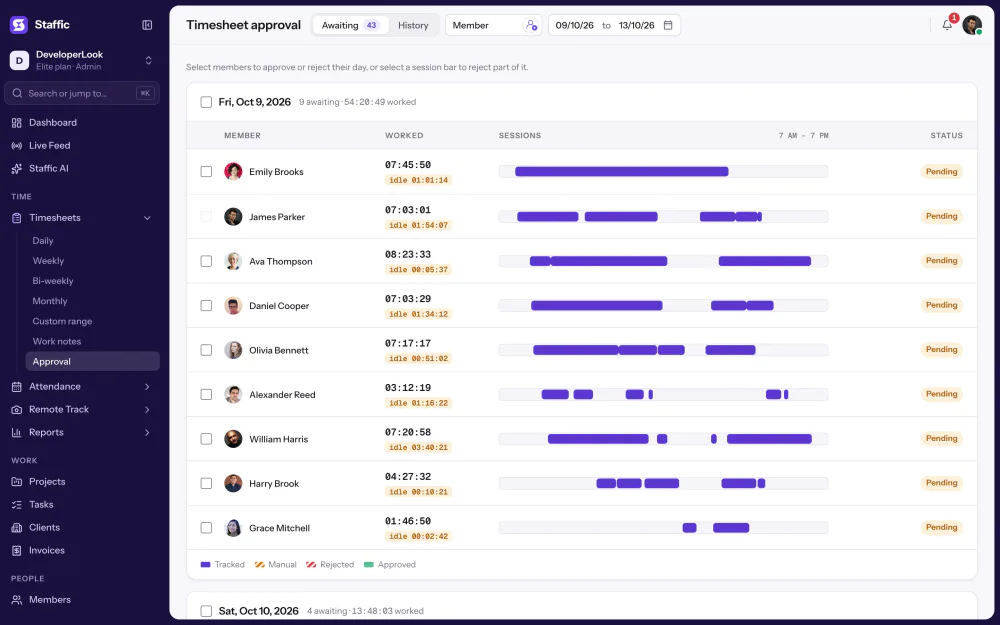
Turn on timesheet approval and only the days a manager approved reach Jira.
Pricing
the Staffic Jira integration is included on every plan, Free included. You pay per active user only when your team grows past 2 members.
Compare every planFor freelancers and small teams, up to 2 members
No card needed.
Includes the Staffic Jira integrationEvery core feature, for teams of up to 2 members.
Everything in Free, without the 2 member limit
Offer price until October 30, 2026, then $7.50
Card at checkout. Cancel within 7 days and pay nothing.
Includes the Staffic Jira integrationEverything in Free without the 2 member limit.
For organizations running payroll, billing and approvals
Offer price until October 30, 2026, then $10
Card at checkout. Cancel within 7 days and pay nothing.
Includes the Staffic Jira integrationEverything in Standard, plus Screen Recordings, Invoices, Clients and 1 more.
Prices in USD per active user. Billed monthly, Standard is $9.50 and Elite is $13 per user.
FAQ
Clear answers to common questions about Jira integration.
Read the Jira integration guideYes. Jira Cloud has built-in time tracking: people log work on an issue by hand, with Log work or the Time tracking field, and Jira adds it up as Time Spent, according to Atlassian's documentation. Staffic records the time as people work and writes it to the same issues as worklogs.
It's how Jira records effort on an issue: an original estimate, the time logged so far and the time remaining. With Staffic connected, the time logged comes from the Staffic timer, as one worklog per person and day with the person's name in the comment.
Pick one that writes real Jira worklogs and keeps them correct. Staffic imports the issues of the projects you choose, tracks time on them with the desktop app, and keeps one worklog per person, issue and day equal to its own total for 31 days, on every plan including Free.
Connect Jira in Settings > Integrations and pick the Jira projects to sync, and their issues appear as Staffic tasks. Each person starts the timer on their issue in the Staffic desktop app, and within 15 minutes the time shows on the issue as a worklog.
Jira's built-in Time Tracking Report shows estimates and time spent for the issues of one version, according to Atlassian. Staffic adds its own reports on the same hours: Time & Activity by member, project and task, and timesheets for any date range.
No. Issues flow one way, from Jira into Staffic, and Staffic writes only worklogs back. Status, assignee or description changes you make in Staffic stay in Staffic.
Syncing stops and Staffic no longer reaches your Jira site. Imported tasks stay in Staffic and the worklogs already written stay in Jira; reconnect the same account later and your project choices come back.
Every plan includes the Staffic Jira integration. Free covers up to 2 members. Standard is $7.50 per user per month billed yearly ($3.80 during the current offer, until October 30, 2026) or $9.50 billed monthly, and Elite is $10.00 per user per month billed yearly ($4.80 during the current offer, until October 30, 2026) or $13.00 billed monthly.
Explore more
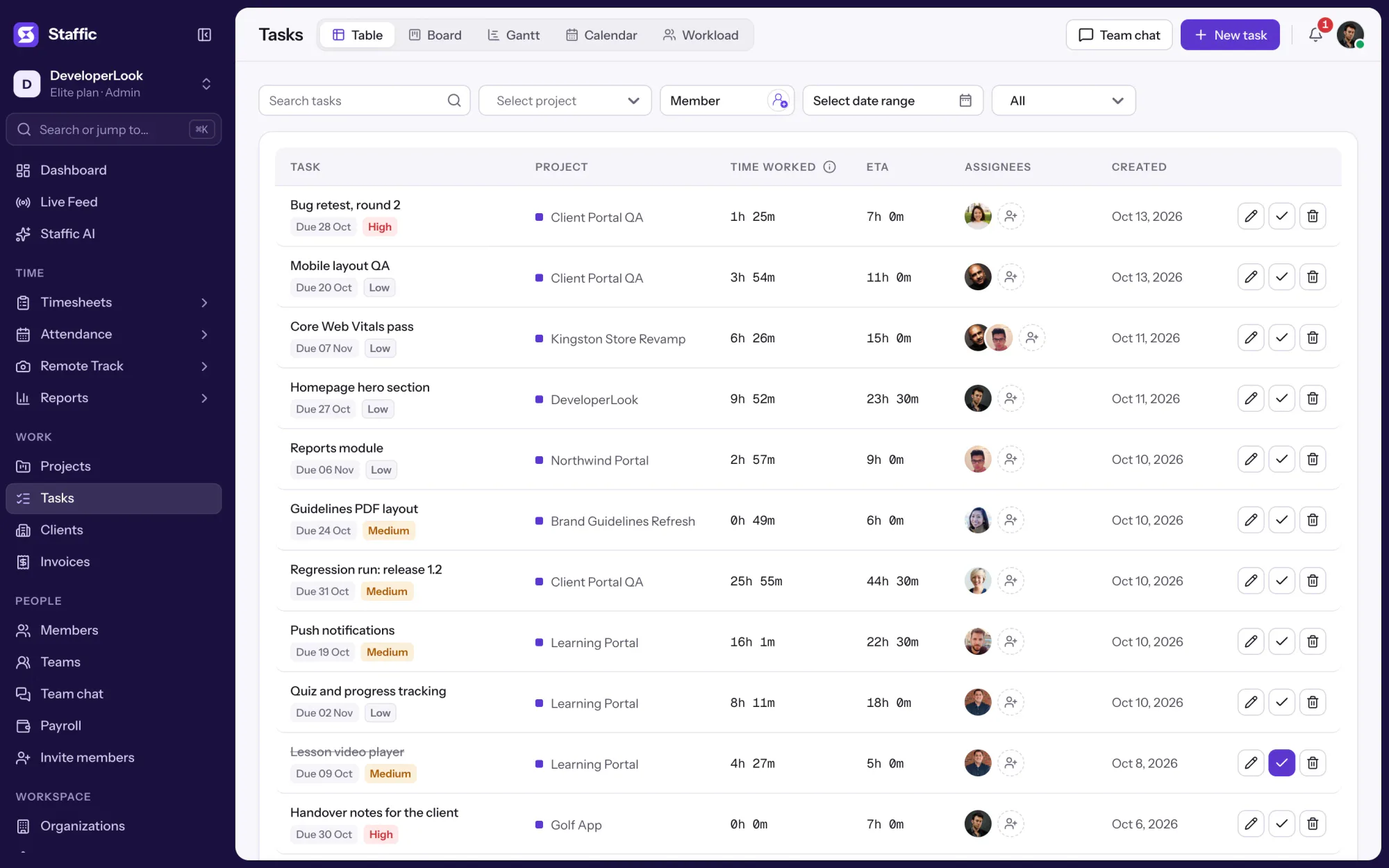

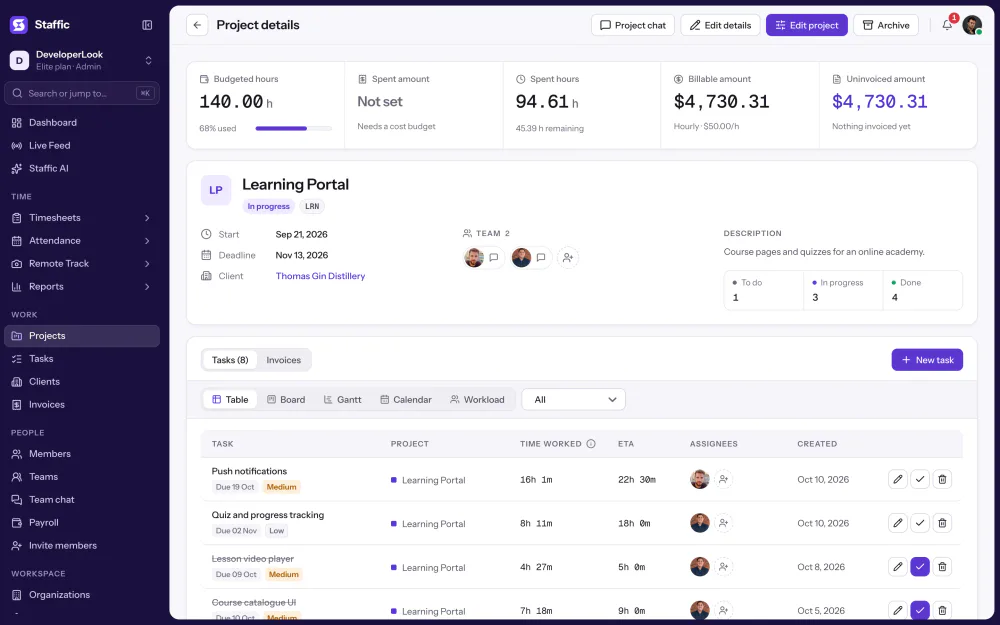
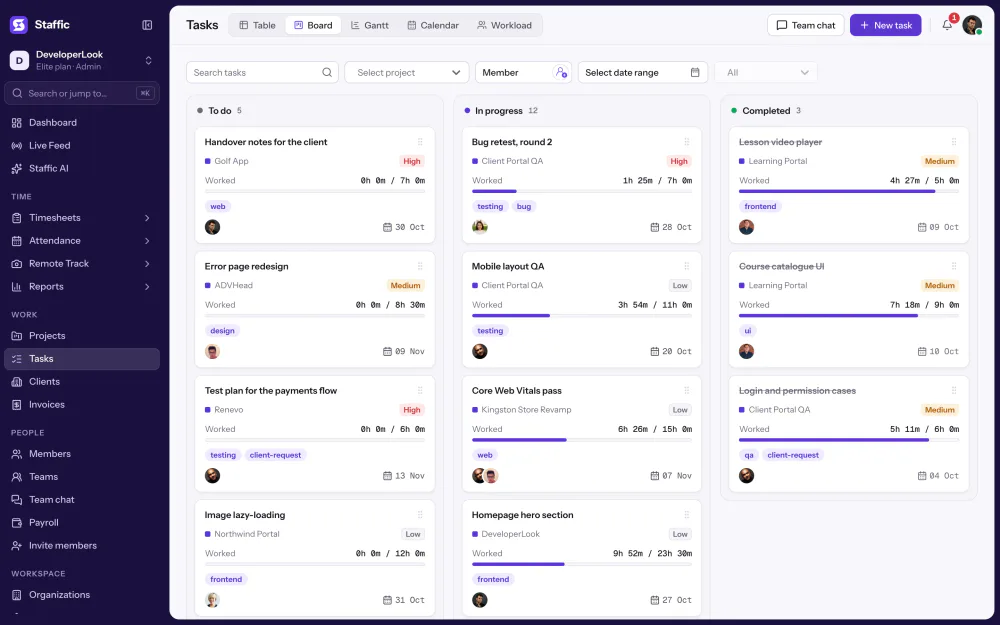
Tasks holds the work inside each project, with estimates, assignees, due dates and time worked, in table, board, Gantt, calendar and workload views.
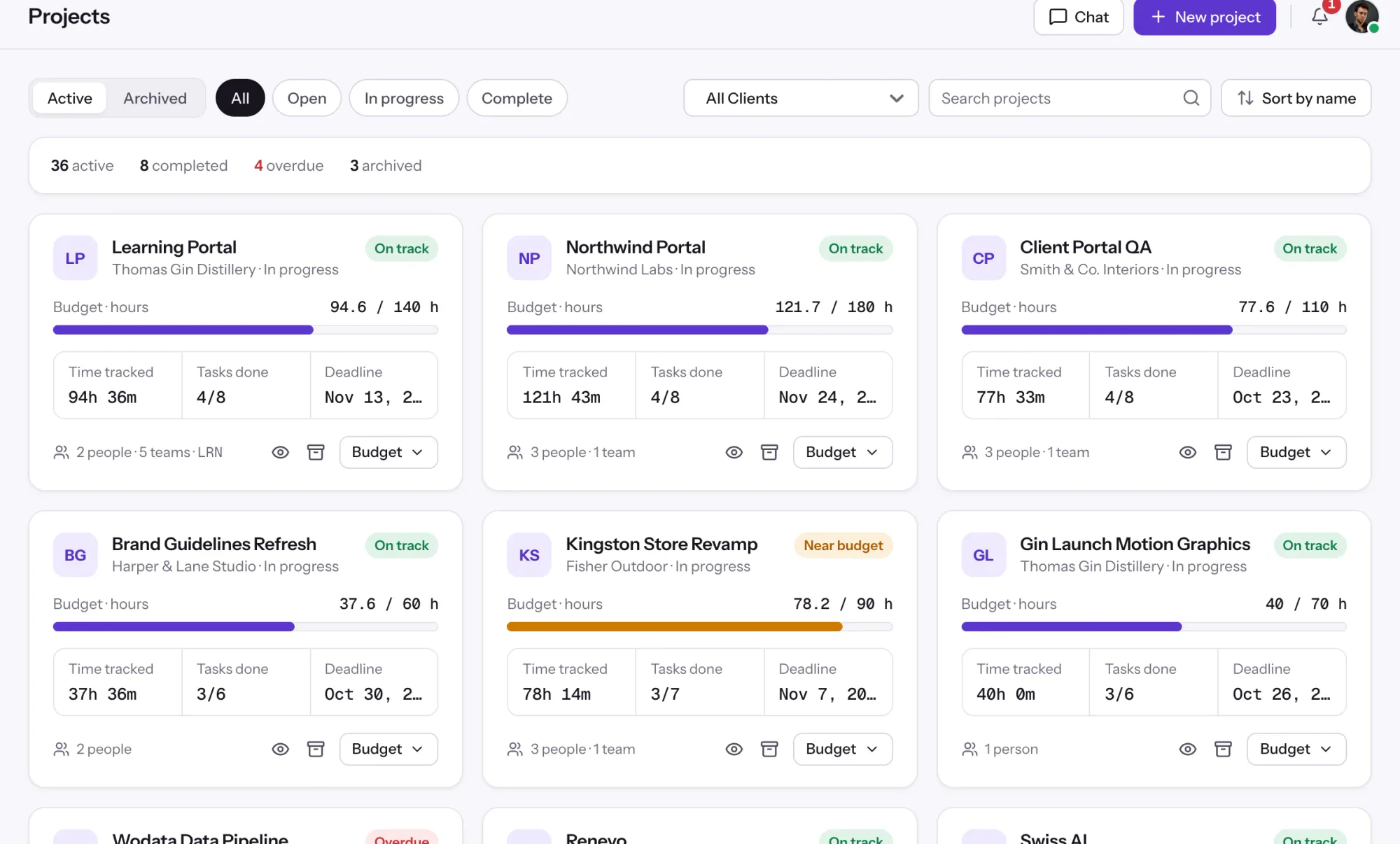

Projects tracks time per project, task and member, with status and task progress, plus budgets and billing on every plan.
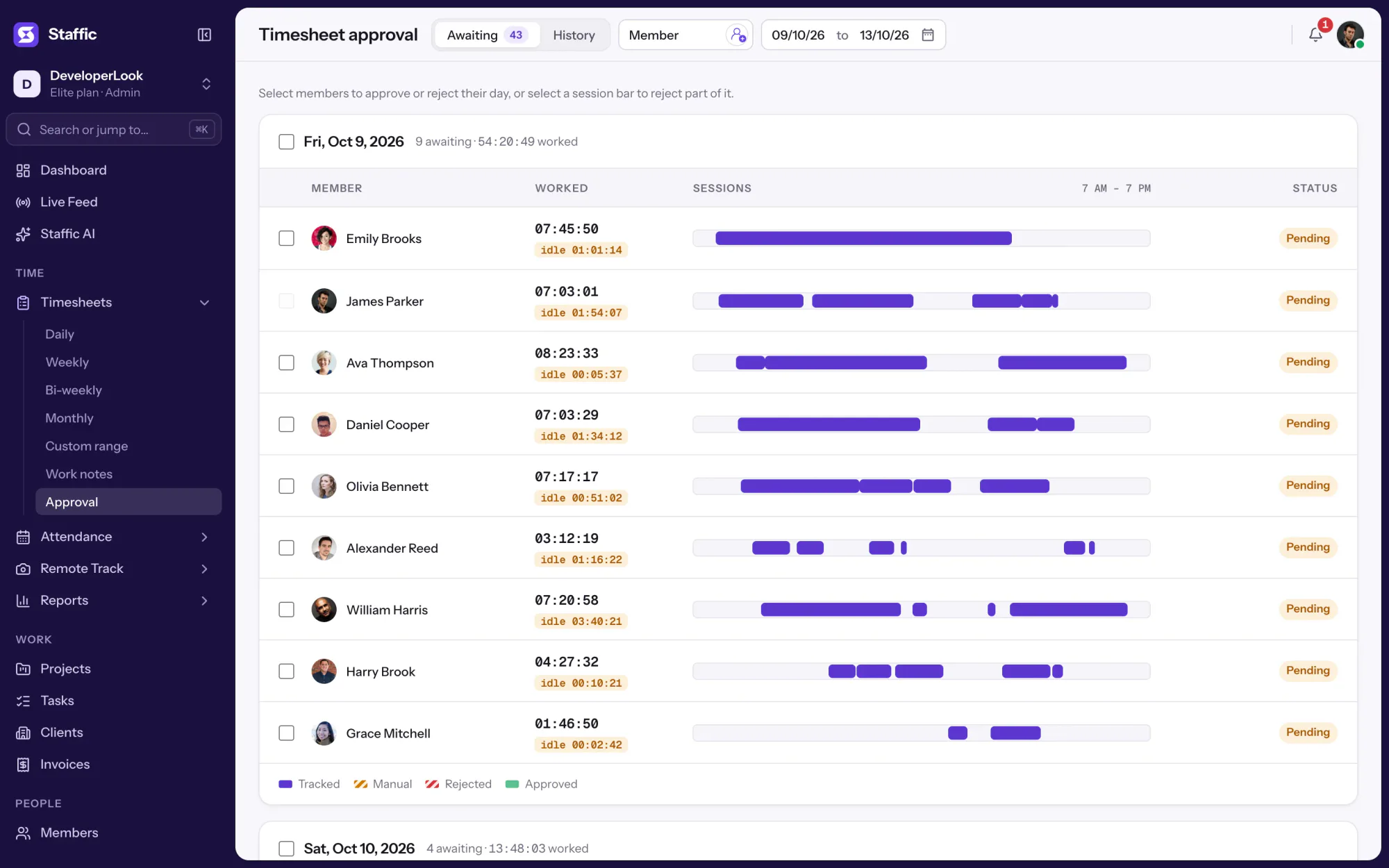

Approve or reject each member's tracked and manual time day by day, so hourly payroll pays only the hours you signed off.
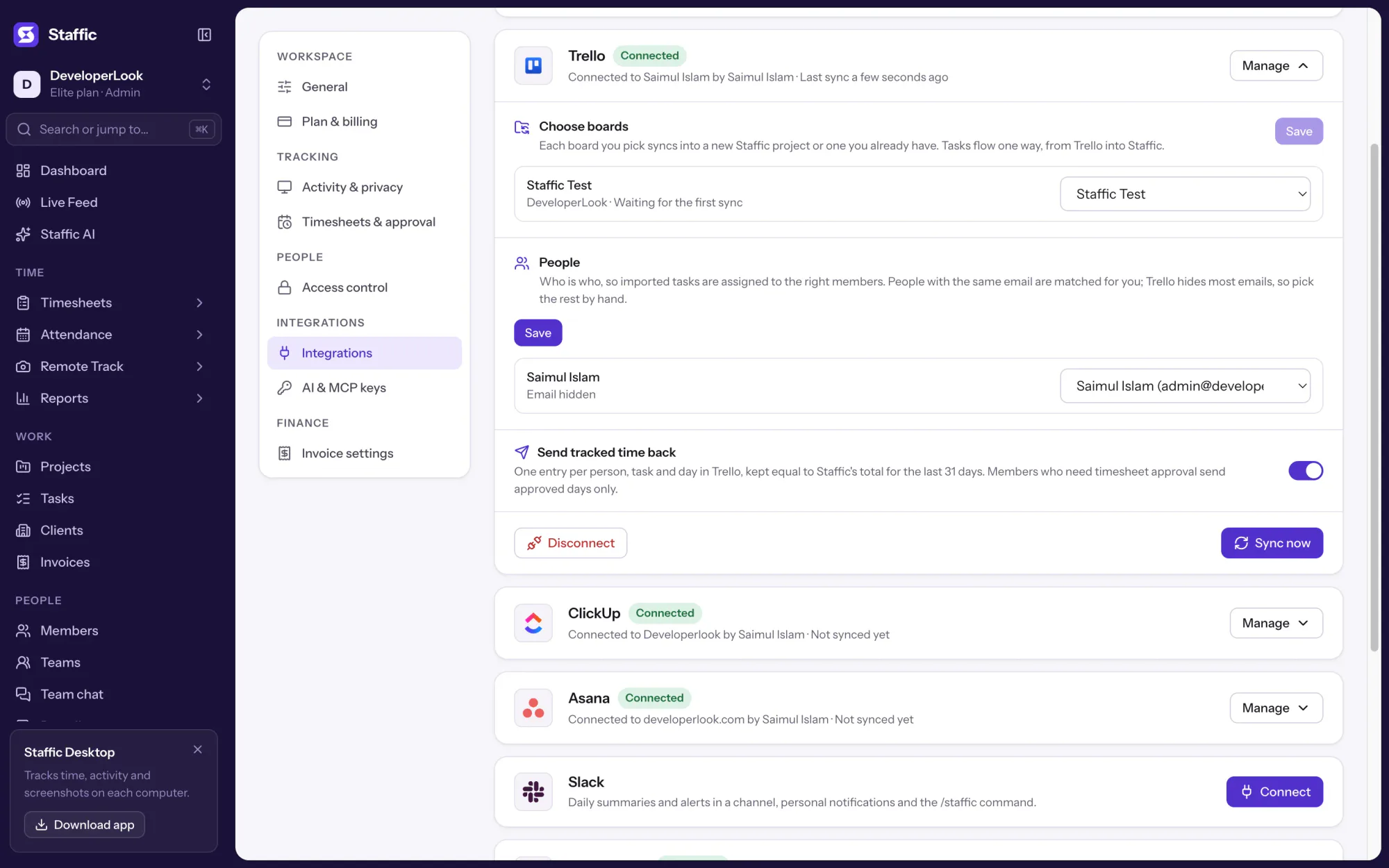

Bring Trello cards into Staffic as tasks, track time on them with the desktop app and post the hours back to each card.
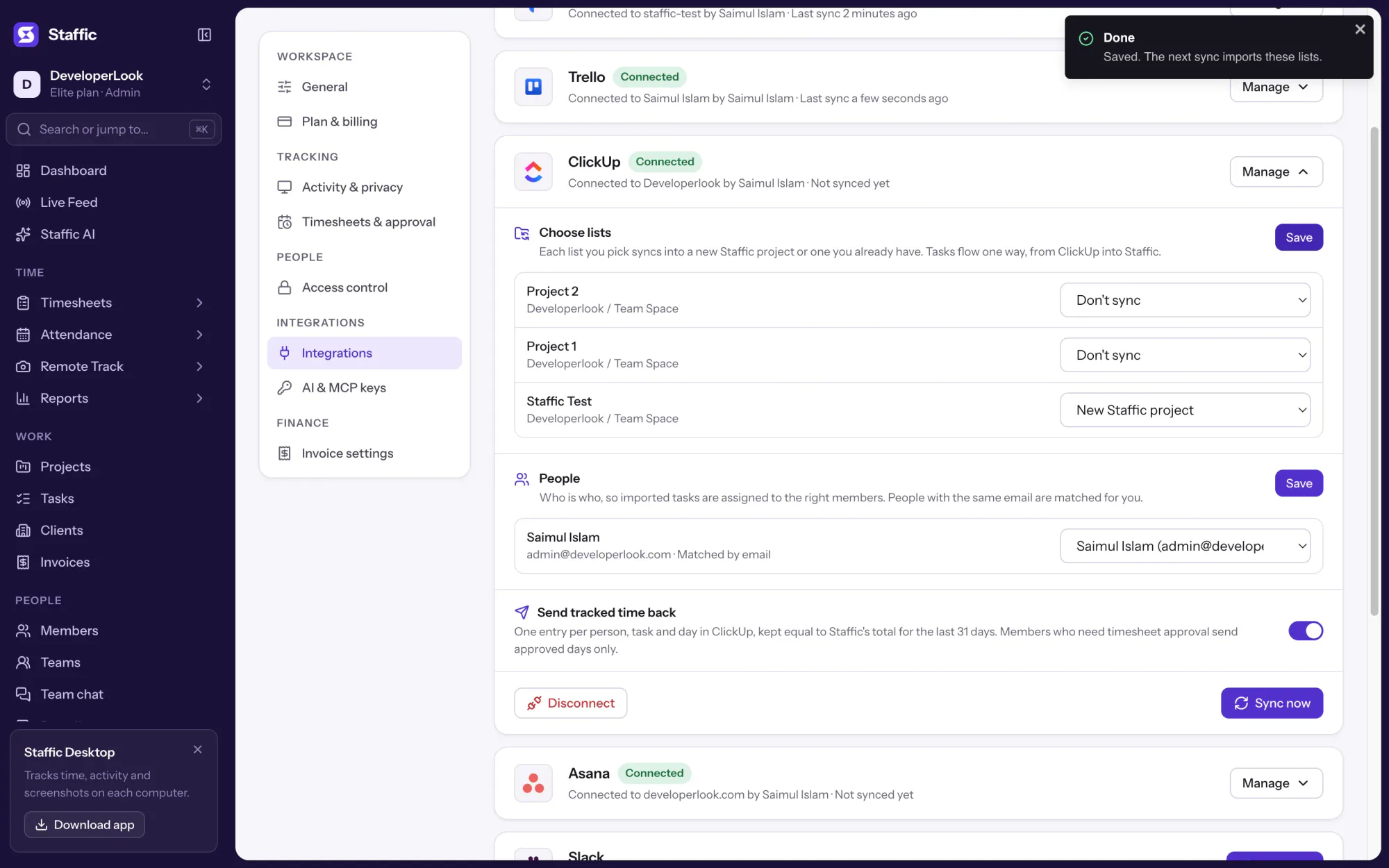

Bring ClickUp tasks into Staffic, track time on them with the desktop app and send the hours back as ClickUp time entries.
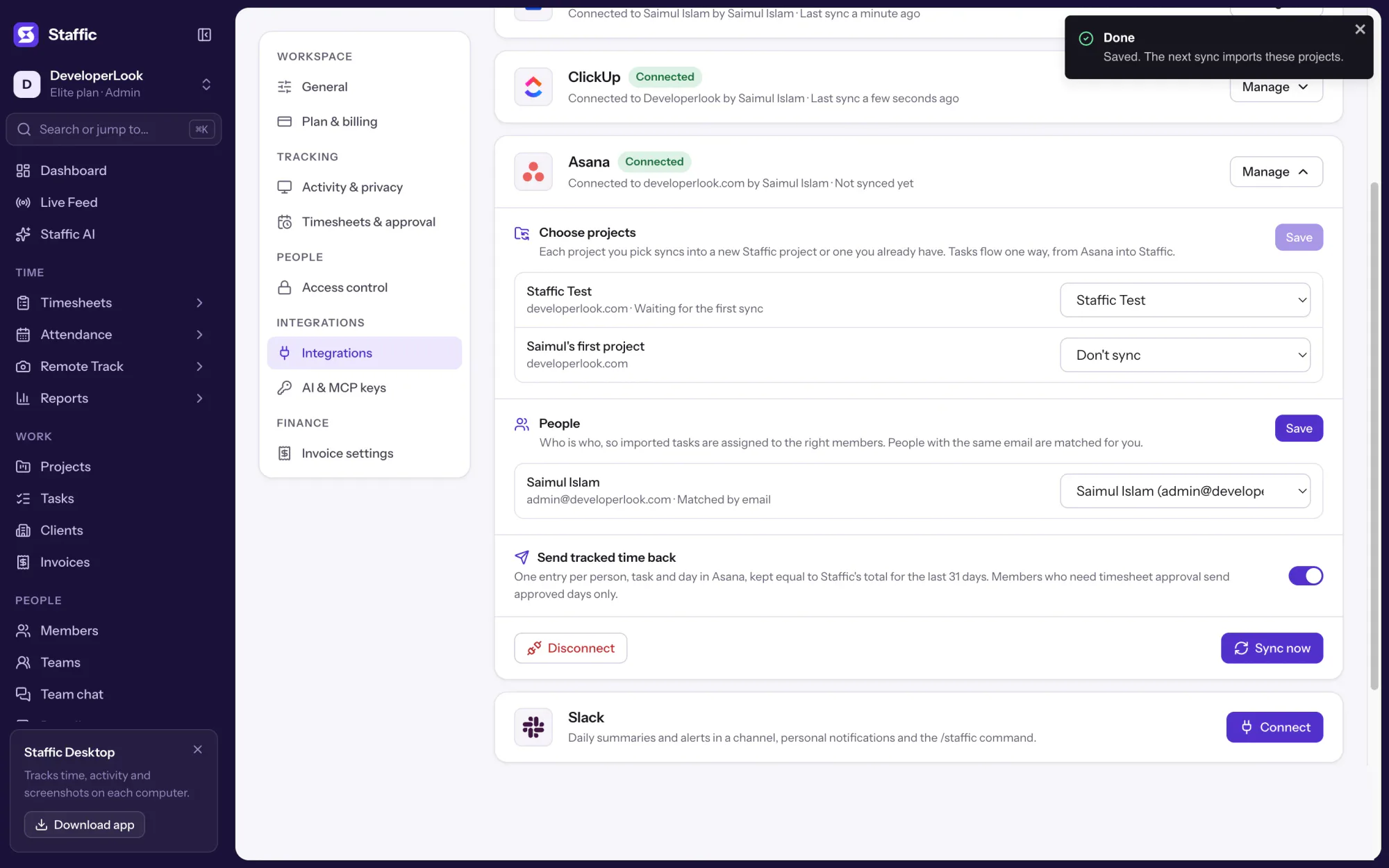

Bring Asana tasks into Staffic, track time on them with the desktop app and send the hours back as Asana time entries.
Free for up to 2 members
Create your workspace, invite your team, and the first timesheet builds itself.