




Workspace
How to use integrations
AdminConnect Jira, Trello, ClickUp and Asana to bring their tasks into Staffic and send tracked time back to them, and connect Slack for team updates and the /staffic command.
- Where
- Workspace > Settings > Integrations
- Who
- Admins connect, set up and disconnect integrations.
- Plan
- All plans, including Free.
Integrations connect Staffic to the tools your team already plans in. Jira, Trello, ClickUp and Asana send their tasks into Staffic, people track time on those tasks with the Staffic desktop app, and Staffic writes the time back to each tool. Slack gets a daily team summary, leave requests and budget alerts, and answers the /staffic command.
Find the Integrations page
Step 1: Open Integrations
Go to Workspace > Settings and click Integrations (1). Each tool has a card (2, 3) with a short line on what it does and a Connect button (4).
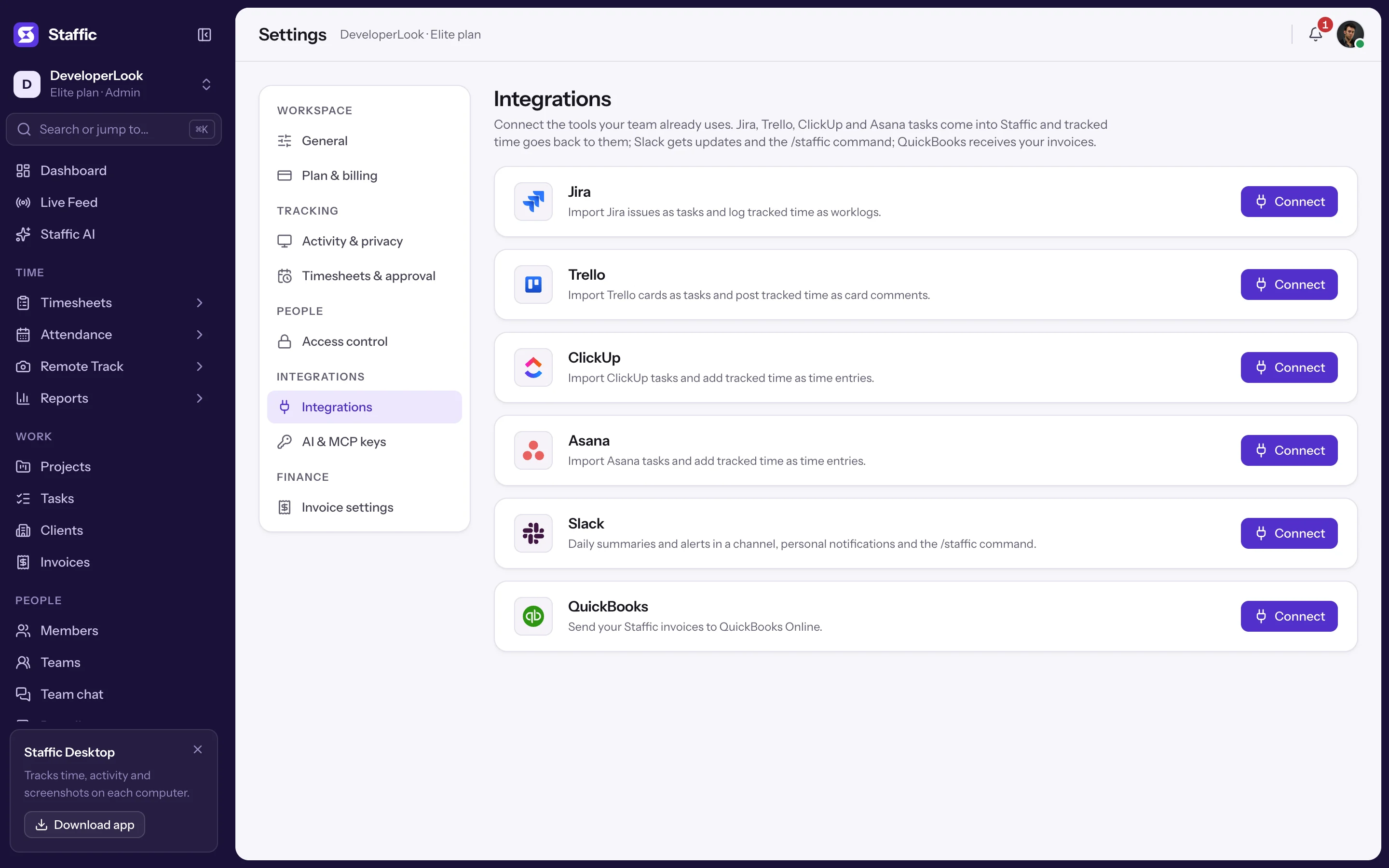
- 1Integrations
- 2Task tools
- 3Slack
- 4Connect
Step 2: Connect a tool
Click Connect. The tool's own page opens and asks you to allow Staffic. Approve it there and you come back to Integrations with the tool's panel open and the message that it's connected.
Step 3: Set it up
Choose what to sync and who is who. Each tool's page below walks through its panel.
- Jira
- Jira issues as tasks, tracked time back as worklogs. See Jira.
- Trello
- Trello cards as tasks, tracked time back as card comments. See Trello.
- ClickUp
- ClickUp tasks and subtasks, tracked time back as time entries. See ClickUp.
- Asana
- Asana tasks, tracked time back as time entries. See Asana.
- Slack
- A daily team summary, leave requests and budget alerts in a channel, personal notifications as direct messages, and the /staffic command. See Slack.
Card states
Connected tools
A connected card shows Connected, the account it's connected to, who connected it and when it last synced. Task tools have a Manage button that opens their panel.
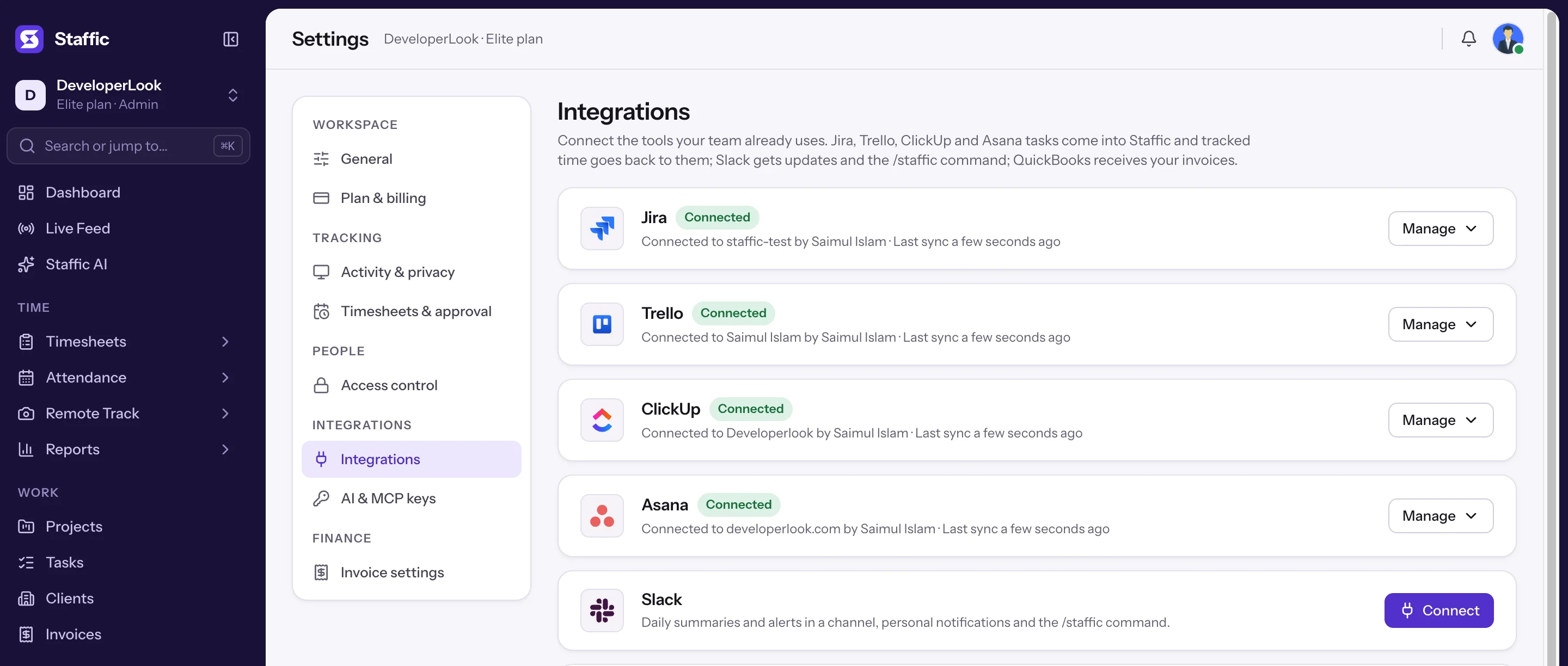
- Connected
- The tool is connected and syncing.
- Needs attention
- Staffic can't reach the tool, for example after the connecting account lost access or removed Staffic. Every admin gets a notification. Click Reconnect on the card.
- Not configured
- The tool isn't available on this Staffic server, so there's no Connect button.
How syncing works
Jira, Trello, ClickUp and Asana follow the same rules:
- Sync
- Every 15 minutes, and right away when an admin clicks Sync now. Sync now allows 10 runs in 10 minutes per organization, across all tools.
- Tasks
- One way, from the tool into Staffic. A field changes in Staffic only when it changed in the tool since the last sync, so your edits in Staffic stay.
- Time back
- One entry per person, per task, per day in your organization's time zone, kept equal to Staffic's total for the last 31 days. Whole minutes, at least 1 minute. If a day's time drops to zero, the entry is removed.
- Which time counts
- Sessions that start and end inside the day, the same total the daily timesheet shows, manual time included.
- Approval
- Members who need timesheet approval send only the days where every session group is approved.
- Who writes it
- The account that connected the tool, with the person's name in the note (Tracked in Staffic by James Parker). ClickUp and Asana can file it under the person; see their pages.
- Desktop app
- Imported tasks show in the Staffic desktop app for the people they're assigned to. Tasks of people who aren't linked import without an assignee.
Imported tasks
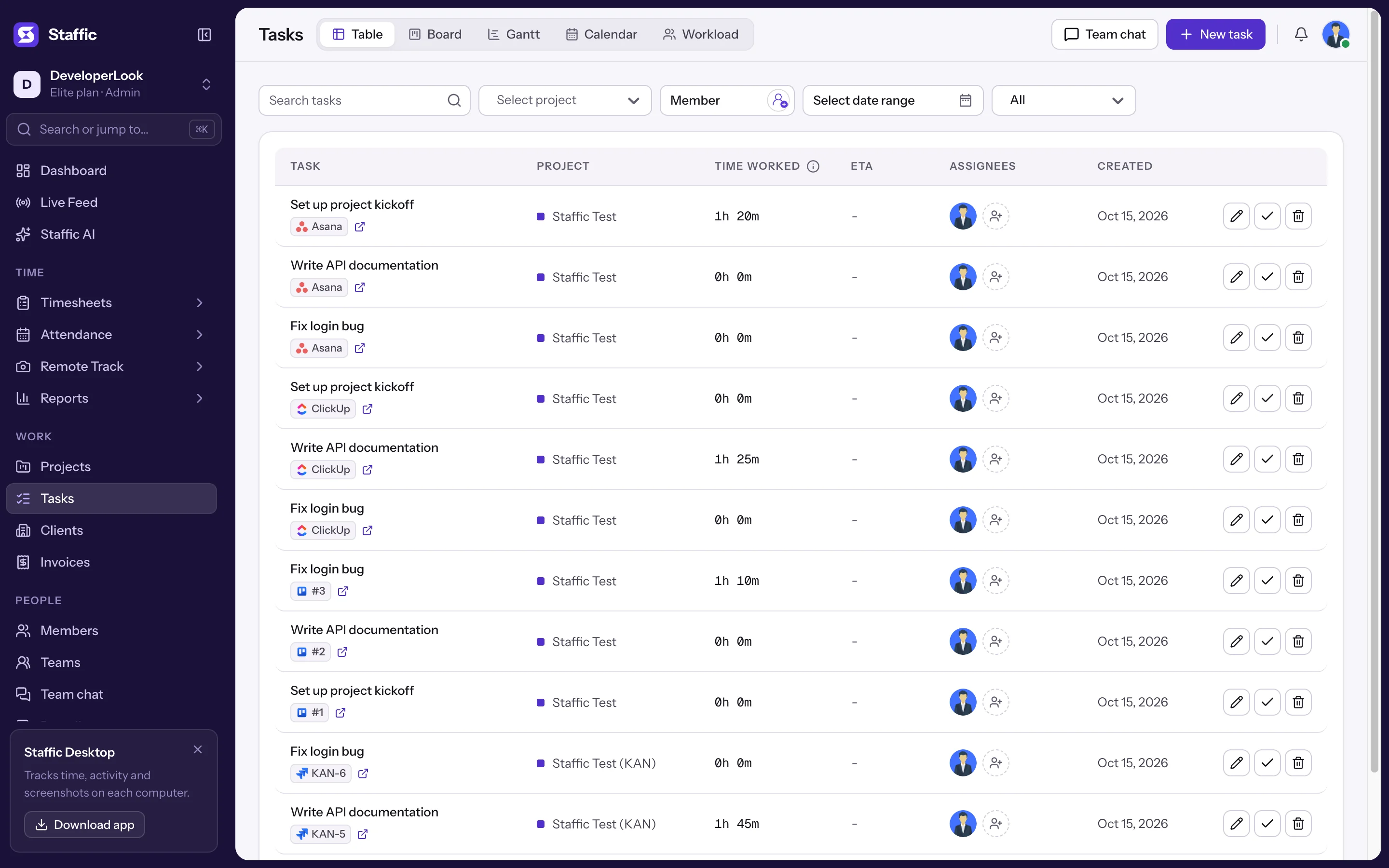
See them on the Tasks page
Imported tasks sit in their Staffic project like any other task. A badge shows the tool's logo and the task's key in that tool, such as KAN-4 or #3, and the link icon opens the original.
Disconnect a tool
Open the tool's panel and click **Disconnect**, then confirm. Syncing stops and Staffic no longer reaches your account in that tool. Imported tasks stay in Staffic and time already written stays in the tool. Your project choices and people links are kept, so they come back if you reconnect the same account.
Disconnecting Slack also removes the Staffic app from your Slack workspace, and the /staffic command stops answering.
Common questions
Do integrations cost extra?
No. Jira, Trello, ClickUp, Asana and Slack are included in every plan, including Free for teams of up to 2 members.
Can members connect a tool?
No. Only admins can open Settings > Integrations, connect a tool, change its settings or disconnect it. Members see imported tasks and track time on them as usual.
Does Staffic change my tasks in Jira, Trello, ClickUp or Asana?
No. Tasks flow one way, into Staffic. The only thing Staffic writes back is tracked time, as worklogs, card comments or time entries.
Can I connect two Jira sites or two Slack workspaces?
No. Each organization has one connection per tool, and a Jira connection uses one Jira site. Change the site in the Jira panel, which clears that connection's project choices.
Why didn't my time reach the tool?
Check that Send tracked time back is on, that the person is linked in the People section, that the time was tracked on the imported task, and that the day is approved if the person needs timesheet approval. Then click Sync now.
Tips
- Connect each tool with an account that will stay with your team, since that account writes the time back.
- Link every person in the People section once; their tasks are assigned to them from then on.
- Use Sync now after changing projects or people instead of waiting 15 minutes.