




Workspace Integrations
How to connect Jira
AdminBring Jira Cloud issues into Staffic as tasks and send the time your team tracks back to each issue as a Jira worklog.
- Where
- Workspace > Settings > Integrations > Jira
- Who
- Admins, with access to the Jira Cloud site.
- Plan
- All plans, including Free.
The Jira integration works with Jira Cloud. Each Jira project you pick syncs into a Staffic project; its issues become tasks, and the time people track on them goes back to Jira as worklogs.
Connect Jira
Step 1: Click Connect
In Settings > Integrations, click Connect on the Jira card.
Step 2: Approve Staffic
Atlassian asks you to allow Staffic to read Jira users and issues and to add worklogs on your site. Pick the site and approve. If your account reaches several Jira sites, a site picker appears in the Jira panel.
Step 3: Choose projects
Under Choose projects (1), set each Jira project to New Staffic project, an existing Staffic project or Don't sync. People (2) fills in after you save. Send tracked time back (3) is on by default. Sync now (4) and Disconnect (5) sit at the bottom.
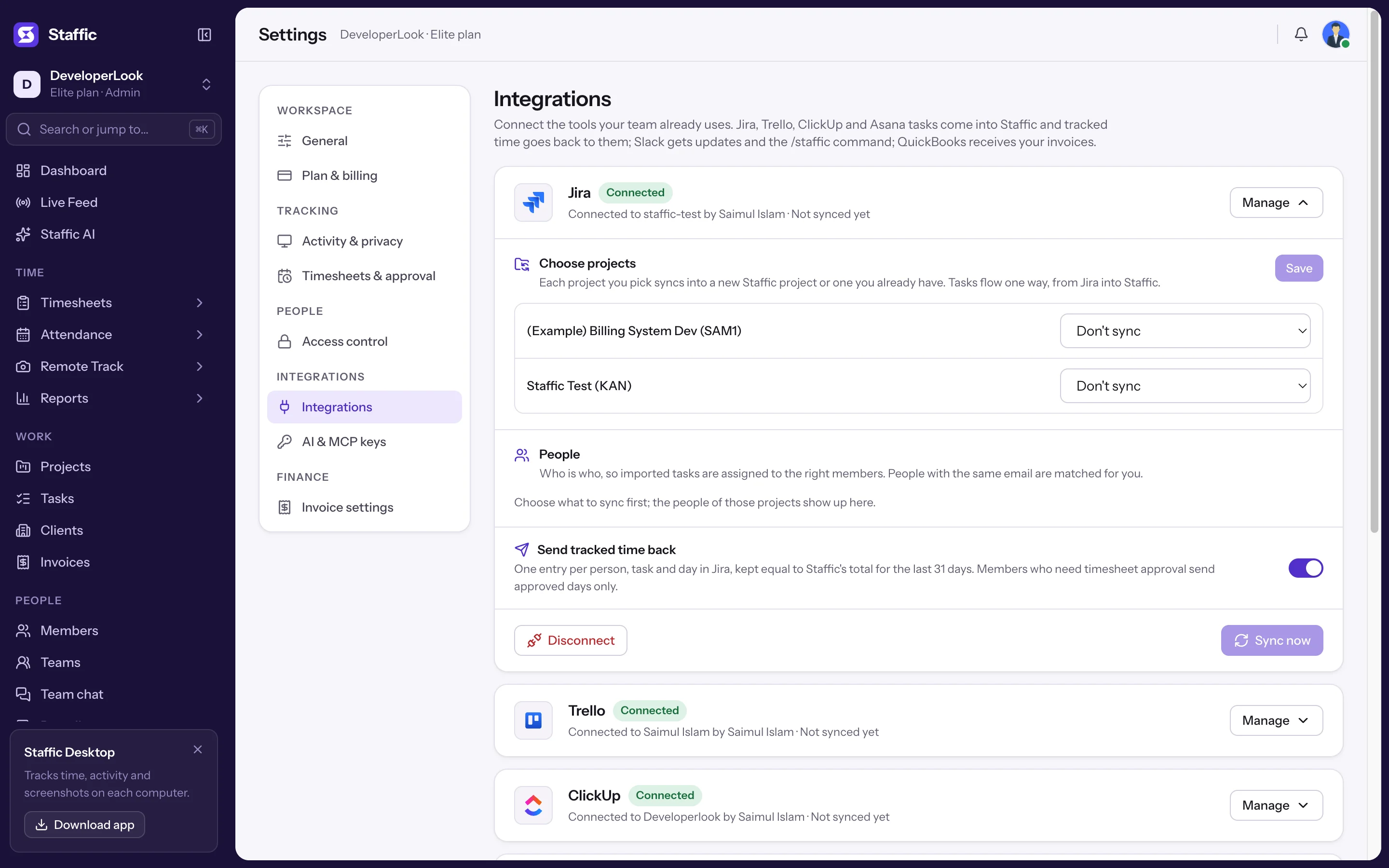
- 1Choose projects
- 2People
- 3Send tracked time back
- 4Sync now
- 5Disconnect
Step 4: Save
Pick New Staffic project (1) for each project you want, then click Save (2). A new Staffic project takes the Jira project's name.
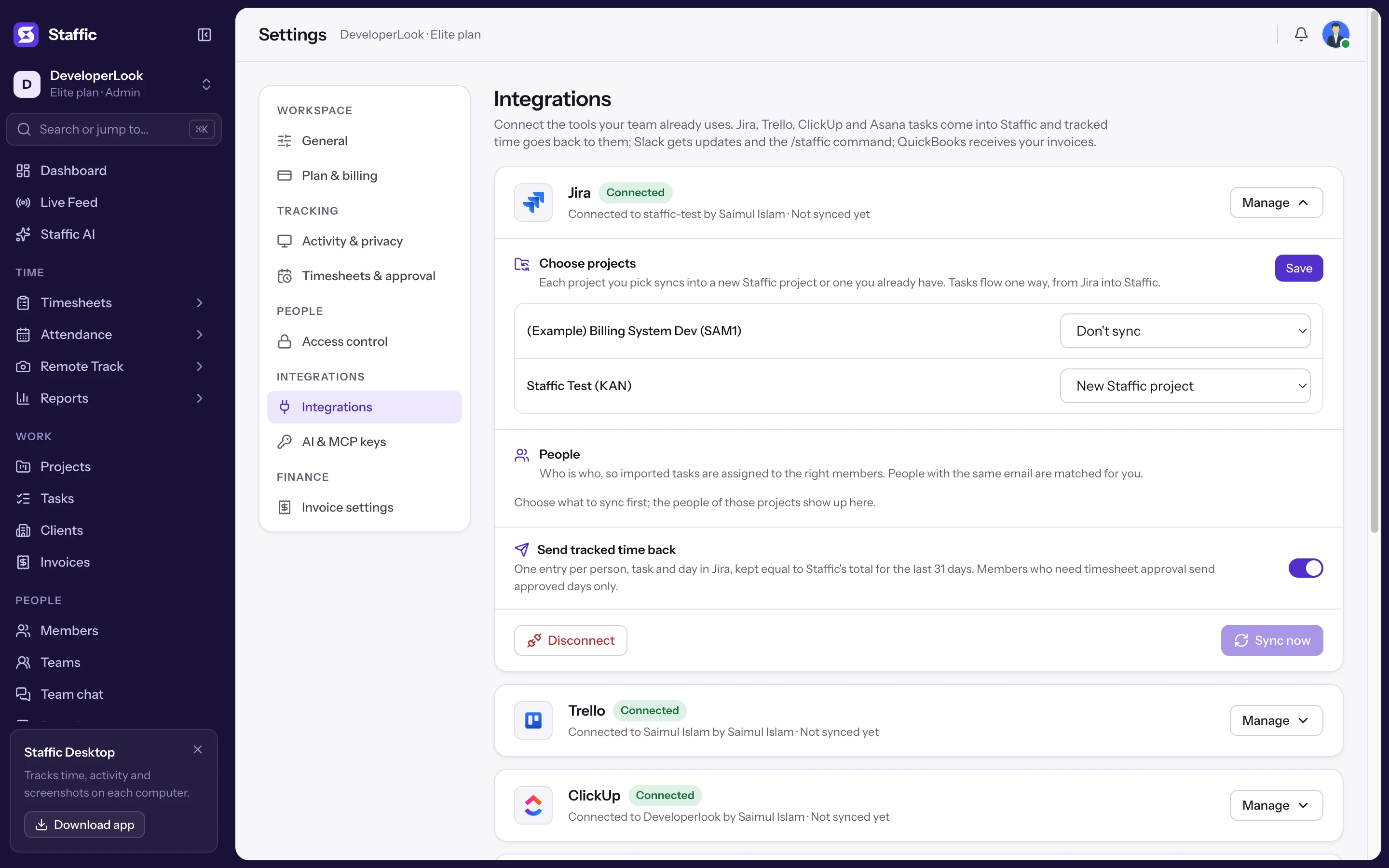
- 1New Staffic project
- 2Save
Step 5: Check people and sync
Jira users with the same email as a Staffic member show Matched by email (2). Link anyone else by hand and save. Click Sync now (3); the project then shows when it last synced (1).
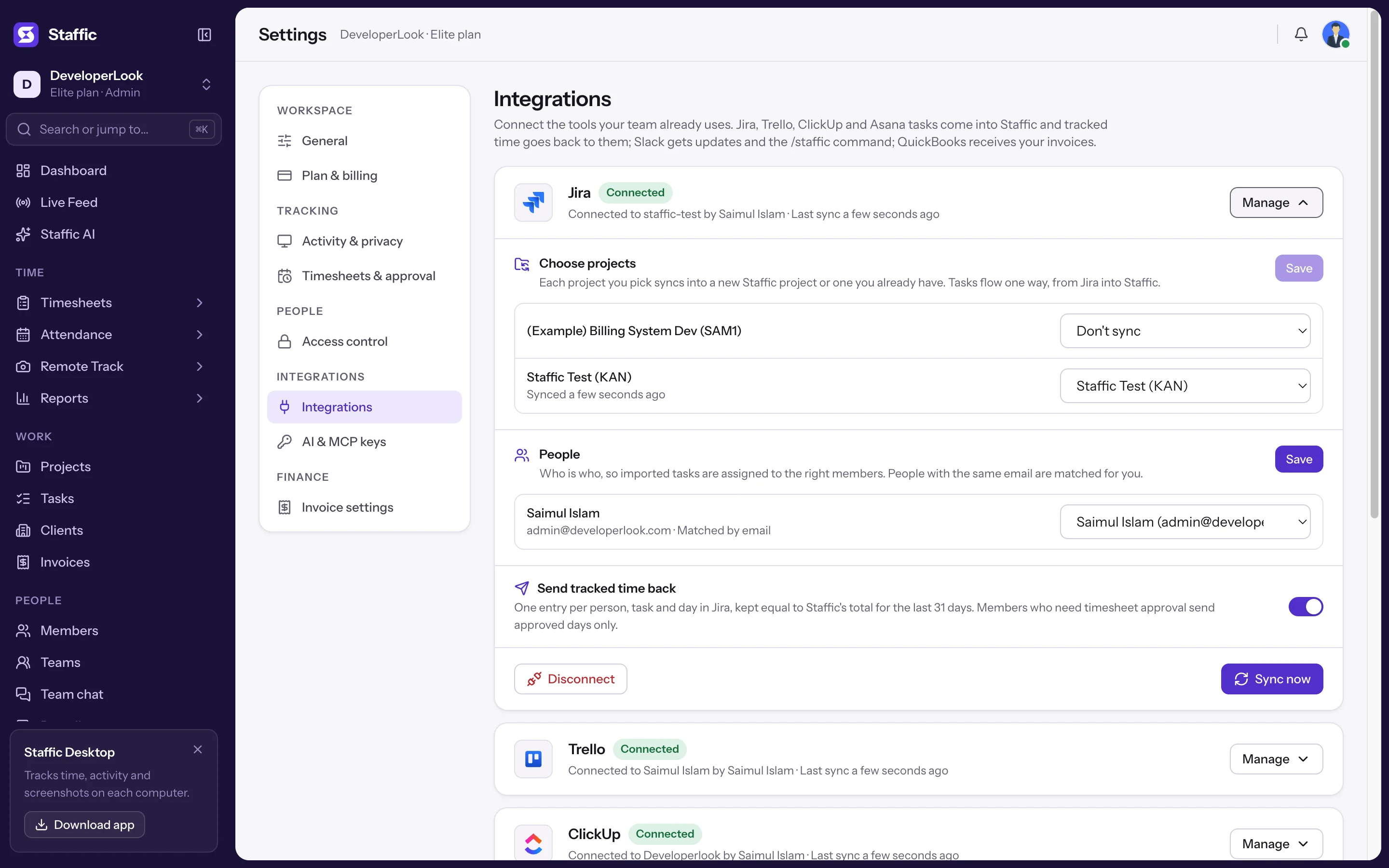
- 1Last synced
- 2Matched by email
- 3Sync now
What comes in
- First sync
- Open issues, plus issues updated or done in the last 30 days.
- Later syncs
- Only issues updated since the last sync.
- Fields
- Name, description as plain text, status, due date, assignee, issue key and link. Priority and labels stay empty.
- Status
- Jira's To Do, In Progress and Done categories become To do, In progress and Done.
Find the issues in Tasks
Each imported task shows its issue key (1) and a link to open it in Jira (2). Time worked (3) is the time tracked in Staffic.
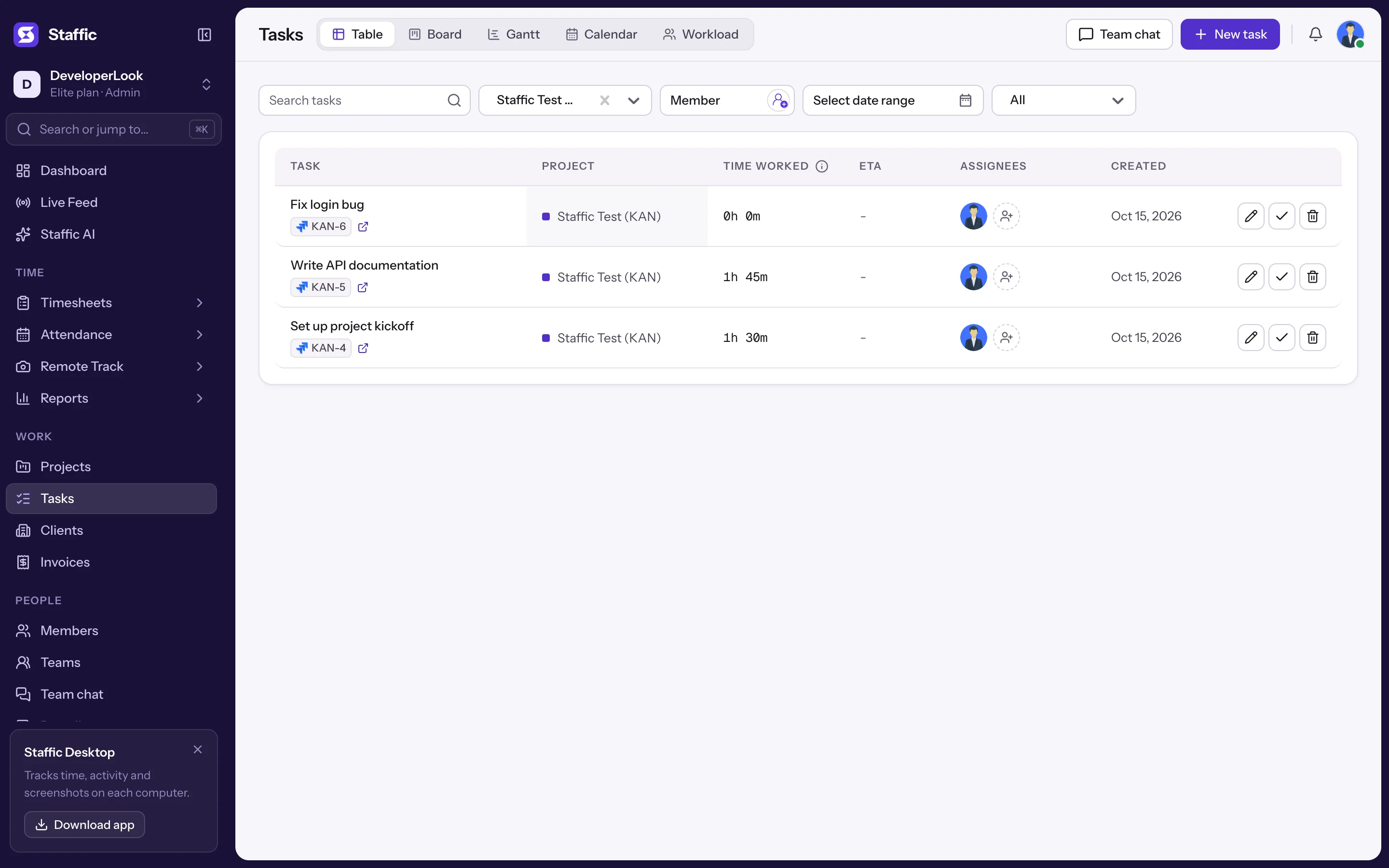
- 1Issue key
- 2Open in Jira
- 3Time worked
Open a task
Task details show the key (1), Open in Jira (2) and the time tracked (3).
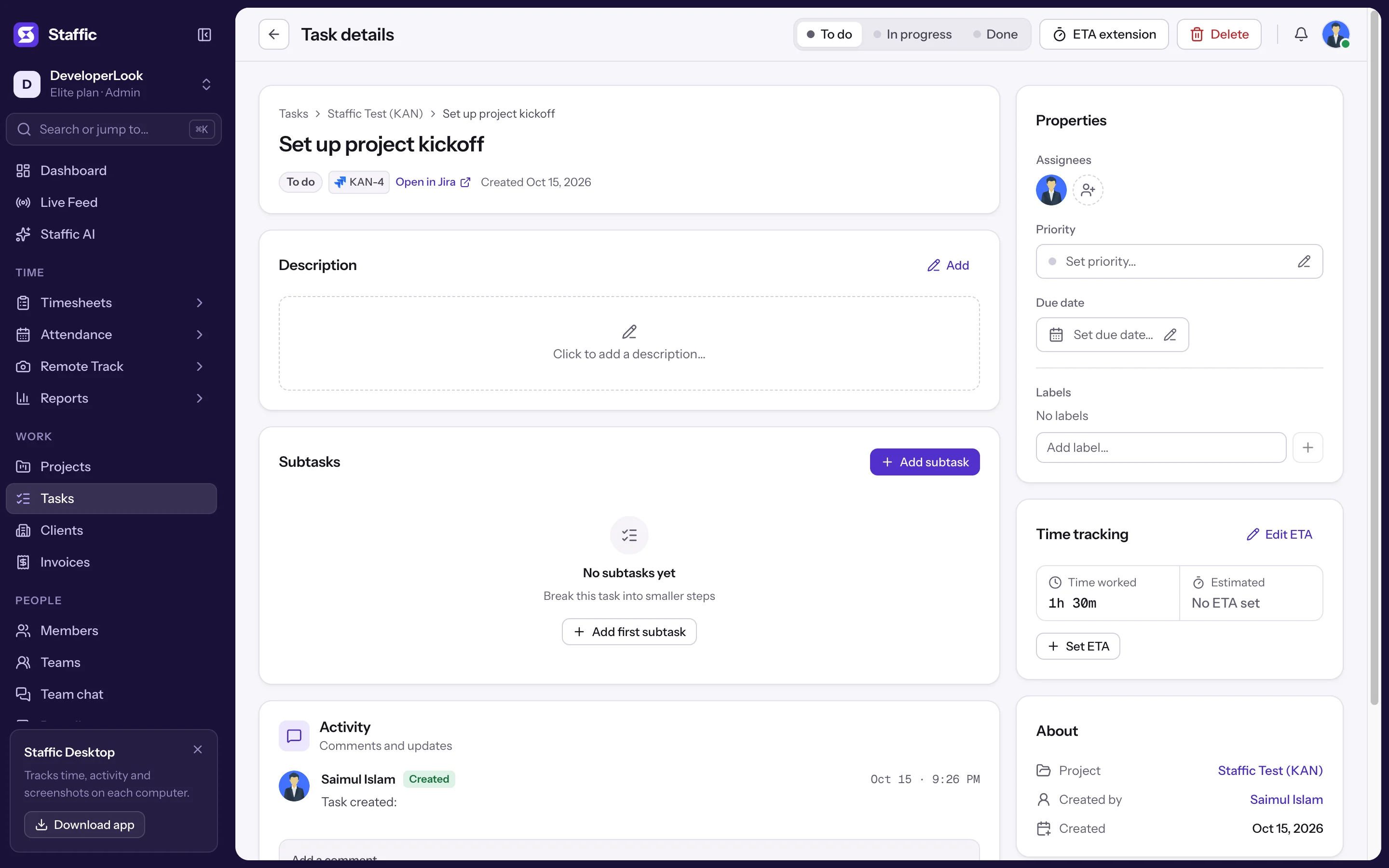
- 1KAN-4
- 2Open in Jira
- 3Time worked
What goes back
Worklogs in Jira
In Jira, the issue's Work log (1) shows one entry per person and day, written by the account that connected Jira, with the comment Tracked in Staffic and the person's name (2). It starts at the person's first session of the day, and Jira sends no notification for it.
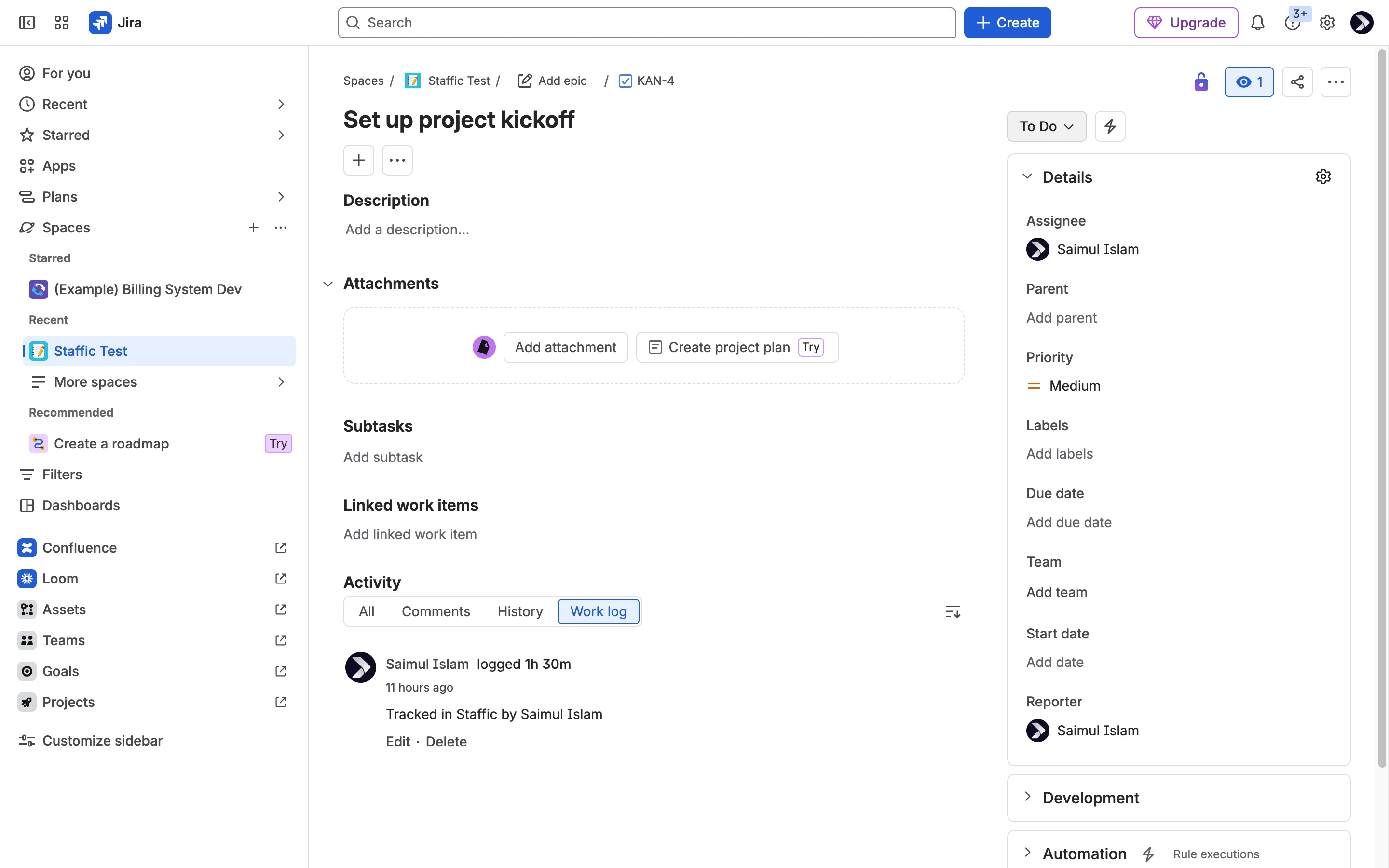
- 1Work log
- 2Tracked in Staffic
Rules for every task tool
- Sync
- Every 15 minutes, and right away when an admin clicks Sync now. Sync now allows 10 runs in 10 minutes per organization, across all tools.
- Tasks
- One way, from the tool into Staffic. A field changes in Staffic only when it changed in the tool since the last sync, so your edits in Staffic stay.
- Time back
- One entry per person, per task, per day in your organization's time zone, kept equal to Staffic's total for the last 31 days. Whole minutes, at least 1 minute. If a day's time drops to zero, the entry is removed.
- Which time counts
- Sessions that start and end inside the day, the same total the daily timesheet shows, manual time included.
- Approval
- Members who need timesheet approval send only the days where every session group is approved.
- Who writes it
- The account that connected the tool, with the person's name in the note (Tracked in Staffic by James Parker). ClickUp and Asana can file it under the person; see their pages.
- Desktop app
- Imported tasks show in the Staffic desktop app for the people they're assigned to. Tasks of people who aren't linked import without an assignee.
Jira limits how many requests an app that Atlassian hasn't reviewed can make each hour. On very large sites a sync can take more than one run to catch up.
Common questions
Does it work with Jira Server or Data Center?
No. The integration connects to Jira Cloud sites only.
Can I change the Jira site?
Yes, in the Jira panel when your account reaches several sites. Changing the site clears the project choices for that connection.
Why is a worklog written by the admin and not by the person?
Staffic writes worklogs with the account that connected Jira, because each person hasn't connected their own. The comment names the person who tracked the time.
Does Staffic change the estimate on the issue?
No. Staffic adds and updates its own worklogs only; the original and remaining estimates stay as they are in Jira.
Tips
- Connect with an Atlassian account that stays with the company; it writes every worklog.
- Pick an existing Staffic project when a Jira project matches one you already track in Staffic.