


Admin Settings
Access Control
AdminGive chosen members more access, such as everyone's timesheets or payroll, without making them admins. You build roles in Settings and assign them on Member Details.
- Where
- Admin > Settings > Access Control settings
- Who
- Admins only. Members never see this page.
- Plan
- All plans can create roles. Assigning roles to members is on Standard and Elite.
Everyone in a Staffic organization is an Admin or a Member. Admins see and change everything. Members see only their own work. Access Control fills the gap between the two.
You create a role, such as HR or Team Lead, and switch on the modules it covers. A module is one area of Staffic, such as Timesheets or Payroll. Then you give the role to a member. That member gets those areas for the whole organization and stays a member everywhere else.
Roles in Staffic
- Admin
- Full access to every page and every member's data, Settings included. The person who creates an organization is its first admin. Admins always have every module, so Access Control doesn't change what they see.
- Member
- The role everyone gets when they join. A member sees their own screenshots, timesheets, tasks, attendance and leave, the projects they're assigned to, and their own profile.
- Custom role
- A role you create in Access Control. It keeps everything a member has and adds the modules you switch on, for every member of the organization.
Staffic has no ready-made custom roles: you create the ones your team needs. Each member can hold one custom role at a time.
A custom role only adds access. It never hides a member's own data, even for modules the role leaves off. Settings (with Access Control, MCP keys and billing) and Live Feed stay admin only, whatever the role.
Create a role
Step 1: Open Access Control
In the sidebar, go to Admin > Settings and click Access Control settings under Management. The Module Access Permissions grid has one row per role and one column per module. With no roles yet, it says No roles found. Create a role to get started.
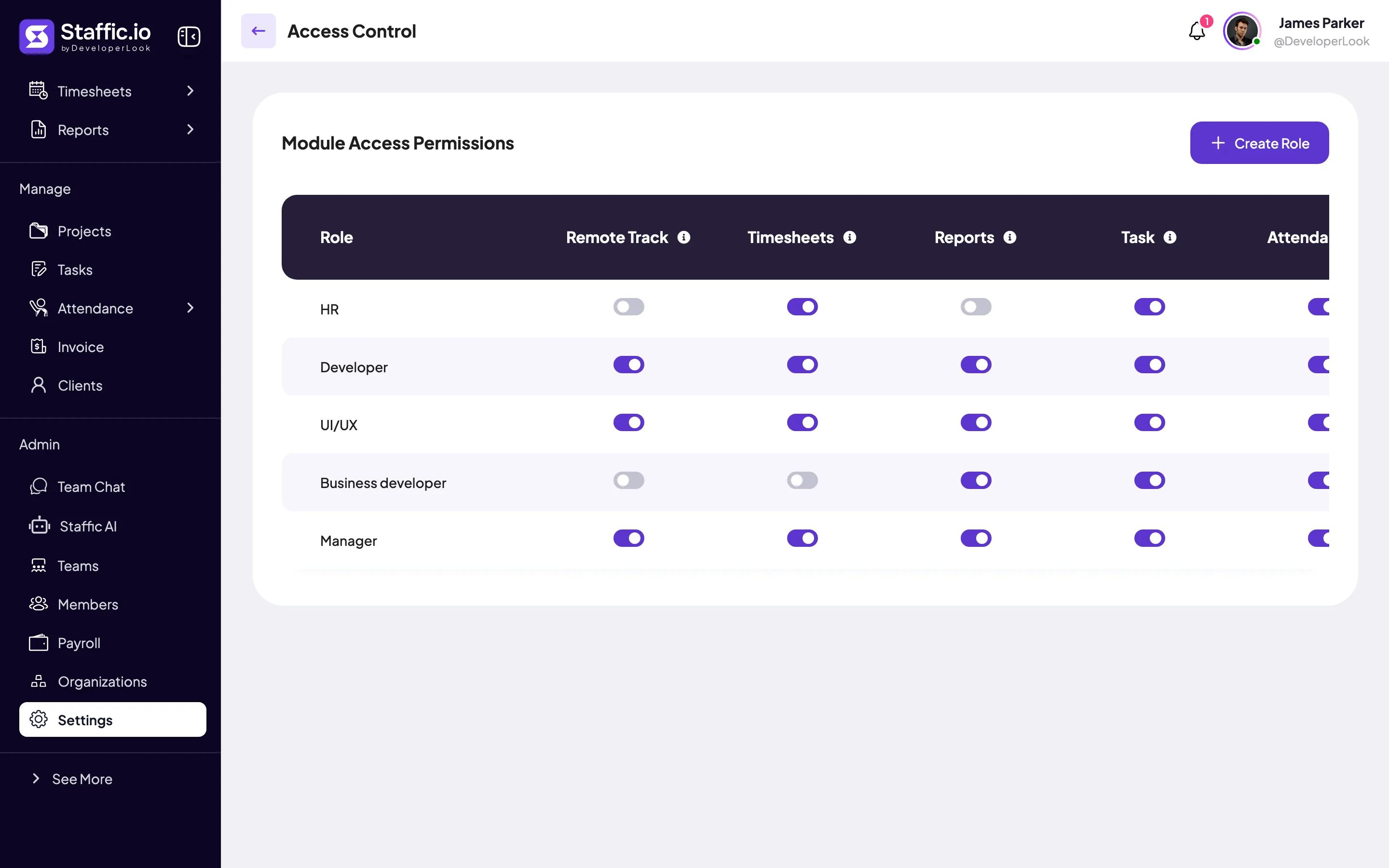
Each row is a role. Each column is a module. Step 2: Name the role
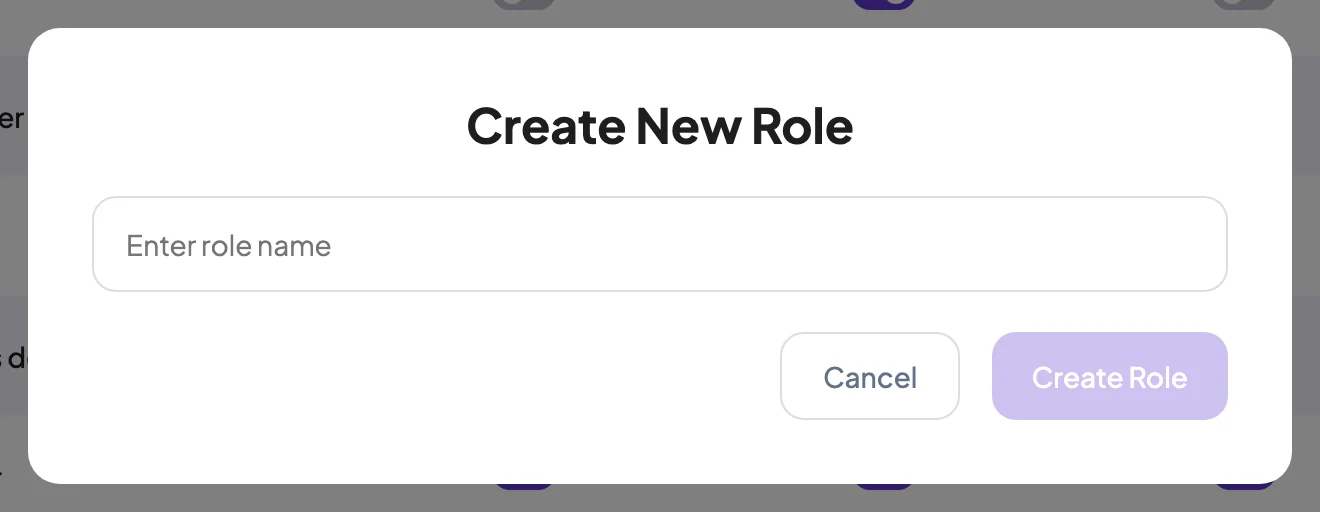
Click Create Role. In the Create New Role dialog, type a name such as HR or Team Lead. Then click Create Role or press Enter.
- Role name
- Required. It must be different from every other role in the organization. Staffic tells you if the role already exists.
- Starting point
- A new role starts with every module switched off.
Step 3: Switch on modules
In the role's row, turn on the switch under each module the role should cover. Each switch saves at once and shows Module access granted successfully. Turning one off shows Module access revoked successfully.
- Toggle All
- Turns every module on or off for the role in one click.
- Info icon
- Hover the icon next to a module name to read what the module covers.
- Actions
- The delete icon removes the role.
Step 4: Give the role to members
Open each member's Member Details page and pick the role. The steps are under Assign a role to a member, below.
What each module covers
Each module has one switch, on or off. The grid has no separate view and manage rights. When a module is on, the role covers that area for every member. Rights on a single project, Manage Project and View Project Details, are set on the project itself in Projects.
- Remote Track
- See every member's screenshots, recordings, apps and URLs, and work notes. Without it, a member sees only their own. Screenshots are on Standard and Elite, recordings on Elite.
- Timesheets
- See every member's timesheets. It also opens Timesheet Approval (Elite). While "Allow members to add manual time" is on in Timesheet Settings, the role can also add manual time for other members.
- Reports
- Open Reports: Time & Activity, Manual Time, Apps & URLs usage and Performance (Standard and Elite). Members without it don't see Reports at all.
- Task
- See and manage every task in the organization. Without it, a member sees the tasks assigned to them.
- Attendance
- See every member's Clock In/Out days (Standard and Elite). Without it, a member sees only their own.
- Project
- Create, edit and see every project in the organization. Without it, a member sees only the projects they're assigned to.
- Clients
- Open Clients and add, edit or delete clients (Elite).
- Staffic AI
- Open Staffic AI and ask it about your organization (Elite). Each question uses one of the organization's AI tokens.
- Invoice
- Open Invoice and create, edit and manage invoices (Elite).
- Teams
- Create teams, add or remove their members and change team settings (Standard and Elite). Without it, a member sees only the teams they belong to.
- Members
- See and edit every member's profile and invite people. It also opens Leave Management and Timesheet Approval. Changing roles stays with admins.
- Leave Management
- See every member's leave balances and requests, and approve or reject requests (Elite). The Members module gives this too.
- Payroll
- Open Payroll and work with every member's pay (Elite).
A module only works where your plan has the page. Payroll, Clients, Invoice, Staffic AI and Leave Management need Elite. Reports, Attendance (Clock In/Out) and Teams are on Standard and Elite.
Timesheet approval
There is no separate approval module. A role with Timesheets or Members can approve and reject time in Timesheet Approval, which needs Elite. The Timesheet Approval switch on a member's Member Details page is something else: it means that member's time needs approval. It gives no right to approve.
Assign a role to a member
Step 1: Open the member
Go to Admin > Members. Click the member's name, or Edit in the Actions column, to open Member Details.
Step 2: Open the role menu
Next to Role at the top of the page, click the edit icon. Its tooltip says Change Role. The menu lists Member, then your custom roles, then Admin.
On the Free plan the icon is locked, with the tooltip Upgrade your plan to edit member role. The icon doesn't show on your own profile, because you can't change your own role.
Step 3: Pick a role and confirm
Pick a role. Staffic asks you to confirm the change: click Confirm Change.
- A custom role
- The member gets the role's modules, and the badge next to Role shows the role's name. Picking another custom role replaces the first one.
- Admin
- Confirming "Change to Admin?" gives the member full access to every page and all organization data.
- Member
- Confirming "Change to Member?" takes away admin rights. If the person has a custom role, it's removed too, so they go back to plain Member access.
To take a custom role away, open the same menu and pick Member. The Role Type column on Members shows each person's role, so you can check who has which one.
Change or delete a role
- Change a role
- Turn its switches on or off at any time. The change applies at once to everyone with the role. A member who already has Staffic open may need to reload the page to see new menu items.
- Rename a role
- Roles can't be renamed. Create a role with the new name, assign it, then delete the old one.
Step 1: Click the delete icon
In the role's row, click the delete icon in the Actions column.
Step 2: Confirm
Read the warning in the dialog and click Delete Role.
Deleting a role can't be undone. Everyone who had it goes back to plain Member access right away. To give their access back, create the role again and reassign it.
Common questions
Can a role approve timesheets?
Yes. A role with the Timesheets or Members module can approve and reject time in Timesheets > Approval. There is no separate approval module. Timesheet Approval needs the Elite plan.
Can I give a member access to Settings?
No. Settings, including Access Control, MCP keys and billing, opens for admins only. If someone needs Settings, change their role to Admin on Member Details.
Does a role take access away from a member?
No. Roles only add access. A member keeps their own timesheets, screenshots, tasks, projects, attendance and leave, even when the role leaves those modules off.
Why can't I change a member's role?
Changing roles is on the Standard and Elite plans, so on Free the icon says Upgrade your plan to edit member role. Only admins can change roles, and never their own.
What happens when I delete a role?
Everyone who had the role goes back to plain Member access straight away. Their own data stays, but they lose the role's extra modules. You can't undo a delete.
Do admins need a custom role?
No. Admins always have every module, so a custom role adds nothing for them. Give custom roles to members only.
Tips
- Name roles after the job, such as HR, Finance or Team Lead, so the role menu on Member Details is easy to scan.
- Switch on only the modules someone needs. You can add more later, and changes apply at once.
- Even with every module on, a role can't open Settings or Live Feed. Make the person an Admin if they need those.
- Use the Role Type column on Members to check who has which role.