How to Use the Weekly Timesheet
See seven days of time in one grid — aligned to the running week (Sunday through Saturday).
Weekly overview
Open Weekly
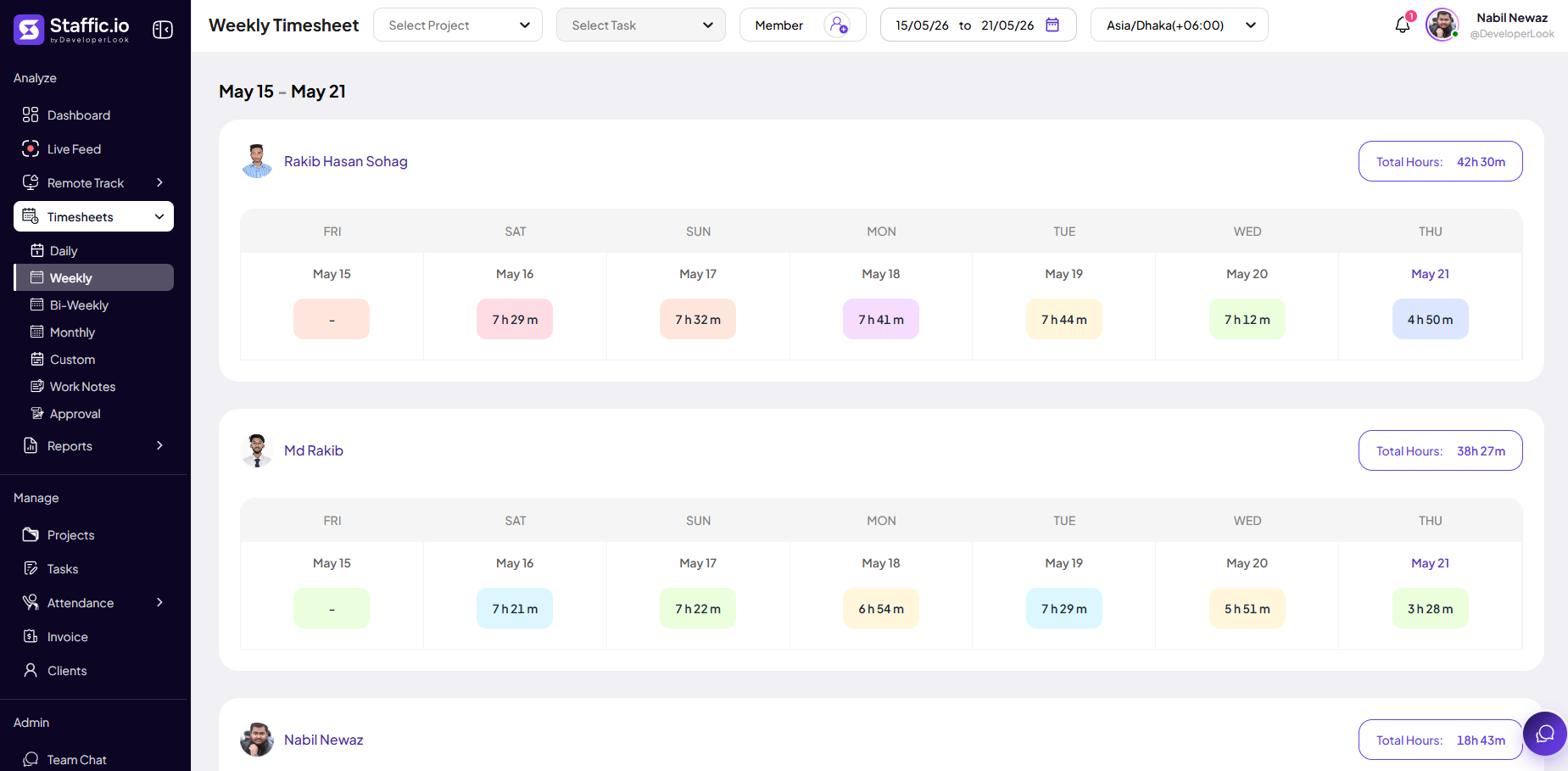
Go to Timesheets → Weekly under Analyze in the left sidebar. The grid shows one column per day and rows for projects, tasks, or entries depending on your layout.
The running week runs Sunday to Saturday. Use the week selector to move to prior or future weeks without leaving the page.
Typical workflow
Members confirm each day’s hours during the week, then submit for approval (if enabled) at week end. Managers scan the grid for missing days, overtime, or wrong projects before approving.
Daily totals
Quickly spot under- or over-logged days compared to expected hours.
Weekly total
Sum of all hours in the visible week — used for payroll caps and weekly limits where configured.
Tips
- Weekly is the default view for most approval cycles.
- Compare weekly totals to Dashboard → Total Hours This Week for consistency.
Ready to get started?
Create your organization, invite your team, and start tracking in minutes.
Start Free Trial