How to Use Team Chat
Message teammates, team channels, and project channels without leaving Staffic — direct messages, groups, and rich-text replies in one place.
Open Team Chat
Go to Team Chat
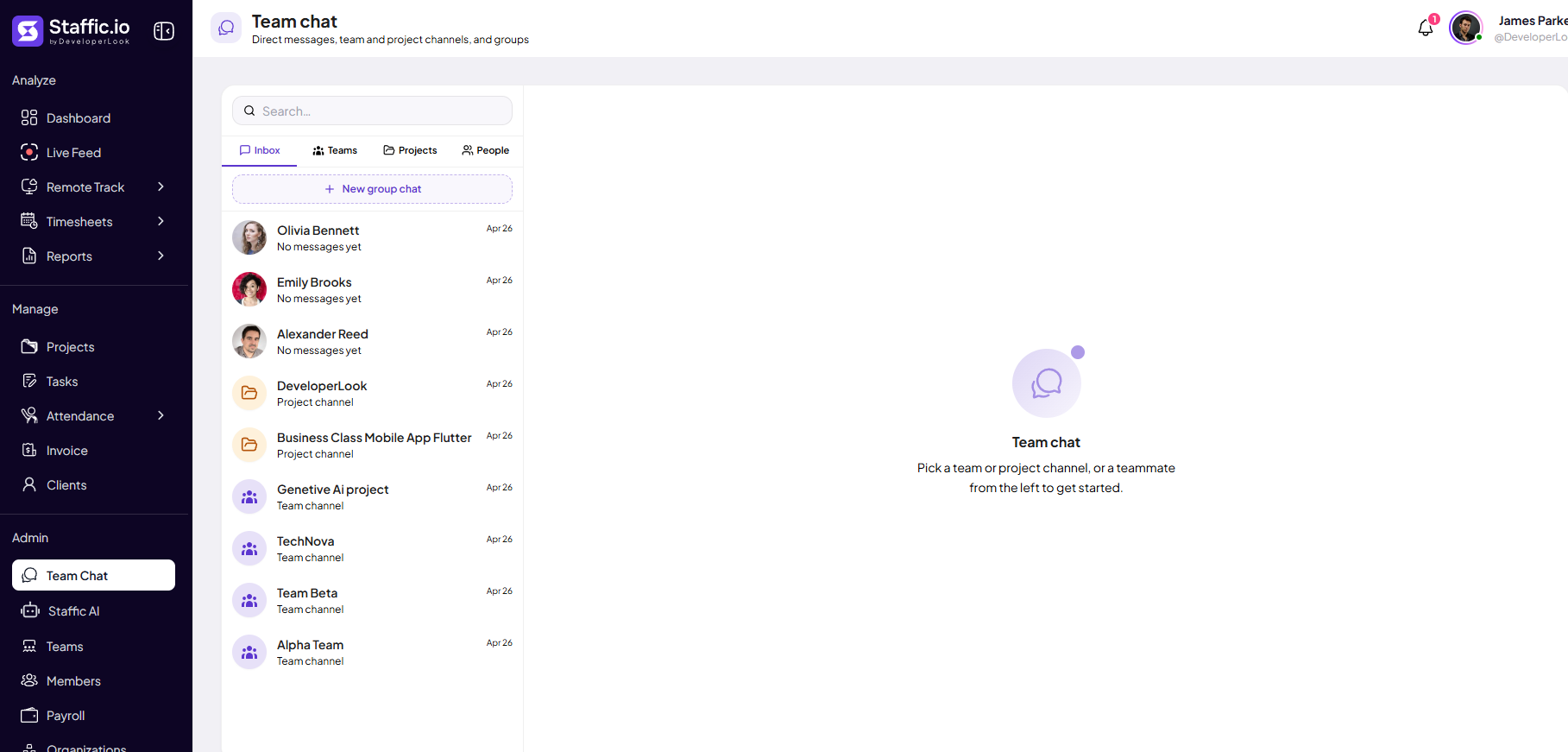
Click Team Chat under Admin in the left sidebar. The subtitle explains the scope: Direct messages, team and project channels, and groups.
Find a conversation
Use Search at the top of the list panel. Switch tabs to filter what appears:
Inbox
Recent DMs, team channels, project channels, and group chats in one feed — includes + New group chat.
Teams
Team channels only (for example, Alpha Team, TechNova) — tied to Manage → Teams.
Projects
Project channels only — one channel per project you can access.
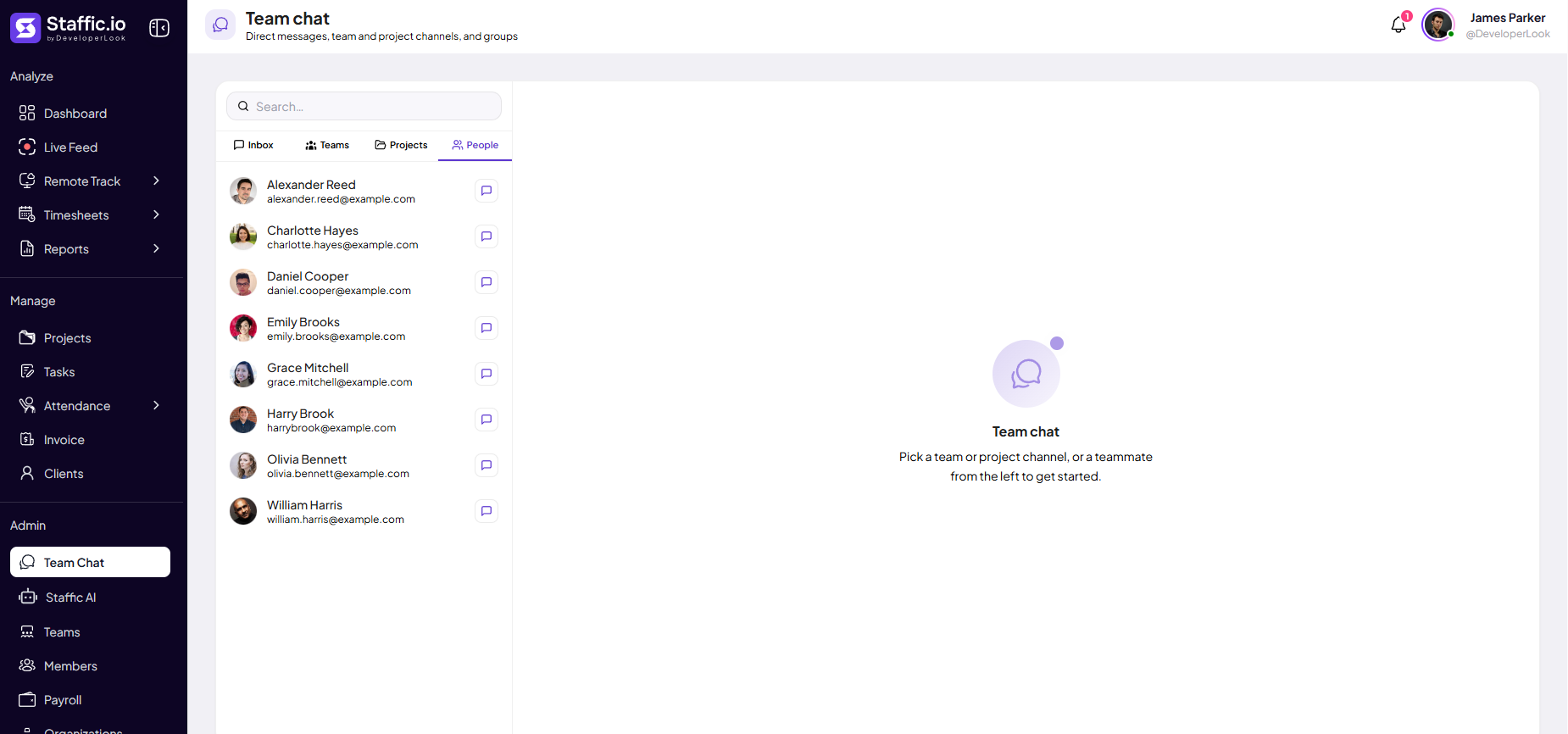
People
Directory of members with email — start a direct message from any row.
Teams tab
Team channels
Open the Teams tab to see every Team channel in your organization. Pick a row to open the conversation on the right.

Projects tab
Project channels
The Projects tab lists Project channels — use them for client work, deliverables, and handoffs without mixing other projects.

People tab
Direct messages
On People, each row shows avatar, name, and email. Click a person to open a private DM.
New group chat
From Inbox, click + New group chat to start a multi-person thread outside a single team or project channel.
Chat popup (quick access)
Open the popup
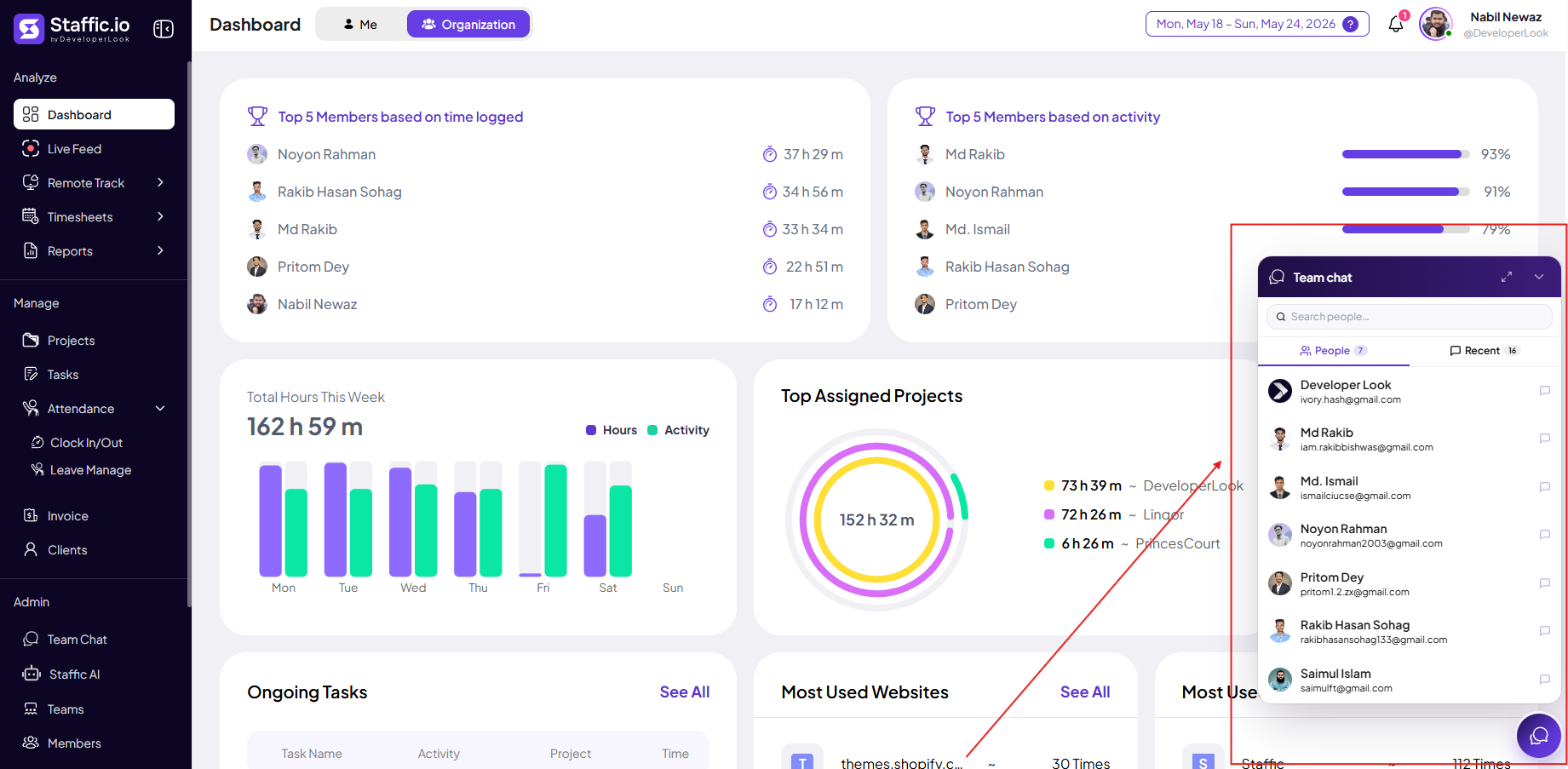
From any page in Staffic, click the purple chat button in the bottom-right corner. A compact Team chat panel opens without leaving your current screen.
Search people
Find a teammate quickly — same directory as Team Chat → People.
People
Badge shows member count — click the speech bubble on a row to open a DM.
Recent
Jump back to recent conversations without opening the full Team Chat page.
Header controls
Expand (diagonal arrows) for a larger view, or chevron to minimize the popup.
Use the popup for quick pings while reviewing Timesheets or Reports. Open Admin → Team Chat for full channels, group chats, and rich-text threads.
Send a message
Compose and send
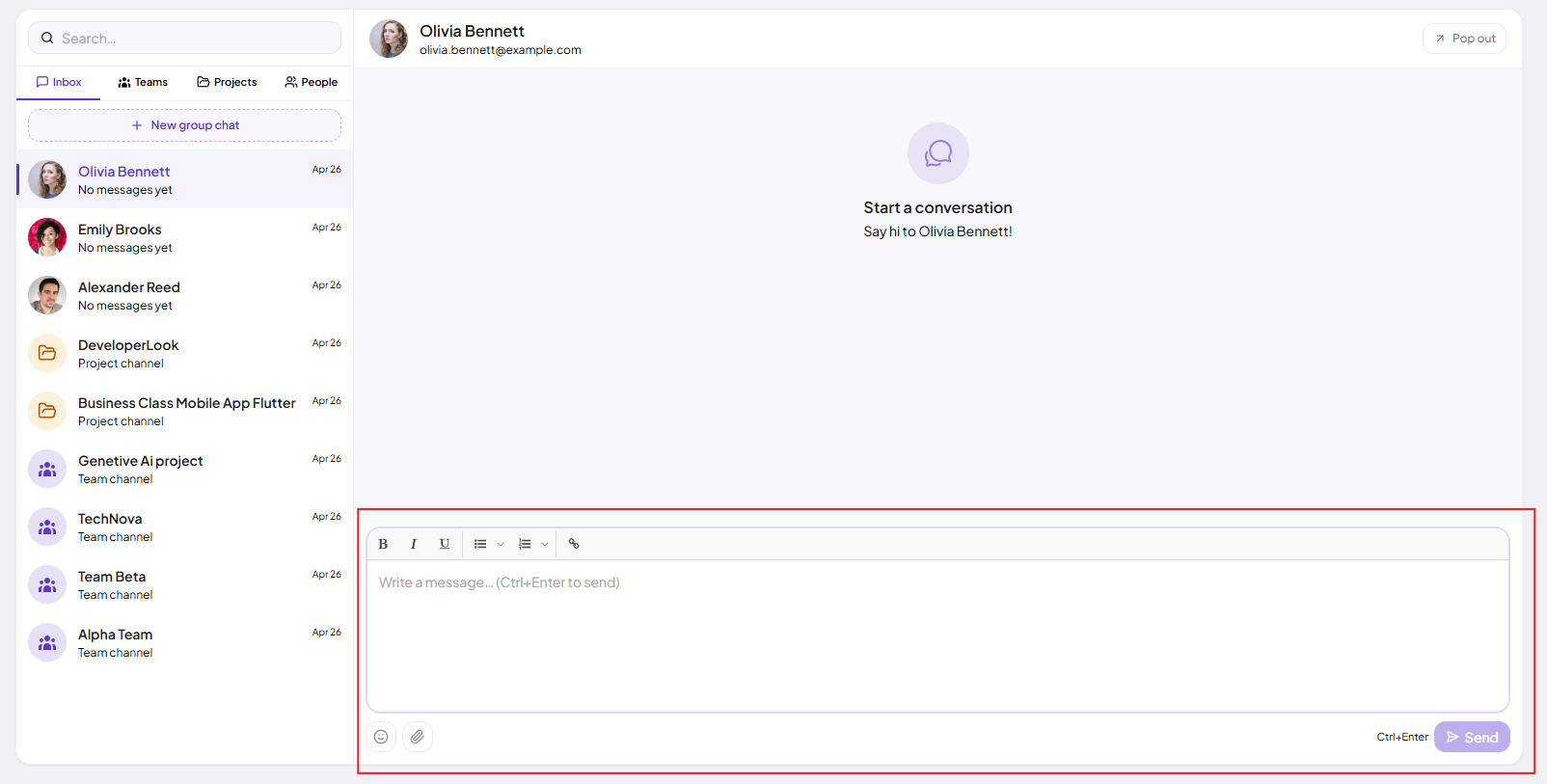
After you pick a conversation in Team Chat or the popup, the header shows who you are chatting with. In the full page view, use Pop out to open the thread in a separate window. Type in the editor at the bottom and press Send or Ctrl+Enter.
Formatting
Bold, italic, underline, bullet and numbered lists, and links.
Emoji & attachments
Add reactions or attach files from the icons below the editor.
Empty state
New DMs show Start a conversation — say hi to [name] until the first message is sent.
Tip: Use project channels for delivery questions and People for quick 1:1 pings — keep Timesheet and approval links in the message so context is clear.
Tips
- Use the bottom-right chat popup for quick DMs; use Admin → Team Chat for project and team channels.
- Pin important project channels in your workflow — open Team Chat → Projects before standups.
- Use + New group chat for cross-team incidents without creating a new Team in Admin.
- Pop out long threads if you need the chat beside Timesheets or Reports.
- Follow your company acceptable-use policy for chat content and attachments.
Ready to get started?
Create your organization, invite your team, and start tracking in minutes.
Start Free Trial