


Getting Started
How to Use Profile Settings
Profile Settings holds your own account details: name, photo, time zone, email and password. It also shows your agreement file and the organizations you belong to.
- Where
- Profile menu (your photo, top right) > Profile Settings
- Who
- Everyone, for their own account
- Plan
- All plans
Profile Settings changes only your own account. Rules for the whole organization, such as what the desktop app records, are in Admin > Settings.
Open the profile menu
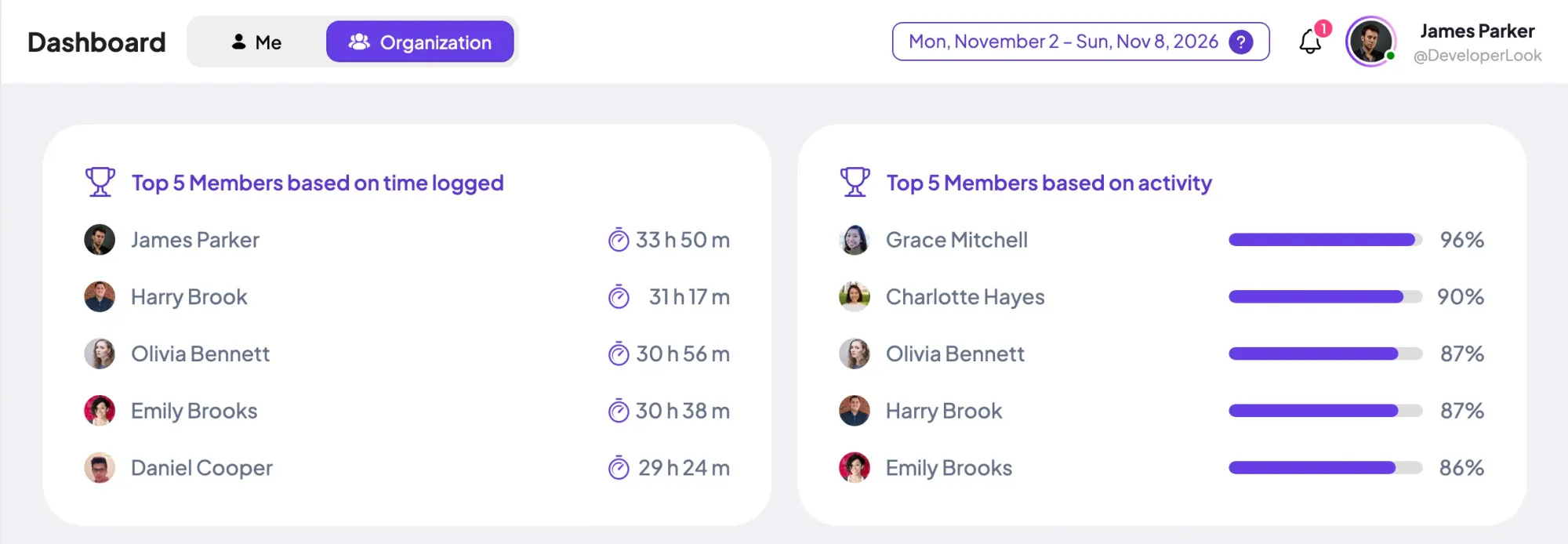
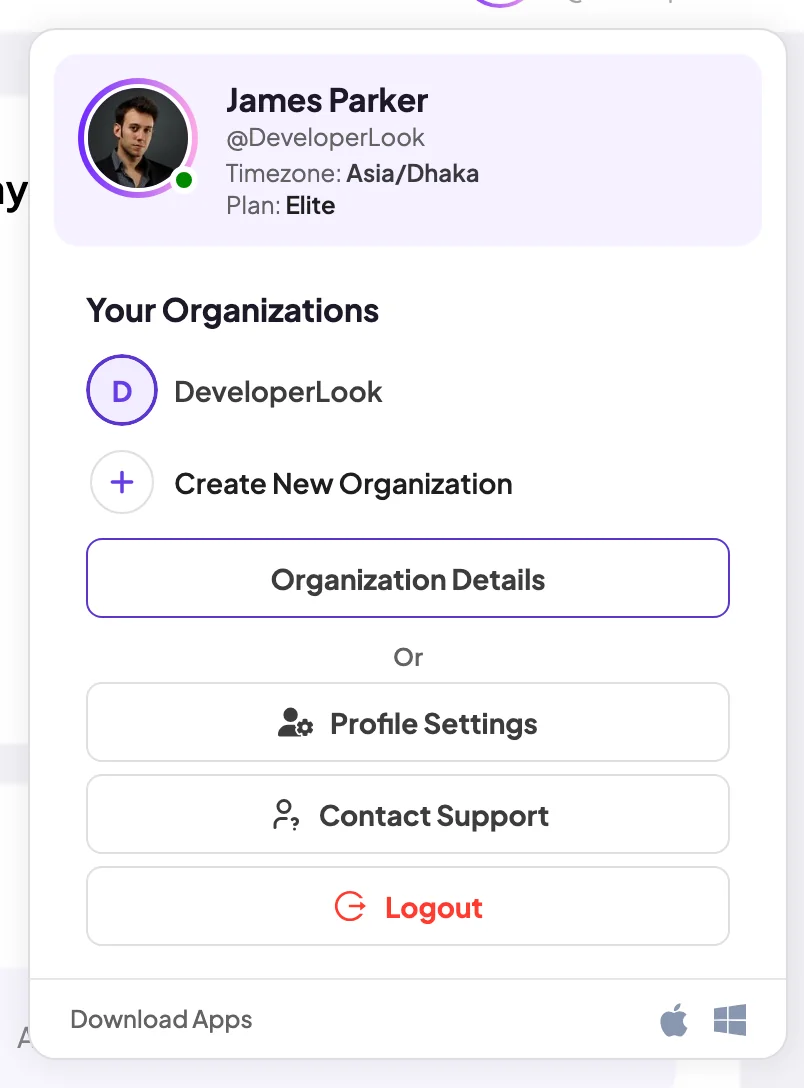
Click your photo and name at the top right of any page in the web app. The profile menu opens.
- Your details
- Your name, the organization you are working in, your Timezone and the organization's Plan.
- Your Organizations
- Every organization you belong to. Click one to switch to it. Staffic opens its dashboard.
- Create New Organization
- Starts a new organization with you as its admin.
- Organization Details
- Opens the Organizations page with each organization's name, address, code, time zone and currency.
- Profile Settings
- Opens the settings in this guide.
- Contact Support
- Opens the Staffic contact page in a new tab.
- Logout
- Signs you out of the web app in this browser.
- Download Apps
- Download links for the desktop app on Mac, Windows and Linux.
Update your personal information
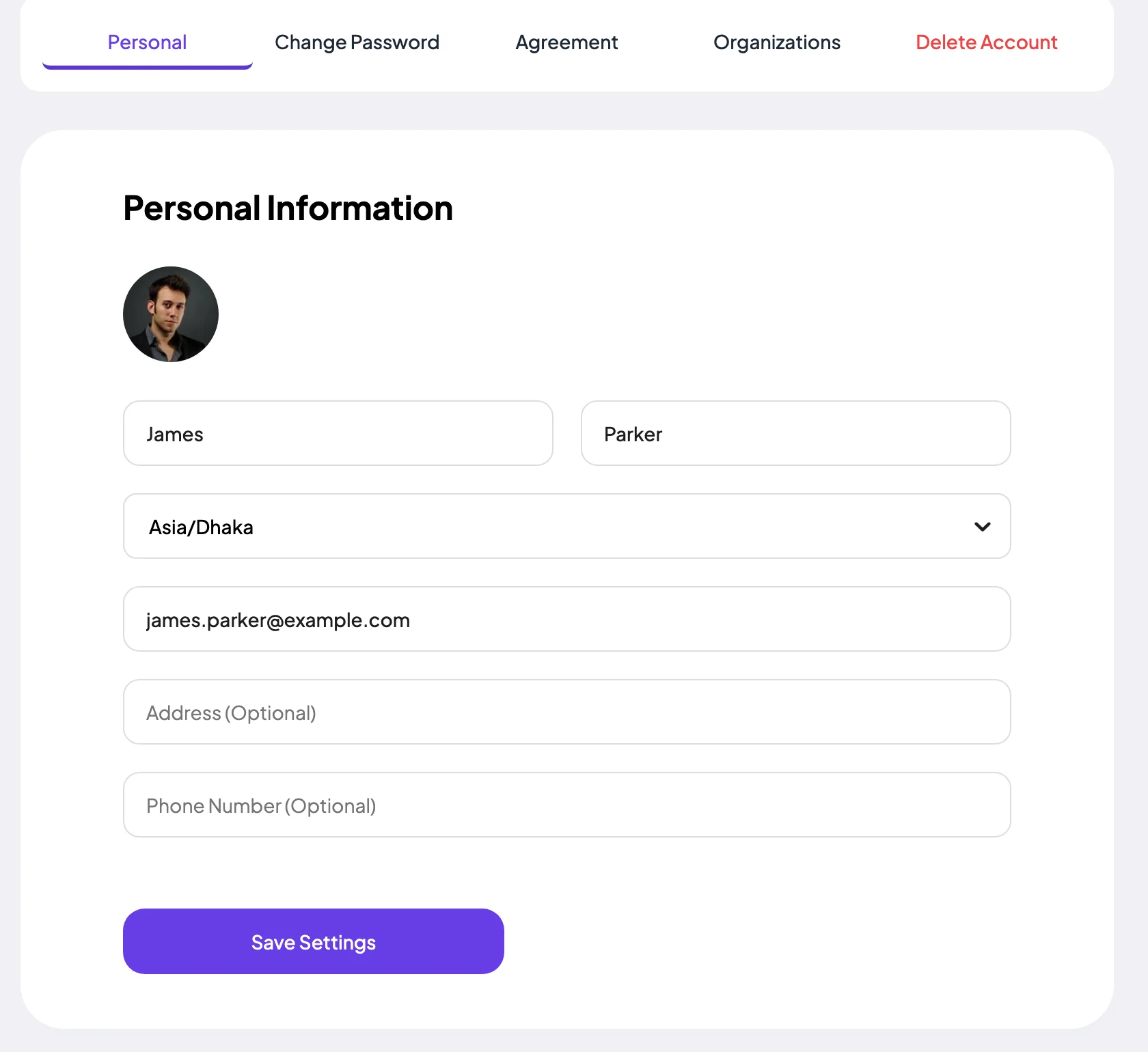
Profile Settings opens on the Personal tab, under Personal Information.
Step 1: Change your photo
Click your round photo and choose an image file. Staffic saves it right away and shrinks very large images.
Step 2: Edit your details
The fields show your current details. Change what you need.
- First and last name
- Both are required. Your name appears wherever your work shows in Staffic.
- Time zone
- Pick it from the list, where each zone shows its UTC offset, for example (UTC+06:00) Asia/Dhaka. Pages with a time zone picker, such as Timesheets and Screenshots, open on it and call it Member's Timezone.
- Email Address
- Changing it needs a code. See the next section.
- Address (Optional)
- Your postal address.
- Phone Number (Optional)
- Your phone number.
Step 3: Save
Click Save Settings. Staffic confirms with Profile updated.
Change your email address
Type the new address and click Save Settings. Staffic sends a code to the new address and opens Verify your email. Enter the code and click Verify.
Your email changes only after you enter the code. The code works for 15 minutes and allows 5 tries. Until then, you keep signing in with the old address.
Change or set your password
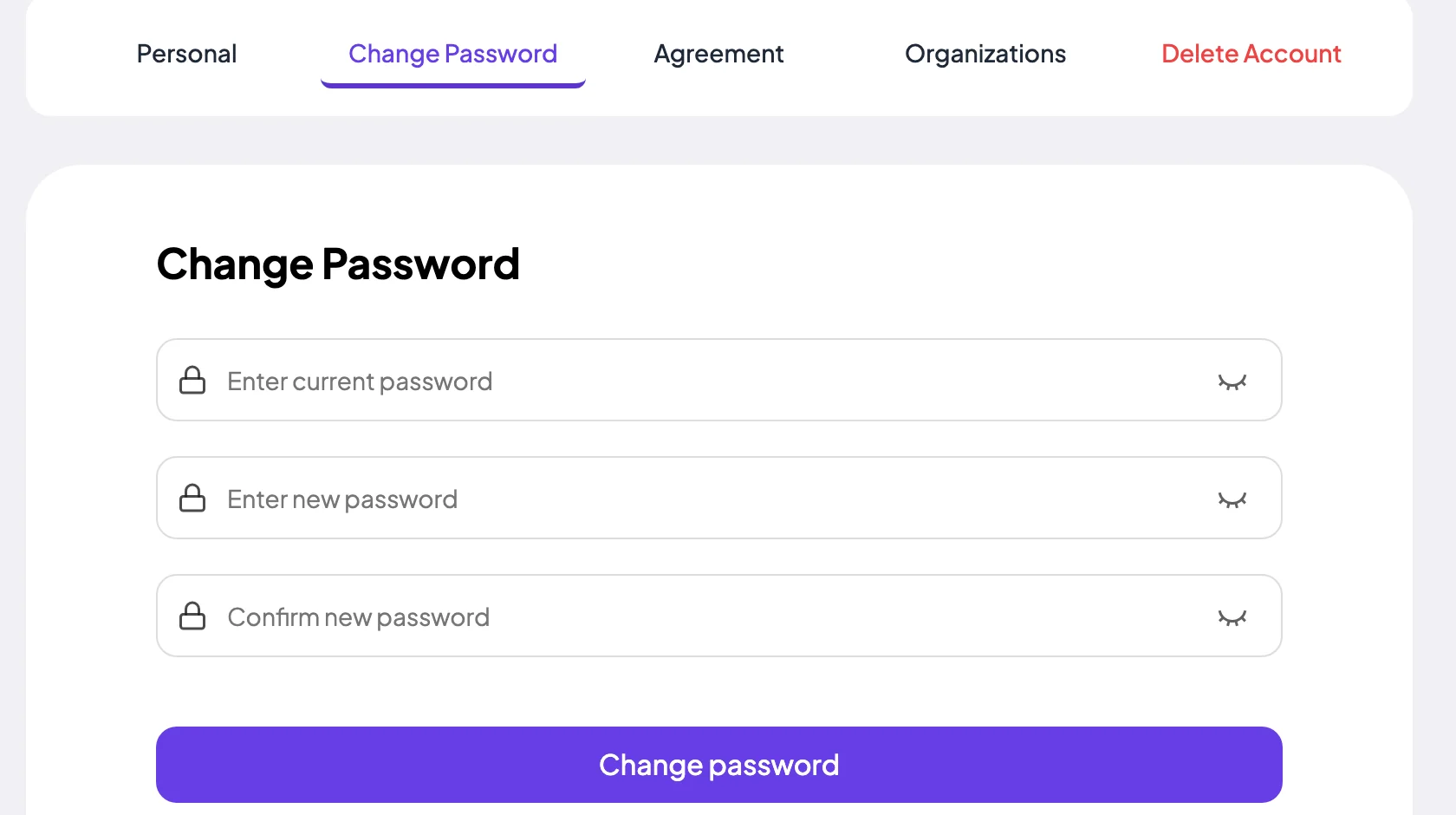
Open the second tab. It is called Change Password if you have a password, or Set Password if you signed up with Google or Microsoft.
Step 1: Enter your current password
Type it in Enter current password. This field shows only on Change Password.
Step 2: Enter the new password twice
Type it in Enter new password (or Create a password), then again in Confirm new password.
- Rules
- At least 8 characters, with an UPPERCASE letter, a lowercase letter and a number. Both entries must match.
Step 3: Save the password
Click Change password. Staffic confirms with Password updated. If you see Incorrect current password, check the current password and try again.
A new password signs you out everywhere else, including the desktop app. Sign in there again with the new password.
View your agreement file
The Agreement tab shows a PDF your admin uploaded for you, under Agreement File. You see its File Name, the Uploaded At date and a preview.
Without a file, the tab says No agreement file uploaded yet. Only admins upload or remove agreement files, on the member's page in Admin > Members.
See your organizations
The Organizations tab lists the active organizations you belong to, under Your Organizations. It is a list only. To switch, open the profile menu and click an organization. To manage them, see Organizations.
Delete your account
The Delete Account tab shows a deletion form, but it doesn't send a request yet. To have your account deleted, ask Staffic support through Contact Support in the profile menu, or the contact page.
Common questions
I signed up with Google. How do I sign in with a password?
Open Profile Settings, go to Set Password, create a password and click Change password. You can then sign in with your email and that password, in the web app and the desktop app.
Why didn't my email change?
A new email needs a code, which Staffic sends to the new address. Enter it in the Verify your email box within 15 minutes. Until you do, your old email stays.
I forgot my password. How do I reset it?
On the sign-in page, click Forgot Password?, enter your email and click Get recovery link. The emailed link works once, for 30 minutes. A reset also signs you out on other devices.
Which time zone should I pick?
The one you work in. Timesheets, Screenshots and similar pages open on your time zone, and you can switch them to the organization's time zone.
Can I change my organization's settings here?
No. Profile Settings covers only your account. Admins change organization settings in Admin > Settings and Admin > Organizations.