How to Join an Organization
If you were invited by your company, join an existing Staffic workspace instead of creating a new organization.
Join An Existing Organization
Step 1: Sign In Or Register
Open Staffic Sign In if you already have an account, or complete registration first if you are new.
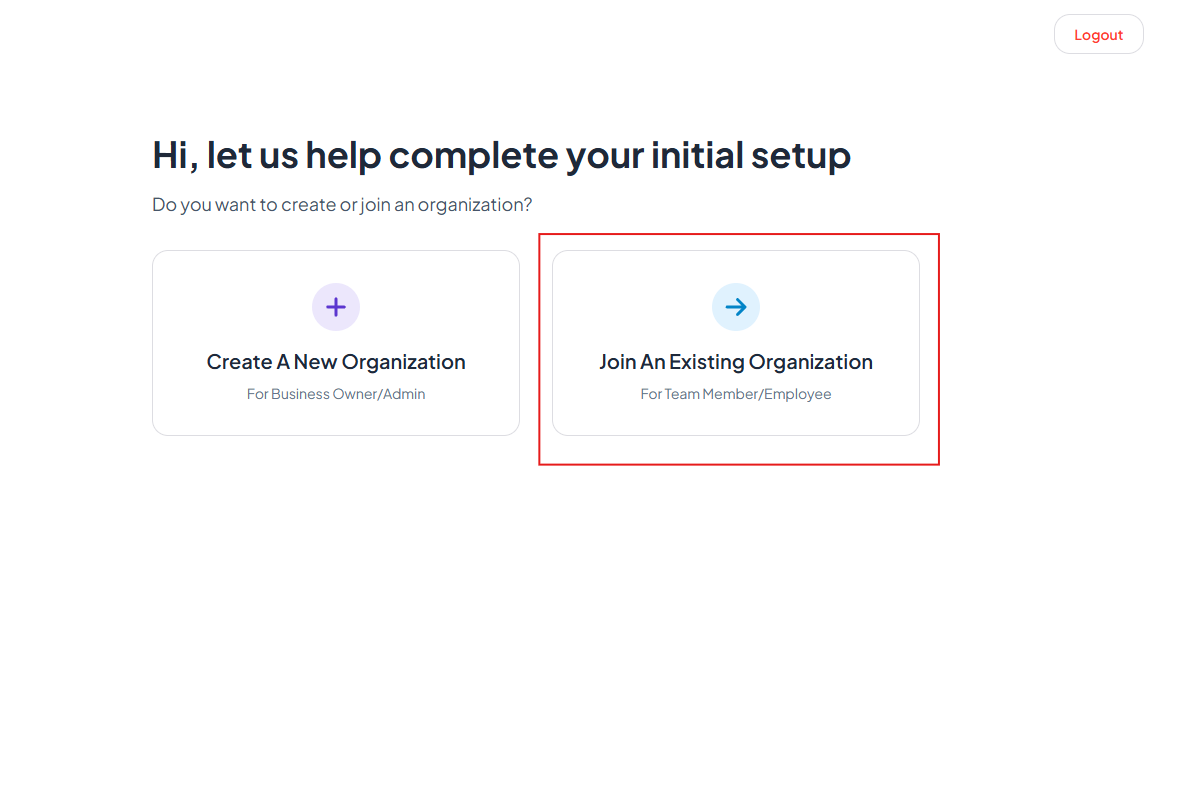
Step 2: Choose Join An Existing Organization
On the initial setup screen, select Join An Existing Organization (For Team Member/Employee). Business owners should choose Create A New Organization instead.
Step 3: Enter Your Organization Code
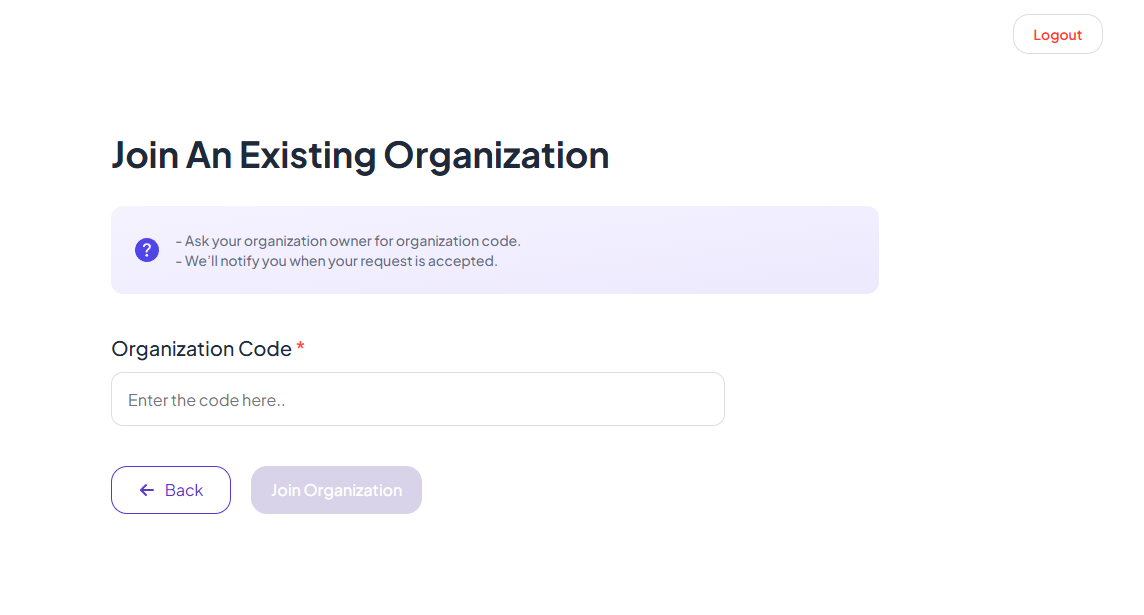
Ask your organization owner or admin for the organization code, then enter it in the Organization Code field and click Join Organization.
Organization Code
Required. Your admin shares this code — it links your account to the correct workspace.
Ask your organization owner for the organization code. We'll notify you when your request is accepted.
Step 4: Wait For Approval
After submitting, your request is sent to the organization admin. Once approved, you can sign in and switch to your organization from the app header. You will receive a notification when your request is accepted.
After joining, update your profile from the account menu (name, avatar, timezone, and notifications). Correct timezone keeps timesheets and attendance accurate.
Tips
- Ask your admin to resend the invite if the link expired.
- Download the desktop tracker and sign in with the same account for automatic time capture.
Ready to get started?
Create your organization, invite your team, and start tracking in minutes.
Start Free Trial