


Analyze Remote Track
How to Use Recordings
Recordings (beta) shows screen videos the desktop app records while members track time. It is an Elite feature, and an admin must switch it on first.
- Where
- Analyze > Remote Track > Recordings (beta)
- Who
- Everyone. Members see only their own recordings.
- Plan
- Elite
A recording is a video of a member's screen during a tracked session, made by the Staffic desktop app. A session is a block of tracked time with its own start and end. Recordings sit under their session, the same way screenshots do.
The feature is in beta, so it may not catch every session yet.
Before you start
- Plan
- Elite. On Free and Standard, the page shows an upgrade notice.
- Off by default
- Recording stays off until an admin turns on Session Recording (beta) in Settings > Activity.
- Computer load
- Recording uses a lot of the member's computer resources. Older computers may not work well with it.
- Who sees what
- Members see only their own recordings. Admins can watch anyone's, and so can members whose custom role (set in Settings > Access Control) includes Remote Track.
- Kept for
- 7 days. Then Staffic deletes the videos automatically from its servers and cloud storage. The tracked time stays.
Turn on recording
Step 1: Open Activity settings
Go to Admin > Settings and click Activity. Only admins can open Settings.
Step 2: Switch on Session Recording (beta)
Click the switch next to Session Recording (beta) so it shows ON. The notice under it repeats the beta warning and the 7-day limit.
Step 3: Choose who is recorded
Scroll to Tracking Individual Member. Each member's Recordings (beta) switch starts on. Turn it off for anyone who should not be recorded.
Turning off Control Tracking for a member stops their recordings too, along with their screenshots, apps, URLs and activity tracking.

Find recordings
Step 1: Open the page
In the sidebar, under Analyze, click Remote Track, then Recordings (beta). The page opens on today and shows your own recordings.
Step 2: Set the filters
The filters work the same way as on Screenshots.
- Member
- Admins and Remote Track roles only. Pick one or several people, or click Select All.
- Select Project
- Show only sessions tracked on one project.
- Select Task
- Show one task of that project. Pick a project first.
- Date
- Use the arrows or click the date to open the calendar. You can go back 7 days.
- Time zone
- All times on the page use this time zone.
Read the page
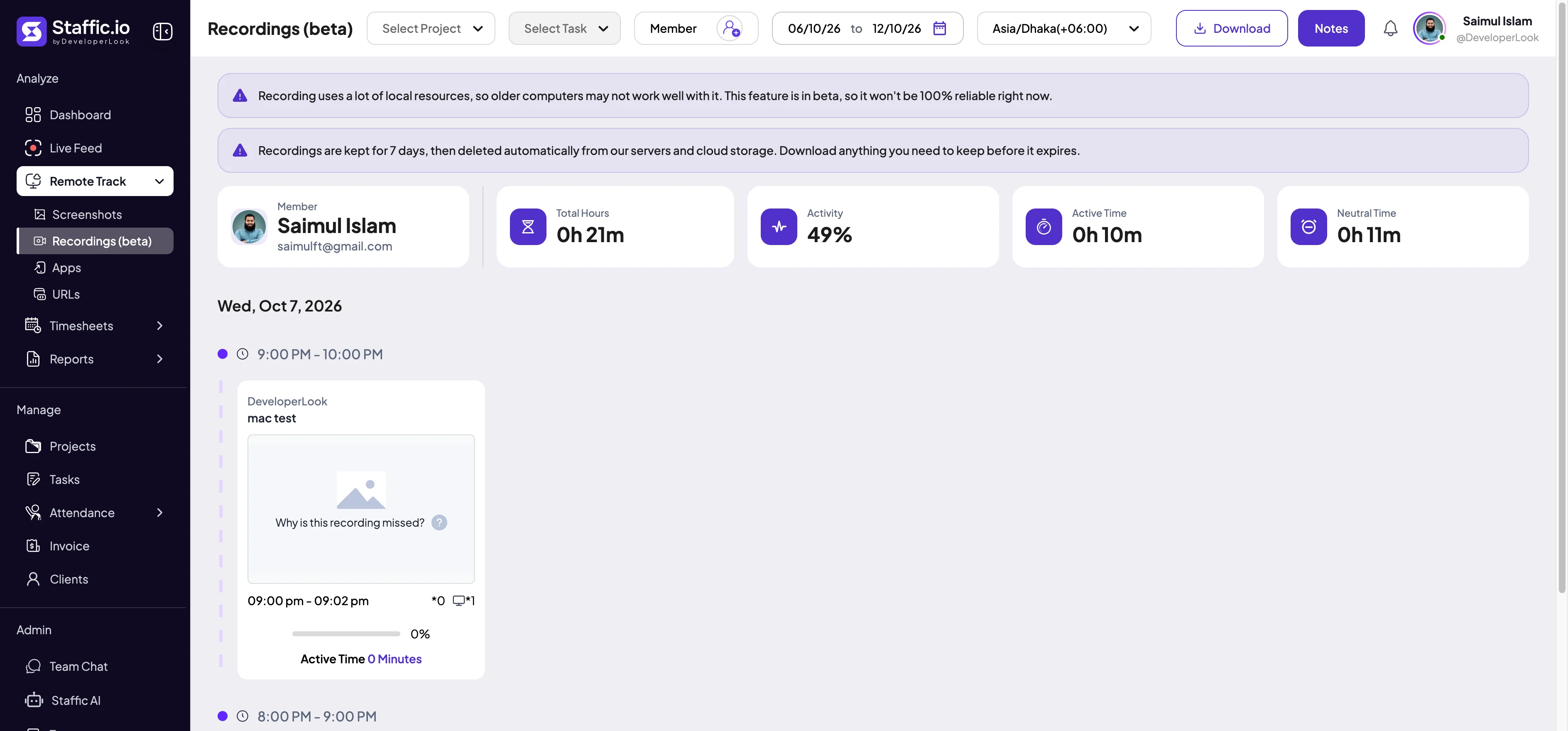
Two notices sit at the top: one about computer load and the beta, one about the 7-day limit. Below them, the member summary shows Total Hours, Activity, Active Time and Neutral Time, as on Screenshots. Sessions sit in hour blocks, newest first.
- Project and task
- What the member was tracking in the session.
- Preview
- A still from the video with a Play button and the video's length.
- More videos
- When a session has more than one video, small thumbnails under the preview open each one.
- Time
- When the session started and ended.
- Counters
- The video icon counts the videos in the session. The monitor icon counts the screens.
- Activity bar and Active Time
- The session's activity level from keyboard and mouse use, and its minutes that were not idle.
- Why is this recording missed?
- Shows on a session that has tracked time but no video.
Play a recording
Step 1: Click Play
Click the preview or its Play button. The player opens over the page and starts playing.
Step 2: Use the controls
The bar at the top shows when the video was recorded, its length and its place in the list.
- Play, volume and progress bar
- Pause, change the volume, or drag the progress bar to jump ahead.
- Speed
- Choose 1x, 2x, 4x, 6x, 8x, 12x or 16x. Staffic remembers your choice for the next video.
- Full screen
- Watch at full size.
- Previous and next
- Move to the previous or next recording on the page. The Left and Right arrow keys do the same.
- Thumbnail strip
- Every recording on the page. Click one to play it.
Step 3: Close the player
Press Esc, click the X at the top right, or click outside the player.
Download recordings
- One video
- In the player, click Download to save that video to your computer.
- Everything on the page
- Click Download at the top of the page. Staffic saves all recordings on the page as one ZIP file, with a folder per member and per day.
Download what you need within 7 days. Staffic deletes recordings after that.
Notes and deleting
To add a note, hover over a card, click Add Note, write more than 10 characters and click Save Note. The Notes button at the top lists the member's notes. Notes also appear on Work Notes.
To delete, click the bin icon on a card, or Delete in the player. Type a Reason and click Delete. Admins can delete anyone's recordings. Members can delete only their own, and only when an admin turns on Delete Screenshots and Recordings in Settings > Activity.
Deleting a recording deletes its whole timeframe: the session's tracked time, screenshots and videos. You can't undo it, and the deletion shows in the Manual Time report.
Why is a recording missing?
- Recording is off
- Session Recording (beta) is off, or the member's Recordings (beta) switch is off.
- Tracking is off
- Control Tracking is off for the member.
- Beta
- The feature is in beta and can miss sessions, more so on older computers.
- Manual time
- Time added by hand never has a video.
- Older than 7 days
- Staffic has already deleted it. The date picker only goes back 7 days.
Common questions
Which plan includes recordings?
Elite only. On Free and Standard, the Recordings (beta) page shows an upgrade notice instead.
Is recording on by default?
No. An admin must turn on Session Recording (beta) in Settings > Activity. After that, every member is recorded unless their Recordings (beta) or Control Tracking switch is off.
How long are recordings kept?
7 days. Staffic then deletes them from its servers and cloud storage. Download any video you need to keep before then.
Who can watch recordings?
Members see only their own. Admins, and members whose Access Control role includes Remote Track, can watch anyone's.
Can I watch faster?
Yes. The player's speed menu goes from 1x up to 16x, and Staffic remembers the speed you picked for the next video.
Tips
- Use 8x or 16x to scan a long session quickly.
- If a member's older computer struggles, turn off their Recordings (beta) switch.
- Download important recordings the same week; they are deleted after 7 days.