


Admin Settings
MCP Server
AdminConnect AI apps such as Claude, Cursor, Codex or Antigravity to your Staffic organization. They can read your Staffic data and, if you allow it, make changes for you.
- Where
- Admin > Settings > MCP / Coding agents
- Who
- Admins create and revoke keys. Members can connect an app by signing in, with read-only access.
- Plan
- All plans. Payroll, clients and invoices need Elite.
MCP (Model Context Protocol) is a standard way for AI apps to connect to other software. Staffic's MCP server gives an AI app tools to look up your timesheets, screenshots, projects, tasks, leave and more. You ask in plain words, for example "Who tracked the most hours this week?", and the app asks Staffic for the answer.
Every connection belongs to one organization. The app can't read or change data in any other organization. The app's own AI model does the work, so Staffic AI tokens are not used.
Before you start
- Who sets it up
- Only admins can open MCP / Coding agents, create keys and revoke them.
- Plan
- Every plan. Tools for payroll, clients and invoices work only on Elite.
- MCP URL
- Copy it from Client setup with Copy URL. It is https://app.staffic.io/backend/api/v1/mcp
- Sign in
- Claude Cloud and Google Antigravity connect with the MCP URL alone. You sign in to Staffic in your browser, a method called OAuth, and no key is needed.
- Key
- Cursor, OpenAI Codex and most other apps need an MCP key. The app sends it as a Bearer token: a secret code, sent with each request, that proves who is calling.
Create an MCP key
Step 1: Open MCP / Coding agents
Go to Admin > Settings and click MCP / Coding agents under Management.
Step 2: Name the key
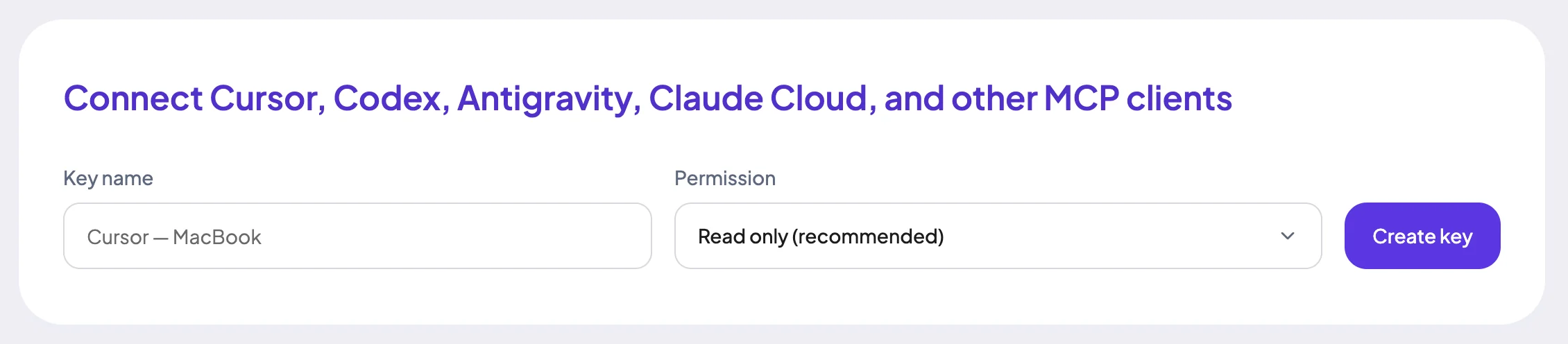
Under Key name, type a name that says where the key is used, such as the app and the computer. Names can be up to 80 characters.
Step 3: Choose a permission
Open Permission and pick one. Staffic shows a warning when you pick Read & write.
- Read only (recommended)
- The app can only read. Tools that change data are hidden from it.
- Read & write (CRUD, invites, payroll)
- The app can also create, update and delete tasks, projects and teams, and change clients. It can invite members, add manual time and work notes, handle leave and timesheet approval, and record payroll payments.
Step 4: Create and copy the key
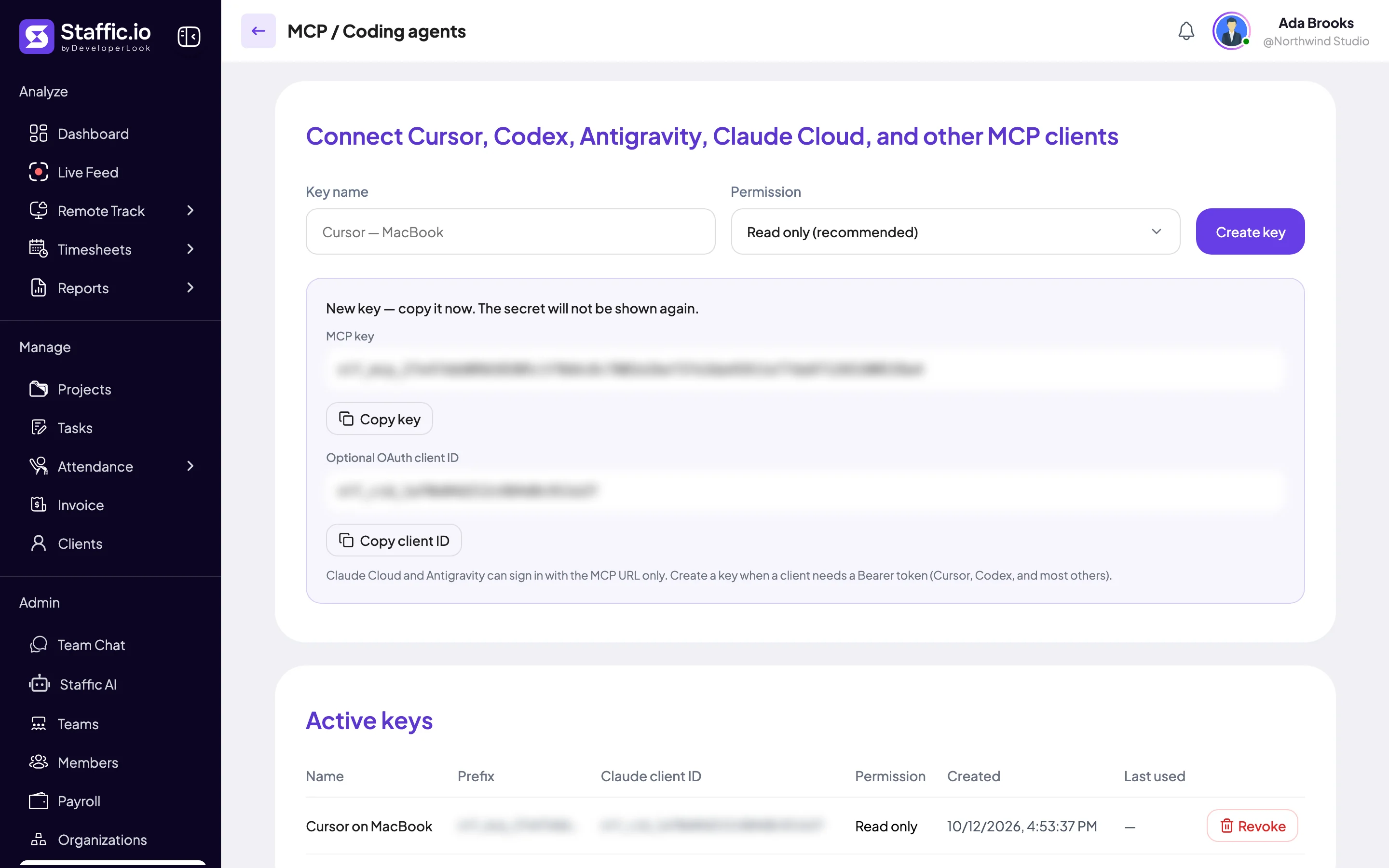
Click Create key, then Copy key. Keep the key somewhere safe, such as a password manager.
- MCP key
- Starts with stf_mcp_. Paste it into apps that need a Bearer token.
- Optional OAuth client ID
- Starts with stf_cid_. You only need it if Claude asks for an OAuth Client ID. Copy it with Copy client ID.
Staffic shows the key only once. It keeps only a hash of the key, a one-way fingerprint that can't be turned back into the key, so nobody can show it again. If you lose it, revoke it and create a new one.
Key rules
- Limit
- Up to 10 active keys per organization. At the limit, Staffic asks you to revoke a key first.
- Expiry
- Keys don't expire. A key stops working when you revoke it, when the admin who created it leaves the organization, or when the organization is deleted or made inactive.
Connect your AI app
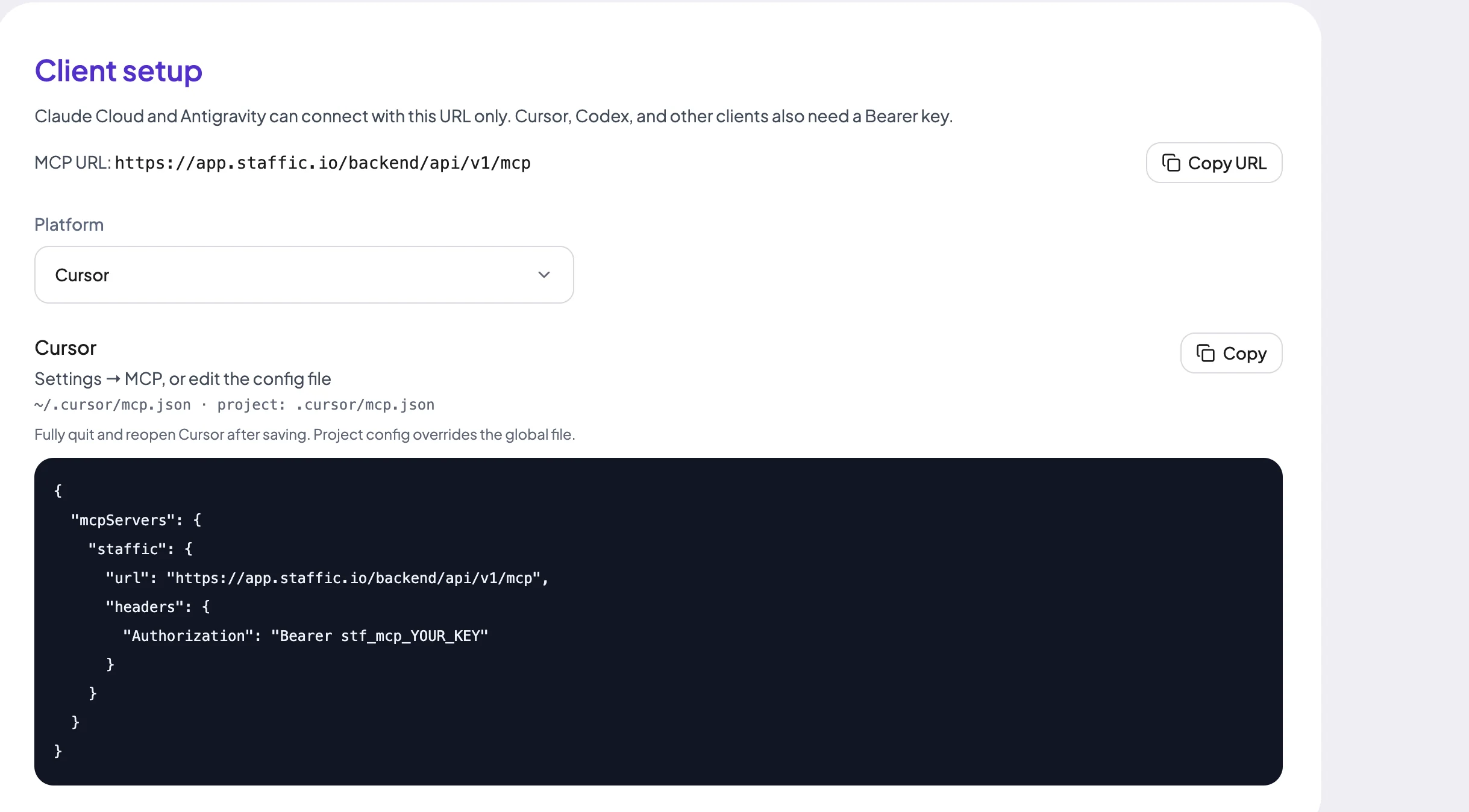
Scroll to Client setup and pick your app under Platform. Staffic shows where the settings go and a ready-made snippet with a Copy button. Right after you create a key, the snippet already holds it. Later it shows stf_mcp_YOUR_KEY instead: replace that with your key.
Claude Cloud
Step 1: Add a custom connector
In Claude, open Customize > Connectors > Add custom connector. You set this up in Claude itself, not in a local mcp.json file.
Step 2: Enter the MCP URL
Type Staffic as the name and paste the MCP URL into Remote MCP server URL. Under Advanced settings, leave OAuth Client ID and OAuth Client Secret empty.
Never paste your stf_mcp_ key into OAuth Client ID. Only if Claude still asks for both OAuth fields, use the stf_cid_ client ID from Staffic as the Client ID and your MCP key as the Client Secret.
Step 3: Sign in and allow access
Click Add. Claude opens Staffic. Sign in with email, Google or Microsoft, or confirm if you're already signed in. The consent screen shows the organization and the access level. Click Allow access. Staffic connects the organization you're working in. To connect another one, first click your name at the top right and pick it under Your Organizations.
Google Antigravity
Step 1: Open the MCP config
In the agent panel, open the … menu, then MCP Servers > Manage MCP Servers > View raw config. You can also edit ~/.gemini/antigravity/mcp_config.json directly.
Step 2: Paste the snippet
Pick Google Antigravity under Platform, click Copy and paste the snippet. It adds a staffic server whose serverUrl is the MCP URL. Antigravity needs serverUrl, not url.
Step 3: Refresh and sign in
Refresh MCP servers in the agent panel. When the browser opens, sign in to Staffic and click Allow access. No key is needed.
To use a key instead of signing in, copy the Optional: API key instead of sign-in snippet. It adds an Authorization header with your key.
Cursor
Step 1: Copy the snippet
Create a key, pick Cursor under Platform and click Copy.
Step 2: Add it to Cursor
In Cursor, open Settings > MCP, or edit ~/.cursor/mcp.json for every project or .cursor/mcp.json inside one project. Paste the snippet. It adds a staffic server with the MCP URL and an Authorization header that holds your key. A project file overrides the global one.
Step 3: Restart Cursor
Fully quit Cursor and open it again after saving.
OpenAI Codex
Step 1: Copy the snippet
Create a key, pick OpenAI Codex under Platform and click Copy.
Step 2: Add it to the Codex config
Paste the snippet into ~/.codex/config.toml. It adds a [mcp_servers.staffic] entry with the MCP URL and an Authorization header.
Step 3: Relaunch Codex
Fully relaunch the app.
Other MCP clients
Any app that supports Streamable HTTP, the MCP connection type for online servers, can connect. Staffic names Claude Code, VS Code, Windsurf, Cline, Continue, Zed, Gemini CLI, JetBrains and Amazon Q as examples. Create a key, pick Other MCP clients and copy the snippet. It sets url to the MCP URL and adds an Authorization header with your key. Some apps call the field serverUrl or httpUrl instead.
If an app can only run local (stdio) servers, copy the stdio proxy (mcp-remote) snippet instead. It starts the mcp-remote proxy with npx and passes your URL and key.
What an AI app can do
An app has the same rights as the person behind it. With a key, that's the admin who created the key. If that admin later becomes a plain member, the key only sees what they can see. With sign-in, it's you, so a member without an Access Control role gets only their own data. Signing in gives read-only access unless you're an admin and the app asks for write access.
| Area | What an app can read | What it can change (write access) |
|---|---|---|
| Members and organization | Member list, a member's personal details, organization details, your notifications | Invite people (admins only) |
| Time and attendance | Timesheets, one day's sessions, working time, apps and URLs, Clock In/Out | Add manual time |
| Reports | Time & Activity, Manual Time, task performance, dashboard summary (admins only) | None |
| Work notes and leave | Work notes, leave balances, leave requests | Add a work note, request leave, approve or reject leave |
| Timesheet approval | Approval status by member and day | Approve or reject a member's day |
| Projects, tasks and teams | Projects, tasks, teams | Create, update and delete them, and add or remove their members |
| Screenshots and recordings | Screenshots and instant screenshots, with images, and recording download links | None |
| Activity settings | Tracking settings and per-member flags (admins only) | None |
| Payroll, clients and invoices (Elite) | Payables, salary and fixed payment history, pay and bill rates, clients, invoices | Record salary and fixed payments, and add, edit or delete clients |
Payroll, client and invoice tools work only on Elite. On Free and Standard they answer: Access denied: this feature requires an Elite plan.
Over MCP, deletes, removing team members, invites, salary and fixed payments and client changes run straight away. There is no confirmation dialog like the one in Staffic AI. Staffic marks these tools as destructive so your app can ask you first. Payment tools only record salary and fixed payments as paid in Staffic: they don't send money.
An app can view up to 5 screenshots per request. Recordings come as download links, because videos are too large to show in a chat. Staffic keeps screenshots for 365 days and recordings for 7 days.
If an app sends too many requests in a short time, Staffic asks it to try again shortly. Wait a few minutes, then try again.
Revoke a key or sign out apps
Active keys lists every key that still works.
- Name
- The name you gave the key.
- Prefix
- The first characters of the key, so you can tell keys apart.
- Claude client ID
- The stf_cid_ client ID for Claude's optional OAuth fields.
- Permission
- Read only or Read & write.
- Created
- When the key was made.
- Last used
- When an app last used the key.
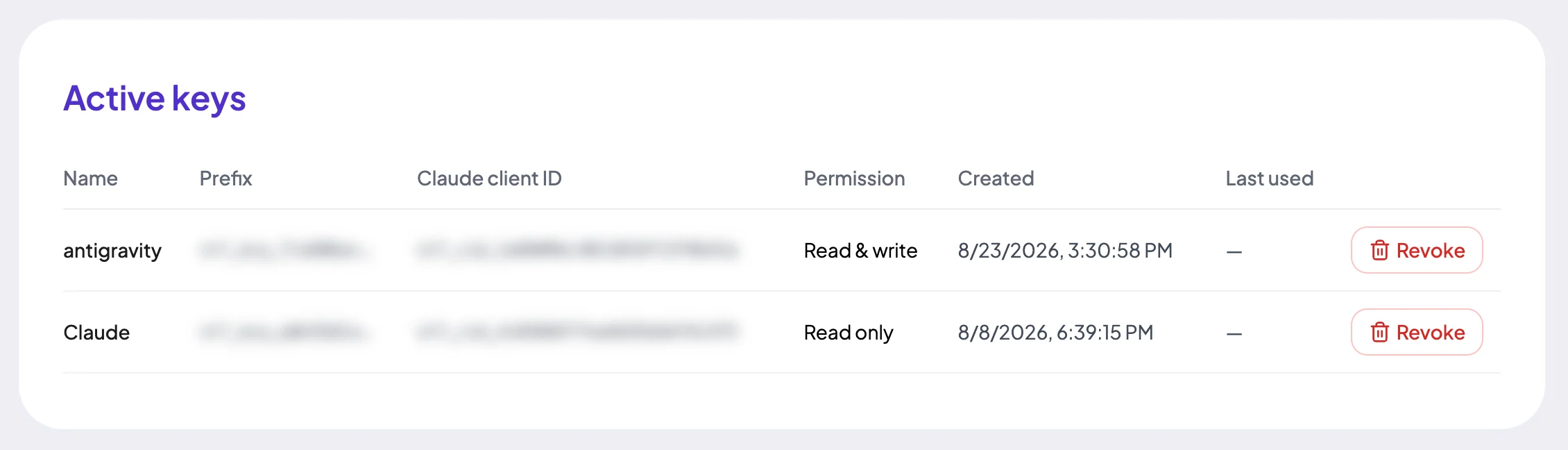
Step 1: Click Revoke
Click Revoke in the key's row.
Step 2: Confirm
In Revoke MCP key?, click Revoke key. The key stops working at once in every app that uses it, and it leaves the list.
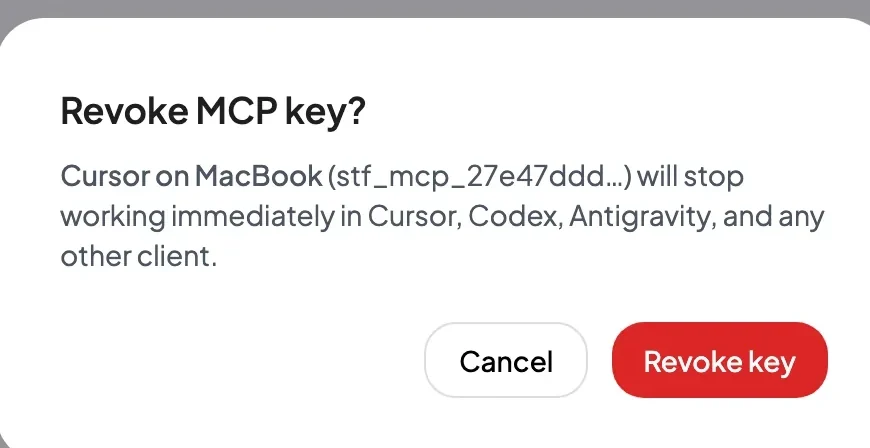
Revoking can't be undone. If you still need access, create a new key and update your app.
Sign out connected AI apps
Apps you connected by signing in, such as Claude Cloud or Antigravity, stay connected for up to 30 days. To end all of your own sign-in connections to this organization, click Sign out connected AI apps, then Sign out apps. Keys used as a Bearer token keep working, and you can connect again at any time.
Common questions
Does the MCP server use Staffic AI tokens?
No. Your AI app's own model does the work, so MCP requests use no Staffic AI tokens. The MCP server is included on every plan.
Can I see a key again after creating it?
No. Staffic stores only a hash of each key, so it can't show the key again. If you lose a key, revoke it and create a new one.
Can an AI app reach another organization?
No. Each key and each sign-in is bound to one organization. The app can't read or change another organization's data, even if it asks for it.
Can members who aren't admins use MCP?
Yes, by signing in from Claude Cloud or Antigravity. Their connection is read-only and sees only what they can see in Staffic. Only admins can create keys.
What happens to a key when its creator leaves?
It stops working. Create a new key from another admin account, then update every app that used the old key.
Why does my app say a feature requires an Elite plan?
Payroll, client and invoice tools work only on the Elite plan. On Free and Standard they refuse with an Elite plan message. Upgrade in Admin > Settings > Change Subscription to use them.
Tips
- Create one key per app and computer, and name it that way, so you know which key to revoke.
- Start with Read only. Create a Read & write key only when an app needs to make changes.
- Ask your app to check with you before it deletes anything, invites people or records a payment.
- Look at Last used now and then, and revoke keys nobody uses any more.