


Admin Settings
Subscription and Billing
AdminCheck your organization's plan, start a trial, upgrade, change plans or switch to Free. Admins handle billing from the two Billing cards in Settings.
- Where
- Admin > Settings > Manage Subscription or Change Subscription
- Who
- Admins only. Members don't see Settings.
- Plan
- All plans
Staffic has three plans: Free, Standard and Elite. Each organization has its own plan. Paid plans are billed per member, monthly or yearly, through Stripe, an online payment service. For current prices, see Pricing.
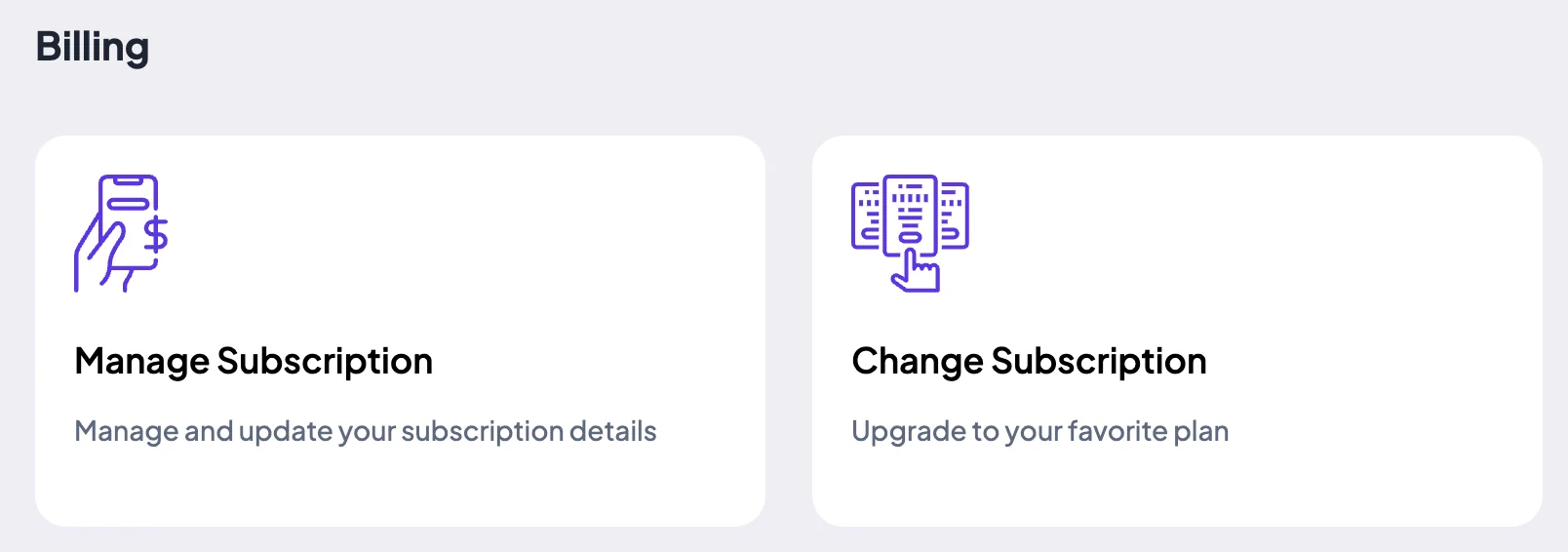
Billing has two cards in Settings. Manage Subscription shows the plan you have now. Change Subscription is where you pick a plan.
Compare the plans
This table shows the main differences. Each feature's docs page also says which plans include it.
| Feature | Free | Standard | Elite |
|---|---|---|---|
| Members per organization | Up to 3, admin included | Up to 999 | No set limit |
| Desktop apps for Windows, macOS and Linux, and the web app | Yes | Yes | Yes |
| Projects and tasks, time tracking on them, and work notes | Yes | Yes | Yes |
| Daily, weekly and bi-weekly timesheets | Yes | Yes | Yes |
| Apps and URLs tracking, keyboard and mouse activity levels | Yes | Yes | Yes |
| Team Chat and the MCP server | Yes | Yes | Yes |
| Screenshots | No | 2 every 10 minutes | 1, 2 or 3 every 10 minutes |
| Manual time, Clock In/Out, monthly and custom timesheets | No | Yes | Yes |
| Reports: Time & Activity, Manual Time, Apps & URLs usage, Performance | No | Yes | Yes |
| Teams and extra admins | No | Yes | Yes |
| Project budgets and billing | No | Yes | Yes |
| Meeting Idle Time Track, tracking on or off per member | No | Yes | Yes |
| Instant screenshots and screen recordings | No | No | Yes |
| Live Feed | No | No | Yes |
| Staffic AI, with 500 AI tokens a month | No | No | Yes |
| Leave Management and Timesheet Approval | No | No | Yes |
| Team managers | No | No | Yes |
| Payroll, clients and invoices | No | No | Yes |
Access Control roles can be created on every plan. Giving a role to a member, or making someone an admin, is on Standard and Elite. See Access Control.
Prices change, so the docs don't list them. See Pricing for today's price per member.
Seats and billing
- Seats
- Every member of the organization counts as one seat, admins included.
- Free
- Up to 3 members, the admin included. No card needed and no time limit.
- Standard
- Up to 999 members.
- Elite
- No set member limit.
- Monthly or yearly
- You pick one when you choose a plan. Plan cards show the price per member per month and how it's billed.
- New members on a paid plan
- Stripe charges the extra seat right away for the rest of the billing period. If that payment fails, the person isn't added and Staffic asks you to update the payment method.
- Removed members
- The seat count goes down for the next bill. There's no credit for the current period.
- During a trial
- Adding or removing members isn't charged until the trial ends.
- At the limit
- Invitations and join requests stop working. On Free, Staffic says: The free plan allows a maximum of 3 members. Upgrade your plan to add more.
Check your plan
Go to Admin > Settings and click Manage Subscription under Billing. The Billing - My Plan page opens.
Your plan also shows next to Plan when you click your name at the top right.
- Current Plan
- Your plan's name. Paid plans also show Monthly or Yearly and the price per user.
- Status
- The state of your subscription, for example Active, Trialing or Free.
- Renew subscription by
- When your paid plan renews. If you've switched to Free and paid time is running out, it reads Subscription will end on and the last day instead.
- Active Members
- How many members your plan counts as seats. Invite Members next to it opens the invite page.
- Manage Subscription
- Paid plans only. Opens Stripe's billing portal for your organization in the same tab. When you leave the portal, you come back to this page.
- Change Plan or Upgrade Plan
- Opens Subscription Plans. The button reads Upgrade Plan on Free and Change Plan on a paid plan.
Start a trial or upgrade
Step 1: Open Subscription Plans
Go to Admin > Settings and click Change Subscription under Billing. You can also click Upgrade Plan or Change Plan on Billing - My Plan.
Step 2: Pick monthly or yearly
Use the Monthly and Yearly switch above the plan cards. The page opens on Yearly. With Yearly on, a card may show Save up to and a percentage.
Step 3: Choose Standard or Elite
Click the button on the plan's card. It reads Start your free trial if your organization has never had a trial. After a trial, it reads Select and the plan name.
Each organization gets one 7-day free trial of a paid plan. You enter a card in checkout to start it. See Pricing for how long the trial lasts.
Step 4: Pay in Stripe checkout
Staffic opens Stripe's checkout page. Enter your card and confirm. Stripe bills one seat for each member. When the payment goes through, Staffic confirms it and your new plan is active.
- Payment Failed
- Shows when you come back from checkout without paying. Click Try Again to close the message, then pick a plan again.
If members were set aside when your organization moved to Free, they come back when you pay for a plan within 30 days. They count as seats at checkout.
Change plan or switch to Free
Move to another paid plan
On a paid plan or a trial, open Subscription Plans, set Monthly or Yearly, and pick the other paid plan. Staffic changes your subscription at once, with no new checkout. Stripe adjusts the charge for the rest of the billing period, which is called proration. During a trial, the change isn't charged.
Your current plan's card says Current Plan and its button is greyed out. If the payment for a change fails, Staffic shows Failed to subscribe to plan and your plan stays the same.
Switch to Free
Step 1: Click Switch to Free
On Subscription Plans, click Switch to Free on the Free card. This is how you cancel a paid plan.
Step 2: Choose who stays
If the organization has more than 3 members, the Downgrade to Free Plan dialog opens. You're kept automatically. Under Select Members to Keep, pick exactly 2 more members, then click Confirm Downgrade.
Members you don't keep are removed from the organization. If you pay for a plan again within 30 days, they come back automatically. After 30 days they're removed for good.
Step 3: Check when Free starts
When Free starts depends on what you've already paid for.
- Paid time left
- Your plan stays until the end of the period you paid for, and Stripe doesn't bill another one. Staffic says Your account will be switched to the free plan at the end of your current billing period. Billing - My Plan shows Subscription will end on and the date.
- No paid time left
- The organization moves to Free right away.
- Who stays
- Admins stay first, then the members you picked, up to 3 people in total.
If a payment fails
If Stripe can't collect a payment, Staffic moves the organization to Free until the payment goes through. The Free limit then applies: admins stay first, then the members who joined first, up to 3 people. The others are set aside for 30 days and then removed for good.
To get your plan back, open Manage Subscription and pay in Stripe's billing portal. When the payment succeeds, your plan returns and members set aside in the last 30 days come back automatically.
Common questions
Do I need a card for the free trial?
Yes. Standard and Elite trials start in Stripe checkout, where you enter a card. The Free plan needs no card and has no time limit for up to 3 members.
Can my organization take a second free trial?
No. Each organization gets one 7-day free trial. After it, the paid plan buttons on Subscription Plans read Select and the plan name instead of Start your free trial.
How do I cancel my subscription?
Switch to Free in Admin > Settings > Change Subscription. If you've paid for time that hasn't run out, your plan stays until that period ends. Then the organization moves to Free.
Can I cancel during the free trial?
Yes. Click Switch to Free. Your trial runs until its end date, then the organization moves to Free, and Stripe doesn't bill you for a paid period.
What happens to members over the Free limit?
Staffic keeps the admins and the members you pick, up to 3 people, and removes the rest. If you pay for a plan again within 30 days, they come back automatically.
What does Free Forever mean?
Free Forever is a special arrangement some organizations have with Staffic. It includes every Elite feature and has no member limit, so there's no plan to pick or pay for.
Tips
- Each organization pays for its own plan. Before you change a plan, click your name at the top right and check the organization under Your Organizations.
- Before you switch to Free with more than 3 members, decide which 2 members stay with you.
- If a payment fails, pay it soon through Manage Subscription. Members who were set aside are removed after 30 days.
- Use the Monthly and Yearly switch to compare prices before you pick a plan.