How to Use the Dashboard
Open the Dashboard from the sidebar to review your personal week at a glance, or switch to Organization view for team-wide rankings and totals (admins and managers).
Open the Dashboard
Step 1: Sign in and open Dashboard
Sign in at app.staffic.io, then click Dashboard under Analyze in the left sidebar. This is your home view after onboarding.
Step 2: Review the running week
The date label in the top-right shows the running week (Sunday through Saturday). All dashboard widgets use that week’s data. Use the control to move to a previous or upcoming week when you need to compare periods.
Weeks always run Sunday to Saturday. The label updates when you change weeks; you are not picking arbitrary start and end dates on this screen.
Step 3: Switch between Me and Organization
Use the toggle next to the page title. Select Me for your own hours, projects, and activity. Select Organization to see team totals, top members, and organization-wide project time (available to admins and managers).
Your Dashboard (Me)
Personal overview
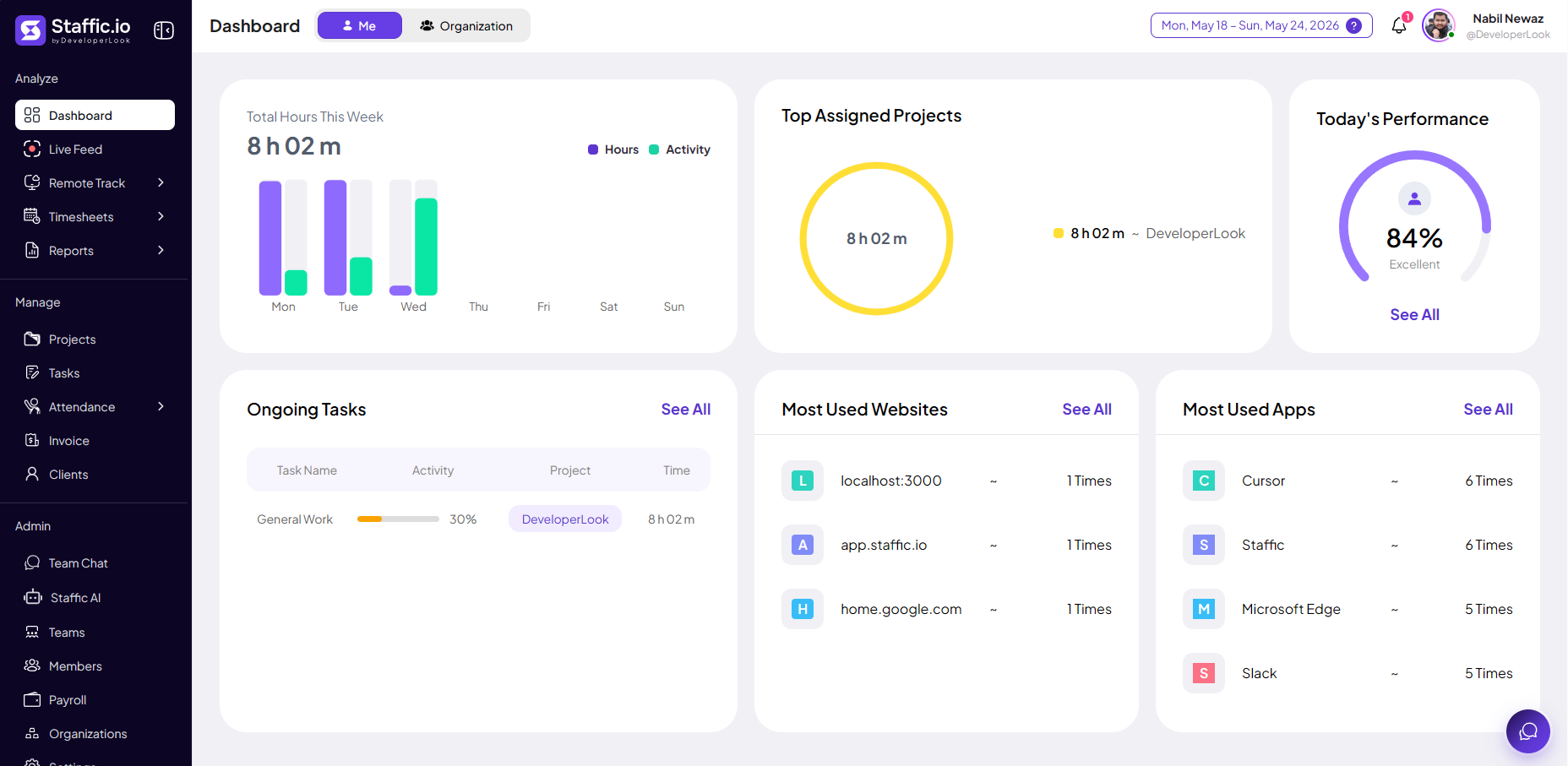
The Me view shows only your tracked time and activity for the selected period. Use it to check daily progress, ongoing tasks, and where your time went.
Total Hours This Week
Bar chart of your logged hours and activity level per day, with a weekly total at the top.
Top Assigned Projects
Donut chart of time split across projects you are assigned to.
Today's Performance
Activity score for today based on your tracking policy.
Ongoing Tasks
Tasks you are currently tracking time against, with activity % and project.
Most Used Websites & Apps
Frequently visited sites and applications during tracked sessions. Click See All for the full list.
Organization Dashboard
Team-wide overview
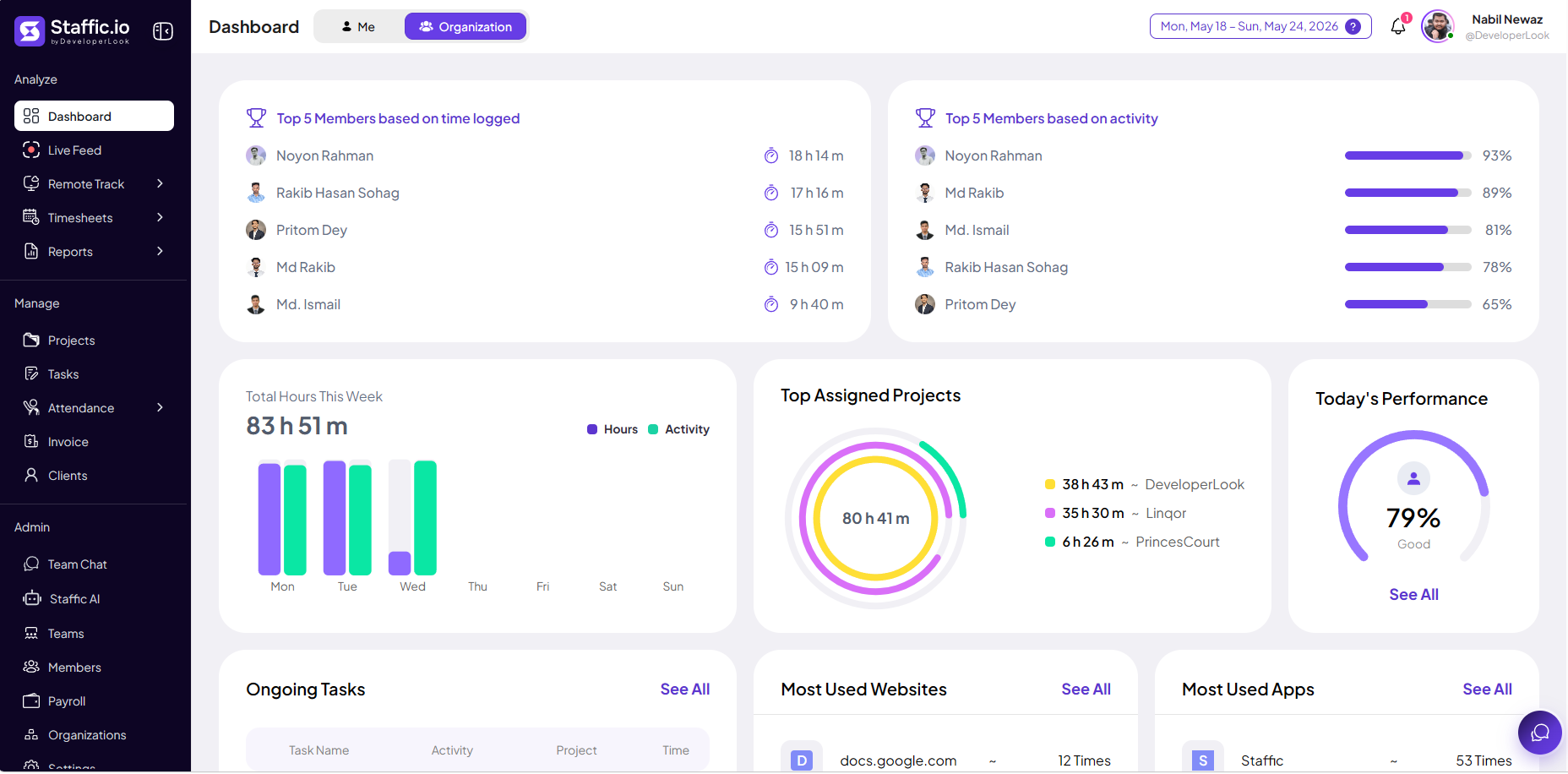
Switch to Organization to monitor the whole workspace. This view is ideal for standups, capacity checks, and spotting who is logging the most time or activity.
Top 5 Members based on time logged
Members ranked by total hours for the selected period.
Top 5 Members based on activity
Members ranked by average activity percentage.
Total Hours This Week
Combined team hours and activity trend across the week.
Top Assigned Projects
Organization-wide time distribution across active projects.
Today's Performance, Ongoing Tasks, Websites & Apps
Aggregated team metrics and usage — same widgets as Me view, scoped to the organization.
If you do not see the Organization toggle, ask your admin for a role that includes dashboard access for the whole workspace.
Tip: Widgets link into Reports and Remote Track when you need more detail. After registering your organization, open the Dashboard first to confirm tracking is working before inviting the rest of your team.
Tips
- Use Me view to review your own week; use Organization view for team standups and manager check-ins.
- Use the week selector to jump to last week or earlier without leaving the Dashboard.
- Click See All on any widget to open the full report or activity list.
Ready to get started?
Create your organization, invite your team, and start tracking in minutes.
Start Free Trial