


Admin Settings
How to Use Invoice Settings
Invoice Settings holds the details Staffic prints on every invoice. They include your address, tax number, bank details, payment methods, payment instructions and notes.
- Where
- Admin > Settings > Invoice Settings
- Who
- Admins, and members whose Access Control role includes Invoice
- Plan
- Elite
You fill in Invoice Settings once. Staffic then adds these details to every invoice you create under Manage > Invoice, so clients know who billed them and how to pay.
Staffic reads these details each time an invoice is shown, downloaded or emailed. So a change also shows on invoices you created earlier. Invoice emails you already sent keep the old details.
The organization name on your invoices comes from Admin > Organizations, not from this page.
Open Invoice Settings
Step 1: Open Settings
In the sidebar, under Admin, click Settings.
Step 2: Open Invoice Settings
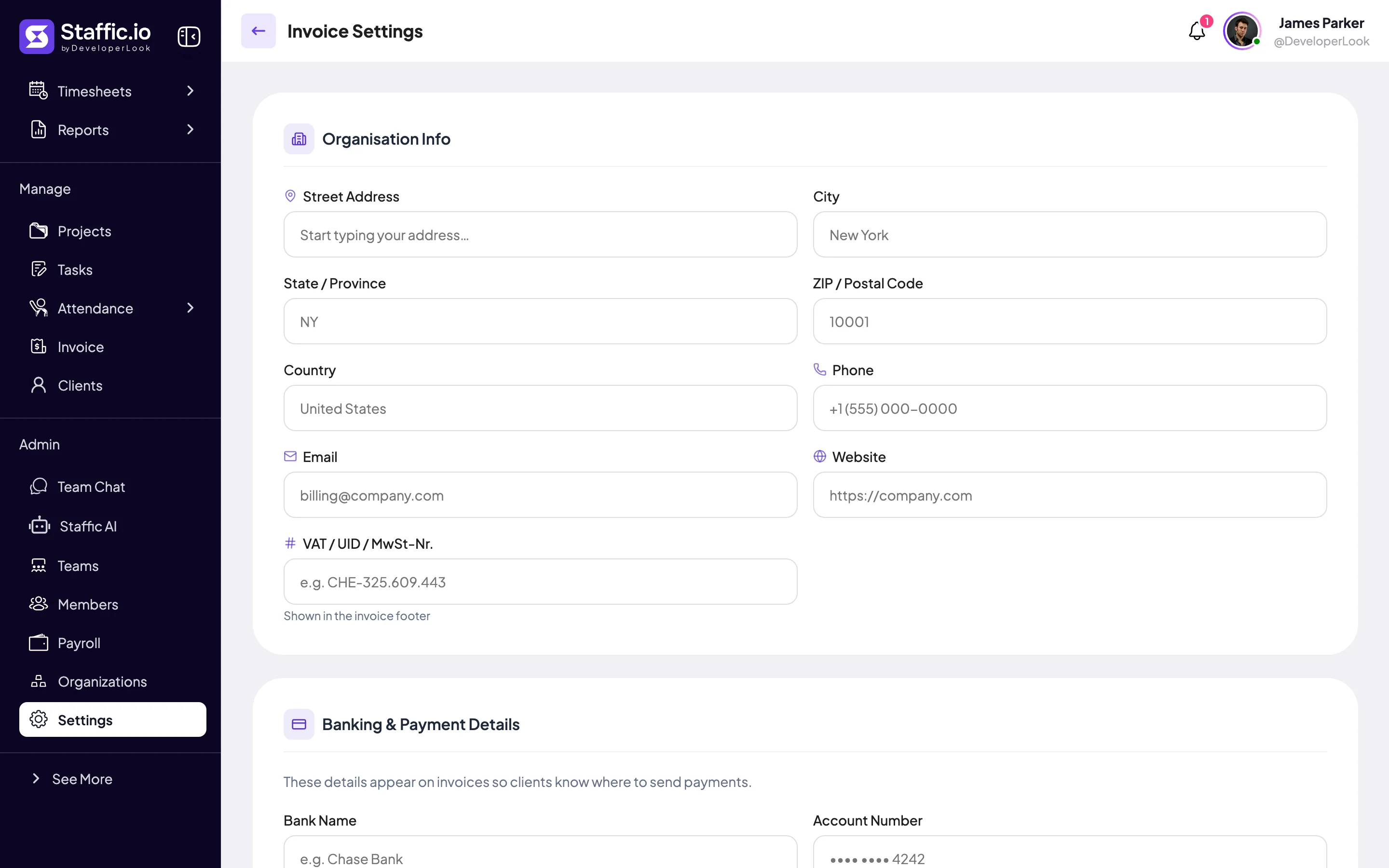
Under Management, click Invoice Settings. The page has three parts: Organisation Info, Banking & Payment Details and Notes & Payment Instructions.
Only admins see the Settings page. A member whose Access Control role includes Invoice opens this page at app.staffic.io/user/settings/invoice-settings. On Free and Standard, the page shows Invoice Settings Access Restricted instead.
Add your organization's details
- Street Address
- Start typing and pick your address from the suggestions. Staffic then fills in City, State / Province, ZIP / Postal Code and Country for you.
- City, State / Province, ZIP / Postal Code, Country
- The rest of your address. Type or correct them by hand if needed.
- Phone, Email, Website
- Contact details printed with your organization name.
- VAT / UID / MwSt-Nr.
- Your tax number. It prints in the footer of the PDF invoice.
Add bank and payment details
These details tell clients where to send payment. Staffic prints them on the invoice; your client pays you directly.
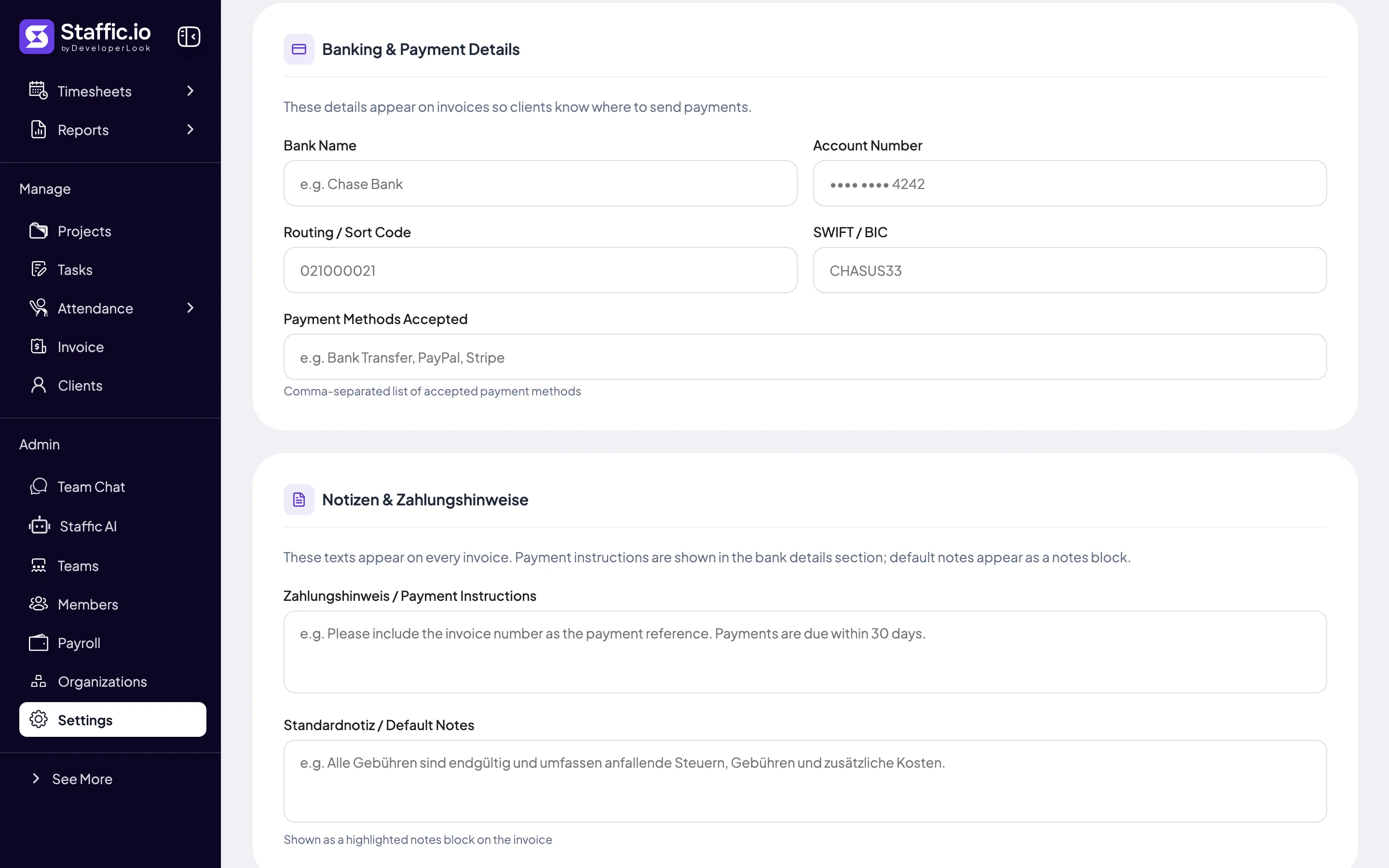
- Bank Name
- The name of your bank.
- Account Number
- The account clients pay into.
- Routing / Sort Code
- Your routing number, sort code or IBAN.
- SWIFT / BIC
- Your bank's code for international transfers.
- Payment Methods Accepted
- The ways clients can pay, separated by commas, for example Bank Transfer, PayPal. Each one shows as a separate tag on the invoice.
Add payment instructions and notes
- Payment Instructions
- How to pay, for example: please include the invoice number as the payment reference. It shows with your bank details.
- Default Notes
- A note for every invoice, such as your terms on fees and taxes. It shows as a highlighted notes block on the PDF invoice.
When you're done, click Save Settings at the bottom of the page. The message Invoice settings saved confirms it.
Where clients see these details
When you send an invoice, your client gets an email with a View & Pay Invoice link. The link opens the invoice in the browser, where they can also print it or save it as a PDF.
| Detail | Invoice in the browser | PDF invoice | Invoice email |
|---|---|---|---|
| Address, phone, email, website | Yes | Yes | No |
| VAT / UID / MwSt-Nr. | No | Yes, in the footer | No |
| Bank details | Yes | Yes | Yes, when Bank Name is filled in |
| Payment Methods Accepted | Yes | Yes, with bank details | No |
| Payment Instructions | Yes | Yes, with bank details | Yes, when Bank Name is filled in |
| Default Notes | No | Yes | No |
Common questions
Do I need Invoice Settings to send invoices?
No, but without it your invoices show no address, bank details or payment instructions. Fill it in before you send your first invoice.
If I change my bank details, do older invoices change too?
Yes. Staffic reads Invoice Settings each time an invoice is shown or downloaded, so older invoices show the new details. Invoice emails you already sent keep the old ones.
Which plan do I need?
Elite. On Free and Standard, the page shows Invoice Settings Access Restricted. Admins see an Upgrade Plan button there.
Can a member manage invoice settings?
Yes, on Elite, if their Access Control role includes the Invoice module. The Settings page is for admins only, so they open Invoice Settings from its address: app.staffic.io/user/settings/invoice-settings.
Tips
- Pick your address from the Street Address suggestions to fill the rest of the address at once.
- Fill in Bank Name. Without it, the invoice email leaves out your bank details and payment instructions.
- Separate payment methods with commas, for example Bank Transfer, PayPal.