How to Use the Time & Activity Report
See logged hours alongside activity scores so you can compare time on the clock with engagement during tracked sessions.
Time & Activity
Open the report
Go to Reports → Time & Activity under Analyze in the left sidebar.
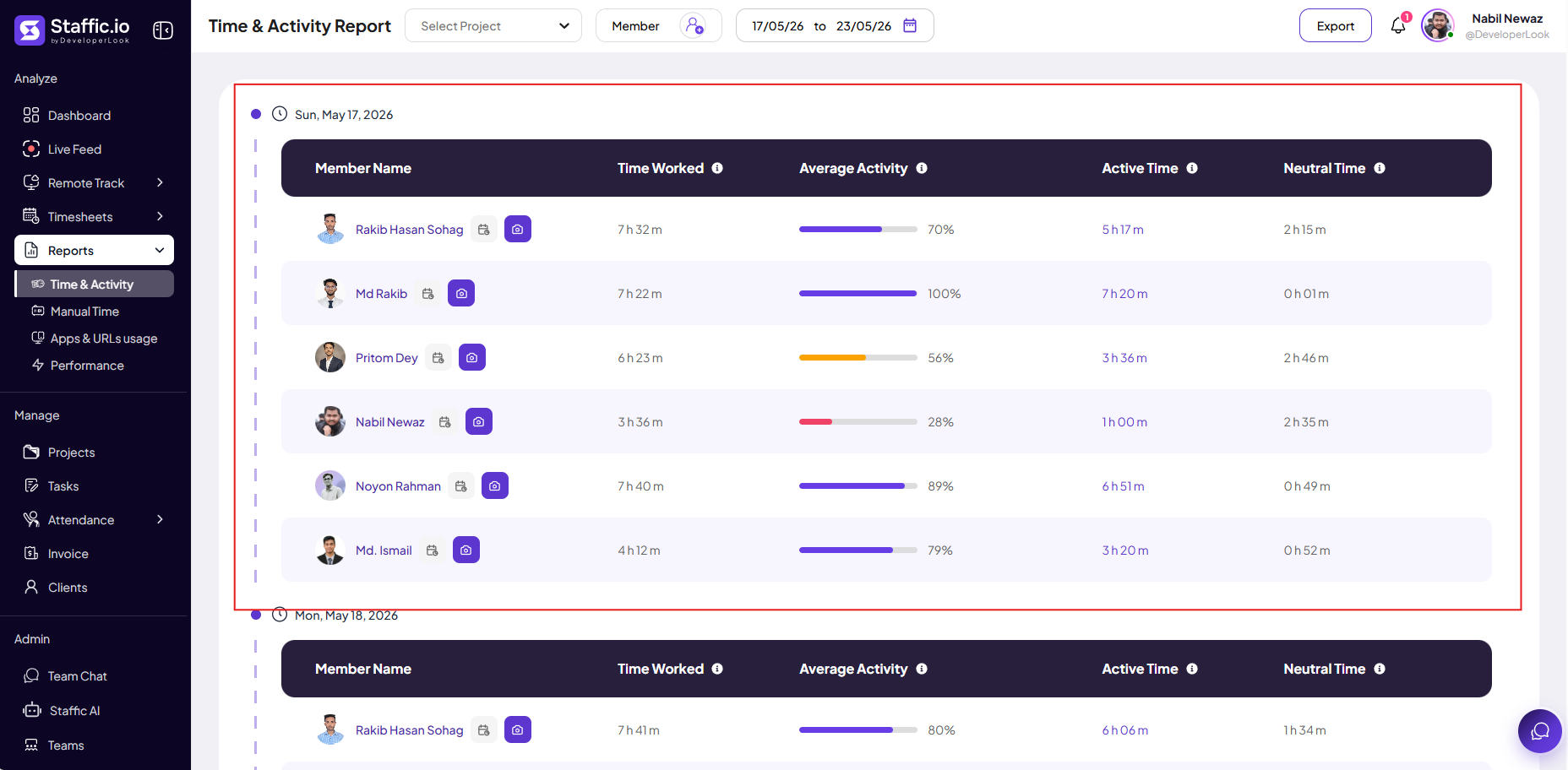
What you see
The report combines time worked (from timesheet entries) with activity signals from the desktop tracker while members were actively tracking. Use graph and tabular views to compare members, projects, or days.
Time worked
Total tracked duration for the filtered period — same family of data as Timesheets and Dashboard → Total Hours.
Activity level
Engagement during logged hours (keyboard, mouse, and related signals on supported plans). Not a quality score for deliverables.
Daily / weekly trends
Spot days with high hours but low activity, or the reverse, before approval or payroll.
Activity is only collected while the desktop tracker is running on an active entry. Stopped tracking or idle time follows your organization’s idle rules.
Typical uses
Managers review the week before Timesheet Approval. Finance exports the same range after approval for payroll records. Pair with Remote Track when you need app or screenshot detail for a specific disputed day.
Tips
- Filter to one member and one week when investigating a single dispute.
- Compare report totals to Timesheets → Weekly before approving or paying.
- Do not use activity scores alone in performance reviews — combine with outcomes and manager context.
Ready to get started?
Create your organization, invite your team, and start tracking in minutes.
Start Free Trial