How to Use Tasks
Break projects into assignable work items — track status on a board, table, timeline, or calendar, and log time from the web app or desktop tracker.
Open Tasks
Go to Tasks
Click Tasks under Manage in the left sidebar. Use Search by task name, Select Project, Member, and Select date range to narrow the list. Click + Add Task to create work or Team chat to message the team.
Switch views
Use the tabs below the header to change how tasks are displayed. The status dropdown (for example, All) filters which tasks appear in each view.
Board
Kanban columns — Todo, In Progress, Completed. Drag cards between columns to update status.
Table
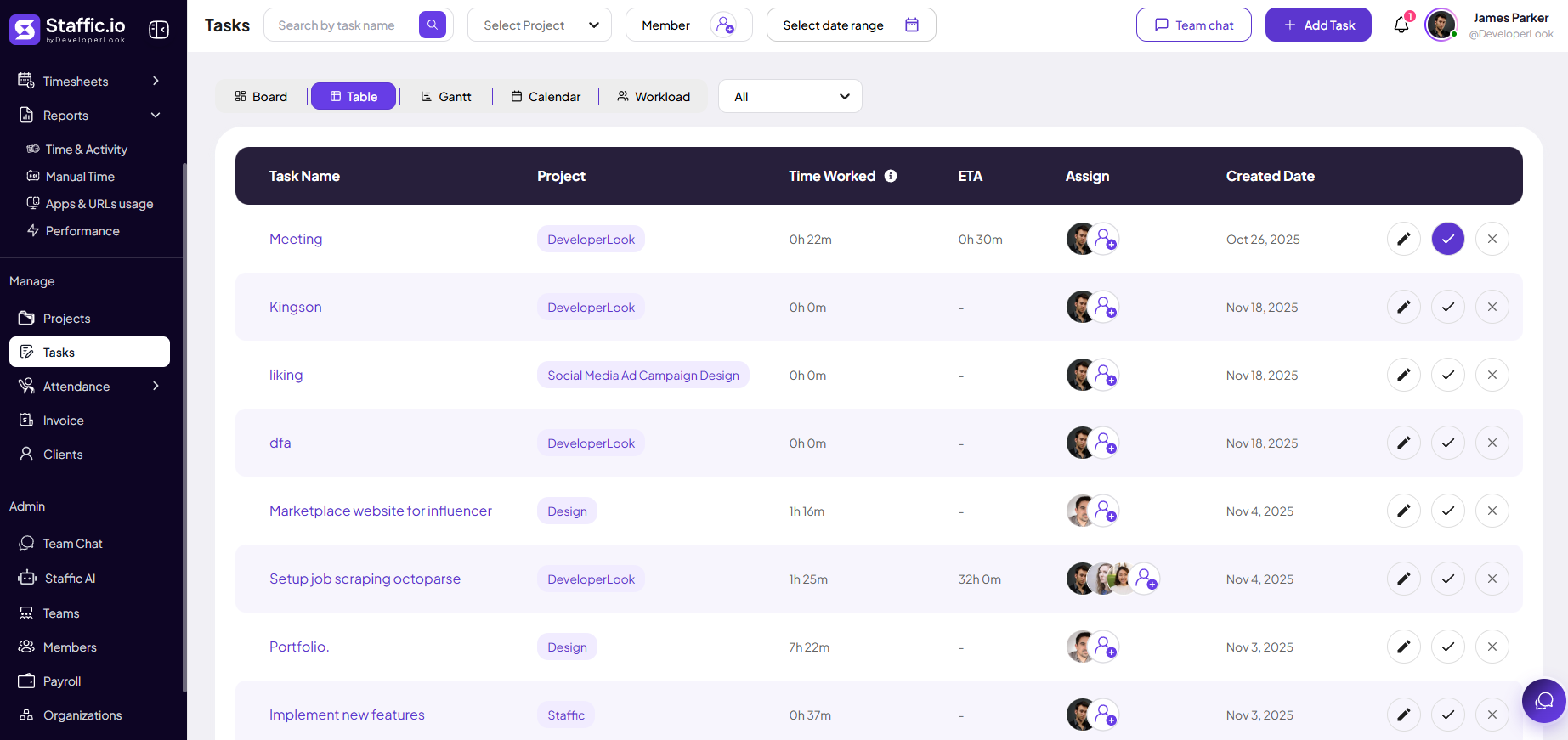
Spreadsheet-style list with time worked, ETA, assignee, and row actions.
Gantt
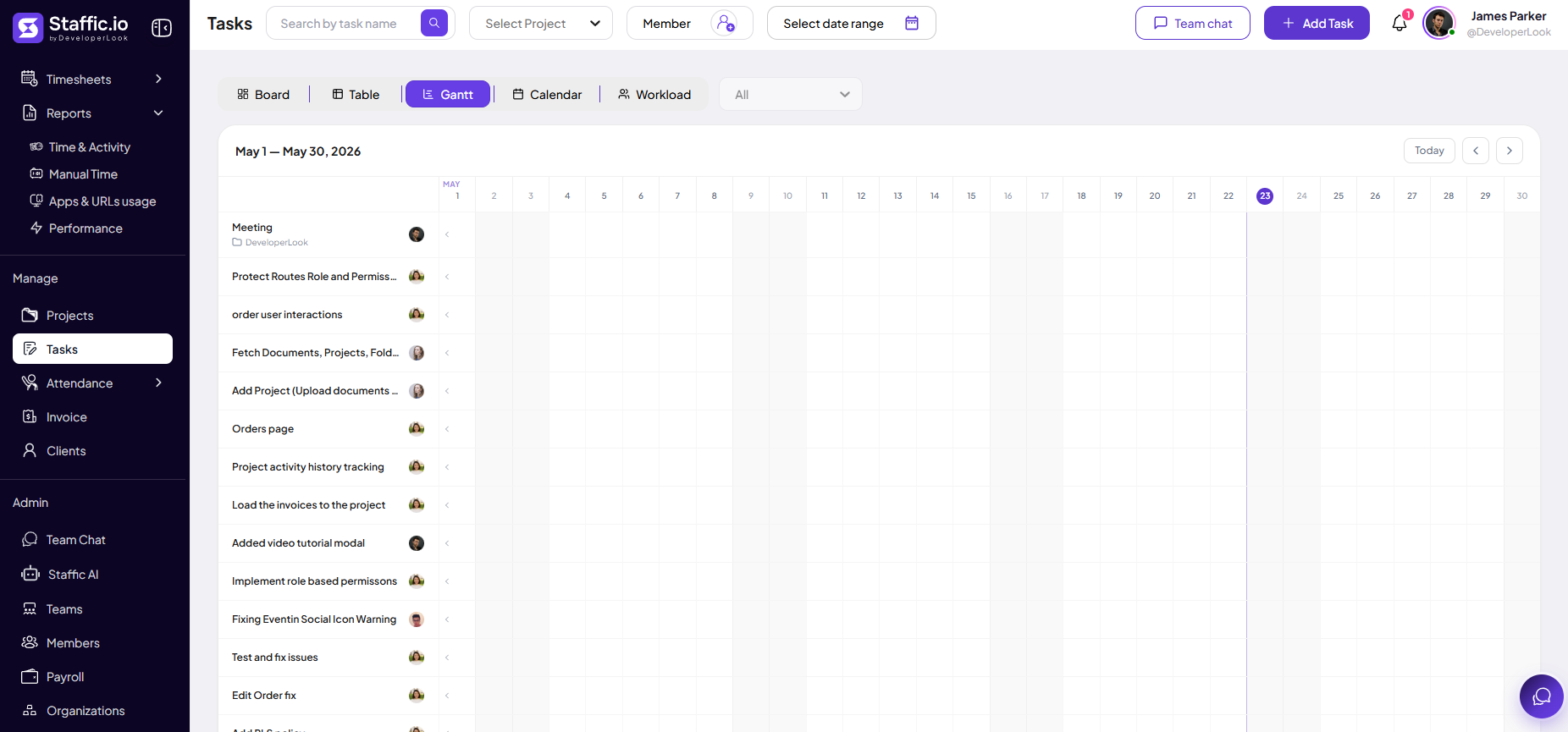
Timeline by month with task names and project on the left.
Calendar
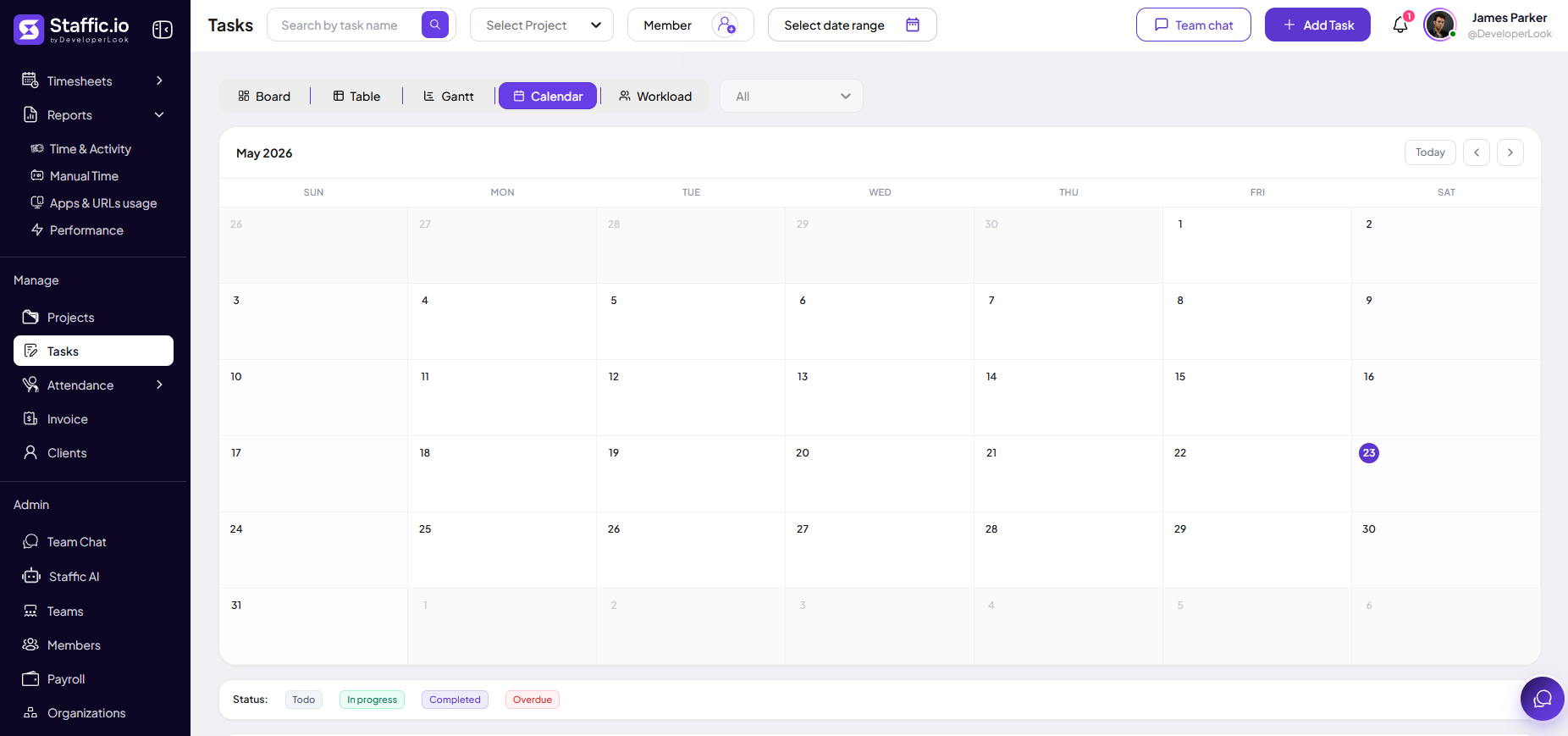
Month grid with status colors; unscheduled tasks listed below.
Workload
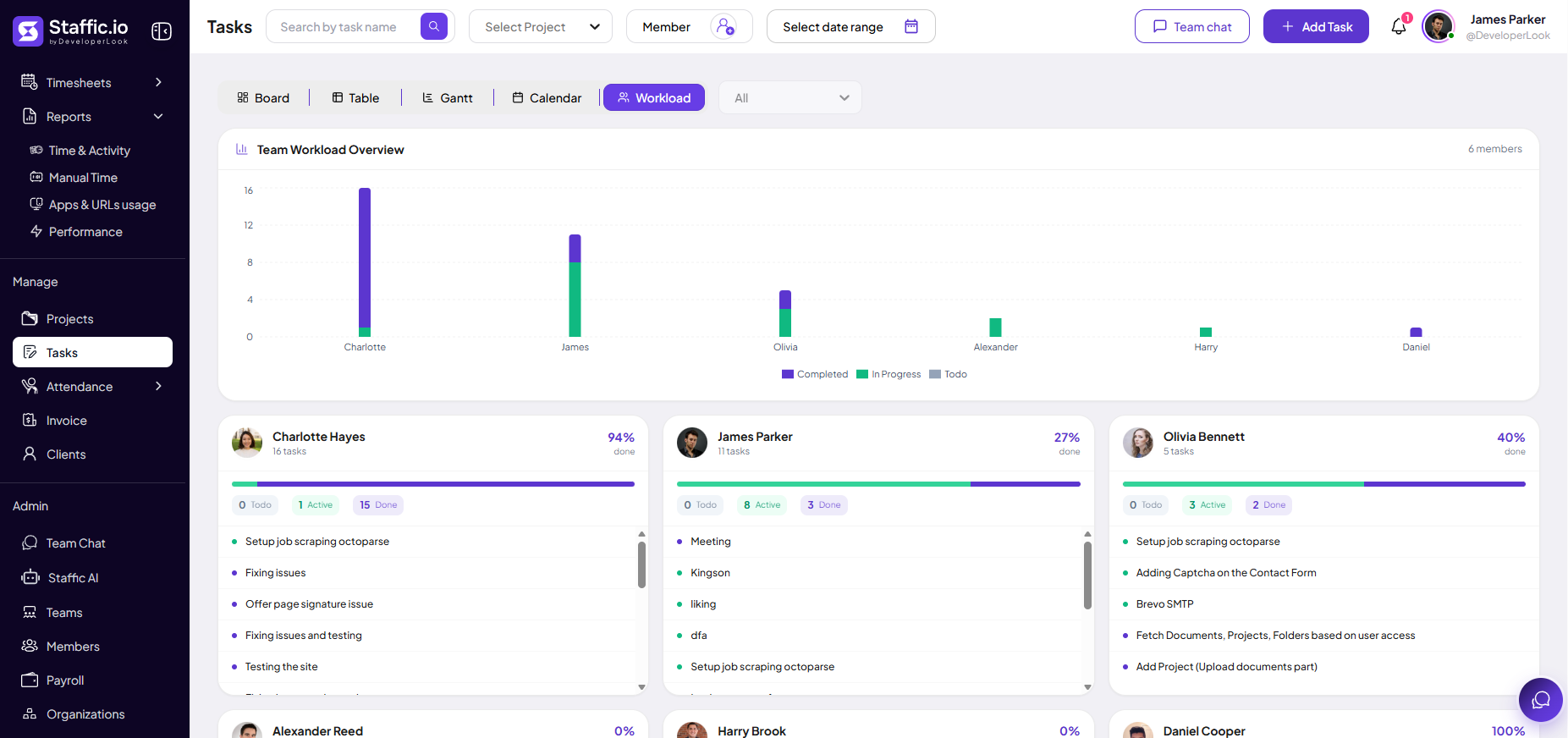
Team chart and per-member cards showing task counts and completion.
Board view
Kanban board
Each column is a status with a count (for example, In Progress 12). Cards show the task name, project, and assignee avatar. Drag a card to another column to move its status.
Empty columns show a placeholder — drag a card from another column to populate Todo.
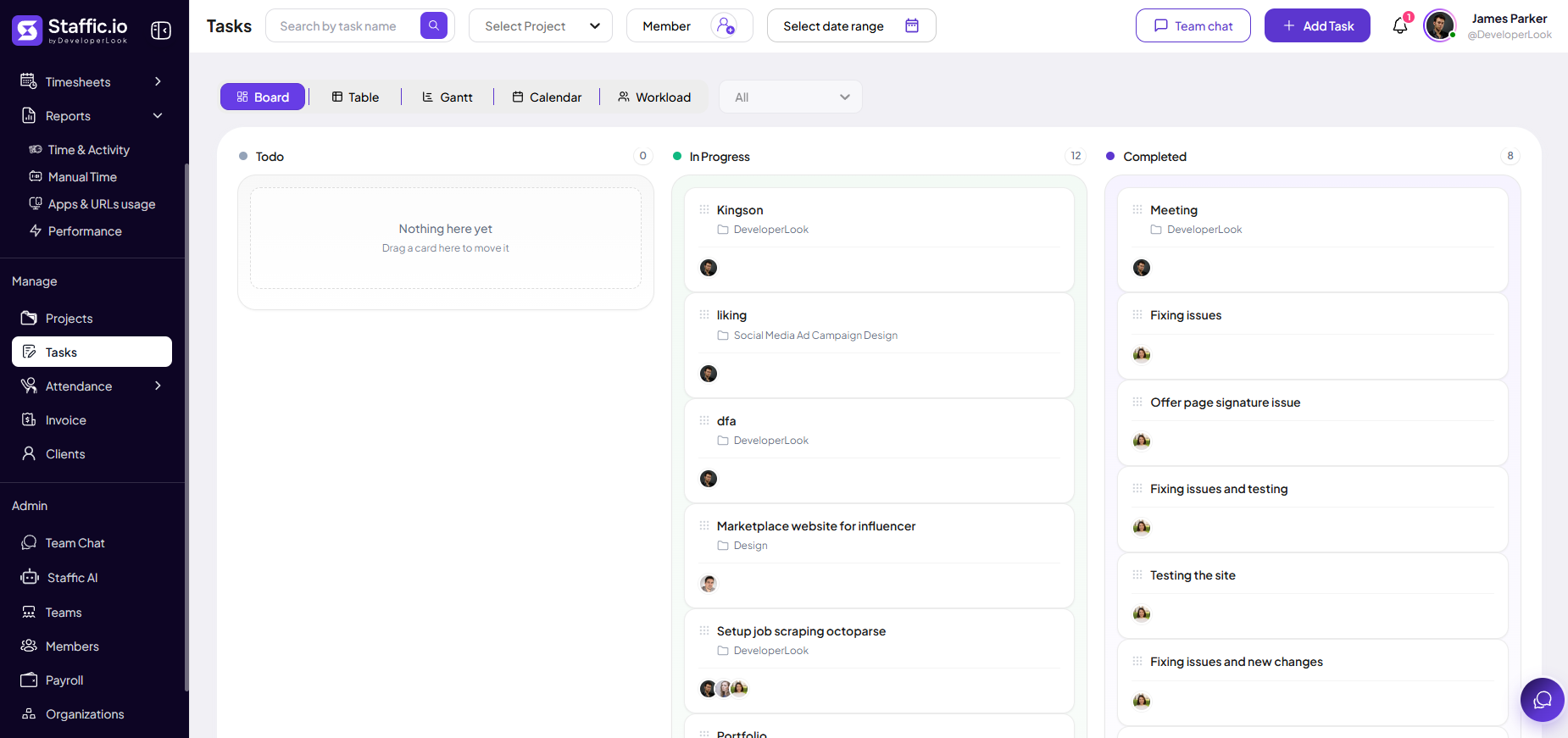
Table view
Task list table
The table is best for sorting and bulk review. Each row includes actions to edit, mark complete, or remove.
Task Name
Title shown in the tracker and Live Feed when someone works on this task.
Project
Parent project badge — time rolls up to this project on timesheets and reports.
Time Worked
Hours logged against the task in the filtered period.
ETA
Estimated time when set on the task; shows a dash until populated.
Assign
Assignee avatar — click the plus icon to add or change who owns the task.
Row actions
Edit (pencil), complete (checkmark), and delete (X) on the right.
Gantt view
Timeline
See tasks on a monthly grid (for example, May 1 — May 30, 2026). The left lists task name, project, and assignee; the right shows days with Today highlighted. Use arrows or Today to navigate months.
Calendar view
Month calendar
Tasks with due dates appear on the calendar. The legend shows status colors: Todo, In progress, Completed, and Overdue. Scroll to Unscheduled at the bottom for tasks without a due date.
Workload view
Team capacity
The Team Workload Overview chart stacks Todo, In Progress, and Completed per member. Below, member cards show total tasks, percent done, and a short task list.
Use Workload before assigning new work — balance Todo and In Progress across the team instead of overloading one person.
Create a task
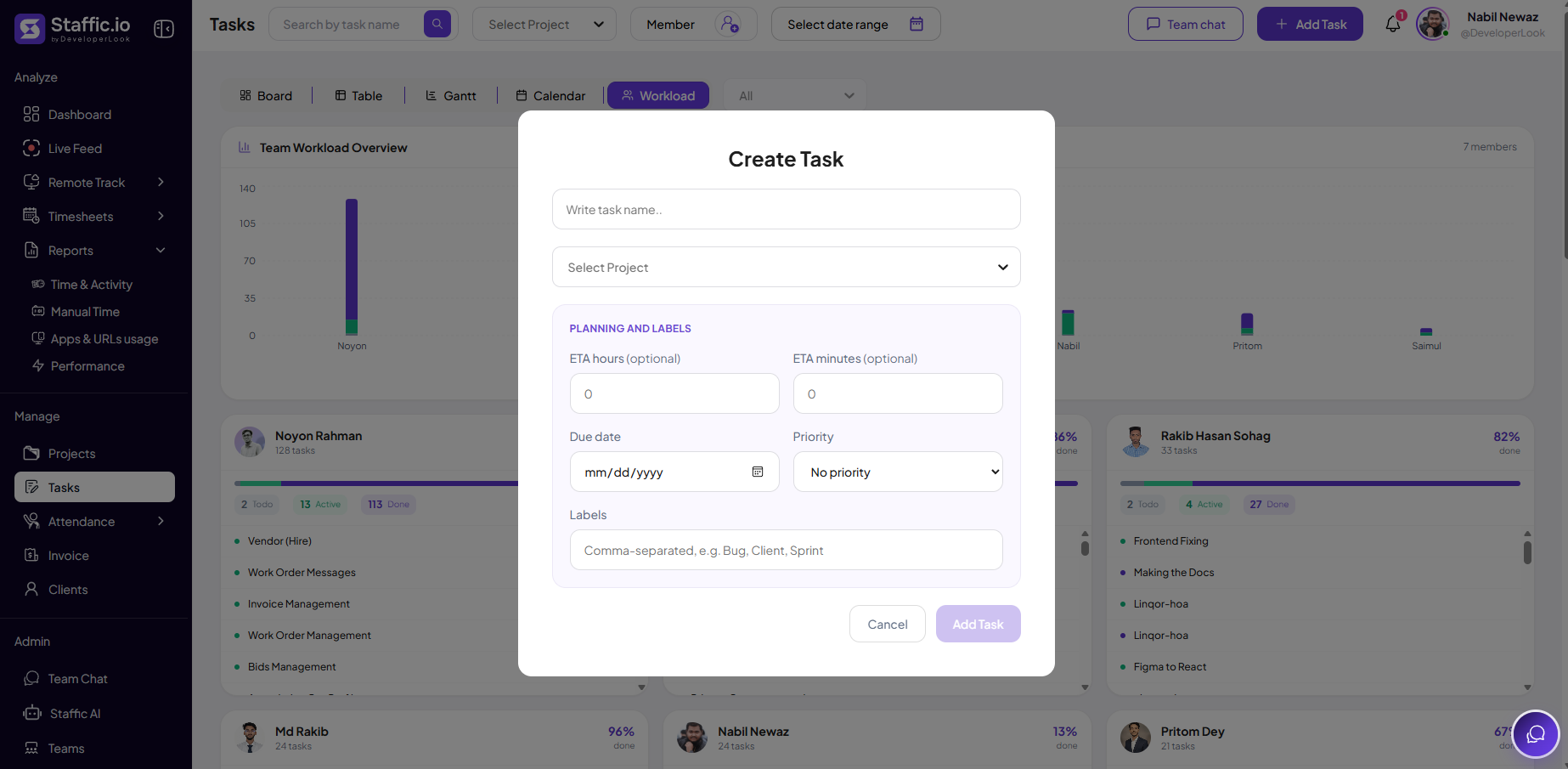
Create Task modal
Click + Add Task from any view. Fill the form and click Add Task or Cancel to close.
Task Name
Required title — keep it actionable so Live Feed and reports stay readable.
Select Project
Required — ties the task to a project for tracking and billing.
ETA hours / minutes
Optional estimate shown in Table view and Performance when configured.
Due date
Optional — drives Calendar placement and overdue status.
Priority & Labels
Optional priority level and comma-separated labels (for example, Bug, Client, Sprint) for filtering.
Track time on a task
Members select the project and task in the desktop tracker or web timer. Logged time appears in Timesheets, Live Feed, and Reports under that project.
Tips
- Keep task titles short and specific — they appear on the board, tracker, and Live Feed.
- Set due dates for client-facing work so Calendar and overdue status stay accurate.
- Use Board for daily standups, Table for time review, and Workload before assigning new tasks.
- Link tasks to the correct project so invoices and Project Timing reports roll up cleanly.
Ready to get started?
Create your organization, invite your team, and start tracking in minutes.
Start Free Trial