


Admin Settings
How to Use Activity Settings
AdminActivity Settings decides what the desktop app records while members track time: screenshots, recordings, apps, websites and activity. Admins set it for the whole organization and can turn tracking off for one member.
- Where
- Admin > Settings > Activity
- Who
- Admins only
- Plan
- All plans. Screenshots need Standard or Elite. Screenshot frequency and recordings need Elite.
Staffic records work only while a member's timer runs in the desktop app for Windows, macOS or Linux. Activity Settings controls what the app records in that time.
Most switches apply to everyone in the organization you have open. The member list at the bottom changes tracking for one person. Each switch saves as soon as you click it, and the message Activity settings updated successfully. confirms it.
Open Activity Settings
Step 1: Open Settings
In the sidebar, under Admin, click Settings.
Step 2: Open Activity
Under Features, click Activity. The Activity Settings page opens.
Step 3: Turn an option on or off
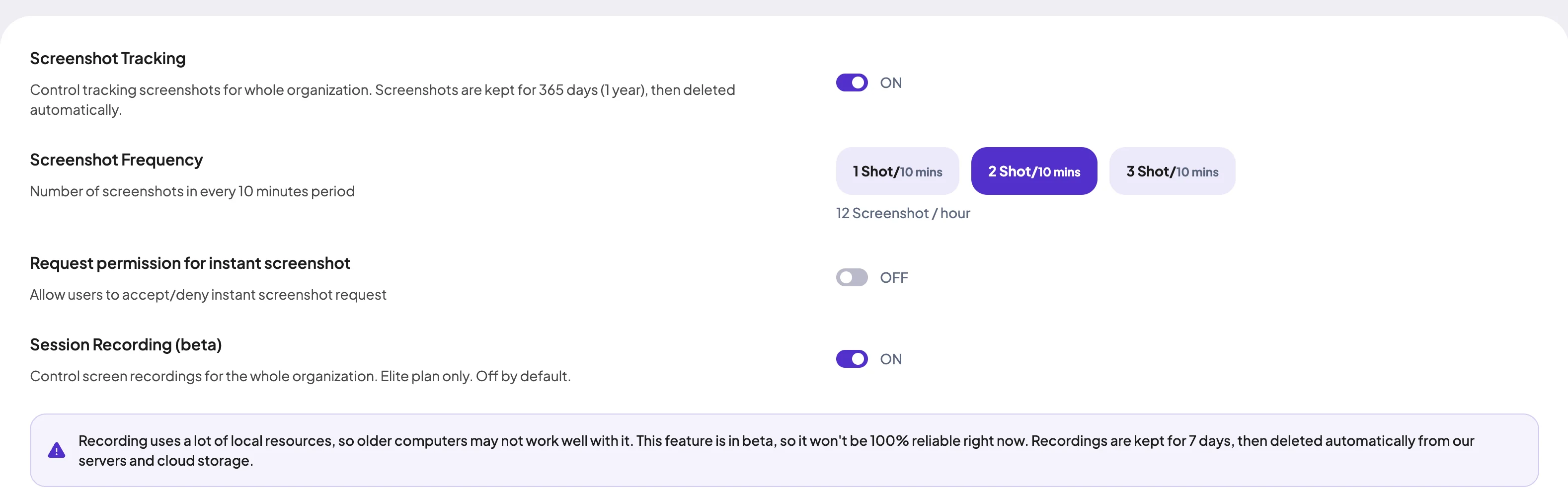
Click its switch. The label next to it changes to ON or OFF.
If your plan doesn't include the option, an Upgrade Required message names the plan you need. Click Upgrade Plan to see plans, or Cancel to close it.
Options, defaults and plans
This table lists every switch on the page, how it starts in a new organization and the plan it needs.
| Option | New organizations | Plan |
|---|---|---|
| Screenshot Tracking | Off | Standard and Elite |
| Screenshot Frequency | 2 Shot/10 mins | Elite |
| Request permission for instant screenshot | On | Elite |
| Session Recording (beta) | Off | Elite |
| Delete Screenshots and Recordings | Off | Standard and Elite |
| Application Tracking | Off | All plans |
| URL Tracking | On | All plans |
| Keystroke And Mouse Track | On | All plans |
| Meeting Idle Time Track | On | Standard and Elite |
| Control Tracking, per member | On | Standard and Elite |
| Recordings (beta), per member | On, while Session Recording (beta) is on | Elite |
Below Elite, the app takes 2 screenshots every 10 minutes.
Screenshots and recordings
- Screenshot Tracking
- Turns screenshots on or off for everyone. While it's on, the desktop app takes screenshots while the timer runs. Staffic keeps them for 365 days, then deletes them automatically.
- Screenshot Frequency
- How many screenshots the app takes in every 10 minutes: 1, 2 or 3. The line under the buttons shows the total per hour: 6, 12 or 18.
- Request permission for instant screenshot
- An instant screenshot is one an admin takes on demand from Live Feed. With this on, members can accept or deny each request.
- Session Recording (beta)
- Turns screen recordings on or off for everyone. Staffic keeps recordings for 7 days, then deletes them automatically.
- Delete Screenshots and Recordings
- Lets members delete their own screenshots and recordings. Admins can always delete. With this off, members can't delete them.
While Screenshot Tracking is off, Screenshot Frequency and Request permission for instant screenshot are hidden. A warning reminds you that apps, URLs and activity tracking keep working.
Recording uses a lot of computer resources, so older computers may struggle with it. The feature is in beta, so it isn't fully reliable yet.
Deleting a screenshot or recording also deletes the tracked time it belongs to. Staffic asks for a reason, and each deletion shows in the Manual Time report. This switch covers the Screenshots and Recordings pages only. Members can always delete their own time, and its screenshots, on the daily timesheet.
You review screenshots under Analyze > Remote Track > Screenshots and recordings under Analyze > Remote Track > Recordings (beta).
Apps, URLs and activity
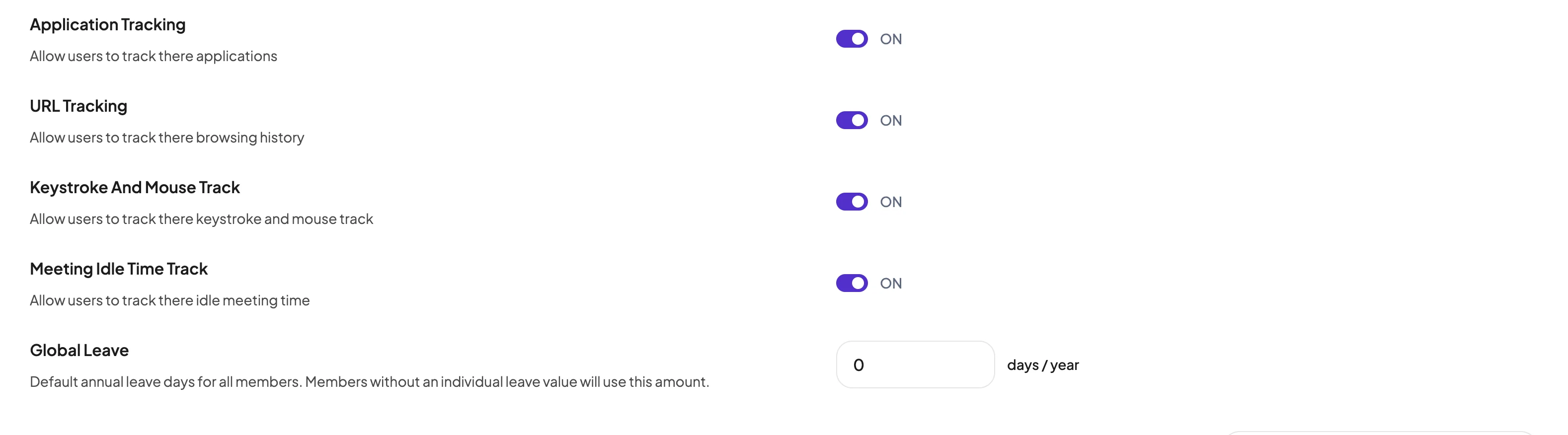
- Application Tracking
- Records which apps members use while the timer runs. You see them under Analyze > Remote Track > Apps.
- URL Tracking
- Records the websites members visit in their browser while the timer runs. You see them under Analyze > Remote Track > URLs.
- Keystroke And Mouse Track
- Measures keyboard and mouse use and saves an activity level from 0 to 100% for each stretch of tracked time. Staffic doesn't save what members type.
- Meeting Idle Time Track
- Stops quiet time in Google Meet, Slack huddles and Discord calls from counting as idle.
Idle time is time with no keyboard or mouse input. A stretch of 50 seconds or more without input counts as idle. After 5 minutes without input, or when the computer sleeps or locks, the timer stops.
On a Mac, members must allow Screen Recording (for screenshots), Accessibility or Input Monitoring (for keyboard and mouse) and Automation (for browser URLs). See Desktop app.
Turn tracking off for one member
The Tracking Individual Member list at the bottom of the page has one row per person in the organization.
Step 1: Find the member
Type a name in Search members by name and press Enter. Clear the box to see everyone again.
Step 2: Change a switch
Click the switch under Control Tracking or Recordings (beta). The message User activity settings updated successfully. confirms it.
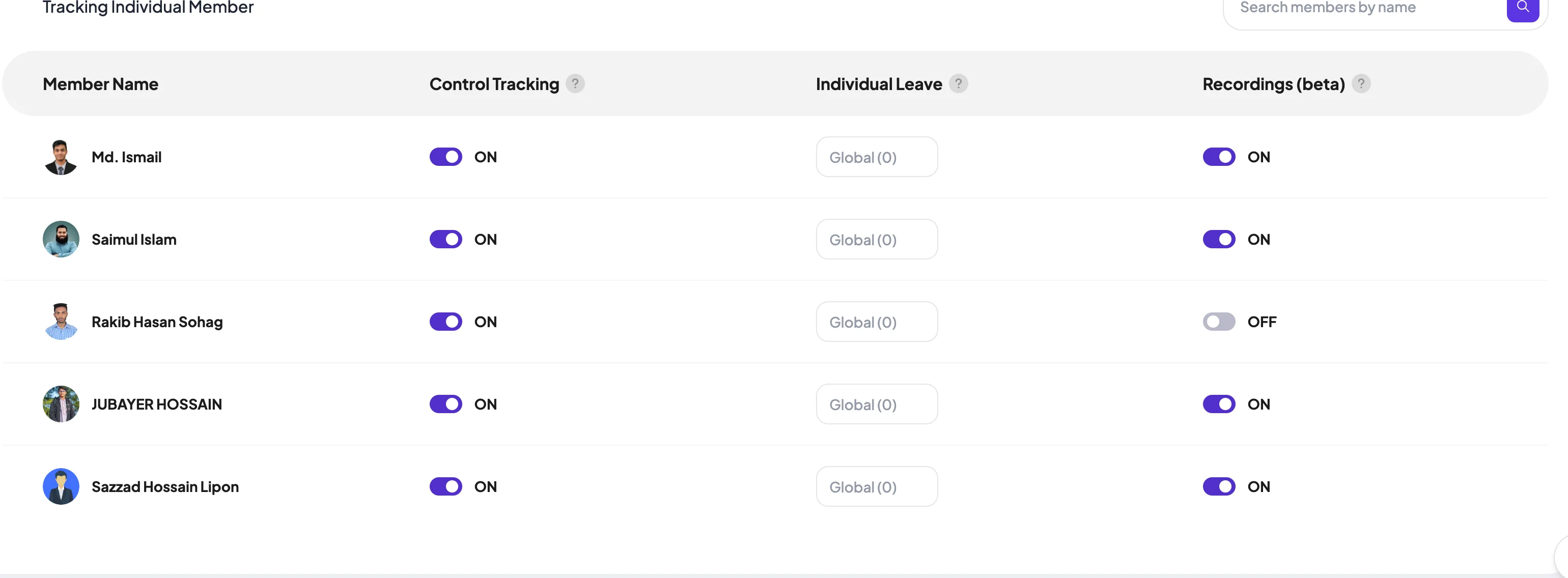
- Member Name
- The member's photo and name.
- Control Tracking
- On by default. Turn it OFF to stop screenshots, apps, URLs and activity tracking for this member. Their recordings stop too.
- Individual Leave
- This member's leave days per year. Leave it blank to use Global Leave.
- Recordings (beta)
- Turns recordings on or off for this member. It works only while Session Recording (beta) is on, and shows OFF otherwise.
Set yearly leave days
- Global Leave
- The default number of leave days per year for every member. Members without an Individual Leave value use it.
- Individual Leave
- A different number for one member, set in the member list. While it's empty, the box shows the Global Leave value.
Type a number of days, then press Enter or click outside the box to save. Staffic uses these numbers as each member's yearly leave allowance. You manage leave under Manage > Attendance > Leave Manage (Elite).
Common questions
Do members know when Staffic is tracking them?
Tracking runs only while a member's timer is on in the desktop app, and the app shows a Tracking Started notice when the timer starts. On Standard and Elite, members can review their own screenshots under Remote Track.
Does Staffic record what members type?
No. Keystroke And Mouse Track saves only an activity level from 0 to 100% for each stretch of tracked time. Staffic doesn't store typed text.
Why can't I change Screenshot Frequency?
It needs Elite. On Standard, the app takes 2 screenshots every 10 minutes. The option is also hidden while Screenshot Tracking is off.
How long are screenshots and recordings kept?
Staffic keeps screenshots for 365 days and recordings for 7 days. After that, it deletes them automatically.
What happens when I turn off Control Tracking for a member?
Staffic stops screenshots, recordings, apps, URLs and activity tracking for that member. Everyone else keeps the organization's settings. Turn the switch back on to start again.
Tips
- Tell your team before you turn on screenshots, recordings or URL tracking.
- After you upgrade, turn on Screenshot Tracking: new organizations start with it off.
- If a member's computer struggles with recording, turn Recordings (beta) off for that member only.