How to Use the Daily Timesheet
Review and edit all time entries for a single calendar day.
Open Daily View
Step 1: Open Daily
Go to Timesheets → Daily under Analyze in the left sidebar.
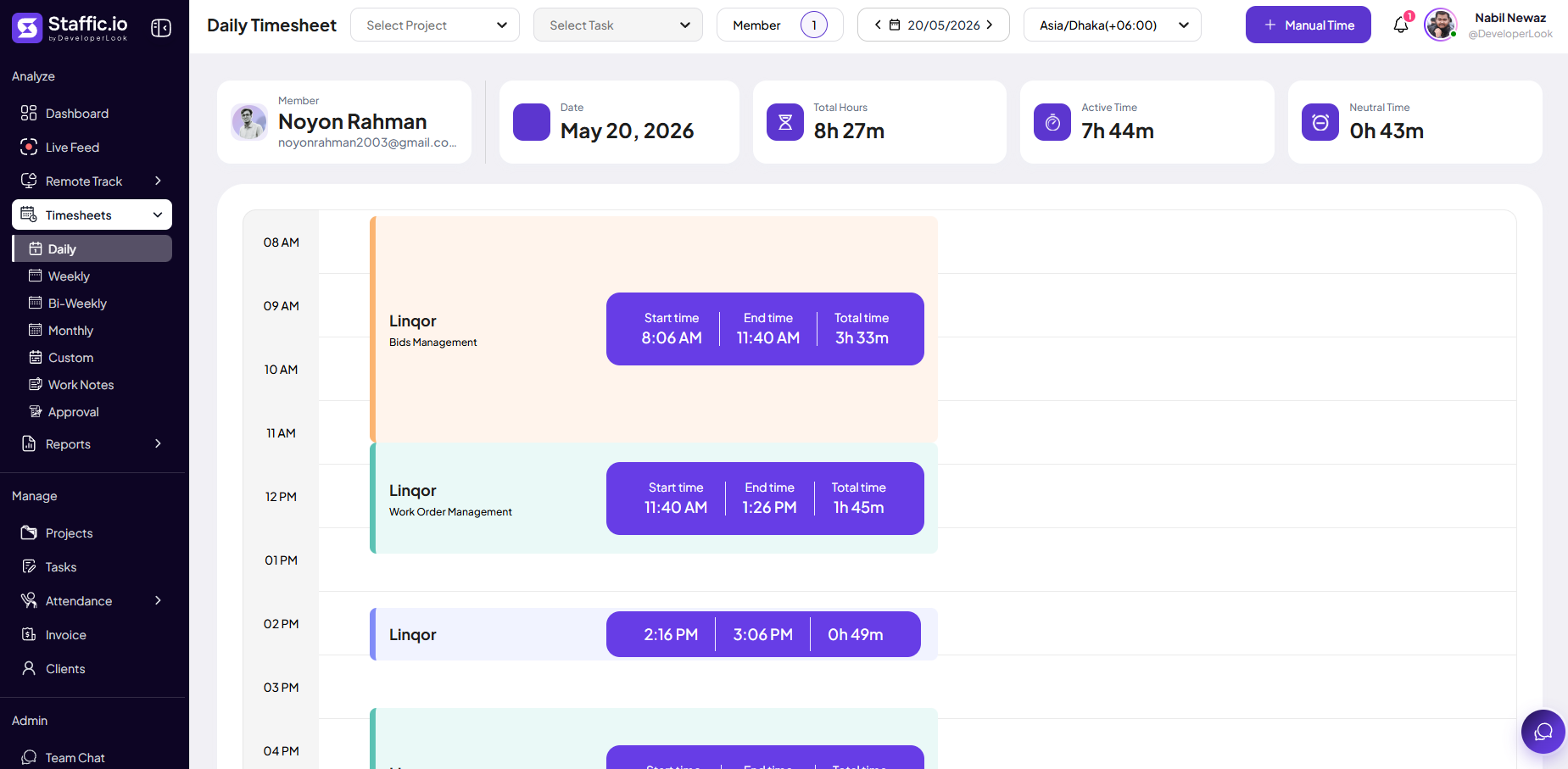
Step 2: Pick the day
Use the date control to move between days. All entries for that calendar day appear in one list — project, task, duration, and activity where available.
Best for
Verifying yesterday’s work, fixing a wrong project or task, or adding a short manual entry before weekly submit.
Totals
See daily total hours at a glance before switching to Weekly for manager review.
Tips
- Use Daily right after each workday so weekly approval is only a quick check.
- Match entry times to your profile timezone so midnight boundaries are correct.
Ready to get started?
Create your organization, invite your team, and start tracking in minutes.
Start Free Trial