How to Use the Manual Time Report
Review every block of time added or edited by hand — critical for audits, policy enforcement, and payroll accuracy.
Manual Time
Open the report
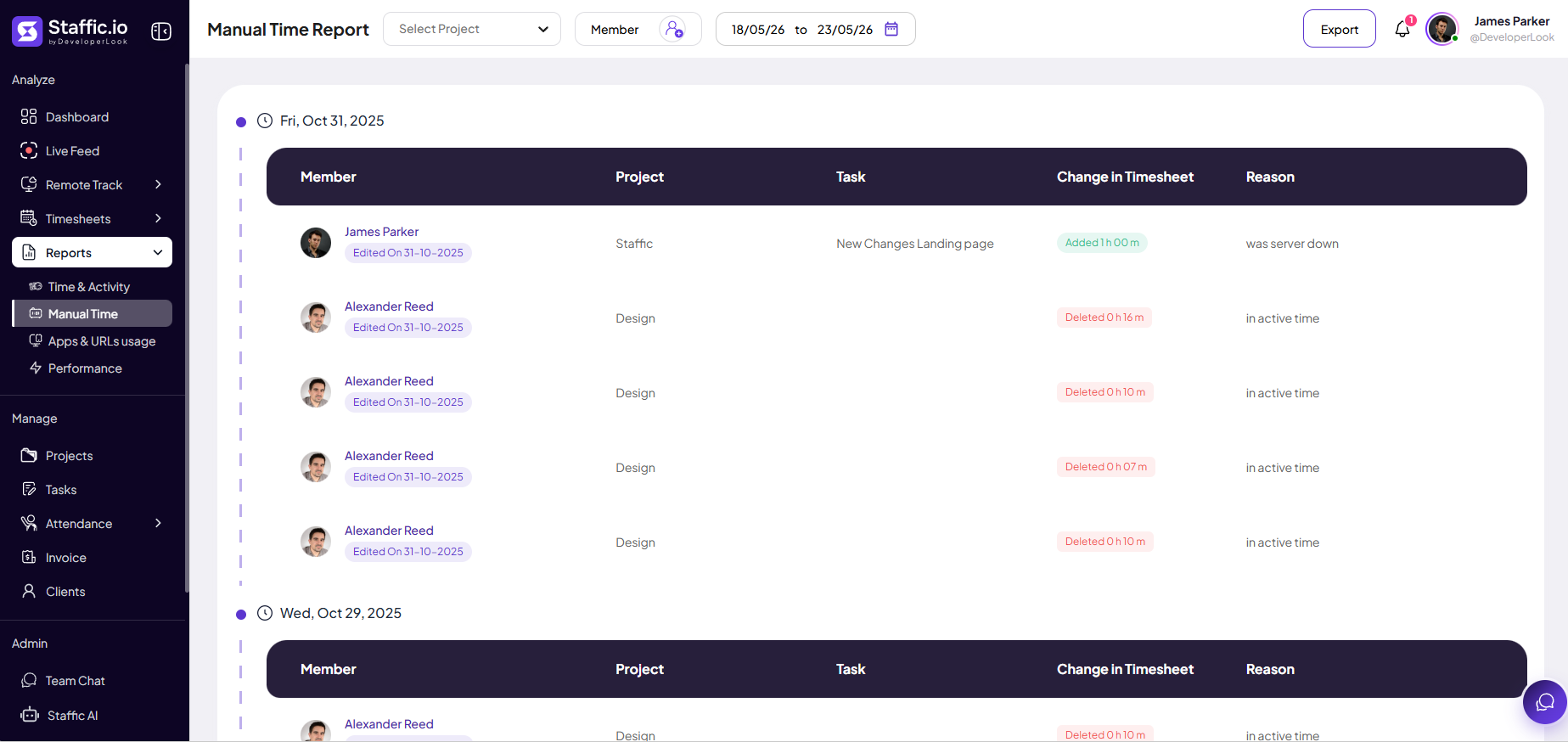
Go to Reports → Manual Time under Analyze in the left sidebar. Use Select Project, Member, and the date range picker at the top to narrow results, then click Export when you need a spreadsheet or PDF.
Read each row
Entries are grouped by calendar day. Each row is a manual change to a timesheet — created with Add Time on a timesheet or by editing duration after automatic tracking.
Member
Who made the change. An Edited On tag shows the date the entry was last modified.
Project & Task
Where the time was logged so you can confirm it belongs on the right client or deliverable.
Change in Timesheet
What changed — for example Added 0 h 10 m or a similar label for edits and removals.
Reason
Optional text explaining why time was added or changed. Empty reasons are a flag for follow-up before approval.
Require a reason (or Work Note on the entry) in your team policy for manual blocks over a threshold so this column is rarely blank.
What counts as manual time
Any hand-added or hand-edited block appears in this report. It does not list purely automatic tracker sessions unless someone later edits them.
Why it matters
Manual blocks are higher risk for billing errors and policy violations.
Permissions
Admins control who may add or edit manual time in Settings. Restrict creation for roles that should only use the desktop tracker.
Audit trail
Run this report before payroll or client invoices when automatic tracking is the default and manual time is the exception.
Review workflow
Filter by date range and member. Scan for unusual duration, wrong project, or spikes after deadlines. Cross-check Work Notes and Timesheets → Daily for context, then reject or request changes in Approval if the entry should not count.
Require a note on manual entries in your team handbook (for example, any block over 2 hours) so this report is quick to approve.
Tips
- Review Manual Time weekly if your policy allows hand entry — do not wait until month-end.
- Export the report for compliance when clients or auditors ask how non-tracked hours were validated.
- Reduce manual volume by fixing tracker issues (desktop app not running, wrong project selected).
Ready to get started?
Create your organization, invite your team, and start tracking in minutes.
Start Free Trial