How to Use URLs Activity
See which websites and domains members visited while tracking time — grouped by session, project, and task.
Open URLs
Step 1: Open the URLs page
Sign in at app.staffic.io, then go to Remote Track → URLs under Analyze in the left sidebar.
URL logging must be enabled in Settings for your organization. The desktop tracker records URLs only while a member is actively tracking time.
Filter URL Activity
Use the top filters
Narrow the URL log before reviewing sessions:
Select Project
Show website visits only for time logged to a specific project.
Select Task
Filter further to one task within the selected project.
Member
Choose whose sessions to review. Admins and managers can view any member; individual members typically see only their own activity.
Date range
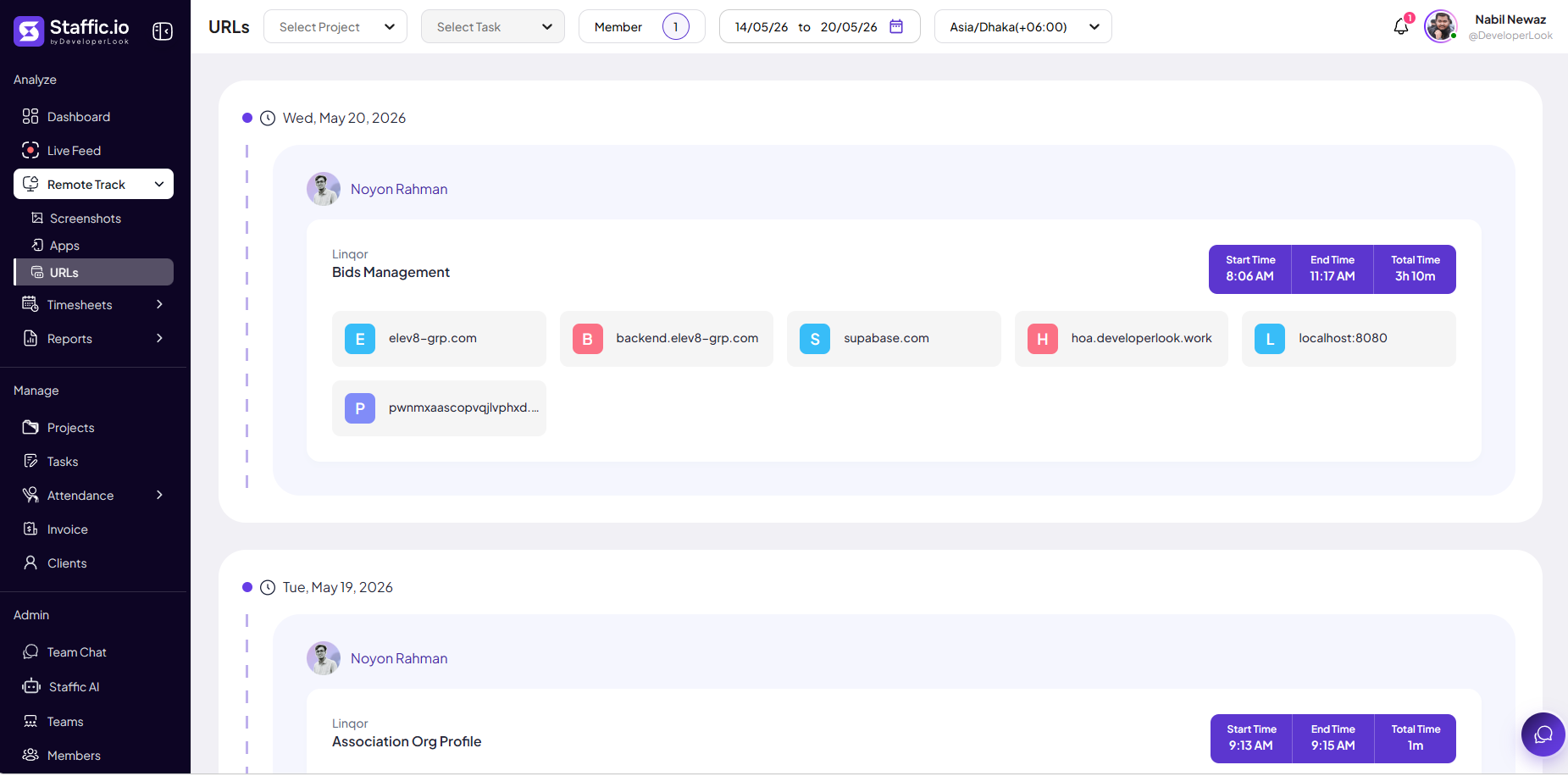
Pick start and end dates (for example, 14/05/26 to 20/05/26) to load URL data for that period.
Timezone
Start and end times display in the selected timezone (for example, Asia/Dhaka) so sessions align with the member’s local workday.
Review Sessions & Websites
Activity grouped by day and member
The log is organized by calendar day. Under each date, one card appears per tracked session (member + project + task).
Member & context
Member name with profile photo, plus the project and task active during that session (for example, Linqor — Bids Management).
Start Time / End Time / Total Time
When the session began and ended, and total tracked duration (for example, 3h 10m from 8:06 AM to 11:17 AM).
URL cards
Each visited domain or page appears as a card (for example, elev8-grp.com, supabase.com, localhost:8080) for the sites opened during that session while tracking was on.
What to use this for
URL activity helps verify that web work aligns with assigned projects, review research or client-site time, and support policy conversations — use together with Timesheets and Remote Track → Apps, not as the only performance measure.
For aggregated website usage, use Dashboard → Most Used Websites or related Reports. Disable URL tracking in Settings for roles that must not log browsing data.
Tip: Filter by project and task when auditing a single client. Pair with Screenshots on the same date when you need visual confirmation of on-screen work.
Tips
- URLs are logged only during active desktop tracking — if this page is empty, confirm URL tracking is on in Settings and the member has synced tracked time.
- Local development URLs (for example, localhost) appear when developers track against local environments.
- Document your URL monitoring policy before enabling it organization-wide.
Ready to get started?
Create your organization, invite your team, and start tracking in minutes.
Start Free Trial