




Work
How to use Projects
Projects hold your team's work: the tasks, the people who do them and the time they track. Set them up here so members can track time against them in the desktop app.
- Where
- Work > Projects
- Who
- Everyone. Admins and Project-module roles manage all projects; members see the projects they're assigned to.
- Plan
- All plans, with no project limit. Linking a client and the Invoices tab need Elite.
A project is a piece of work your team tracks time against, such as a client job or an internal effort. Each project holds its tasks and the people and teams who work on it. It can also have a budget and billing rates.
Members pick a project and task in the desktop app, then press Start Tracking. The time then shows on the project, in timesheets and in reports. The web app has no timer.
Open Projects
Go to Work > Projects in the sidebar.
Admins see every project and manage them all. So do Project-module roles: members whose Access control role includes the Project module. Other members see only the projects they're assigned to (see What members see below).
No plan limits how many projects an organization has, Free included. Budgets, billing and project managers work on every plan. Linking a client needs Elite. See pricing.
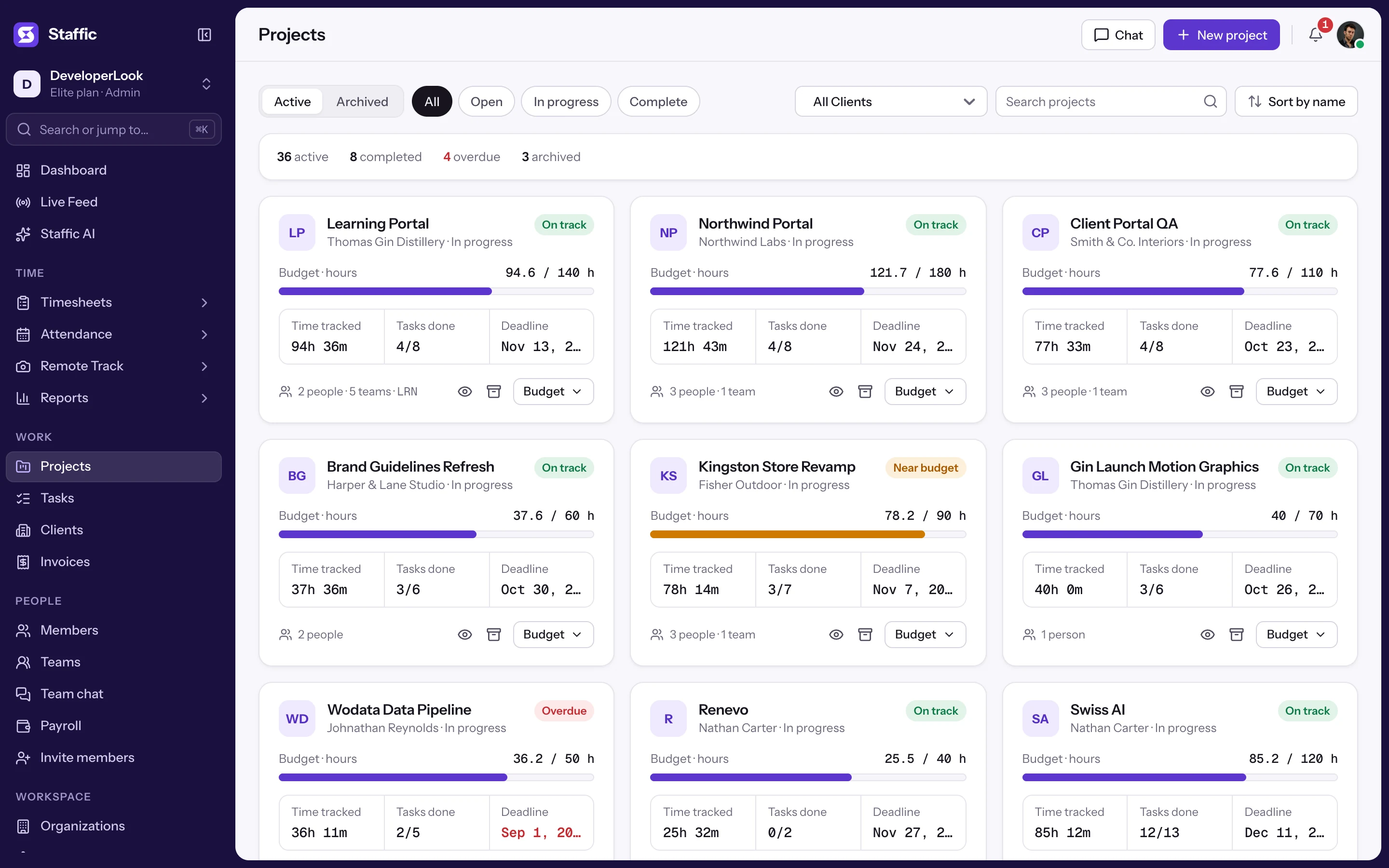
- 1Counts
- 2Active and Archived
- 3Status, client and search filters
- 4New project
- 5A project card
Counts
The line above the projects (1) counts the ones you can see.
- Active
- Projects that aren't archived.
- Completed
- Active projects with the status Complete.
- Overdue
- Active projects whose deadline has passed and whose status isn't Complete.
- Archived
- Projects on the Archived tab.
Filters and buttons
Use the controls above the projects to narrow the list.
- Active / Archived (2)
- Switch between current and archived projects.
- All Clients (3)
- Show one client's projects. Members don't see this filter.
- All, Open, In progress, Complete (3)
- Show every status, or only Open, In progress or Complete projects.
- Search projects by name (3)
- Type part of a name, then press Enter or click the search icon.
- Chat
- Opens Team chat with its team and project channels.
- New project (4)
- Creates a project. Only admins and Project-module roles see this button.
Project cards
Each card (5) is one project, with 10 projects per page.
- Name
- Click it to open the project's details page.
- Code
- Your own short code for the project, shown at the bottom of the card when one is set.
- Client and status
- The client linked to the project, or No client, and the status: Open, In progress or Complete.
- Tasks done
- How many of the project's tasks are completed, for example 4/8.
- Deadline
- The target end date, or None. It turns red, with an Overdue badge, once the date has passed.
- Buttons
- View project details (eye), Archive or Unarchive, and Delete (archived projects only). Budget opens the budget and billing figures on the card.
Create a project
Step 1: Open the form
In Work > Projects, click New project. The New project page opens on the General details section.
Step 2: Fill in General details
Fields marked with a red star are required: the first row (1). The second row (2) and the description (3) are optional.
- Project name (required)
- The name people see in project lists, timesheets and reports.
- Start date (required)
- When the project starts. It defaults to today.
- Status (required)
- Open, In progress or Complete.
- Project code (optional)
- A short code of your own, shown in the list and on the details page.
- Client (optional)
- Link a client from Work > Clients. Elite only; on other plans the field is locked.
- Deadline (optional)
- The target end date. A project past its deadline counts as Overdue until its status is Complete.
- Description (optional)
- Notes about goals or scope, shown on the details page.
Step 3: Click Create project
Click Create project (4). Staffic saves the project and shows more sections: People and permissions, Billing and budget and Tasks. Each section saves on its own, so you can fill them now or later from Edit project.
Tasks appears only while you create the project; later, add tasks on the project's Tasks tab.
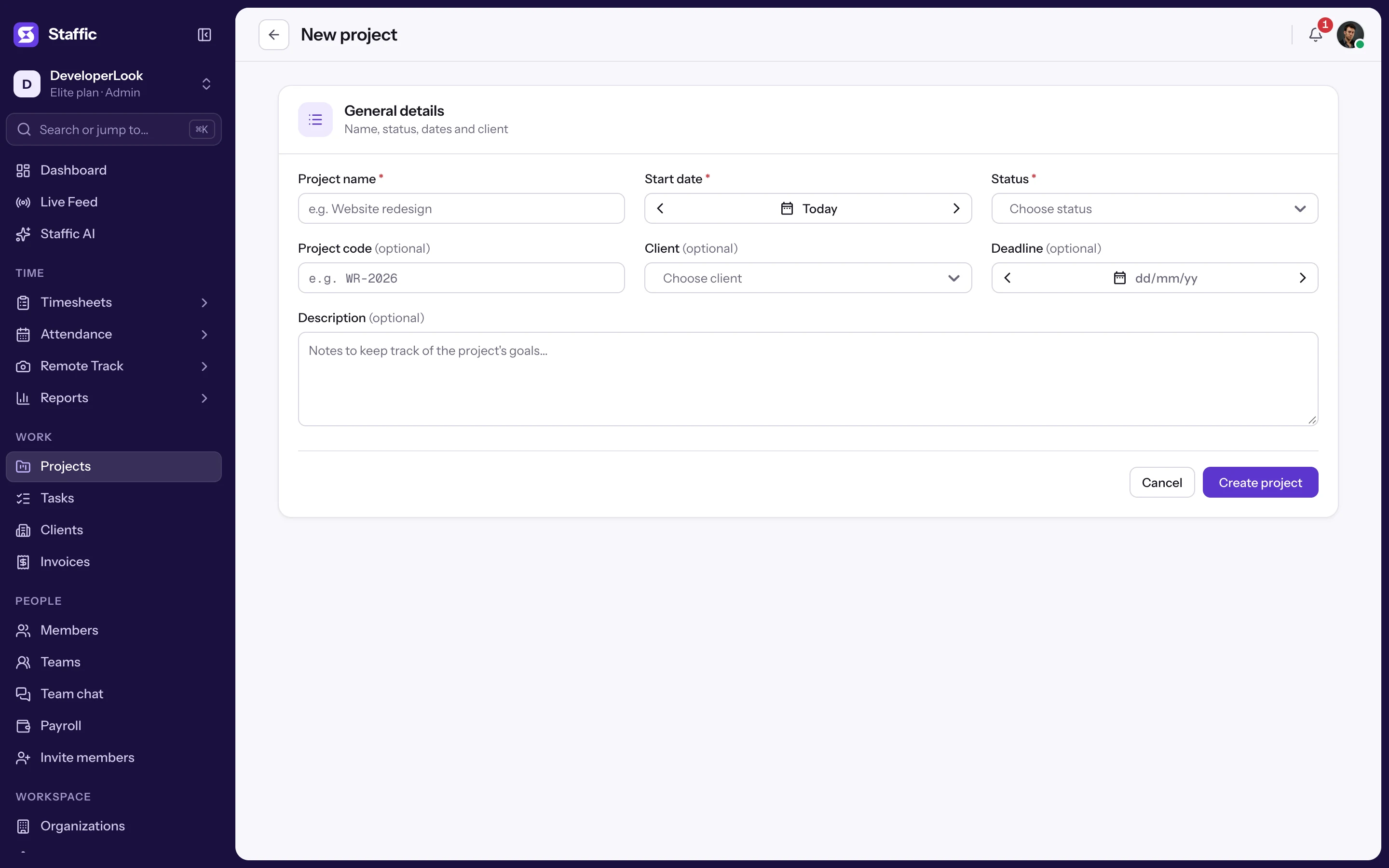
- 1Project name, start date and status (required)
- 2Project code, client and deadline
- 3Description
- 4Create project
Add people and teams
People on a project see it in their project list and can work on its tasks. You add them on the New project or Edit project page.
Step 1: Open People and permissions
The section (1) opens by itself after you create a project. On Edit project, click its header to expand it.
Step 2: Pick people or teams
Click the add-person icon (2) next to Assignees. Search, then click a name under Teams or People. Staffic saves each pick right away and notifies each person you add.
Step 3: Set permissions
Each person and team gets a row with two boxes (3).
- View project details
- Lets them open the project's details page. People get it ticked when you add them; teams don't.
- Manage project
- Makes them project managers, who can also delete any task in the project. Changing the project's details, people, billing and budget stays with admins and Project-module roles.
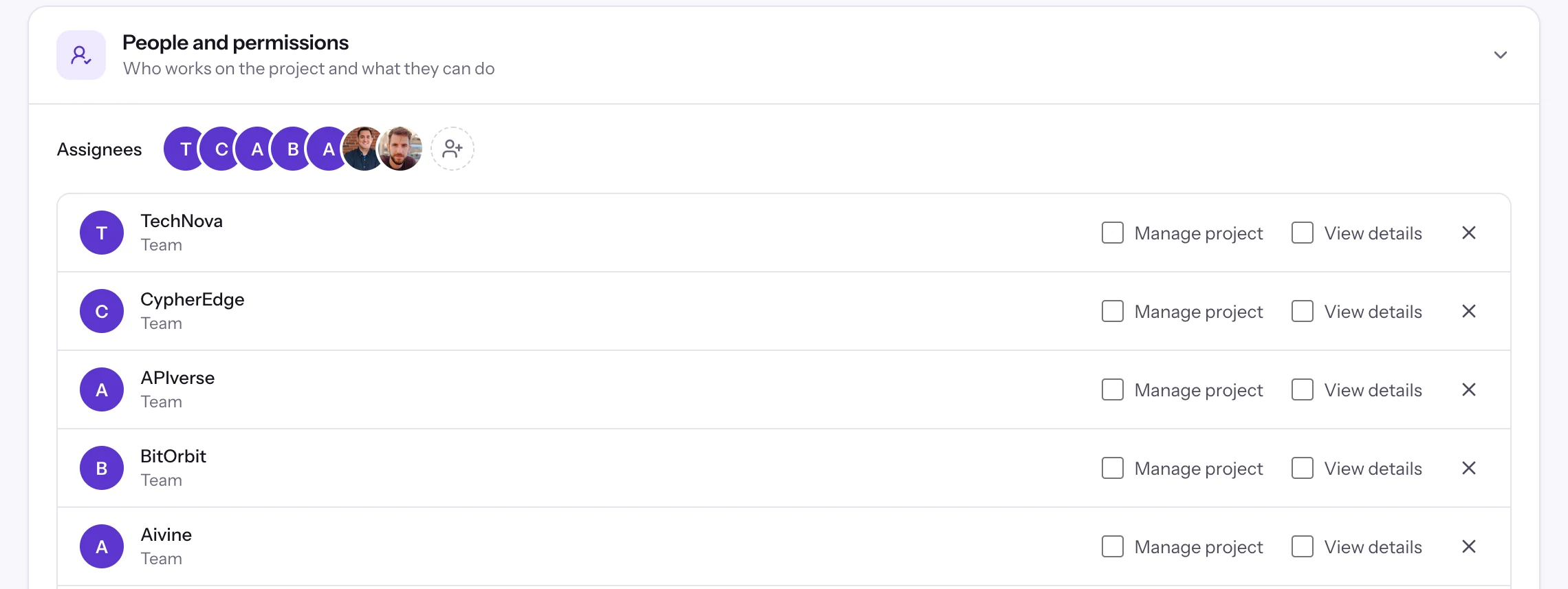
- 1People and permissions
- 2Add people or teams
- 3Manage project and View details
- 4Remove
Step 4: Remove someone if needed
Click the X (4) at the end of their row. A person removed here also comes off the project's tasks, unless they're still on the project through a team.
The desktop app lists only the projects a person was added to directly. A project assigned to their team shows in the web app, but not in the desktop app's project list. Add everyone who tracks time on the project as a person.
You can also add people from the Team area of the project's details page. People added there start with neither box ticked.
Set billing and a budget
Open Billing and budget on the New project or Edit project page. It has two tabs (1).
Project billing
Billing sets what the work is worth to your client. Choose Hourly basis or Fixed fee (2), enter the amounts (3) and click Save (4).
- Project Hourly Rate
- One hourly rate for everyone. Billable amount = all hours tracked on the project times this rate.
- Person Hourly Rate
- A Bill rate ($) for each person on the project, filled in from their bill rate on Member details. Billable amount = each person's hours times their rate.
- Fixed fee
- One Project fee for the whole project, whatever the hours.
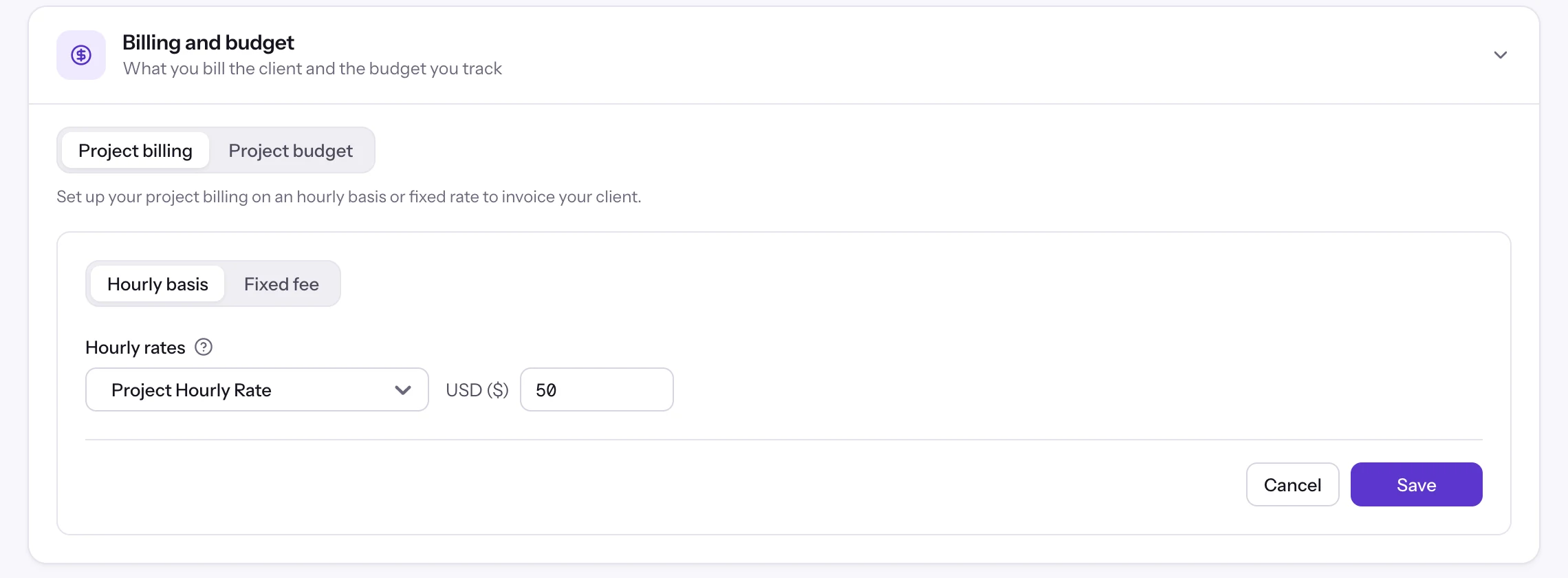
- 1Project billing and Project budget
- 2Hourly basis or Fixed fee
- 3Hourly rate: Project or Person Hourly Rate
- 4Save
Project budget
A budget is a limit to watch. Choose a Budget type, enter the limit, choose when to be alerted and click Save.
- Total Project Hours
- A limit in hours.
- Total Project Cost
- A limit in money. Under Based on, pick Employee Pay Rate (what you pay people) or Employee Bill Rate (what you charge for their time). Then check each person's rate.
- Notify at
- A share of the budget, from 0 to 100%. When the project's hours or cost reach it, Staffic emails a Budget Alert to every admin of the organization, once per threshold. At 0% no alert is sent.
Per-person rates start from each member's Payment settings on Member details. You can change them on the project too.
Budget and billing figures
Click Budget on a project's card, or open the project's details page. The figures cover all time tracked on the project since it started.
- Total budget or Budgeted hours
- The budget you set. Left (money) or Remaining (hours) shows what is still unused, never below zero.
- Spent hours
- All time tracked on the project by everyone, manual time included.
- Spent amount
- Cost budgets only: each person's hours on the project times the rate set for them in the budget.
- Billable amount
- What the work is worth under Project billing: the fixed fee, or hours times the hourly rates.
- Uninvoiced amount
- Billable amount minus the amounts already on invoice lines linked to this project, draft invoices included. Invoiced shows the total of those lines. Only admins and Invoice-module roles see it, on Elite.
A figure shows Not set when it is zero or nothing is configured.
On the details page, the money figures show only to admins and Project-module roles. Other members with View project details see the budget and hours.
Use the project details page
Click a project's name or the eye icon to open Project details. The buttons at the top (1) depend on your rights.
- Project chat
- Opens the project's channel in Team chat. Active projects only.
- Edit details
- A quick form for the name, code, status, start date, deadline and description. Click Save changes.
- Edit project
- The full Edit project page: General details (with Client), People and permissions, and Billing and budget.
- Archive, Unarchive and Delete
- Explained under Archive or delete a project, below.
The budget and billing figures (2) come next. The overview card (3) shows the status, code, start date and deadline, marked (Overdue) once passed. It also shows the Team, the Client, the Description and a count of To do, In progress and Done tasks. Team lists the people added directly, each with a button to message them.
Below it, the Tasks tab shows the project's tasks in the same views as Work > Tasks, with a New task button. Admins and Invoice-module roles on Elite also get an Invoices tab. It lists invoices with a line linked to the project and has a Create Invoice button.
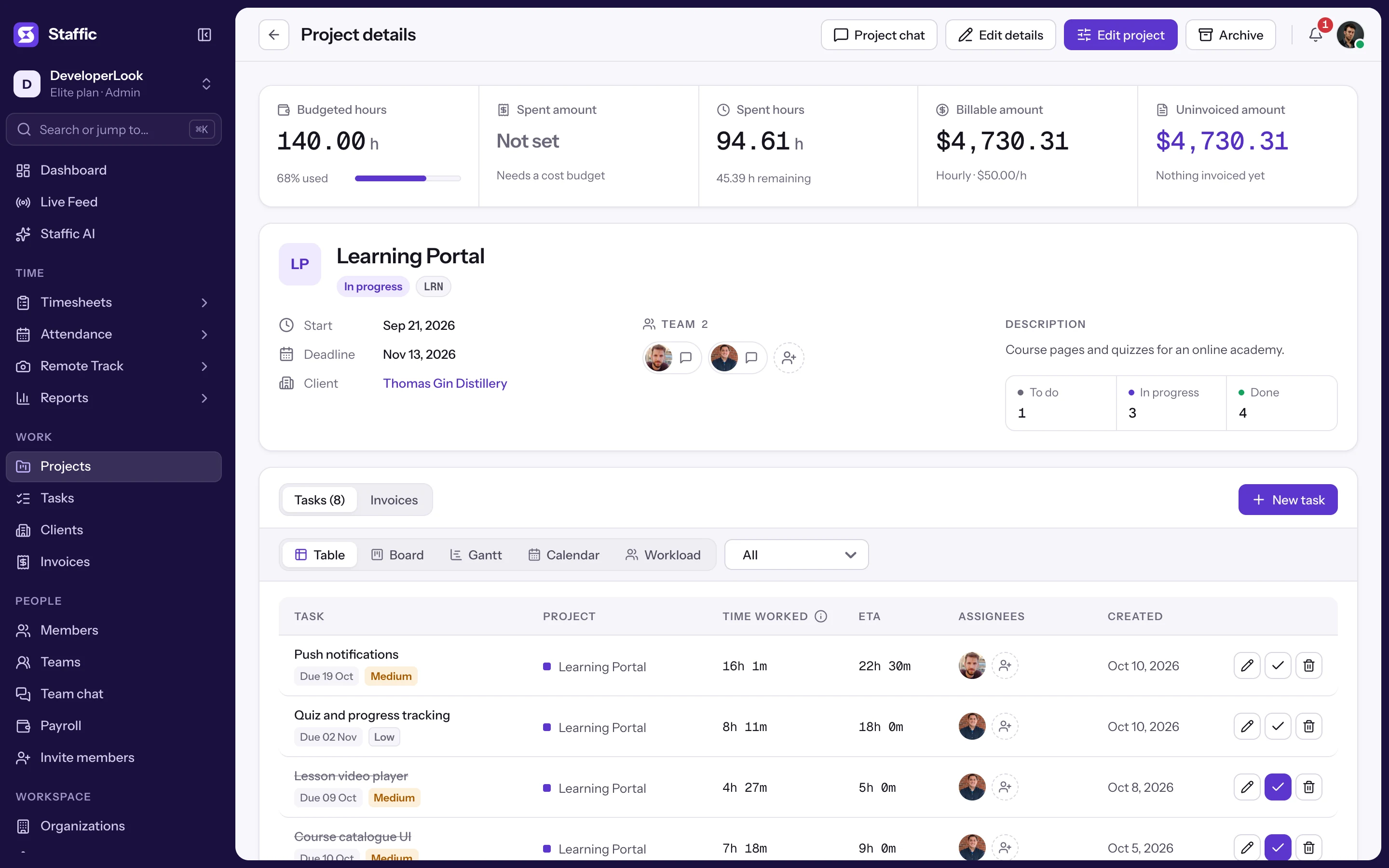
- 1Project chat, Edit details, Edit project and Archive
- 2Budget and billing figures
- 3Overview: status, code, dates, team and client
Edit details and Edit project appear only on active projects. Unarchive a project to change it.
Archive or delete a project
Admins and Project-module roles can archive and delete projects. Archive a project when its work ends: click the archive icon on its card, or Archive on its details page, then confirm with Archive.
- Archived projects
- Move to the Archived tab and keep all their tasks, time, screenshots and invoices. They leave the web app's project pickers, such as the Tasks page filter and invoice lines, and can't be edited.
- Unarchive
- Brings the project back to the Active tab.
- Delete
- Only for archived projects. Click the delete icon (or Delete on the details page), type the project's name to confirm, then click Delete.
Deleting a project can't be undone. Staffic deletes its tasks and their attachments, all time tracked on it, and its screenshots, recordings and work notes. Invoices stay, but their lines lose the link to the project.
What members see
- Project list
- Only the projects they're assigned to, directly or through a team. No client filter and no Budget button.
- Project details
- Opens for projects where they have View project details or Manage project. They see their own tasks there and can add tasks. They see the budget and hours, but not the money figures.
- Desktop app
- Lists only the projects they were added to directly, not those assigned through a team.
Common questions
Why doesn't a project show in a member's desktop app?
The desktop app lists only projects a member was added to directly. Open Edit project > People and permissions and add the member as a person, not only through their team.
How many projects can I have on the Free plan?
As many as you need. No plan limits the number of projects, Free included. Budgets, billing and project managers work on every plan too.
Does archiving a project delete its tracked time?
No. Archiving keeps everything and moves the project to the Archived tab. Only deleting removes the project's tasks, tracked time, screenshots and recordings.
What is the difference between Billable amount and Uninvoiced amount?
Billable amount is what the tracked work is worth under the project's billing. Uninvoiced amount is the part not yet on an invoice line linked to the project, draft invoices included.
Who gets the budget alert email?
Every admin of the organization. Staffic sends it once when the project's hours or cost reach the Notify at share of its budget.
Can a project have more than one client?
No. A project has one client at most. Linking it to another client, from the project or from the client's page, replaces the current one.
Tips
- Add a deadline so late projects show in the overdue count.
- Set the status to Complete when the work ends, then archive the project to keep the Active tab short.
- Add each person who tracks time on a project directly, so it appears in their desktop app.
- Set Notify at below 100% so admins hear about a budget before it runs out.