


Admin Settings
How to Use General Settings
AdminGeneral Settings holds your organization's work rules for Staffic AI and your AI token balance. Admins set the rules once and buy more tokens here when needed.
- Where
- Admin > Settings > General Settings
- Who
- Admins only
- Plan
- All plans. Staffic AI, which uses these settings and tokens, needs Elite.
The page has two parts. Organization Work Settings, on the left, tells Staffic AI how your organization works. Token Usage, on the right, shows your AI token balance and lets you buy more.
Staffic AI is the assistant that answers questions about your team's time and work. It is the only part of Staffic that reads these work rules. Timesheets, Clock In/Out and reports don't change when you edit them.
Your organization's name, time zone and currency aren't here. Change them in Admin > Organizations with the edit (pencil) button.
Open General Settings
Step 1: Open Settings
In the sidebar, under Admin, click Settings.
Step 2: Open General Settings
Under Management, click General Settings.
Set your work rules
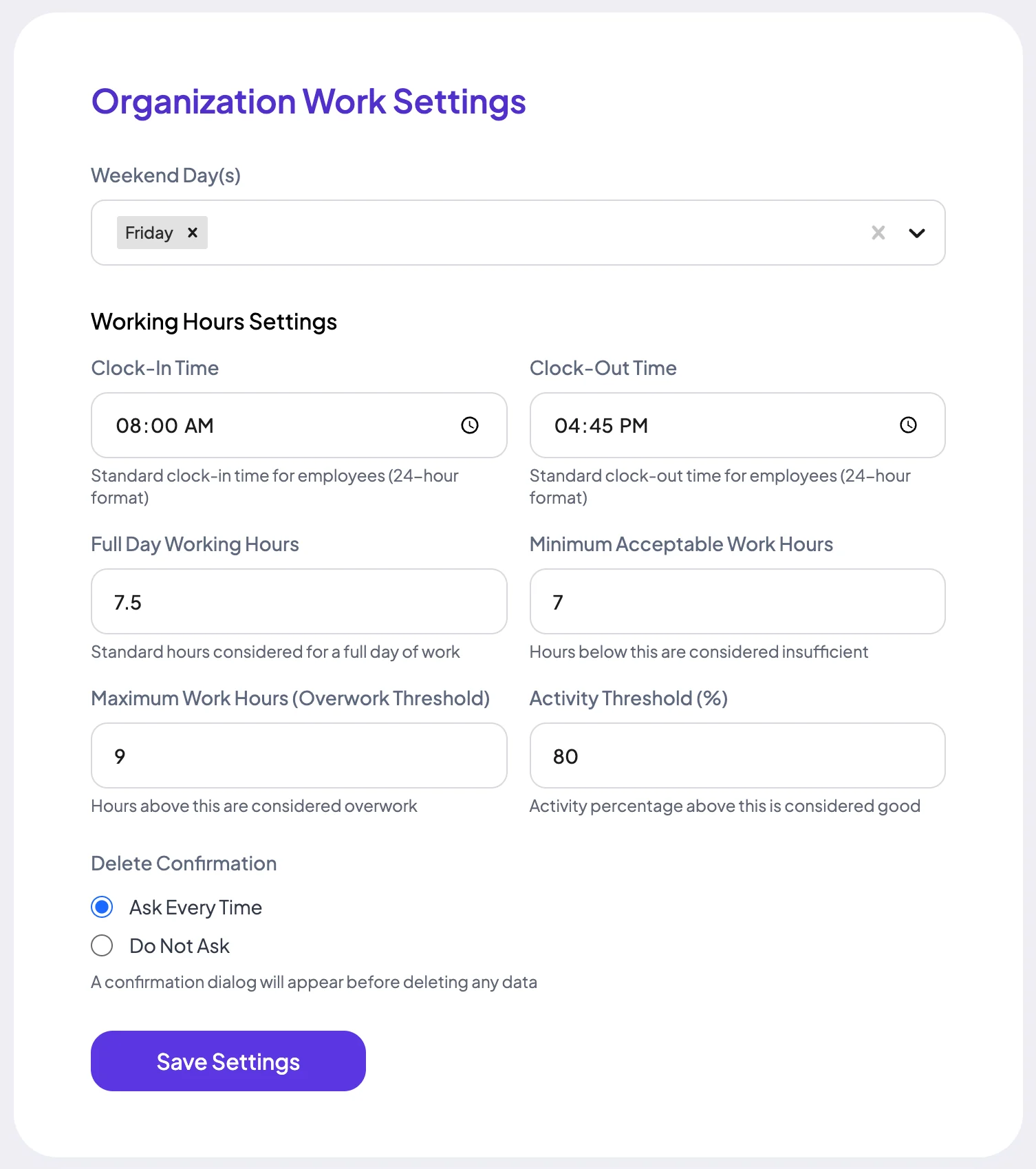
Fill in Organization Work Settings, then click Save Settings. The message Settings saved successfully confirms it.
- Weekend Day(s)
- The days your organization doesn't work. Pick one or more days from the list. Friday is picked until you change it.
- Clock-In Time
- The usual start of the working day.
- Clock-Out Time
- The usual end of the working day.
- Full Day Working Hours
- The hours that make a full day of work.
- Minimum Acceptable Work Hours
- Fewer hours than this count as too few.
- Maximum Work Hours (Overwork Threshold)
- More hours than this count as overwork.
- Activity Threshold (%)
- Activity at or above this percentage counts as good. Below it, Staffic AI treats activity as low.
- Delete Confirmation
- Ask Every Time is the default. Staffic AI then asks you to confirm before it deletes a task, project or team, or removes someone from a team. Do Not Ask skips that question.
Click Save Settings once, even if the form already looks right. Until you save, Staffic AI uses its own built-in values, which can differ from the ones on the form.
Staffic AI uses these rules when it judges hours, activity and clock-in times in its answers. It always asks before payments, invitations and client changes, whatever Delete Confirmation says.
With Do Not Ask, Staffic AI deletes as soon as you ask it to. Deleting a project also deletes its tasks, tracked sessions and notes.
Check your AI tokens
Staffic AI uses tokens. Each question uses 1 token, and you get it back if the answer fails. Your plan adds tokens every month, and you can buy more.
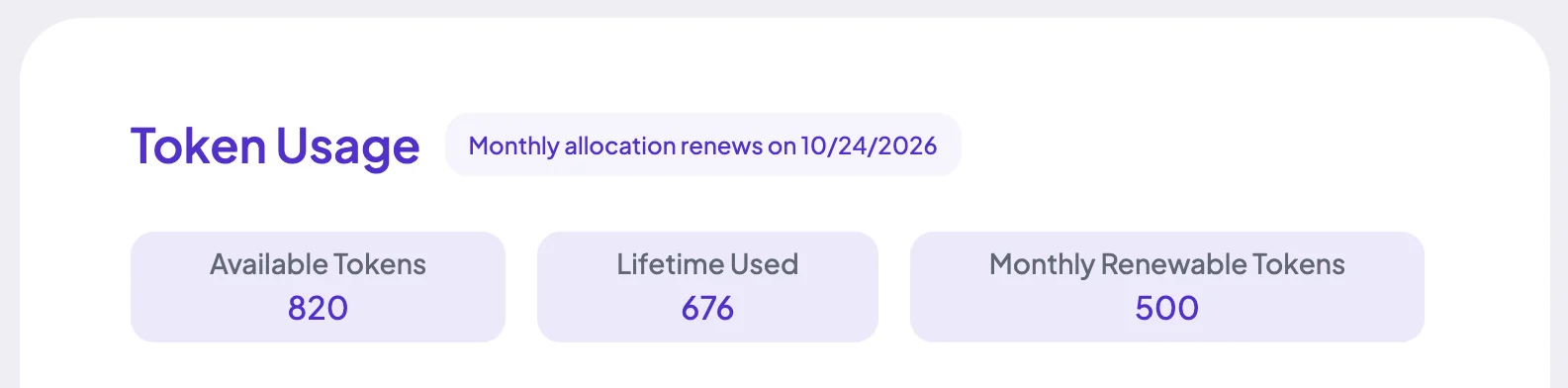
- Available Tokens
- Tokens you can use now: what's left of this month's tokens plus any tokens you bought.
- Lifetime Used
- All tokens your organization has used so far.
- Monthly Renewable Tokens
- Tokens your plan adds each month: 500 on Elite.
- Monthly allocation renews on
- The date your monthly tokens reset.
Staffic AI uses monthly tokens first. They reset each month. Tokens you buy carry over to the next month. The MCP server doesn't use tokens.
Buy more tokens
Step 1: Pick an amount
Under Purchase Tokens, click 100 Tokens, 200 Tokens or 300 Tokens. Or type a number in Custom Token Amount. The page shows the price before you buy.
Step 2: Click Buy Now
Click Buy Now. A Stripe checkout page opens. Pay by card.
Step 3: Return to Staffic
After you pay, Staffic brings you back to General Settings and shows Tokens purchased successfully!. If you leave the checkout without paying, you return to General Settings and see Payment was not successful.
The smallest purchase is 100 tokens. Tokens are a one-time purchase, not a subscription. Staffic AI opens only on Elite, so buy tokens only if your organization is on Elite.
Common questions
Do these work rules change timesheets or attendance?
No. Only Staffic AI reads them. Timesheets, Clock In/Out and reports show tracked time as it is, whatever you set here.
How many AI tokens do we get each month?
500 a month on Elite. Each Staffic AI question uses 1 token, and a failed answer gives it back. Monthly tokens reset each month, while tokens you buy carry over.
What is the smallest token purchase?
100 tokens. Pick the 100, 200 or 300 token option, or type a larger amount in Custom Token Amount. The page shows the price before you pay.
Where do I set yearly leave days?
In Settings > Activity. Global Leave sets the default days per year for everyone, and Individual Leave in the member list sets them for one member.
Where do I change the organization's time zone?
In Admin > Organizations. Click the edit (pencil) button on the organization and pick a time zone in the Update Organization form.
Tips
- Set the work rules before your team starts asking Staffic AI about hours and activity.
- Keep Delete Confirmation on Ask Every Time. It gives you one more check before Staffic AI deletes anything.