




Workspace Integrations
How to connect Slack
AdminPost a daily team summary, new leave requests and budget alerts to a Slack channel, send personal notifications as direct messages and answer the /staffic command.
- Where
- Workspace > Settings > Integrations > Slack
- Who
- Admins, allowed to add apps to the Slack workspace.
- Plan
- All plans, including Free.
Slack connects one Slack workspace to your organization. A new connection posts nothing until you pick a channel.
Connect Slack
Step 1: Click Connect
In Settings > Integrations, click Connect on the Slack card, then allow the Staffic app in your Slack workspace.
Step 2: Pick a channel
Choose a public Channel (1); Staffic can post there without being invited. Click Send test message (2) to check. The four updates (3) start on, and the note at the bottom (4) explains /staffic.
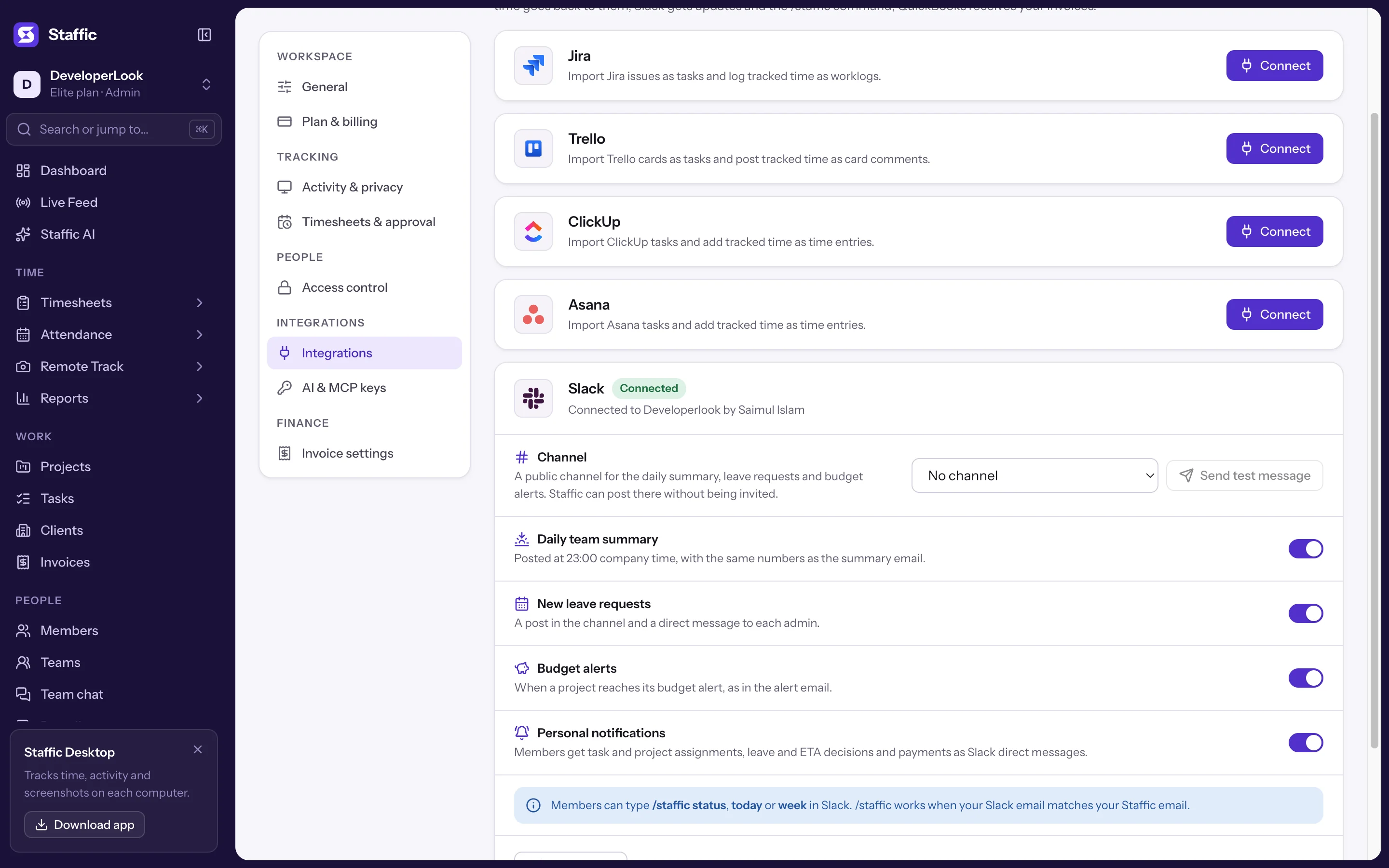
- 1Channel
- 2Send test message
- 3Updates
- 4/staffic
- Daily team summary
- Posted at 23:00 company time, with the same numbers as the summary email: members worked, hours worked, average activity and up to 5 top members and projects. Days with no tracked time are skipped.
- New leave requests
- A post in the channel and a direct message to each admin, with a Review in Staffic button.
- Budget alerts
- When a project reaches its budget alert, on hours or cost, as in the alert email. One post per alert.
- Personal notifications
- Members get task and project assignments, leave and ETA decisions and payments as Slack direct messages.
What it looks like in Slack
Channel posts
The test message (1), the daily team summary (2) and a leave request (3) with its Review in Staffic button (4).
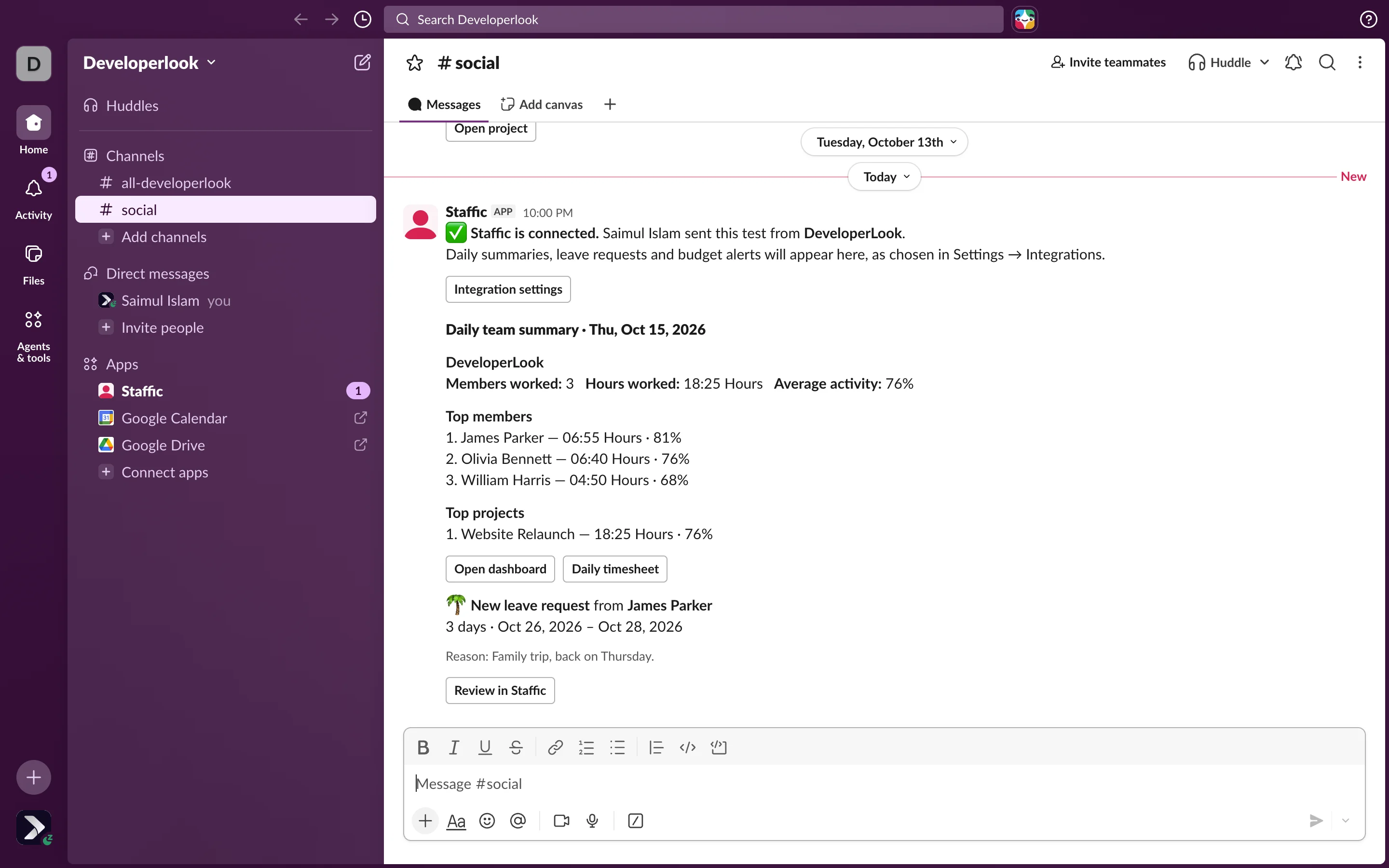
- 1Test message
- 2Daily team summary
- 3Leave request
- 4Review in Staffic
Direct messages
Admins also get the leave request as a direct message from the Staffic app (1).

- 1Review in Staffic
The /staffic command
Type the command in any channel or message. Only you see the reply, and Staffic finds you by matching your Slack email to your Staffic email.
| Command | Reply |
|---|---|
| /staffic or /staffic status | Whether you're tracking now, and on which project and task, plus your time today. |
| /staffic today | Your time today in your organization, by project. |
| /staffic week | Your time this week, from Monday, in your organization's time zone. |
| /staffic help | The list of commands. |
If your Slack email and Staffic email differ, /staffic replies that it couldn't find your Staffic account, and you get no direct messages. Ask an admin to check both.
Disconnect Slack
Click **Disconnect** in the Slack panel and confirm. Staffic stops posting, the /staffic command stops answering and the Staffic app is removed from your workspace.
Common questions
Can Staffic post to a private channel?
No. The channel picker lists public channels, where Staffic can post without being invited.
Can members reply to the Staffic app?
No. The Staffic app sends messages but doesn't take replies. Use the buttons in each message to open Staffic.
Why didn't I get the daily summary?
It's skipped on days with no tracked time, and only posts when Daily team summary is on and a channel is chosen.
Are there approve and reject buttons in Slack?
No. Leave requests link to Staffic with Review in Staffic, where you approve or reject them.
Tips
- Send a test message after picking a channel, so you know the posts will arrive.